
Administering a workspace
Ce contenu n’est pas encore disponible dans votre langue.
In short
Section titled “In short”An administrator runs the workspace: they add the people who use SpeculaPro, decide which roles each person holds, help people who are locked out or have lost their phone, create the API keys your other systems use to send data and ask for decisions, connect webhooks that tell your other systems what happened, and set workspace-wide controls such as two-factor sign-in, case deadlines and the real-time decision policy.
An administrator does not investigate. By design, the built-in Administrator role can’t see alerts, cases or customer details. IT administration and compliance work are separate jobs, so the person who controls accounts can’t also read or bury an investigation. See Roles and permissions.
What an administrator can and can’t do
Section titled “What an administrator can and can’t do”| An administrator can | An administrator can’t |
|---|---|
| Add people and give them roles, and create custom roles | See alerts, cases, customers or transactions |
| Change other people’s roles | Change their own roles |
| Disable and re-enable accounts | Disable their own account, or add permissions to a role they hold |
| Reset someone’s two-factor or password | Approve rules, case closures, suppressions or reports |
| Approve another administrator’s change requests, and choose which changes need approval | Approve their own change requests |
| Create and revoke API keys, set up webhooks, data sources and single sign-on, and install the licence | Read someone’s password or authenticator secret (SpeculaPro never stores them in a readable form) |
| Change workspace settings: name, time zone, two-factor, closure approvals, case deadlines, decision policy, teams and escalation policies, and the reporting settings | Change the workspace’s country or base currency |
| Read the audit log and see the rule library | Leave the workspace without an administrator |
These limits apply to the built-in Administrator role. Someone who holds more than one role gets the permissions of all of them, so be careful about giving an administrator a compliance role as well. See Roles.
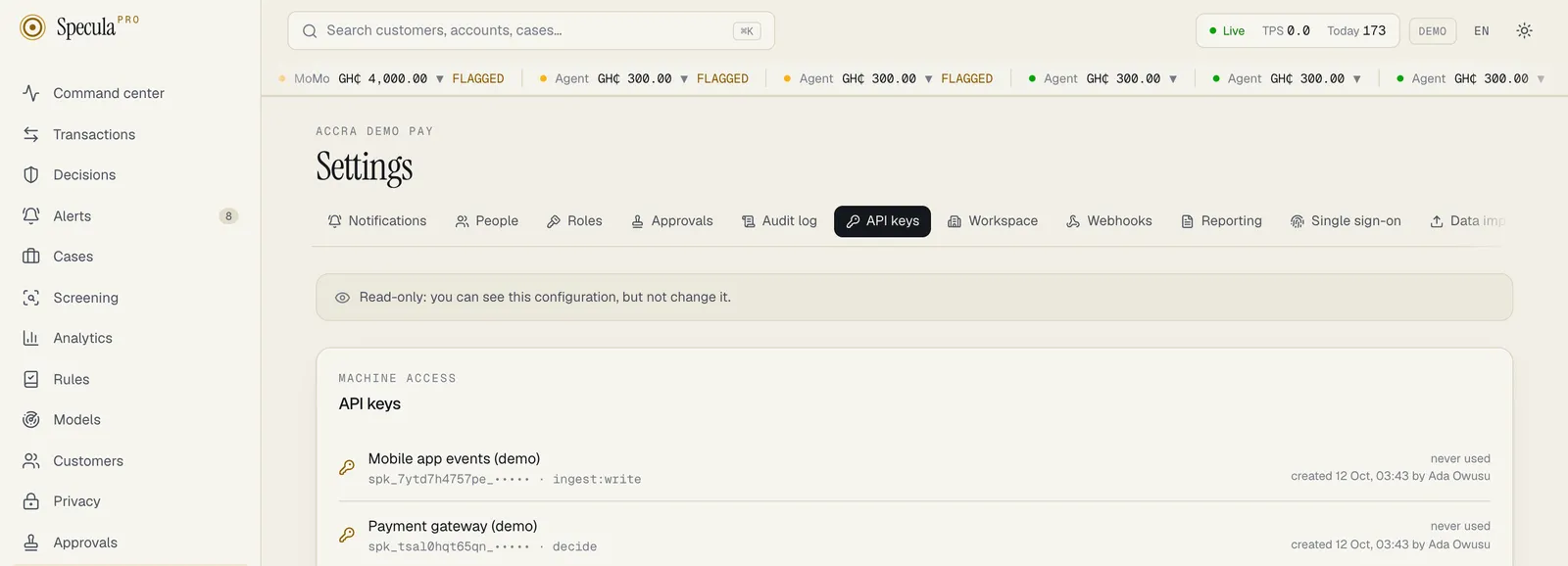
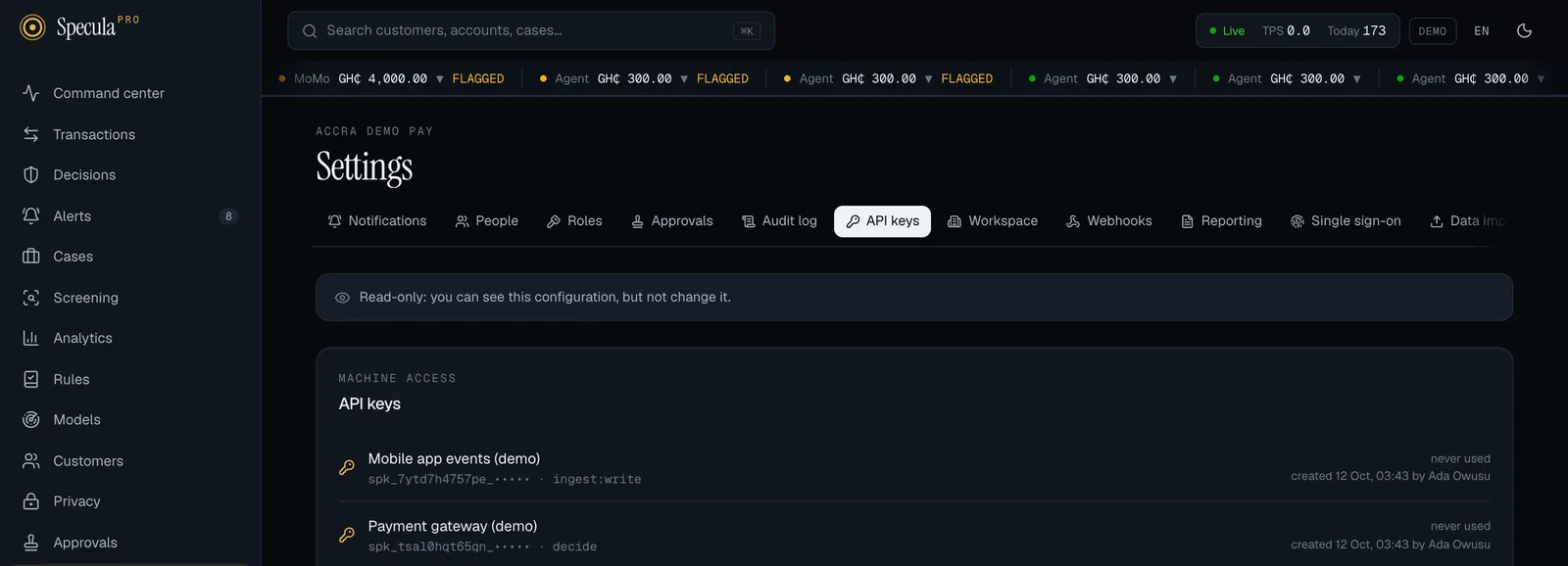
Where to find it: Settings
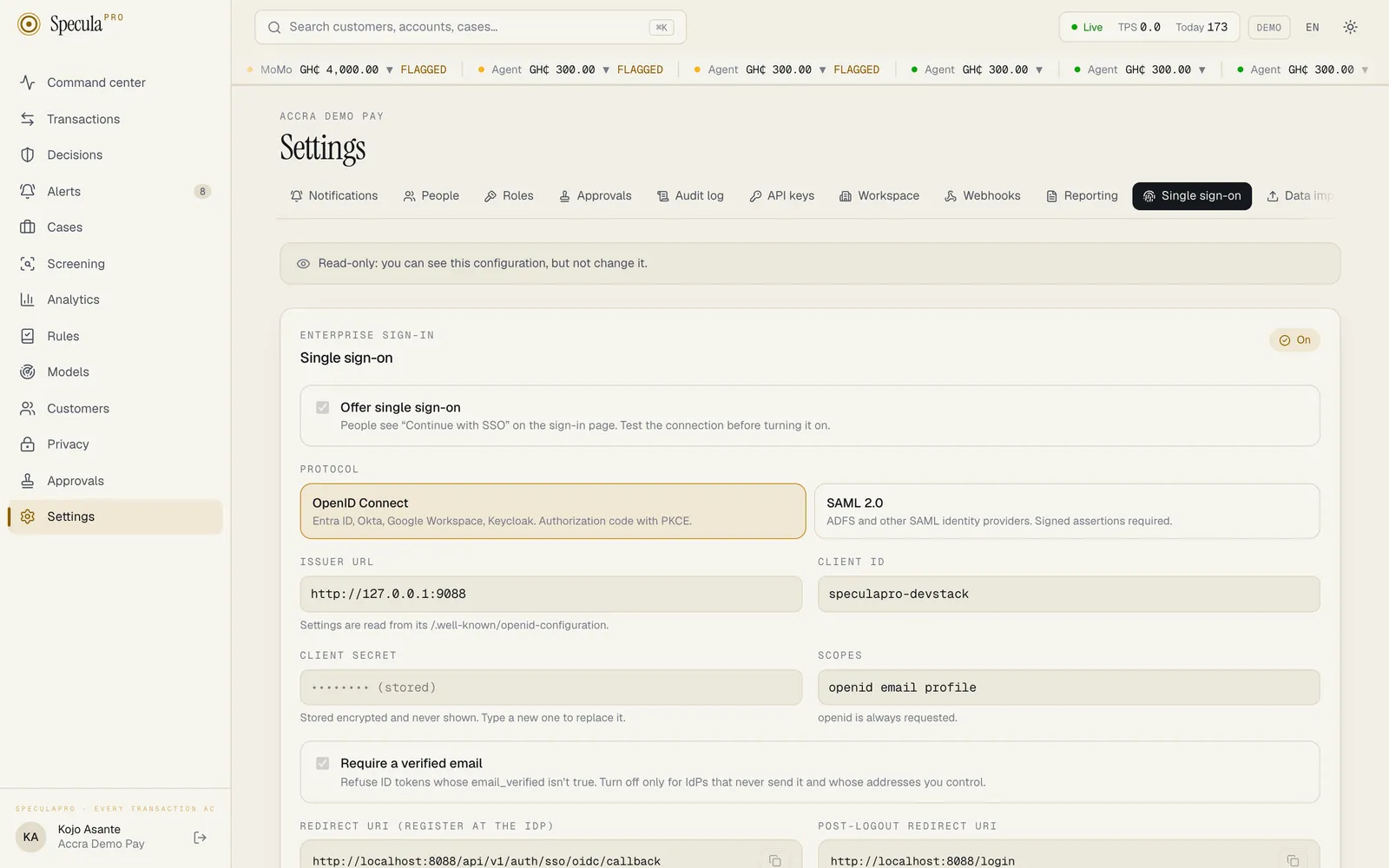
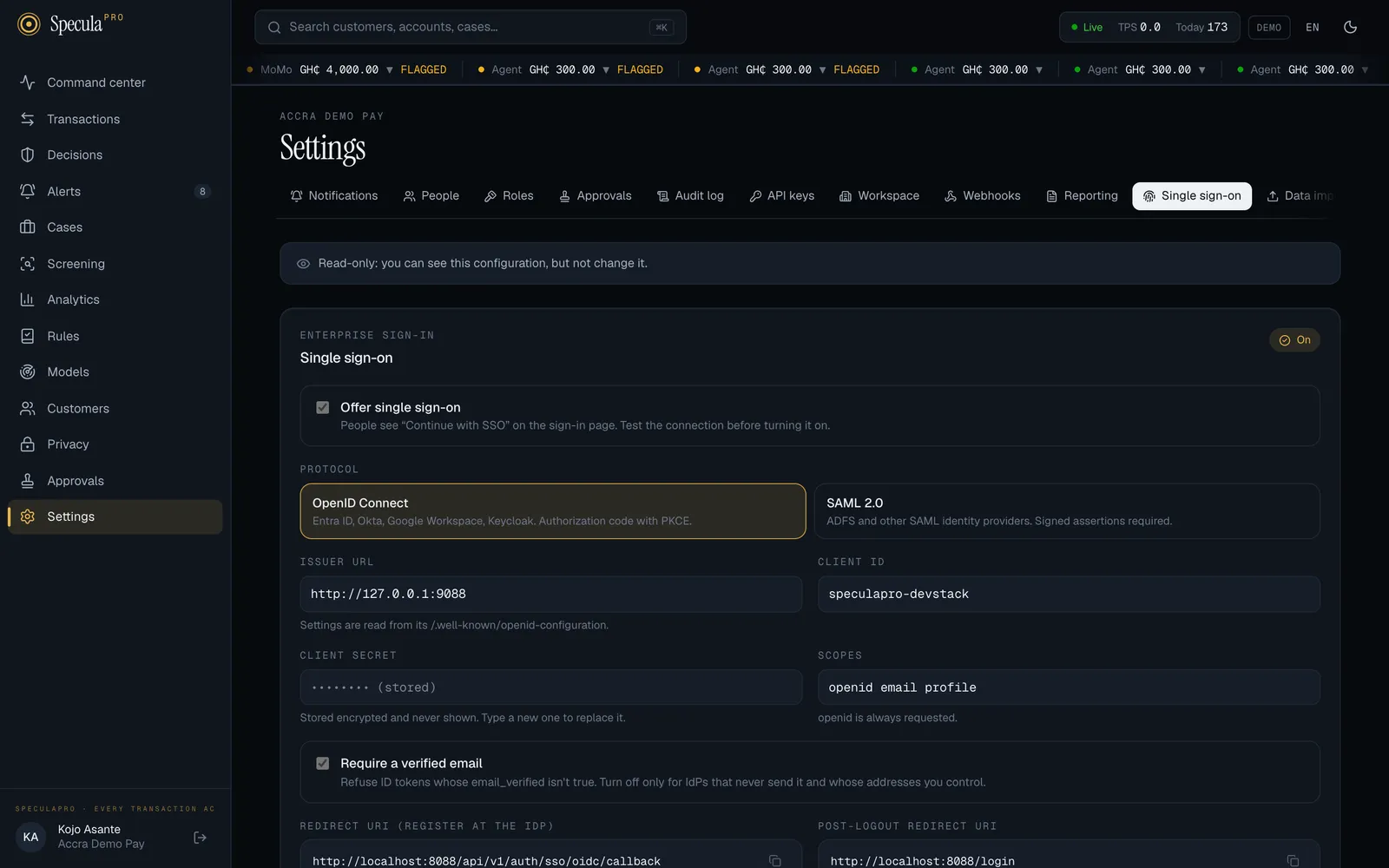
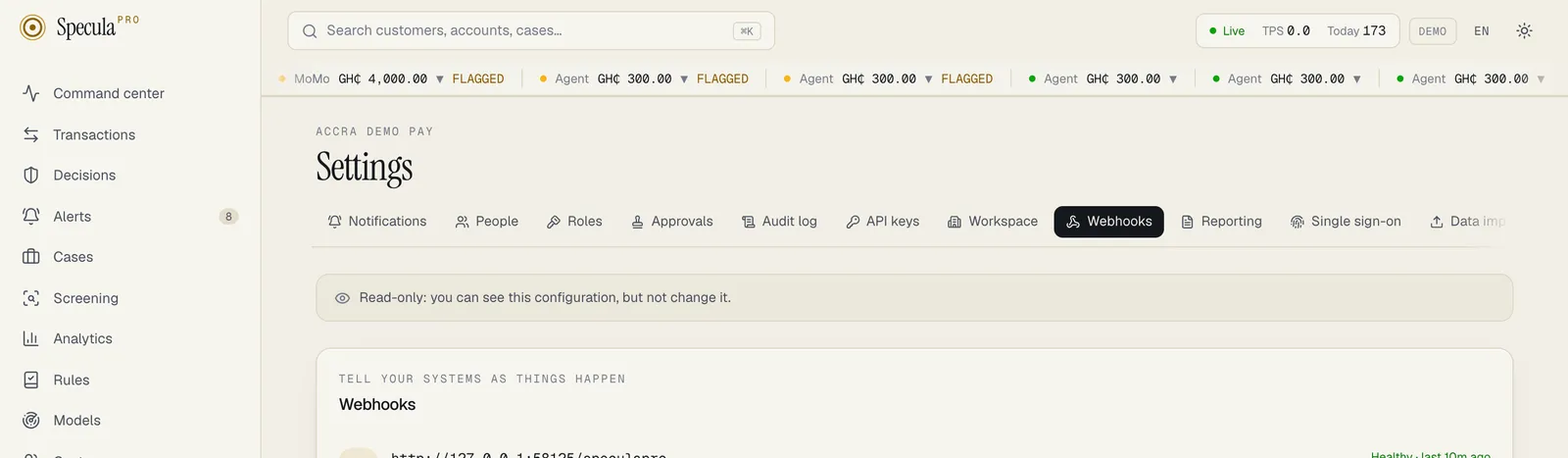
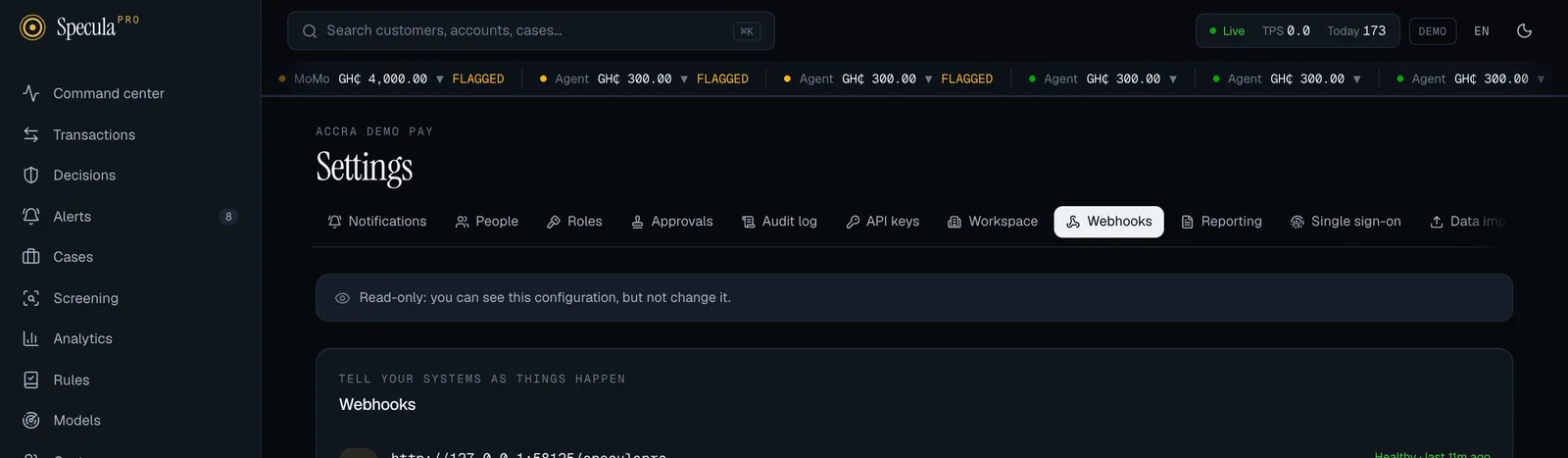
Section titled “Where to find it: Settings”Select Settings in the left-hand menu. The Settings screen has up to thirteen tabs, depending on your permissions. They appear in this order:
| Tab | What it is for | Needs | Guide |
|---|---|---|---|
| Notifications | Your own email and text-message alerts. Everyone has this tab, and it opens first | Nothing extra | |
| Sign-in | Your own sign-in methods: the authenticator app, your recovery codes and your passkeys. Everyone has this tab | Nothing extra | Sign-in and MFA |
| People | Everyone in the workspace, their roles and their sign-in status | users.manage, or settings.view to read |
Managing people |
| Roles | The built-in and custom roles and their permissions; create, clone, change or delete custom roles | users.manage, or settings.view to read |
Custom roles |
| Approvals | Which changes need a second person’s approval | settings.manage; or, to read it, settings.view or any approval permission (so the MLRO and other checkers can see the policy they approve under) |
Approvals |
| Audit log | Every change, approval, sign-in and access to personal data, newest first | audit.view |
Audit log |
| API keys | Keys for your core banking, wallet and payment systems | api_keys.manage, or settings.view to read |
Managing API keys |
| Workspace | The institution’s name, time zone and default language; two-factor sign-in; second approvers for closures; case deadlines; the decision policy | settings.manage, or settings.view to read |
Workspace settings |
| Escalation | Teams (people who share a case queue) and escalation policies (where each kind of case starts, which team takes each level, how long each level has) | settings.manage, or settings.view to read |
Escalation policies, Teams |
| AI assistant | Whether the assistant that advises on alerts is on, whose API key it uses, the model, automatic review, how often people agreed with it and this month’s usage | settings.manage, or settings.view to read |
AI assistant |
| Webhooks | Endpoints in your other systems that SpeculaPro notifies about blocked and held payments, new alerts and cases | webhooks.manage, or settings.view to read |
Webhooks |
| Reporting | The reporting entity, report codes, indicators, lookup codes and cash transaction reports | settings.manage or reports.approve, or settings.view to read |
Reporting settings |
| Single sign-on | Connect your identity provider (OIDC or SAML), claim email domains, map groups to roles, require SSO and choose break-glass administrators, and set up SCIM provisioning | sso.manage, or settings.view to read |
Single sign-on |
| Data import | Load customers and transactions from a CSV or JSON file, for a pilot or to backfill history | settings.manage, or settings.view to read |
Importing a file |
| License | The installation’s licence, its fingerprint and the usage report (self-hosted) | settings.manage, or settings.view to read |
Licence |
| Data sources | Kafka topics, SFTP / S3 file drops and change data capture sources that SpeculaPro collects from | datasources.manage, or settings.view to read |
Data sources |
| Screening | Which sanctions lists your workspace screens against, the match threshold, list versions and re-screens | screening.view; screening.manage to change, or settings.view to read |
Screening settings |
| Support access | On the hosted service: requests from SpeculaPro’s support staff to look inside the workspace, the access running now, the history and the policy | support_access.manage, or settings.manage or settings.view to read |
Support access |
Each tab has its own address, so you can bookmark or share it: /settings#notifications, /settings#security,
/settings#people, /settings#roles, /settings#approvals, /settings#audit, /settings#keys, /settings#workspace, /settings#escalation, /settings#assistant, /settings#webhooks, /settings#reporting,
/settings#sso, /settings#import, /settings#license, /settings#datasources and /settings#screening. Opening such an address goes straight
to that tab; choosing a tab on the screen doesn’t change the address. People without any of the permissions above see only Notifications and Sign-in.
Your home screen: “Your workspace”
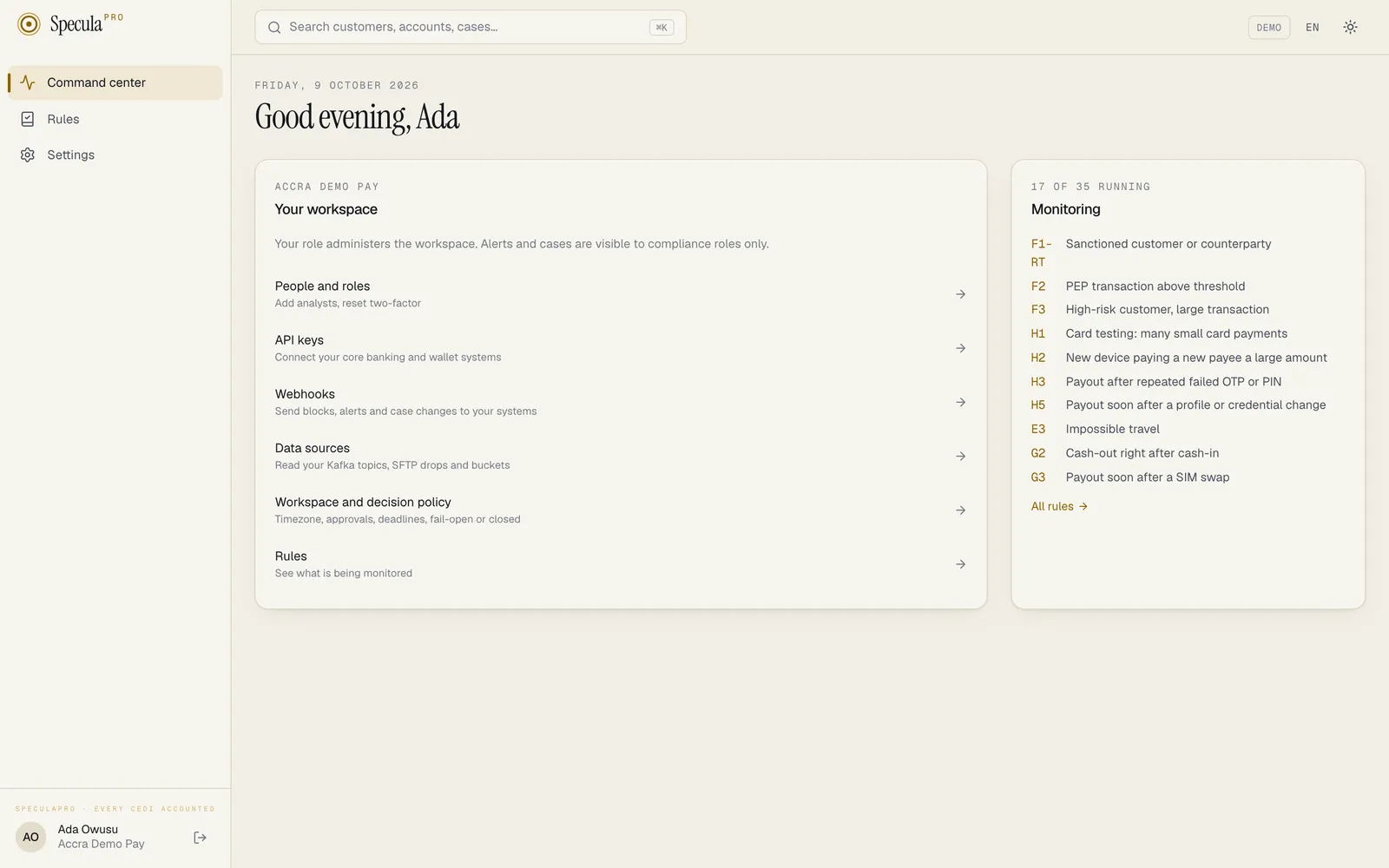
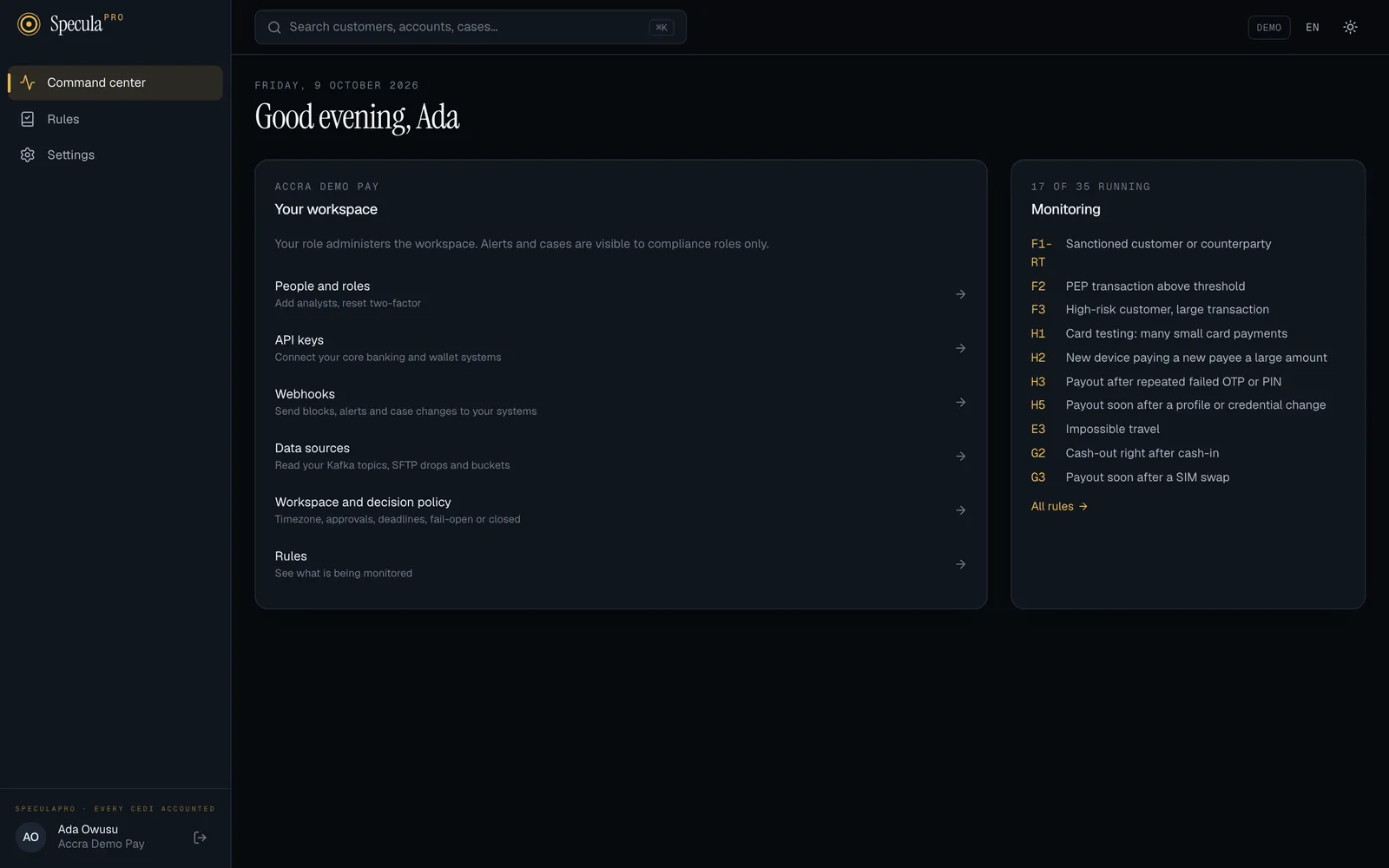
Section titled “Your home screen: “Your workspace””When an administrator signs in, the Command center shows a Your workspace panel where compliance roles see their alert counts. It says Your role administers the workspace. Alerts and cases are visible to compliance roles only, and offers shortcuts:
| Shortcut | Shown when you have | Takes you to |
|---|---|---|
| People and roles · Add analysts, reset two-factor | users.manage |
Settings |
| API keys · Connect your core banking and wallet systems | api_keys.manage |
Settings |
| Webhooks · Send blocks, alerts and case changes to your systems | webhooks.manage |
Settings |
| Data sources · Read your Kafka topics, SFTP drops and buckets | datasources.manage |
Settings |
| Workspace and decision policy · Timezone, approvals, deadlines, fail-open or closed | settings.manage |
Settings |
| Rules · See what is being monitored | rules.view |
The rule library, read-only |
Each Settings shortcut opens the matching tab: People, API keys, Webhooks, Data sources or Workspace.
On a self-hosted installation, administrators also see a banner when the licence is close to expiry or has lapsed. See Licence.
Beside it, a Monitoring panel lists the rules that are running (library key and name), with a count such as 17 of 35 running and an All rules link. The money figures, charts, queues and latest transactions are not shown to administrators at all: they come from your customers’ activity, which is for compliance roles. See Command center.
What you see in the menu
Section titled “What you see in the menu”The left-hand menu, the phone tab bar and the command palette (⌘K or Ctrl+K) only show the sections your roles can open. An administrator with the default role sees Command center, Rules, Approvals and Settings.
| Menu item | Shown to people with | Default roles that see it |
|---|---|---|
| Command center | Everyone | All |
| Transactions | entities.view |
Analyst, Senior analyst, L2 investigator, MLRO, Rule author, Auditor, Data protection officer |
| Decisions | alerts.view |
Analyst, Senior analyst, L2 investigator, MLRO, Rule author, Rule approver, Auditor |
| Alerts | alerts.view |
Analyst, Senior analyst, L2 investigator, MLRO, Rule author, Rule approver, Auditor |
| Cases | cases.view |
Analyst, Senior analyst, L2 investigator, MLRO, Auditor |
| Rules | rules.view |
Every built-in role except the Data protection officer |
| Customers | entities.view |
Analyst, Senior analyst, L2 investigator, MLRO, Rule author, Auditor, Data protection officer |
| Reports | entities.view_pii, and reports.draft, reports.approve, reports.submit or reports.view |
Senior analyst, L2 investigator, MLRO |
| Privacy | privacy.view, privacy.manage or dsr.handle. Opens the first Privacy page your role can see |
MLRO, Auditor, Data protection officer |
| Approvals | Everyone. A count shows how many change requests wait for you | All |
| Settings | Everyone (everyone has the Notifications tab; the other tabs need the permissions above) | All |
On a phone, the bottom tab bar shows the first five items from this list that you can open.