
Workspaces in the provider console
Ce contenu n’est pas encore disponible dans votre langue.
In short
Section titled “In short”The Workspaces page lists every institution in this region. You can search it, filter it by status and plan, create a workspace, and open one to see its overview, its health in numbers and what it used each month. None of this shows what the workspace holds.
The list
Section titled “The list”| Column | What it shows |
|---|---|
| Workspace | Name and slug. A scheduled deletion shows as Deletion and its date |
| Status | Active, Suspended or Closed (closed by a move to another region) |
| Plan | The plan’s name, Over limit when the workspace is over what was agreed, and AI calls requested when its administrators have asked for more AI assistant calls this month and nobody has answered (a request from an earlier month has expired and isn’t counted). See Adding calls for a month |
| Users | People who can sign in (active and invited), with the share of the agreed number when one was agreed |
| Last activity | When someone last signed in, or Never |
| Created | When the workspace was created |
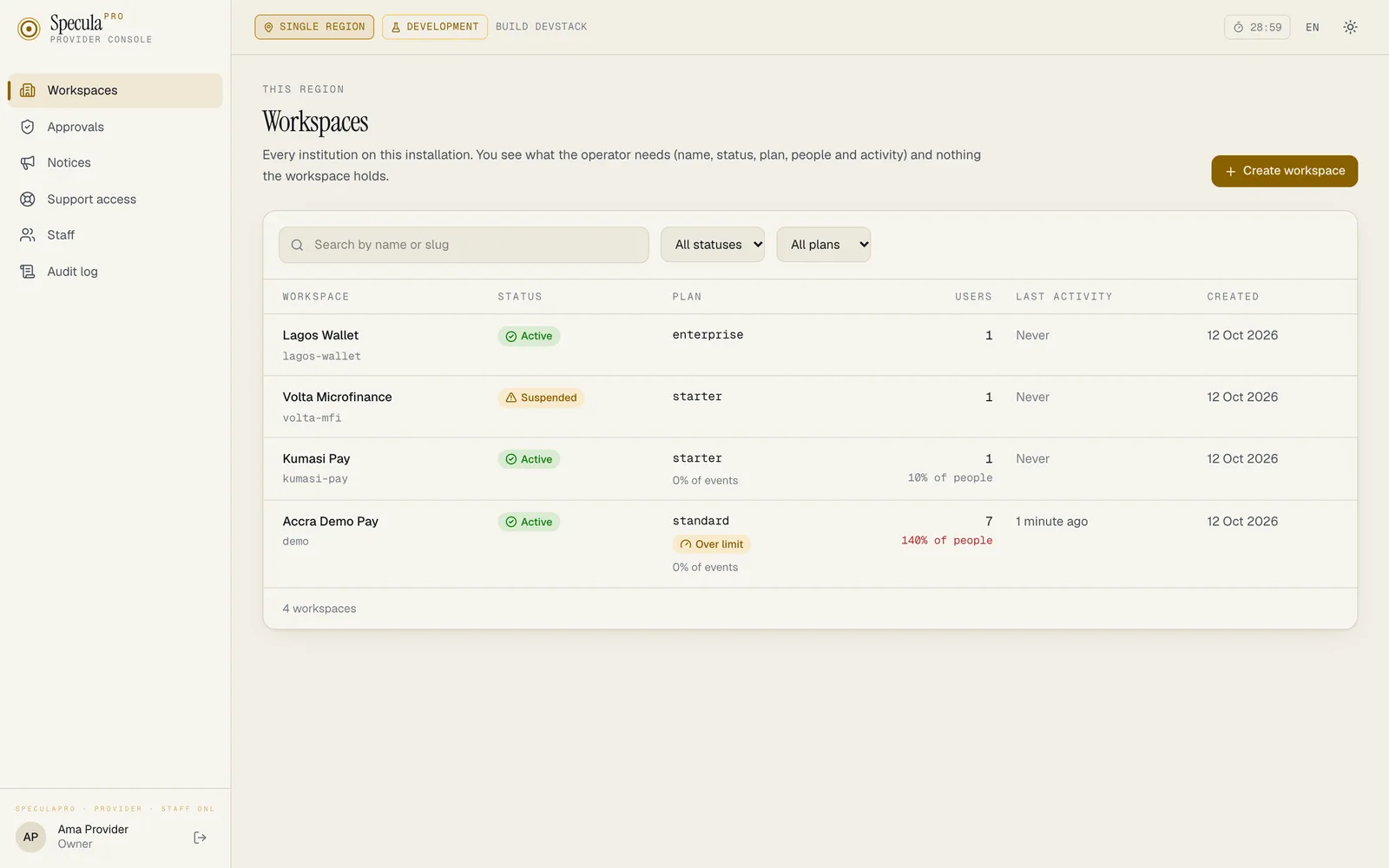
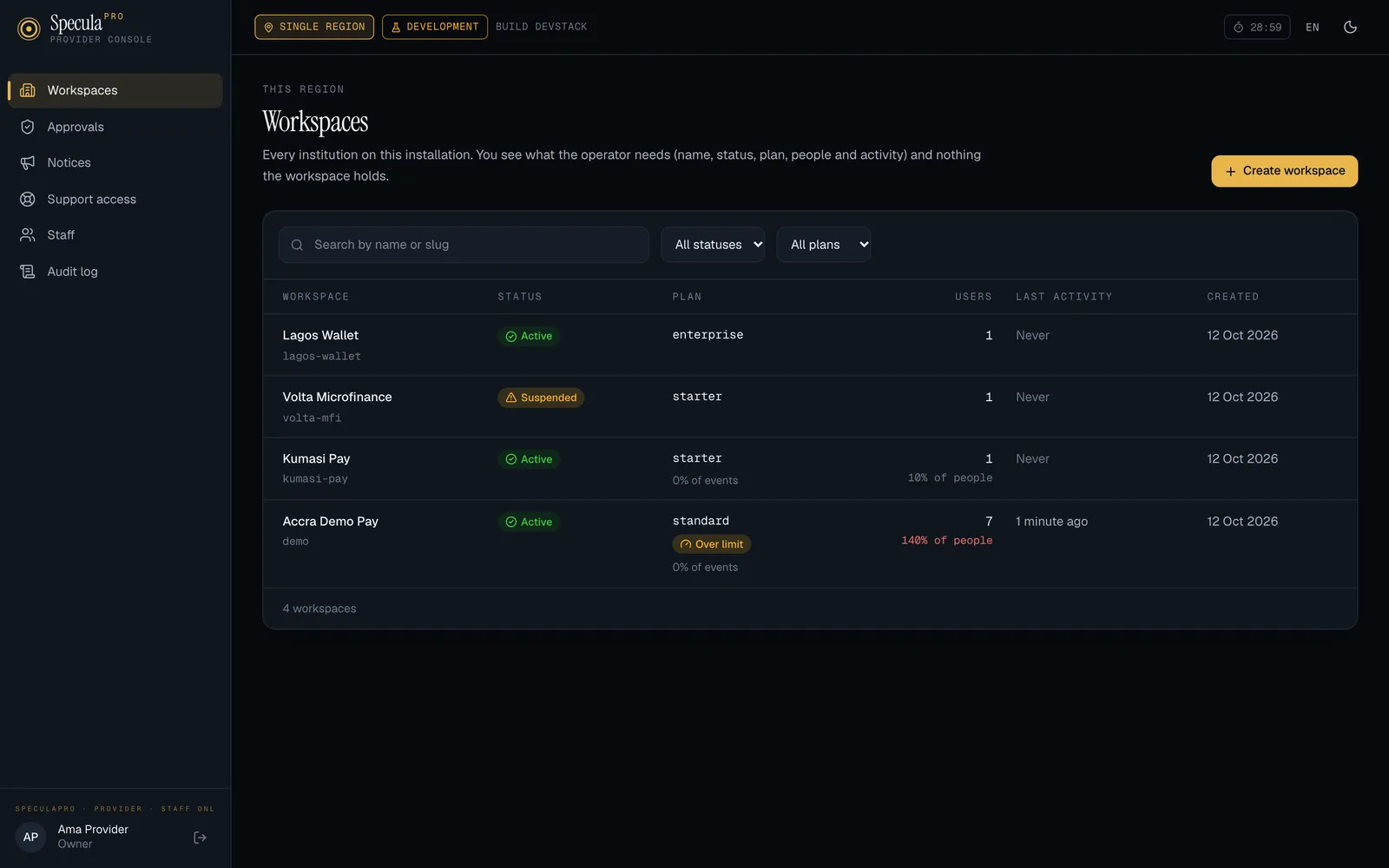
Search by part of the name or slug, and filter by status or plan. Every time the list is read, the audit log records it, with the search and filters used.
When workspaces have been deleted after their scheduled date, the page also offers Deleted workspaces: what is kept of each. See What is kept.
How to create a workspace
Section titled “How to create a workspace”You need the Owner or Operations role.
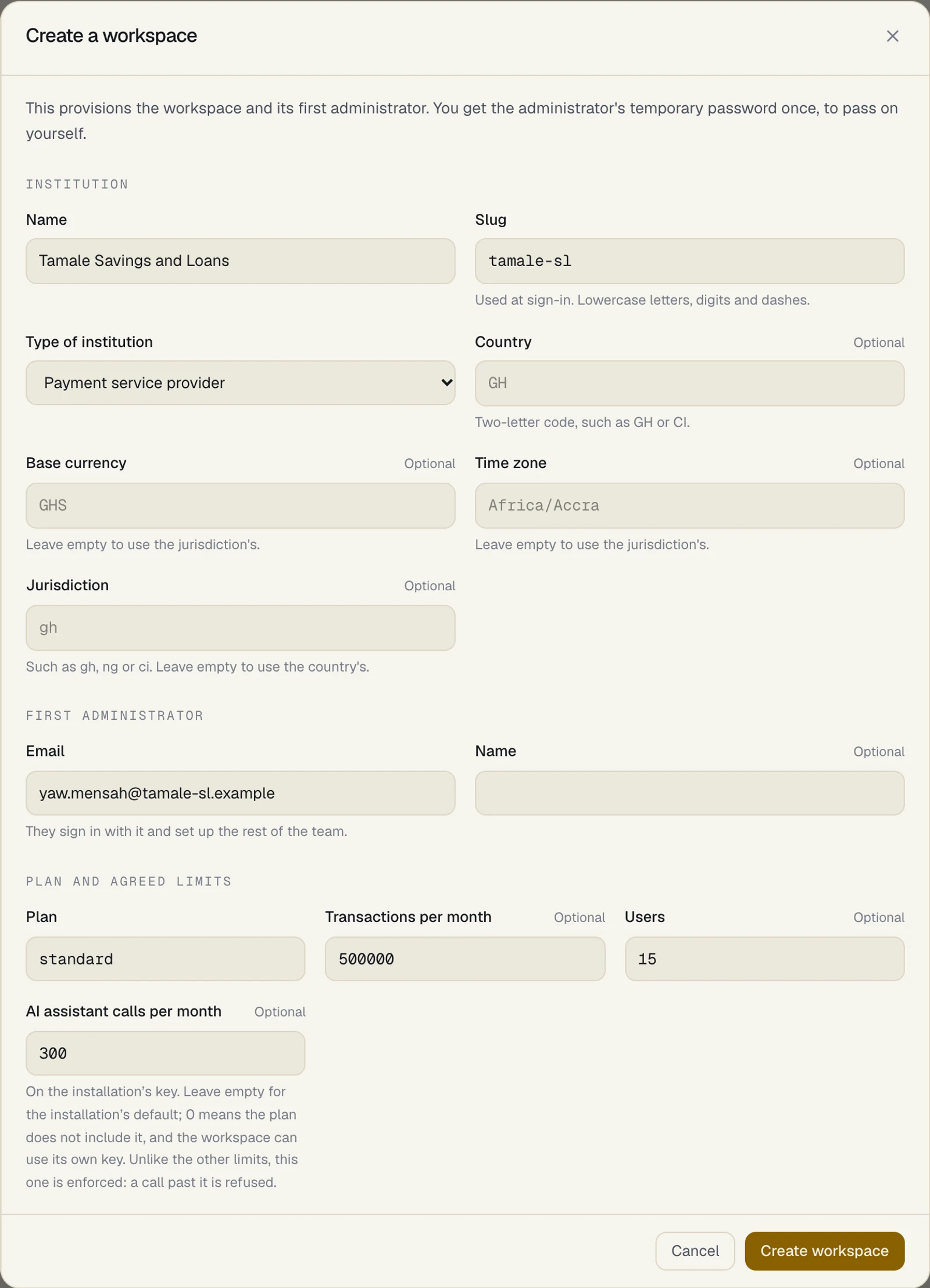
- On Workspaces, select Create workspace.
- Under Institution, enter the Name and a Slug. The slug is what people type at sign-in: 2 to 63 lowercase letters, digits or dashes, starting with a letter or digit.
- Choose the Type of institution and enter the Country as a two-letter code, such as
GHorCI. - Optionally enter the Base currency, Time zone and Jurisdiction. Left empty, each takes the jurisdiction’s value, and the jurisdiction takes the country’s.
- Under First administrator, enter their Email and Name.
- Under Plan and agreed limits, enter the plan and any limits. Left alone, the plan is
standardwith no limits. AI assistant calls per month is optional: leave it empty for the installation’s default, or enter0when the plan doesn’t include the assistant on your key. See Plans and limits. - Select Create workspace.
- Copy the administrator’s Temporary password and pass it to them over a channel you trust.
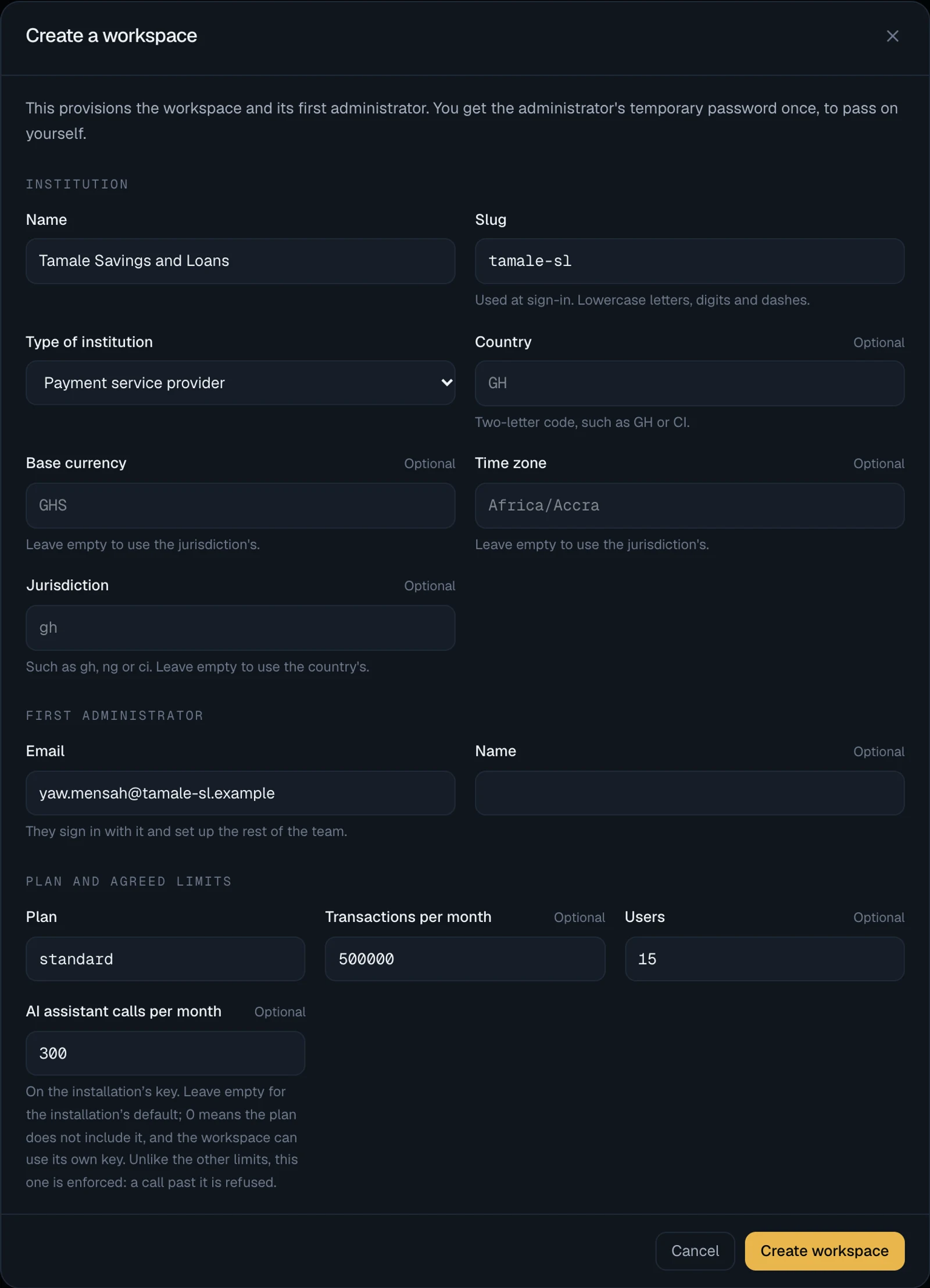
Creating a workspace here does exactly what speculapro tenant create does: the built-in roles, the
first administrator, the jurisdiction’s defaults and, on a multi-region service, the slug’s
reservation in the global directory. The new workspace is pinned to this console’s region.
| Message | Meaning |
|---|---|
| a workspace with that slug already exists (in this or another region) | The slug is taken. Slugs are unique across every region |
| the workspace’s details were refused: check the slug, kind, country and currency | One of those values isn’t valid |
The workspace was created, but the global directory does not list it yet. Run speculapro cell sync. |
The workspace exists and the password shown is good, but the directory couldn’t be updated. Run the command; see Running more than one region |
A workspace’s page
Section titled “A workspace’s page”Opening a workspace is recorded in the audit log each time. The page has five tabs.
| Tab | Shows | Needs |
|---|---|---|
| Overview | About the workspace, and its health | workspaces.view |
| Usage | Transactions and real-time decisions per month, and AI assistant calls and tokens | usage.view |
| Plan & limits | The plan, agreed limits and staff notes | plans.view, and plans.manage to change |
| Actions | Suspend, reactivate, schedule or cancel deletion | changes.view, and changes.request to propose |
| Support access | Requests for this workspace, and asking for access | support.view, and support.request to ask |
Overview
Section titled “Overview”About this workspace lists its status, plan, type, country, base currency, time zone, jurisdiction, region, how many users it has and how many have signed in at least once, the last sign-in, when it was created and its ID.
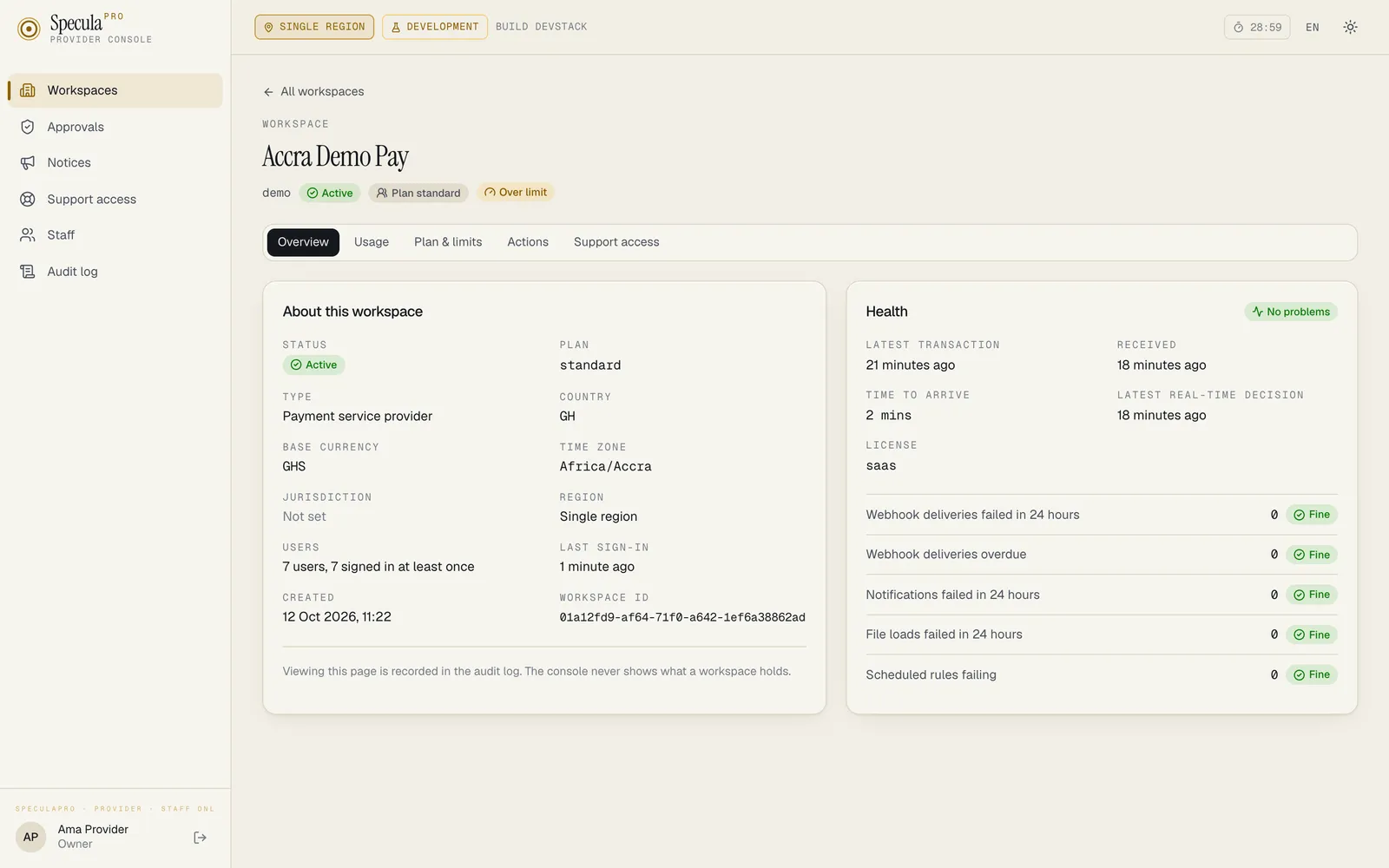
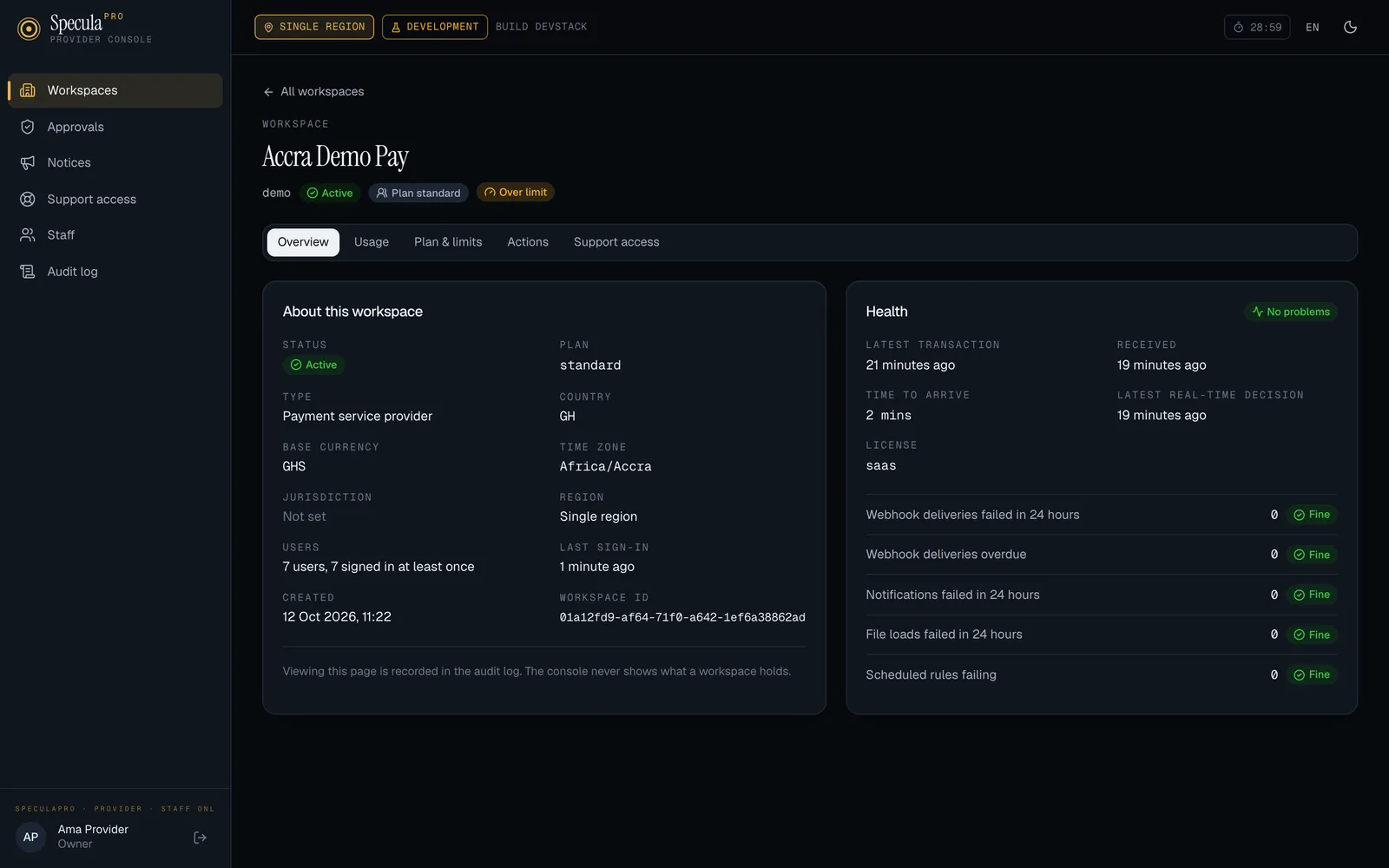
When the workspace is suspended, a banner says since when and the reason that was given. When a deletion is scheduled, a banner says for when and where it stands.
Health
Section titled “Health”Health is numbers about the workspace’s pipeline: when and how many, never what.
| Line | What it tells you |
|---|---|
| Latest transaction | When the latest transaction happened at the institution |
| Received | When it arrived at SpeculaPro |
| Time to arrive | The gap between the two. A growing gap means the institution’s feed is running late |
| Latest real-time decision | When the workspace last asked for a decision |
| Webhook deliveries failed in 24 hours | Deliveries that failed |
| Webhook deliveries overdue | Deliveries due more than 15 minutes ago |
| Notifications failed in 24 hours | Emails and messages that could not be sent |
| File loads failed in 24 hours | File imports that failed |
| Scheduled rules failing | Scheduled rules that keep failing and are retried with a delay |
Each count shows Fine at zero and Check above it, and the panel’s header sums them: No problems, or the number of things to check.
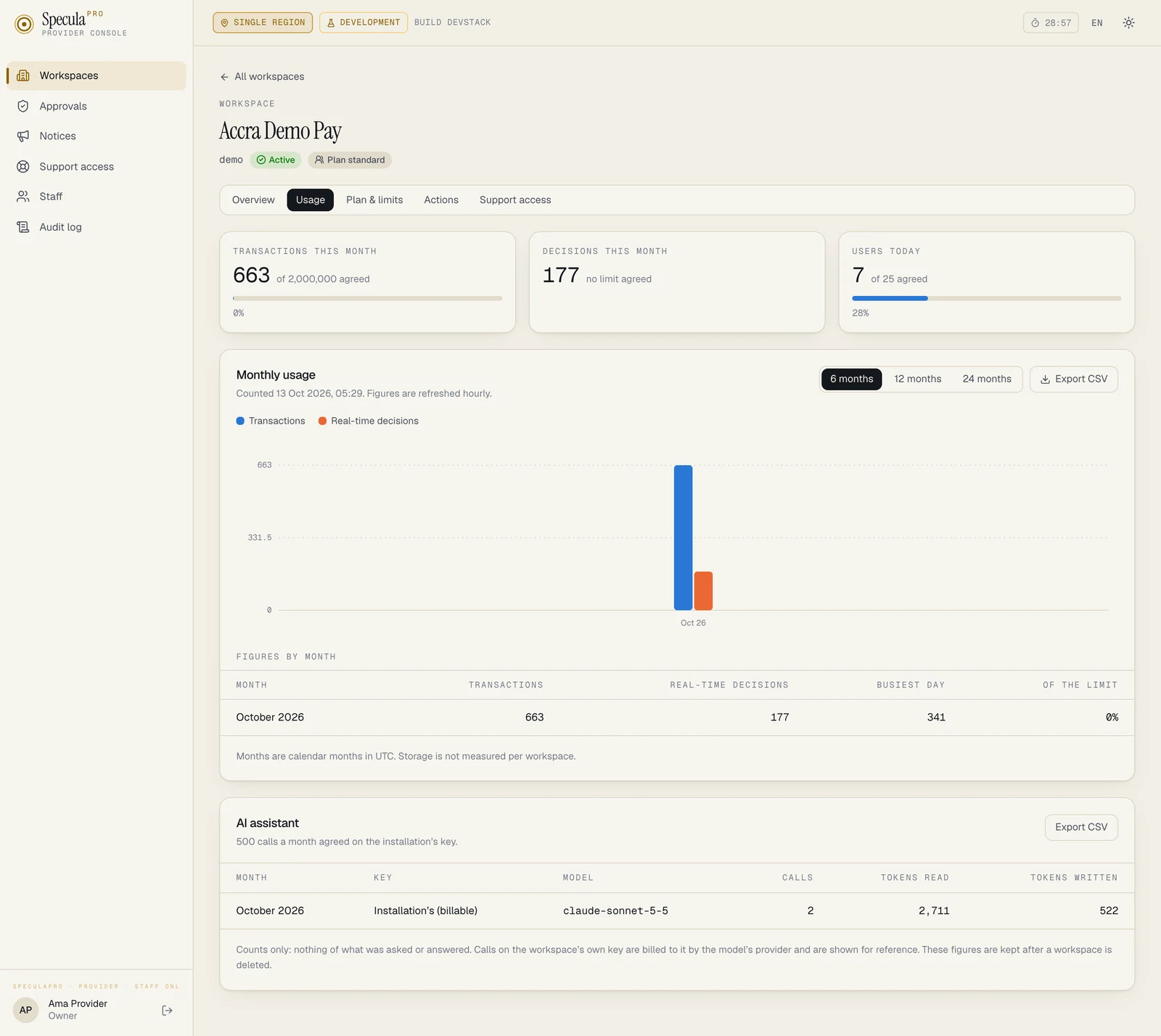
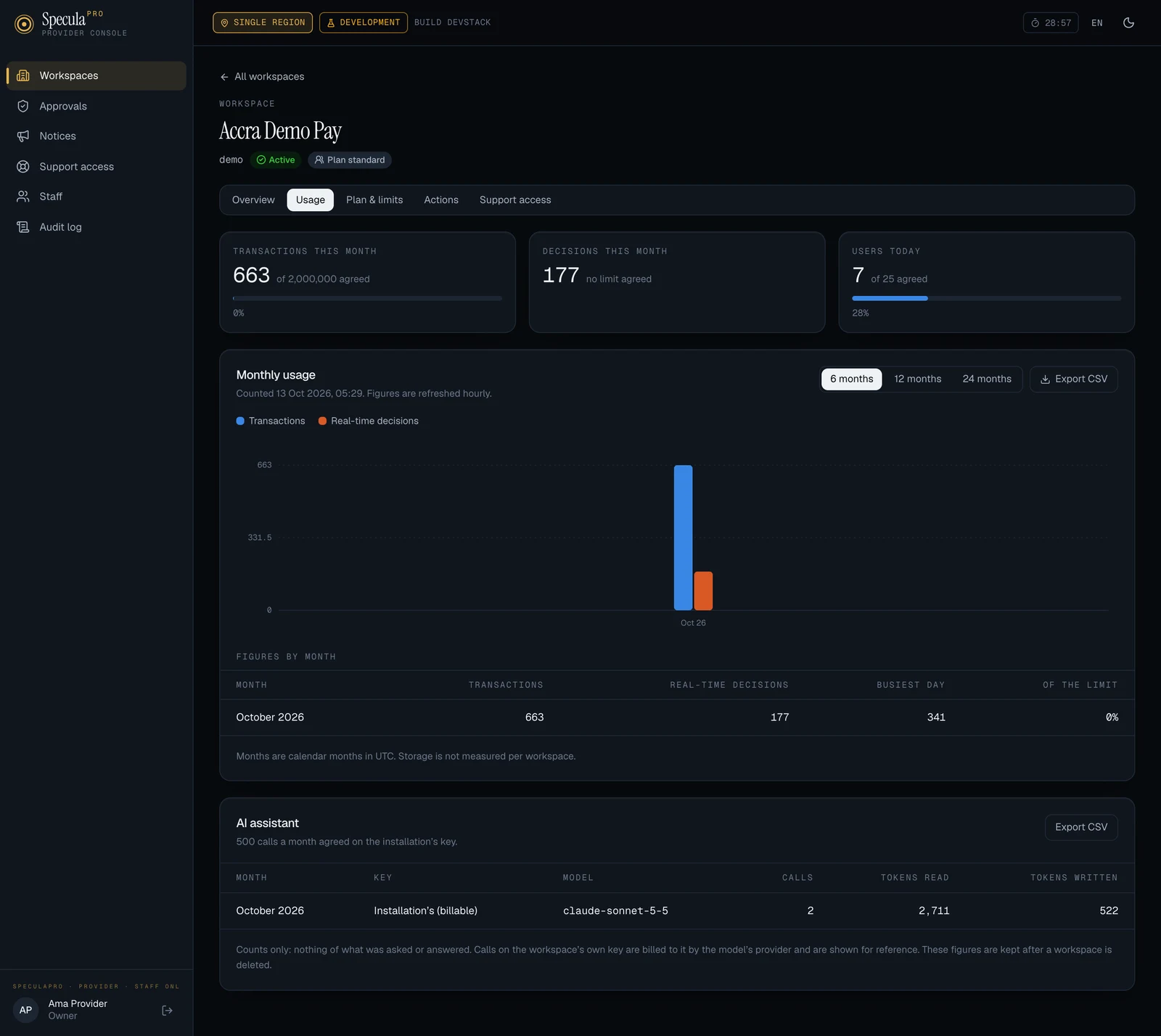
Choose 6, 12 or 24 months. The chart and the table show, per calendar month:
- Transactions received,
- Real-time decisions made,
- the Busiest day for transactions,
- and, when a monthly limit was agreed, the share of it used.
Above them: transactions and decisions this month, and Users today against the agreed number. Export CSV downloads the table.
AI assistant usage
Section titled “AI assistant usage”Under the monthly figures, the AI assistant panel shows what the workspace’s AI assistant was used for, from the provider’s own record.
- The line under the title gives the plan’s allowance: 500 calls a month agreed on the installation’s key., No allowance agreed: the installation’s default applies. or Not in this plan: the workspace can only use its own key. Set it under Plan & limits.
- The table has one row per Month, Key and Model, with Calls, Tokens read and Tokens written. Key is Installation’s (billable) for calls made on your key, or Workspace’s own for calls on the institution’s key, which the model’s provider bills to the institution; those are shown for reference.
- Export CSV downloads the rows (
month,key,model,calls,input_tokens,output_tokens). - When nothing has been asked yet: The assistant has not been used.
- Below it, More AI calls lists the workspace’s requests for more calls and lets you add calls for the current month. See Adding calls for a month.
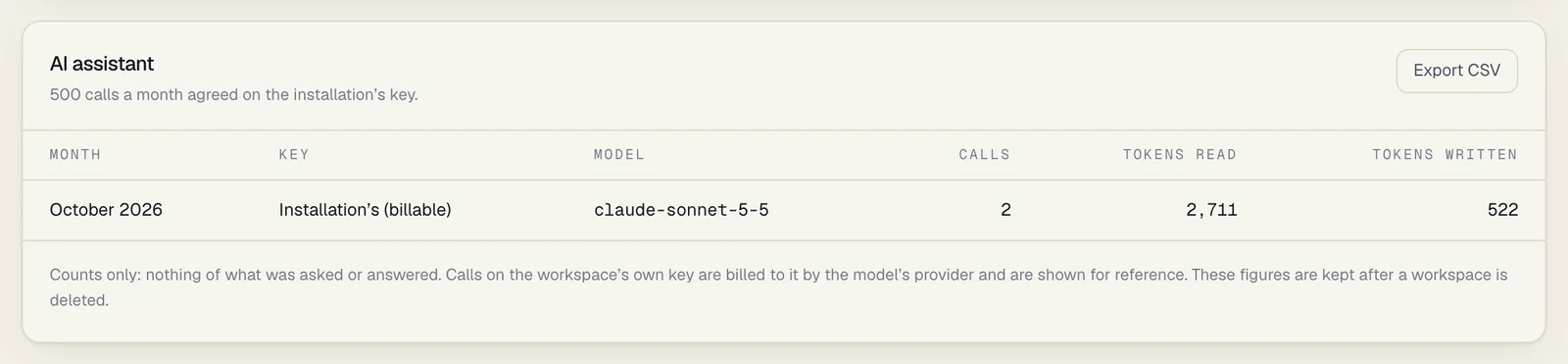
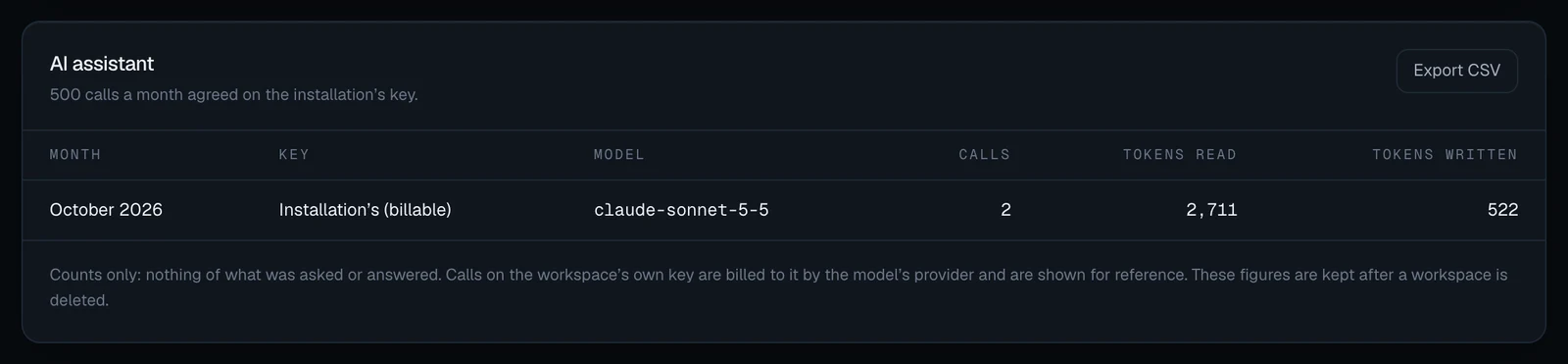
The calls in the picture were made against a local test stand-in for the model’s provider.