
Shadow mode
Ce contenu n’est pas encore disponible dans votre langue.
In short
Section titled “In short”Every rule has two slots: live (called active in the API) and shadow. The live version is the one your analysts see alerts from. A version in the shadow slot runs on exactly the same live transactions, records what it would have flagged, and creates no alerts.
That lets you answer “what happens if we change this?” with your own real traffic before your team has to live with the answer.
┌─▶ live version v1 ──▶ hits ──▶ alerts for analysts each transaction ──────┤ └─▶ shadow version v2 ──▶ hits marked "shadow" ──▶ no alertsWhat shadow records
Section titled “What shadow records”A shadow hit is stored exactly like a live hit: the rule version, the transaction, the subject, the feature values and the parameters it used, and the explanation it would have shown. The only difference is that it is marked as shadow, and it never creates or joins an alert.
| Live version | Shadow version | |
|---|---|---|
| Runs on every new transaction (post-event) or decision (real-time) | Yes | Yes |
| Changes a real-time decision’s answer | Yes | Never |
| Records hits with full evidence | Yes | Yes, marked shadow |
| Creates or updates alerts | Yes | Never |
| Counted in | Live hits · 30d (hits_30d) |
Shadow hits · 30d (shadow_hits_30d) |
How to run a shadow test
Section titled “How to run a shadow test”The example tightens Cash-in split across many agents (gh.split_cash_in_agents, B2) from 4 agents
to 3, for a mobile money operator that suspects it’s missing smurfing.
You need rules.approve (Rule approver or MLRO). The rule must be running.
-
Tune and approve the new version (version 2, Distinct agents in 24h set to 3): a rule author tunes it and you approve it.
-
In the rule’s Versions list, on version 2, select Shadow test.
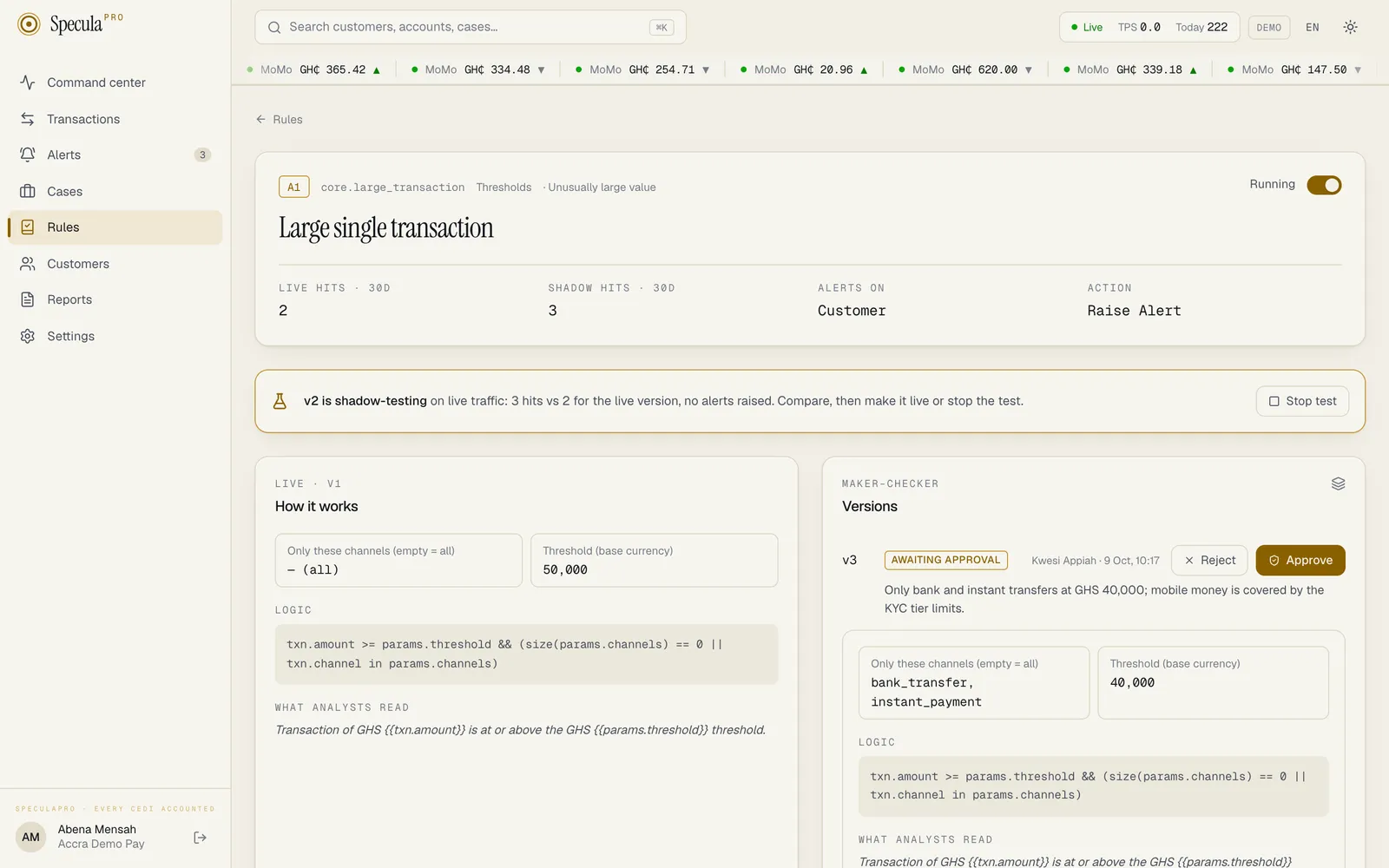
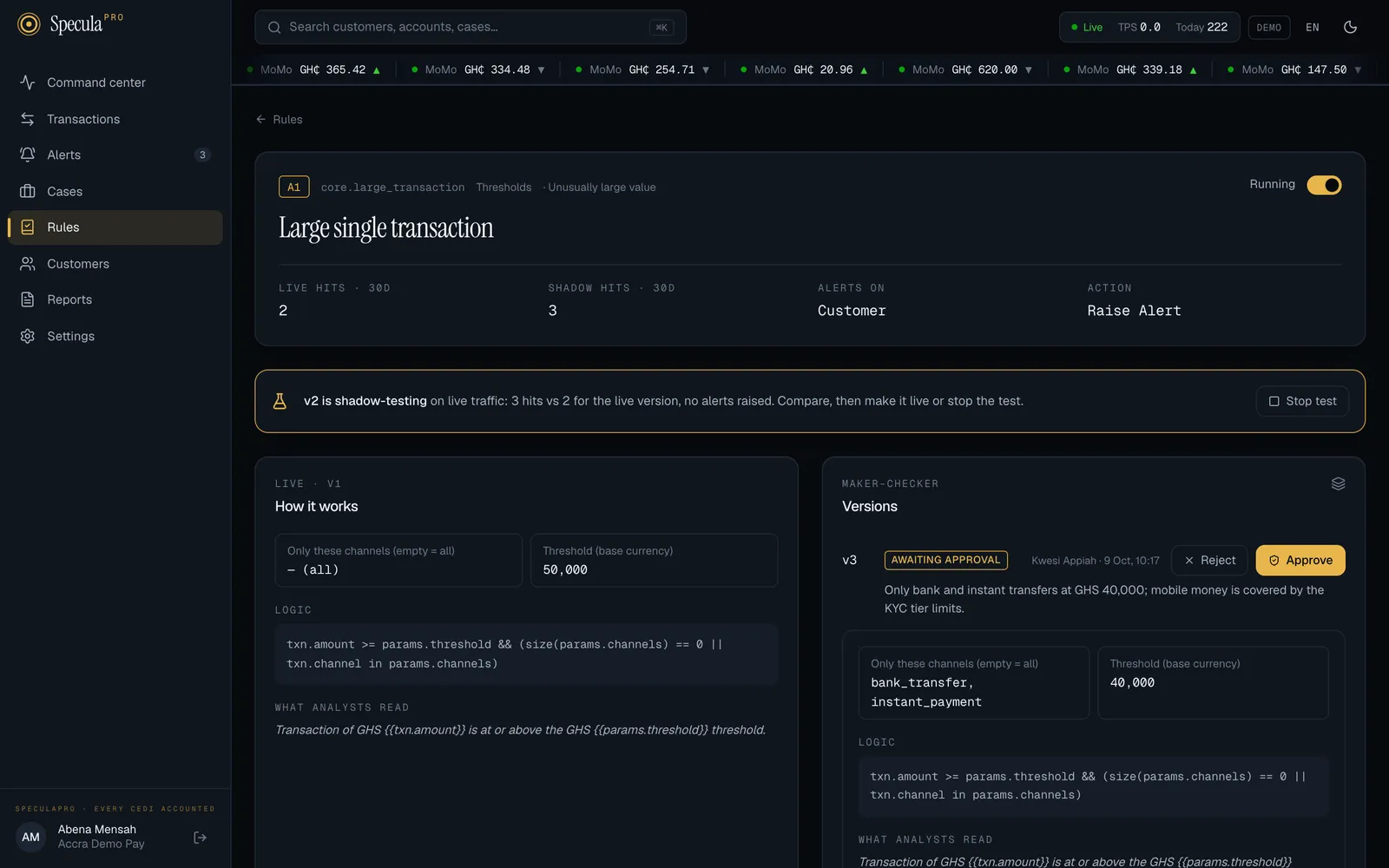
A gold banner appears under the rule’s header: v2 is shadow-testing on live traffic, with its hits compared with the live version’s. Version 2 is marked shadow in the list, and the rule shows shadow v2 on the Rules screen. Within about 15 seconds both versions are running: version 1 raising alerts, version 2 only recording hits.
-
Let it run long enough to mean something. At least a full week, so weekdays, weekends and any salary day are included. Rules with long windows (7 or 30 days) need longer to settle.
-
Compare. The banner, and the Live hits · 30d and Shadow hits · 30d figures, show the two counts side by side, for example 31 hits vs 12 for the live version, no alerts raised. Here the new version would raise about two and a half times as many hits. Is that the smurfing you were missing, or noise? Discuss it with an experienced analyst before deciding.
- Decide.
- Make it live: select Make live on version 2. The shadow slot empties and the banner disappears; version 2’s hits now raise alerts.
- Stop the test: select Stop test in the banner. Version 2 stays approved and its hits stay on record, but it stops running. You are asked to confirm: Stop the shadow test of v2? Its hits so far are kept.
- Try again: have the author tune the rule again (version 3), approve it and select Shadow test on it. It replaces version 2 in the test.
Good practice
Section titled “Good practice”- Change one thing at a time. If you move both the threshold and the window, you won’t know which made the difference.
- Write the expected outcome in the change note (“expect roughly double the hits, mostly agents in Kumasi”), so the comparison has something to test against.
- Always shadow a logic change. A new expression or new features deserve a shadow run even if the parameter change wouldn’t.
- Stop forgotten tests. A shadow test left running costs evaluation time and makes the rule’s history harder to read. The Needs attention tab on the Rules screen lists every rule with a test running.
Using the API instead
Section titled “Using the API instead”Shadow test and Make live call POST /api/v1/rules/{id}/deploy with slot set to
shadow or active; Stop test calls DELETE /api/v1/rules/{id}/shadow. The counts are
hits_30d and shadow_hits_30d on GET /api/v1/rules/{id}. See the
Rules API.