
Managing rules
Ce contenu n’est pas encore disponible dans votre langue.
In short
Section titled “In short”A rule is a check SpeculaPro runs on the transactions you send. When the check matches, the rule records a hit. Rules come in three kinds:
- Post-event rules run seconds after a transaction arrives and raise alerts for your analysts. This is money-laundering monitoring.
- Real-time rules (marked with a gold lightning bolt) run inside a real-time decision, while your system waits to let a payment through, and answer block, hold for review, step-up or allow. This is fraud prevention. When they block, hold or step up a payment, a fraud alert is raised too.
- Scheduled rules (marked with a gold calendar) run on a timetable, for example every night, over the transaction history, and raise alerts. They find patterns no single transaction shows: mule networks, money going round in a circle, agents far busier than their peers. See Scheduled rules.
You don’t start from a blank page. SpeculaPro ships rule packs, sets of ready-made rules you install into your workspace. You then switch on the rules you want, tune their numbers to your customers, and every change goes through a second person before it runs.
You do all of this on the Rules screen, in the left-hand menu. Every action is recorded in the audit log under your name. Teams that prefer scripts can do the same through the Rules API.
What ships today
Section titled “What ships today”Nineteen packs are built in, with 167 different rules between them. Post-event and real-time rules can look back over up to 180 days of history; scheduled rules over up to 92 days.
| Pack | Name | Version | Rules | For |
|---|---|---|---|---|
core |
Core AML & fraud | 1.4.1 | 24: 21 post-event, 3 scheduled | Every institution |
fraud |
Real-time fraud | 1.4.0 | 11, all real-time | Anyone calling the decision API: card testing, account takeover, new devices and payees, unusual hours, impossible travel, shared devices, payout bursts |
gh-psp |
Ghana PSP & mobile money | 1.2.0 | 14: 8 post-event, 2 real-time, 4 scheduled | Ghanaian payment service providers, mobile money operators and agent networks |
gh-bank |
Ghana banks | 1.1.0 | 10: 5 post-event, 5 scheduled | Ghanaian universal and rural banks: branch cash, foreign-currency cash, cheques, GhIPSS instant transfers, trade payments and correspondents |
global-fatf |
FATF baseline (any country) | 1.2.0 | 8, all post-event | Every institution, in any country: FATF black and grey lists, structuring over a week, new accounts moving money through, PEPs abroad, trade-based laundering, new companies sending money abroad |
ng-psp |
Nigeria: PSP, mobile money and agents | 1.2.0 | 9: 8 post-event, 1 real-time | Nigerian PSPs, mobile money operators, payment service banks and agents |
ng-bank |
Nigeria: banks | 1.2.0 | 8, all post-event | Nigerian commercial, merchant and microfinance banks |
uemoa-emi |
UEMOA: e-money issuers and mobile money | 1.1.0 | 8: 7 post-event, 1 real-time | E-money issuers and mobile money in the eight UEMOA states |
uemoa-bank |
UEMOA: banks | 1.0.0 | 8, all post-event | Banks and microfinance institutions in the eight UEMOA states |
sl-psp |
Sierra Leone mobile money, PSP and agents | 1.0.0 | 8: 7 post-event, 1 real-time | Mobile money operators, payment service providers and agent networks in Sierra Leone |
sl-bank |
Sierra Leone banks | 1.0.0 | 8, all post-event | Banks, community banks and microfinance institutions in Sierra Leone |
lr-psp |
Liberia mobile money, PSP and agents | 1.0.0 | 9: 8 post-event, 1 real-time | Mobile money operators, payment service providers and agent networks in Liberia |
lr-bank |
Liberia banks | 1.0.0 | 8, all post-event | Banks, microfinance and rural community finance institutions in Liberia |
gm-psp |
The Gambia mobile money, PSP and agents | 1.0.0 | 8: 7 post-event, 1 real-time | Mobile money operators, payment service providers and agent networks in The Gambia |
gm-bank |
The Gambia banks | 1.0.0 | 8, all post-event | Banks, microfinance and finance companies in The Gambia |
gn-emi |
Guinea e-money, mobile money and agents | 1.0.0 | 8: 7 post-event, 1 real-time | E-money issuers, mobile money and agent networks in Guinea |
gn-bank |
Guinea banks | 1.0.0 | 8, all post-event | Banks and microfinance institutions in Guinea |
ke-psp |
Kenya mobile money, PSP and agents | 1.0.0 | 12: 11 post-event, 1 real-time | Mobile money operators, payment service providers and agent networks in Kenya |
ke-bank |
Kenya banks | 1.0.0 | 9, all post-event | Banks and microfinance banks in Kenya |
Some packs share rules: gh-psp and gh-bank share I1, I2, I3 and E4; ng-psp and ng-bank share
ng.ctr_cash and ng.unverified_bvn_payout; uemoa-emi and uemoa-bank share uemoa.cash_report;
each of the five newest countries’ two packs share their cash reporting and border-area rules
(Liberia’s also share lr.usd_cash_report, Kenya’s ke.horn_corridor).
If you install both packs of a pair, each shared rule is added once, by whichever pack you install
first.
The rule library offers the packs for your workspace’s jurisdiction first, and marks those it recommends for your kind of institution.
The full list, with every default value, is in Pack contents, with separate pages for the FATF baseline, Nigeria, the UEMOA, Sierra Leone, Liberia, The Gambia, Guinea and Kenya. The rule library explains each typology, and marks the two rules that ship only in part.
The Rules screen
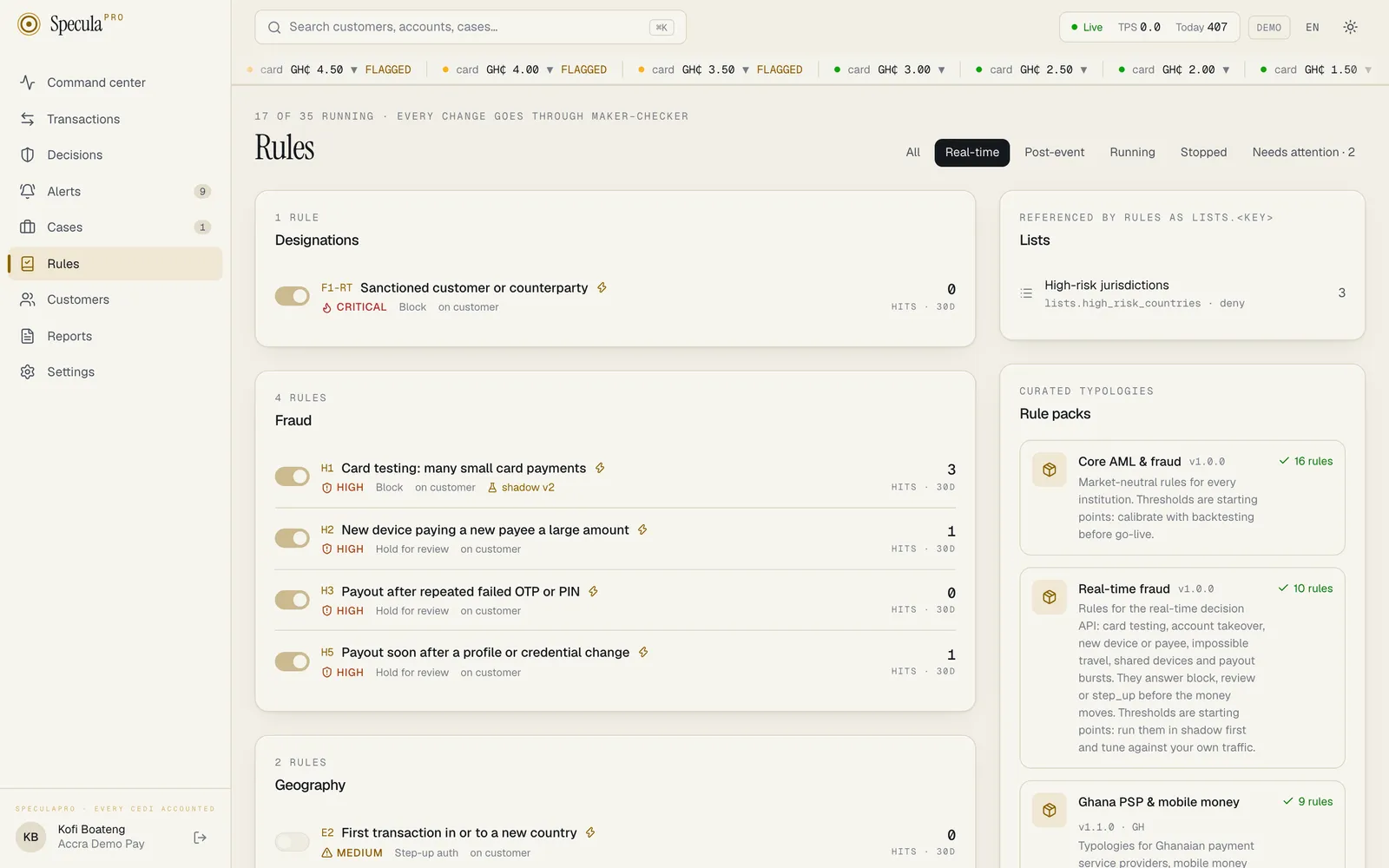
Section titled “The Rules screen”Select Rules in the left-hand menu. The heading line tells you how many rules are running, for example 17 of 35 running · every change goes through maker–checker. Rule authors also see New rule next to the heading, which opens the visual rule builder.
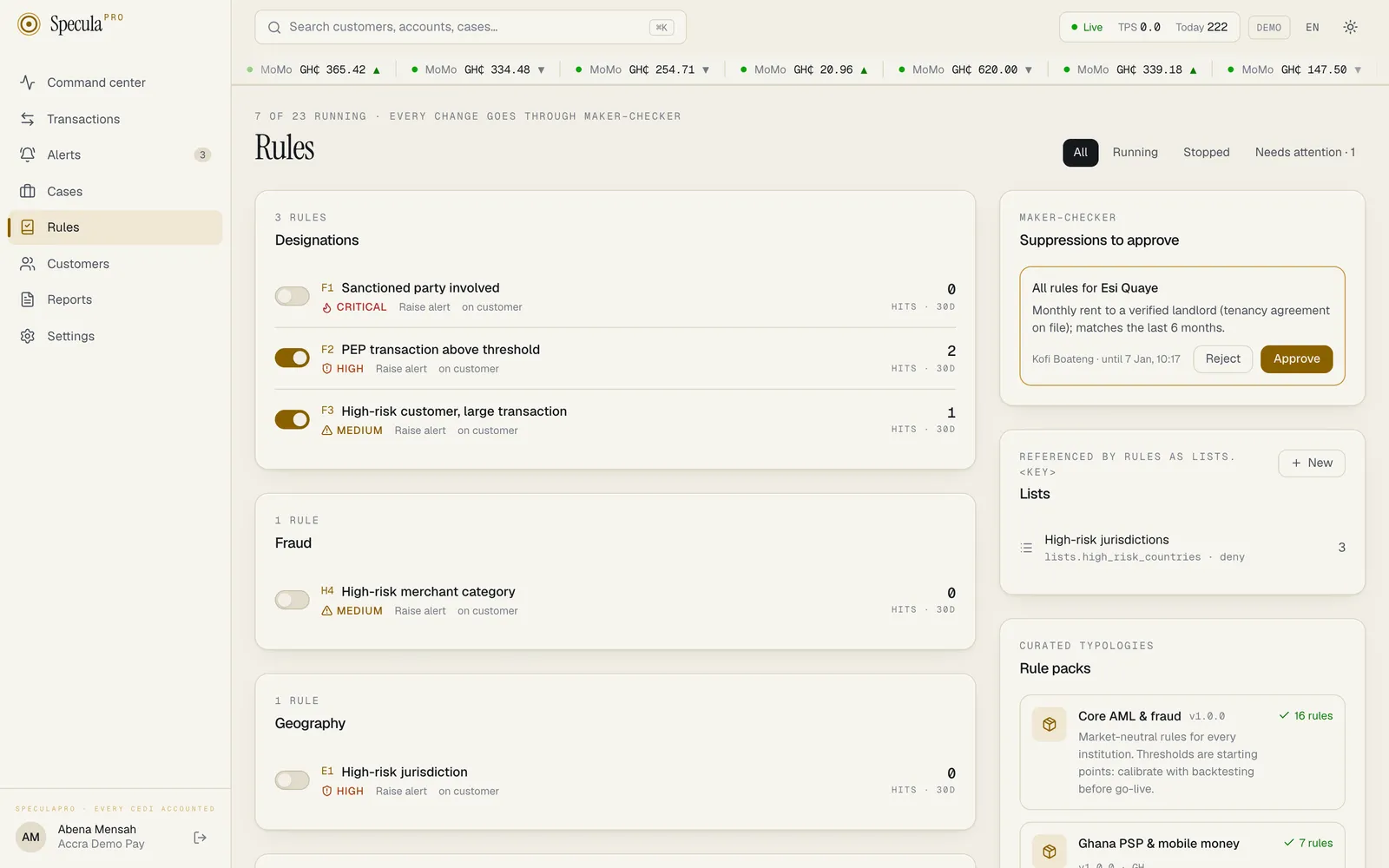
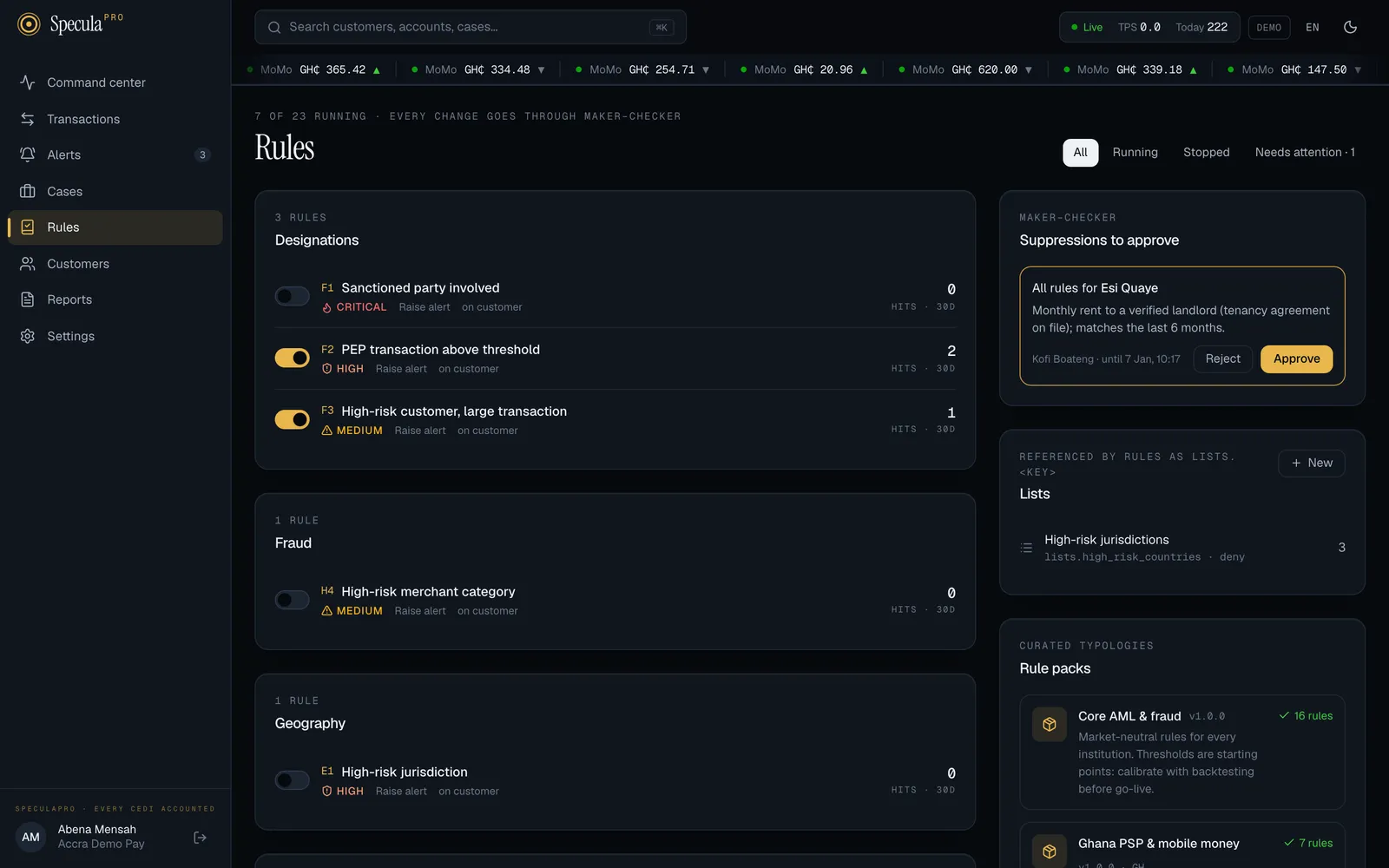
Rules are grouped by category (Structuring, Velocity, Mule networks and so on), one panel per category. Each row shows:
| Item | What it tells you |
|---|---|
| Switch (left) | Gold and to the right: the rule is running. Grey: stopped. Only people with rules.approve can flip it; for everyone else it is greyed out. It is also greyed out, with the hint Approve and deploy a version first, while the rule has no live version |
| Library code (gold) | The rule’s code in the rule library, for example B1 |
| Name | What the rule looks for. A gold lightning bolt after it marks a real-time rule, and a gold calendar a scheduled one |
| Severity | How serious a hit from the live version is. No approved version if nothing is live yet |
| Action | What a hit does: Raise alert, Hold for review, Block, Step-up auth, Tag only, Score only or Allow. Block, Hold for review and Step-up auth are real-time answers, and each also raises a fraud alert. Tag only, Score only and Allow record the hit without an alert. See what a rule produces |
| on customer / account / counterparty | Who the rule’s alerts are about (agent for rules about an agent, such as G1: their alerts are about the agent as a counterparty, or for G1 the agent’s account when it has one) |
| Daily at 02:00 and similar | For a scheduled rule, when it runs, in your workspace’s time zone |
| shadow v2 (gold flask) | A new version is being shadow-tested |
| N awaiting approval (gold) | Versions waiting for an approver |
| Hits · 30d (right) | Live hits in the last 30 days. For a real-time rule, every decision it fired in |
Select a row to open the rule’s page.
Filters
Section titled “Filters”The tabs at the top right narrow the list:
| Tab | Shows |
|---|---|
| All | Every rule in your workspace |
| Real-time | Rules that run in real-time decisions |
| Post-event | Rules that run after a transaction arrives |
| Scheduled | Rules that run on a timetable over the transaction history |
| Running | Rules that are switched on |
| Stopped | Rules that are switched off |
| Needs attention · N | Rules with a version awaiting approval or a shadow test running: the ones someone should look at |
Rule packs
Section titled “Rule packs”The Rule packs panel on the right lists the packs available to your installation with their
versions. An installed pack shows a green tick and its number of rules. A pack you haven’t
installed shows an Install N button to people with rules.approve. When a newer version of an
installed pack is available, its row shows Update to v… instead (or Update available, without
rules.approve). Below the packs, people with rules.approve see Signed pack update, for
loading a pack file from SpeculaPro. See Installing a pack,
How to upgrade a pack and
Signed pack updates.
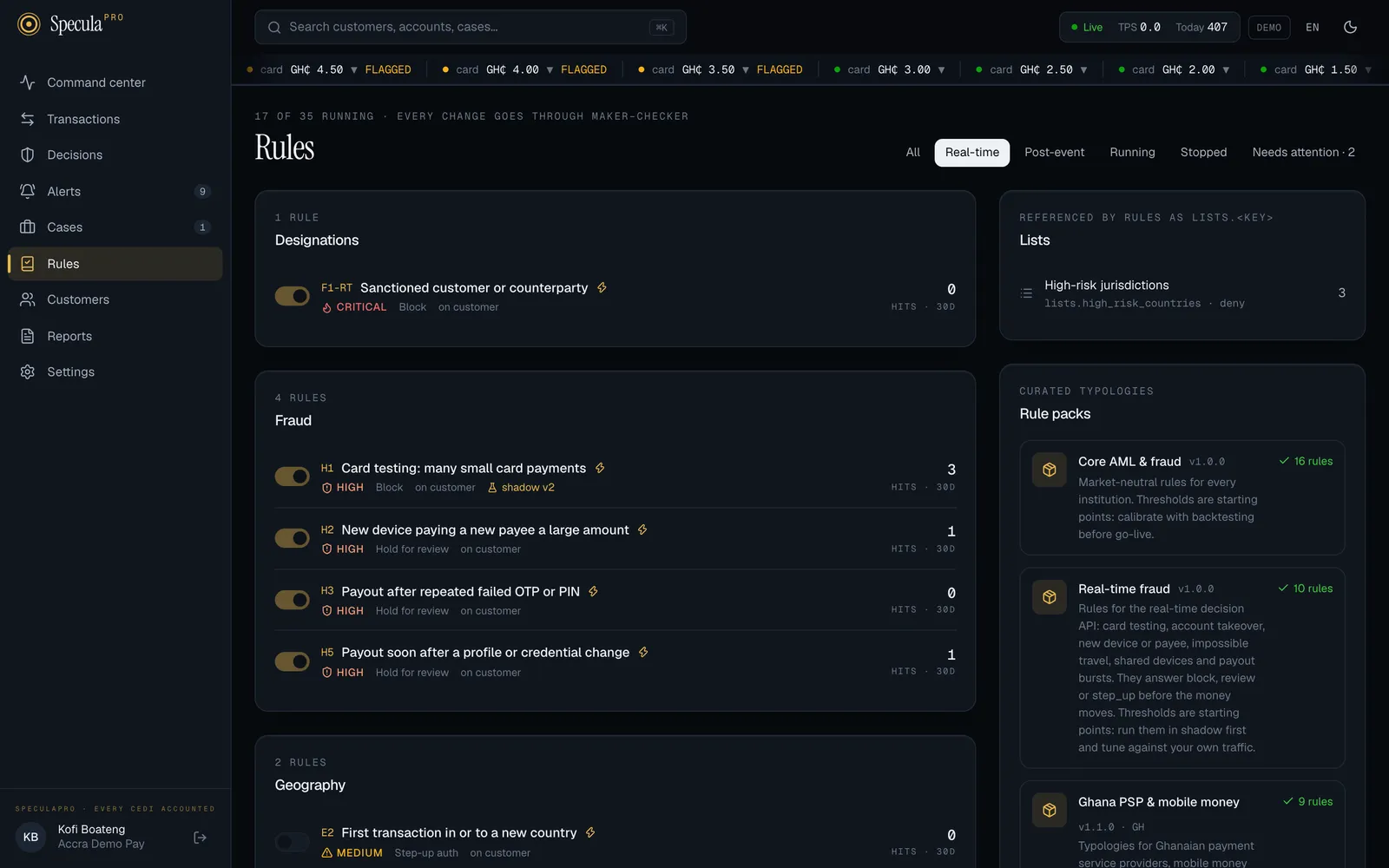
A rule’s page
Section titled “A rule’s page”Selecting a rule opens its page:
-
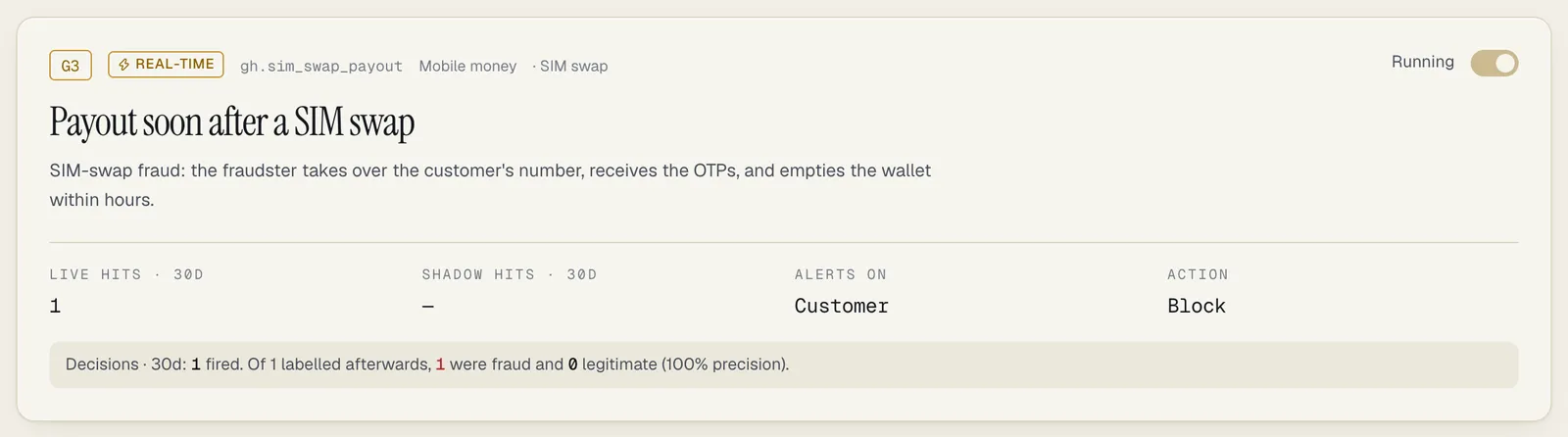
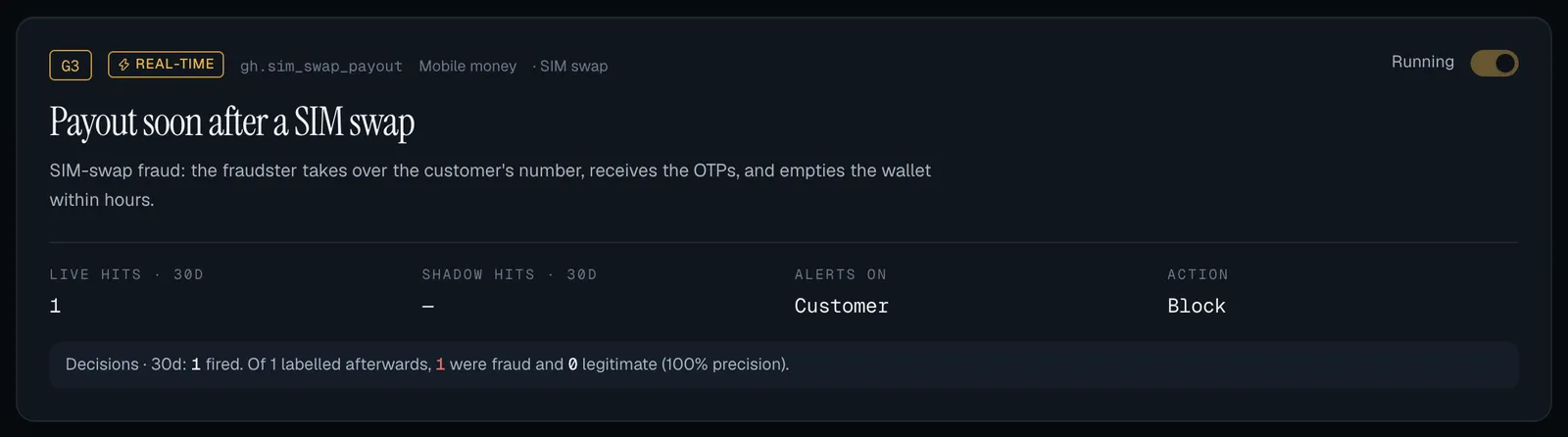
The header: the library code, a Real-time, Post-event or Scheduled badge, the rule’s key (for example
core.large_transaction), its category and typology, its name and description, and on the right Running or Stopped with the same switch as the list. -
Four figures: Live hits · 30d, Shadow hits · 30d (a dash when no test is running), Alerts on (customer, account, counterparty, or
agentfor rules about an agent) and Action. -
For a real-time rule, a line on decisions: how many decisions it fired in over 30 days and, of those your team or your systems later labelled, how many were fraud and how many legitimate, with the resulting precision. Until outcomes are labelled it says so. The decisions themselves are on the Decisions page, and labels come from feedback.
-
For a scheduled rule, Schedule and runs: when it runs, the next run, and its latest runs. See Scheduled rules.
-
A gold banner while a shadow test is running, comparing its hits with the live version’s. See Shadow mode.
-
How it works (left), for the live version, marked Live · v3 or Not deployed:
- the parameters, each with its plain-language title and current value (— (all) for an empty list, which means “no restriction”);
- the Logic, the rule’s expression in CEL, or for a scheduled rule the name and description of the vetted query it runs, which can’t be edited;
- Aggregates it reads: the running totals the rule looks at, such as sum in per account, 168h (see Features reference);
- What analysts read: the explanation template shown on every alert.
Rule authors see Edit and Tune buttons here. Edit opens the latest version in the rule builder; Tune changes only the numbers (Tuning a rule). Scheduled rules have only Tune.
-
Versions (right): every version, newest first, with its state, who wrote and decided it, and its change note. This is where approvers act; see Approving a rule change.
-
Backtest: try a version against past transactions before it goes live. For a scheduled rule, it simulates every run of the schedule. See Backtesting.
How a rule goes from installed to live
Section titled “How a rule goes from installed to live” install pack ──▶ version 1, approved, in the active slot ──▶ enable ──▶ LIVE │ tune ──▶ draft v2 ──▶ submit ──▶ pending approval ──▶ approve ──▶ deploy to shadow ──▶ compare ──▶ deploy to active │ └──▶ reject- Install a pack. Its rules arrive stopped.
- Review and switch on each rule you want. It starts running within about 15 seconds.
- Tune a rule: a rule author changes its numbers and sends the new version for approval.
- A different person approves or rejects the new version.
- The approver shadow tests the approved version to see what it would flag without raising alerts, then selects Make live.
On screen, the “active” slot is called live, and deploying to it is Make live.
Each step has its own page in this section.
Who can do what
Section titled “Who can do what”Three permissions control rules. The built-in roles hold them like this:
| Action | Permission | Built-in roles that have it | What you see on screen |
|---|---|---|---|
| See rules, versions and hit counts | rules.view |
Every built-in role | The Rules screen and every rule’s page, read-only |
| Tune rules, submit drafts, write custom rules | rules.author |
Rule author | New rule, Edit, Tune, Save draft in the builder, and Submit on drafts |
| Install and upgrade packs, load signed pack files, approve or reject versions, shadow test, make live, stop tests, start and stop rules, change a scheduled rule’s timetable | rules.approve |
Rule approver, MLRO / Compliance officer | Install, Update to v…, Import pack, the running switches, Approve, Reject, Shadow test, Make live, Stop test and Change schedule |
Controls you don’t have permission for are hidden or greyed out, so two people looking at the same rule can see different buttons.
Nobody can approve a version they drafted themselves. If someone holds both permissions (through a custom role) and selects Approve on their own version, it is refused with a version must be approved by someone other than its author. The database refuses it too, so no script or administrator can get around it.
How rules run
Section titled “How rules run”- Only enabled rules run. A rule must be enabled and have an approved version in its active slot. A version in the shadow slot also runs only while the rule is enabled.
- Post-event rules run on every transaction; real-time rules only in decisions; scheduled rules on their timetable. A real-time rule never sees a transaction sent only through the ingest API. A transaction that came through a decision is also monitored post-event, so it goes through both kinds. Scheduled rules read the stored history of completed transactions, whichever way they arrived.
- Changes reach the running system within about 15 seconds. The stream workers re-check each workspace’s rules, lists and suppressions on that interval. The decision service re-reads rules, lists and the decision policy every 10 seconds by default. Scheduled rules pick up the current version at their next run.
- Every evaluation is reproducible. Each hit stores the rule version, the parameter values and the feature values it saw. Feature values are kept per transaction for a short replay window, so a transaction re-delivered after a crash or restart produces the same hits.
- A rule that errors is skipped, not stopped. If an expression fails on a particular transaction (for example it reads a custom attribute that transaction doesn’t have), that rule records no hit for that transaction and a warning is written to the logs. Other rules still run.
- Live, unsuppressed hits go to an alert, unless the action says not to. Each rule version
has an
action. Withalert(or a real-time action such asreview,blockorstep_up), hits for the same subject merge into one open alert. Withtag,score_onlyorallow, the hit is recorded with its explanation but no alert is raised. See Alerts and cases and Rule engine: what a rule produces.
Quick start
Section titled “Quick start”To go from an empty workspace to monitoring with the core pack:
- Install the
corepack from the Rule packs panel (rule approver or MLRO). - Go through Pack contents with your compliance officer and note the thresholds you want to change.
- Create the lists the pack’s rules need, such as high-risk countries.
- Tune the thresholds you noted (rule author, then approver).
- Switch on the rules, a few at a time.
- Watch the alert volume for a week and adjust.