
Risk models: train, shadow, go live
Ce contenu n’est pas encore disponible dans votre langue.
In short
Section titled “In short”The Models page is where your workspace’s risk models are trained and governed. A model gives each transaction an anomaly score that rules can read. It never blocks, holds or alerts by itself.
The path every version takes:
- Train it on a window of your own transactions. You get a draft.
- Move it to shadow. It scores real transactions, and the scores stay hidden from rules.
- Propose it for live. Someone else approves. Rules now read its score.
- Watch for drift. When it is significant, train a new version and repeat.
- Retire a version you no longer want.
Nothing changes for your rules until step 3, and nothing changes for your alerts until a rule that reads the score is itself approved.
| To | You need |
|---|---|
| Open the page, read a version, its model card and its drift | models.view |
| Train, cancel, delete, move to shadow or back, propose for live, retire | models.manage |
| Approve a model going live, or the live model being retired | models.approve |
By default: Rule authors train and propose; MLROs and Rule approvers approve; Auditors and Administrators can read. See Roles.
The page
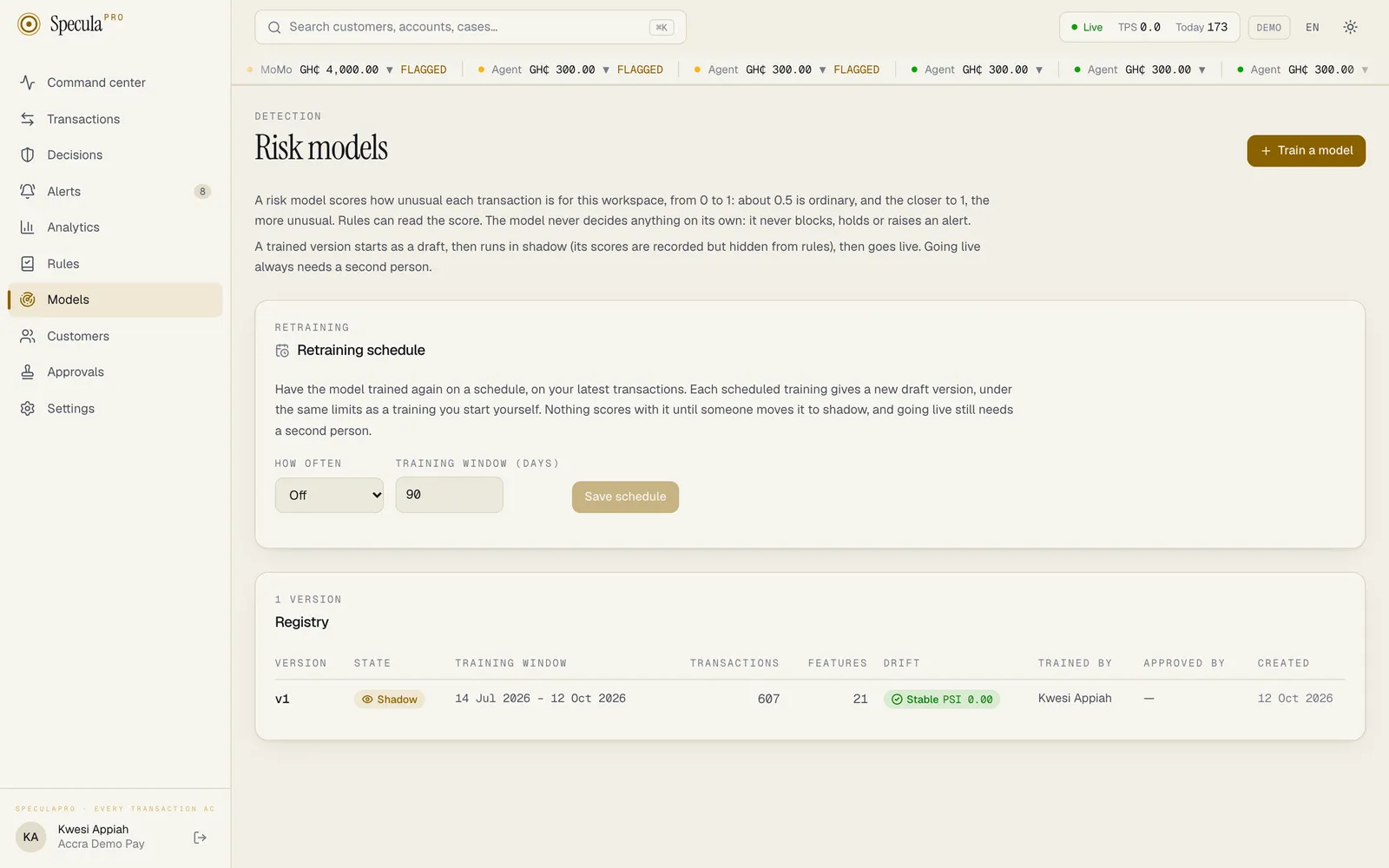
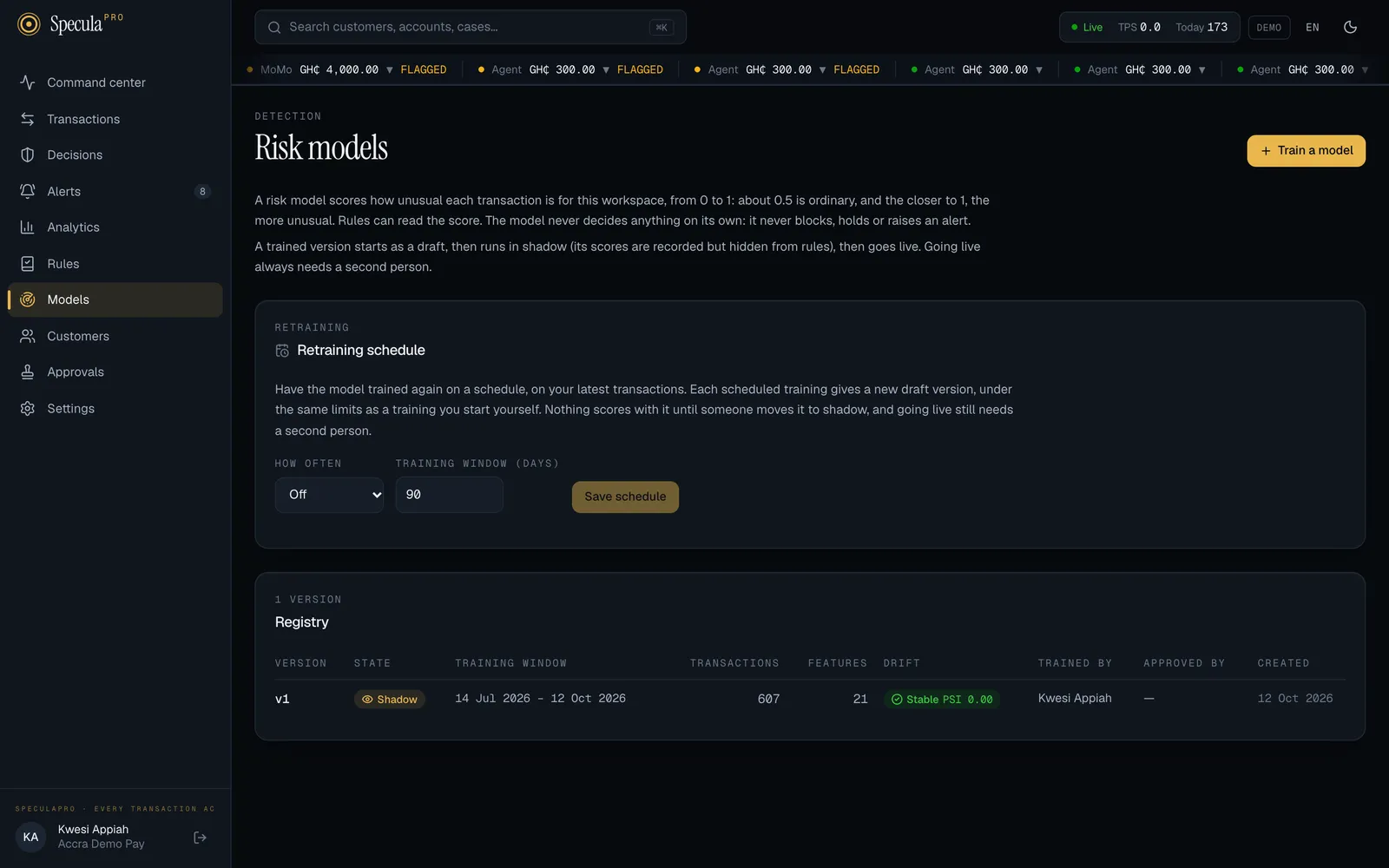
Section titled “The page”In the sidebar, select Models. The page is titled Risk models and lists the Registry: every version trained in your workspace, newest first.
| Column | Meaning |
|---|---|
| Version | v1, v2, … numbered per workspace |
| State | Draft, Shadow, Live or Retired. While a version trains, its progress shows here |
| Training window | The dates of the transactions it learned from |
| Transactions | How many transactions the window held |
| Features | How many inputs the model reads |
| Drift | The latest reading, while the version is in shadow or live |
| Trained by, Approved by, Created | Who trained it, who approved it going live, and when. A version the retraining schedule asked for shows The schedule under Trained by |
Above the registry is the Retraining schedule panel: see The retraining schedule. With no version yet, the registry says No model yet.
How to train a model
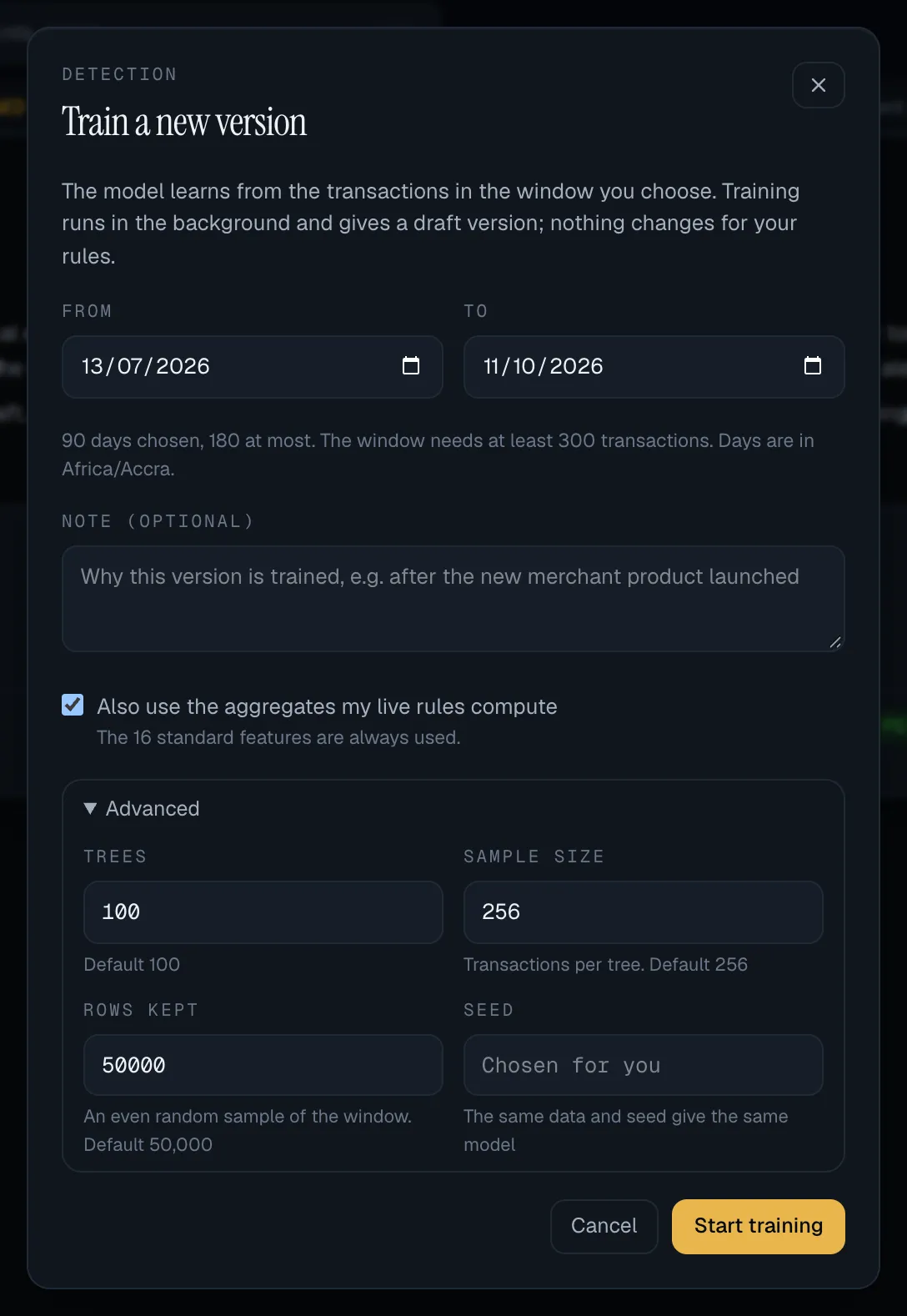
Section titled “How to train a model”- On the Models page, select Train a model.
- Choose the window with From and To. It opens on the last 90 days. A window covers at least 7 days and at most 180, can’t end in the future, and must hold at least the minimum number of transactions the line under the dates shows (5,000 unless your operator changed it).
- Optionally write a Note saying why this version is being trained, for example after the new merchant product launched. It is kept with the version.
- Leave Also use the aggregates my live rules compute ticked unless you have a reason not to. The 16 standard features are always used; this adds up to 16 of the aggregates your live rules already work out.
- Select Start training.
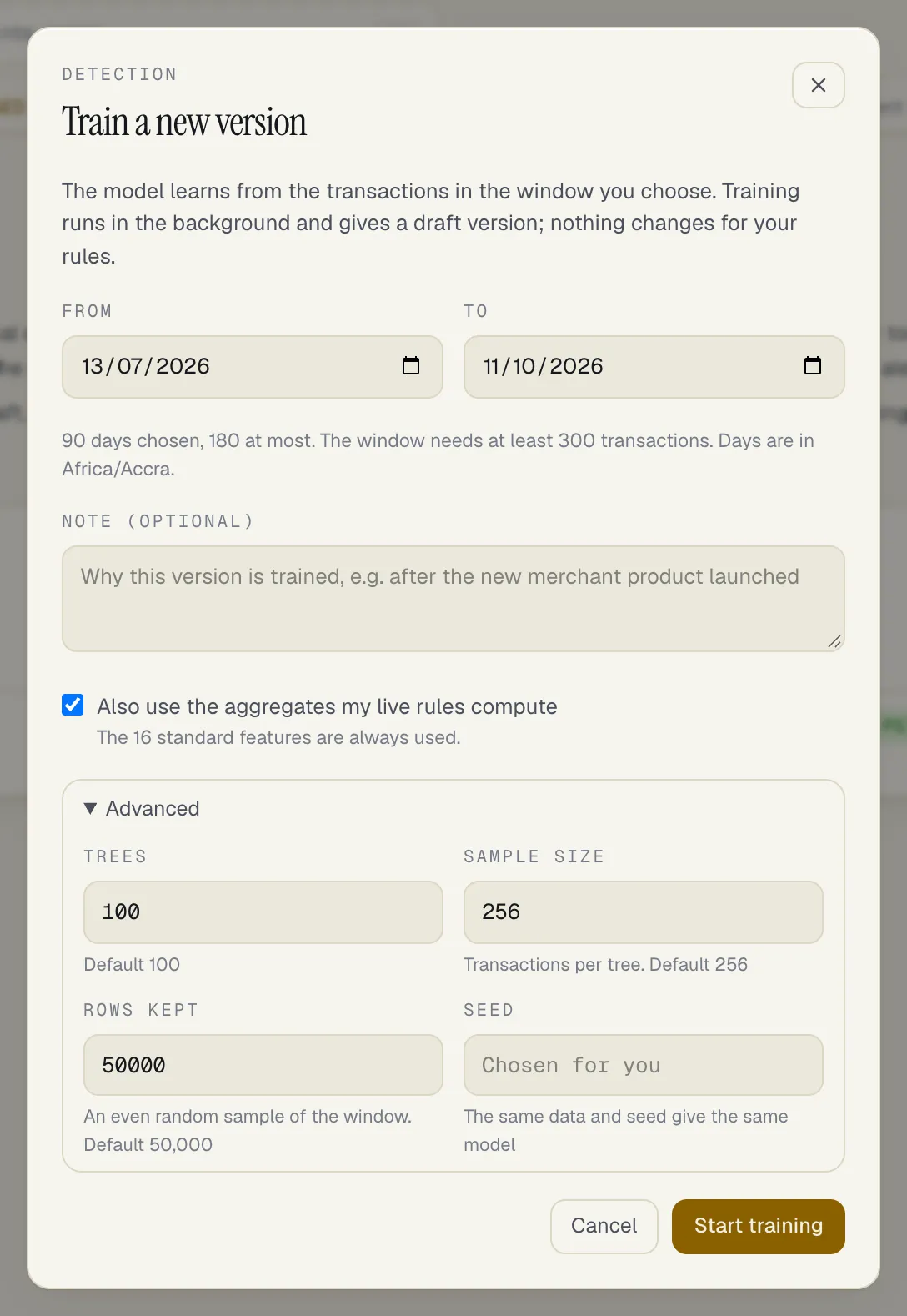
The new version appears in the registry as a draft, with Waiting to train and then Training and a progress bar. Training runs in the background. You can leave the page.
When training is refused or fails
Section titled “When training is refused or fails”| What you see | Why | What to do |
|---|---|---|
| not enough data: the window from … to … holds N transactions, and a model needs at least … | The window holds too few transactions for a model to mean anything | Choose a longer window, or train later |
| a training is already queued or running in this workspace… | One training at a time per workspace | Wait for it, or cancel it |
| Training failed: …more than N transactions, the most one training may replay… | The window is too busy for one training | Choose a shorter window |
| Training failed: This window needs more feature memory than one training may use… | Too many active customers and accounts in the window | Choose a shorter window, or ask your operator to raise the limit |
| Training failed: The training took longer than the … limit | It ran past the time limit | Choose a shorter window |
| Training failed: The worker stopped during the training. Train again. | The server was restarted | Train again |
To stop a training, open the version and select Cancel training. To remove a version whose training failed or was cancelled, select Delete. A version that trained is never deleted: it is retired and stays in the registry.
How to read a version
Section titled “How to read a version”Select a row. The version’s page has six parts.
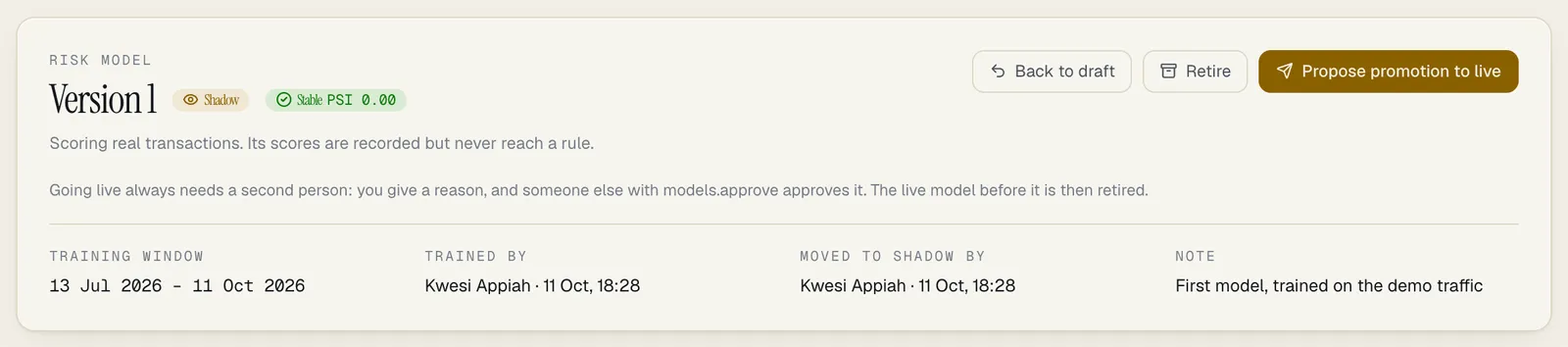
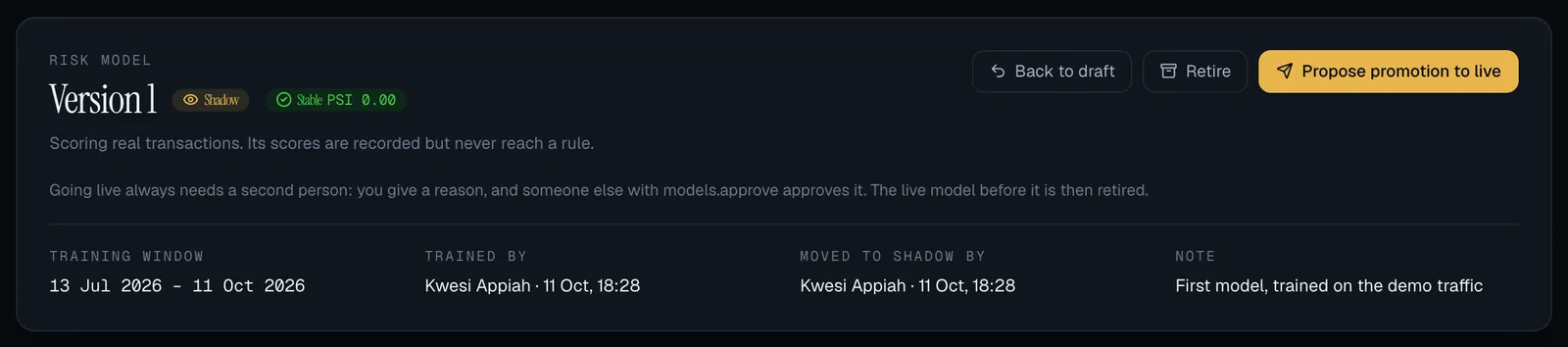
- The header: the version, its state, its drift reading, the training window, and who trained it, moved it to shadow, proposed and approved it, or retired it and why.
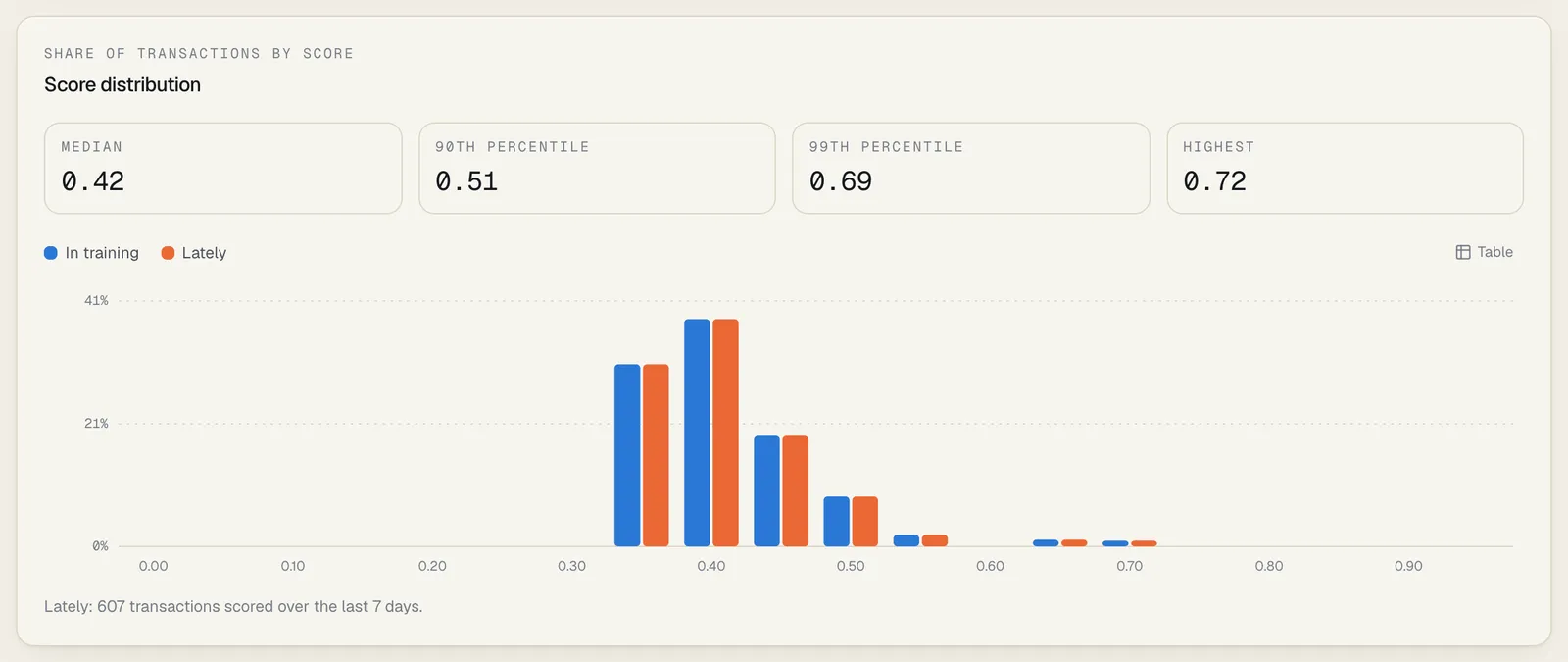
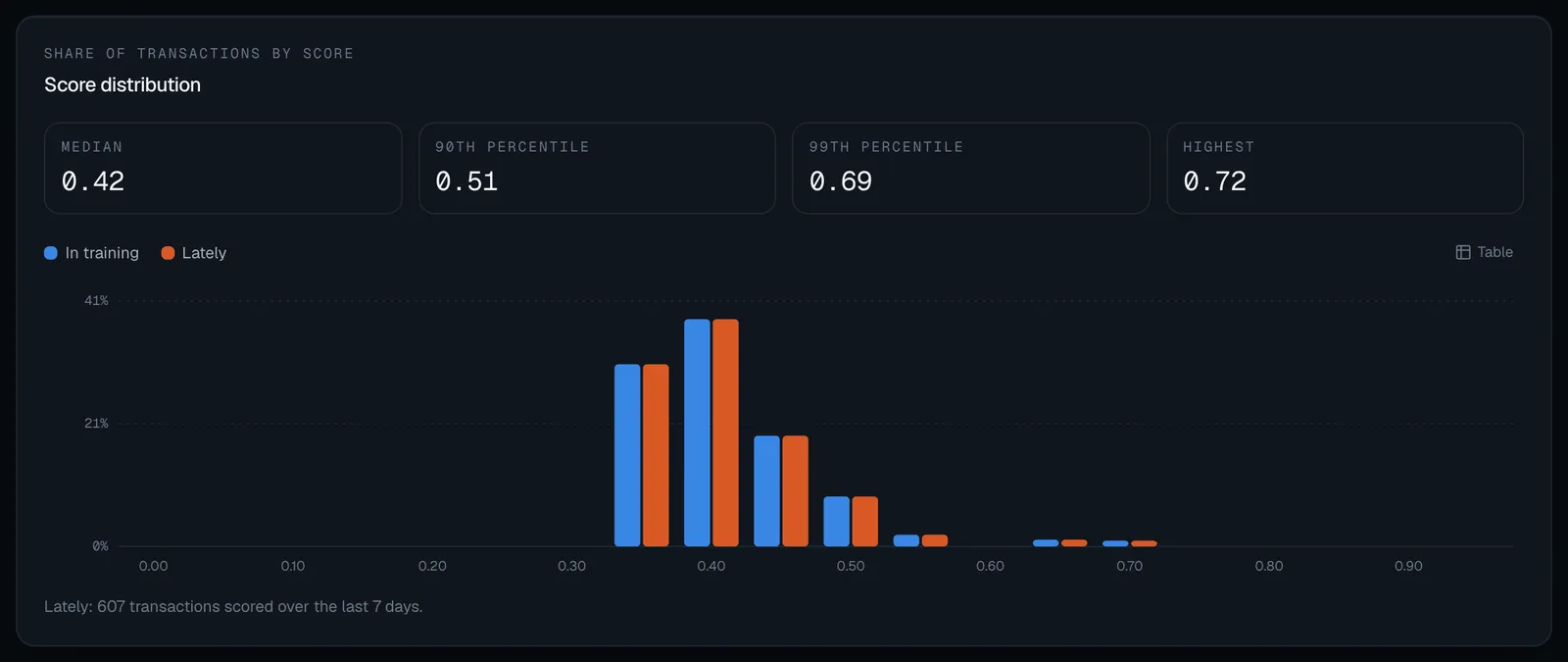
- Score distribution: how the model’s scores are spread. In training is the spread on the data it learned from, with the Median, 90th percentile, 99th percentile and Highest score. Lately is the spread of what it scored over the drift window (the last 7 days unless your operator changed it). The two shapes should look alike.
- Drift: see Drift.
- Activity: transactions scored per day over the last 30 days, by state.
- Use it in a rule: the five
model.variables and an example condition. See Using model scores in rules. - The model card: see The model card.
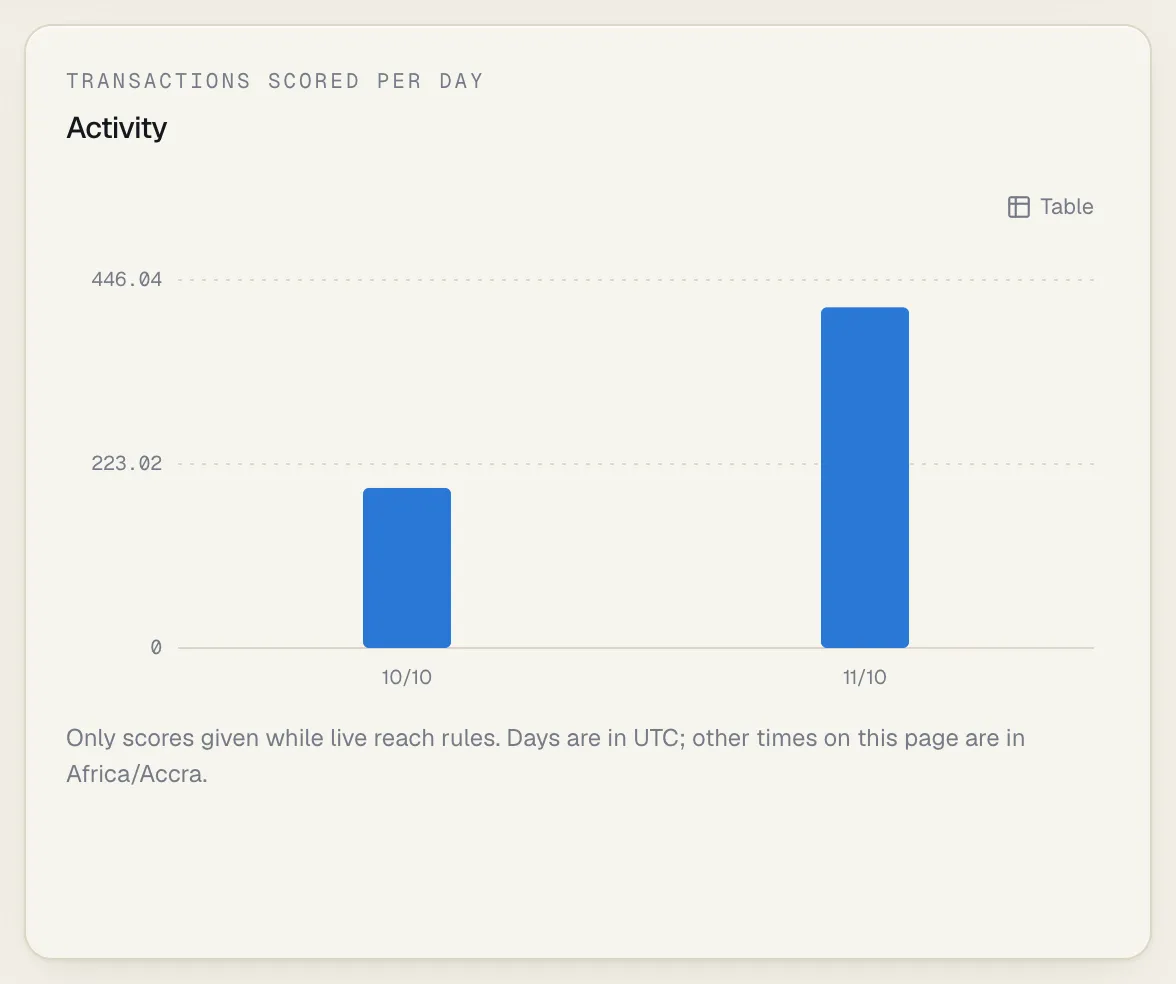
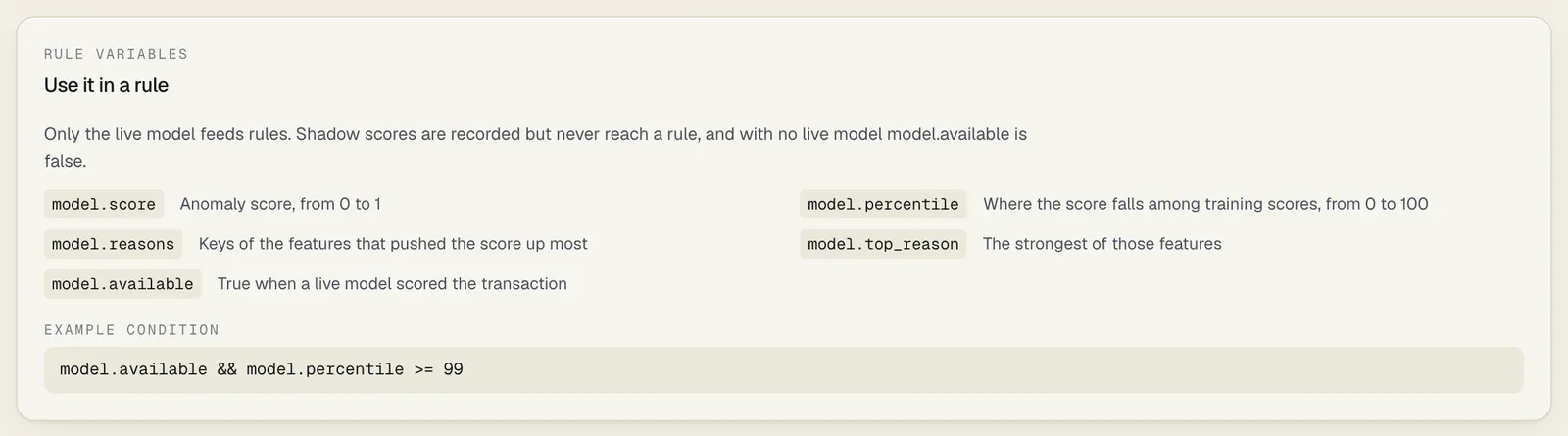
A draft has no Lately, drift or activity: a model scores transactions only in shadow or live.
The model card
Section titled “The model card”The card is written when training finishes and kept with the version. It is the document to give an auditor, a model-risk reviewer or a regulator.
| Section | What it says |
|---|---|
| Summary | What the model is: an isolation forest, trained without labels |
| Training data | The window, the transactions in it, how many were sampled, and every feature with its kind, scale and where it came from (standard, or from a live rule) |
| Parameters | Trees, sample size, rows kept, the minimum transactions required, and the seed |
| Intended use | A number for rules to read; a second look at what no rule describes yet |
| Not for | Deciding anything by itself; evidence that a customer did something wrong; other workspaces |
| Limits | Unusual is not suspicious; usual is not legitimate; it describes its training window; thin histories; no accuracy figure without labels |
| How scores are explained | How each feature’s share of a score is worked out |
| What the stored model contains, What it never contains | The split points and counts it keeps, and that it keeps no transaction, identifier or name |
| Governance | Shadow before live, a second person to go live, one live model, repeatable training |
| Stored model | Its format, size and SHA-256 fingerprint |
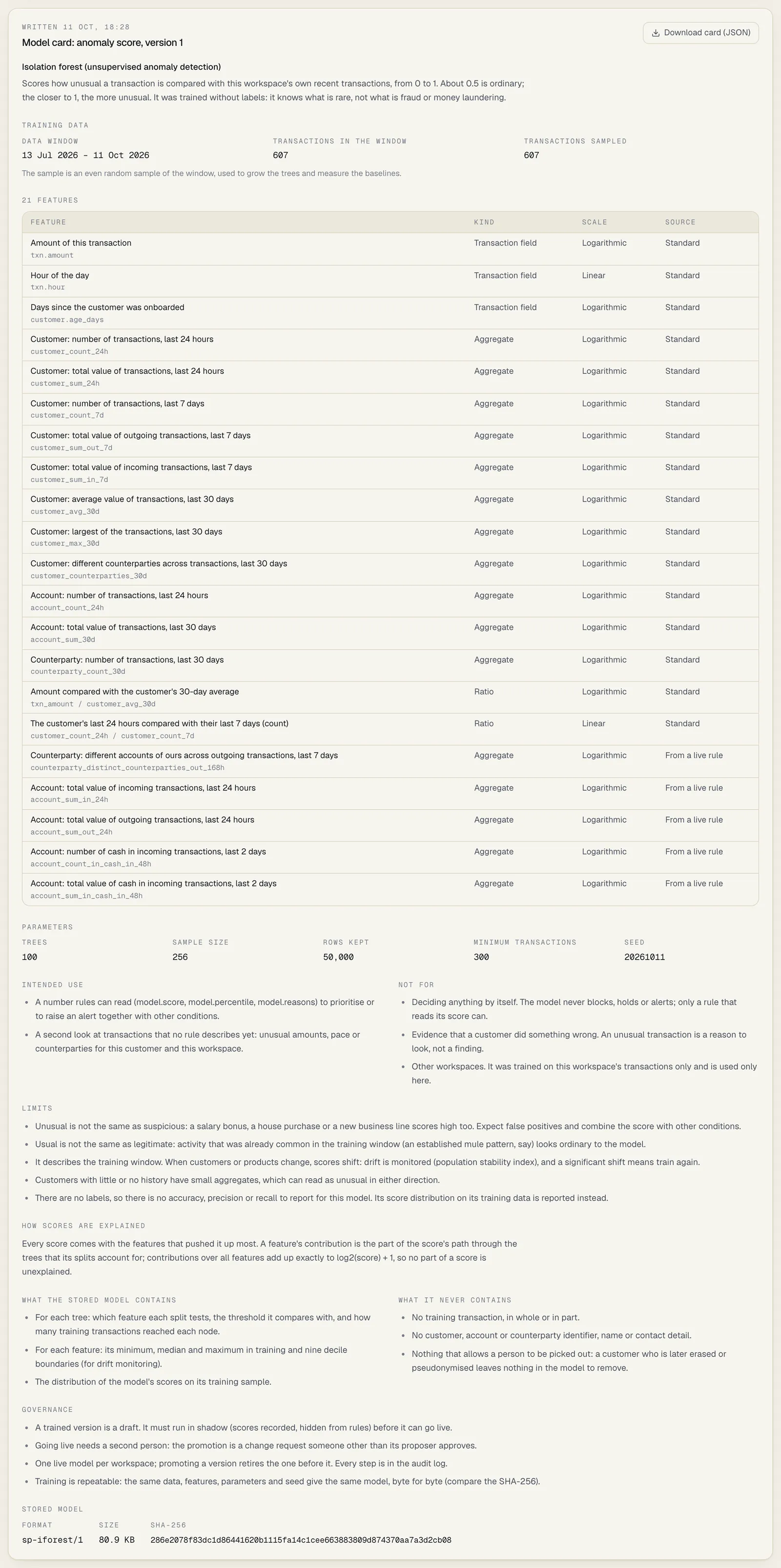
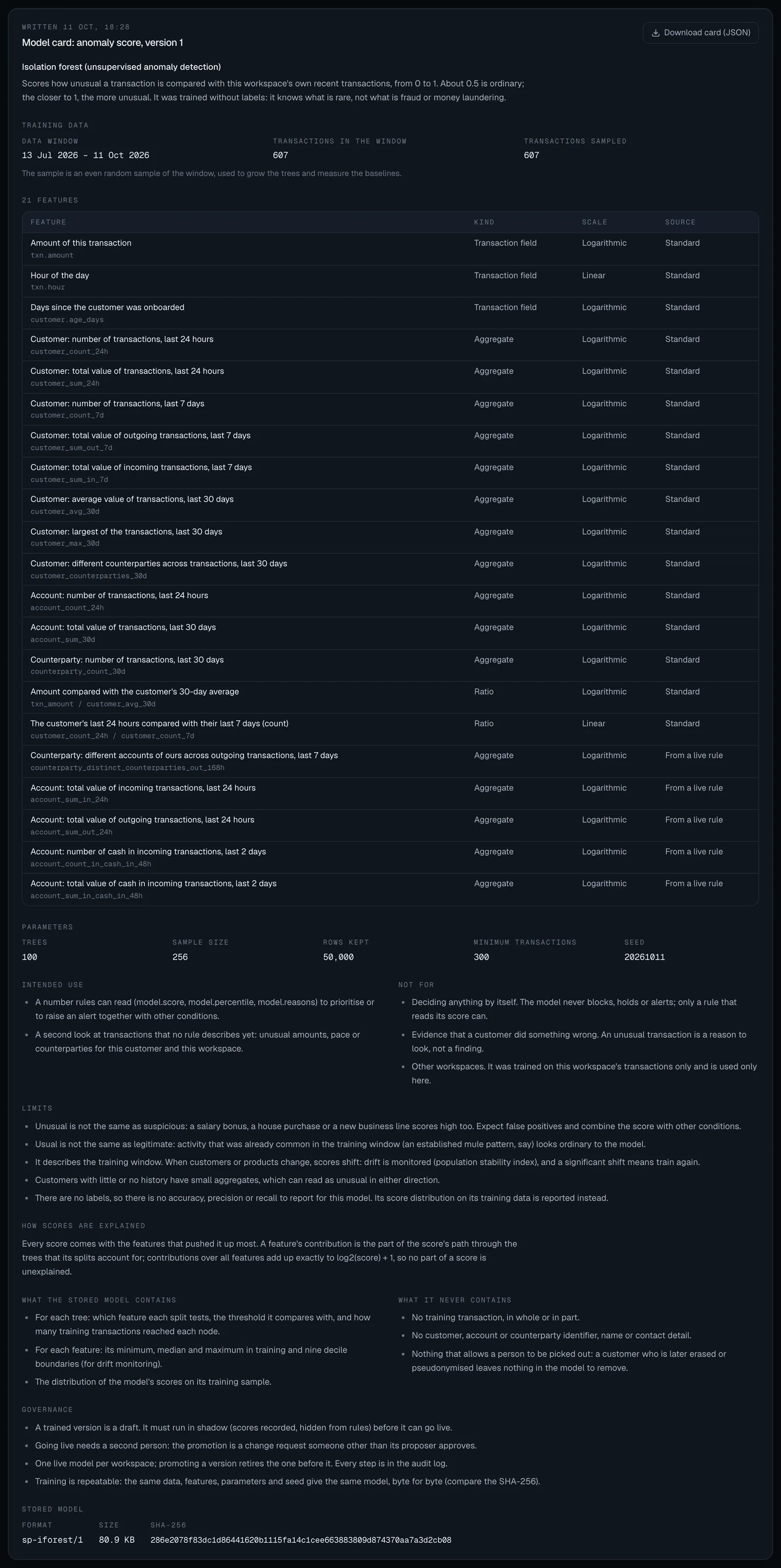
Select Download card (JSON) to save it as risk-model-v<version>-card.json.
How to move a model to shadow
Section titled “How to move a model to shadow”- Open a trained draft.
- Select Move to shadow.
It now scores every transaction your workspace receives. The scores are counted for this page and never reach a rule, an alert or a decision. Within about 15 seconds the model is in use.
Only one version can be in shadow. If another is, you are told version N is already in shadow; a workspace runs one shadow model at a time: open that one and select Back to draft, or retire it, first.
Back to draft stops a shadow model scoring. Nothing else is lost.
What to look for in shadow
Section titled “What to look for in shadow”Give it enough traffic to judge: at least a few days, and at least a full week if your customers behave differently at weekends or on paydays.
- Lately should have the same shape as In training. A different shape so soon means the training window wasn’t typical.
- Drift should read Stable. Too little data means fewer than 500 transactions have been scored: wait.
- Activity should show the model scoring every day.
How to propose a model for live
Section titled “How to propose a model for live”- Open the version in shadow.
- Select Propose promotion to live.
- In the box that asks Why is this change needed?, say what you saw in shadow that makes this version fit to go live. The approver and auditors read it.
- Select Send for approval.
The page shows Sent for approval. Nothing changes until someone else approves it.
Going live always needs a second person. This is so whatever Settings → Approvals says, and you can never approve your own proposal. The database itself refuses a live model without an approver other than its proposer.
How to approve one
Section titled “How to approve one”- Open Approvals, or the version’s page, where a banner shows the waiting request.
- Read the reason, then open the version: its model card, its score distribution and its drift are what you are approving.
- Approve or reject it, as for any change request.
When it is approved:
- the version becomes Live, and real-time and post-event rules read its score within about 15 seconds;
- the version that was live before it is retired, with the reason Replaced by version N;
- Approved by on the version shows who approved it.
A request nobody decides expires after 7 days, like any other. So if nobody else in your workspace
holds models.approve, a model can’t go live: give the permission to a second person first. If the version has left shadow in
the meantime, the request is closed as out of date and nothing is applied.
Drift compares the transactions a shadow or live model scored lately with the ones it was trained on, using the population stability index (PSI), for the Score and for each feature. The panel lists the five features that moved most.
| Reading | PSI | What to do |
|---|---|---|
| Too little data | Fewer than 500 transactions scored in the window | Wait |
| Stable | Under 0.1 | Nothing |
| Moderate drift | 0.1 to 0.25 | Keep an eye on it; look at which features moved |
| Significant drift | Above 0.25 | Train a new version, run it in shadow, propose it |
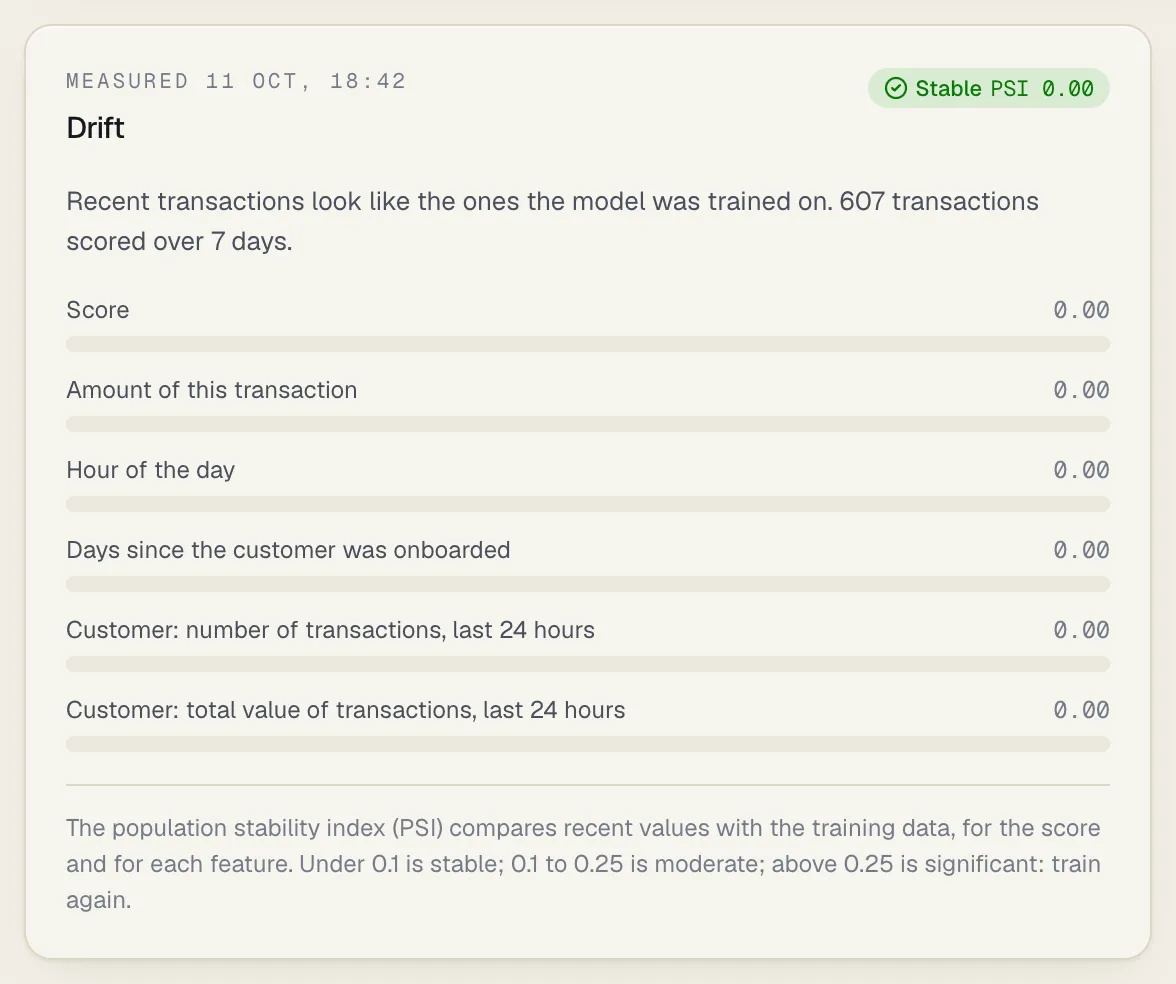
The reading in the registry is refreshed about once an hour. The version’s own page works it out as you open it.
Drift is a fact about your traffic, not a fault. A new product or a seasonal peak causes it. What matters is that rules reading the score now fire differently from when the model was approved.
Drift doesn’t start a training. To have a fresh draft waiting when drift shows, use the retraining schedule below.
The retraining schedule
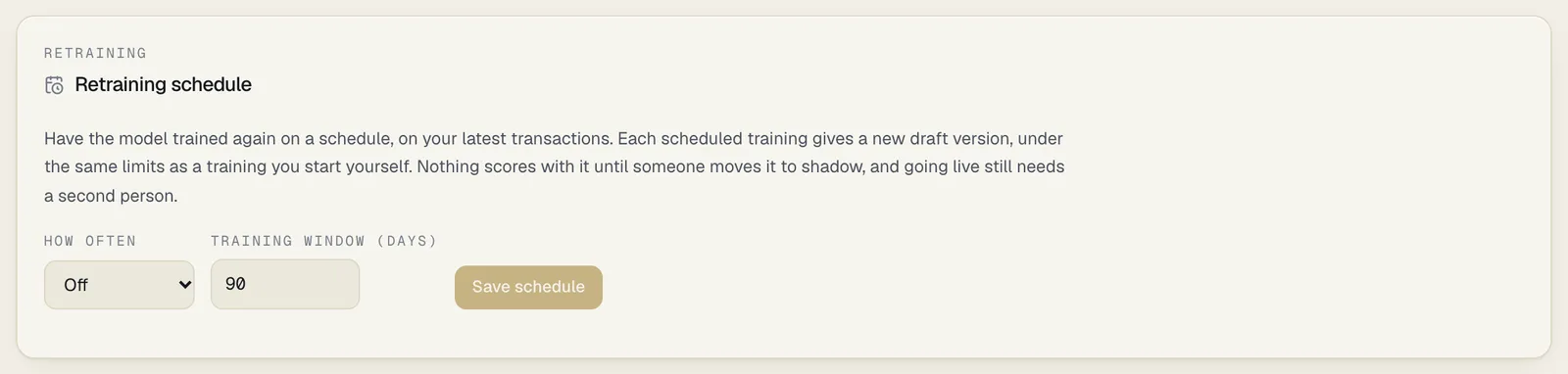
Section titled “The retraining schedule”A workspace can have its model trained again every week or every month, on its latest transactions. It is off until someone who manages models switches it on.
How to set the schedule
Section titled “How to set the schedule”You need models.manage. Everyone who can see the Models page can read the schedule.
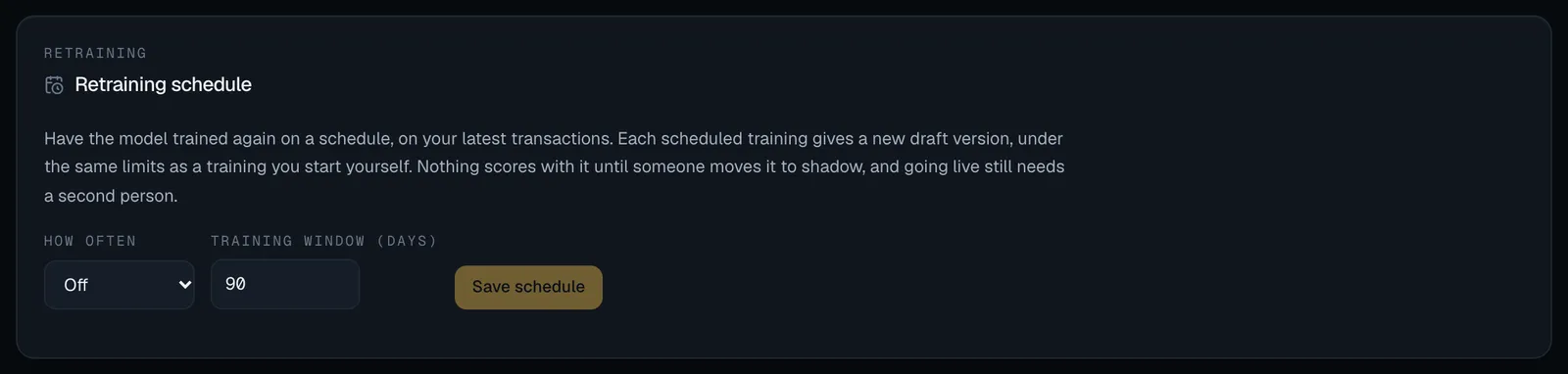
- Select Models. The Retraining schedule panel is above the registry.
- Under How often, choose Every week, Every month or Off.
- Under Training window (days), enter how many days of transactions each scheduled training learns from, counted back from the moment it is queued: 7 to 180, 90 unless you change it.
- Select Save schedule. The button is active once you have changed something.
The panel then shows Next training queued: with the date and time.
| The first training | One period after you switch the schedule on: a week, or the same day next month. To have a version now, train one yourself |
| Changing how often | Starts the period again from now |
| Changing only the window | Keeps the next date |
| Off | Clears the next date. Versions already trained stay |
What a scheduled training does
Section titled “What a scheduled training does”When the time comes, a training is queued exactly as if someone had selected Start training with those dates and the default settings. The same rules apply: the minimum number of transactions, one training at a time per workspace, and on a self-hosted installation the operator’s limits. The version’s Trained by reads The schedule.
After each occasion the panel says what happened, under Last occasion:
| The panel says | What happened | What happens next |
|---|---|---|
| version 4 was queued (a link to the version) | A training was queued | The next occasion is one period after the one that was due |
| no training was queued. followed by the reason | The window held too few transactions | Nothing until the next occasion |
| another training was queued or running, so it is tried again an hour later. | Someone’s own training, or an earlier one, was in the way | It is tried again in an hour |
Things to know:
- The schedule is checked about once a minute, so a training is queued within a minute or so of its time. The training itself then waits its turn like any other.
- If the service was not running schedules for several periods, one training is queued when it comes back, not one for each period missed.
- A workspace that is suspended, or being moved to another region, is left alone. Its schedule stays due and is picked up when the workspace is active again.
- Nobody is notified when a scheduled draft is ready. Look at the registry.
- Drafts are never deleted. A weekly schedule adds about 52 versions a year to the registry.
Setting the schedule is recorded in the audit log as model.schedule, with
the frequency and window before and after. Saving without changing anything records nothing. Each
scheduled training is a model.train entry by the system, marked with the schedule’s
frequency.
How to retire a model
Section titled “How to retire a model”- Open the version and select Retire.
- Give a Reason, 3 to 500 characters. It is kept in the registry and the audit log.
- Select Retire model.
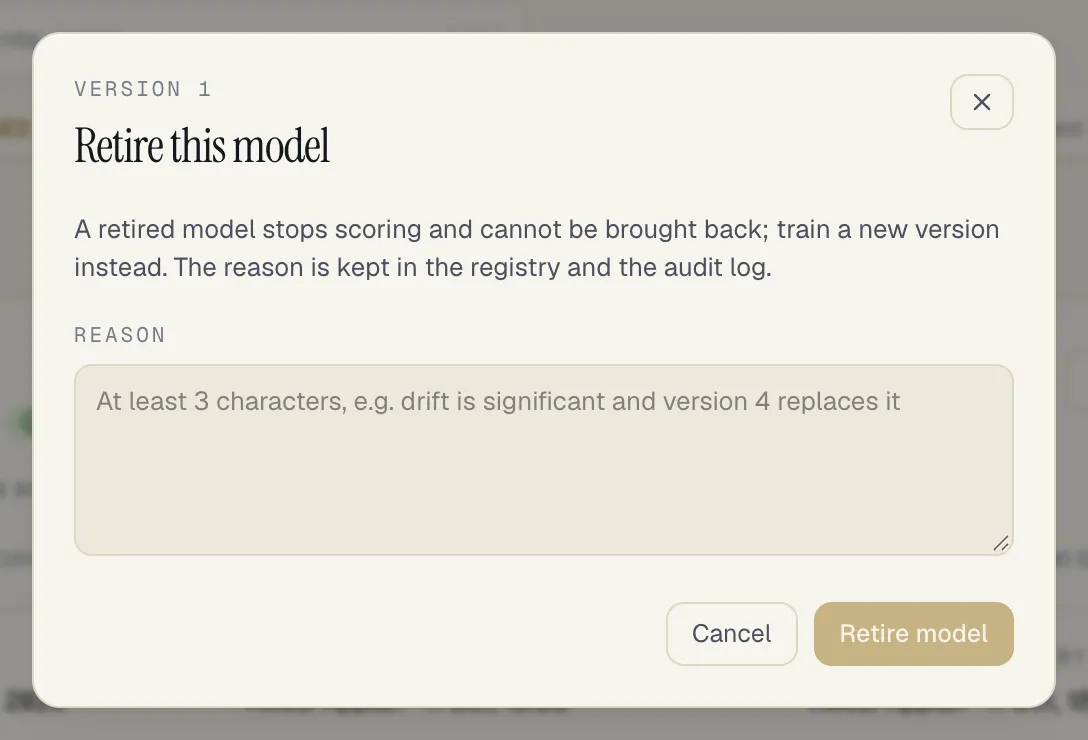
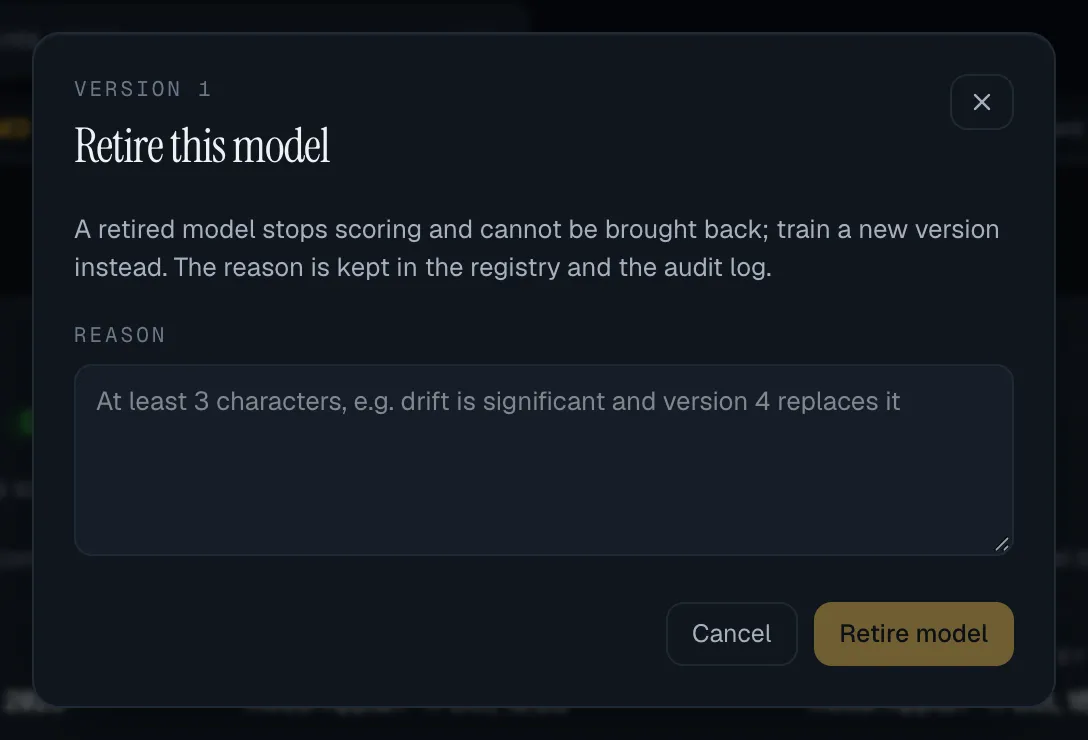
A draft or shadow version is retired straight away. A retired model can’t be brought back: train a new version instead.
What is recorded
Section titled “What is recorded”Every step is in the audit log: model.train, model.train_cancel,
model.delete, model.shadow, model.unshadow, model.promote, model.retire and
model.schedule (a change to the retraining schedule), each with
the version and who did it, and the change request with its reason for a promotion.
The version itself keeps who trained it, who moved it to shadow, who proposed and who approved going live, and who retired it and why. A trained version never leaves the registry.
Limits
Section titled “Limits”- One live and one shadow model per workspace; one training at a time per workspace.
- One kind of model: the anomaly score. Models that learn from your fraud labels are not built yet.
- You can’t choose individual features: the standard set, with or without your rules’ aggregates.
- Aggregates over two hours or less, device aggregates, account-event counts and same-hour counters are never used as features, even when a rule computes them.
- A retraining schedule trains drafts only, weekly or monthly, at a time counted from when you switched it on: you can’t pick the day or the hour. Nothing is moved to shadow or live for you.
- No notification when a scheduled draft is ready: look at the page. (Significant drift is notified: see Notifications.)
- A backtest of a rule that reads the score uses today’s live model for every past transaction; SpeculaPro keeps no history of which version was live when.