
Recovery codes
Ce contenu n’est pas encore disponible dans votre langue.
In short
Section titled “In short”A recovery code signs you in once, in place of the six-digit code from your authenticator app. You get ten of them when you set up your authenticator, and they are for one situation: the phone that holds the app is lost, broken or replaced.
- The codes are shown once. SpeculaPro keeps only a scrambled form of each and can never show them again.
- Each code works once. A used code is gone.
- You still need your password. A recovery code replaces the authenticator’s code, nothing else.
- When a code is used, you are told, and it is written to the audit log.
- You can replace the whole set at any time under Settings → Sign-in, with a code from your authenticator.
People who sign in only through their organisation’s single sign-on have no SpeculaPro authenticator and so no recovery codes: their sign-in methods are managed at the identity provider.
What a code looks like
Section titled “What a code looks like”A code is 16 letters and digits in four groups, in the pattern XXXX-XXXX-XXXX-XXXX. It never contains the letters I, L, O or U, so it survives being read aloud or copied by hand.
When you type one, capitals, spaces and dashes don’t matter, and a letter O is read as zero and I or L as one.
How to save your codes
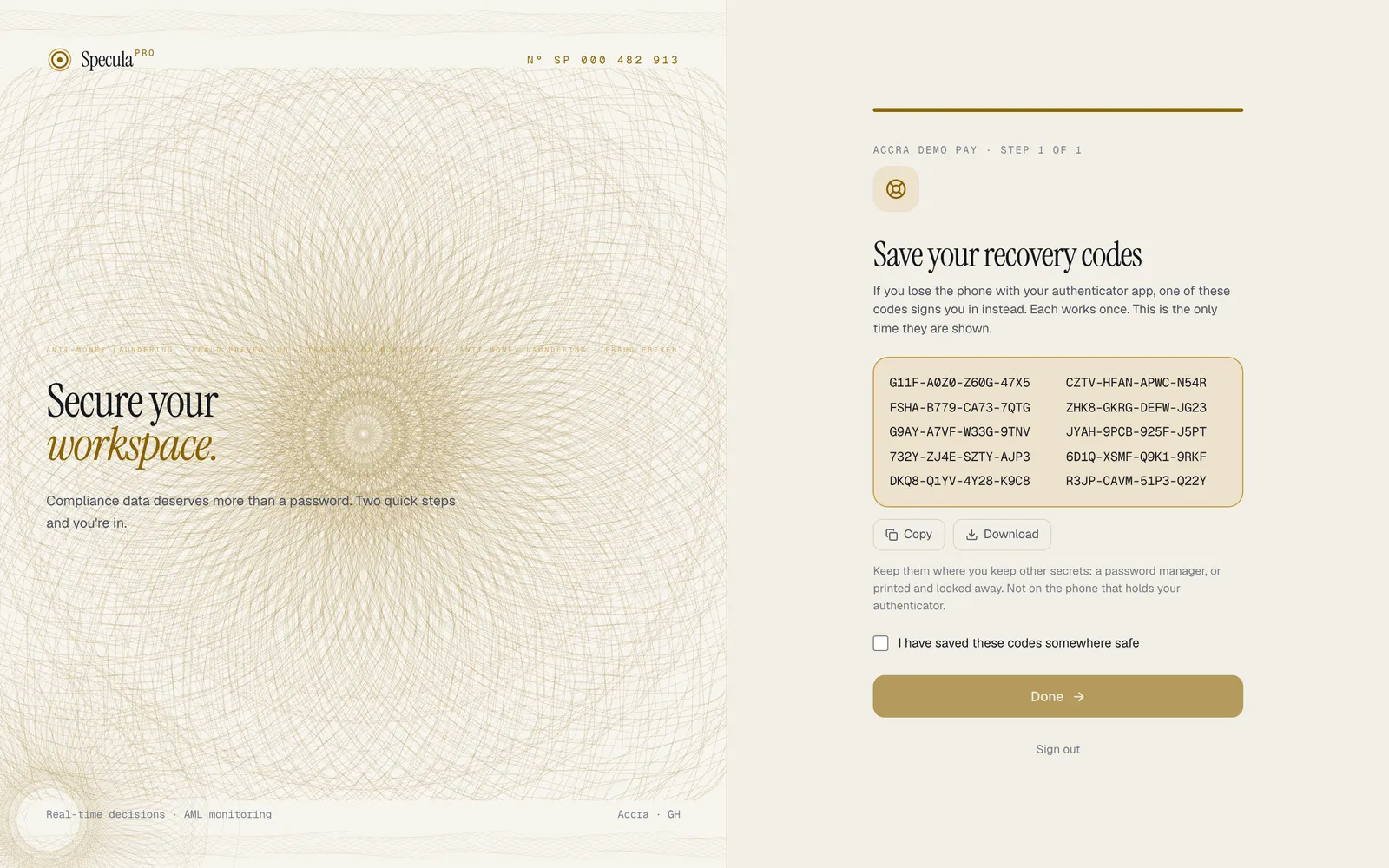
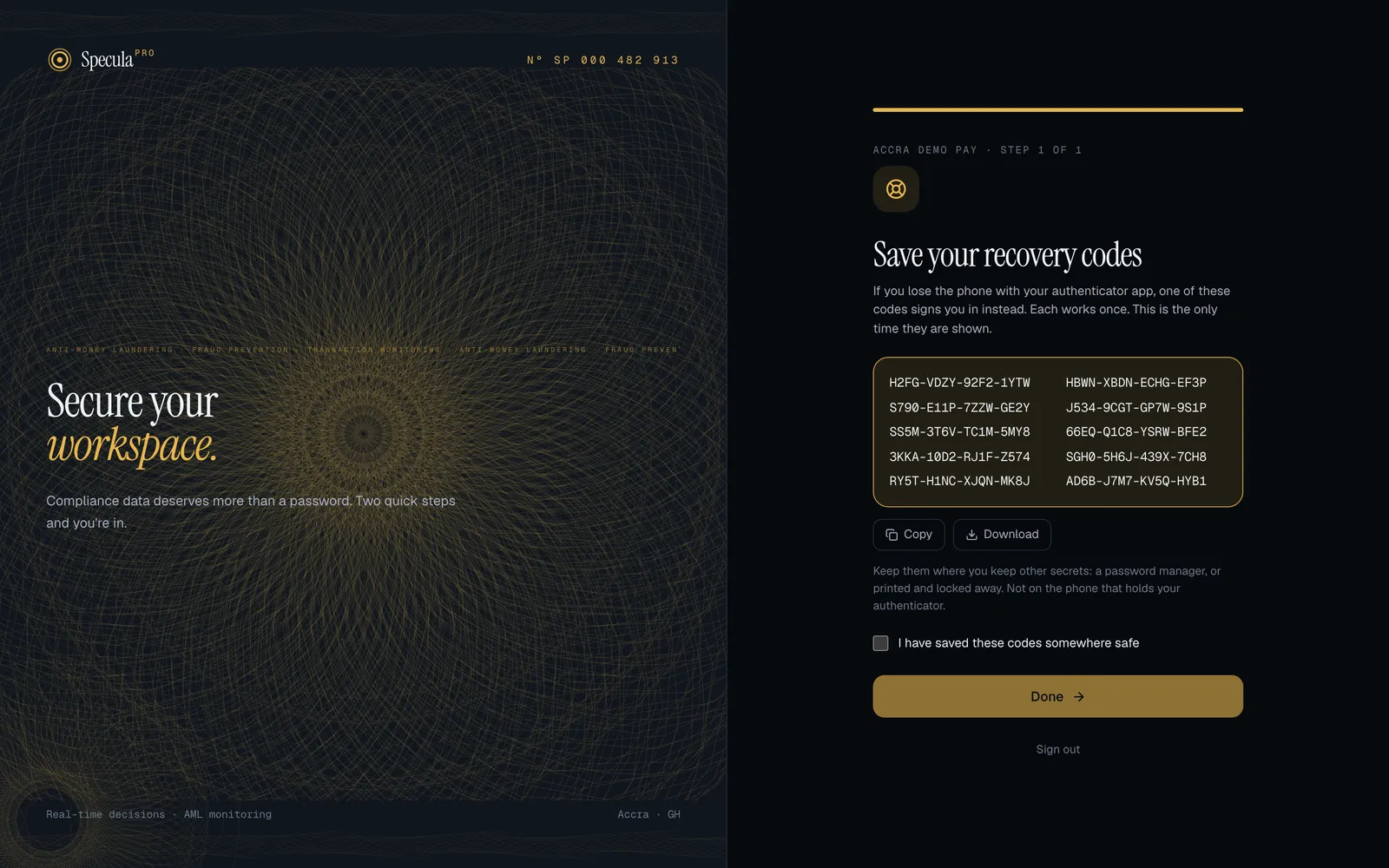
Section titled “How to save your codes”You see the codes on the screen Save your recovery codes, straight after you confirm your authenticator app at your first sign-in.
- Select Copy to copy the ten codes, or Download to save them as a text file named
speculapro-recovery-codes-<workspace>.txt. - Put them where you keep other secrets: a password manager, or printed and locked away.
- Tick I have saved these codes somewhere safe.
- Select Done.
The screen says: If you lose the phone with your authenticator app, one of these codes signs you in instead. Each works once. This is the only time they are shown.
How to sign in with a recovery code
Section titled “How to sign in with a recovery code”- On the sign-in page, enter your Workspace, Work email and Password, and select Sign in.
- On the Enter your code step, select Lost your phone? Use a recovery code.
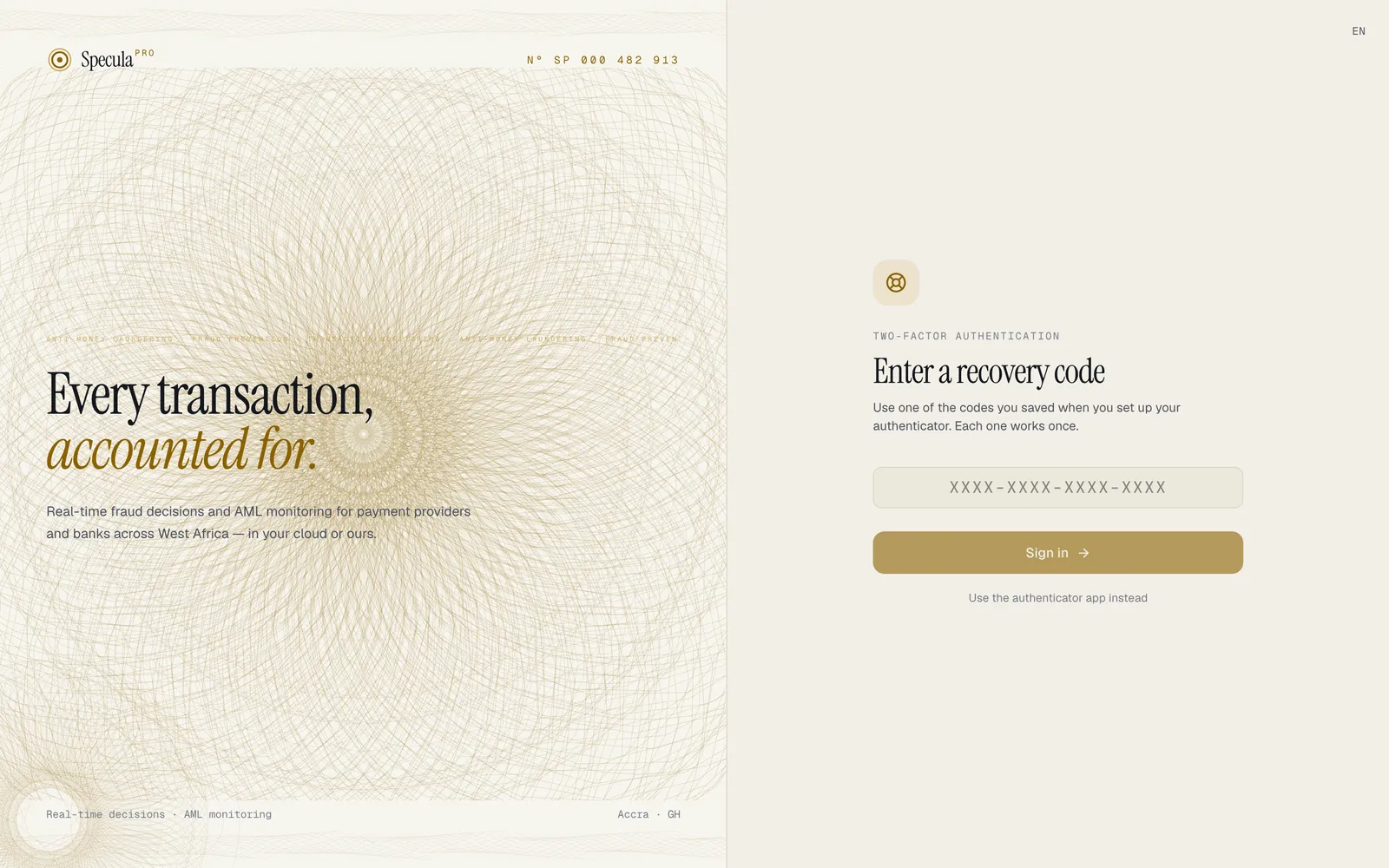
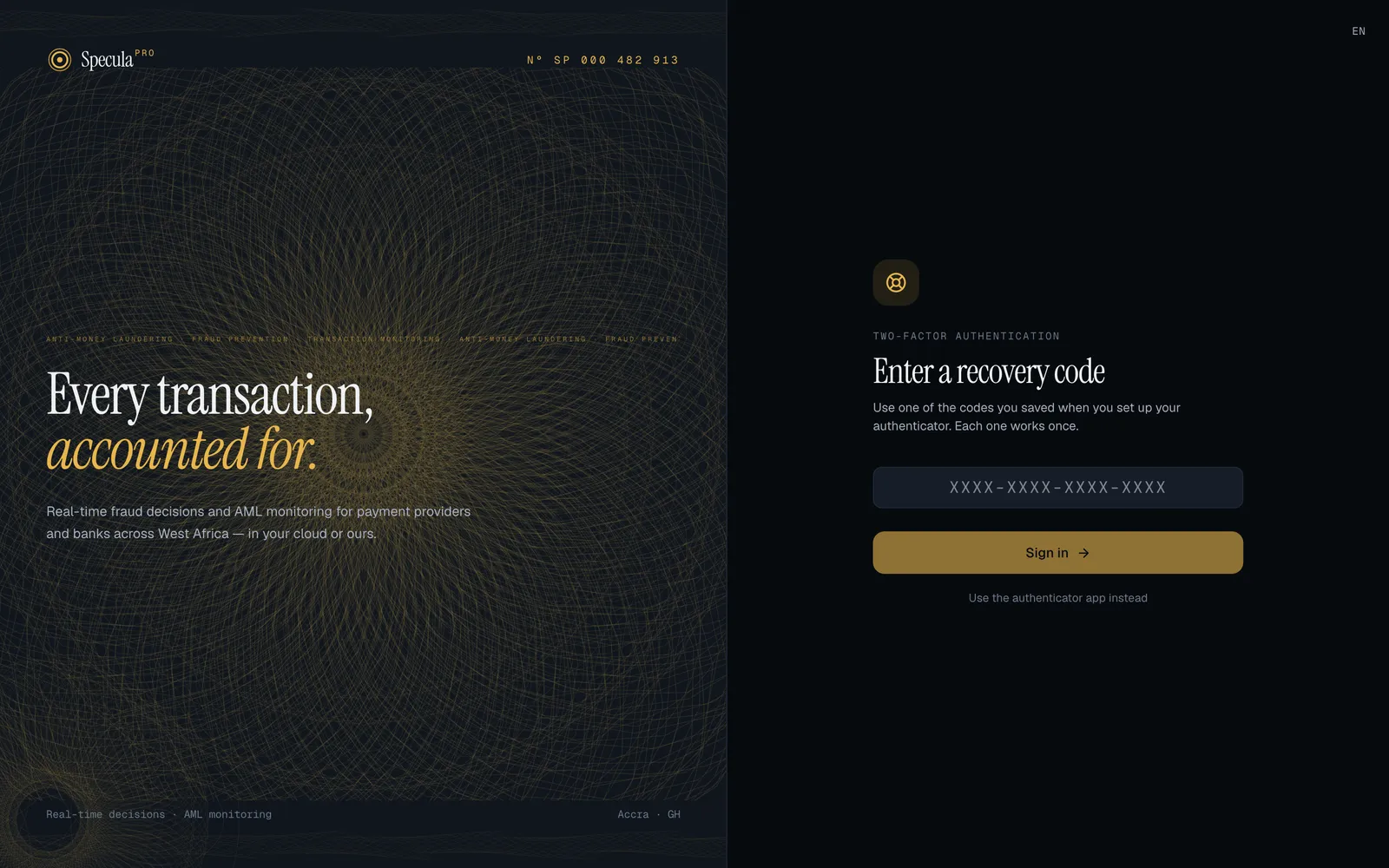
- Under Enter a recovery code, type one of your codes and select Sign in.
You are signed in with a full two-factor session. That code no longer works, and you receive the message A recovery code was used to sign in to your account, which also says how many codes you have left.
To go back, select Use the authenticator app instead.
Once you are in, sort out the lost phone: a recovery code doesn’t replace your authenticator. Ask an administrator to reset your two-factor, then set up the authenticator on your new phone at your next sign-in. You get a new set of ten codes when you do.
How to make new codes
Section titled “How to make new codes”Make a new set when you are running low, or when you think someone may have seen your codes.
- Open Settings and choose the Sign-in tab.
- In the Recovery codes panel, select Make new codes.
- Enter the Code from your authenticator app and select Make new codes.
- Save the ten new codes with Copy or Download, then select Done.
Ten new codes replace the ones you have, used or not. The old ones stop working at once.
The Recovery codes panel shows how many are left, for example 7 codes left, and when the set was made. At three or fewer the count turns red, with You are running low. Make a new set; the old codes stop working.
SpeculaPro asks for the authenticator’s code first so that nobody can do it from a screen you left open. This also means you can’t make new codes once the phone is lost: use a code you still have to sign in, then ask an administrator for a reset.


What protects the codes
Section titled “What protects the codes”| Protection | What it means |
|---|---|
| Long and random | Each code carries 80 bits of randomness. It can’t be guessed |
| Never stored in clear | Only a salted SHA-256 of each code is kept. A copy of the database holds nothing that signs in |
| Single use | A code is marked used the moment it is accepted. Two requests with the same code: only the first signs in |
| Password first | A recovery code is only looked at after the password was right |
| Counts toward the lockout | A wrong recovery code counts like a wrong password or a wrong authenticator code: after 10 failures in a row the account is locked for 15 minutes. See Protection against guessing |
| Making new codes is guarded | The authenticator code asked before Make new codes allows five tries in fifteen minutes. A wrong code is written to the audit log and counts toward the lockout, so a session left open can’t be used to guess its way to a new set |
| You are told | Every use sends you a notification, on the channels you chose under Settings → Notifications |
The design follows what NIST SP 800-63B calls look-up secrets and the OWASP ASVS requirements for them. That describes the design; it is not a certification.
What an administrator’s reset does
Section titled “What an administrator’s reset does”When an administrator resets your two-factor, your authenticator, all your recovery codes and all your passkeys are deleted, and every session you have open ends. You get ten new codes when you set up the authenticator again.
Issuing you a temporary password does not touch your recovery codes.
What is recorded
Section titled “What is recorded”| What happened | Audit log entry |
|---|---|
| You signed in with a recovery code | auth.recovery_code_used, with how many codes remain. The auth.login entry for that sign-in records second_factor: recovery_code (an authenticator code records second_factor: totp) |
| A wrong recovery code was typed | auth.login_failed, with the reason bad_recovery_code |
| You made a new set | auth.recovery_codes_generated, with the number of codes |
| An administrator reset your two-factor | user.reset_2fa |
A code itself is never written to the audit log.
Limits
Section titled “Limits”- Single sign-on step. If you sign in through your identity provider and are then asked for your SpeculaPro authenticator code (Signed in with SSO · one more step), that screen takes only the authenticator code. A recovery code can’t be used there; ask an administrator for a reset.
- Workspaces without two-factor. If your workspace doesn’t require two-factor and you never set up an authenticator, you have no recovery codes.
Troubleshooting
Section titled “Troubleshooting”| What you see | Why | What to do |
|---|---|---|
| That recovery code isn’t valid. Each one works only once. | The code is mistyped, was already used, or belongs to a set you replaced | Check it against your saved copy and try another. Each wrong try counts toward the lockout |
| Too many attempts. Wait a few minutes and try again. | The rate limit or lockout applies | Wait 15 minutes. Don’t keep trying |
| That code didn’t match. Wait for the next one and try again. when making new codes | The authenticator code was wrong or already used | Wait for the app’s next code. After five tries in fifteen minutes you must wait, even with the right code |
| No Make new codes button | You have no authenticator set up | Set one up at your next sign-in; the codes come with it |
| The Sign-in tab says You sign in through your organisation’s identity provider. Your sign-in methods are managed there. | Your account has no SpeculaPro password | Nothing: recovery is your identity provider’s |
| You have no codes left and no phone | Nothing can sign you in | Ask an administrator to reset your two-factor |