
Sign-in and MFA
In short
Section titled “In short”To sign in you need three things: your workspace name, your email, and your password. Then you need a six-digit code from an authenticator app on your phone. That second step is multi-factor authentication (MFA). It means a stolen password alone is not enough to get in.
If your institution has set up single sign-on, you can instead select Continue with SSO and sign in with your usual work account.
Two things sit beside the password and the code:
- Recovery codes: ten single-use codes you save when you set up your authenticator. One of them signs you in if you lose your phone.
- Passkeys: sign in with your fingerprint, face or device PIN, with no password and no code. You add one after your authenticator is set up.
What you enter
Section titled “What you enter”| Field | What it is | Example |
|---|---|---|
| Workspace | Your institution’s short name in SpeculaPro, chosen when the workspace was created | acme-pay |
| The address your administrator registered for you | [email protected] |
|
| Password | Your password: 12 to 128 characters | |
| Code | The six-digit code currently shown in your authenticator app | 482 913 |
The same email can exist in two different workspaces as two separate accounts, which is why the workspace is asked for first.
Your first sign-in
Section titled “Your first sign-in”When an administrator creates your account (or the first administrator account of a new workspace), you receive a temporary password. It works for 72 hours, so sign in soon after you get it. Your administrator should give it to you in person or over a channel separate from your sign-in details; see Handing over a temporary password safely.
- Sign in with your workspace, email and temporary password.
- You are asked to choose a new password. Until you do, you can’t use the rest of SpeculaPro.
- You are asked to set up an authenticator app (see below). Until you do, you can’t use the rest of SpeculaPro either.
- You are shown your ten recovery codes. Save them, tick I have saved these codes somewhere safe and select Done.
If your temporary password has expired
Section titled “If your temporary password has expired”If you sign in with a temporary password more than 72 hours after it was issued, the sign-in page says This temporary password has expired. Ask your administrator to send a new one. Your account is fine; only that password has stopped working. Ask your administrator to issue a new temporary password, then sign in with it.
You only see this message after typing the temporary password correctly; a wrong password still gives the generic invalid credentials. Each attempt with an expired password counts towards the lockout, so don’t keep retrying.
Setting up your authenticator app
Section titled “Setting up your authenticator app”Use any standard authenticator app, such as Google Authenticator, Microsoft Authenticator, 1Password, Authy or Aegis. They all support the TOTP (time-based one-time password) standard.
- In SpeculaPro, start authenticator setup. A QR code is shown.
- In your authenticator app, add an account and scan the QR code.
- Type the six-digit code the app shows into SpeculaPro to confirm.
- The next screen, Save your recovery codes, shows ten codes. Copy or Download them, keep them somewhere safe that is not the same phone, tick I have saved these codes somewhere safe and select Done. This is the only time they are shown. See Recovery codes.
From then on, each sign-in asks for the current code. Codes change every 30 seconds, and each code can be used only once, so a code someone watched you type is useless to them afterwards.
How passwords are protected
Section titled “How passwords are protected”SpeculaPro never stores your password. It stores a password hash made with argon2id, an algorithm built specifically to make guessing passwords slow and expensive, even for an attacker with powerful hardware and a copy of the database.
- The current settings use 46 MiB of memory per guess (argon2id with m = 46 MiB, t = 1, p = 1). That is cheap for one sign-in but makes billions of guesses impractical.
- Passwords must be 12 to 128 characters. Length matters far more than symbols: a sentence such as
market day in kumasi starts earlyis both strong and memorable. - The strength settings are stored with each hash, so they can be raised over time. Older hashes are upgraded automatically the next time their owner signs in.
- Sign-in takes the same time whether or not the email exists, so an attacker can’t use timing to discover which emails are registered.
Protection against guessing
Section titled “Protection against guessing”| Safeguard | What it does |
|---|---|
| Rate limit per network address | More than 30 sign-in attempts per minute from one IP address are refused with too many attempts, try again later |
| Rate limit per account | More than 10 attempts in 15 minutes for the same workspace and email are refused the same way |
| Account lockout | After 10 failed attempts in a row (a wrong password, a wrong authenticator code or a wrong recovery code), the account is locked for 15 minutes, even if the attacker spreads attempts out to dodge the rate limits. Attempts made while it is locked don’t count and don’t extend the lock, so nobody can keep your account locked by sending a wrong password every few minutes: it always opens 15 minutes after the tenth failure. A successful sign-in resets the count |
| Generic errors | A wrong workspace, email, password or code, and a locked or disabled account, all give the same invalid credentials message, so an attacker learns nothing about which part was wrong. The one exception is an expired temporary password, which is reported only after the password itself was typed correctly |
| Audit | Every successful and failed sign-in is recorded in the audit log, with the address it came from. Attempts on a locked account are recorded too, with the reason account_unavailable |
Rate limiting uses Redis/Valkey. If Redis is unavailable, sign-in keeps working and the limits still apply: each API process counts attempts itself, against the same limits, until Redis answers again. Because each process counts separately, an installation with several API processes allows up to that many times the limit between them during the outage. The account lockout is kept in the database, so it is unaffected. Operators can see this happening in the metric speculapro_login_ratelimit_fallback_total; see Monitoring.
The per-address limit relies on SpeculaPro knowing each caller’s real address. Behind a load balancer or CDN, your operator sets that up with SP_HTTP_TRUST_PROXY and SP_HTTP_PROXY_HOPS, so the address comes from the entry your own proxy wrote and a caller can’t choose it. Versions before October 2026 took the address a caller could write themselves, so behind a proxy the per-address limit, and the addresses in the audit log, could be dodged or faked. See Configuration: HTTP server.
Lost your phone, or forgot your password?
Section titled “Lost your phone, or forgot your password?”If you lost your phone, first try what you can do yourself:
- Use a recovery code. On the code step, select Lost your phone? Use a recovery code and type one of the codes you saved. It works once. See Recovery codes.
- Use a passkey, if you added one on another device: select Sign in with a passkey. See Passkeys.
Either gets you in, but neither replaces the authenticator: you still need an administrator to reset your two-factor so you can set it up on the new phone. A forgotten password you can’t reset yourself either. The administrator will check it’s really you before acting.
| Problem | What the administrator does | What happens to you |
|---|---|---|
| Lost or replaced phone, and no recovery code or passkey | Reset two-factor | You’re signed out everywhere, and your recovery codes and passkeys are deleted. At your next sign-in, with your usual password, you set up a new authenticator app and save a new set of recovery codes |
| Forgotten password, locked out, or an expired temporary password | Issue a temporary password | You’re signed out everywhere and the lock is lifted. Sign in with the temporary password, then choose a new one. Your authenticator app, recovery codes and passkeys stay the same |
If you’re only locked out and still know your password, you can also just wait 15 minutes.
Signing in with a recovery code or a passkey
Section titled “Signing in with a recovery code or a passkey”| Way in | What you do | Counts as two-factor |
|---|---|---|
| Recovery code | Sign in with your password; on the code step select Lost your phone? Use a recovery code | Yes. You are notified each time one is used |
| Passkey | Select Sign in with a passkey on the sign-in page and confirm with your fingerprint, face or PIN. No workspace, email, password or code | Yes |
You see and manage both under Settings → Sign-in: whether your authenticator is set up, how many recovery codes are left, and your passkeys. Everyone has this tab.
If you sign in through single sign-on and are asked for a SpeculaPro code under Signed in with SSO · one more step, that screen takes only the authenticator’s code, not a recovery code.
Changing your password
Section titled “Changing your password”When you change your password, every other session you have open (another browser, another computer) is signed out immediately. The session you changed it from stays signed in. If you suspect someone else knows your password, changing it is therefore also the quickest way to throw them out.
Signing in with single sign-on
Section titled “Signing in with single sign-on”If your workspace uses single sign-on (SSO), the sign-in page shows Continue with SSO once you’ve typed the workspace name.
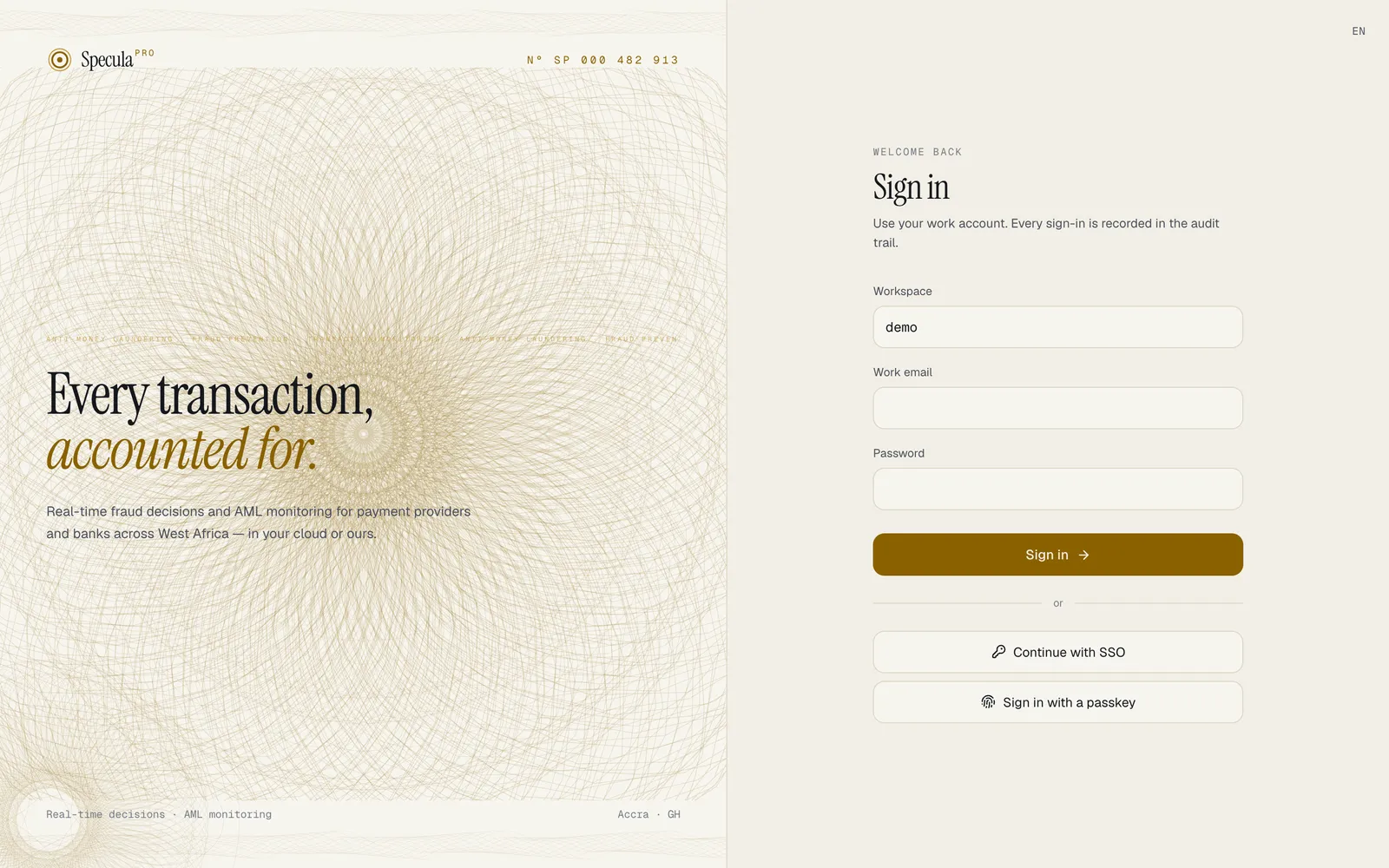
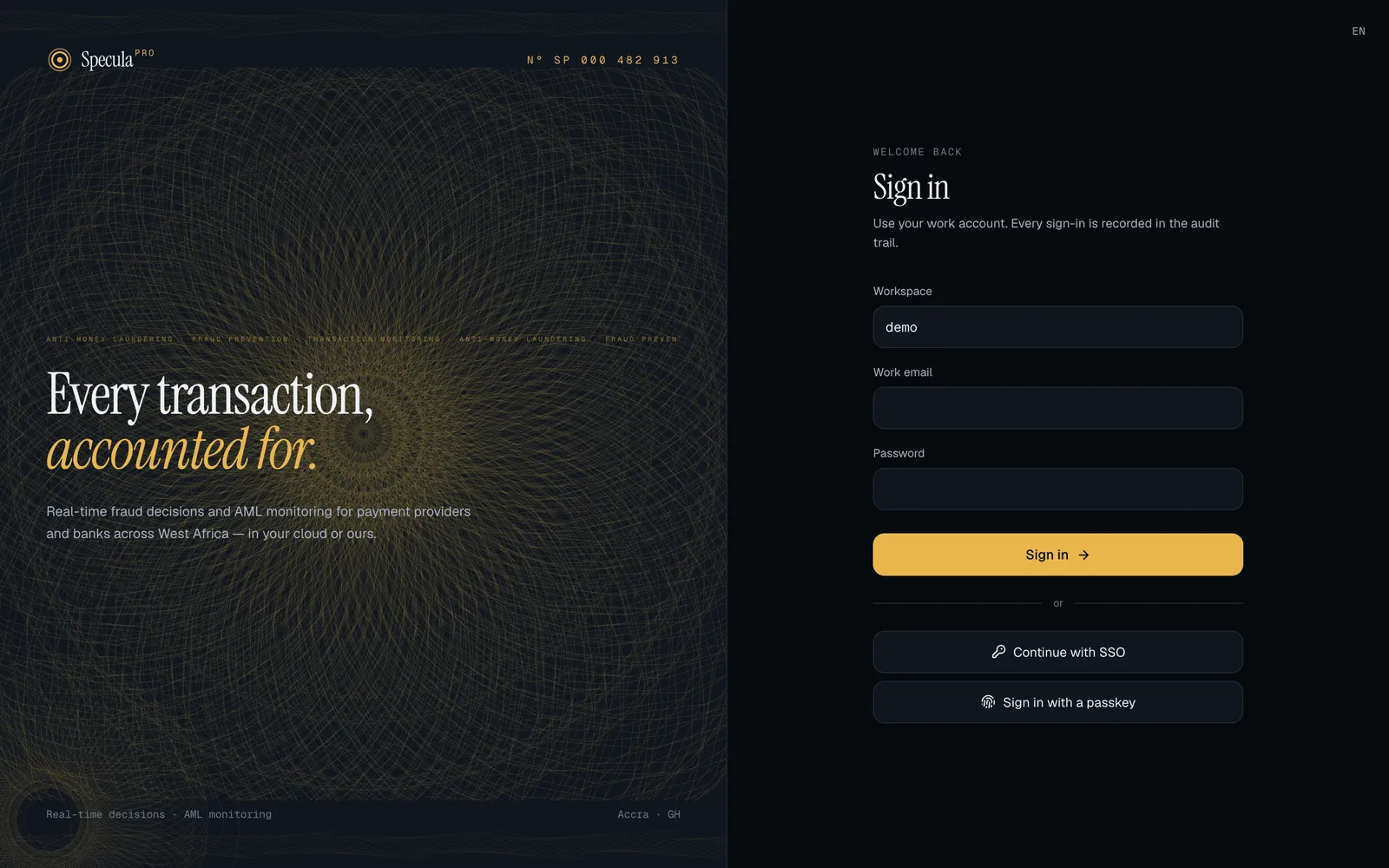
- Enter your Workspace. Entering your Work email too is optional, but it lets SpeculaPro check your email’s domain is set up for SSO.
- Select Continue with SSO. You go to your organisation’s sign-in page (for example Microsoft or Okta) and sign in there as usual.
- You come back to SpeculaPro, signed in. If your organisation’s sign-in didn’t include a second factor and you have a SpeculaPro authenticator, you’re asked for its code first, under Signed in with SSO · one more step.
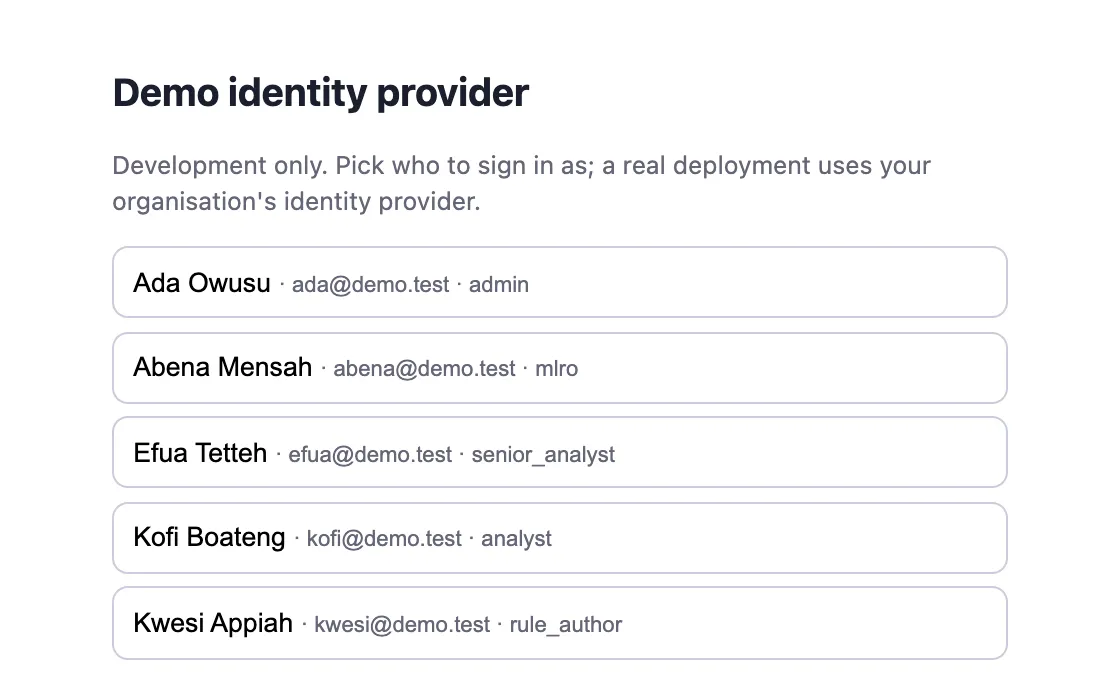
Above: the demo identity provider that comes with SpeculaPro’s development stack, where you pick a demo person. Your organisation’s real sign-in page looks different: it is your usual Microsoft, Okta, Google or other work sign-in.
If your workspace requires SSO, the page says This workspace signs in with single sign-on and shows only Continue with SSO. Your SpeculaPro password, if you had one, no longer works, and a password attempt gets This workspace signs in with single sign-on. Only break-glass administrators still sign in with a password, under Break-glass administrator sign-in.
If SSO doesn’t complete, you see Single sign-on didn’t complete. Try again, or ask your administrator with a reference. Give the reference to your administrator: the reason is in the audit log. Signing out of SpeculaPro after an SSO sign-in with OpenID Connect also takes you to your organisation’s sign-out page.
How it is protected is described in Single sign-on security.