
Managing lists
In short
Section titled “In short”A list is a set of values that rules check against, such as the countries your institution treats as high risk. You keep lists up to date on the Rules page, in the Lists panel. Unlike a rule change, a change to a list needs no approval round: rules that use the list see the new values within about 15 seconds.
Two shipped rules need a list before they can alert:
| Rule | List key | Holds | Example values |
|---|---|---|---|
E1 High-risk jurisdiction (core.high_risk_jurisdiction) |
high_risk_countries |
Countries you treat as high risk | IR, KP, MM |
H4 High-risk merchant category (core.high_risk_mcc) |
high_risk_mcc |
Card merchant category codes (MCCs) you treat as high risk | 7995, 6051 |
Without the list, these rules run but never match. For the concept and for using lists in your own rules, see Lists and Lists in rules.
Who can do what
Section titled “Who can do what”| Action | Permission | Default roles |
|---|---|---|
| See the Lists panel and open a list | rules.view |
All default roles |
| Create, rename or delete a list; add, remove or set the end date of values | lists.manage |
MLRO |
The Lists panel
Section titled “The Lists panel”- Select Rules in the menu.
- Find the Lists panel in the right-hand column. Its subtitle reminds you that rules refer to lists as
lists.<key>.
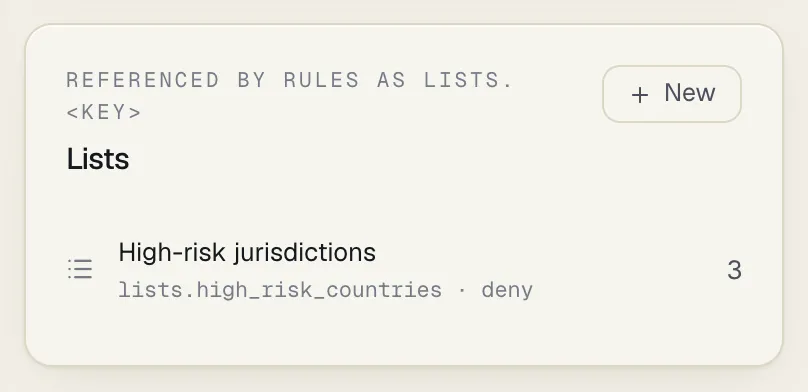
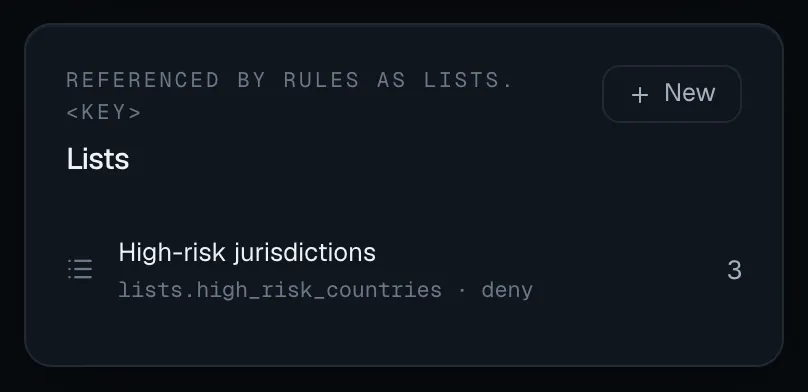
Each row shows:
| Item | Example | Meaning |
|---|---|---|
| Name | High-risk jurisdictions | The list’s display name |
| Key and kind | lists.high_risk_countries · deny |
The name rules use, and the kind of list |
| Used by | used by 1 | How many running rules use this list. Rules that are switched off, or only in a shadow test, aren’t counted. Not shown when no running rule uses it |
| Count | 3 | How many values currently apply. Values past their end date aren’t counted |
If there are no lists yet, the panel says so and reminds you that rules referring to a missing list simply don’t match.
How to create a list
Section titled “How to create a list”- In the Lists panel, select New. A panel titled New list opens, with empty fields.
- Under Key (rules use lists.key), enter the key. Use lowercase letters, digits and
_; anything else is turned into_as you type. To make a shipped rule work, use exactly the key it expects, from the table above. - Under Name, give it a name people will understand, for example High-risk jurisdictions.
- Under Kind, choose:
- Deny / high risk: values that make activity riskier, such as high-risk countries;
- Allow / trusted: values you trust, such as your own settlement accounts;
- Reference: anything else rules look up.
- Under Values are, choose what the list holds:
country,mcc,customer,account,counterparty,device,iportext. This decides how values are checked and cleaned (see below). - Select Create list.
The new list appears in the panel, empty. If the key is already taken, you’ll see an error saying a list with that key exists; open the existing list instead.
Choose the key carefully: rules refer to the list by its key, so the key, the kind and what values are can never change. The name and description can (see How to rename or describe a list).
How to add values
Section titled “How to add values”- In the Lists panel, select the list. A panel opens with the list’s name, its
lists.<key>, its description if it has one and, if running rules use it, Used by … Changes reach live rules within about 15 seconds. - In the large box, enter the values. Separate them with commas, spaces, semicolons or new lines, for example
IR, KP, MM. - In the box beside Add, enter the source: where the values come from, for example FATF statement Oct 2026 or MLRO decision 2026-14. It is stored with every value you add in this batch.
- Optionally, beside until, pick the last day the values apply, for example for a temporary block on a device while you investigate. They stop applying at the end of that day (23:59:59) in your time zone. Leave it empty for values that apply until someone removes them.
- Select Add.
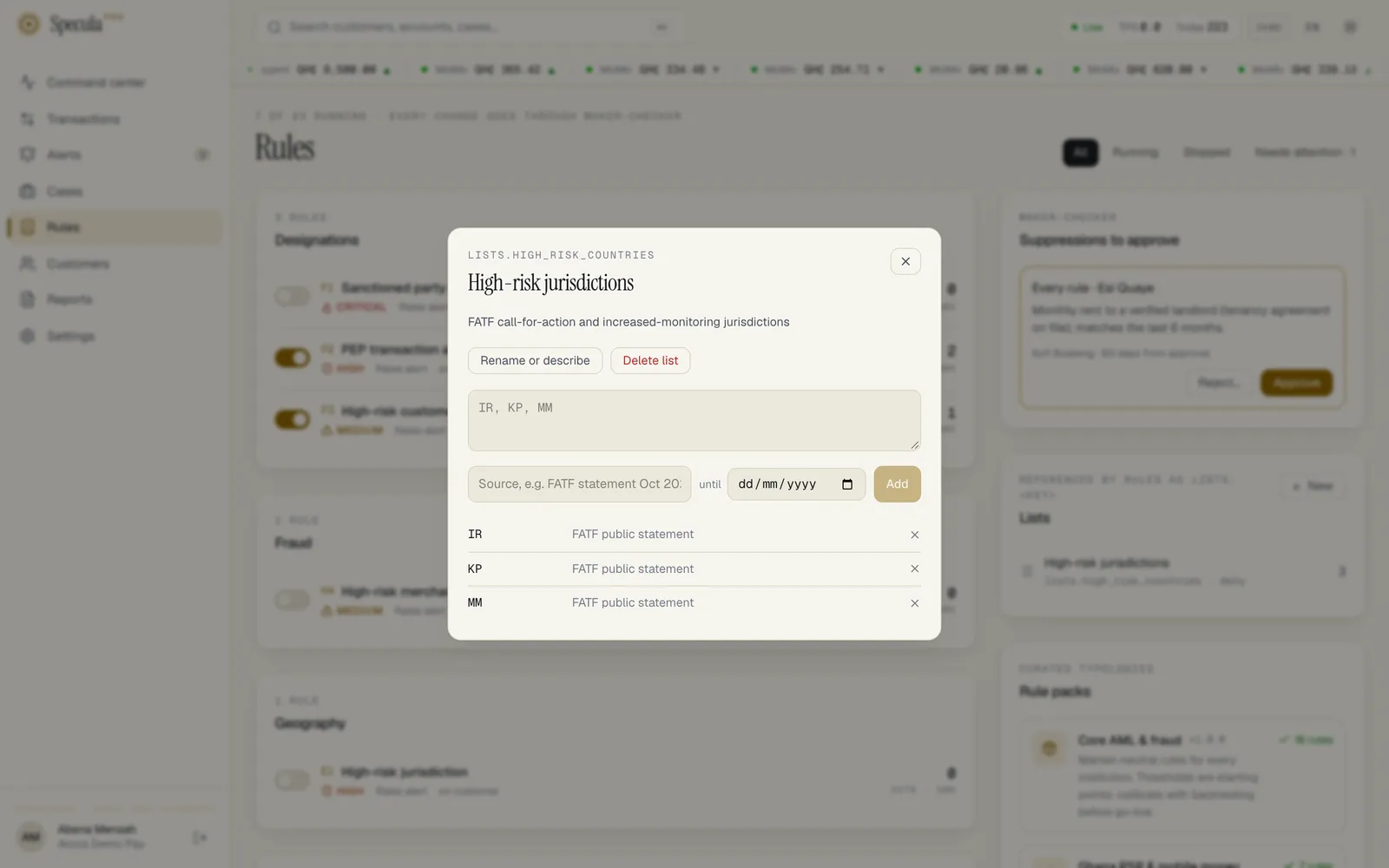
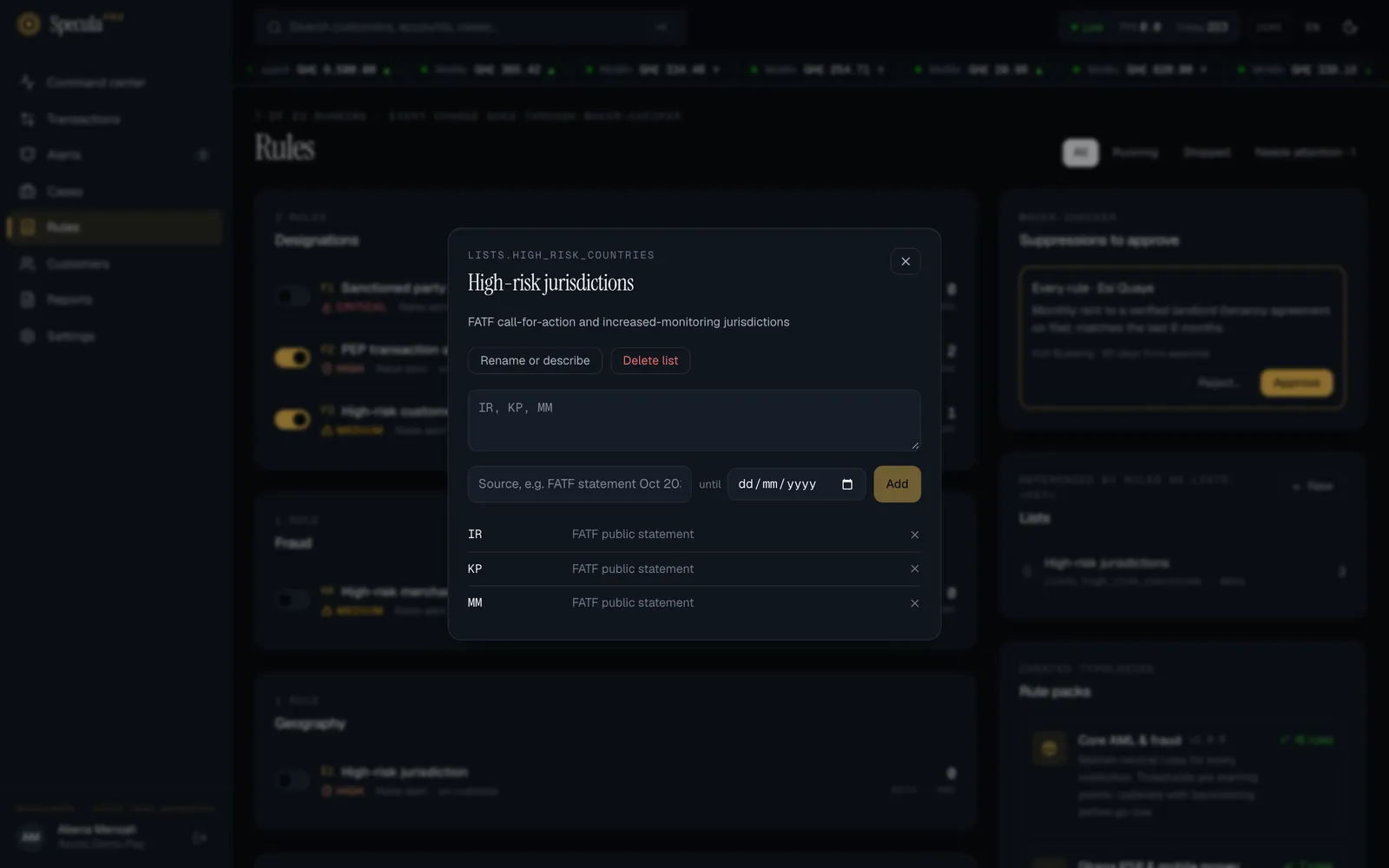
The values appear in the list below, each with its source and, if you set one, until and the end date. Values already on the list are skipped silently, so adding the same batch twice is harmless; a skipped value keeps its existing source and end date. Typing the same value twice in one batch, such as ir and IR, adds it once.
How values are cleaned and checked
Section titled “How values are cleaned and checked”| Values are | What SpeculaPro does |
|---|---|
country |
Turns the value into capitals and requires exactly two letters: gh becomes GH; GHA and Ghana are refused |
mcc |
Requires exactly four digits: 7995 is accepted; 799 is refused |
| anything else | Trims spaces; each value must be 1 to 256 characters |
If any value in a batch is refused, none of the batch is added, and the error names the problem value, for example “GHA” is not a 2-letter country code. Fix that value and select Add again.
Values with an end date
Section titled “Values with an end date”A value with an end date shows until and the date. When the date passes:
- rules stop matching it within about 15 seconds, without anyone removing it;
- it stays in the list, faded, marked expired with the date struck through, so you can see what applied before;
- it no longer counts in the Lists panel.
To keep a value for good, select keep next to its end date. The end date is cleared at once, without a confirmation, and a list.item_expiry entry is written to the audit log.
To bring back an expired value, add it again, as in How to add values, with a new source and, if you want, a new end date. It is counted as added.
To give an existing value an end date, or change one, use the Lists API; the screen can only clear it.
How to remove a value
Section titled “How to remove a value”- Open the list from the Lists panel.
- Select × next to the value.
- You are asked to confirm: Remove IR from this list? Rules stop matching it within seconds. (with your value in place of
IR). Confirm.
The value disappears from the list. Rules stop seeing it within about 15 seconds. A list.remove_item entry is written to the audit log, so you can see later who removed what.
How to rename or describe a list
Section titled “How to rename or describe a list”- Open the list from the Lists panel.
- Select Rename or describe.
- Change the name (at least 2 characters), and under the name write what the list is for and where its values come from, for example FATF call-for-action and increased-monitoring jurisdictions, plus our own additions. Reviewed after each FATF plenary.
- Select Save, or Cancel to leave it as it was.
The key lists.<key> stays the same, so rules keep working. A list.update entry with the old and new name and description is written to the audit log.
How to delete a list
Section titled “How to delete a list”You can delete a list only when no rule uses it any more.
- Open the list from the Lists panel.
- Select Delete list. If running rules use the list, the button is greyed out with the tip Rules still use this list.
- You are asked to confirm: Delete lists.high_risk_countries and its 3 values? This can’t be undone. Confirm.
The list and all its values are deleted. A list.delete entry with the key and the number of values is written to the audit log.
Example: high-risk jurisdictions
Section titled “Example: high-risk jurisdictions”A typical set-up for rule E1:
- Create a list with key
high_risk_countries, name High-risk jurisdictions, kind Deny / high risk, values arecountry. - Add the jurisdictions on the current FATF “call for action” list, with the source FATF public statement, Oct 2026. For example:
KP, IR, MM. - Add any further jurisdictions from your own risk assessment as a separate batch, with their own source, so the reason for each value stays clear.
- Check that the list shows used by 1 once E1 is running.
- After each FATF plenary (three times a year), review the list against the new statement.
The demo workspace comes with exactly this list.
What is recorded
Section titled “What is recorded”| Action | Audit entry |
|---|---|
| Creating a list | list.create |
| Adding values | list.add_items, with the values added and the source |
| Removing a value | list.remove_item |
| Adding values with an end date | list.add_items, with the end date |
| Clearing or setting a value’s end date | list.item_expiry |
| Renaming or describing a list | list.update, with the values before and after |
| Deleting a list | list.delete, with the key and the number of values |
Related
Section titled “Related”- Lists: the concept in depth
- Lists in rules: using lists when writing rules
- Lists API