
Transactions
In short
Section titled “In short”The Transactions screen lists every transaction SpeculaPro has received in the last 1 to 90 days, newest first. Transactions that a rule hit are tinted and show which rules fired. You can search by transaction reference, customer reference or name, and narrow the list by direction, channel and period.
Use it to:
- look up a payment a customer, a branch or another team asks about;
- check that data is arriving after an integration change or a file import;
- see what the rules are catching right now, on the Flagged tab.
The screen is for looking, not changing: transactions are evidence, so nothing here can be edited.
Who can see it
Section titled “Who can see it”You need the entities.view permission, the same as for the Customers screens. In
the built-in roles that is Analyst, Senior analyst, MLRO / Compliance officer,
Rule author and Auditor. Others don’t see Transactions in the menu.
What you see
Section titled “What you see”Select Transactions in the left-hand menu.
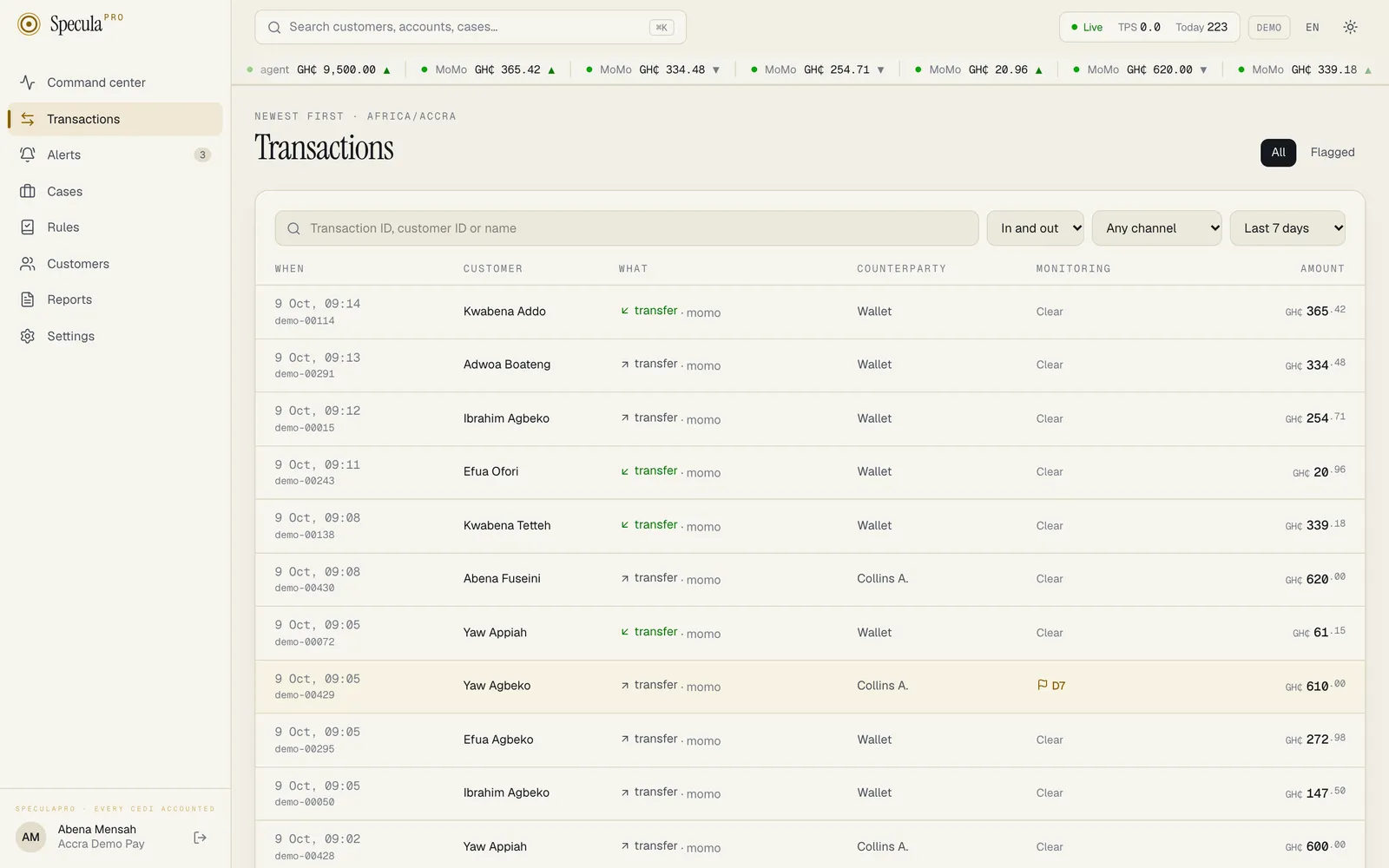
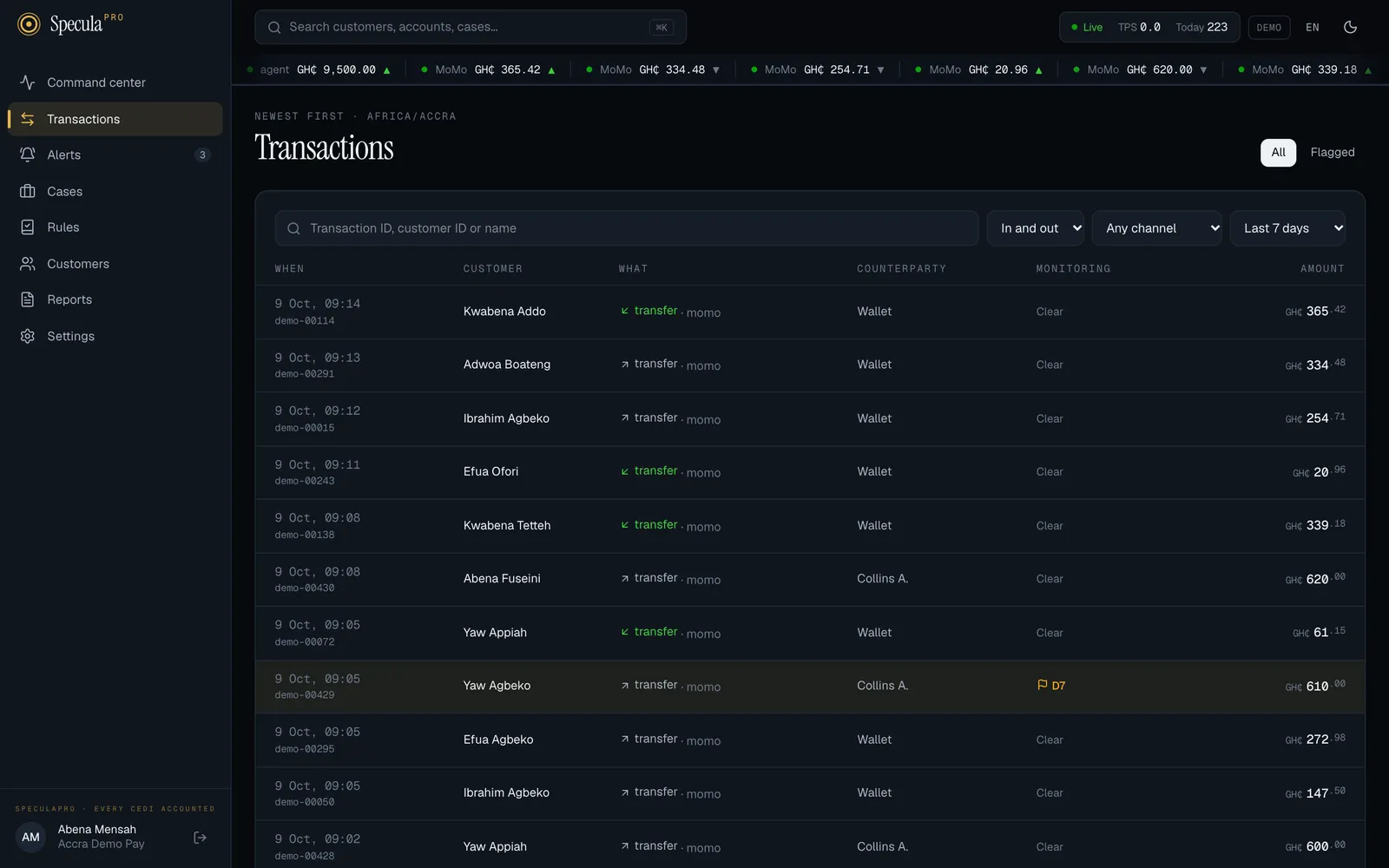
Above the title, the line reads Newest first followed by your workspace’s time zone, for example Newest first · Africa/Accra. Every time on the screen is shown in that zone.
Each row is one transaction:
| Column | What it shows |
|---|---|
| When | The date and time it happened, and under it your own reference for it (its external_id) |
| Customer | The customer’s name, or their reference if SpeculaPro has no name for them. Select it to open the customer’s profile. A dash means the transaction has no customer |
| What | The type and channel, such as cash in · agent or transfer · momo. An arrow pointing down-left, in green, means money in; up-right means money out (internal transfers between a customer’s own accounts show the same arrow). A status other than completed is shown in brackets, for example (reversed) |
| Counterparty | The other side’s name, or their masked wallet or account number if no name was sent |
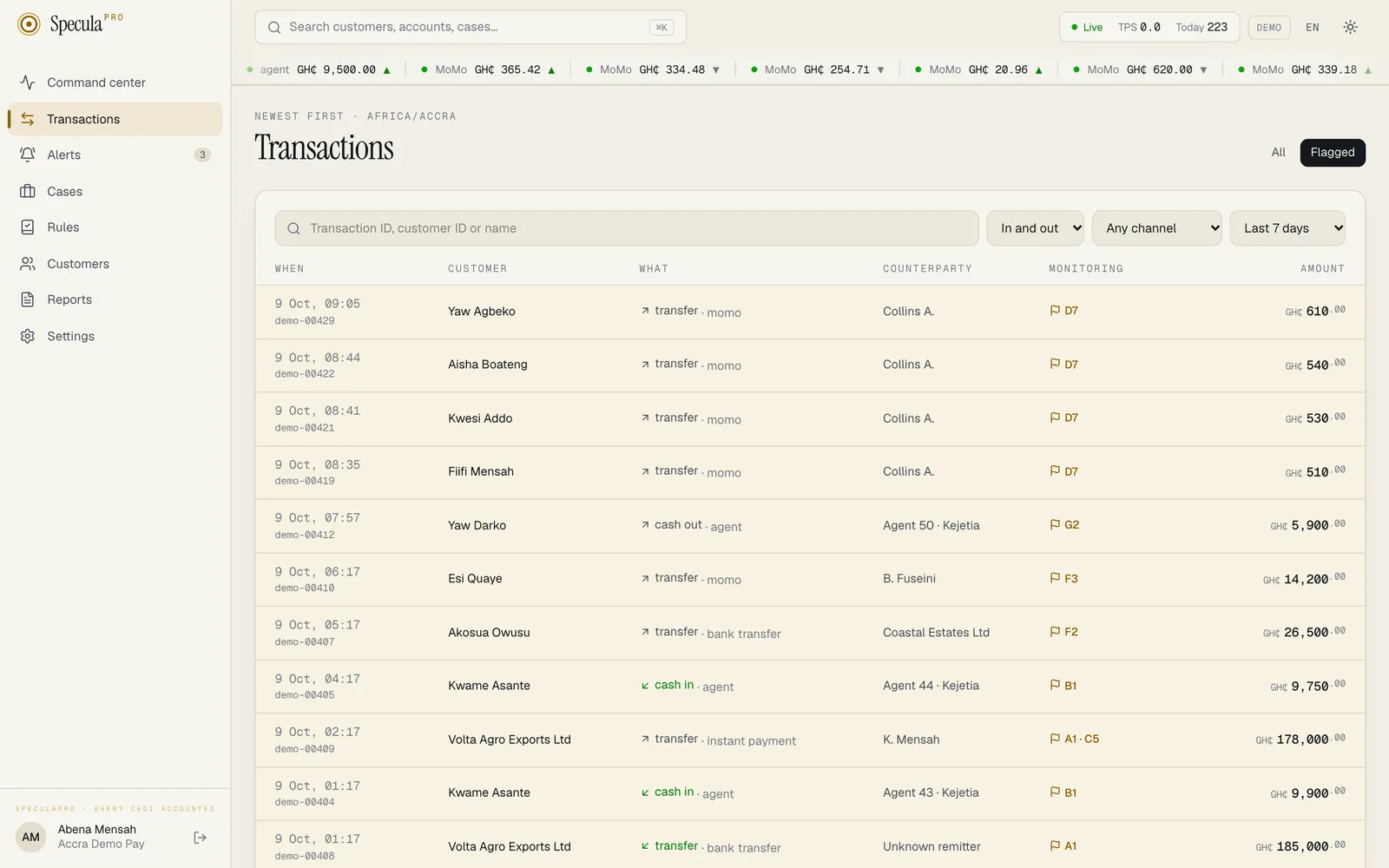
| Monitoring | Clear if no running rule hit it. Otherwise a flag and the library keys of the rules that fired, such as B1 or A1 · C5. Hover over them to see the full list |
| Amount | The amount in the currency of the transaction |
Flagged rows have a light amber tint so they stand out. A transaction counts as flagged when a live rule hit it, whether or not that hit raised an alert (a rule set to only record hits still flags it, and a hit covered by a suppression still shows). Hits from a version in a shadow test don’t flag a transaction.
The list refreshes itself every 15 seconds, so new transactions appear without reloading the page.
Finding transactions
Section titled “Finding transactions”The tabs
Section titled “The tabs”| Tab | Shows |
|---|---|
| All | Every transaction in the period |
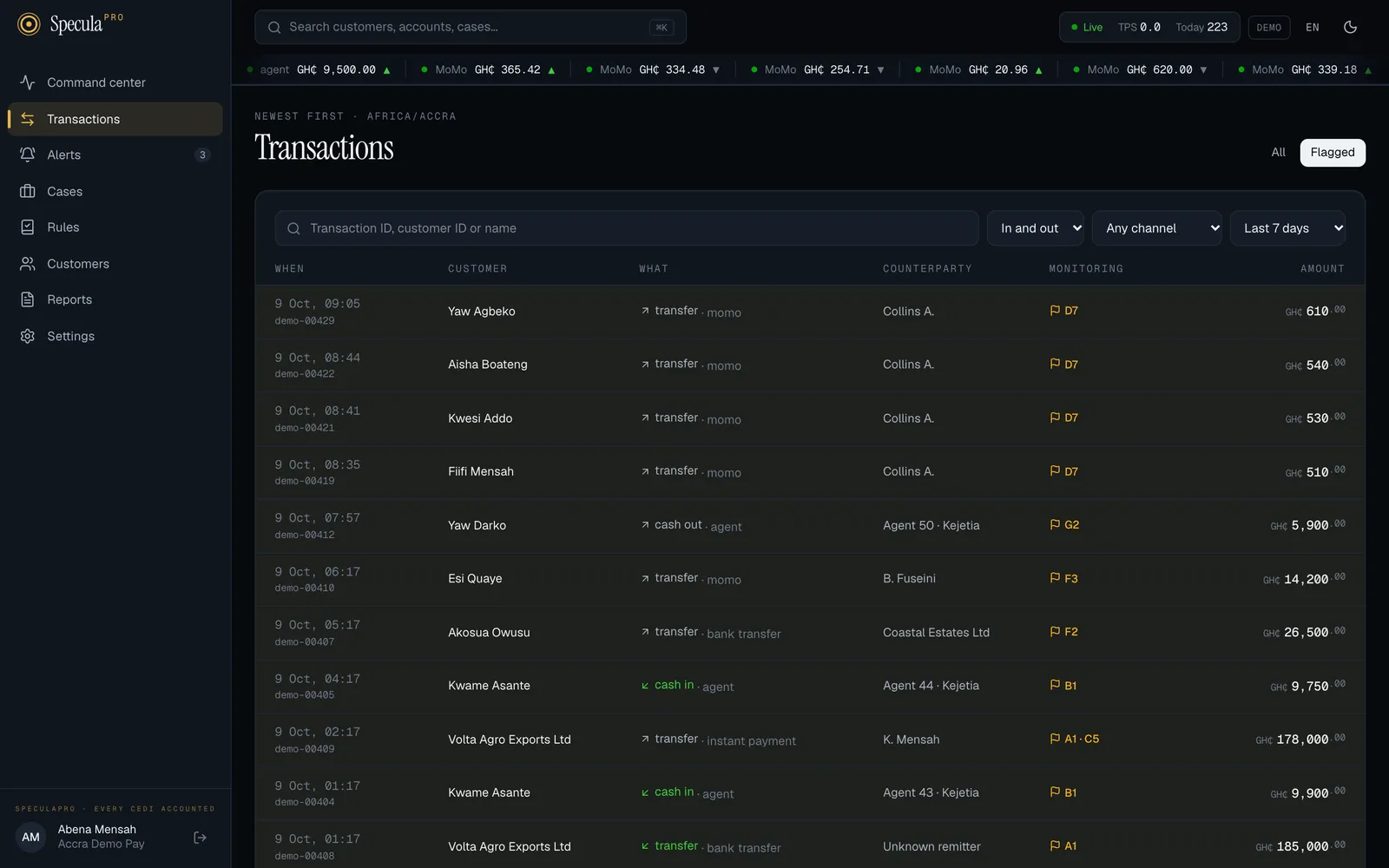
| Flagged | Only those a live rule hit |
Search and filters
Section titled “Search and filters”| Control | What it does |
|---|---|
| Transaction ID, customer ID or name | A transaction reference or a customer reference must match exactly. A name can be part of the customer’s name, in any case: mensah finds Abena Mensah and Kofi Mensah |
| In and out | Choose Money in or Money out to see one direction only |
| Any channel | Choose one channel, such as momo or agent |
| Last 7 days | The period: Last 24 hours, Last 7 days (the default), Last 30 days or Last 90 days |
The search, the filters and the tab all apply together. If nothing matches, the screen says No transactions match: Widen the period or clear the filters.
How to look up a transaction someone asks about
Section titled “How to look up a transaction someone asks about”A customer calls about a mobile money payment, or a colleague forwards a reference.
- Select Transactions.
- In the search box, type the transaction reference if you have it (exactly as your system
shows it, for example
TX-2026-104455), or the customer’s reference or part of their name. - Set the period to cover the date of the payment: Last 30 days or Last 90 days if it wasn’t recent.
- If there are many results, choose the direction and channel.
- Check the Monitoring column. Clear means no rule fired on it. A flag means a rule did: open the customer’s profile (select their name) to see their alerts and cases.
Using the API instead
Section titled “Using the API instead”The screen calls GET /api/v1/transactions. You can call it yourself as a signed-in person with
entities.view, for example to export a customer’s transactions for a case file:
curl -s -b ~/.sp-cookies \ "$SP/api/v1/transactions?q=C-001&days=90&limit=200"The Transactions API page lists every parameter and field, and how to page through more than 200 results.