
Support access for provider staff
In short
Section titled “In short”Support access is the only way provider staff look inside a workspace. It is never standing. A member of staff asks, saying why, for which scope and for how long. Nothing opens until someone in the workspace approves. While the grant runs, the person who asked, and nobody else, can open a read-only session in the customer app. Every read is recorded on both sides, and the workspace can end the access at any moment.
The workspace’s side of this, including its policy and how its people approve, is described in Support access.
Who can ask
Section titled “Who can ask”Asking needs the Owner, Operations or Support role (support.request). The same roles
can see the list of requests (support.view). Billing and Viewer see nothing of it.
The two scopes
Section titled “The two scopes”| Scope | What a session can read |
|---|---|
| Configuration | How the workspace is set up: settings, people and roles, rules and rule packs, lists (which exist, not their contents), screening sources and providers, data sources and file loads, webhooks and their delivery status, API keys by name. Also operational numbers: the summary and analytics counts, decision statistics |
| Full read | Everything in Configuration, plus alerts, cases, customers, transactions, decisions, suppressions, list contents, backtests, screening matches, risk models, the audit log and change requests. Personal data stays masked |
Ask for Full read only when the problem can’t be seen otherwise. A workspace’s policy can refuse it outright.
What no session ever reads
Section titled “What no session ever reads”| Never shown | Why |
|---|---|
| Regulatory reports: an STR or CTR, the register, even how many there are | Telling anyone outside the institution that a suspicious transaction report exists is an offence (tipping-off). Provider staff are outside the institution |
| Anything that says a report was drafted, filed or exists: a case’s “report linked” events, audit entries about reports, a case disposition that distinguishes “report filed” | The same. A true-positive case reads the same whether or not a report followed |
| What investigators wrote: comments, closure and escalation notes, an alert’s closing note | Shown as [not shown in a support session], whatever they say. Showing some and withholding others would reveal which mention a report |
| The data protection pages: data subject requests, legal holds, breach records, registers, retention settings | They are the institution’s own legal records |
| Exports and downloads of any kind, and a webhook delivery’s payload | Data leaving the app |
| Unmasked personal data | A support session never holds the permission to reveal it |
| Secrets: API keys, tokens, signing secrets, credentials | Never returned to anyone |
A session is also read-only without exception: any request that would change something is refused, apart from signing out. A page the scope doesn’t cover says so instead of loading.
How to ask for access
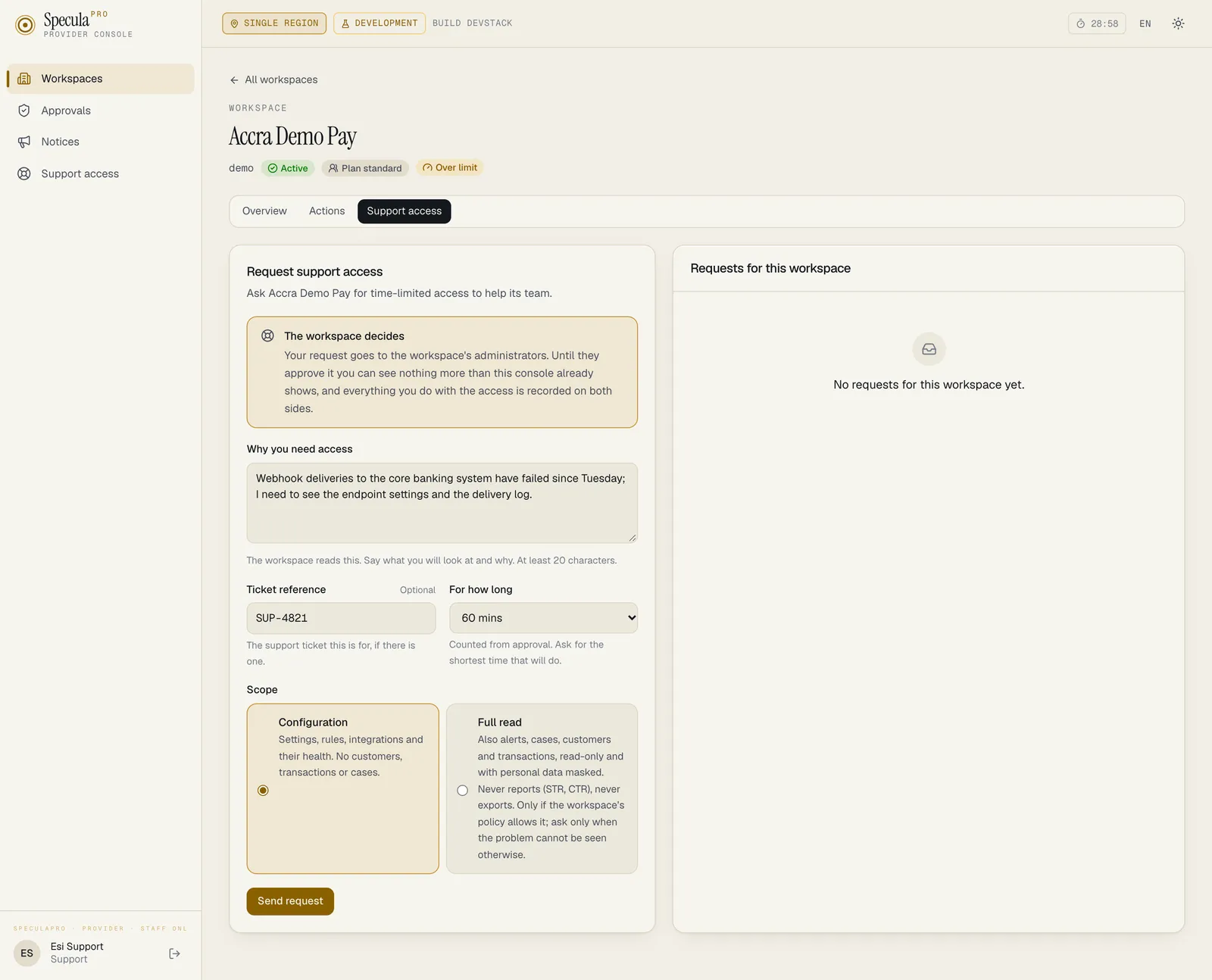
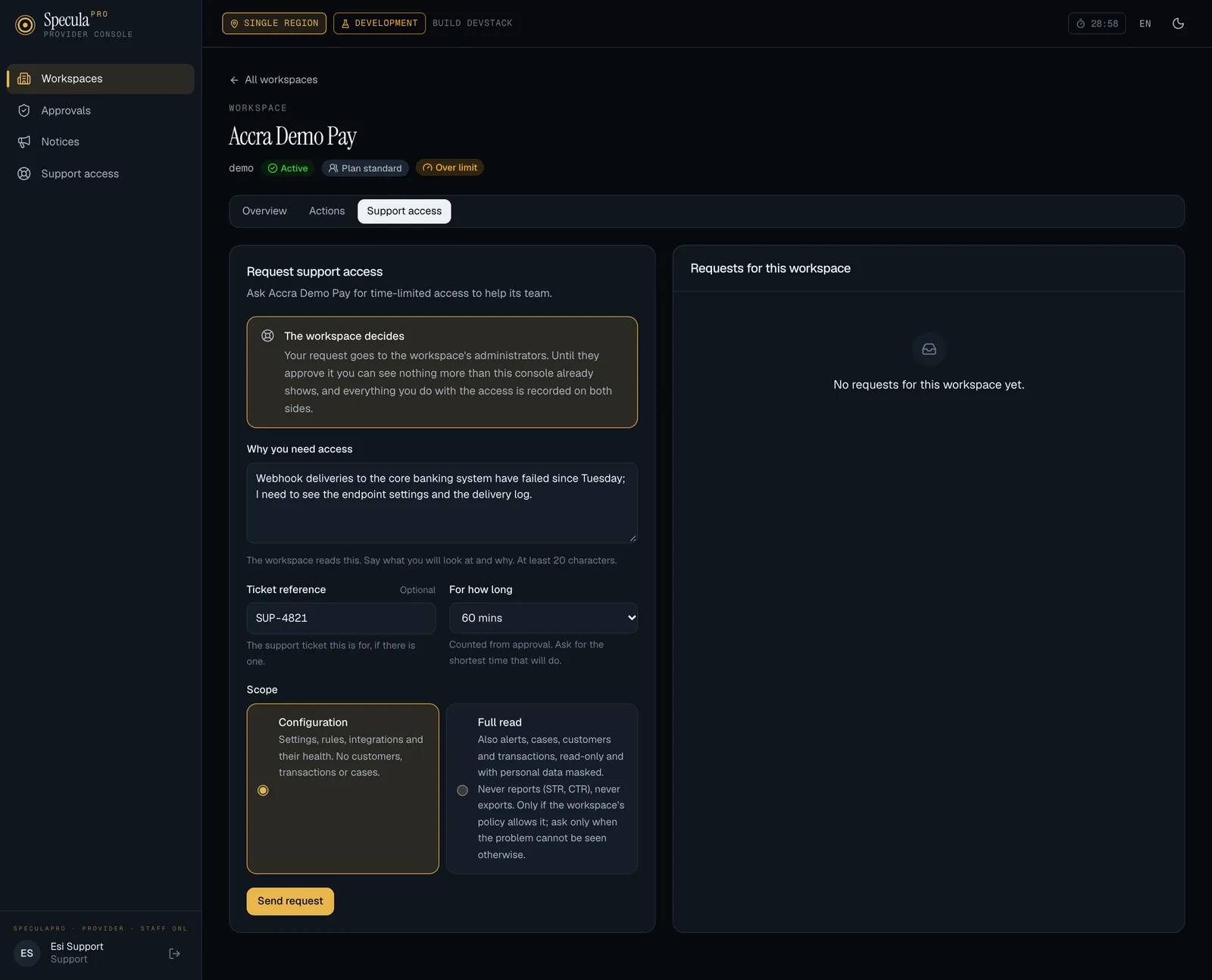
Section titled “How to ask for access”- Open the workspace and select the Support access tab.
- Go to Request support access.
- Under Why you need access, say what you will look at and why, in at least 20 characters. The workspace reads this before deciding.
- Optionally enter the Ticket reference.
- Choose For how long: 15, 30, 60, 120, 240 or 480 minutes, counted from the approval. Ask for the shortest time that will do.
- Choose the Scope.
- Select Send request.
The workspace’s approvers (the people there who hold support_access.manage) are notified. The
request shows as Waiting for the workspace.
| Answer | Meaning |
|---|---|
| this workspace does not accept support access requests… | Its policy doesn’t take requests. Ask its administrator to allow them under Settings → Support access |
| this workspace’s support access policy allows the configuration scope only… | Ask for Configuration, or ask its administrator to allow full read |
| this workspace’s support access policy allows at most N minutes | Ask for less time |
| the workspace is suspended: there is nobody to approve access, and no session would open | Support access needs an active workspace |
| you already have an open support access request for this workspace; cancel or end it first | One open request per person and workspace |
| this workspace already has too many support access requests waiting for a decision | At most 10 can wait for one workspace |
A refusal by policy is still recorded in the console’s audit log. One person can send at most 20 requests an hour.
What the workspace can do
Section titled “What the workspace can do”- Approve, and in doing so narrow the scope or shorten the time. The request then shows what was asked and what was granted.
- Deny.
- Revoke a running grant at any moment. Open sessions end at the next request.
- Do nothing: a request nobody decides lapses after 72 hours.
How to open a session
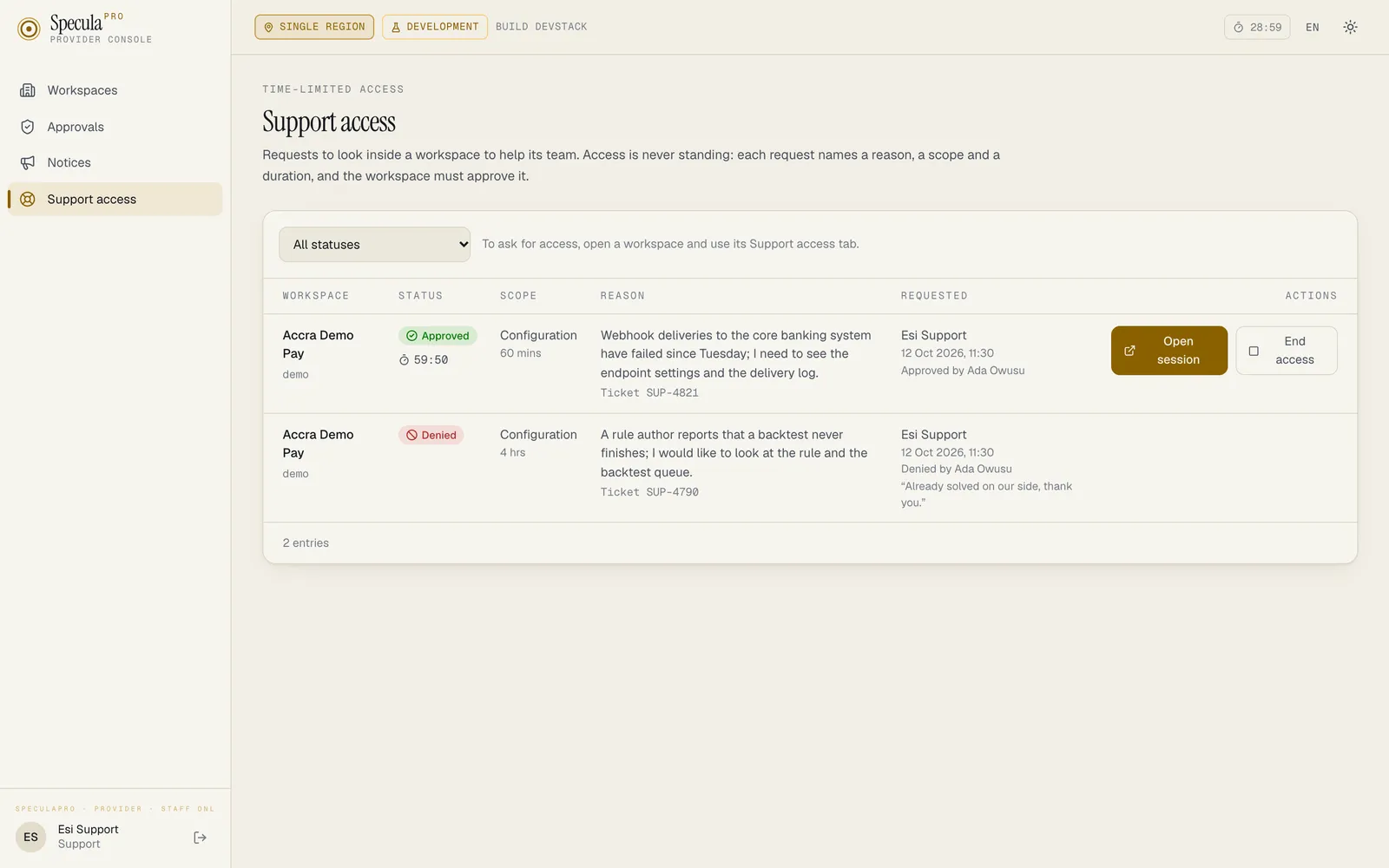
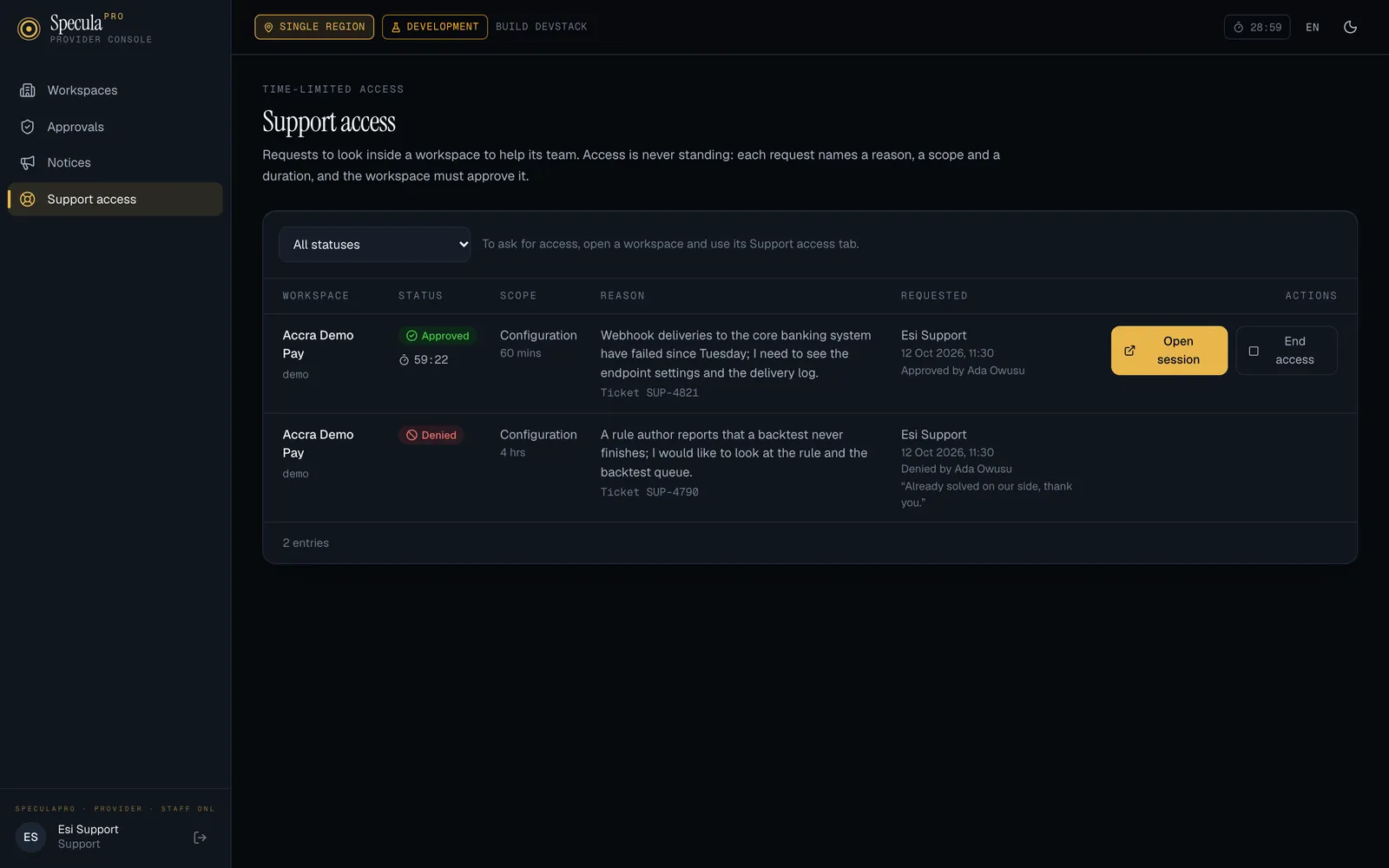
Section titled “How to open a session”- Open Support access, or the workspace’s Support access tab. An approved request shows Time left.
- Select Open session. The customer app opens in a new tab. If the browser blocks it, allow pop-ups for the console and try again.
What happens underneath:
- The console makes a one-time link into the customer app. It works once, for 60 seconds.
- Only the person the workspace gave the access to can make it. A colleague sees Only <name> can open this session; even an owner can’t open someone else’s.
- The session it opens shows a bar naming it as a support session, is read-only, is limited to the granted scope, and ends with the grant. It also ends at once if the workspace revokes the access, the workspace is suspended, or your staff account is deactivated: each request checks again, with no cache.
- In the workspace, the session appears as SpeculaPro support followed by your name. It is not a user account: nobody can sign in as it or give it a role.
If the answer is the customer app’s public address is not configured, the operator must set the installation’s public address before links can be made.
How to give access back
Section titled “How to give access back”- Withdraw request cancels a request the workspace hasn’t decided. Only whoever made it can.
- End access ends a running grant before its time. Whoever asked for it, or an owner, can. Any open session closes at once, and getting back in needs a new request.
What is recorded
Section titled “What is recorded”Every step is written to both audit logs, the console’s and the workspace’s own, by the same database function, so neither side can have a record the other lacks:
- the request, with its reason, scope and duration;
- the workspace’s approval, denial or revocation;
- each link issued and each session started and ended;
- every read made in a session, before it is served. A read that can’t be recorded is refused;
- every refused attempt: a write, a page outside the scope. To keep a loop from flooding the logs, these are written once a minute per page, with a count of the attempts that followed.
Monitoring
Section titled “Monitoring”| Metric | Type | Labels | What it counts |
|---|---|---|---|
speculapro_support_access_requests_total |
Counter | result (requested, refused_policy, approved, denied, cancelled, revoked, ended, expired) |
Requests by what happened to them |
speculapro_support_access_active |
Gauge | Grants running now, sampled every minute by the worker | |
speculapro_support_session_denied_total |
Counter | reason (write, scope, route_not_allowed, expired, revoked, ended, workspace_suspended, staff_inactive, handoff_invalid, audit_failed) |
Refusals of a session or of a request made in one. Alert on write and handoff_invalid |