
Workspace settings
In short
Section titled “In short”Workspace settings are the controls that apply to everyone in your institution’s workspace:
- the institution’s name, time zone and default language;
- whether everyone must use two-factor sign-in;
- whether every case closure needs a second approver, not only high and critical ones;
- the deadline for working a case at each priority;
- the decision policy: how the real-time decision API behaves when it can’t finish in time, how long it may take, and the scores at which payments are held or blocked;
- the jurisdiction the workspace follows, and how strictly national identifiers are checked. See Jurisdictions.
You need the settings.manage permission. In the default roles, only the Administrator has
it. People with settings.view (the Auditor) can open the tab read-only: they see the configuration with its controls disabled or hidden, and can’t change anything. Every change is written to the audit log with the values before and after.
How to change a setting
Section titled “How to change a setting”- Select Settings, then the Workspace tab (or go straight to
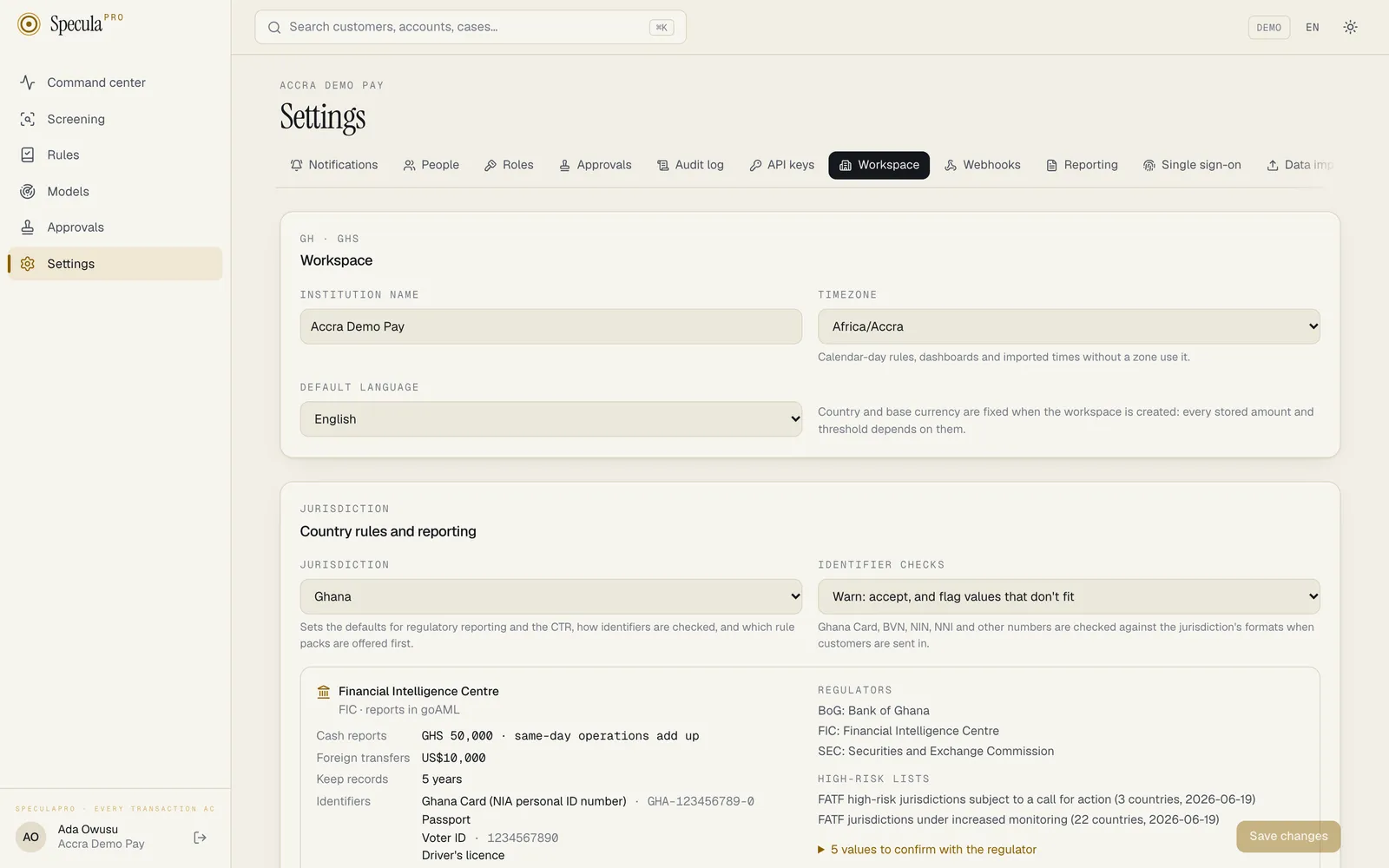
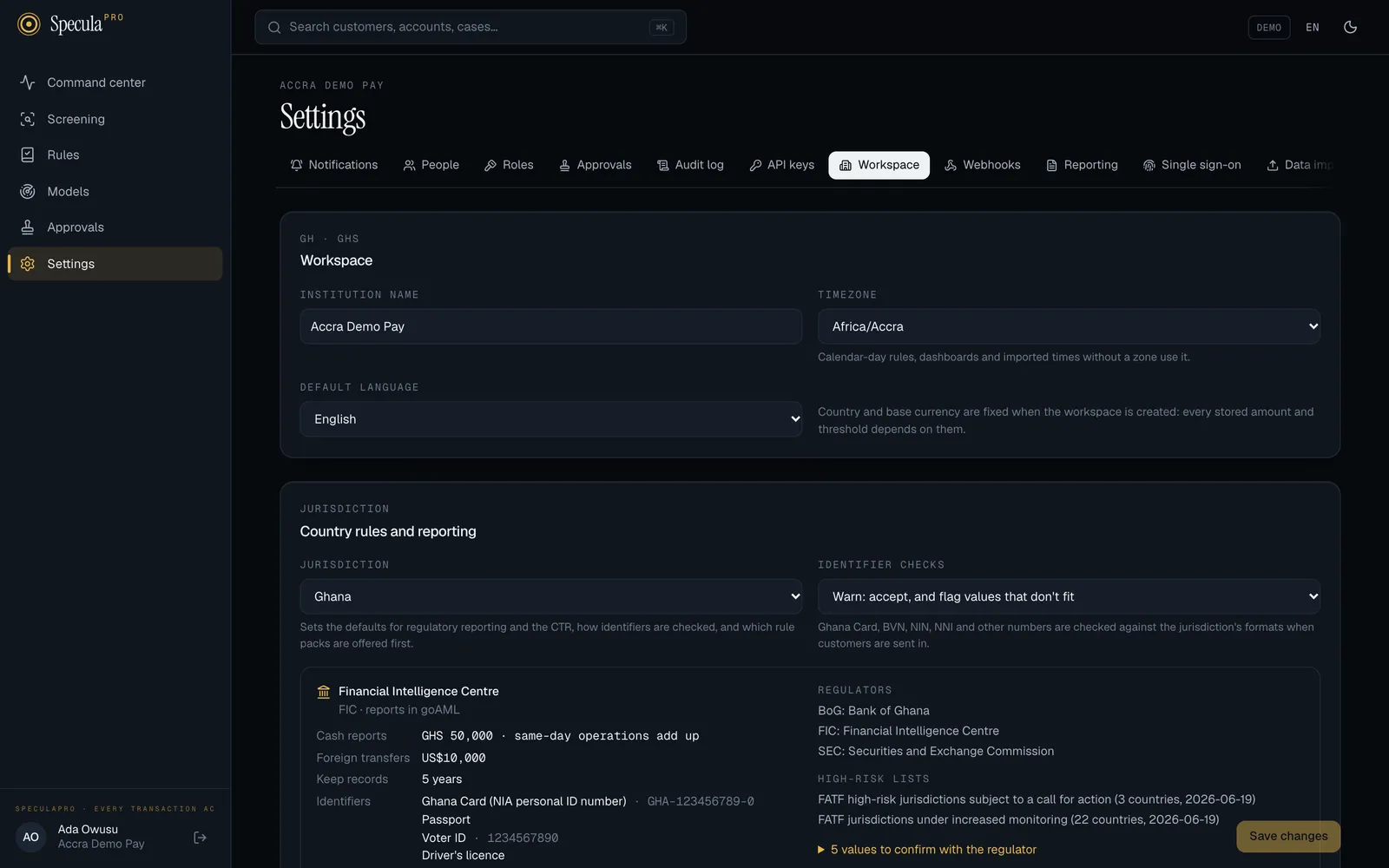
/settings#workspace). - Change what you need. The tab has five panels: Workspace, Country rules and reporting, Security and approvals, Case deadlines and Decision policy.
- Select Save changes at the bottom right. It stays greyed out until you change something, and while a value breaks a rule (see each section below).
To throw away your edits instead, select Discard, which appears once you’ve changed something.
Changes apply as soon as you save. Some take effect at a particular moment, such as the next case opened; each section below says when.
Workspace
Section titled “Workspace”| Setting | What it is | Rules |
|---|---|---|
| Institution name | Your institution’s name as SpeculaPro shows it, for example in the bottom-left of the menu and above the page title | 2 to 120 characters |
| Timezone | The time zone your institution works and reports in. A list of every time zone your browser knows, such as Africa/Accra or Africa/Lagos |
Must be a real IANA time-zone name |
| Default language | English or Français. The language of the screens and of email, text and WhatsApp messages for people who haven’t chosen their own. See Languages | |
| Data region | Shown only when SpeculaPro is hosted in more than one region: the region where this workspace’s data is stored and processed, with its key. See Data residency and regions | Read-only. Moving a workspace is done by the operator at your request |
The panel’s small heading shows your country and base currency, for example GH · GHS. They can’t be changed: they are fixed when the workspace is created, because every stored amount and threshold depends on them.
What the time zone changes
Section titled “What the time zone changes”The time zone decides where one day ends and the next begins. It is used for:
- rules that count per calendar day, such as a daily outflow limit;
- the figures on the Command center, such as today;
- times without a zone in an imported CSV file;
- the times in deadline warnings sent by email and text message.
Rule evaluation picks up a new time zone within about 15 seconds.
Security and approvals
Section titled “Security and approvals”| Switch | When on | Default |
|---|---|---|
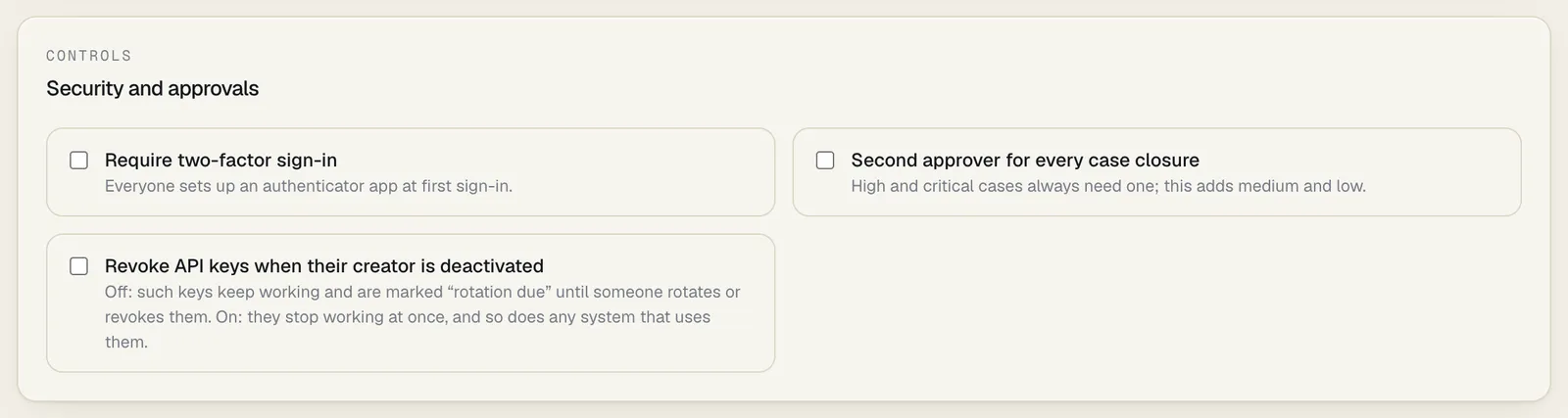
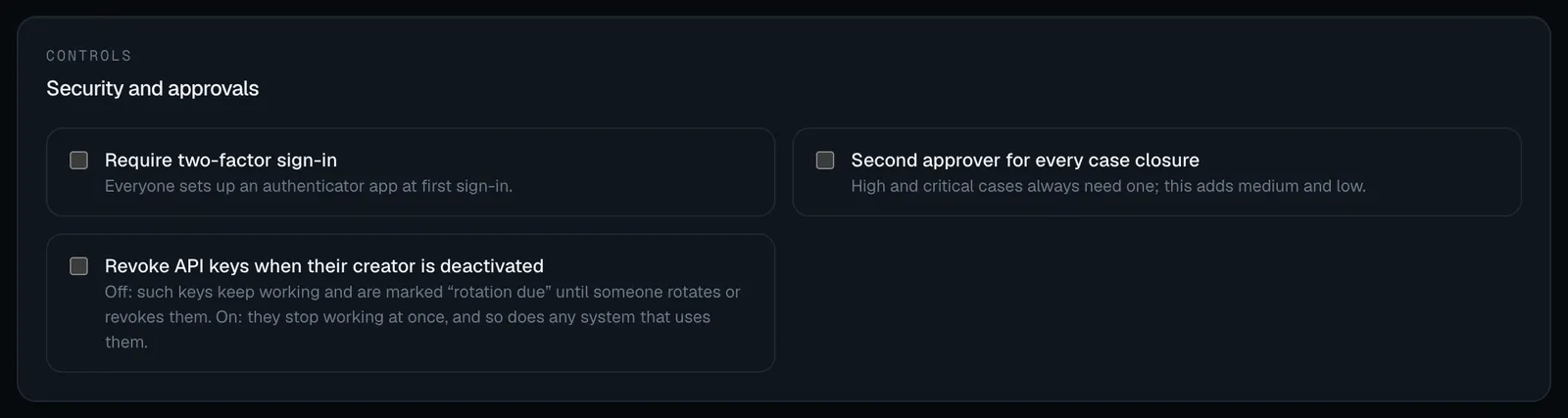
| Require two-factor sign-in | Everyone must set up an authenticator app. See Sign-in and MFA. A passkey doesn’t replace it: adding a passkey needs the authenticator first | On |
| Second approver for every case closure | Closing a case of any priority needs a second person with cases.approve. High and critical cases always need one; this adds medium and low. See Four-eyes closing |
Off |
| Revoke API keys when their creator is deactivated | When someone is deactivated, here or by your identity provider, the API keys they created stop working at once, and so does any system that uses them. Off: such keys keep working and are marked Rotation due until someone rotates or revokes them. See When the person who created a key leaves | Off |
When they apply:
- Switching two-factor on applies at once. Anyone without an authenticator app can do nothing else until they set one up, starting with their next click.
- Switching two-factor off needs a second person’s approval where your workspace requires it (the default once two people can approve settings changes). Once applied, it doesn’t remove anyone’s authenticator app: people who have one are still asked for a code. New people are no longer asked to set one up.
- Second approver for every case closure applies to the next closure proposed. Closures already waiting for approval stay as they are.
- Revoke API keys when their creator is deactivated applies to the next person deactivated; it changes nothing for keys already marked Rotation due. Switching it on or off is a Security settings change, with switching two-factor off, and needs a second person’s approval where your workspace requires it. When you switch it on, the screen warns: From now on, deactivating someone (here or from your identity provider) immediately stops every system that uses a key they created. Make sure each integration’s key was created by someone who is staying, or be ready to issue new keys.
Country rules and reporting
Section titled “Country rules and reporting”The Country rules and reporting panel sets the workspace’s Jurisdiction and its Identifier checks. The jurisdiction gives the defaults for regulatory reporting and the CTR, the formats national identifiers are checked against, and the rule packs offered first. It lists the values to confirm with your regulator. Only jurisdictions in your base currency are offered. See Jurisdictions.
Case deadlines
Section titled “Case deadlines”The time allowed to work a case, in hours, for each priority. These are your SLAs.
| Priority | Default |
|---|---|
| Critical | 4 hours |
| High | 24 hours (1 day) |
| Medium | 72 hours (3 days) |
| Low | 168 hours (7 days) |
Rules:
- Each deadline is between 1 and 2160 hours (90 days). Fractions of an hour are allowed,
for example
1.5for 90 minutes. - A higher priority can’t have a longer deadline: critical ≤ high ≤ medium ≤ low. If you break this order, the screen says A higher priority can’t have a longer deadline. and you can’t save.
When they apply: to cases opened, escalated, reopened or raised in priority after you save. Existing deadlines don’t move.
Escalation policies can override them. An escalation policy can give a level its own number of hours. A case arriving at that level then has that time, whatever its priority; levels the policy leaves empty use the deadlines here. A policy can also escalate a case by itself when its deadline is missed.
Each case’s owner is warned an hour before its deadline, and a missed deadline is written on the case and notified; see Notifications.
Decision policy
Section titled “Decision policy”These settings control the real-time decision API, which answers allow, step-up, review or block for a payment before it completes. They don’t affect post-event monitoring.
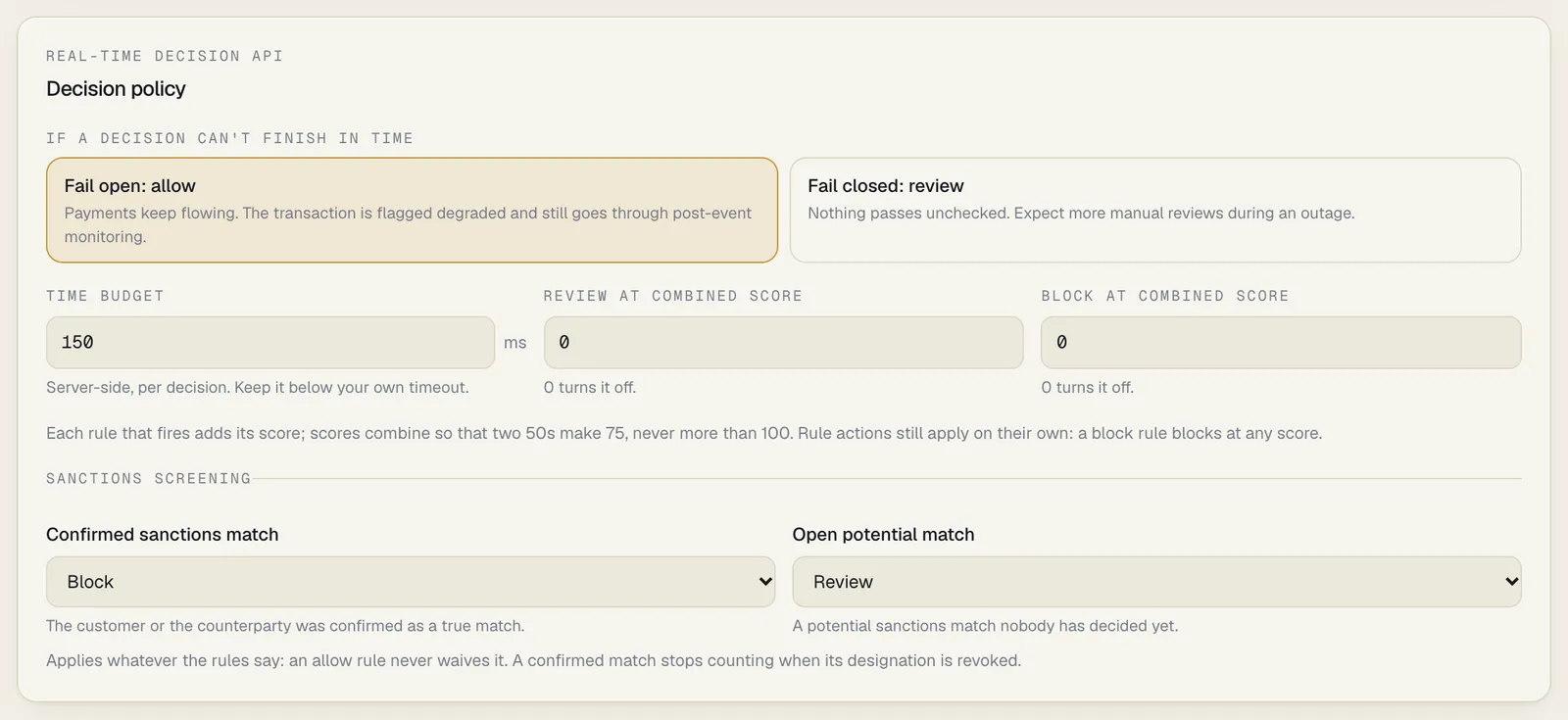
| Setting | What it means | Rules | Default |
|---|---|---|---|
| If a decision can’t finish in time | What to answer when a decision can’t be completed inside the time budget, for example because part of the system is unavailable. Fail open: allow lets the payment through, flags it as degraded, and still checks it afterwards with the rest of your monitoring. Fail closed: review answers review, so nothing passes unchecked, at the cost of more manual reviews during an outage. Either way, each payment answered by the policy raises a fraud alert | Fail open | |
| Time budget | How long SpeculaPro may spend on one decision, in milliseconds, measured on the server. Keep it below the timeout your own payment system uses when it calls SpeculaPro | 20 to 2000 ms | 150 ms |
| Review at combined score | A payment whose combined score reaches this number is at least sent for review | 0 to 100; 0 turns it off | Off |
| Block at combined score | A payment whose combined score reaches this number is blocked | 0 to 100; 0 turns it off. When both are on, it must be at least the review score | Off |
How scores combine. Each rule that fires adds its score, but scores combine so the total never passes 100: two rules scoring 50 make 75, not 100. Rule actions still apply on their own, whatever the scores: a rule set to block blocks at any score.
If the block score is set below the review score, the screen says The block score must be at least the review score. and you can’t save.
When they apply: decisions pick up a saved policy within about 10 seconds.
Worked example. You set Review at combined score to 60 and Block at combined score to 90. A payment fires two rules set to step-up, scoring 40 and 50. Their combined score is 70, so the answer is raised from step-up to review, and the decision’s note says combined score 70.0 reached the review threshold 60. If an allow rule (for example a trusted beneficiary) had also fired, it would have waived the review threshold, and the answer would be allow. It can never waive the block threshold.
Sanctions screening in decisions
Section titled “Sanctions screening in decisions”Below the scores, Sanctions screening says what a real-time decision answers when screening has something on the customer or the counterparty of a payment:
| Setting | When it applies | Choices | Default |
|---|---|---|---|
| Confirmed sanctions match | The customer or the counterparty was confirmed as a true match, and the designation that set is still in force | Block, Review, Leave it to the rules | Block |
| Open potential match | A potential sanctions match nobody has decided yet, including one the decision finds itself for a counterparty with no stored screening result (see A counterparty seen for the first time) | Block, Review, Leave it to the rules | Review |
It applies whatever the rules say: an allow rule never waives it, and it only ever raises the
answer. A confirmed match stops counting when its designation is revoked. Leave it to the rules
switches that line off, so only your own rules (for example one reading
customer.is_sanctioned, customer.screening_match or counterparty.screening_match) act on it.
When a decision can’t finish in time, the failure policy answers, but the Confirmed sanctions match setting still applies: each decision process keeps your workspace’s confirmed sanctions matches in memory and re-reads them every few seconds, so a match confirmed moments ago may not count yet. Open potential match never applies to such a decision. See When the checks can’t finish in time.
Like the rest of the decision policy, a change here can need a second person’s approval, and decisions pick it up within about 10 seconds. See Real-time decisions: sanctions screening.
What is recorded
Section titled “What is recorded”Each save is written to the audit log as tenant.settings, with who made it,
when, from where, and every setting before and after the change. An examiner can see, for
example, when two-factor was switched off and by whom.
If saving fails
Section titled “If saving fails”| What you see | Why | What to do |
|---|---|---|
| Save changes stays greyed out | Nothing has changed, the name is shorter than 2 characters, a higher priority has a longer deadline, or the block score is below the review score | Check the message under the panel shown in red |
| invalid setting: case SLAs must not get longer as priority rises (critical ≤ high ≤ medium ≤ low) | As above, sent through the API | Fix the order |
| invalid setting: the block score must be at least the review score | As above, sent through the API | Raise the block score, or set one of them to 0 |
| invalid setting: “…” is not an IANA timezone | The time zone isn’t a recognised name | Choose one from the list |
| An error about a value being too small or large | A deadline outside 1–2160 hours, or a time budget outside 20–2000 ms | Bring it within range |
Using the API instead
Section titled “Using the API instead”The same settings are available at GET and PUT /api/v1/settings/workspace. See
Workspace settings API.