
Working a case
In short
Section titled “In short”A case is an investigation into one subject (usually a customer). It gathers every related alert and its evidence, has one owner, a priority and a deadline (SLA), and keeps a permanent timeline of everything done on it.
The Cases screen lists cases, soonest deadline first. Opening a case shows its header with the actions you can take, the subject, the linked alerts, the evidence, and the timeline where you write your notes.
You need cases.view to see cases (Analyst, Senior analyst, MLRO and Auditor) and cases.work to work them (Analyst, Senior analyst and MLRO).
The case list
Section titled “The case list”Select Cases in the menu. The number beside it is how many active cases are assigned to you.
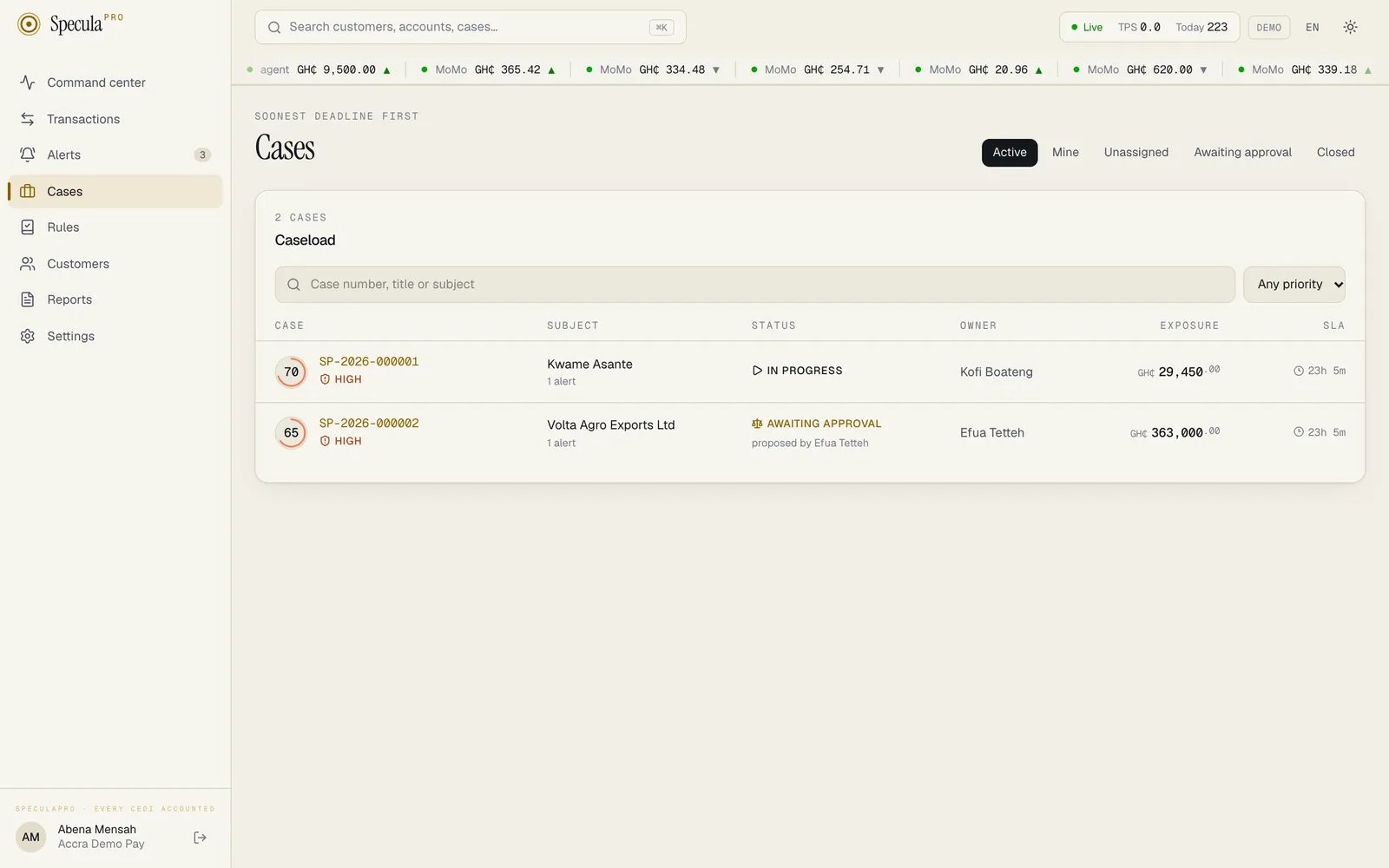
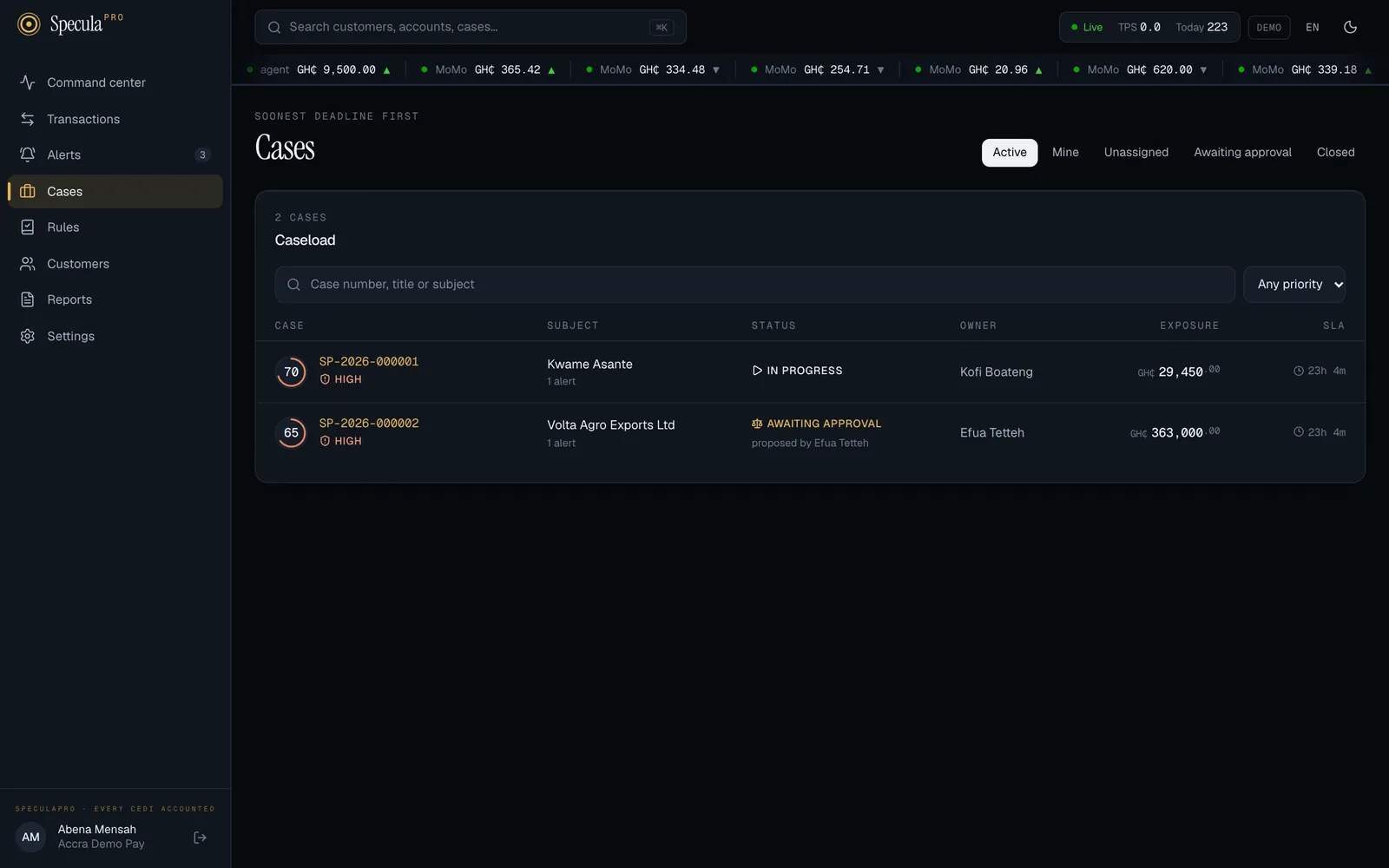
The tabs
Section titled “The tabs”| Tab | Shows |
|---|---|
| Active | Every case that isn’t closed, including cases awaiting approval |
| Mine | Active cases where you are the owner. Start here every morning |
| Unassigned | Active cases with no owner, for example cases just escalated to the next level |
| Awaiting approval | Cases whose closure has been proposed and needs a second person |
| Closed | Finished cases |
The order
Section titled “The order”| Tab | Order |
|---|---|
| Active, Mine, Unassigned, Awaiting approval | Soonest deadline first, so overdue cases are always at the top. Cases with the same deadline are ordered by priority, critical first |
| Closed | Most recently closed first |
The small heading above the title says which order you are looking at.
How to find a case
Section titled “How to find a case”-
Select Cases in the menu and choose the tab to search in. Search only looks inside the current tab, so to find a finished case, choose Closed.
-
In the search box (Case number, title or subject), type any part of:
- the case number, for example
000123orSP-2026-000123; - the case’s title;
- the subject’s name: the customer’s name, the account’s masked number, or the counterparty’s name.
The list updates as you type. Capital letters don’t matter.
If your role shows customers under pseudonyms (it lacks
entities.view), search matches the case number only, never titles or names, so a search can’t reveal whether a named customer has a case. - the case number, for example
-
Optionally, choose a priority (Critical, High, Medium or Low) in the list beside the box. Any priority shows them all.
To start again, clear the box and choose Any priority.
How to see a team’s queue
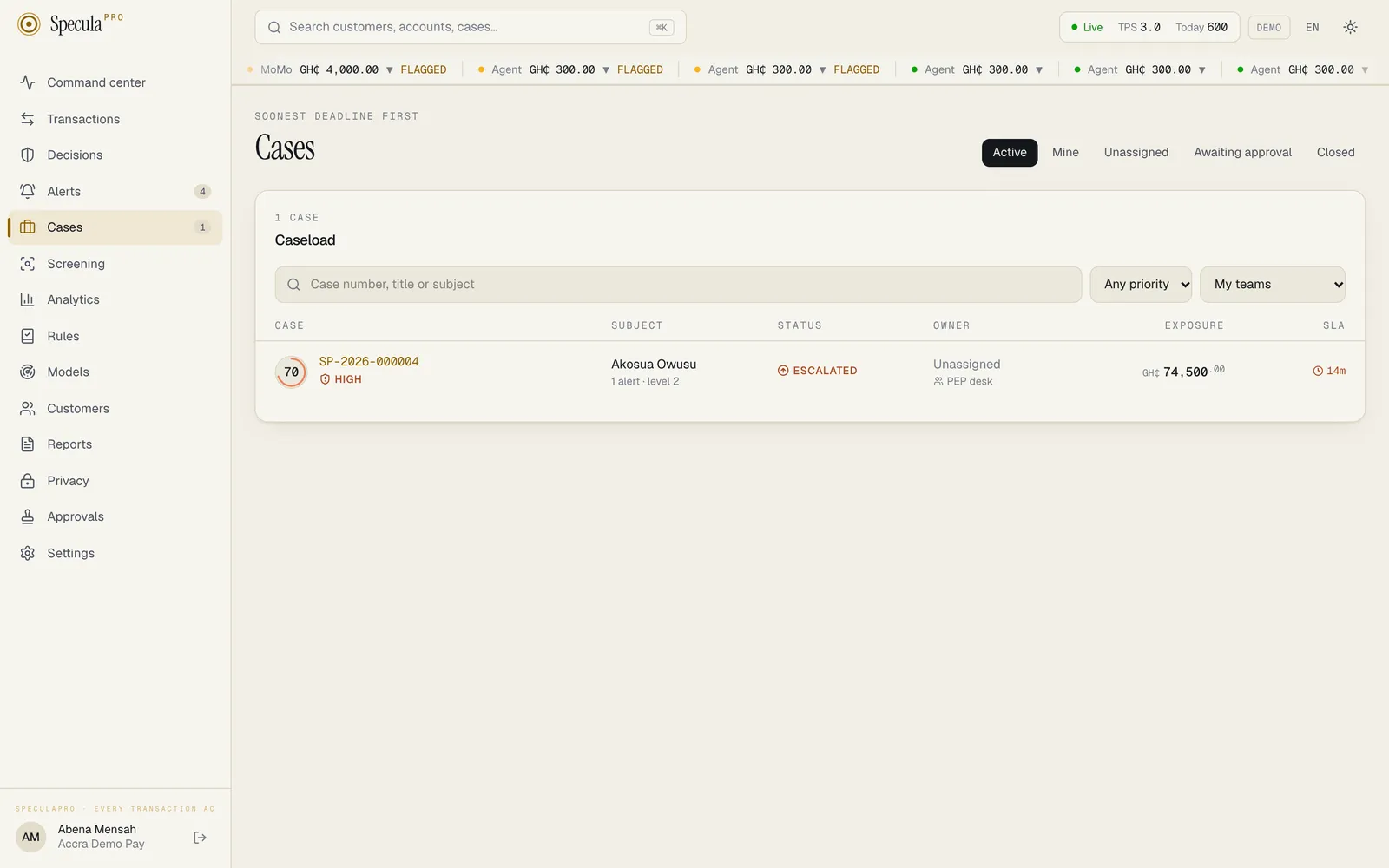
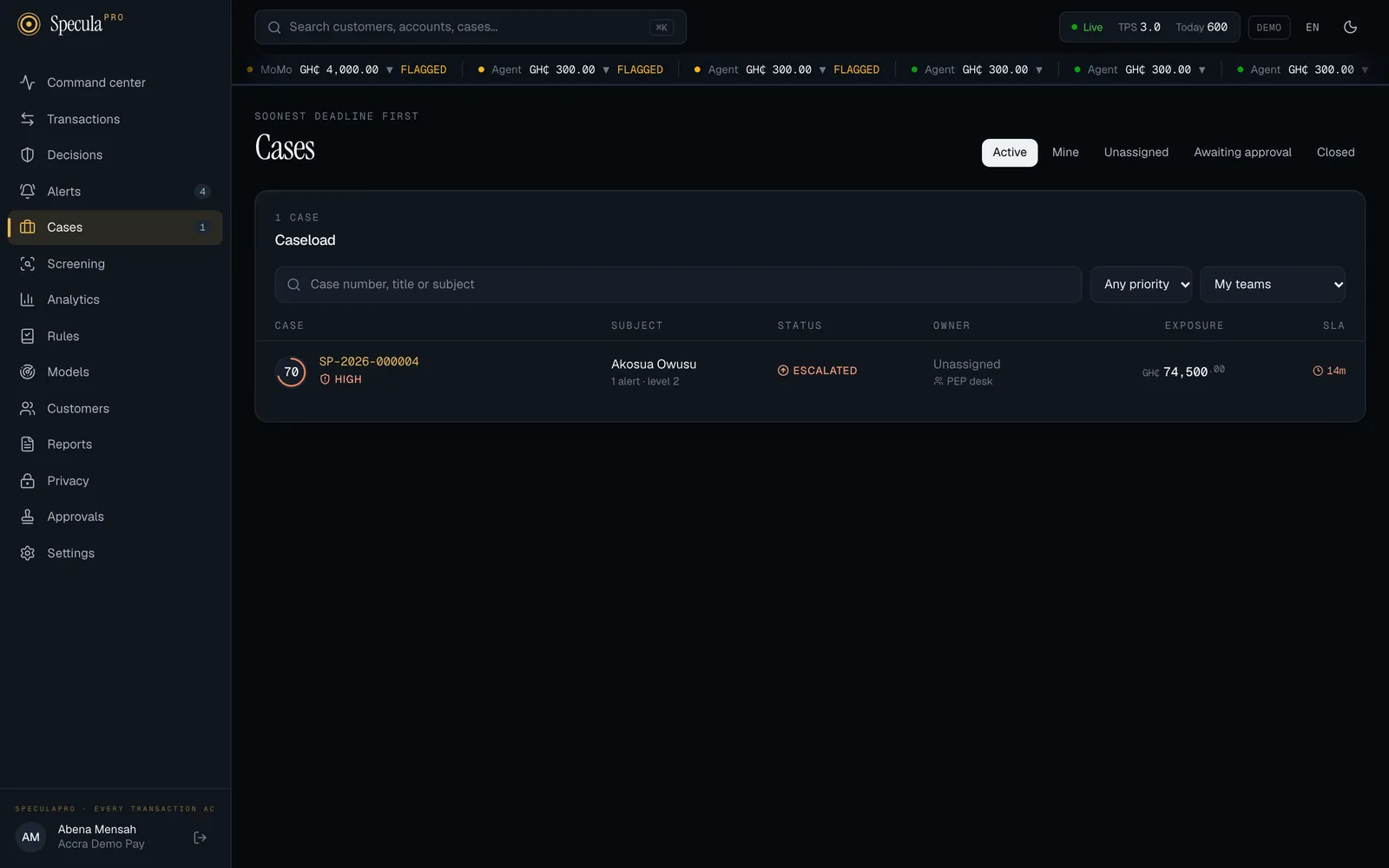
Section titled “How to see a team’s queue”Where your workspace has teams, a third list, Team queue, appears beside the priority list. A team’s queue holds the cases sent to that team by an escalation policy or put there by hand. If your workspace has no teams, the list isn’t shown.
-
Select Cases and choose a tab. The queue filter works together with the tab, the search and the priority: Unassigned with your team’s queue shows the cases waiting for someone in your team to take them.
-
In the Team queue list, choose:
Choice Shows Any queue Every case, whichever queue it is in. This is the default My teams Cases in the queue of any team you belong to. Shown only if you belong to a team In no team’s queue Cases that are in no queue A team’s name That team’s queue
A queue organises the work; it doesn’t hide anything. You can open and take a case in another team’s queue if your role lets you work cases.
Loading more cases
Section titled “Loading more cases”The screen loads 50 cases at a time. When there are more, the Caseload heading shows a plus sign, for example 50+ cases, and a Load more button appears below the list. Each press adds the next 50 in the same order. Without a plus sign, the heading is the exact number of cases matching your tab, search and priority.
The list refreshes itself every 30 seconds while you have it open.
The columns
Section titled “The columns”| Column | What it shows |
|---|---|
| Case | The score ring (risk score), the case number in gold, for example SP-2026-000123, and the priority: Critical, High, Medium or Low. Where your workspace uses the AI assistant and it has summarised the case, a marker underneath such as AI: keep investigating: its latest suggestion, which is advice only. The marker goes away when the case gets a new alert, hit or timeline entry, until the case is summarised again |
| Subject | Who the case is about, how many alerts it holds, and its escalation level when above 1, for example 3 alerts · level 2 |
| Status | Open, In progress, Escalated, Awaiting approval or Closed. A case awaiting approval also shows proposed by and the person’s name |
| Owner | The person working the case, or Unassigned. Underneath, the team whose queue the case is in, if any |
| Exposure | The total value of the transactions behind the case’s alerts, in your base currency |
| SLA | The time left before the deadline (see below) |
Reading the SLA column
Section titled “Reading the SLA column”| You see | Meaning |
|---|---|
2d 4h or 5h 12m in grey |
Time left before the deadline |
35m in orange |
Less than an hour left |
3h 10m overdue in red |
The deadline has passed |
closed 3d ago |
The case is closed; no deadline applies |
Hover over the time to see the exact due date and time.
Deadlines are set from the case’s priority: by default 4 hours for critical, 24 hours for high, 72 hours for medium and 168 hours (7 days) for low. Your workspace may use different targets. See Escalation and SLAs.
When a deadline passes, SpeculaPro records it on the case within a minute, notifies the owner, the case’s team and the people who approve closures, and may escalate the case by itself. See When a deadline is missed.
When a tab is empty it says No cases here. Open a case from any alert that needs investigation. Further alerts on the same subject join it automatically.
Reading a case
Section titled “Reading a case”Select a case to open it.
The header
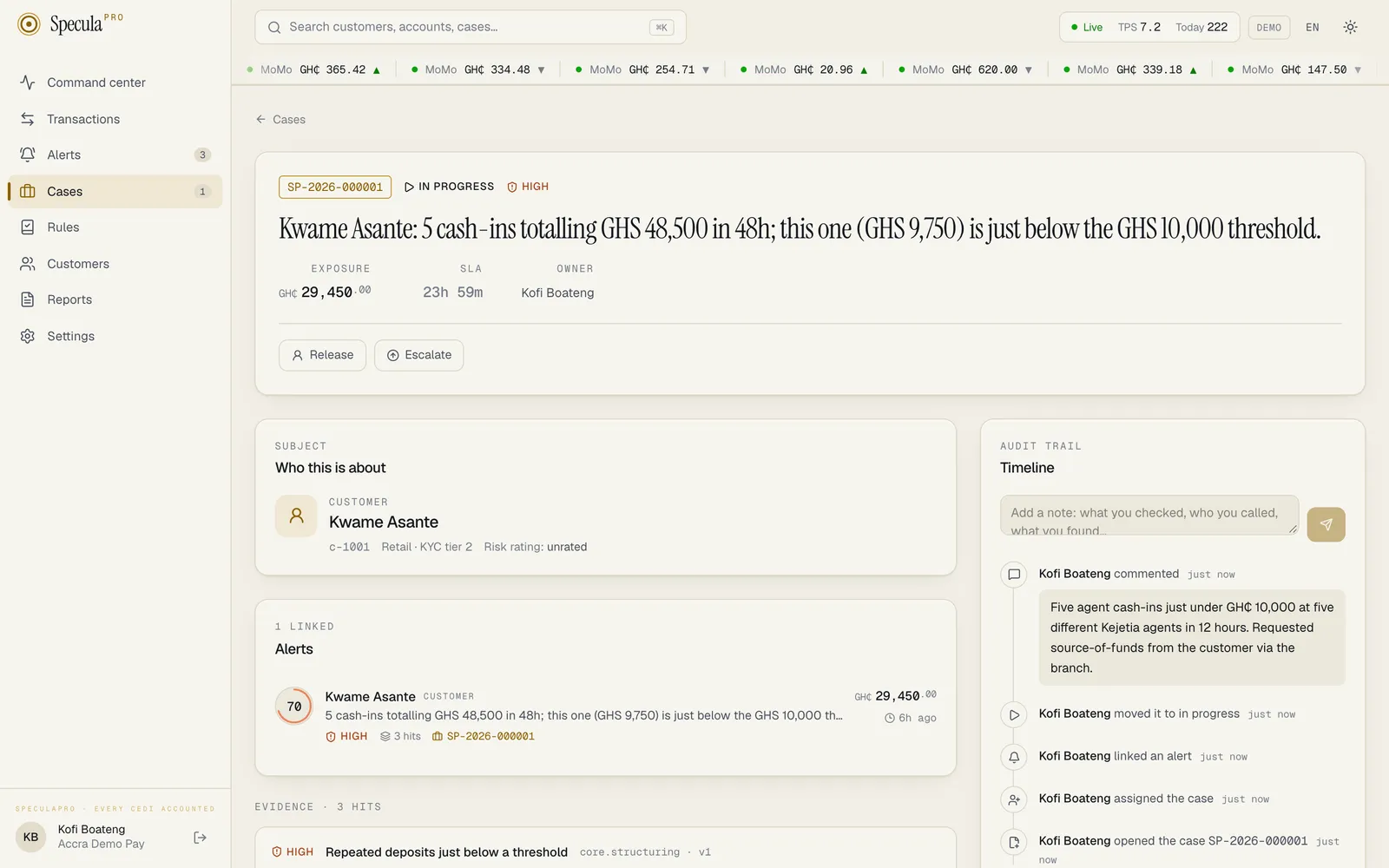
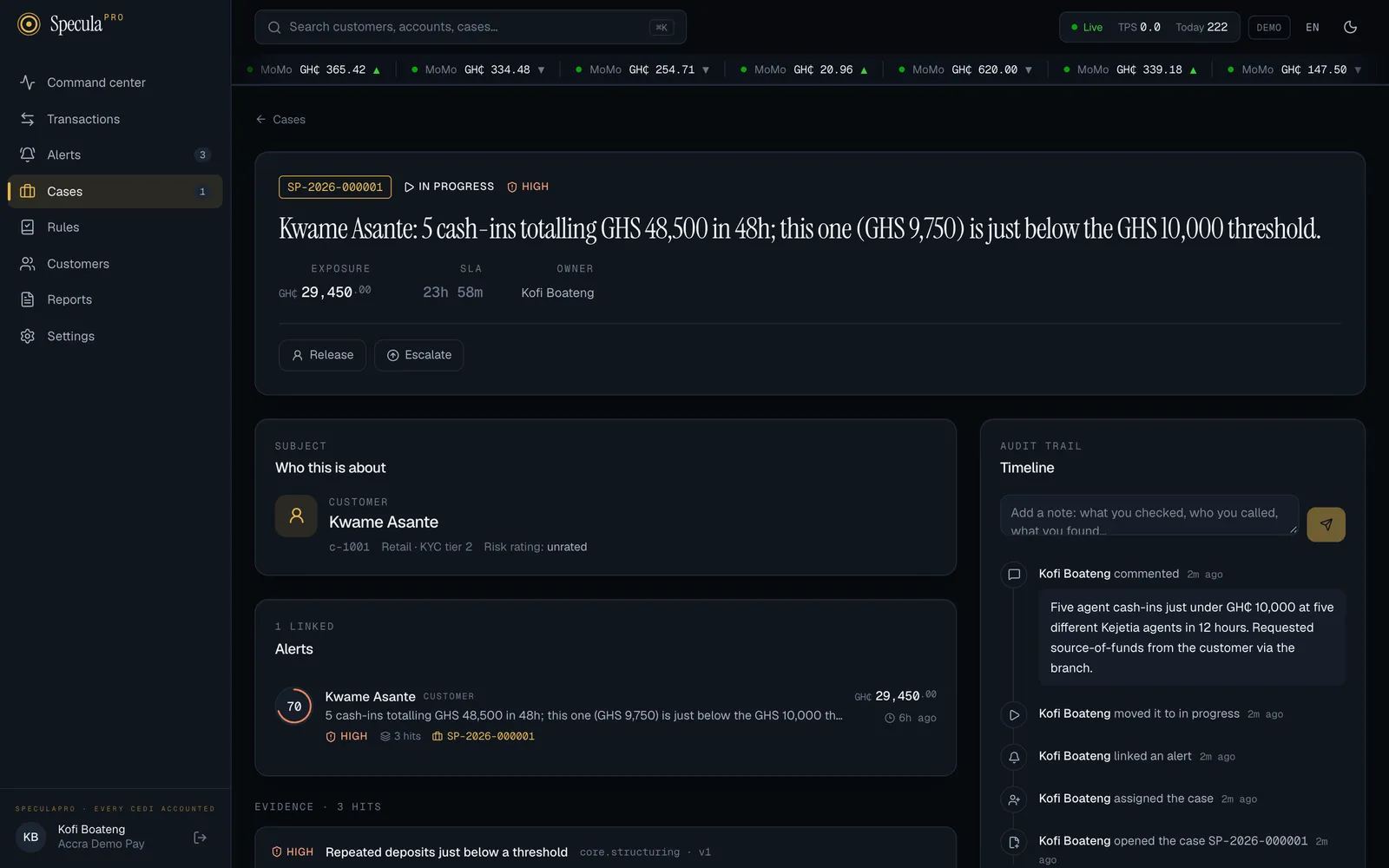
Section titled “The header”The top of the case reads like the cover of a file:
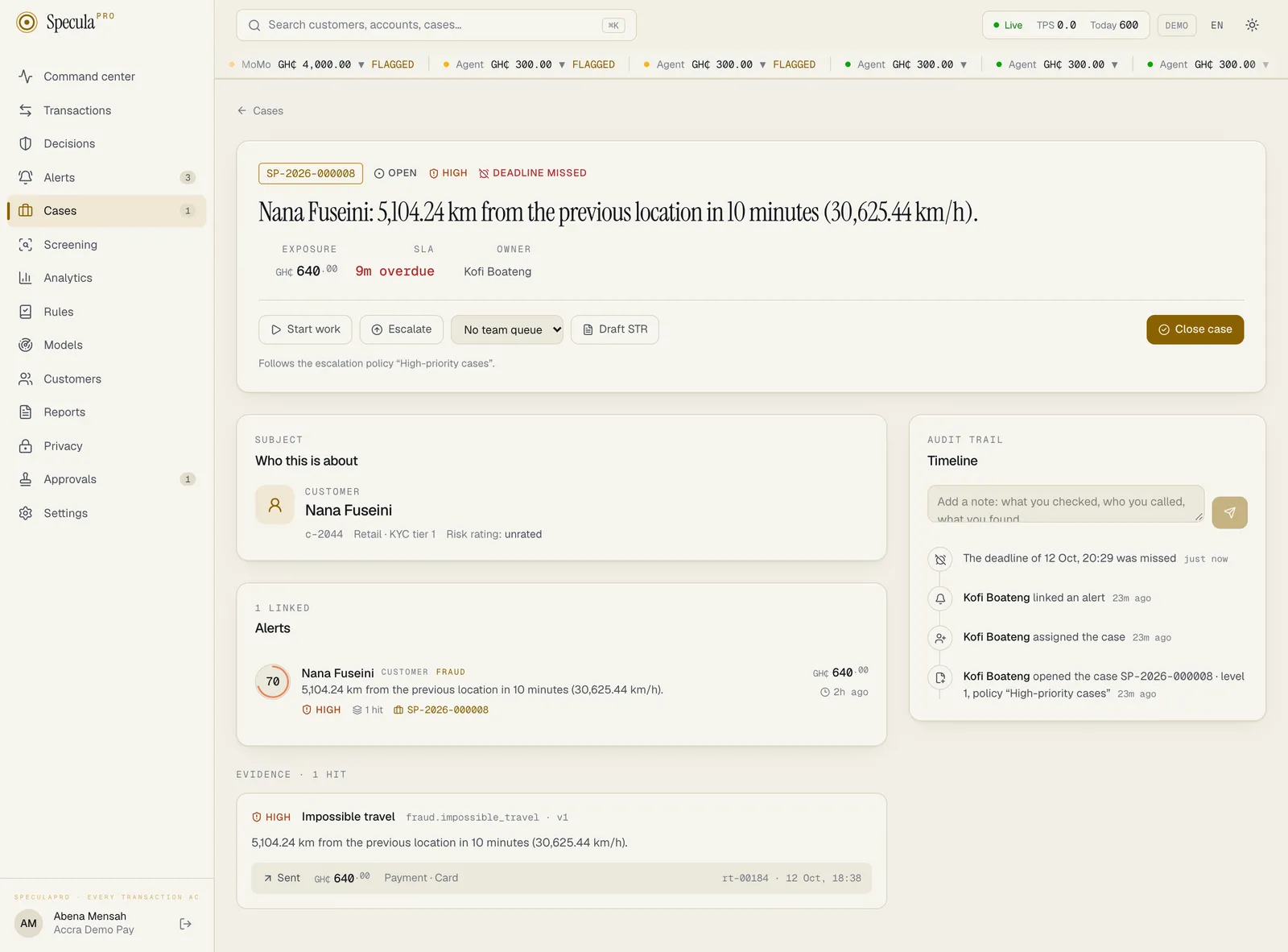
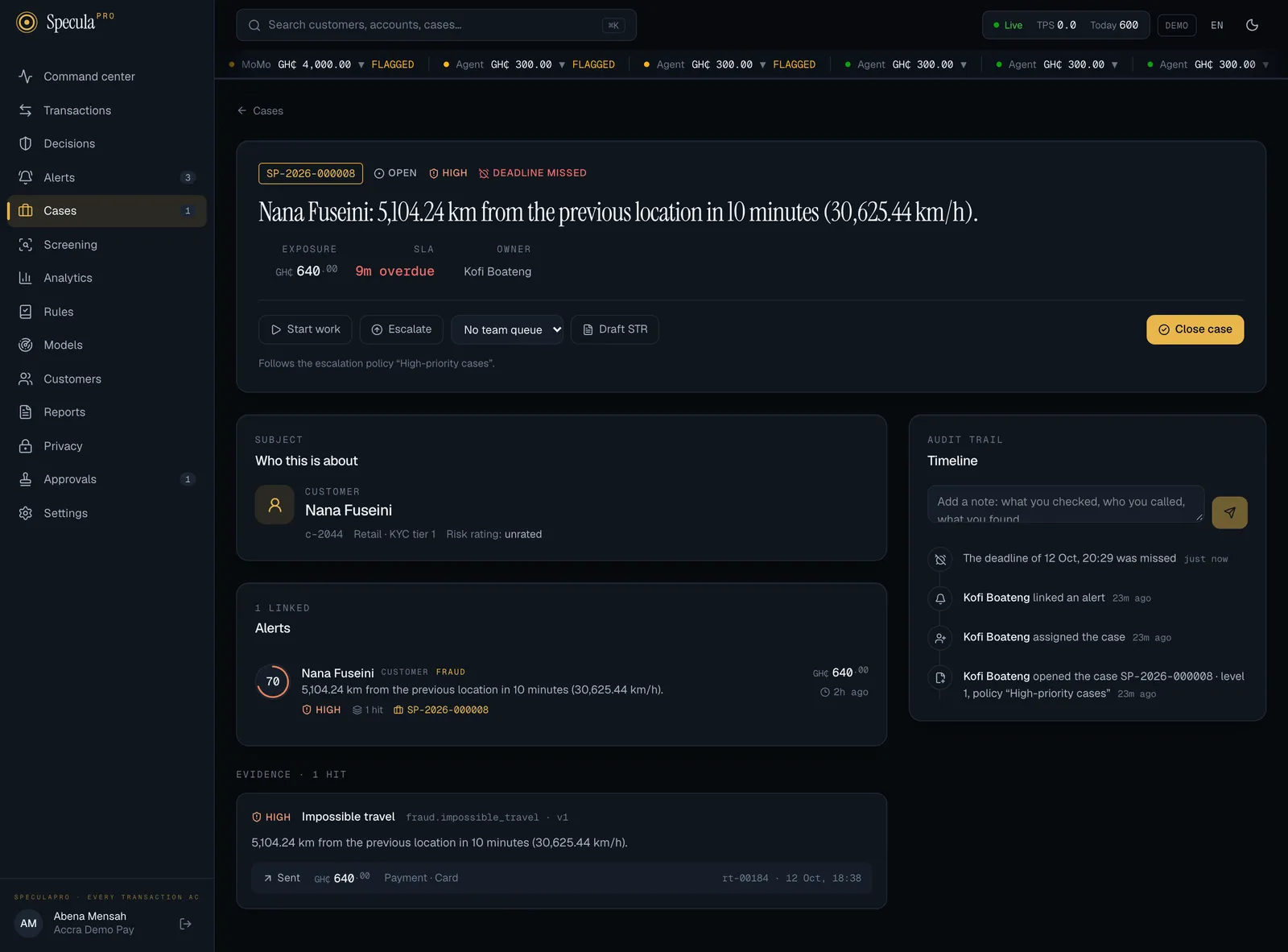
- the case number, the status, the priority and, from level 2 up, the escalation Level,
- a red Deadline missed marker, when the case’s current deadline has passed and been recorded. It clears when the case gets a new deadline (it is escalated) or is closed,
- the title: who the case is about and a short description of the activity that started it,
- on the right: Exposure, SLA (time left, in orange or red as above; for a closed case, the date it closed) and Owner, with the case’s team queue underneath, for example PEP desk queue.
Under it is a row of buttons. Which buttons you see depends on the case’s status and your permissions:
| Button | Shown when | Needs |
|---|---|---|
| Take it | The case has no owner | cases.work |
| Start work | The case is Open or Escalated | cases.work |
| Release | You are the owner | cases.work |
| Escalate | The case is below level 3 | cases.work |
| Team queue list | Your workspace has at least one team. It shows the case’s queue, or No team queue; choosing another moves the case. See How to put a case in a team’s queue | cases.work |
| Close case | The case is open, in progress or escalated | cases.close |
| Send back and Approve closure | The case is awaiting approval | cases.approve |
| Reopen | The case is closed | cases.approve |
| Draft STR | The case is open, in progress or escalated and you hold cases.work; or it is awaiting approval or closed |
reports.draft and entities.view_pii. Starts a suspicious transaction report from the case, or opens the one in progress. After the case’s report is filed, rejected or voided, it starts a new one |
When the case follows an escalation policy, a line under the buttons names it: Follows the escalation policy “Politically exposed persons”.
If an action can’t be done (for example someone else changed the case a second earlier), a red message under the buttons explains why. Reload the page to see the case’s current state, then try again if it still makes sense.
The rest of the page
Section titled “The rest of the page”- Who this is about: the subject card, with reference, segment and KYC tier, risk rating and designation badges. It is described in Reviewing an alert. Select a customer’s name to open their profile.
- Alerts: every alert linked to the case (the heading says how many), in the same format as the alert queue. Select one to see it on its own.
- The case in brief: where your workspace uses the AI assistant, a summary of the case that you can ask for, with the assistant’s suggestion of what to do next (looks like a false positive, a report may be warranted, needs more investigation or not enough to tell). It is advice only: it changes nothing, it doesn’t read notes or files, and closing the case or filing a report stays your decision. See The case in brief.
- Evidence files: the documents people collected for the case (an ID document, a statement, an email), which you can add, download and remove. See Evidence files.
- Evidence · N hits: every rule hit across all the case’s alerts, as hit cards with the explanation, the transaction and the feature values. See The evidence.
- Timeline, on the right (under the rest of the page on a narrow screen): the full history of the case, newest first, and the box for your notes.
How to take a case and start work
Section titled “How to take a case and start work”When a case is unassigned, for example after it was escalated to your level:
- Open the case from the Unassigned tab.
- Select Take it. You become the owner. If the case was Open, it moves to In progress.
- If the case shows Escalated, select Start work so colleagues can see it is being worked. It moves to In progress.
Start work on its own also makes you the owner of an unassigned case, so on an unassigned Escalated case you can select Start work straight away.
A case you opened from an alert is already yours and Open: select Start work when you begin. The exception is a case whose escalation policy starts it above level 1: it opens Escalated and unassigned, for that level to take. See Cases that open above level 1.
How to release a case
Section titled “How to release a case”If you can’t continue (you are going on leave, or the case needs a colleague with different expertise):
- Add a note explaining where you got to (see below).
- Select Release.
The case becomes unassigned and appears in everyone’s Unassigned tab. Its status, deadline and team queue don’t change.
How to add a note
Section titled “How to add a note”Record your work on the timeline as you go, not only at the end: what you checked, who you called, what you found.
- In the Timeline panel, type in the box that says Add a note: what you checked, who you called, what you found…
- Select the send button (the paper plane), or press Ctrl+Enter (Cmd+Enter on a Mac).
The note appears at the top of the timeline with your name and the time. You can add notes at any stage, including after the case is closed: for example to record the FIC’s reference for a report, or a regulator’s later question. A note on a closed case doesn’t reopen it or change its outcome.
The timeline
Section titled “The timeline”The timeline lists every event on the case, newest first. Events by people start with the person’s name; events by SpeculaPro itself have no name. Any note, reason or rationale given with an event is shown in a grey box beneath it.
| You see | What happened |
|---|---|
| Efua Owusu opened the case SP-2026-000124 | Someone opened the case from an alert. When an escalation policy fitted the case, the entry adds · level 2, policy “…” |
| … assigned the case / unassigned the case | Someone took or released the case |
| … moved it to in progress | Someone selected Start work |
| … raised priority to high: a higher-severity alert joined | Someone added a more severe alert to the case, which raised its priority |
| … linked an alert | Someone added an alert to the case by opening a case from it |
| A new alert joined the case | New activity about the subject arrived and SpeculaPro added it automatically. When it also raised the priority: …; priority raised to critical |
| … commented | A note, shown in the grey box |
| … escalated to level 2 · priority high | Someone escalated the case; their reason is in the grey box |
| The deadline of (date and time) was missed | The case passed its deadline while still open. Recorded by SpeculaPro, once per deadline |
| The deadline passed: escalated to level 2 by the policy “…” · priority high | The case’s escalation policy moved it up a level after the missed deadline. Recorded by SpeculaPro |
| … put the case in the PEP desk queue / took the case out of its team queue | Someone changed the case’s team queue by hand |
| … added the file passport.pdf / removed the file passport.pdf | Someone added an evidence file or removed one; the reason for a removal is in the grey box. People who can’t see customers read added a file and removed a file |
| … proposed closing as report filed | Someone closed a case that needs a second approver; their rationale is in the grey box |
| … closed as false positive | Someone closed the case; their rationale is in the grey box |
| … approved the closure | A second person approved a proposed closure |
| … sent the closure back | A second person rejected a proposed closure; what’s missing is in the grey box |
| … reopened the case | Someone reopened a closed case; the reason is in the grey box |
| … drafted STR STR-2026-000014 | Someone drafted an STR from the case. Select the number to open the report |
Each time shows how long ago it happened; hover over it for the exact date and time. Every one of these events is also written to the workspace audit log.