
Data sources
In short
Section titled “In short”Settings → Data sources is where an administrator tells SpeculaPro to collect data, instead of waiting for your systems to send it:
- a Kafka topic your systems publish to. See Kafka topics;
- an SFTP directory or an S3-compatible bucket where end-of-day files are dropped. See File drops;
- the changes in your core-banking database, through Debezium topics or Postgres replication, turned into transactions, customers, accounts and account events by a mapping you write. See Change data capture.
Whatever the source, every record goes through the same checks, duplicate protection and encryption as the ingest API. A workspace can have up to 50 data sources.
| You need | Held by default by |
|---|---|
The Data sources permission (datasources.manage) |
Administrator |
To look only: Settings: view (settings.view). The tab opens read-only, with sources, file history and mappings (View mapping), but not a file’s results download or any credential |
Auditor |
On a self-hosted installation the connector role must be running, or nothing is collected. See
Connector.
The list
Section titled “The list”Each data source shows its name, what it carries, where it reads from (for example
sftp://[email protected]/outbound/speculapro or s3://eod-files/statements/), and
its state:
| State | Meaning |
|---|---|
| Healthy | The last run, or the last records read, succeeded |
| Running now | A connector is working through it |
| Last run had a problem | The last run failed, or some files in it did. Open it to see why |
| Waiting for the first run / Waiting for records | Nothing has run or arrived yet |
| Paused | You paused it. Nothing is collected until you resume it |
Under the state: files loaded (or, for a topic, records waiting on it), rows loaded and rows rejected, since the data source was created. The list refreshes every 10 seconds.


How to add a file drop
Section titled “How to add a file drop”-
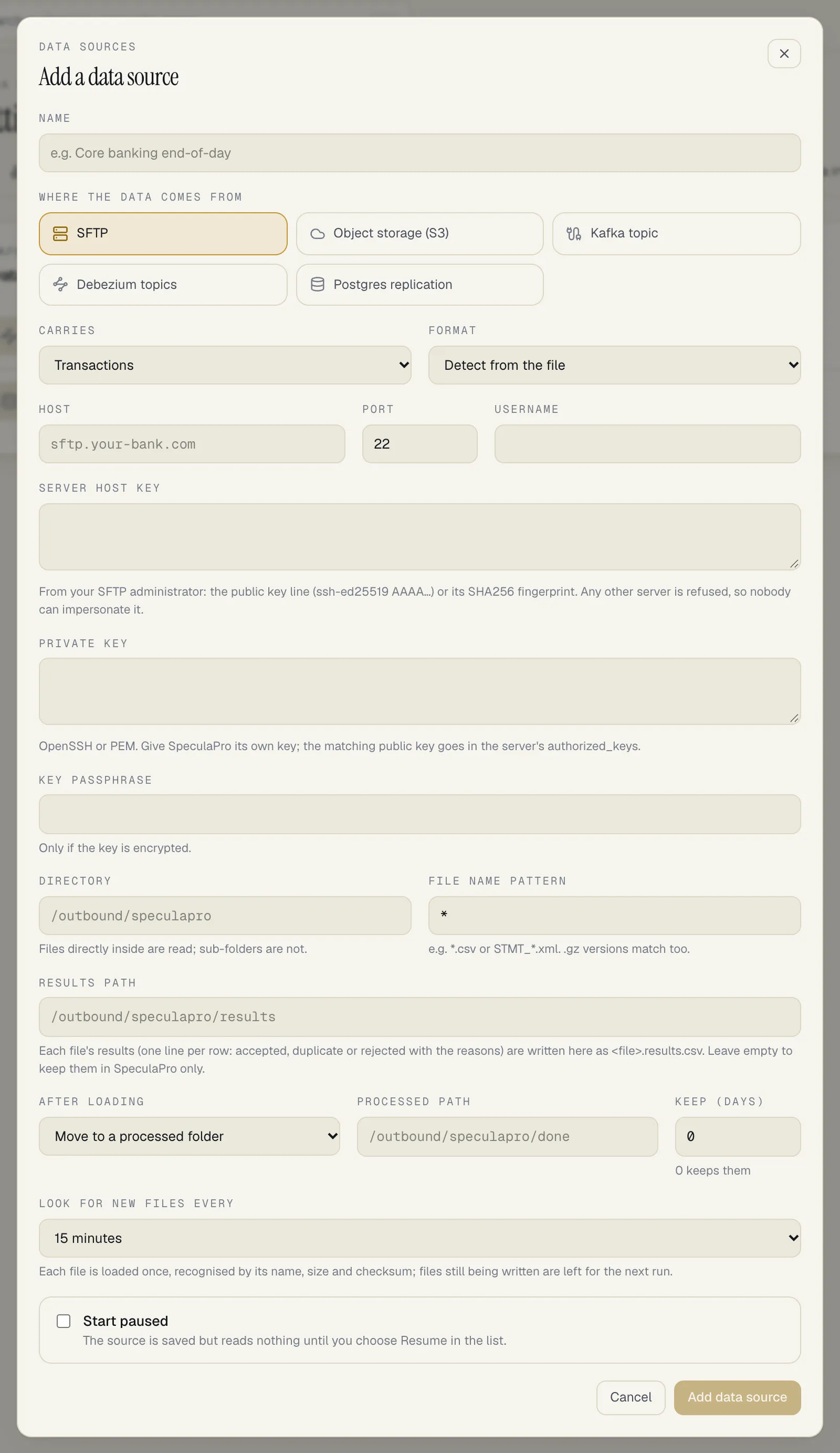
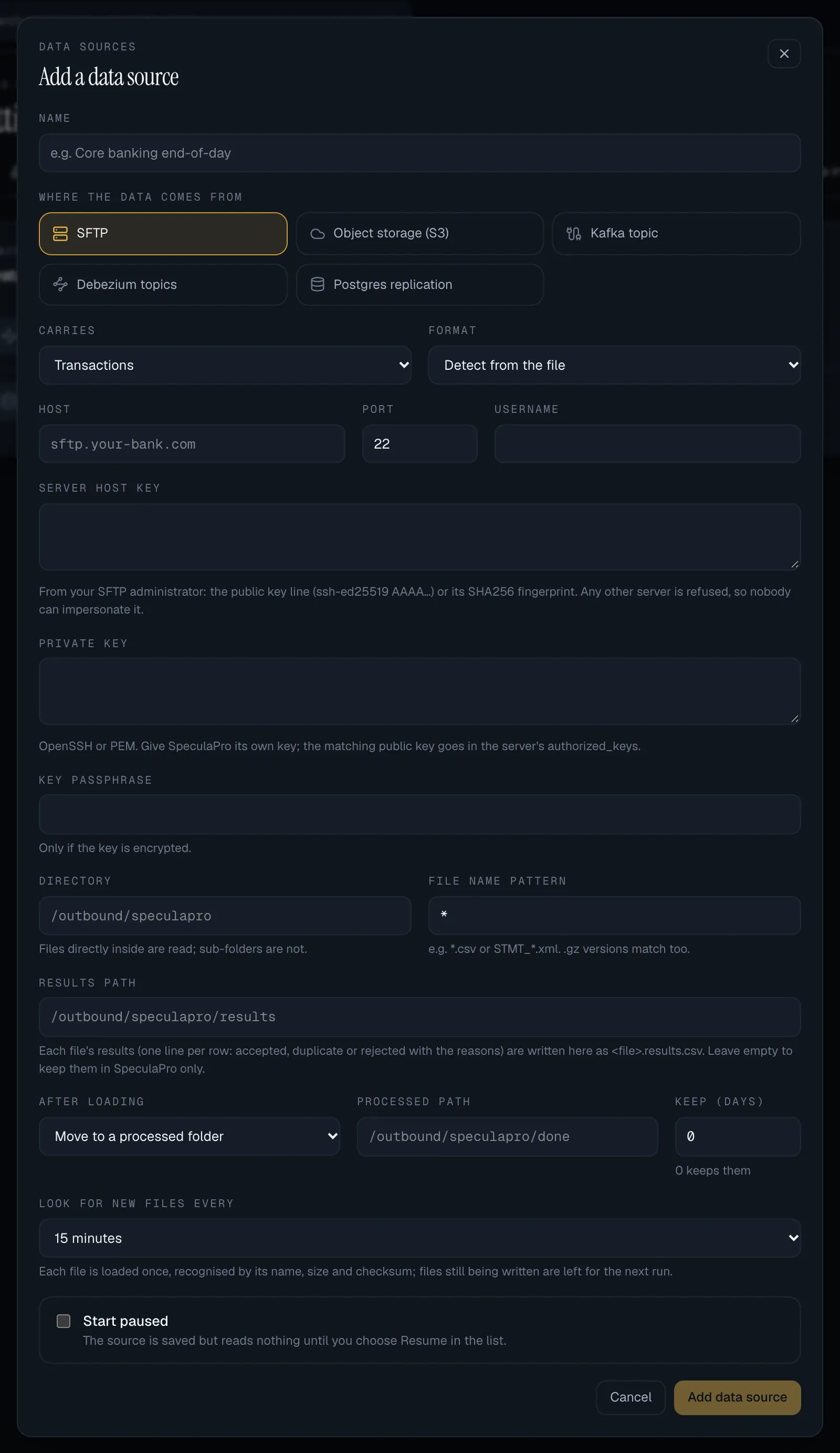
Select Settings, then the Data sources tab, then Add data source.
-
Enter a Name, such as Core banking end-of-day.
-
Under Where the data comes from, choose SFTP or Object storage (S3).
-
Choose what it Carries (transactions, customers, accounts, account events or FX rates) and the Format:
Format Offered for Detect from the file Everything (see how the format is chosen) JSON Lines Everything CSV (Data import columns) Transactions and customers ISO 20022 camt.053 statement, ISO 20022 pain.001 credit transfers Transactions -
Fill in the connection:
SFTP Host, Port The server’s name or address, without the port; the port separately (22 if empty) Username The SFTP user SpeculaPro logs in as Server host key From the server’s administrator: the public key line ( ssh-ed25519 AAAA…, as inknown_hosts) or its fingerprint (SHA256:and 43 characters). Required: any other server is refusedPrivate key An OpenSSH or PEM private key. Give SpeculaPro a key of its own, and put the matching public key in the server’s authorized_keys. Passwords aren’t supportedKey passphrase Only if the key is encrypted Object storage (S3) Endpoint For example https://s3.eu-west-1.amazonaws.comorhttps://minio.yourbank.local:9000, without a pathRegion us-east-1if emptyBucket 3 to 63 lower-case letters, digits, dots and hyphens Path-style addressing (MinIO, Ceph) Tick for MinIO and Ceph Access key id, Secret access key The key SpeculaPro uses -
Choose the Directory (SFTP) or Prefix (S3) to read. Files directly inside are read; sub-folders aren’t.
-
Set the File name pattern, such as
*.csvorSTMT_*.xml..gzversions match too. -
Set the Results path, where each file’s
<file>.results.csvis written, or leave it empty to keep results in SpeculaPro only. It must differ from the directory you read. -
Choose what happens After loading: Move to a processed folder (with a Processed path, and Keep (days) to delete moved files after that many days; 0 keeps them), Tag the object (S3 only), or Leave it (read-only access). See After loading.
-
Choose how often to Look for new files: every 5, 15 or 30 minutes, every hour, every 4 or 12 hours, or once a day.
-
Select Add data source.
Keys and secrets are encrypted with your workspace’s key as soon as you save. They’re never shown again: when you edit the data source, the field says Stored and encrypted. Leave empty to keep it.
How to add a Kafka topic
Section titled “How to add a Kafka topic”- Select Add data source and choose Kafka topic.
- Choose what the topic Carries. The format is always the API’s JSON, one item per record.
- Enter the Topic. If your installation gives each workspace a namespace, the hint shows the
prefix your topics must start with, such as
inst.kweku-pay.. If you pick one of your installation’s shared topics, the form says only records whosesp-workspaceheader names this workspace are read. - Optionally, a Dead-letter topic for rejected records (default: the topic name +
.dlq). It can’t be one of SpeculaPro’s own topics or a shared topic, and on a shared cluster it must be in your workspace’s namespace. - Select Add data source.
Read Who may read which topic before using shared topics.
How to add a change data capture source
Section titled “How to add a change data capture source”- Select Add data source and choose Debezium topics or Postgres replication.
- Fill in the connection: the topics (and, for Avro, the schema registry), or the database host, replication user, password, publication and connection security.
- Leave Start paused ticked (it is ticked by default for these two kinds), then select Add data source. The source is saved but connects to nothing.
- Open the source and select Write the mapping: start from an example if one fits, fill in the form (or write the JSON), Test it on sample change events, and Save as version 1.
- For Postgres, give your DBA the DBA instructions shown on the source.
- When the mapping is saved and, for Postgres, the DBA has finished, select Resume in the list. The source starts reading.
Step by step, with the mapping format: Change data capture. For the DBA: Postgres replication for DBAs.
What a change data capture source shows
Section titled “What a change data capture source shows”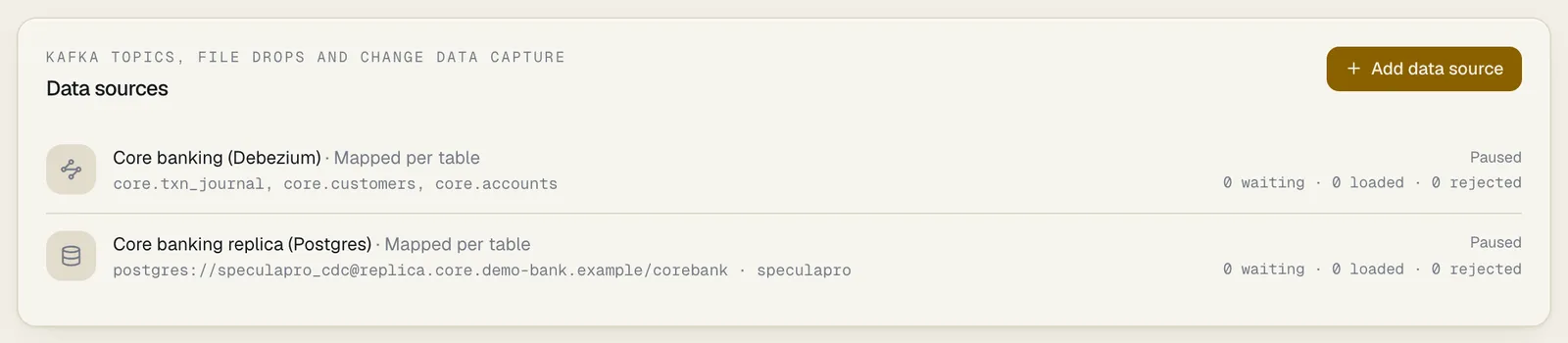
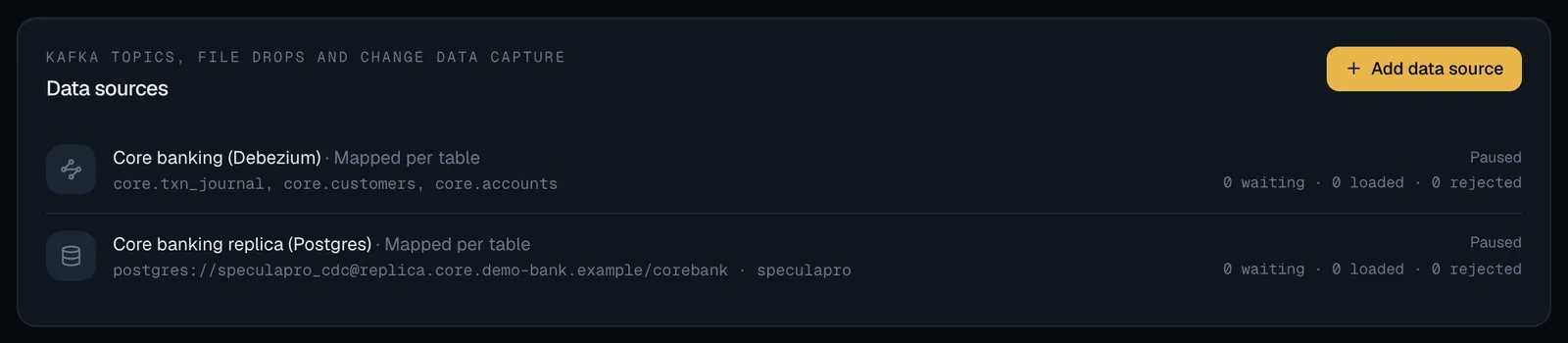
Open a source to see where it stands. A Debezium source with a mapping:
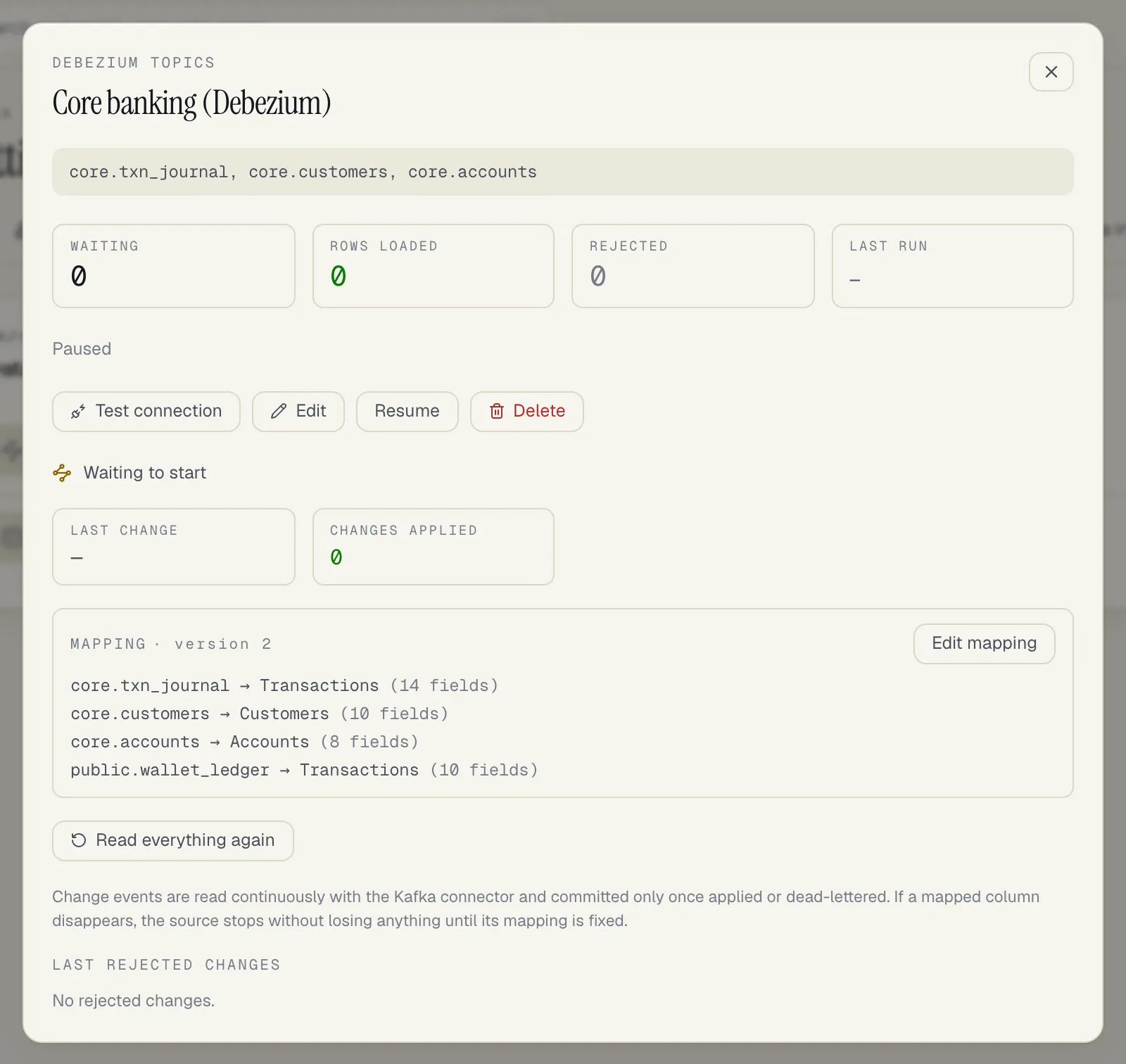
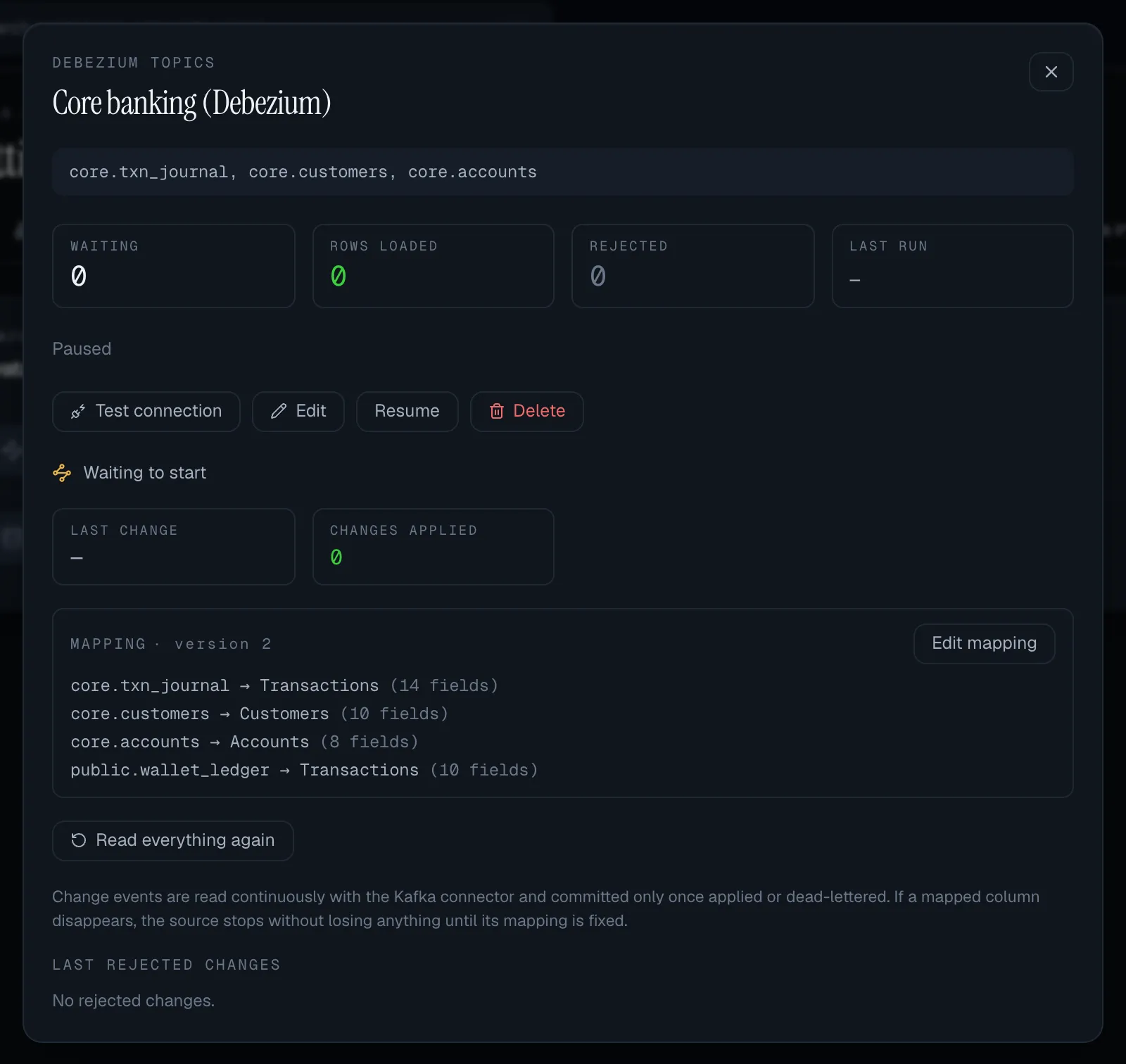
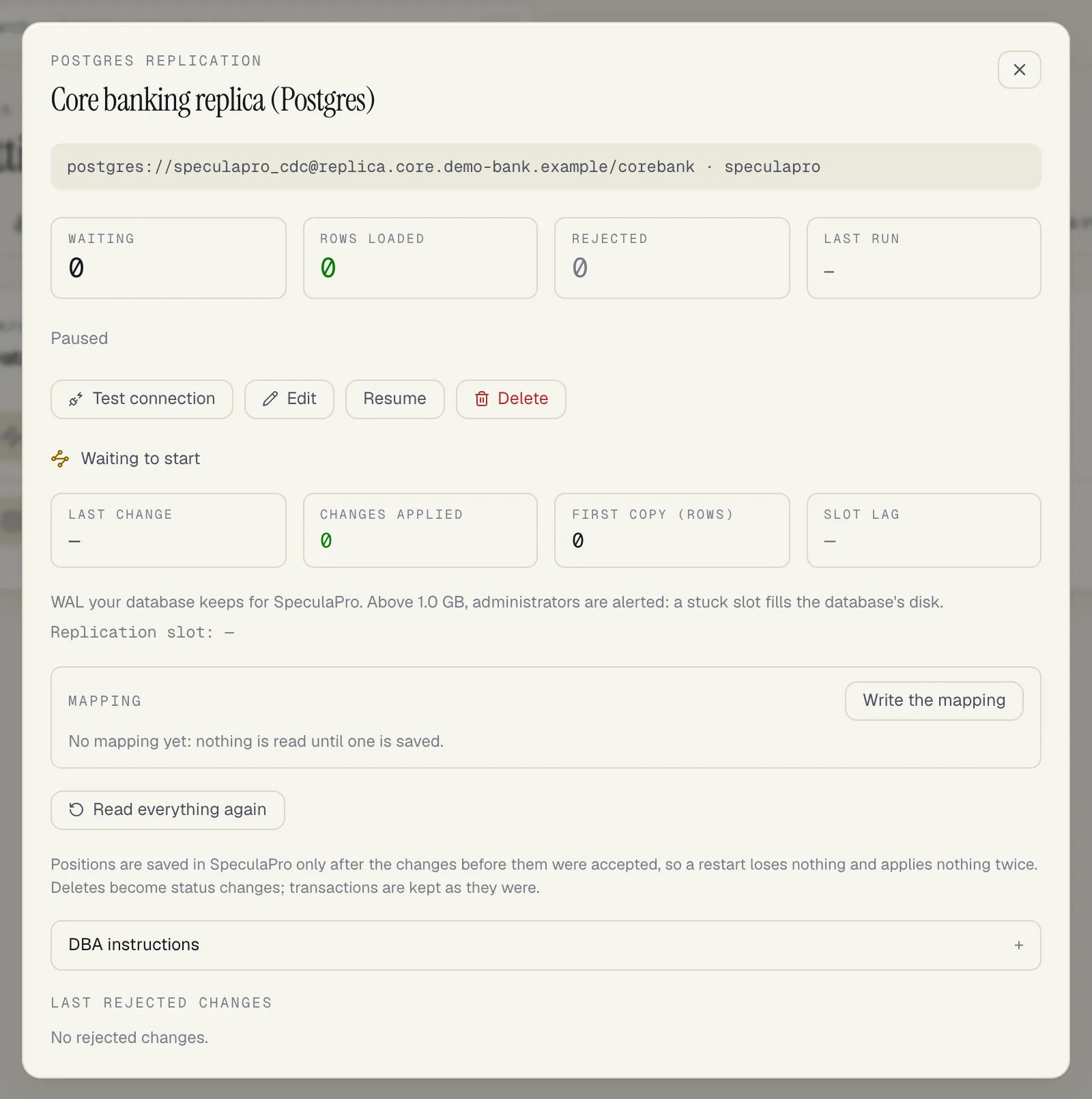
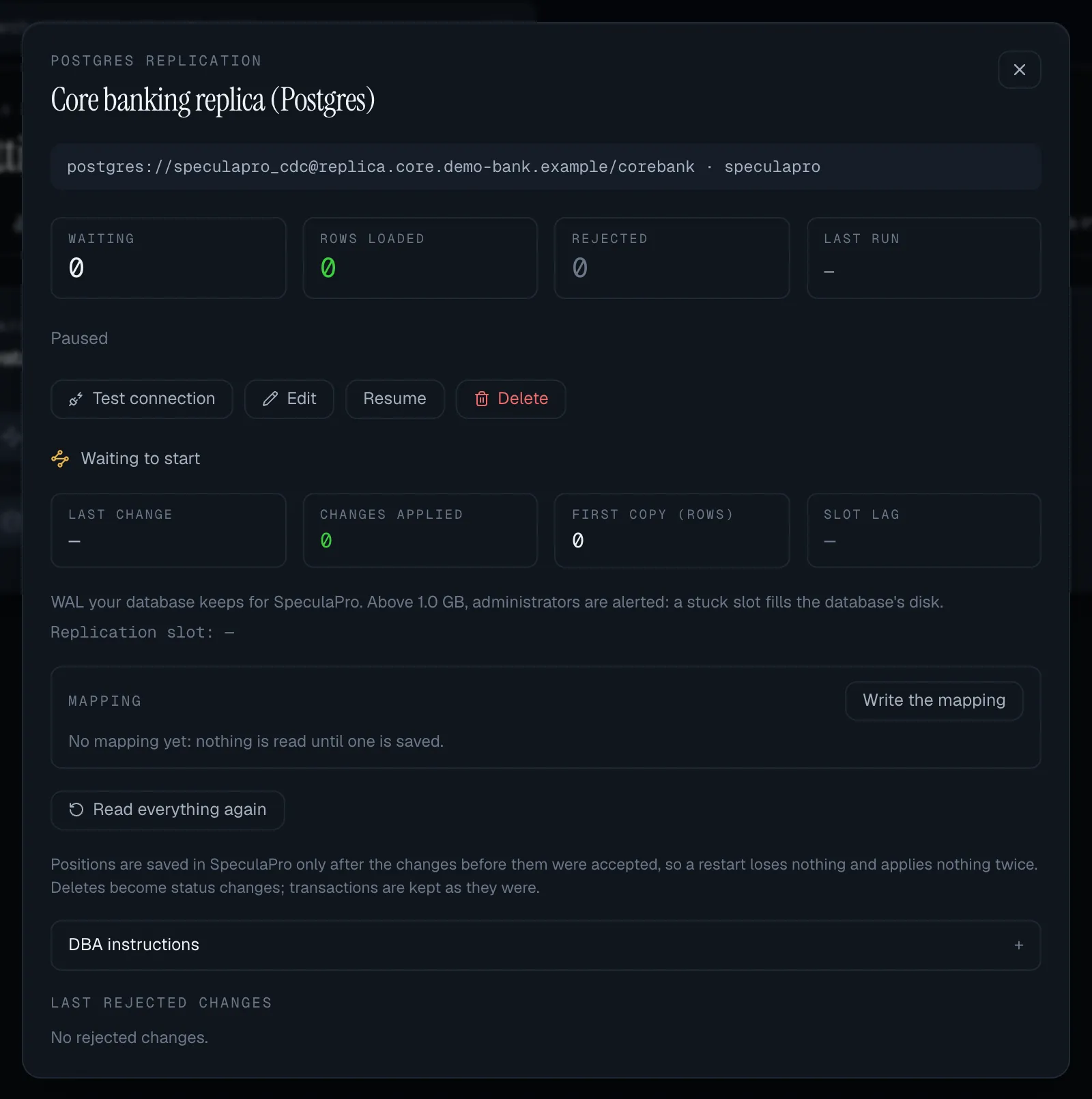
A Postgres source before its mapping is written:
| Item | Meaning |
|---|---|
| Change capture state | Waiting to start, Taking the first copy, Following changes, or Stopped with the reason |
| Mapping | The active version, with Edit mapping. No mapping yet: nothing is read until one is saved |
| Last change, Changes applied, First copy (rows) | Progress |
| Slot lag (Postgres) | The WAL your database keeps for SpeculaPro. Above the alert threshold (1 GiB by default) it says Falling behind, and data-source managers are notified |
| Last rejected changes | The newest 50, with their reasons. Every rejected change is also kept in the source’s dead-letter topic |
| DBA instructions (Postgres) | The SQL and settings for your DBA, with Copy buttons |
| Button | Does |
|---|---|
| Read everything again | Postgres: drops the slot and takes a new first copy of every mapped table. Debezium: restarts from the last committed offsets. Rows already applied are recognised; nothing is duplicated |
| Drop slot (Postgres, shown once the slot exists) | A connector drops SpeculaPro’s replication slot on your database within about a minute and pauses the source, so the database stops keeping WAL for it. Resuming later starts with a new first copy |
A Postgres source can’t be deleted in the app while its slot exists: select Drop slot first. (The API can force the delete when your DBA has already dropped the slot by hand.)
When your workspace requires approval for Data sources, Read everything again and Drop slot ask for a reason and wait for a second person, because one starts a full copy of your database’s tables and the other stops a feed.
Testing, running and pausing
Section titled “Testing, running and pausing”Select a data source to open it. It shows where it reads from, files loaded (or records waiting), rows loaded, rows rejected and the last run, the state and, for a file drop, when it will next look.
| Button | Does |
|---|---|
| Test connection | Connects with the saved settings and reports what it finds, such as Connected. 3 of 4 files in /outbound/speculapro match *.xml. or Connected. Topic … has 6 partitions and 12045 records so far. For a Postgres replication source it also adds a Warning when the connection doesn’t verify the server’s certificate, or when the database role is a superuser or can write to the published tables: pass those to your DBA. Nothing is loaded. Every test is audited |
| Run now (file drops) | Makes it due now. A connector picks it up within its polling interval (30 seconds by default) |
| Edit | Change the settings. The type (SFTP, S3, Kafka, Debezium, Postgres) can’t change: create a new data source instead |
| Pause / Resume | Stop or restart collecting. A paused file drop isn’t run; a paused topic isn’t read, and its records wait on the topic |
| Delete | Removes the data source and its file history. Data already loaded stays |
The file history
Section titled “The file history”A file drop’s File history lists its last 50 files, newest first, refreshing every 5 seconds. Each shows its name, size, format, when it started, and its rows: loaded, already loaded (duplicates and older versions), rejected and to retry.
| Icon | Status | Meaning |
|---|---|---|
| Green tick | Loaded | Every row has an outcome |
| Red cross | Failed | The file couldn’t be read, or failed part way (the message says how many rows before it were processed), or loading it stopped without finishing three times (loading this file stopped without finishing 3 times …). It isn’t tried again unless its content changes |
| Amber dashed circle | To retry | Some rows couldn’t be loaded because SpeculaPro was briefly unavailable. The file stays where it is and is loaded again on the next run |
| Spinning gold circle | Loading | In progress |
Select a file’s name to see its SHA-256, the attempt number, when it finished, where its results file was written, and the first 200 problems, by line. Select Results to download its results CSV (when it is small enough to be kept; see The results file). Downloads are audited.
File history and stored results are kept for SP_CONNECTOR_HISTORY_RETENTION (90 days by default).
For a source that leaves or tags its files, a short record of each file (name, size and checksum)
is kept for as long as the file stays in the folder, so it is never loaded twice.
What is recorded
Section titled “What is recorded”Every action here is written to the audit log: creating, changing, pausing,
resuming and deleting a data source (datasource.create, datasource.update, datasource.delete,
with the settings but never the credentials), each test (datasource.test), each Run now
(datasource.run_now), each results download (datasource.results_download), each new mapping
version (datasource.mapping, with a summary: the tables, the number of fields, and a SHA-256
fingerprint of the mapping), each Read everything again (datasource.cdc_resync), each Drop
slot (datasource.cdc_drop_slot), a delete that leaves a replication slot behind
(datasource.delete_forced, with the slot’s name), and, recorded as the
system, every file loaded, refused, or failed after three interrupted loads (datasource.file_processed).