
Backtesting
In short
Section titled “In short”A backtest runs a rule version over your workspace’s past transactions and tells you what it would have done: how many hits and alerts, on how many customers, for how much money, day by day, next to what the live version actually did over the same period. Nothing goes live, no alert is raised, and the live feature store is never touched.
Use it before approval, to answer “what will this change do?” in minutes instead of weeks. Then use a shadow test to confirm it on live traffic.
| Backtest | Shadow test | |
|---|---|---|
| Data | Your history, up to 180 days back | Live transactions from now on |
| Answer | In minutes | After days or weeks |
| Version | Any: a draft, one awaiting approval, an approved one, or an unsaved rule in the builder | An approved version only |
| Needs the rule running | No | Yes |
| Best for | Choosing thresholds, comparing options, sizing the alert workload | Final check on real traffic before Make live |
Who can do it
Section titled “Who can do it”| Action | Needs | Default roles |
|---|---|---|
| Run or cancel a backtest | rules.backtest |
Rule author, Rule approver, MLRO |
| See backtests and their figures | rules.view |
Every built-in role except the Data protection officer |
| See the sample of hits | rules.backtest or alerts.view |
Every built-in role except the Administrator |
| See customer names in the sample of hits | entities.view as well |
Others see a pseudonym such as Customer 3f9a1c |
The sample of hits shows each transaction’s time, reference, amount, feature values and
explanation, so it needs more than rules.view: the Administrator, who sees no transactions
anywhere else, sees a backtest’s figures and chart but not its sample. Through the API, they get
403 sampled hits are transactions: they need rules.backtest or alerts.view.
What you can test
Section titled “What you can test”- Any saved version of a post-event or real-time rule, in any state: a draft, one awaiting approval, an approved one, or the live one.
- Any saved version of a scheduled rule. It works differently, because a scheduled rule doesn’t look at one transaction at a time: see Backtesting a scheduled rule.
- Other parameter values for a saved version (“try other values”), without creating a new version. Only the backtest uses them; the version itself doesn’t change.
- An unsaved rule in the rule builder, including a brand-new one that has never been saved.
Each run is compared with the rule’s live version, if it has one. A new rule, or one that has never been made live, is shown on its own.
The period is up to 180 days, and can’t end in the future. On screen you choose Last 30 days, Last 90 days (the default), Last 180 days, or Dates… to pick a start and end date. Dates are whole days in your workspace’s time zone, the same days as the daily chart: the run starts at midnight on the start date and stops at midnight at the start of the end date, so the end date itself is not included.
How to backtest a rule version
Section titled “How to backtest a rule version”-
Open Rules and select the rule.
-
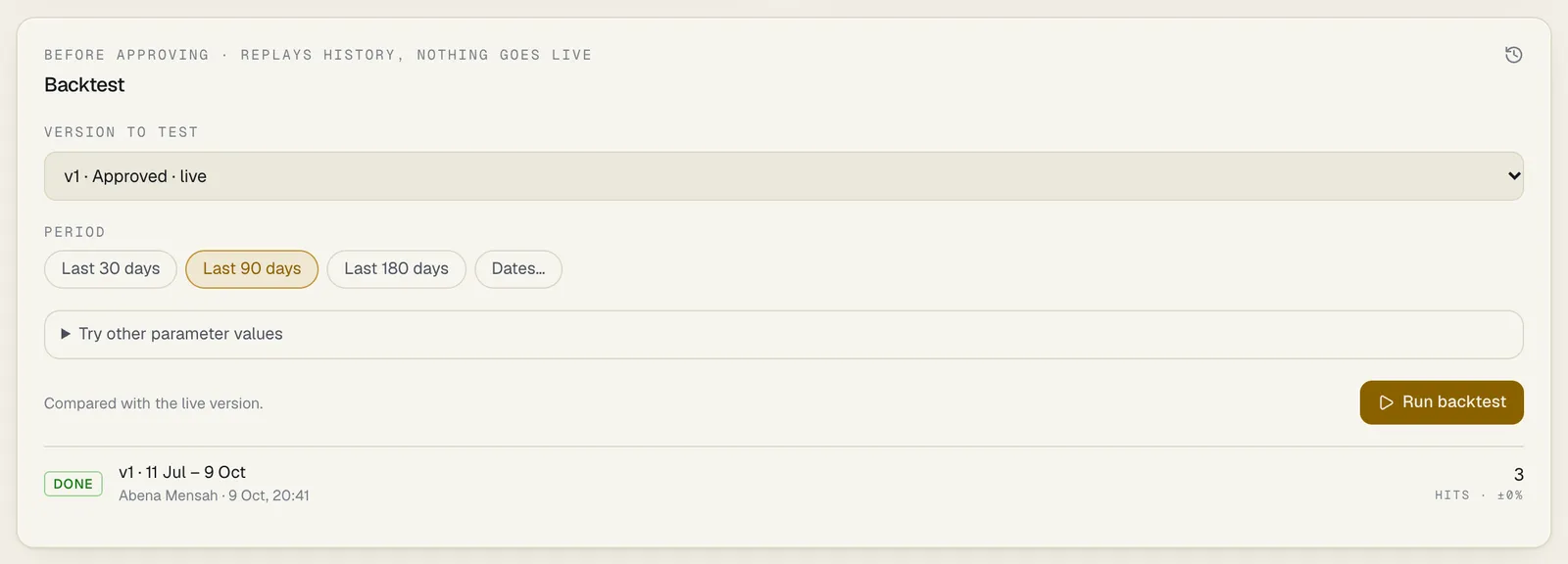
Scroll to the Backtest panel (Before approving · replays history, nothing goes live).
-
Under Version to test, pick the version. The panel starts on the newest draft or the version awaiting approval, or on the live version if there is none. The live one is marked live.
-
Under Period, choose a preset or Dates….
-
To try other values, open Try other parameter values and change any of them: numbers, yes/no switches, choices, lists and text. Each is checked against the rule’s limits, as when you tune it. A parameter that maps one value to another, such as A4’s limit per KYC tier, can only be tried through the API.
-
Select Run backtest.
The run appears at the top of the list below and opens. While it waits for a worker it says Waiting for a worker; then a progress bar shows Warming up history, Replaying the period and Saving results, with the share done and the number of events replayed so far.
-
When it says Done, read the results in the panel. See Reading the results.
To stop a run, select Cancel. A queued run stops at once; a running one stops within a few seconds and shows Cancelled before it finished.
Every run of the rule stays in the panel’s list, newest first, with its status, the version, other parameters if you changed any, the period, who ran it and when, and its hit count with the change against the live version. Select one to open it.
How to backtest an unsaved rule in the builder
Section titled “How to backtest an unsaved rule in the builder”- In the rule builder, build or change the rule until the live test on the right shows it is valid.
- In the Backtest panel (Before you save · nothing goes live), choose a period.
- Select Run backtest. The results open in a sheet titled What it would have done.
When you are editing an existing rule, the comparison is with that rule’s live version. A brand-new rule has nothing to compare with.
Backtesting a scheduled rule
Section titled “Backtesting a scheduled rule”A scheduled rule runs on a timetable and looks back over a window of history, for example every night at 02:00 over the last 30 days. So its backtest doesn’t replay transactions one by one. It replays the timetable: every run of the schedule that falls in the period is carried out once, in order, as the scheduler would have carried it out at that moment.
Two things make the result worth trusting:
- Each simulated run sees only its own past. A run for 02:00 on 3 March reads the window before that time and nothing that happened later. What it flags can depend on earlier simulated runs, never on later ones.
- It is compared with what really happened. Other backtests compare the tested version with a replay of the live version. A scheduled rule’s backtest compares it with the hits and alerts the rule actually raised in the period, so on screen you read raised, not live.
How to backtest a scheduled rule
Section titled “How to backtest a scheduled rule”-
Open Rules and select the scheduled rule.
-
Scroll to the Backtest panel.
-
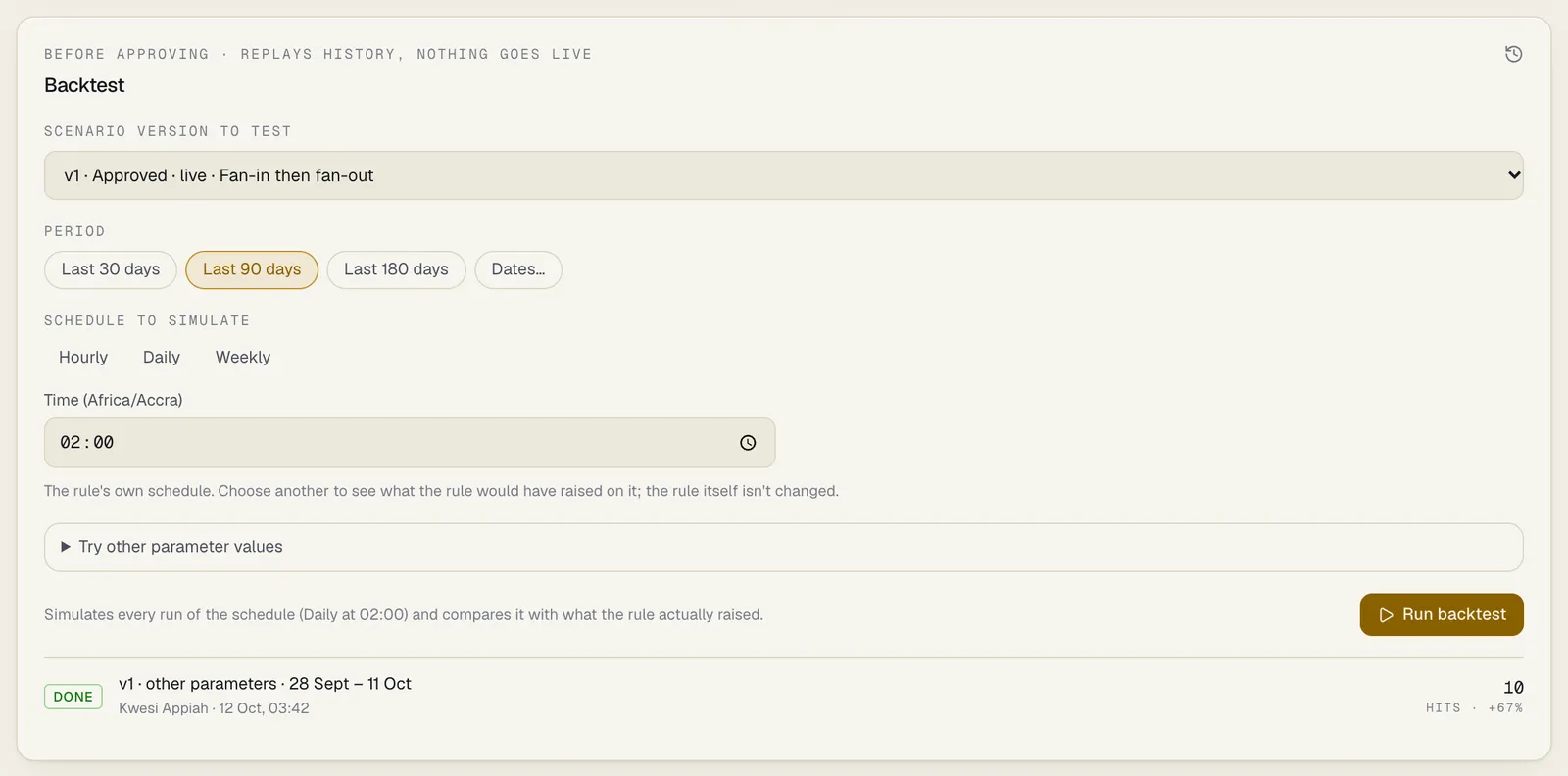
Under Scenario version to test, pick the version. Each one shows its number, its state and the name of the scenario it runs.
-
Under Period, choose a preset or Dates…, as for any backtest.
-
Under Schedule to simulate, leave the rule’s own schedule or choose another: Hourly (with Minute past the hour), Daily (with a Time) or Weekly (with a Day and a Time). Times are in your workspace’s time zone. The note underneath tells you which you are testing:
- The rule’s own schedule. Choose another to see what the rule would have raised on it; the rule itself isn’t changed.
- Not the rule’s own schedule (…). Only this backtest uses it; the rule itself isn’t changed. Select Use the rule’s schedule to go back.
- The rule has no schedule yet, so the backtest simulates this one. The rule itself isn’t changed. The picker starts at daily, 02:00.
-
To try other values, open Try other parameter values. They are checked against the rule’s form and against the hard limits built into the scenario, as when you tune it.
-
Check the line under the form: Simulates every run of the schedule (…) and compares it with what the rule actually raised. It names the schedule that will be simulated.
-
Select Run backtest.
While it runs, the progress bar says Simulating the schedule and counts the runs done.
Choosing a schedule here never changes when the rule runs. To do that, see How to change when a rule runs. In the list of earlier backtests under the form, a run that simulated a schedule other than the rule’s own shows that schedule after its version number.
A scheduled rule can’t be tested unsaved, from the rule builder: the builder doesn’t open scheduled
rules. Through the API, the same choice is the schedule
field.
Reading a scheduled rule’s results
Section titled “Reading a scheduled rule’s results”The result has the same parts as any other, with these differences.
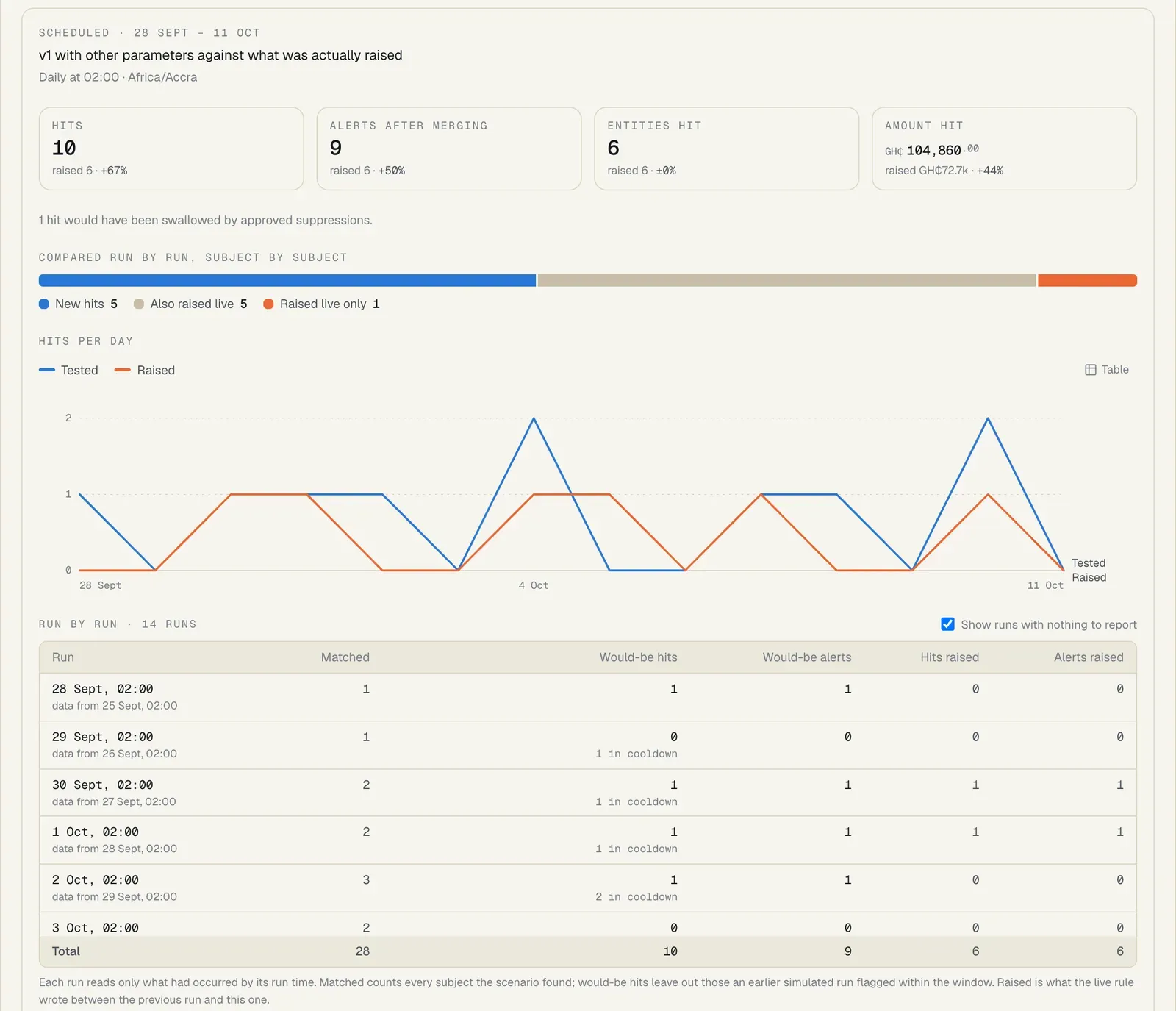
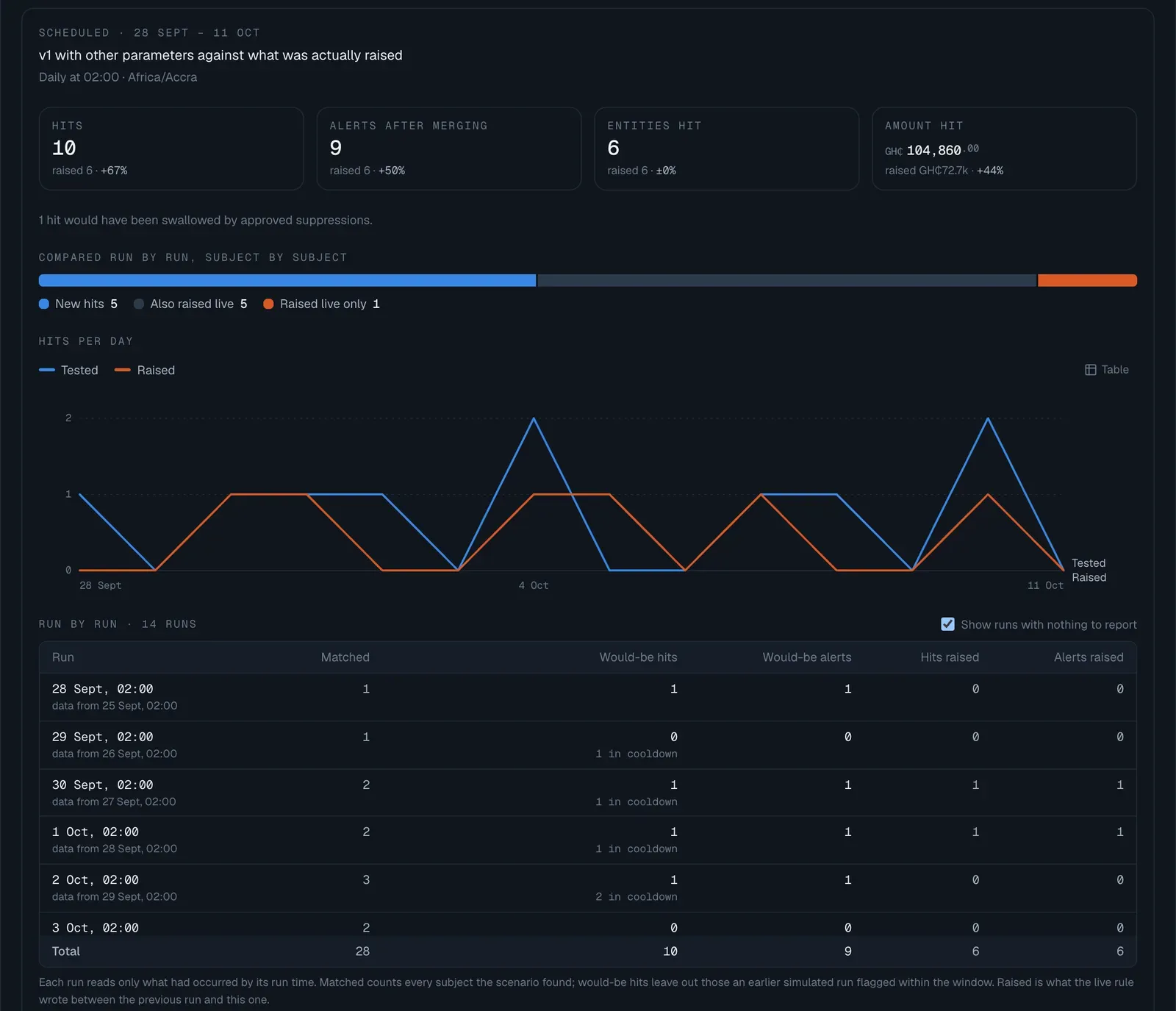
The four figures show the tested version’s hits, alerts, entities and amount. Under each, raised gives what the rule actually raised in the period, and the change.
Compared run by run, subject by subject replaces the transaction-by-transaction bar. A scheduled rule’s hit is about a customer, account or counterparty over a window, so the three groups count subjects per run:
- New hits: the tested version would have flagged them; the rule didn’t.
- Also raised live: both.
- Raised live only: the rule flagged them; the tested version wouldn’t have.
Hits per day plots Tested against Raised.
Run by run is a table with one row per simulated run:
| Column | What it shows |
|---|---|
| Run | The run’s time, and under it data from …, the start of the window it read. analytics store is added when the run read its window from the optional analytics store |
| Matched | Every subject the scenario found in that run’s window |
| Would-be hits | The hits the run would have written. Under it, n in cooldown counts subjects left out because an earlier simulated run had flagged them within the window, and n suppressed counts hits an approved suppression would have swallowed |
| Would-be alerts | The alerts the run would have opened |
| Hits raised, Alerts raised | What the live rule wrote between the previous run and this one |
The last row is the Total. With more than 31 runs, runs with nothing to report are folded away; tick Show runs with nothing to report to see them all. No run matched anything, and nothing was raised means exactly that.
A sample of the hits has the tabs New hits, Raised live only and Also raised live. The first column is the Run the hit belongs to, with the number of transactions that contributed, not a single transaction’s reference.
How this was computed reads N runs simulated over M transactions in S s, and lists the assumptions below.
How a scheduled rule’s backtest differs from live
Section titled “How a scheduled rule’s backtest differs from live”| Difference | What it means |
|---|---|
| Late and imported transactions are counted | A simulated run reads transactions by when they happened. A transaction that reached SpeculaPro after the run’s time (a late delivery, or history you imported since) is counted, although the live run at that time could not have seen it. This is the main reason a backtest of the live version can show more than was raised |
| Re-alert cooldown starts empty | Live, a subject a run flags isn’t flagged again until the rule’s window has passed. The simulation applies the same cooldown but starts with no earlier hits, so its first runs can flag subjects the live rule had already flagged before the period |
| Customer, account and counterparty details | Type, declared turnover, sector and peer group are today’s values |
| Suppressions | As of each run |
| Alerts | A hit joins its subject’s open alert, which is assumed worked within your case deadline for its severity. Only this rule’s hits are counted |
| What was raised | The hits the rule’s live version wrote in the period, whatever its version and schedule were at the time, and the alerts those hits opened or joined. Each is placed on the first simulated run at or after it. If the rule didn’t run in the period, the note says there is nothing to compare with |
| Every run on time | Each simulated run covers the window the scheduler plans when every earlier run ran on time. Live, a missed run is caught up later with a wider window |
Limits for scheduled rules
Section titled “Limits for scheduled rules”- The period needs at least one run of the schedule in it. Otherwise starting is refused: no run of the schedule (…) falls in the period: choose a longer period.
- The limit of 30 million applies to the transaction rows the runs read in all. A transaction that sits inside several overlapping windows counts once for each run that reads it, so a nightly rule with a 30-day window reads each transaction about 30 times. A run that is too large fails with this period has N runs that each read … of history, about M transaction rows in all, more than the 30000000 one backtest may read. Choose a shorter period.
- One simulated run may take at most 5 minutes, like a live scheduled run. Beyond that the backtest fails with the run of … took longer than a scenario run may.
- At most the first 200,000 hits the live rule wrote in the period are compared; a note says so when there were more.
- The queue, the 30-minute limit, cancelling and the 180-day period are the same as for other backtests.
Reading the results
Section titled “Reading the results”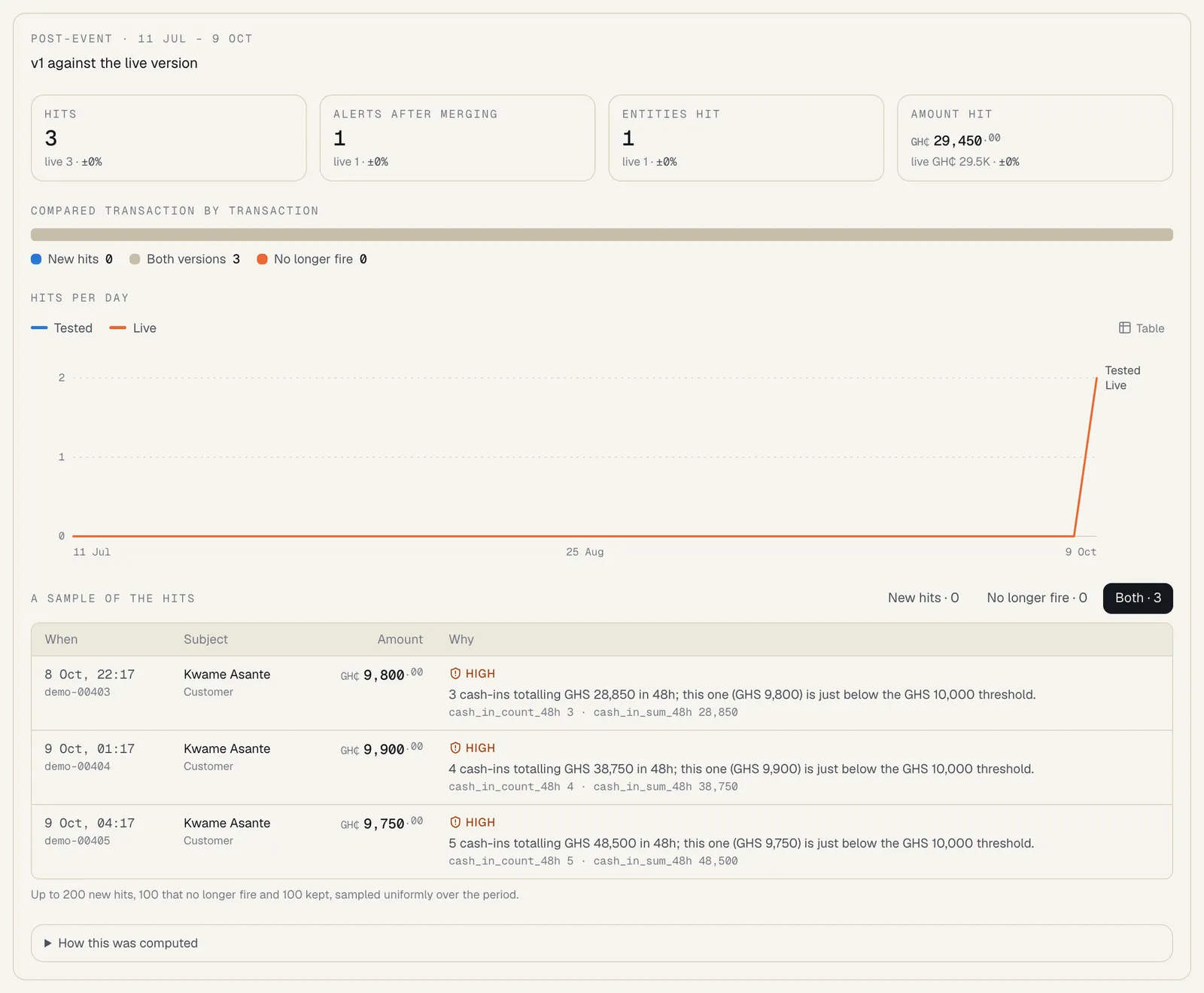
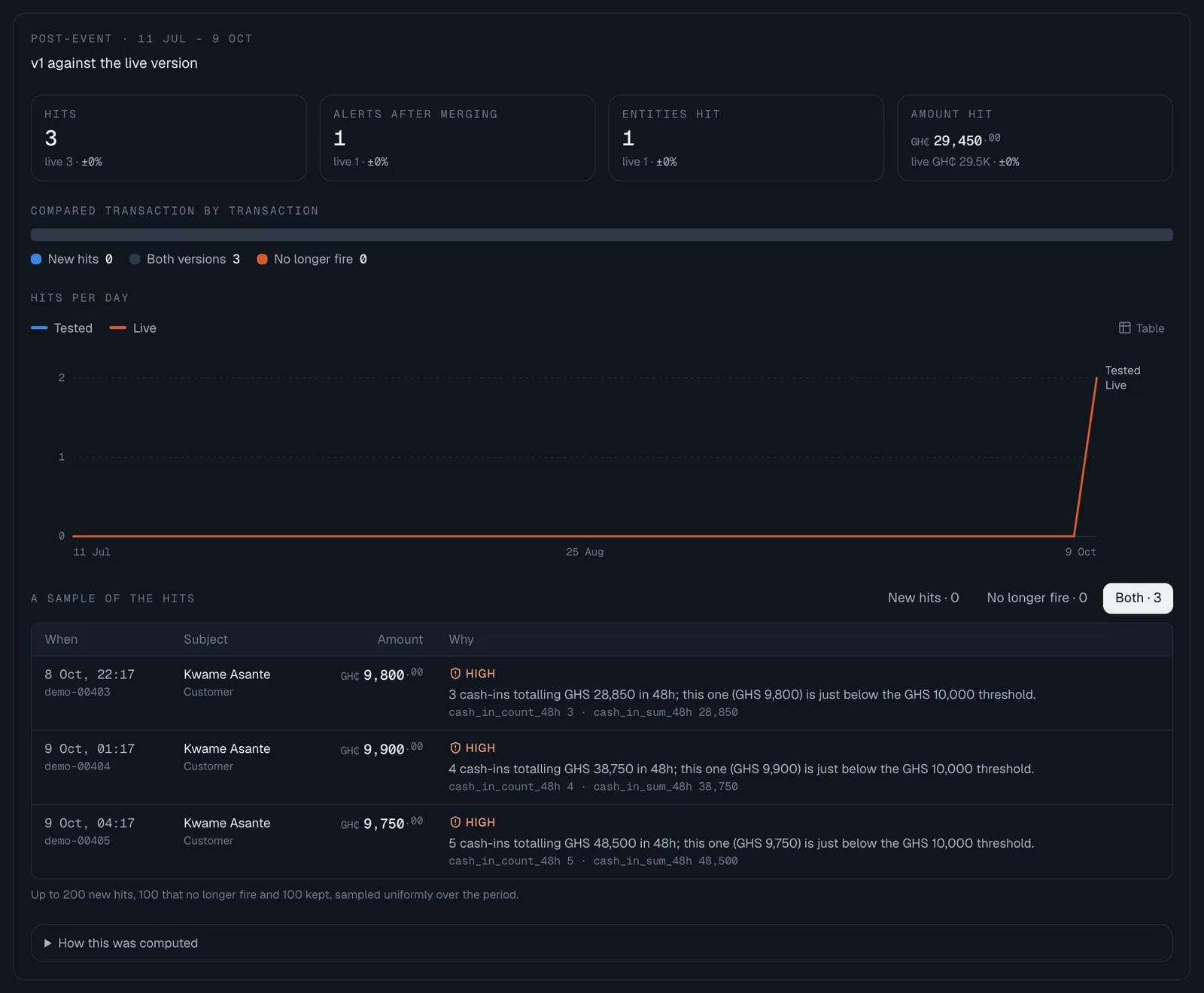
The four figures
Section titled “The four figures”| Figure | What it counts |
|---|---|
| Hits | Transactions in the period the version matched |
| Alerts after merging (Fraud alerts for a real-time rule) | Alerts those hits would have raised once hits on the same customer, account or counterparty are merged, as live (see how merging is estimated) |
| Entities hit | Different customers, accounts or counterparties with at least one hit |
| Amount hit | The total value of the transactions hit, in your base currency |
Under each, live gives the live version’s figure over the same period and the change, for example live 412 · −38%. new means the live version had none. no live version means there is nothing to compare with.
Below the figures, you may see how many hits approved suppressions would have swallowed, and, in red, how many transactions failed to evaluate. Failures usually mean the expression divides by zero or reads a field some transactions don’t have.
Compared transaction by transaction
Section titled “Compared transaction by transaction”A bar splits every transaction either version matched into three groups:
- New hits: only the tested version matches them.
- Both versions: both match.
- No longer fire: the live version matches them, the tested one doesn’t.
No longer fire is the group to read carefully when you raise a threshold: those are the alerts your team would stop seeing.
Hits per day
Section titled “Hits per day”A chart of hits per day, Tested against Live, in your workspace’s time zone. Point at a day to see both versions’ hits and alerts. Select Table for the same figures as a table.
Decisions under the workspace’s policy (real-time rules)
Section titled “Decisions under the workspace’s policy (real-time rules)”For a real-time rule, the backtest also works out each decision’s outcome (allow, step up, review or block) under your decision policy, combined with your other live real-time rules:
- Live rules today: the outcomes with today’s live rules, including this rule’s live version if the rule is running.
- With this version: the outcomes with the tested version in its place.
Below, chips such as Allow → Review 37 count the decisions whose outcome would change.
A sample of the hits
Section titled “A sample of the hits”A table of real hits to read through, with tabs New hits, No longer fire and Both when there is a live version to compare with. Each row shows when it happened and the transaction’s reference, the subject, the amount, the severity, the explanation analysts would have read, the feature values the rule saw, and, for a real-time rule, the outcome (or the change of outcome).
The sample holds up to 200 new hits, 100 that no longer fire and 100 that both versions
produce, picked at random from the whole period. Opening the same run again shows the same
sample. Select a name to open the customer. Without
entities.view, names are replaced by pseudonyms.
How this was computed
Section titled “How this was computed”Open How this was computed at the bottom of every result. It lists what this run assumed (for example how far back the warm-up went, or that no transaction went through the decision API), and records:
- how many events were replayed, including the warm-up, and from which date;
- how long the replay took and how many events per second;
- where the transactions were read from: the line ends with transactions read from the analytics store or transactions read from the main database. See Where a backtest reads its history;
- data up to: the latest time a transaction it read was received. Anything that arrived later wasn’t seen;
- the first characters of the definition hash, a SHA-256 fingerprint of exactly what was replayed. The full hash, and the full definition, are kept with the run.
How a backtest differs from live
Section titled “How a backtest differs from live”A backtest runs your history through the same rule engine and an in-memory copy of the feature store with the same buckets, window edges and profile signals. The project’s tests check the two give identical results. Where they can differ, it is for one of these reasons, and the run’s notes say which apply:
| Difference | What it means |
|---|---|
| Warm-up | Before the period, the backtest replays enough history to fill the rule’s longest window, or 180 days when the rule reads first-seen or last-location signals (new device, new payee, new country, impossible travel). Warm-up hits don’t count. If your history starts later than that, windows early in the period count only what exists, and the note says so |
| Distinct counts are exact | Live, “how many different senders” uses an estimate with about 0.8% error. The backtest counts exactly, so a threshold set right at a distinct count can differ by one |
| Event time | Windows and profile expiry follow the time each transaction happened. Live, they follow the clock, which only differs for data that arrived late. At the same instant, account events count before transactions |
| Short windows | Minute-level counters behave as if the rule had always been running. Live, they start when a rule that reads them starts |
| Customer, account and counterparty details | Risk rating, segment, KYC level and attributes are today’s values. A customer whose rating changed last month is replayed with the new one |
| Designations, lists and suppressions | As of each transaction: a PEP flag added in March doesn’t affect February. Suppressions count from their start date if they were approved, because the approval time isn’t recorded |
| Alerts | Live, hits join an alert until a person closes it. A backtest can’t know when that would have been, so it assumes each alert was worked within your case deadline for its severity. Only this rule’s alerts are counted, not other rules’ alerts on the same customers |
| Real-time rules | They see only transactions that went through the decision API, as live. If none did in the period, every transaction is used and the note says so. Outcomes use today’s live real-time rules and today’s decision policy, not those in force at the time. Time budgets and degraded answers aren’t simulated |
| Risk model score | A rule that reads model.score is replayed with today’s live risk model scoring each past transaction. The model that was live at the time may have been another version, or none. With no live model, model.score reads 0, as it does live. See Using model scores in rules |
Where a backtest reads its history
Section titled “Where a backtest reads its history”By default a backtest reads your transactions from SpeculaPro’s main database. An installation can also have an optional analytics store, a second copy of the transactions kept for long-period work. Where it exists, a run whose history, warm-up included, spans more than 30 days reads its transactions from there instead, which keeps a heavy replay off the database your analysts are working in. Shorter runs keep reading the main database.
Before a long run reads the analytics store, SpeculaPro checks that it can be relied on: that it holds your workspace’s history from the start of the run’s warm-up, that no copy of your history into it is still running, and that it has received everything ingested up to the moment the run starts. If the store is only a few seconds behind, the run waits briefly for it. If any check fails, the run reads the main database instead.
You don’t choose, and the results are the same either way: the project’s tests replay the same rule from both and compare them hit for hit. Everything else a run needs (customer details, designations, lists, suppressions and account events) always comes from the main database.
How to see which one a run read
Section titled “How to see which one a run read”Open How this was computed. The statistics line ends with transactions read from the analytics store or transactions read from the main database.
When a long run read the main database although your installation has the analytics store, a note in the same place says why:
| The note | What it means |
|---|---|
| Transactions were read from PostgreSQL, not the analytics store: this workspace’s history hasn’t been copied to it yet (speculapro analytics backfill). | Your workspace’s past transactions were never copied to the store. Your administrator runs the command named in the note |
| Transactions were read from PostgreSQL, not the analytics store: a copy of this workspace’s history into it is still running. | A copy is in progress. Later runs use the store once it has finished |
| Transactions were read from PostgreSQL, not the analytics store: it holds this workspace’s history from a later date than the run needs. | The store starts after this run’s warm-up does |
| Transactions were read from PostgreSQL, not the analytics store: the analytics role is behind: it hasn’t written every transaction ingested so far. | The store was late when the run started. Tell your administrator if you see this often |
| Transactions were read from PostgreSQL: the analytics store could not be reached. | The store didn’t answer when the run started |
None of these changes the result. They matter to your administrator, because a long replay then runs on the database your analysts are working in. (PostgreSQL is the main database.)
One thing is worth knowing if your installation has the analytics store:
- It can still hold transactions that data protection retention has removed from the main database, so a long run can count transactions that a short one over the same dates wouldn’t. See Retention and legal holds.
Administrators: see Analytics store (ClickHouse) and Troubleshooting.
When a run fails
Section titled “When a run fails”| Message | What to do |
|---|---|
| The run took longer than the 30m0s limit. Choose a shorter period. | Shorten the period, or ask your administrator to raise SP_BACKTEST_TIMEOUT |
| This period needs more feature memory than one run may use (1024 MB): too many active customers and accounts. Choose a shorter period, or ask your administrator to raise SP_BACKTEST_MAX_MEMORY_MB. | As it says |
| …holds more than 30000000 transactions, the most one run may replay. Choose a shorter period. (or …transactions and account events… for a rule that reads account events) | The period plus its warm-up is too large. Shorten it. This is checked before the run starts |
| The rule no longer compiles: … | The definition can’t run. Fix it in a new version |
| The worker stopped during the run. Run it again. or The run was interrupted (the worker stopped). Run it again. | A worker restarted. Runs aren’t retried automatically |
| The run failed on our side; it has been logged. Try again, or contact support. | Try again. If it repeats, give your administrator the time of the run: the details are in the worker’s log |
Starting a run can also be refused:
| Message | Why |
|---|---|
| 5 backtests are already queued or running in this workspace; wait for one to finish or cancel one | A workspace can have at most five at a time |
| the period can be at most 180 days · the period can’t end in the future · the period must end after it starts | Change the dates |
| a scheduled rule is backtested from a saved version: send version_id · the rule has no schedule yet: set one, or send schedule · no run of the schedule (…) falls in the period: choose a longer period | Scheduled rules. See Backtesting a scheduled rule |
| schedule applies to scheduled rules only | Through the API: schedule was sent for a rule that isn’t scheduled |
| params.x isn’t a parameter of this version | Through the API: only the version’s own parameters can be overridden |
| params.round_to must be one of 100, 1000, or another limit | A value you tried is outside the rule’s limits, checked as when you tune it |
Limits
Section titled “Limits”A backtest is heavy work, so each one runs in the background, one after another:
- At most one backtest runs at a time per workspace, and five can be queued or running. The others wait their turn.
- A run is stopped after 30 minutes, and refused if the period and its warm-up hold more than 30 million events: transactions, plus account events when the rule reads them. For a scheduled rule the count is of transaction rows read across all its simulated runs: see Limits for scheduled rules.
- The installation as a whole runs at most four backtests at once. These limits hold across all workers, whichever one picks a run up.
- Runs are kept. They are deleted only with the rule they belong to.
Your administrator can change these limits; see Worker: backtests.
Everything is audited
Section titled “Everything is audited”Starting a run writes backtest.start (the rule, version, whether parameters were changed, the
definition hash, the period, the rule’s mode and, for a scheduled rule, the schedule simulated), cancelling writes backtest.cancel, and the end of every run writes
backtest.finish with its status, hits, alerts and events replayed. See the
audit log.
Not yet
Section titled “Not yet”- Deleting old runs, or a retention period for them.
- Backtests over more than 180 days.
- Short run times over very large histories. The optional analytics store takes a long run’s reads off the main database, and reads them faster than before, but the replay through the rule engine still decides how long a run takes.
Ideas for what to test
Section titled “Ideas for what to test”Where your workspace uses the AI assistant, the panel How this rule is doing, just above the Backtest panel, can suggest parameter values worth trying, from how the rule’s alerts ended over the last 90 days. It changes nothing; a backtest is how you check a suggestion. See Suggestions from the AI assistant.
Using the API instead
Section titled “Using the API instead”The panel uses POST /api/v1/backtests to start a run and polls GET /api/v1/backtests/{id}. See
the Backtesting API.