
Reviewing a potential match
In short
Section titled “In short”A potential match is a question: is this customer, or this counterparty, the person or organisation on the list? Somebody has to answer it. You do that on the Screening page:
- False positive: it is someone else with a similar name. SpeculaPro remembers your answer, so the same pair isn’t raised again.
- True match: it is the listed party. SpeculaPro flags them with a risk designation and opens a case, or adds to their open case.
Most potential matches are false positives. The job is to tell the two apart quickly, and to leave a reason somebody else can follow a year later.
Before you start
Section titled “Before you start”| To | You need |
|---|---|
| See the Screening page and read a match | screening.view |
| Assign, comment on and resolve a match | screening.review as well |
| Confirm or clear a match against a sanctions list while a second person’s approval is not in effect | screening.approve as well |
| Approve a decision somebody else made | screening.approve |
| See the customer’s date of birth in the comparison | entities.view_pii |
By default, analysts, senior analysts, L2 investigators and the MLRO can review. The MLRO approves. Auditors and administrators can read matches but not decide them.
The queue
Section titled “The queue”Select Screening in the side menu. The page is headed Potential matches and shows the Review queue, newest first.
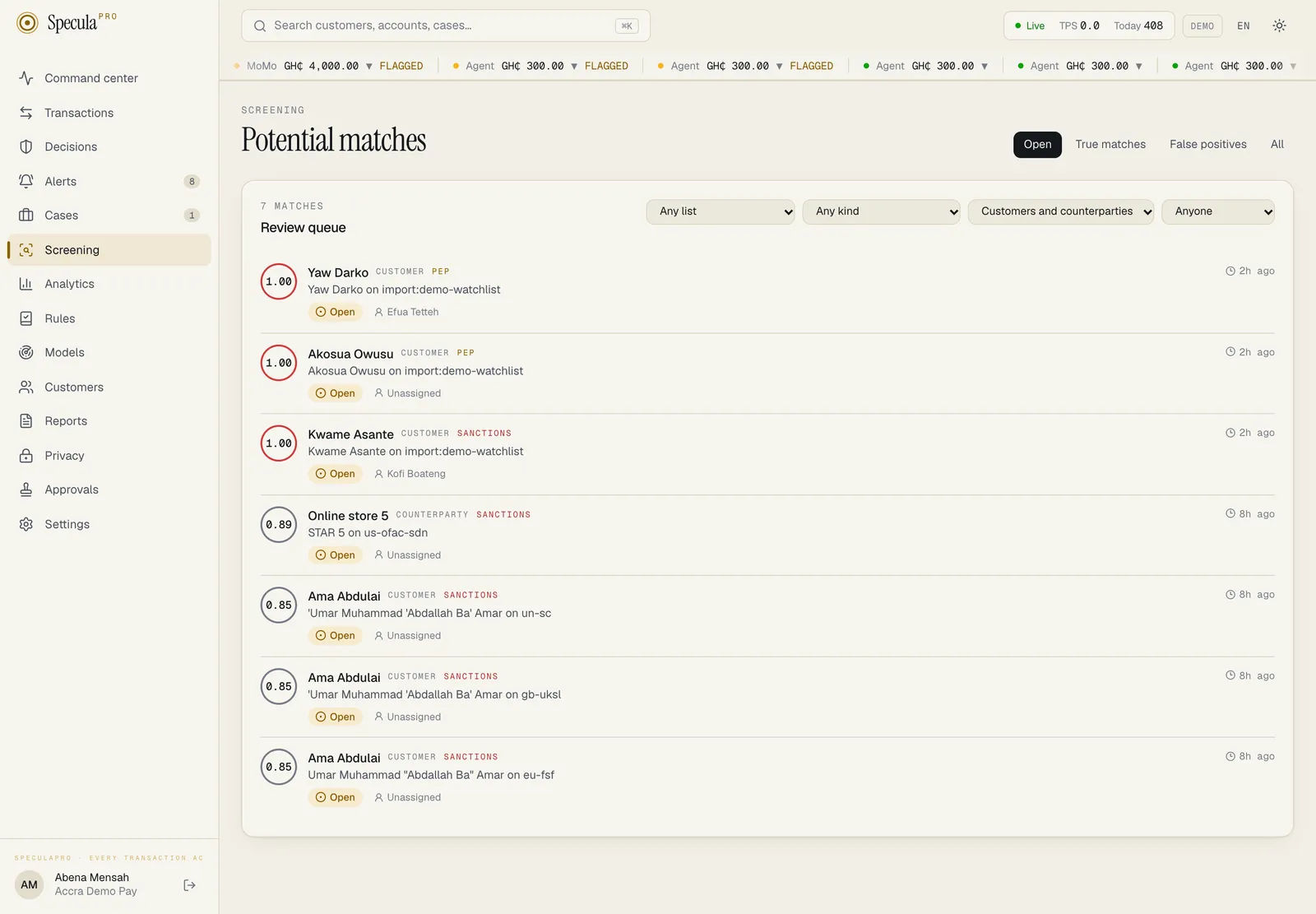
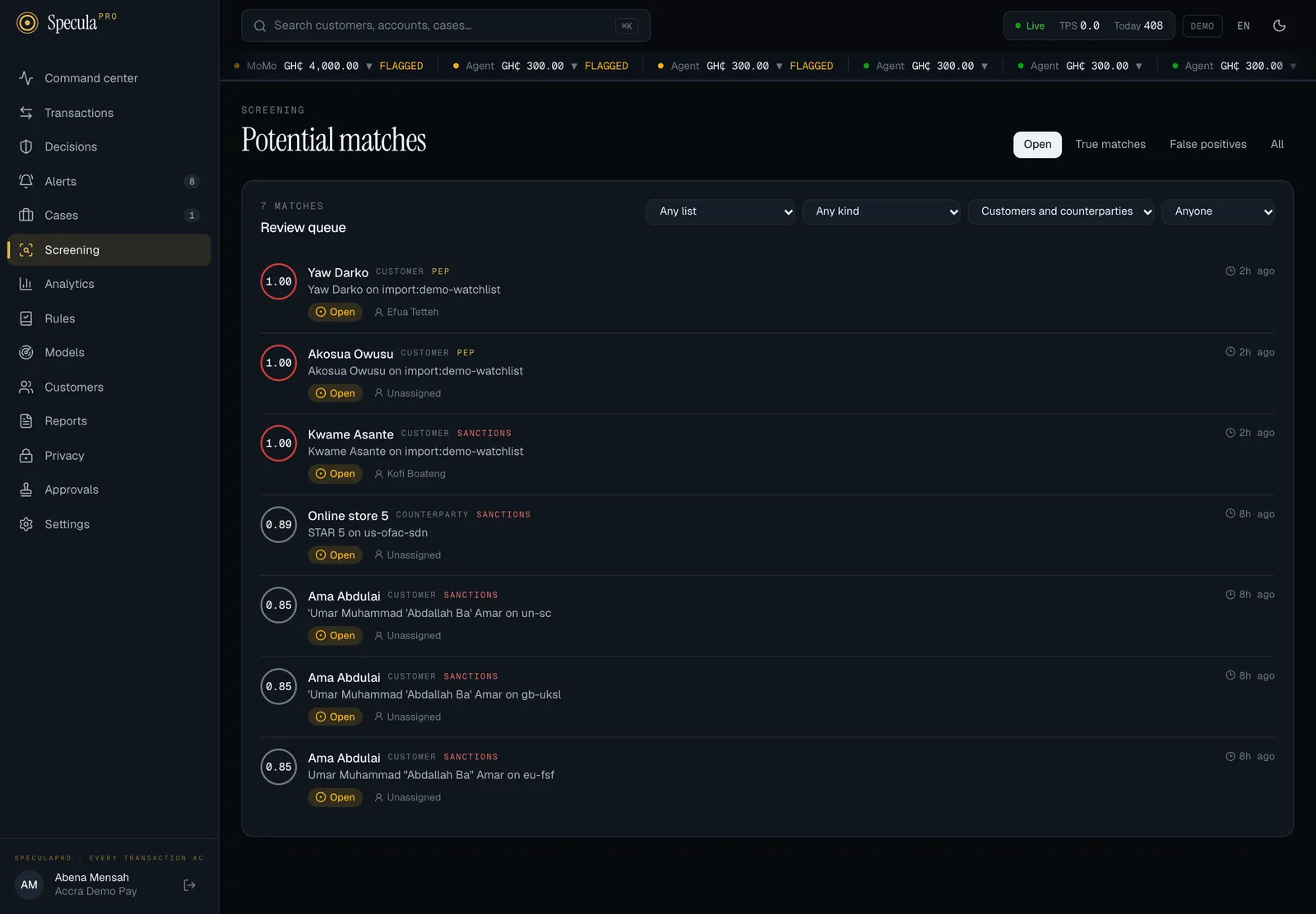
| On each row | Meaning |
|---|---|
| Score | The match score, from 0 to 1.00. Higher means closer |
| Name | The customer or counterparty as it was screened, labelled Customer or Counterparty |
| Entry on list | The list entry it matched and the list or provider it came from |
| Kind | Sanctions, PEP, PEP relative or associate, Adverse media or Watch list |
| Waiting for approval | Someone has decided, and the decision waits for a second person |
| Status | Open, True match, False positive, No longer matches or Delisted |
| Person | Who it is assigned to, or Unassigned |
| Age | How long ago it was raised |
Use the tabs to choose a status: Open (the default), True matches, False positives or All. Then narrow the list with the four filters:
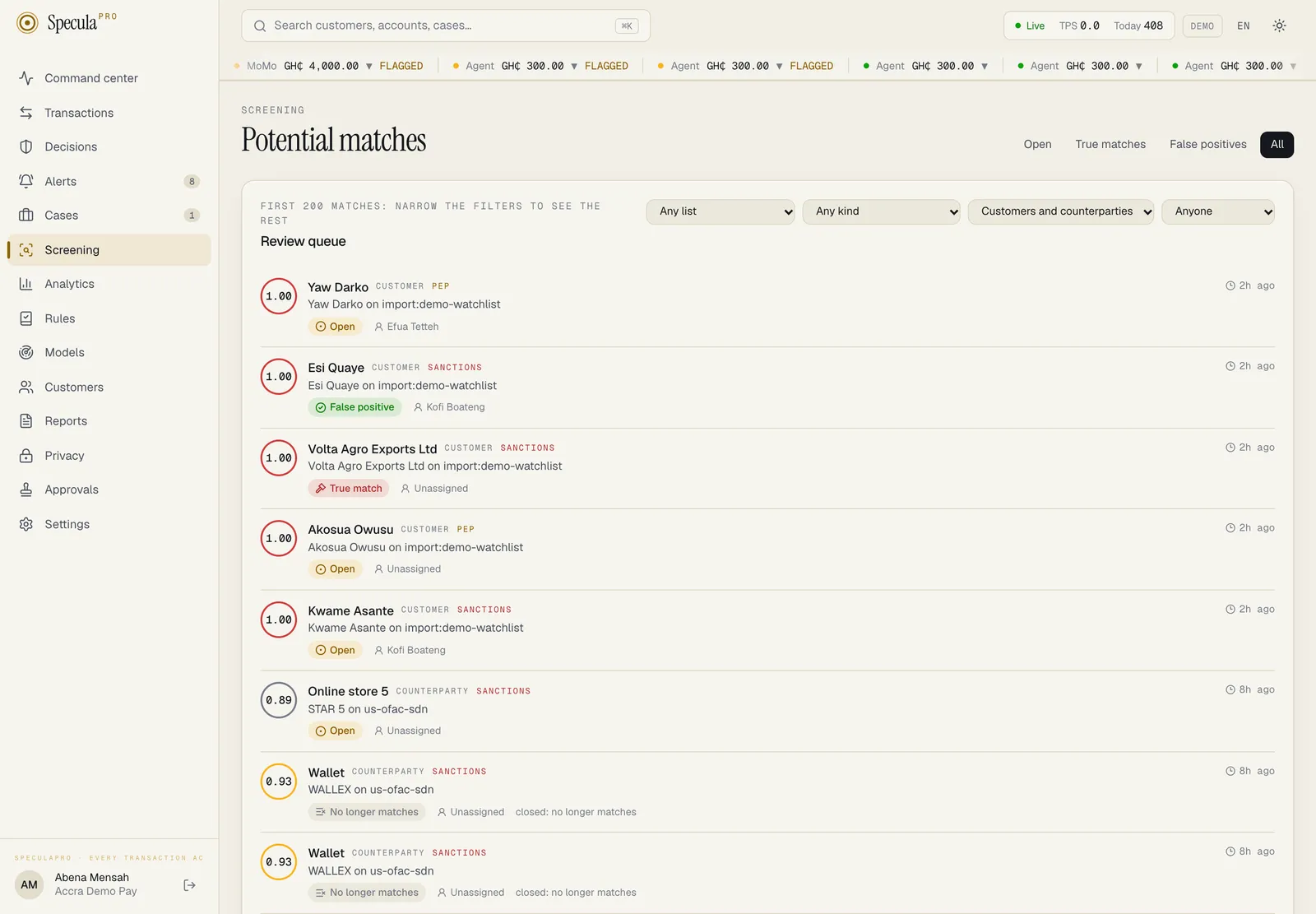
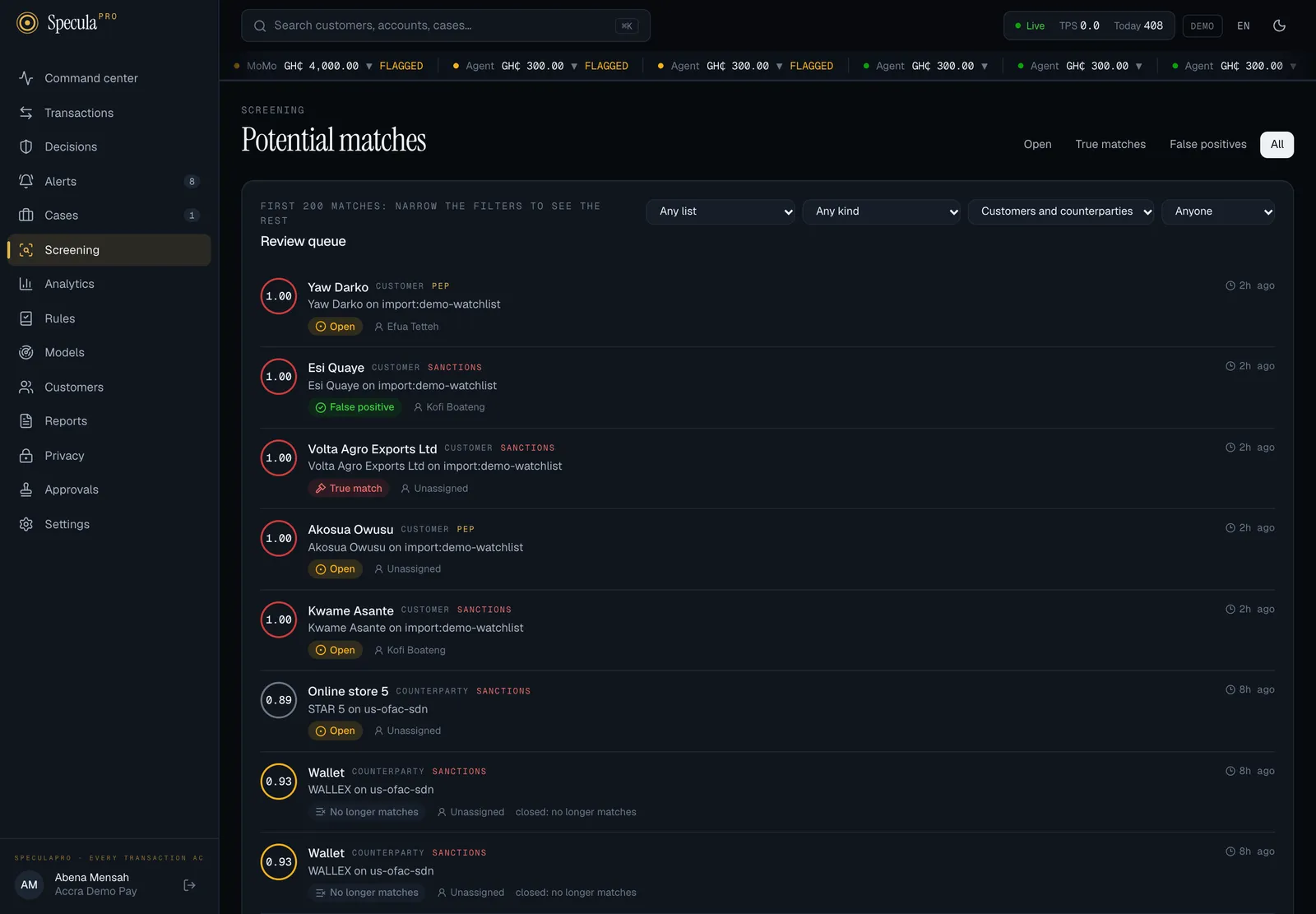
| Filter | Choices |
|---|---|
| List or provider | Any list, or one list or provider your workspace has matches on |
| Kind of list | Any kind, or one of the five kinds above |
| Who matched | Customers and counterparties, or only one of them |
| Assigned to | Anyone, Assigned to me, Unassigned, or a named reviewer |
The page shows up to 200 matches. When there are more it says First 200 matches: narrow the filters to see the rest.
When nothing is open the page says Nothing to review. New potential matches appear as people are onboarded and as lists change.
Reading a match
Section titled “Reading a match”Select a row to open the match. The page has three parts.
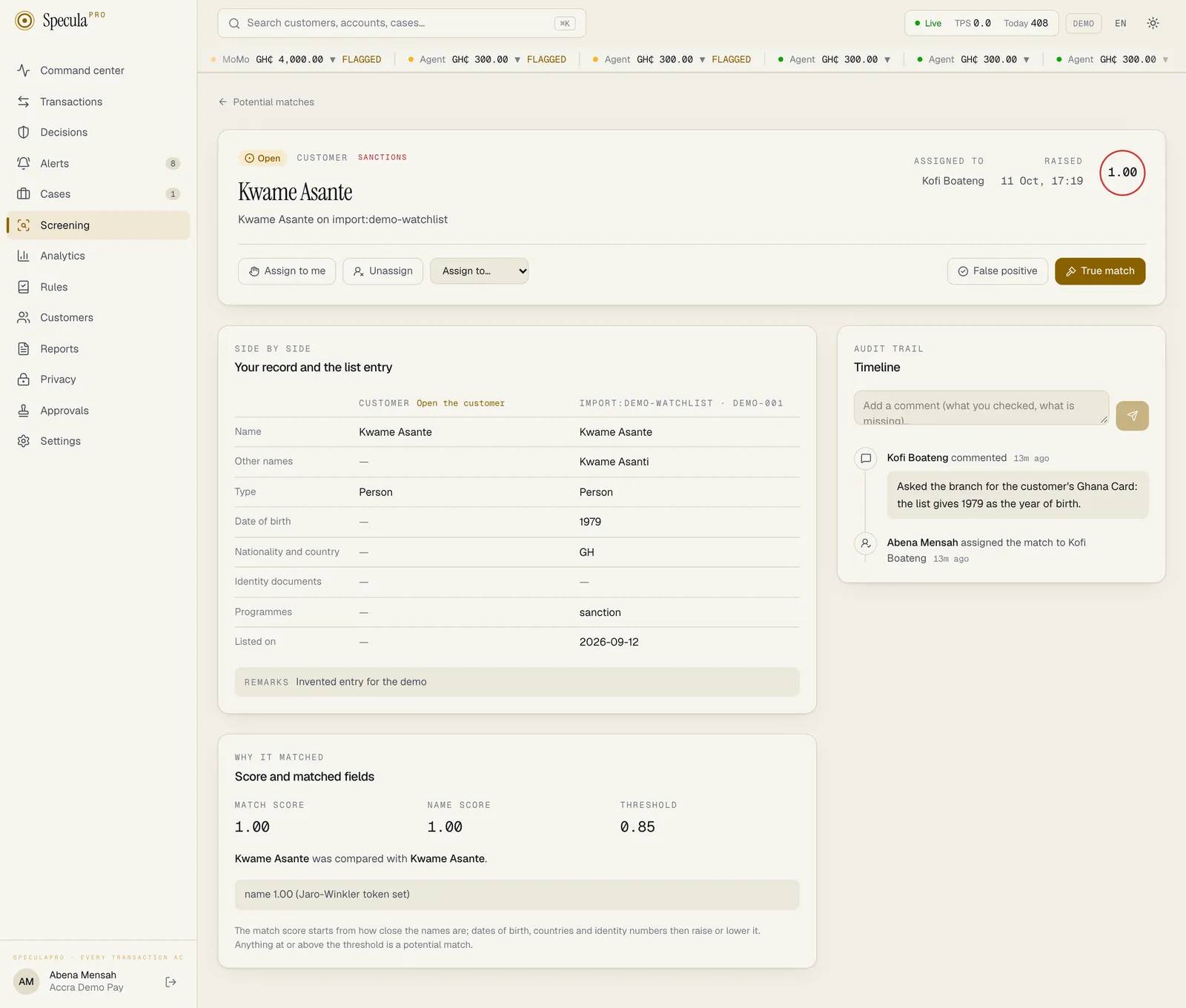
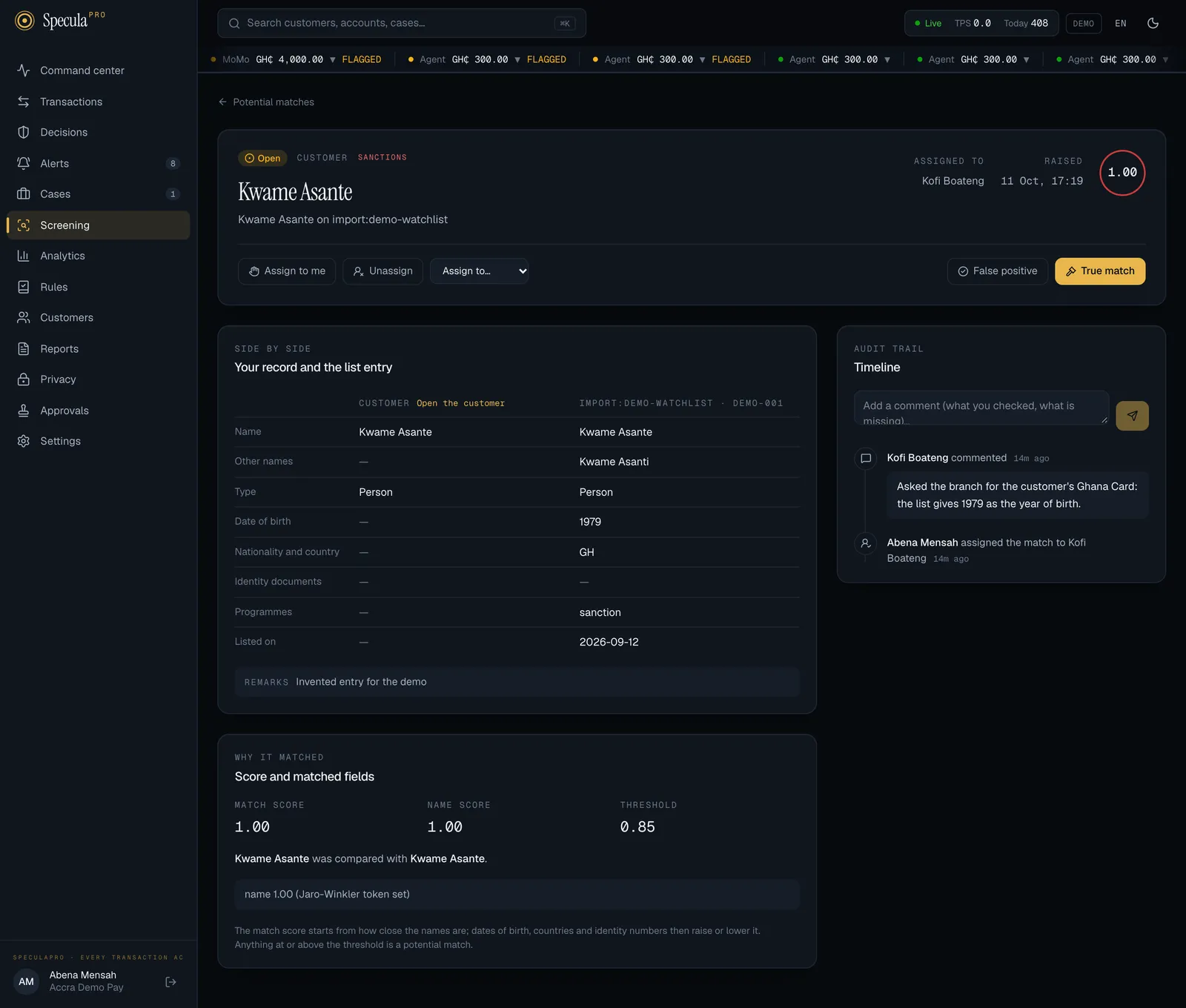
Side by side
Section titled “Side by side”Your record and the list entry puts what you hold next to what the list says:
| Detail | Your record | The list entry |
|---|---|---|
| Name | The name on record now | The entry’s main name |
| Other names | Aliases and other spellings | |
| Type | Person, organisation, vessel or aircraft | The same |
| Date of birth | The customer’s date of birth, if you may see personal data | Every date of birth the list gives |
| Nationality and country | Nationality and country of residence (customers) or the counterparty’s country | Nationalities |
| Identity documents | The kind of document on record. The number is never shown here | The documents and numbers the list publishes |
| Programmes | The sanctions programmes the entry falls under | |
| Listed on | When the entry was listed |
Any remarks the publisher wrote appear underneath. Open the customer takes you to the customer’s profile, if you may see customers.
Two notes can appear:
- The record this match is about is no longer on file: only the name as it was screened is shown.
- The list entry is no longer in the current version of the list.
Why it matched
Section titled “Why it matched”Score and matched fields shows the match score, the name score alone and the threshold in force when the match was found, then which name was compared with which, and each thing that raised or lowered the score: Same date of birth, Different country, Same identity number, Weak name match and so on. See How matching works.
Timeline
Section titled “Timeline”Every comment, assignment and the decision, newest first, with who and when. It is the match’s own audit trail and can’t be edited.
How to take or assign a match
Section titled “How to take or assign a match”- Open the match.
- Select Assign to me to take it, or choose a colleague under Assign to…. Only people who can review matches are offered.
- To give it back, select Unassign.
Only an open match can be assigned. Assigning is optional: you can resolve a match that is nobody’s, or somebody else’s.
How to comment
Section titled “How to comment”- Open the match.
- Under Timeline, type in Comment: what you checked, and what is still missing.
- Select Add comment.
A comment has up to 4,000 characters. You can comment on a match in any status, including one already decided.
How to clear a false positive
Section titled “How to clear a false positive”Clear a match when you are satisfied the two are different people or organisations.
- Open the match and compare the two sides: date of birth, nationality, documents, and for a company its registration and directors.
- Select False positive.
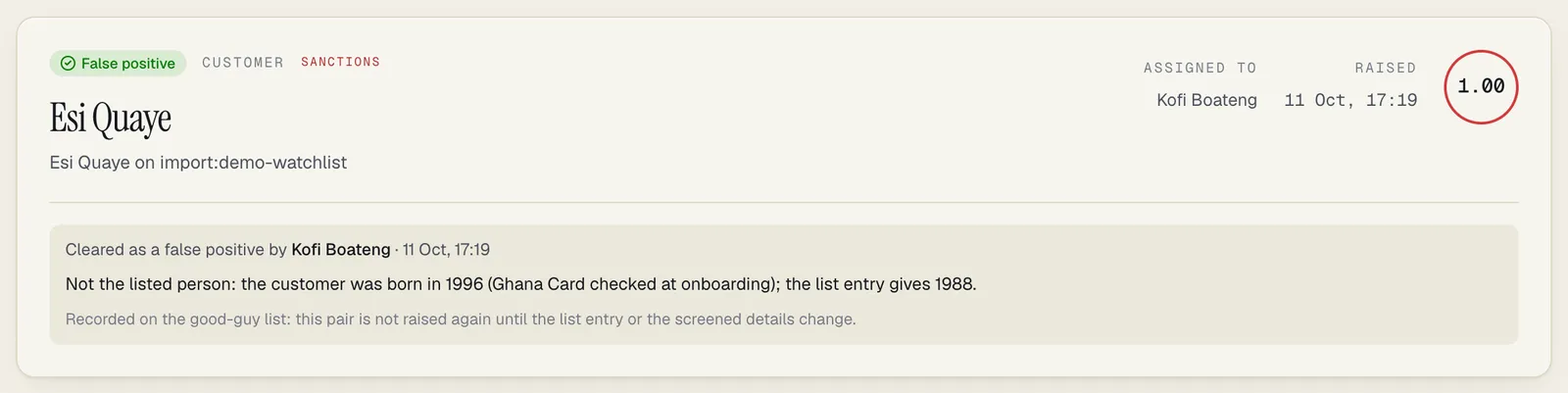
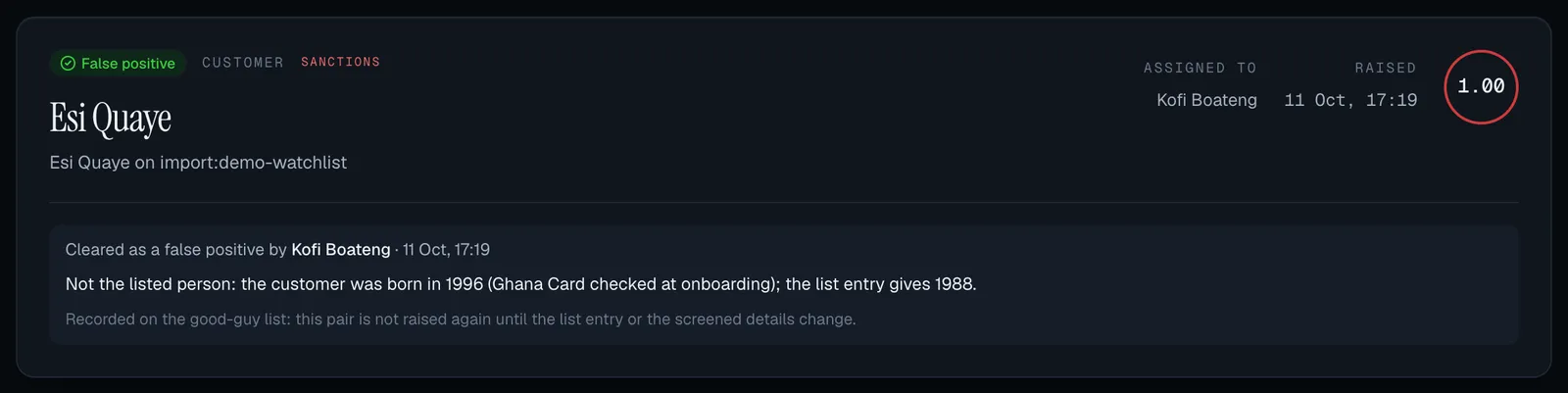
- Under Reason, say what rules it out, for example Customer born 1996 (Ghana Card checked at onboarding); the list entry gives 1988. The reason is 3 to 2,000 characters.
- Select Clear as false positive.
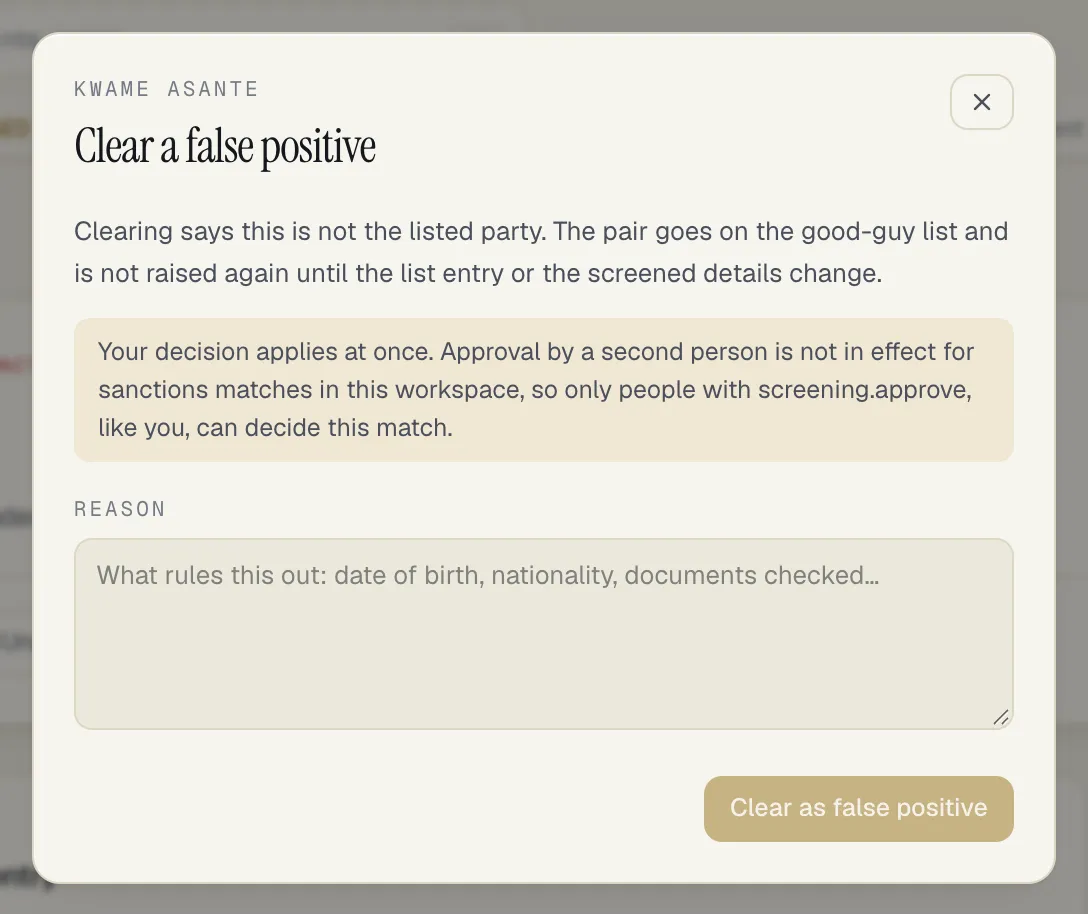
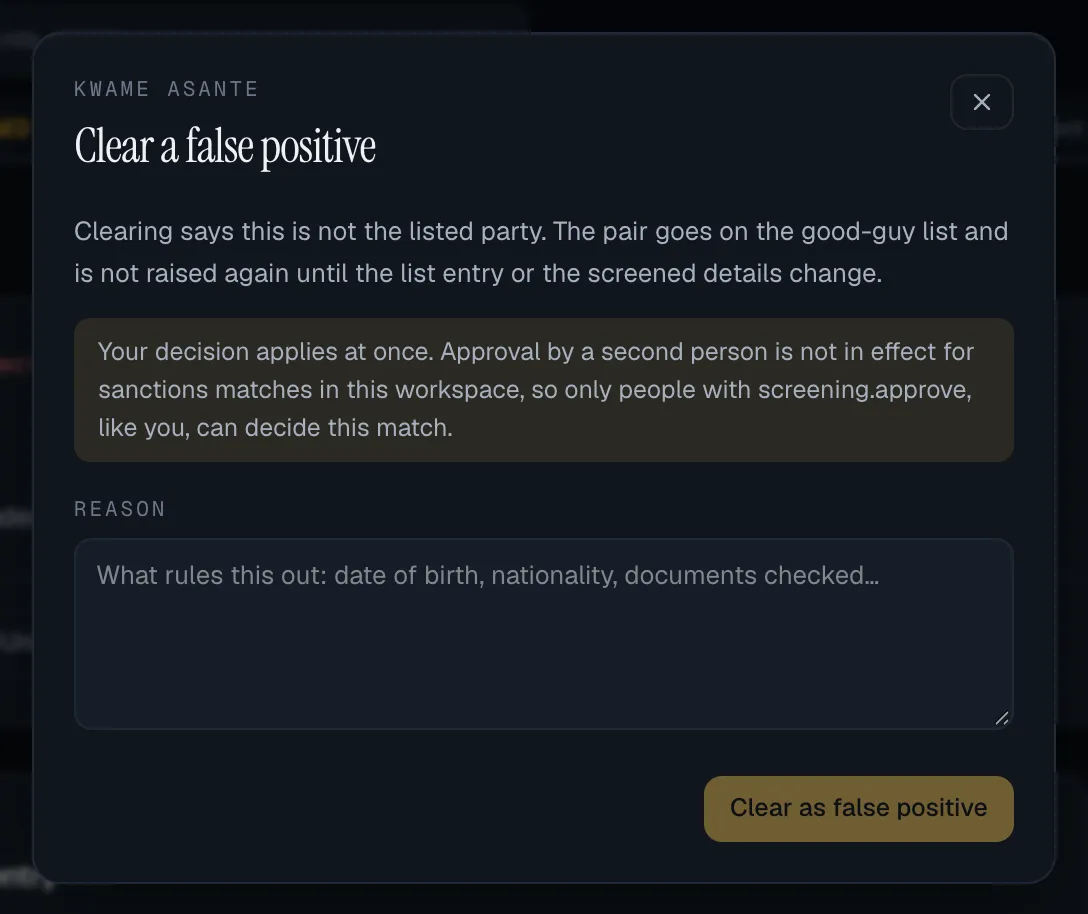
What happens:
- The match becomes False positive, with your name and reason.
- The pair goes on the good-guy list: this customer and this list entry are not raised again. The clearance stops counting, and the pair can be raised again, when the list entry changes or the customer’s screened details change (name, date of birth, country, identity document).
- If the customer’s records were being held only because of this match, the hold ends. See What is kept.
How to confirm a true match
Section titled “How to confirm a true match”Confirm a match when you are satisfied it is the listed party.
- Open the match and compare the two sides.
- Select True match.
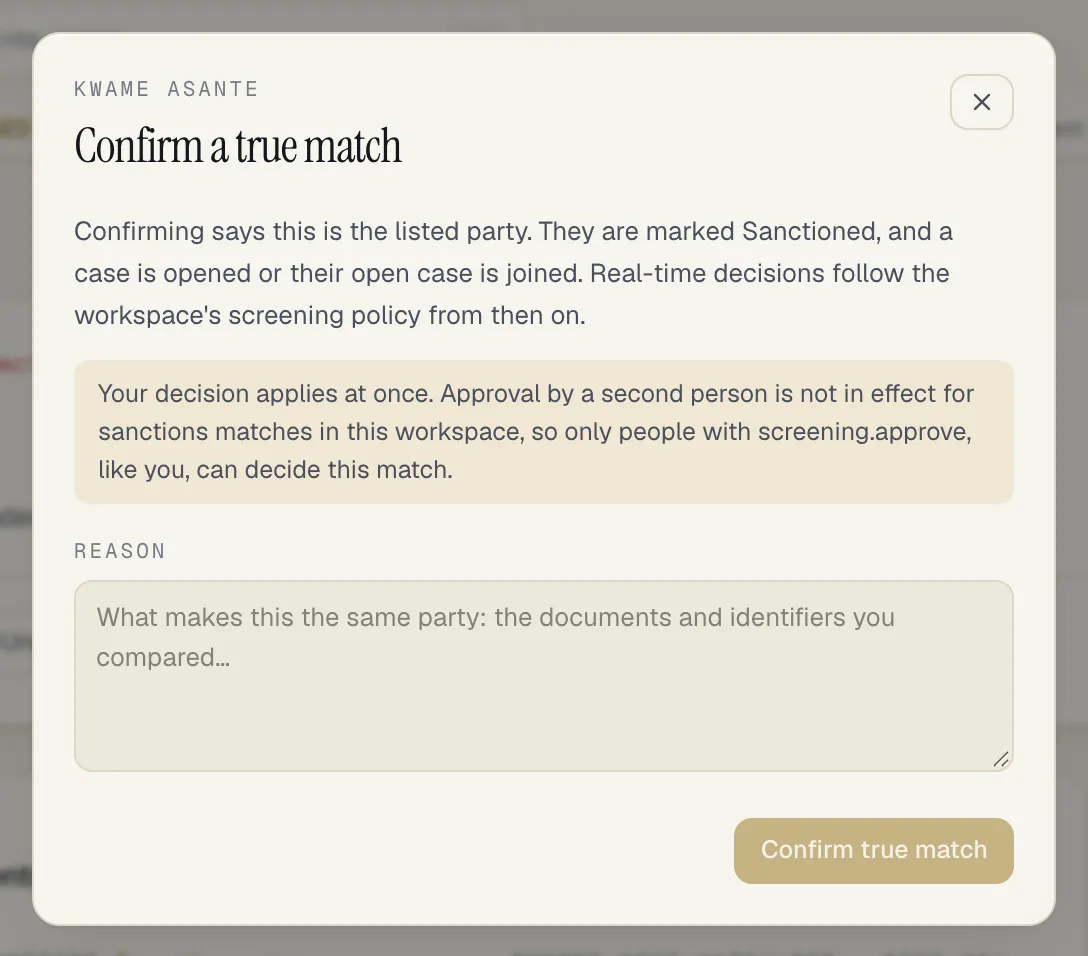
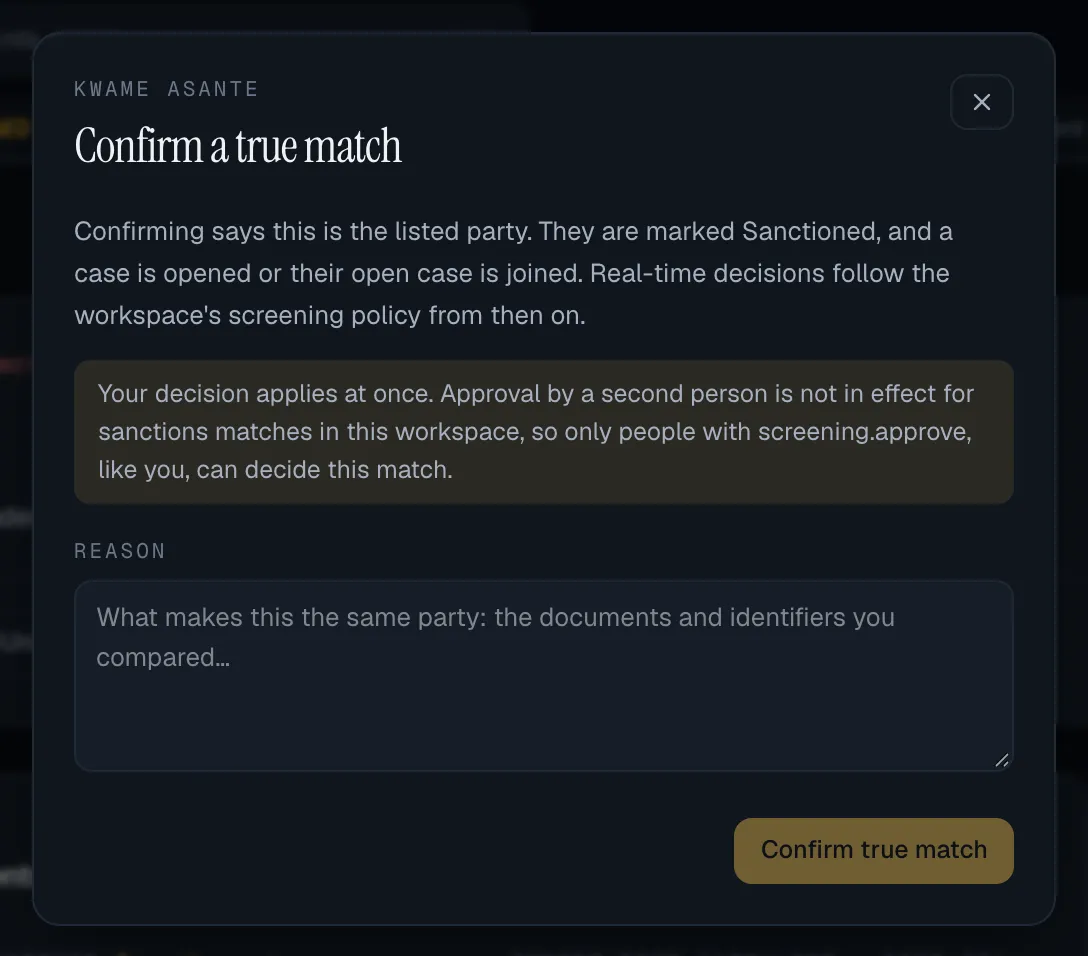
- Under Reason, say what makes it the same party: the documents and identifiers you compared.
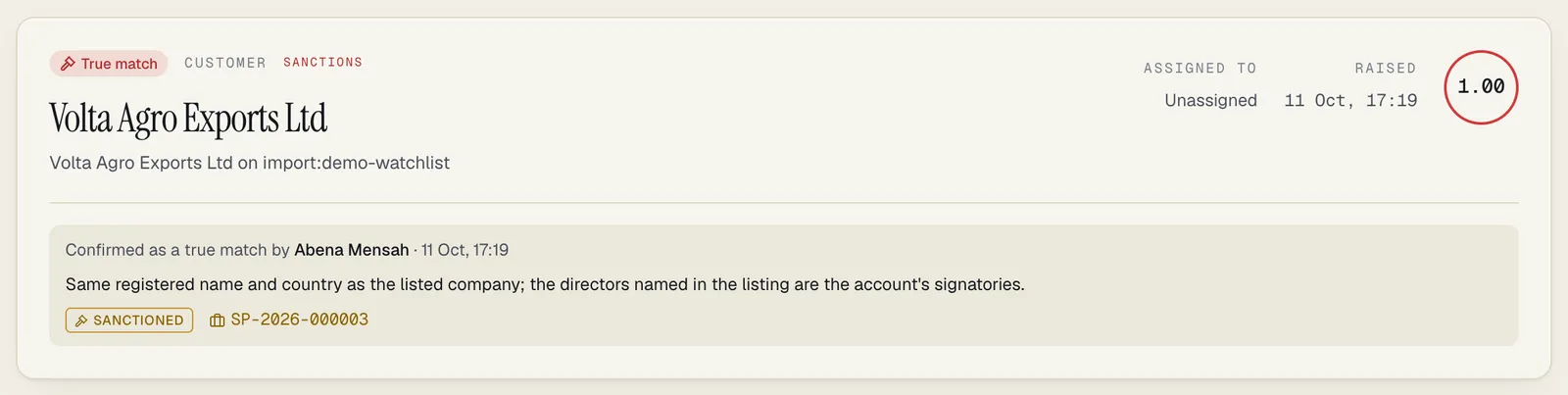
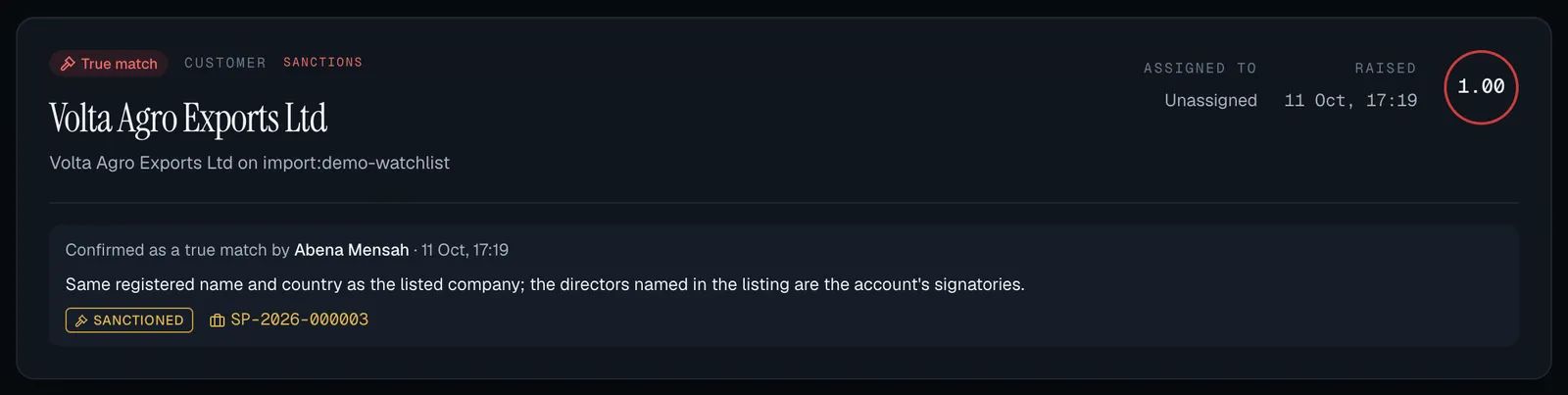
- Select Confirm true match.
What happens, all together or not at all:
-
The match becomes True match, with your name and reason.
-
The customer or counterparty gets a risk designation matching the kind of list:
The match’s kind Designation set Sanctions Sanctioned PEP PEP PEP relative or associate PEP relative or associate Adverse media Adverse media Watch list Watchlist If they already hold that designation, it is kept and no second one is added. A match with several kinds sets only the gravest, in the order above.
-
An alert is raised and moved into a case: the party’s active case of the same kind if there is one, otherwise a new case assigned to the reviewer who decided. A sanctions match makes a sanctions case with critical severity; any other kind makes an AML case with high severity. The match page links to the case.
-
From then on the designation rules apply to them, and real-time decisions follow your workspace’s screening policy: by default, a payment to or from a confirmed sanctions match is blocked.
A confirmed match is not raised again while its designation stands. If someone later removes the flag, the question is open again: the next screening can raise a new potential match, and the confirmed match stops counting in real-time decisions.
If the customer or counterparty no longer exists, confirming is refused: the customer this match is about no longer exists.
When a second person has to approve
Section titled “When a second person has to approve”Some decisions are too serious for one person. Under your workspace’s approval policy:
| Decision | Approval type | Default |
|---|---|---|
| Confirming any match as a true match | Sanctions matches and true matches | On |
| Clearing a match against a sanctions list | Sanctions matches and true matches | On |
| Clearing a PEP, adverse-media or watch-list match | PEP and adverse-media false positives | Off: one reviewer’s reasoned decision is enough |
A policy that is on starts applying once at least two active people hold screening.approve.
Until then, or when your workspace has switched the policy off, approval is not in effect, and
who may decide depends on the kind of match:
| The match | While approval is not in effect |
|---|---|
| Against a sanctions list (confirming or clearing) | Only someone with screening.approve can decide it, and their decision applies at once. A reviewer without it sees no False positive or True match button, and this note instead: Only someone with the screening.approve permission (by default the MLRO) can confirm or clear a match against a sanctions list in this workspace: approval by a second person is not in effect here, so it is not a decision a reviewer takes alone. You can still assign the match and comment on it. |
| PEP, adverse media or watch list | Any reviewer decides it alone, and the decision applies at once |
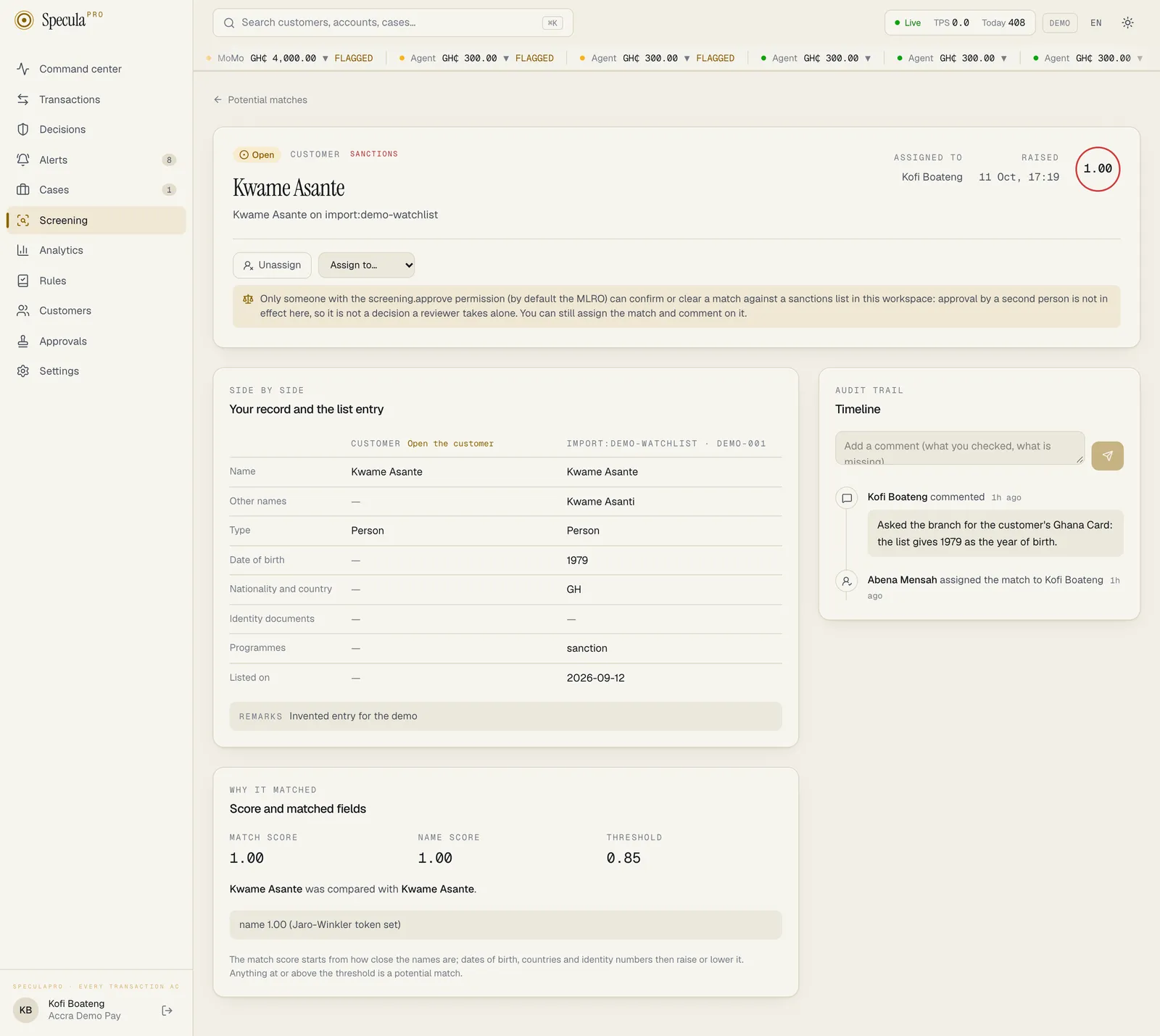
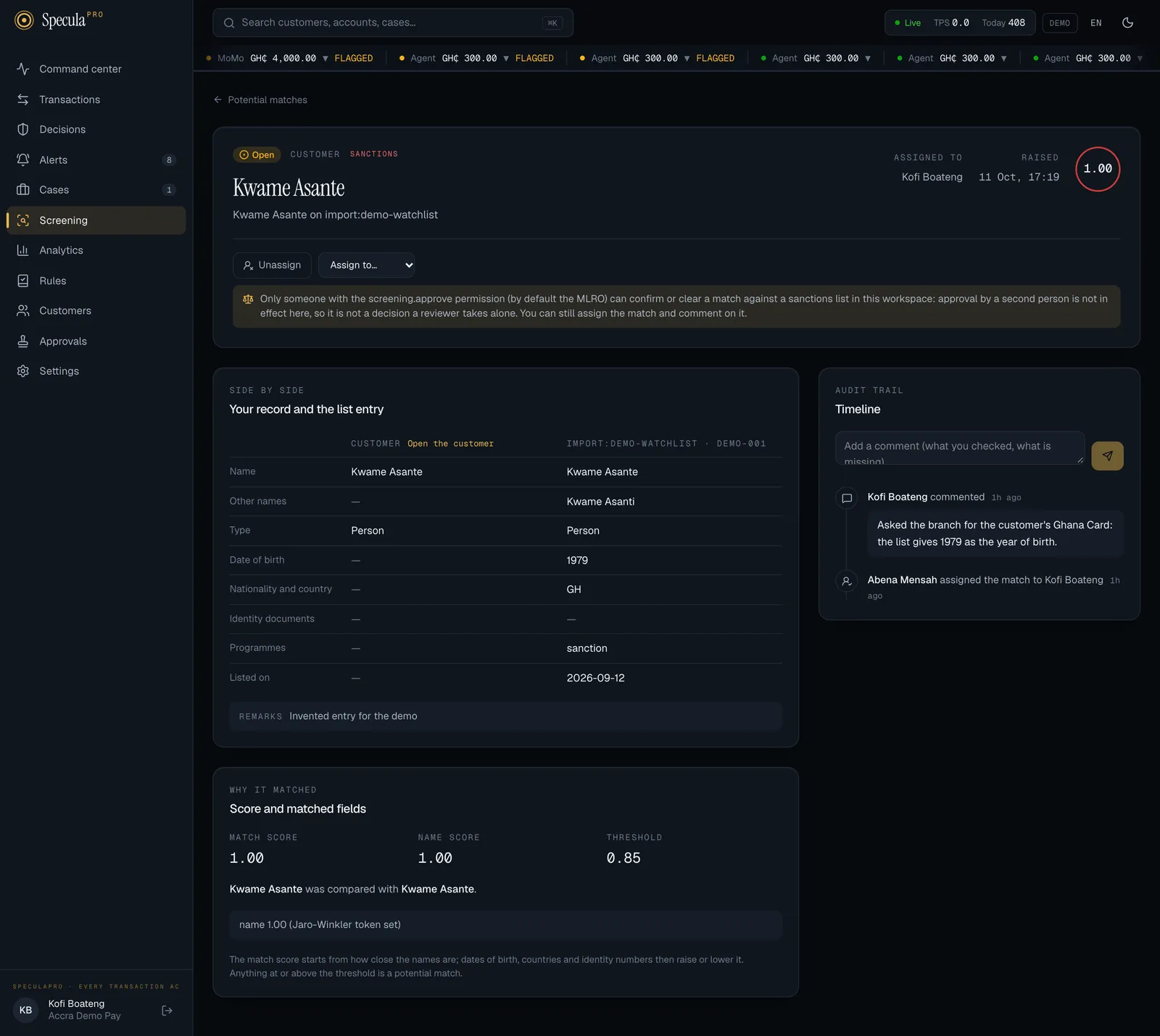
The dialog always says which of the three applies to the decision you are about to take:
- This decision needs a second person in this workspace. The match stays open until someone else with screening.approve approves your decision, and your reason is what they read.
- Your decision applies at once. Approval by a second person is not in effect for sanctions matches in this workspace, so only people with screening.approve, like you, can decide this match.
- Your decision applies at once: this kind of decision does not need a second person in this workspace.
When approval applies:
- You decide as above. The reason you type is what the approver reads; you are not asked for a second one.
- The match stays open and shows A decision on this match is waiting for a second person. In the queue it carries Waiting for approval.
- Someone else with
screening.approveopens Approvals, reads your reason and approves or rejects. You can’t approve your own decision. - On approval the decision is applied exactly as described above. On rejection the match stays open for another decision.
While a decision waits:
- the customer’s records stay held, because the match is still open;
- real-time decisions still treat it as an open potential match (by default: review);
- if a re-screen changes the match’s score or the list entry changes, or the match closes by itself, the request is closed as out of date and you decide again on what is there now.
Matches that close by themselves
Section titled “Matches that close by themselves”You don’t have to decide every match. SpeculaPro closes an open match when it stops being true:
| Shown as | Why |
|---|---|
| No longer matches | A later screening no longer found it: the customer’s details, the list entry or your threshold changed |
| Delisted | The entry was removed from its list |
| No longer matches, closed: list no longer screened | Your workspace stopped screening against the list |
These appear under All. See Why a match was closed.
What is recorded
Section titled “What is recorded”Each action is on the match’s timeline and in the audit log:
screening.hit.assign, screening.hit.comment (the length of the comment, not its text),
screening.hit.clear and screening.hit.confirm (the list, the entry, the kinds, your reason and
what was created). A cleared match also writes screening.good_guy; a confirmed match also writes
the designation’s, the alert’s and the case’s own entries.
Your reason is copied into the audit log, and for a true match into the designation’s reason. Erasing the customer later blanks it on the match’s timeline but not in the audit log, which is never edited. Keep reasons factual and short.
Limits
Section titled “Limits”- No notification when a new match arrives, only when a colleague assigns one to you. Watch the Open queue, or Unassigned.
- The approver isn’t shown on the match, only on the change request and in the audit log.
- A match with several kinds sets one designation, the gravest. Add the others by hand if your policy needs them: see Flagging a customer.
- A decision can’t be undone on the match. To reverse a false positive, wait for the pair to be raised again or screen the customer on demand after their details change. To reverse a true match, revoke the designation and close the case.
- Only sanctions matches affect real-time decisions. A PEP or adverse-media match changes a decision only through the designation a confirmed match sets and the rules that read it.