
Webhooks
In short
Section titled “In short”A webhook is a message SpeculaPro sends to one of your own systems the moment something happens: a payment is blocked or held for review, a new alert is raised, a case is opened or closed. Your fraud desk tool, ticketing system or core banking platform receives it and can act straight away, without anyone checking SpeculaPro.
You register an endpoint, a web address in your system, and choose which events it gets.
SpeculaPro then sends each event there as an HTTPS POST with a JSON body, signed so your
system can prove it came from SpeculaPro and wasn’t changed on the way.
- You need the
webhooks.managepermission. In the default roles, only the Administrator has it. People withsettings.view(the Auditor) can open the tab read-only: they see each endpoint and its delivery history (status, attempts and errors), but not a delivery’s payload or the signing secret, and can’t change anything. - Messages carry IDs and your own references, never customer names, phone numbers or account numbers. Your system looks those up itself.
- Every change you make here is written to the audit log.


What you can be told about
Section titled “What you can be told about”| Event | Sent when | Typical use |
|---|---|---|
decision.block |
A real-time decision answered block | Open a ticket for the fraud desk; message the customer |
decision.review |
A real-time decision answered review: the payment is held for a person to check | Put the payment in your manual review queue |
decision.step_up |
A real-time decision asked for step-up authentication | Track how often customers are challenged |
decision.degraded |
A decision was answered by the failure policy, because the checks couldn’t finish in time | Alert your operations team: payments are being decided without your rules |
alert.created |
Monitoring raised a new alert | Create a ticket; show it on a team dashboard |
case.created |
Someone opened a case from an alert | Track investigations in your own case system |
case.assigned |
A case was assigned to someone, or unassigned | Keep owners in sync |
case.escalated |
A case was escalated to a higher level, by a person or automatically by its escalation policy | Tell a manager |
case.closure_requested |
A closure was proposed and waits for a second approver | Remind approvers |
case.closed |
A case was closed, with its disposition | Update the customer’s record; release or keep a hold |
case.reopened |
A closed case was reopened | Reverse what you did on close |
case.sla_breached |
A case passed its deadline while still open | Page the supervisor; count missed deadlines in your own reporting |
A few things to know:
- Allowed payments are never sent. The decision API’s answer already told your payment system, and at full volume they would swamp a receiver.
- A degraded decision that answered review or block sends two events:
decision.review(ordecision.block) anddecision.degraded. - Decision events are sent once the decided payment has been stored, normally within seconds of the answer. If your installation’s event log (Kafka) is down, they arrive once it is back.
- New alerts that join an existing case still send
alert.created, with the case’s ID. - A closure that is sent back by the approver sends no event; the case simply stays open.
case.sla_breachedis sent once for each deadline a case misses, within about a minute of it. A case that is then escalated gets a new deadline, and can miss that one too.- Events can arrive out of order, for example
case.closedbeforecase.assignedif one of them had to be retried. Use each message’screated_at, or read the current state from SpeculaPro, rather than relying on arrival order.
What each message contains is described in the Webhooks API.
How to add an endpoint
Section titled “How to add an endpoint”- Select Settings, then the Webhooks tab (or go straight to
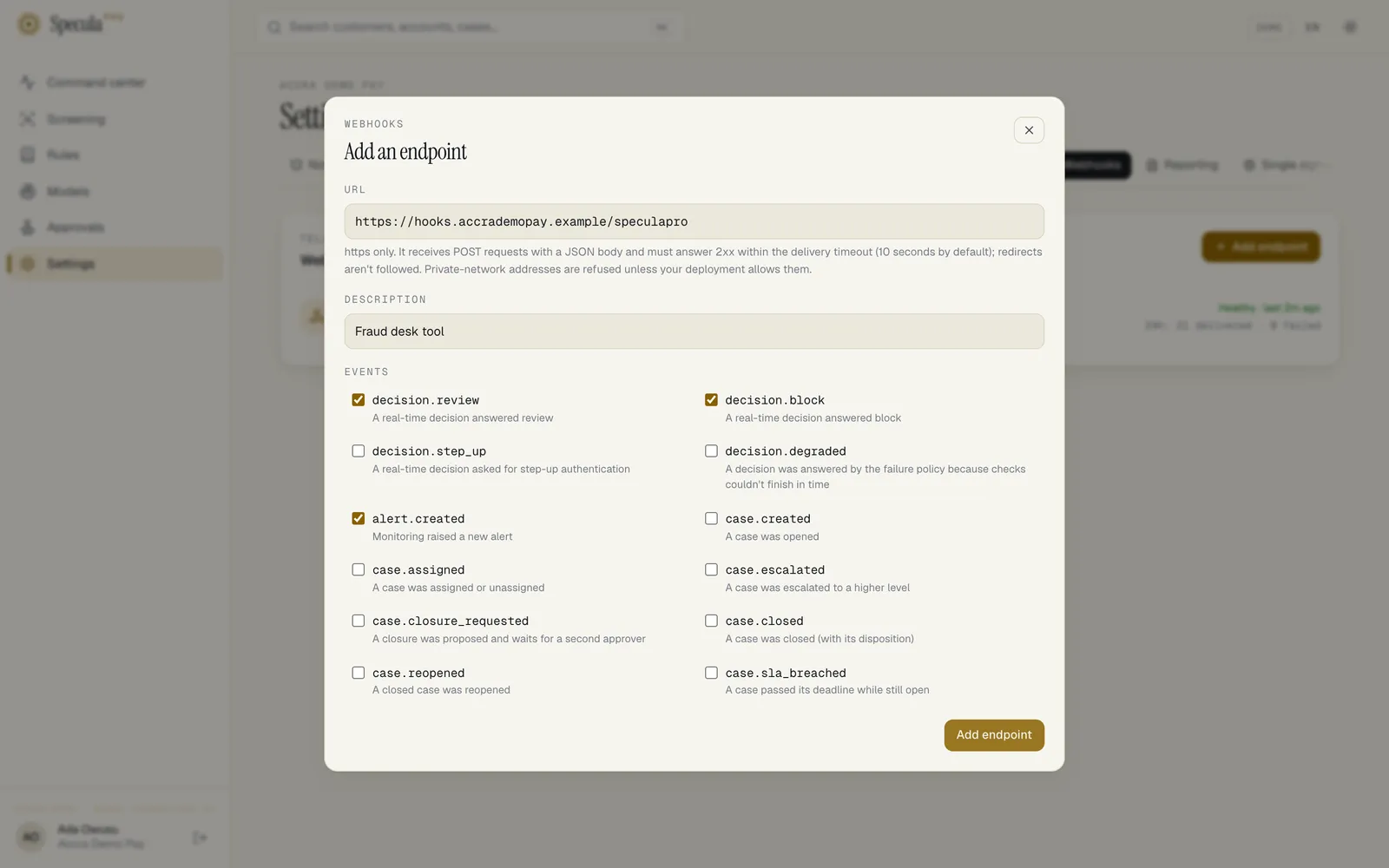
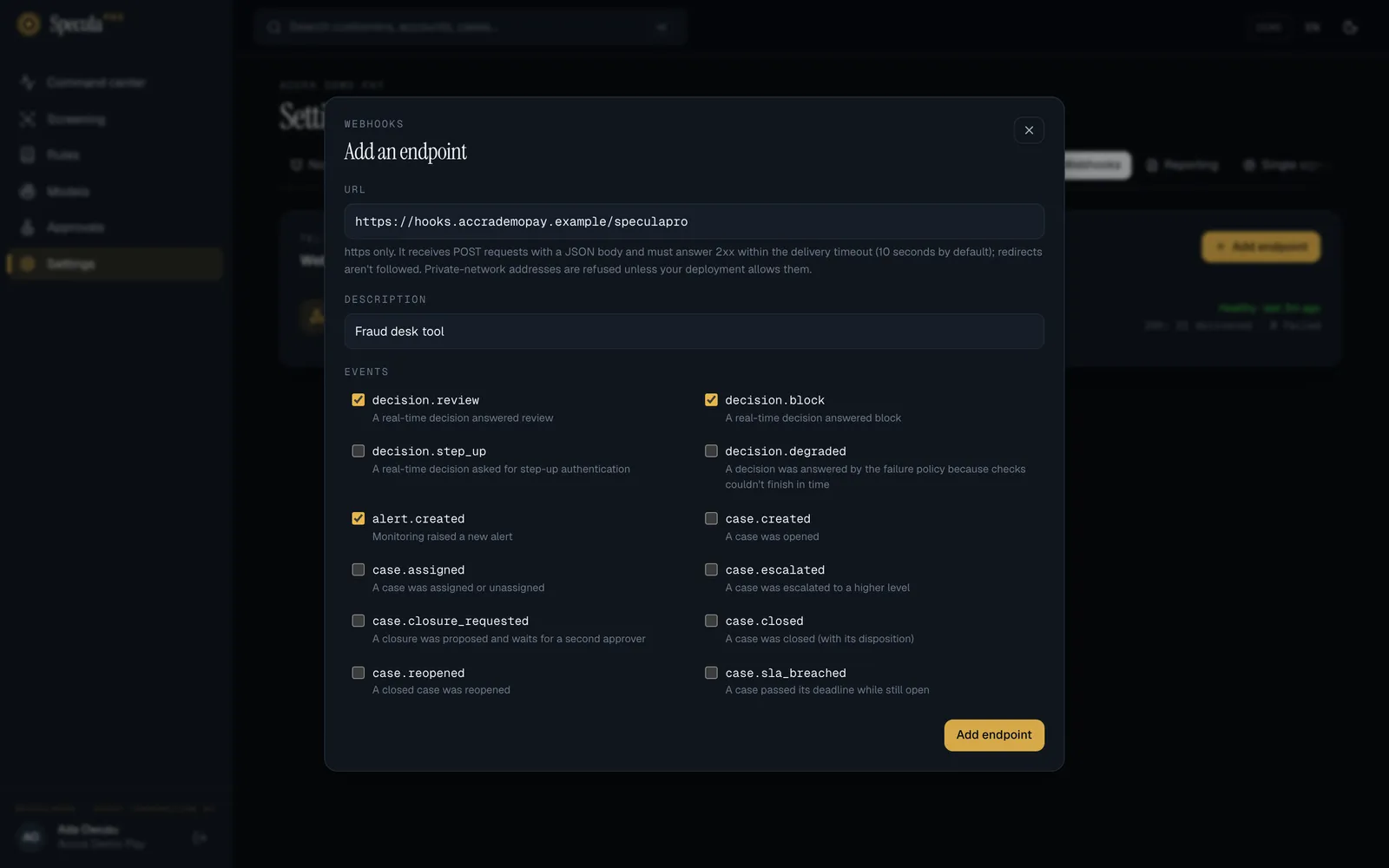
/settings#webhooks). - Select Add endpoint. The Add an endpoint sheet opens.
- Under URL, enter the full address of your receiver, starting with
https://, for examplehttps://hooks.your-bank.com/speculapro. It must answer within the delivery timeout (10 seconds by default), and it can’t be a redirect: SpeculaPro doesn’t follow them. - Optionally, under Description, say what it is, for example Fraud desk case system (production). Up to 200 characters. It is shown in the list instead of the event names.
- Under Events, tick what this endpoint should receive. decision.block, decision.review and alert.created are ticked for you.
- Select Add endpoint. It stays greyed out until you have ticked at least one event.
- The sheet now shows the Signing secret, starting
whsec_. Select the copy button next to it and store the secret in your receiver’s secret store now. - Select Done.
If adding fails
Section titled “If adding fails”| Message | Meaning | What to do |
|---|---|---|
| use an https URL or use https; webhooks carry signed business events | The address doesn’t start with https:// |
Use the HTTPS address of your receiver |
| destination not allowed: … is an internal host | The host is localhost, or ends in .localhost, .local or .internal |
Use the receiver’s public address |
| destination not allowed: … is a private or reserved address | The address is a private or reserved IP, such as 10.0.0.5 or 192.168.1.20 |
Use a public address. A self-hosted installation can allow private addresses; see Which addresses are refused |
| destination not allowed: … is a cloud metadata service | The host is a cloud metadata name, such as metadata.google.internal |
These are never allowed |
| destination not allowed: … is a link-local, metadata or reserved address | On an installation that allows private addresses, the address is link-local (169.254.…, fe80::…), a metadata address, carrier-grade NAT (100.64.…, used by Tailscale) or reserved |
These stay refused even when private addresses are allowed. Use an address in a private range |
| credentials in the URL aren’t allowed; verify the signature instead | The address has a user name or password in it (https://user:pass@…) |
Remove them. Your receiver proves the message is genuine by checking the signature |
| the URL can’t have a #fragment | The address contains # |
Remove the # and everything after it |
| at most 20 endpoints per workspace | The workspace already has 20 | Delete one you no longer use |
How to check an endpoint is working
Section titled “How to check an endpoint is working”Each endpoint in the list shows its health on the right:
| Status | Meaning |
|---|---|
| Waiting for first event | Nothing has been delivered yet |
| Healthy · last 5m ago | The last attempt succeeded, at the time shown |
| Failing since date | Deliveries have been failing since then. SpeculaPro keeps retrying |
| Disabled | SpeculaPro isn’t sending to it. Someone switched it off, or it was switched off automatically |
Beneath it, 24h: 16 delivered · 0 failed counts the last 24 hours, plus pending when events are waiting to be sent or retried.
To send a test:
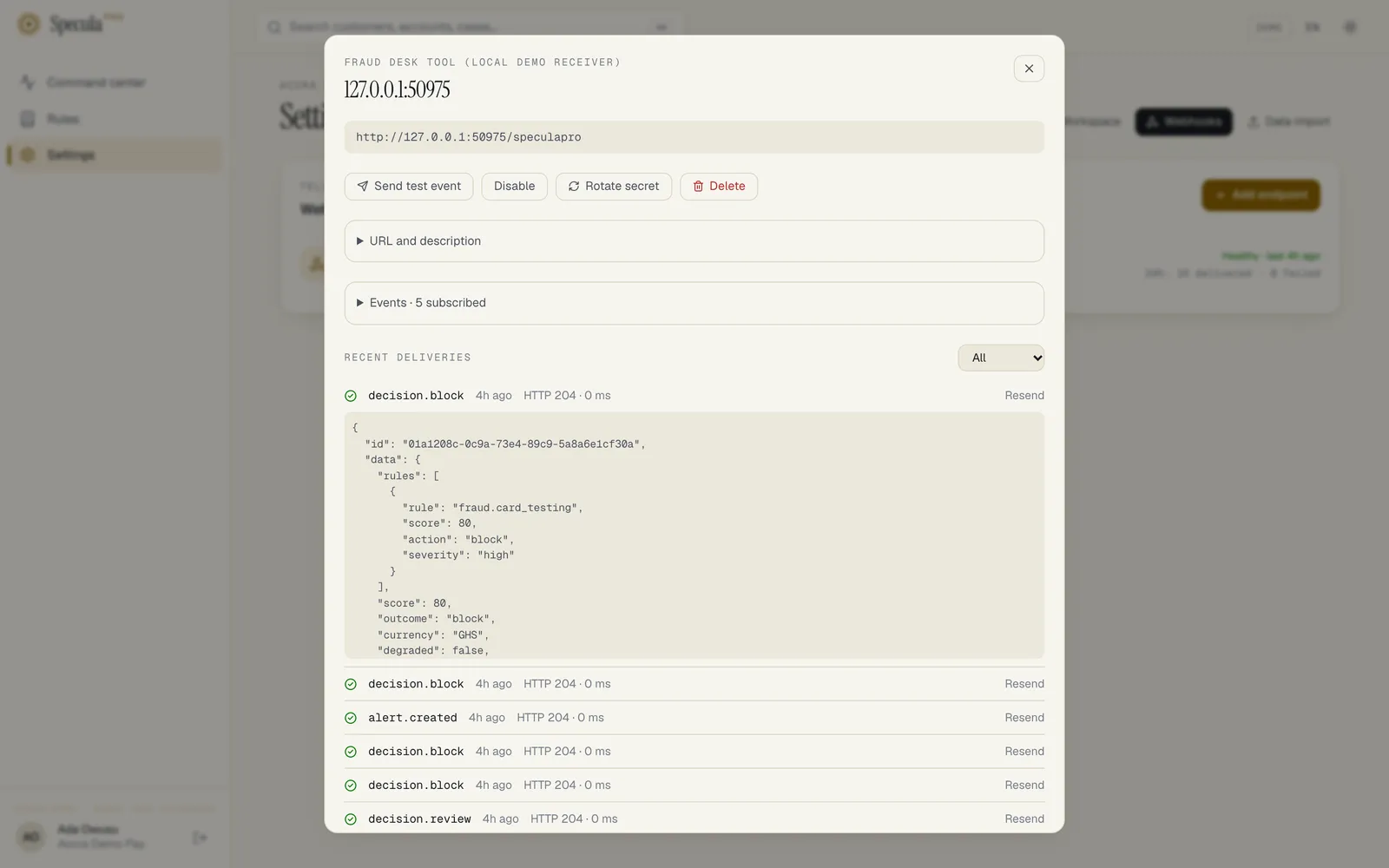
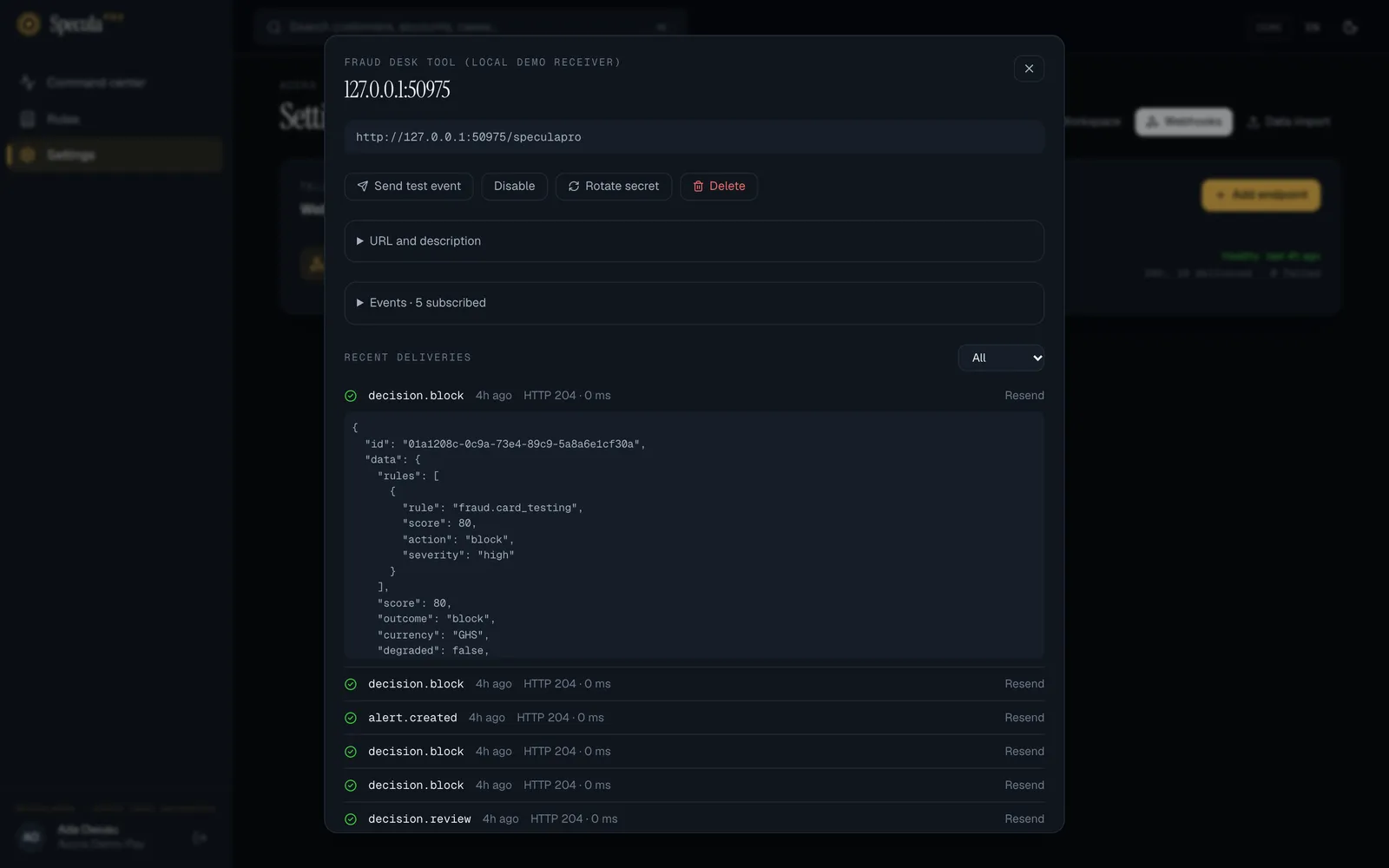
- Select the endpoint in the list. Its sheet opens, titled with the receiver’s host name.
- Select Send test event. SpeculaPro sends a
webhook.testevent within seconds, whatever events the endpoint subscribes to. - Watch Recent deliveries, which refreshes every 5 seconds. A green tick and HTTP 204 (or any 2xx) means your receiver accepted it.
The delivery log
Section titled “The delivery log”Recent deliveries lists the endpoint’s last 50 events, newest first. Choose All, Pending, Delivered or Failed to narrow it. Each line shows:
- a green tick (delivered), a red cross (failed) or a dashed circle (pending);
- the event type: select it to see the exact JSON that was sent, and select it again to hide it;
- when the event happened, the receiver’s HTTP status, how long it took, and the number of attempts if more than one;
- for an event waiting to be retried, retry in and the time left;
- for a failed attempt, the error, for example HTTP 500: database unavailable or no response within 10s. The receiver’s own error text is cut to 200 characters.
The history is kept for 30 days.
Retries
Section titled “Retries”If your receiver doesn’t answer with a 2xx status within the delivery timeout (10 seconds by default), SpeculaPro tries again after 5 seconds, 1 minute, 5 minutes, 30 minutes, 2 hours, 5 hours, 10 hours and 10 hours: nine attempts over about 27 and a half hours, so a receiver that is down overnight still gets everything. After the last attempt the event is marked failed and isn’t tried again unless you resend it.
Every attempt counts a 3xx redirect, a 4xx or a 5xx as a failure. So does a receiver that can’t be reached, takes too long or turns out to be on a private address.
How to resend an event
Section titled “How to resend an event”Select Resend at the end of a delivered or failed line. SpeculaPro queues the same event again,
with the same webhook-id, so a receiver that already processed it can recognise the duplicate.
A pending event can’t be resent: it is already queued. Each resend is recorded in the audit log.
When an endpoint is switched off
Section titled “When an endpoint is switched off”If an endpoint keeps failing for 3 days (by default) without a single success, SpeculaPro
switches it off at its next failed attempt. It shows Disabled, with the reason Disabled automatically: every
delivery failed since and the date, and everyone with webhooks.manage gets a
notification titled Webhook endpoint disabled, naming the host.
The notification says that events raised while it is disabled are not kept, and how to bring it back.
The check happens on a failed attempt. An endpoint that has used up its retries and gets no new events shows Failing since but stays enabled, however long ago the failures began.
To bring it back:
- Fix the receiver, and check it answers 2xx (your developers can test it with a test event after step 3).
- Select the endpoint. The sheet says how many events are waiting.
- Select Re-enable. Events that were still waiting are sent again, starting straight away.
- Look for failed lines in Recent deliveries and select Resend on any your system still needs.
On a self-hosted installation, the 3 days, 10 seconds and 30 days are settings:
SP_WEBHOOKS_DISABLE_AFTER, SP_WEBHOOKS_TIMEOUT and SP_WEBHOOKS_RETENTION. See
Configuration: webhooks.
How to switch an endpoint off or on
Section titled “How to switch an endpoint off or on”Select the endpoint, then Disable. Its status becomes Disabled, with the reason Disabled by a person. Nothing more is sent, and new events aren’t kept for it (see the caution above).
Select Re-enable to switch it back on. Re-enabling also clears its failure history, so the 3-day count starts again.
How to change the address or description
Section titled “How to change the address or description”Use this when your receiver moves, for example to a new host name, so you keep the endpoint’s secret, events and delivery history.
- Select the endpoint.
- Open URL and description.
- Change the URL, the Description, or both. Undo puts back what was saved.
- Select Save details. It stays greyed out until you change something.
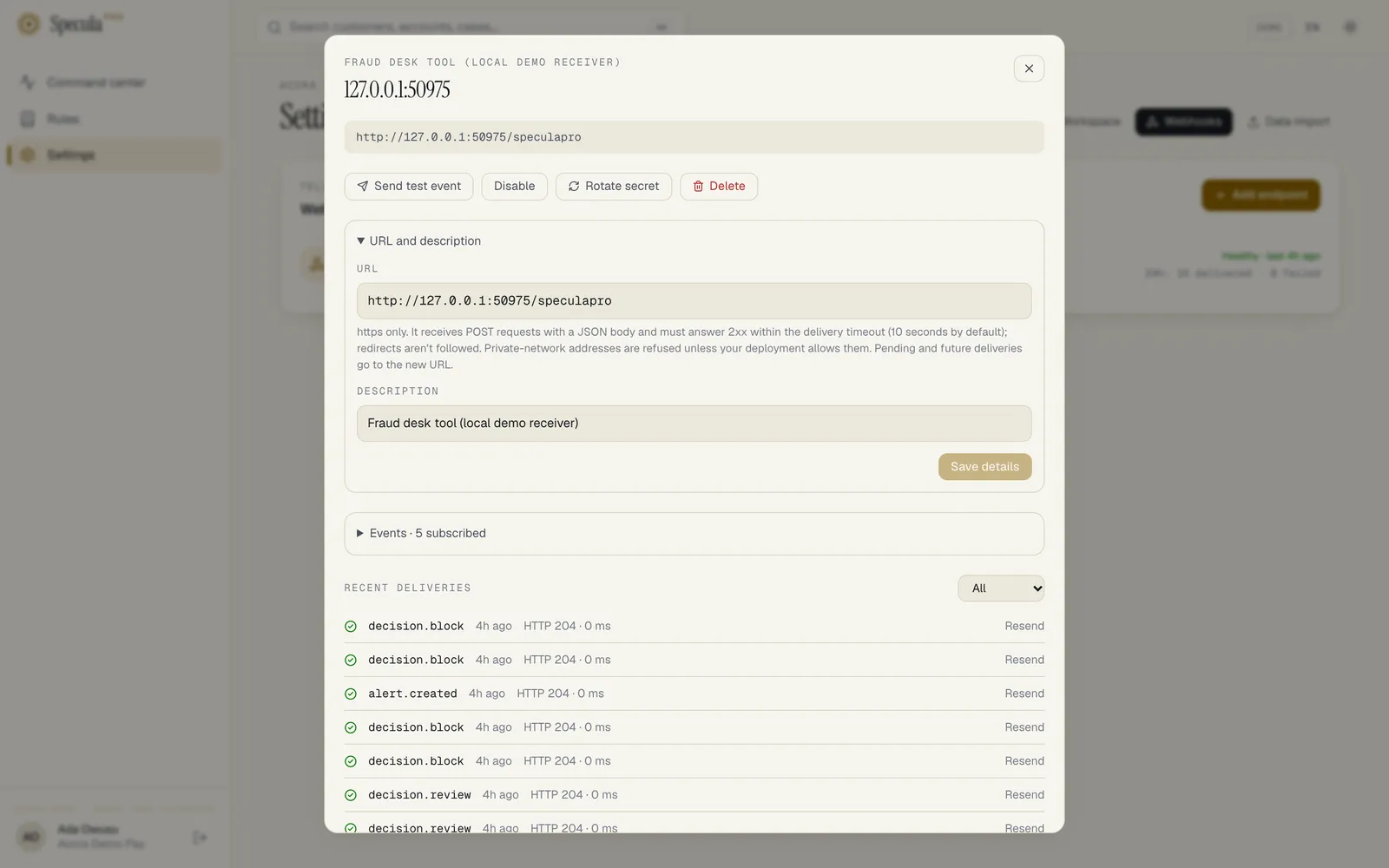
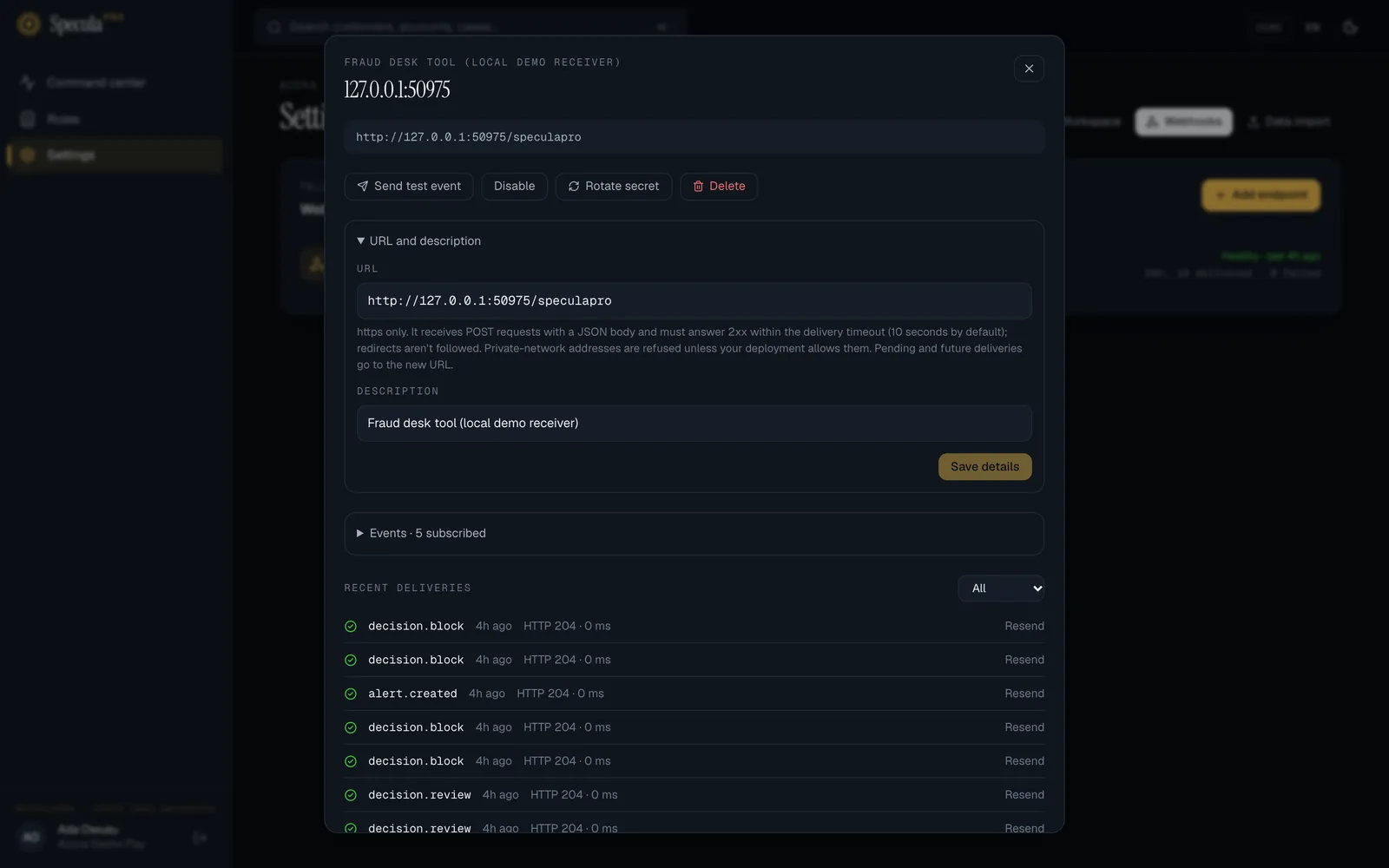
The new address is checked exactly as when you add an endpoint, and if it is refused the reason is shown under the form. Once saved, deliveries still waiting and every new event go to the new address. The signing secret doesn’t change, so your receiver at the new address needs the same secret.
How to change the events
Section titled “How to change the events”- Select the endpoint.
- Open Events · N subscribed.
- Tick or untick events. At least one must stay ticked.
- Select Save events. It stays greyed out until you change something.
The change applies to events from then on.
How to rotate the signing secret
Section titled “How to rotate the signing secret”Rotate the secret on a schedule, when someone who knew it leaves, or straight away if it may have leaked.
- Select the endpoint, then Rotate secret.
- Confirm: Issue a new signing secret? The old one keeps signing for 24 hours.
- Copy the new Signing secret shown in the sheet. It is shown once.
- Put the new secret in your receiver within 24 hours.
For those 24 hours, every message carries two signatures, one made with the new secret and one with the old, so your receiver keeps working whichever secret it has. After 24 hours only the new secret signs. Your developers don’t need to change anything for this to work; see Receiving webhooks: rotating the secret.
How to delete an endpoint
Section titled “How to delete an endpoint”Select the endpoint, then Delete, and confirm Delete this endpoint and its delivery history?. The endpoint, its secret, its delivery history and any events still waiting are removed. This can’t be undone. The audit log keeps a record that it existed.
What is recorded
Section titled “What is recorded”| Action | Audit entry |
|---|---|
| Adding an endpoint | webhook.create, with the address and events |
| Changing events, address or description, or switching it off or on | webhook.update, with what changed |
| Rotating the secret | webhook.rotate_secret, with the overlap |
| Deleting an endpoint | webhook.delete, with the address |
| Sending a test event | webhook.test, with the test delivery and its event ID |
| Resending an event | webhook.resend |
Secrets are never written to the audit log.