
Licence
In short
Section titled “In short”If your institution hosts SpeculaPro itself, the installation needs a licence from SpeculaPro. Administrators look after it under Settings → License: they see whether it is valid and when it expires, install a renewed one, and download the usage report SpeculaPro asks for at renewal.
If your workspace is hosted by SpeculaPro (SaaS), there is nothing to do: the tab says Licensing does not apply to SpeculaPro-operated workspaces.
Who can do it
Section titled “Who can do it”You need the Settings: manage permission (settings.manage), which the built-in
Administrator role has. People with settings.view (the Auditor) can open the License tab
read-only: they see the licence’s state, but can’t install a licence or download the usage report.
The licence banner
Section titled “The licence banner”When the licence needs attention, administrators see a banner at the top of every screen, with the reason and a Manage license link to Settings → License. For example:
The license expires in 21 days (31 Oct 2026). Renew it to avoid interruptions to administration.
| State | Banner |
|---|---|
| Valid | None |
| Evaluation (no licence yet, first 30 days) | Only in the last 7 days |
| Expiring soon (last 30 days before expiry) | Yes, in amber |
| Expired: grace period, Expired, No license, Not valid | Yes, in red |
Administrators also receive a notification, by email or text message as they chose under Settings → Notifications, at most once a week while the licence needs attention. Its subject is SpeculaPro license: action needed.
How to check the licence
Section titled “How to check the licence”- Select Settings, then License.
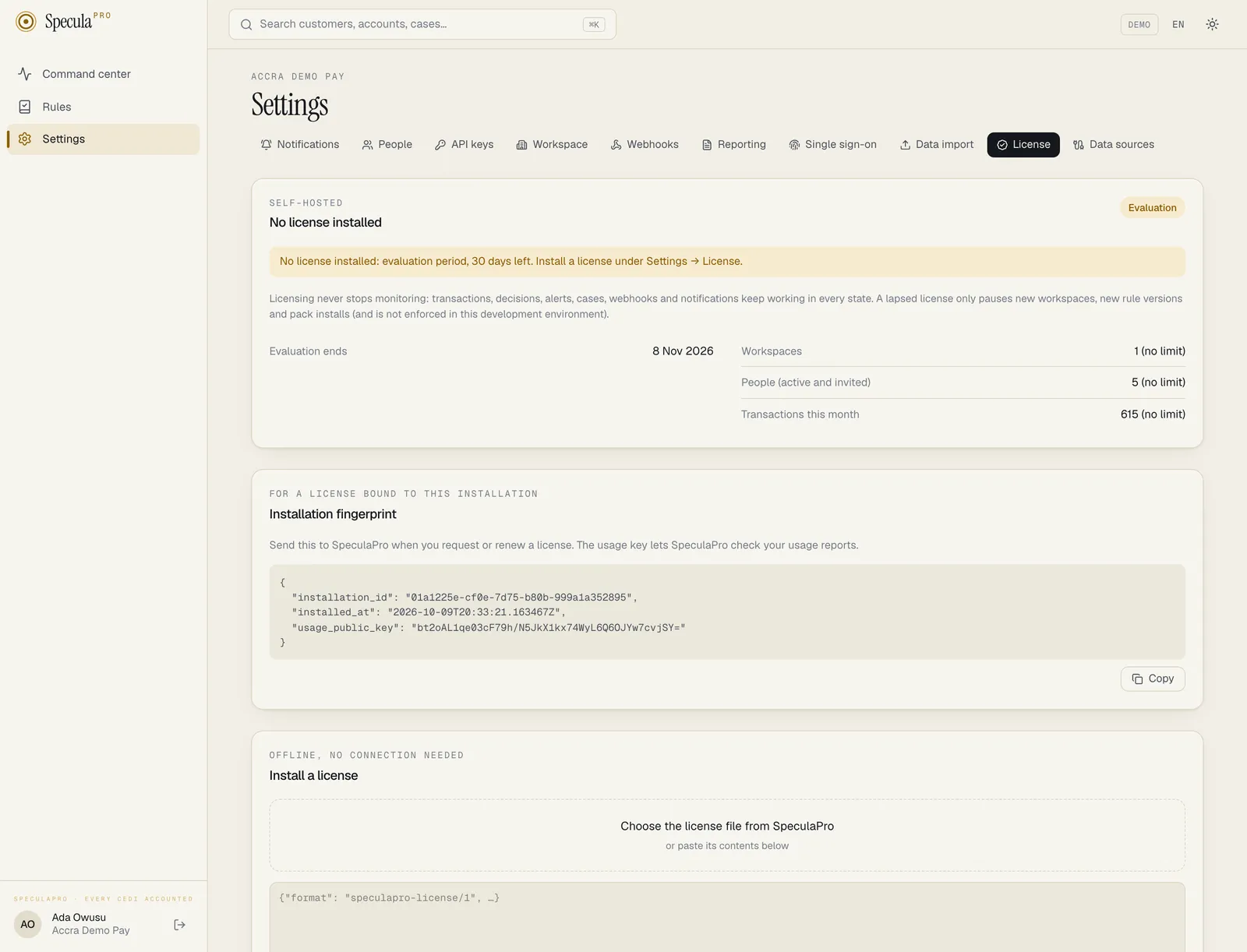
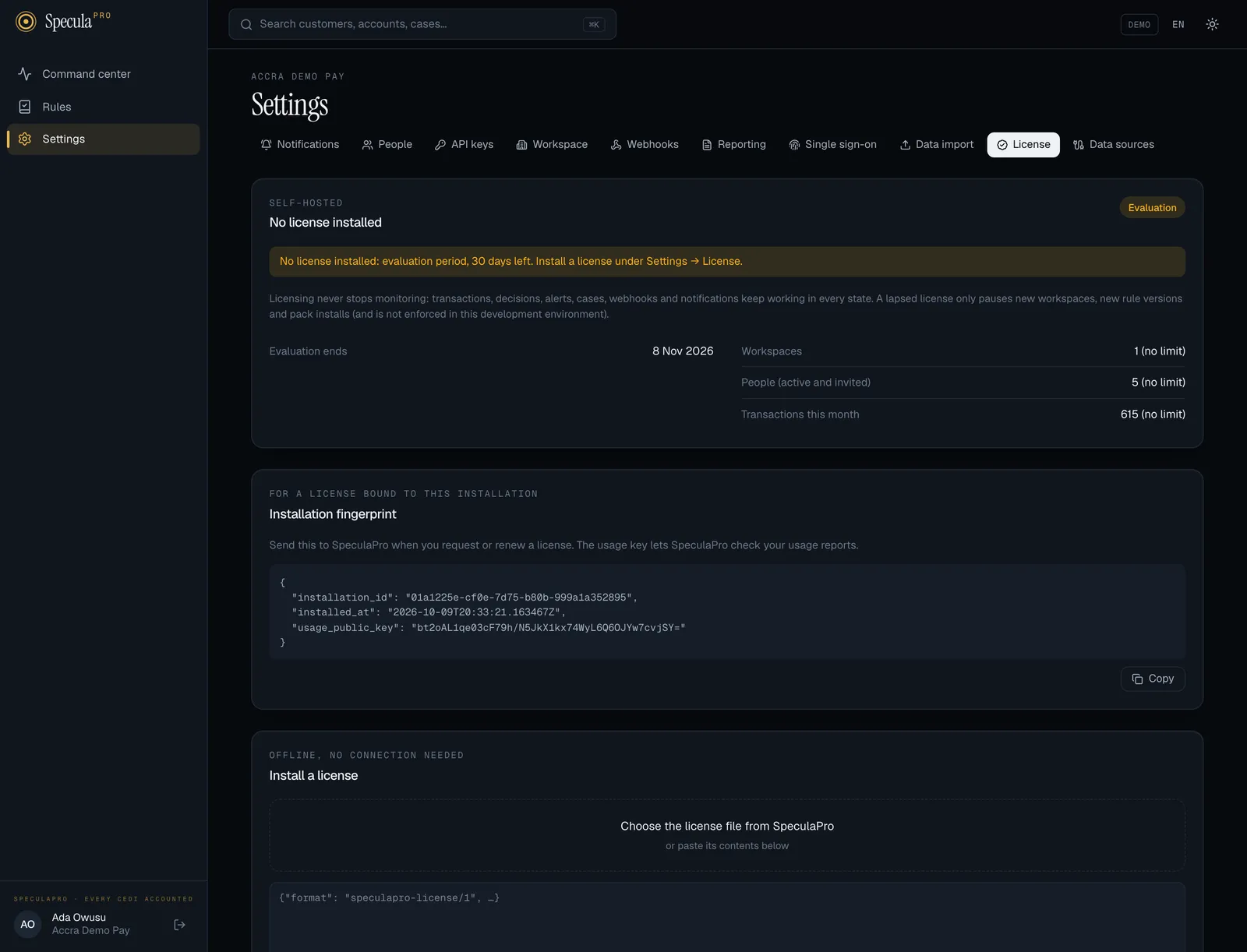
- Read the panel at the top. Its heading is the licensee (or No license installed), with the edition above it and the state on the right, such as Valid or Expiring soon. The message underneath says what the state means for you.
The panel also shows:
| Row | Meaning |
|---|---|
| License | The licence ID, which SpeculaPro will ask for |
| Issued, Expires | Its term |
| Grace after expiry | How long it keeps working without restrictions after the expiry date |
| Add-ons | Optional features in the licence, if any |
| Bound to this installation | Yes if it only works on this installation; No (any installation) otherwise |
| Evaluation ends | Without a licence, when the 30-day evaluation ends |
| Problem | Why a licence was rejected, for example issued for another installation |
| Workspaces, People (active and invited), Transactions this month | Current use against the licence’s limits, for example 12 of 50, or (no limit) |
| Contracted peak | The decisions a second in your contract, if it has one. For information only |
If use is above a limit, a line says Over the contracted …: reported at true-up, monitoring is not limited.
How to request or renew a licence
Section titled “How to request or renew a licence”- Open Settings → License.
- Under Installation fingerprint, select Copy.
- Send it to SpeculaPro at [email protected], with your licence ID if you are renewing.
The fingerprint identifies this installation (it lives in your database, so it survives restarts, upgrades and restores) and includes the key that lets SpeculaPro check your usage reports. It contains no customer data.
How to install a licence
Section titled “How to install a licence”- Open Settings → License.
- Under Install a license, select Choose the license file from SpeculaPro and pick the file. You can paste its contents into the box instead.
- Select Install license.
The signature is checked against SpeculaPro’s keys, which are built into your release, before anything is saved. When it succeeds, License installed. appears and the panel above updates. An installation doesn’t need an internet connection for this.
You can install a renewal before the current licence expires: SpeculaPro always uses the valid licence that runs longest, so the renewal takes over without a gap.
| If you see | It means |
|---|---|
license is not valid: … |
The file isn’t a genuine SpeculaPro licence, or was damaged. Ask SpeculaPro for a new copy |
… issued for installation <id>, this is <id> |
The licence is for another installation, for example a test one. Send SpeculaPro this installation’s fingerprint |
… expired on <date> |
The licence is past its grace period. Ask for a current one |
Installing a licence is recorded in the audit log as license.install, with
the licence ID, licensee, edition, expiry and signing key.
How to download a usage report
Section titled “How to download a usage report”SpeculaPro may ask for a usage report at renewal (“true-up”), to compare the transactions you processed with your contract.
- Open Settings → License.
- Under Usage report, choose the From and To months.
- Select Download signed report.
The file, named like speculapro-usage-2026-07-2026-09.json, lists transactions per month and per
workspace, with the busiest day. It is signed with your installation’s own key, so SpeculaPro can
tell if it was changed after it left your network. It contains counts only, never customer data.
Nothing is sent automatically: you send the file yourself.