
Managing API keys
In short
Section titled “In short”Your core banking system, mobile money platform or nightly extract job sends data to SpeculaPro with an API key: a long secret that works like a password for that system. On the API keys tab of Settings you can:
- create a key for one system, choosing what it may do; the full key is shown once,
- see every key, who created it, when it was last used, and what it may do,
- rotate a key: replace it with a new one in a single step,
- revoke a key that has leaked or is no longer needed,
- see which keys are due for rotation because the person who created them has been deactivated.
You need the api_keys.manage permission. In the default roles, only the Administrator has it. People with settings.view (the Auditor) can open the tab read-only: they see each key’s name, scopes, creator and dates, never the key itself, with the note Read-only: you can see this configuration, but not change it.
For how keys work, how to store them and how to rotate them, see API keys.
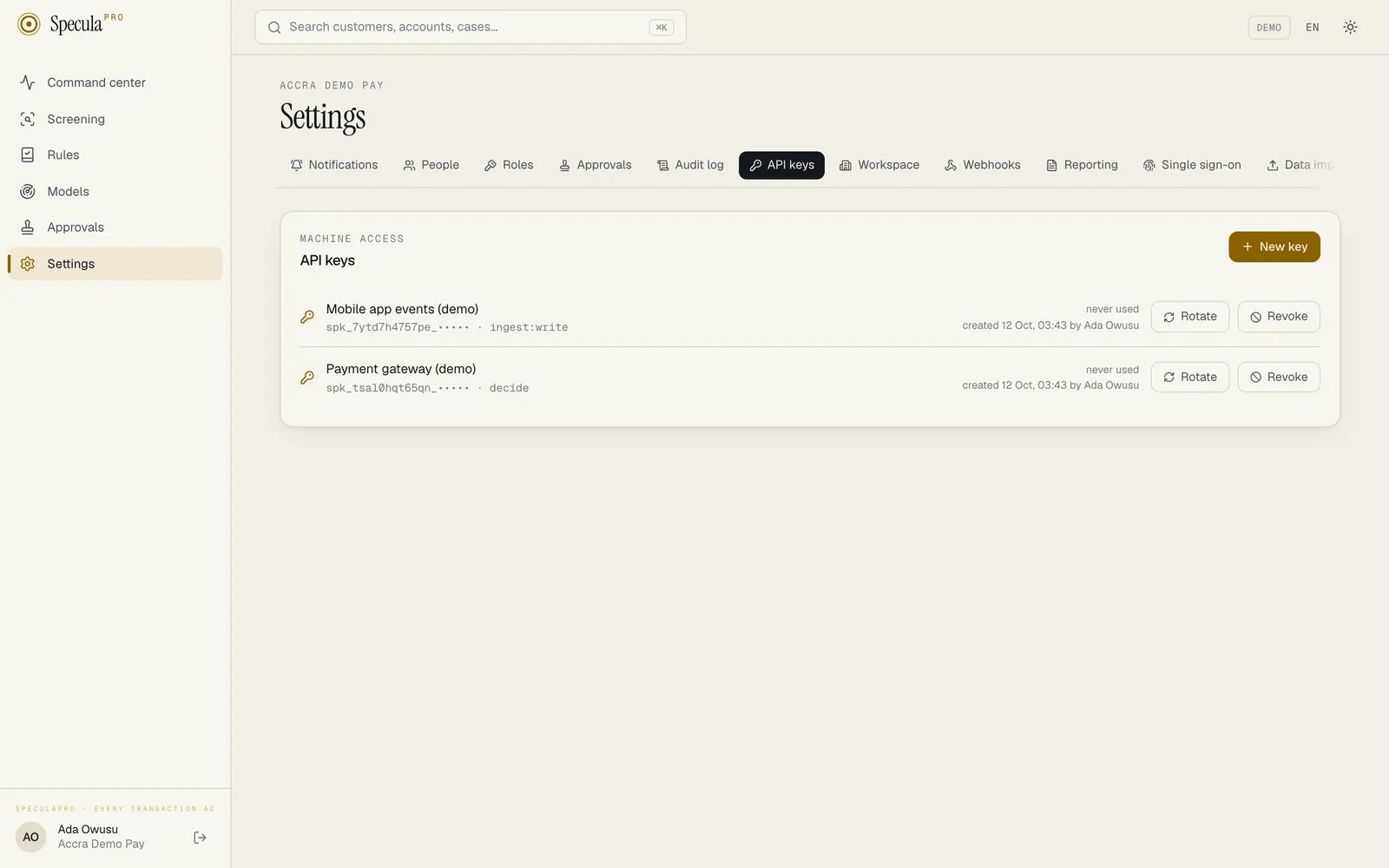
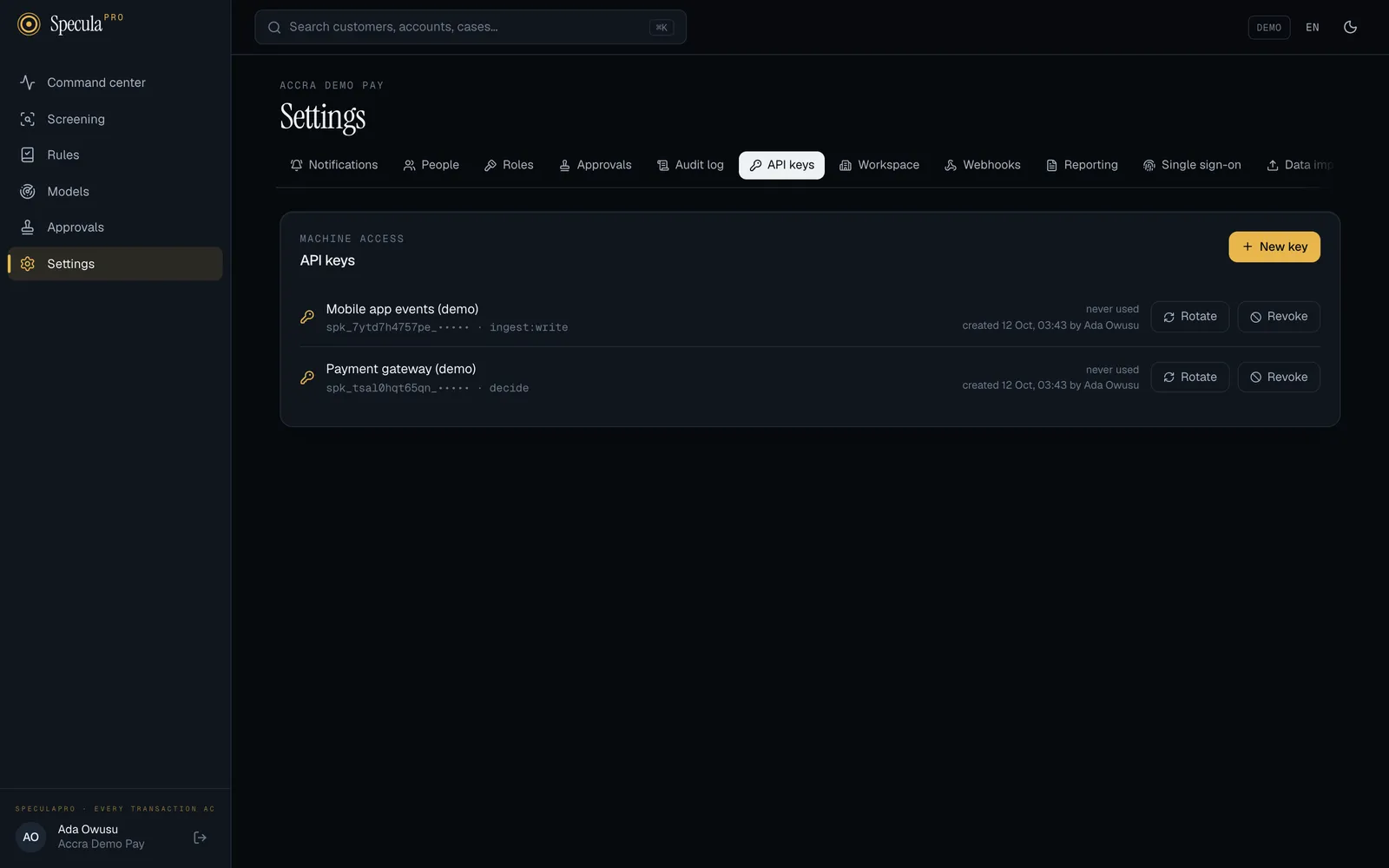
The key list
Section titled “The key list”Select Settings, then the API keys tab (or go straight to /settings#keys). The panel is titled API keys. Each key shows:
| Item | Meaning |
|---|---|
| Name | What the key is for. A revoked key’s name is greyed out and struck through |
| Rotation due | A warning badge beside the name: the person who created the key has been deactivated and the key still works. Hover over it to see who, and when. See When the person who created a key leaves |
| Prefix and scopes | The start of the key, such as spk_k3x9q2m7w4ab_•••••, and what it may do. The prefix lets you match a key in your secret manager to this row; it isn’t secret on its own |
| Last used | used 5m ago, never used, revoked with the date, or expired with the date. A key with an expiry date still to come also shows · expires and the date |
| Created | When the key was made, and by whom. Only that person ever saw the full key |
If there are no keys yet, the panel says Create one for each system that sends transactions, so you can revoke one without touching the others.
How to create a key
Section titled “How to create a key”-
Select Settings, then API keys.
-
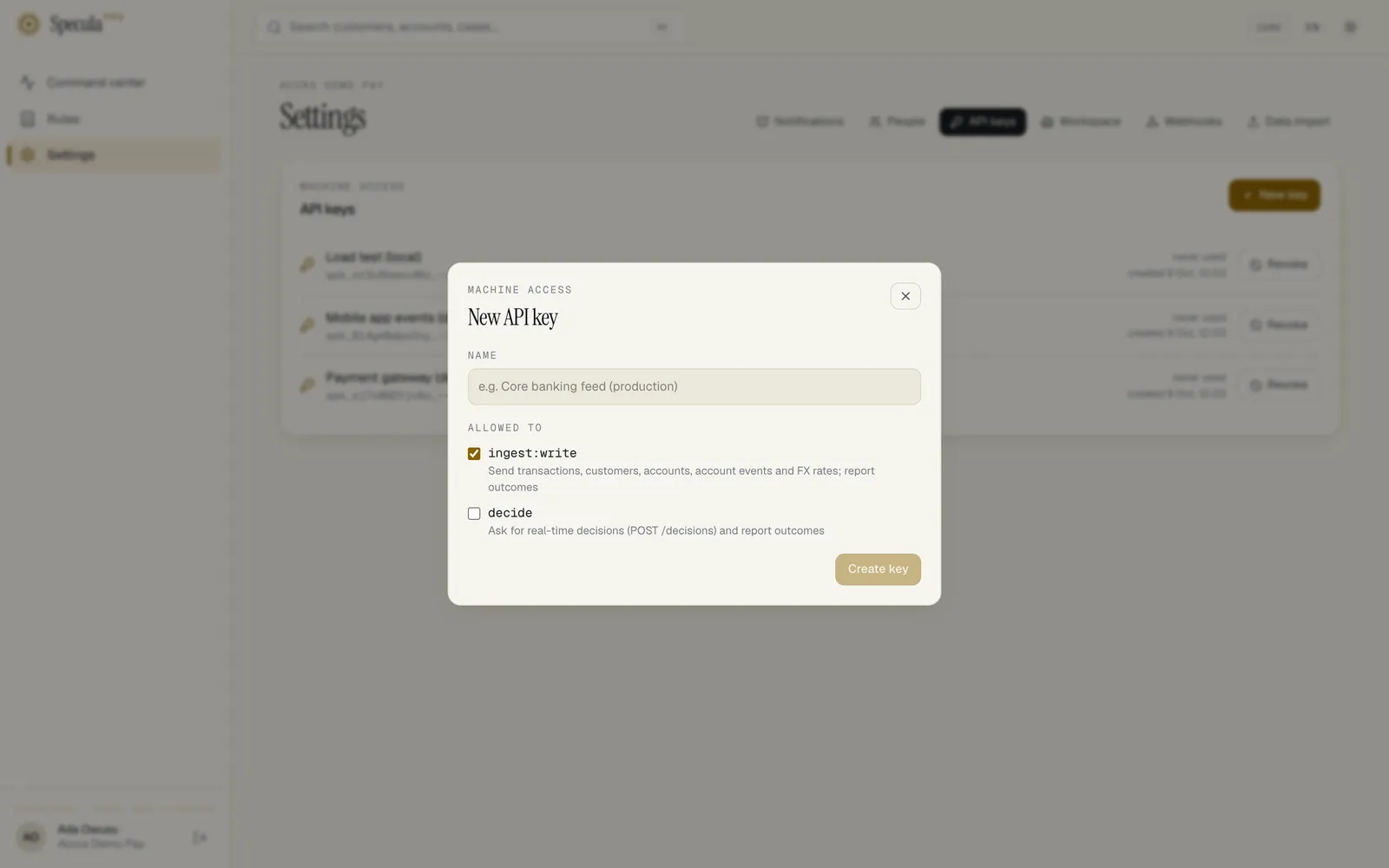
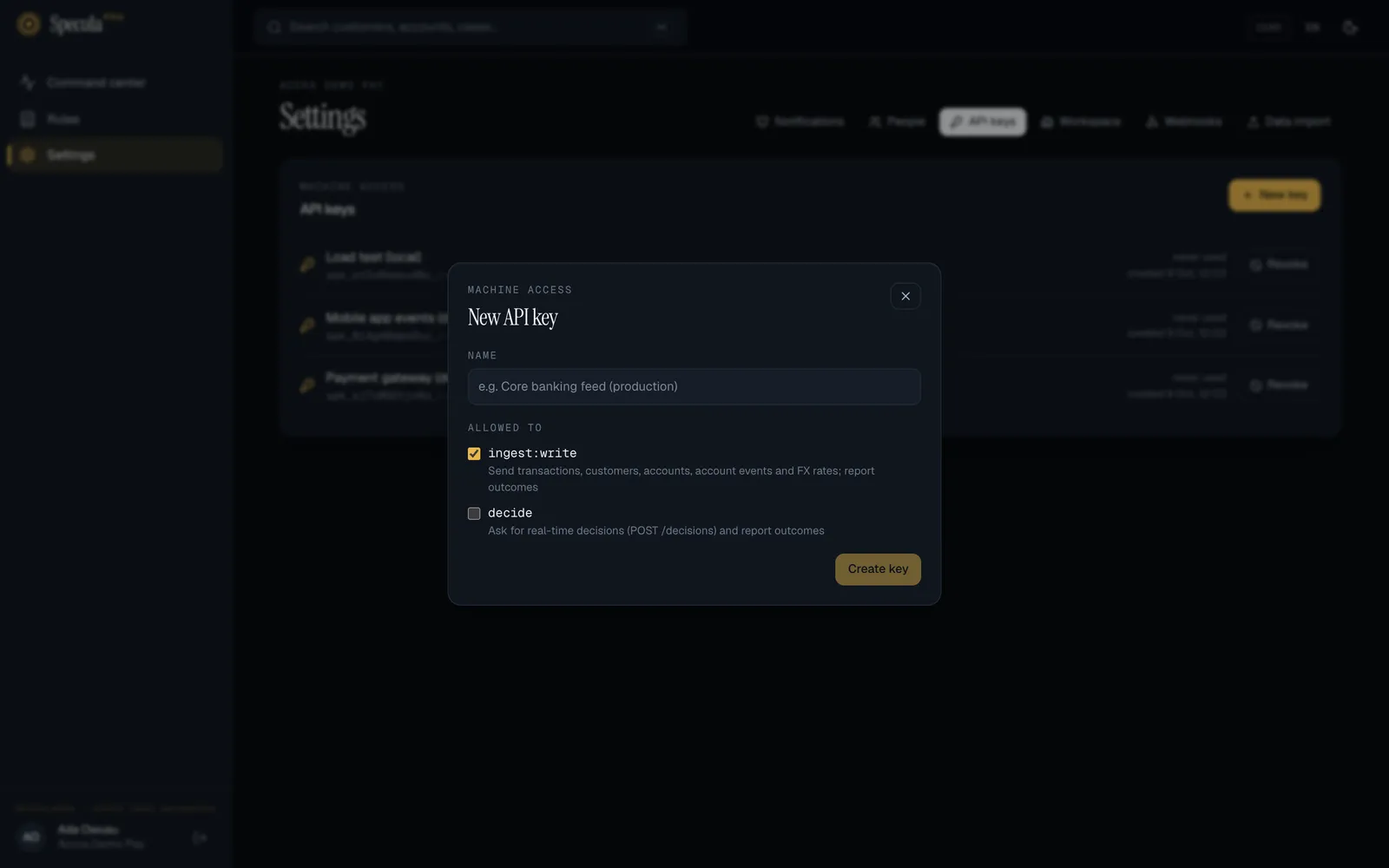
Select New key. A panel titled New API key opens.
-
Under Name, say which system and which environment will use it, for example Core banking feed (production). You’ll rely on this name later when deciding which key to revoke.
-
Under Allowed to, tick only what this system needs:
Scope On screen Give it to ingest:writeSend transactions, customers, accounts, account events and FX rates; report outcomes Systems that feed data in. Ticked to start with decideAsk for real-time decisions (POST /decisions) and report outcomes Your payment switch or authorisation service, which asks for a real-time decision before each payment Tick both only if one system really does both. Usually the payment switch gets its own
decidekey, so revoking a leaked data-feed key never stops payments being checked. -
Select Create key.
-
The panel changes to Key created and shows the full key. Select Copy and paste it straight into your secret manager, then select Done.
Expiry dates
Section titled “Expiry dates”The screen creates keys that don’t expire. If you want a key to stop working on a set date, create it
through the API with an expires_at date in the future; see API keys.
The list then shows expires and the date, and after that date expired; an expired key is refused
like a revoked one.
Whichever way you create keys, rotate them regularly.
How to hand a key to the system’s team
Section titled “How to hand a key to the system’s team”The person who installs the key is often in another team or at a vendor.
- Create the key yourself, and copy it into your organisation’s secret manager (for example Vault, AWS Secrets Manager or a Kubernetes secret) under a clear name.
- Give the other team access to that secret, not the key itself.
- Ask them to send it as
Authorization: Bearer <key>and confirm traffic is arriving. The key’s row then shows used … ago.
If you have no secret manager, read the key out over a phone call, and ask them to confirm they’ve stored it. Never send it in writing.
How to rotate a key
Section titled “How to rotate a key”Rotating replaces a key in one step: SpeculaPro makes a new key with the same name, scopes and expiry date, shows it once, and the old key stops working immediately. Use it when someone who knew the key has left, when the key is marked Rotation due, or on your regular schedule.
- Have the system’s team ready to install the new key: the system is refused from the moment you rotate until it has the new one.
- Select Settings, then API keys.
- On the key’s row, select Rotate.
- Your browser asks Rotate “…”? A new key with the same name and permissions is created and shown once. The old key stops working immediately, so be ready to put the new one into the system that uses it. Select OK.
- A panel titled Key rotated shows the new key. Copy it straight into your secret manager and into the system that used the old one, then select Done.
The old key’s row is struck through, and a new row with the same name appears, created by you.
- When approval is required, the page says Sent for approval. The old key keeps working until someone else approves; you then collect the new key once from My requests. The old key stops at the moment of approval, so agree the timing with your approver and the system’s team.
- An expired key can’t be rotated (it has no Rotate button). Create a new key instead.
- Can’t afford any gap? Create a second key, switch the system over, then revoke the old one. See Rotating keys.
As with revoking, another SpeculaPro server can go on accepting the old key for up to about 30 seconds.
When the person who created a key leaves
Section titled “When the person who created a key leaves”An API key belongs to the workspace, not to a person, so it keeps working when the person who created it leaves. But that person is the only one who ever saw the full key. SpeculaPro therefore keeps track of it for you.
When someone is deactivated, whether an administrator disables them under People or your identity provider does it over SCIM, every working key they created is treated in one of two ways:
| Workspace setting | What happens to the keys they created |
|---|---|
| Revoke API keys when their creator is deactivated is off (the default) | The keys keep working and are marked Rotation due, naming the person and the time. A warning at the top of the API keys tab counts them until each is rotated or revoked |
| The setting is on | The keys are revoked at once. Every system that used one is refused until it gets a new key |
Either way, everyone else who holds api_keys.manage is sent a notification naming the person and
the number of keys (never the keys themselves), and each key gets an audit entry.
Rotating or revoking a key clears its Rotation due mark. Re-enabling the person does not: the key was known to someone who was outside the workspace for a while, so it still needs replacing.
How to choose what happens
Section titled “How to choose what happens”- Select Settings, then Workspace.
- Under the workspace’s controls, switch Revoke API keys when their creator is deactivated on
or off. You need
settings.manage. - Select Save. The change is a Security settings change: when your approval policy requires approval for those, it waits for a second person, whichever way you switch it.
Self-hosted operators can watch for keys left waiting: see the speculapro_api_keys_rotation_due
metric and the SpeculaProAPIKeysRotationDue alert in
Monitoring.
How to revoke a key
Section titled “How to revoke a key”Revoke a key when it may have leaked, when the system that used it is retired, or after you’ve rotated to a new key.
- Select Settings, then API keys.
- On the key’s row, select Revoke.
- Your browser asks Revoke “…”? Systems using it stop working immediately. Select OK.
The row is struck through and shows when it was revoked. Revoking can’t be undone; if you revoked the wrong key, create a new one for that system.
What is recorded
Section titled “What is recorded”Every step is written to the audit log, with who did it and when. The key itself is never recorded.
| Action | Recorded as |
|---|---|
| A key created | api_key.create |
| A key revoked | api_key.revoke |
| A key rotated | api_key.rotate on the new key (naming the key it replaces) and api_key.revoke on the old one, with reason rotated |
| A key marked rotation due | api_key.rotation_due, with reason creator_deactivated and the person who was deactivated |
| A key revoked automatically | api_key.revoke, with automatic: true and reason creator_deactivated |
| The person deactivated | user.disable, with how many of their keys were marked and how many revoked |
When the identity provider deactivated the person, the key entries are recorded as the system and name the SCIM token.