
Filing with goAML
In short
Section titled “In short”An approved report is filed in four steps:
- Export it in SpeculaPro. This writes the goAML XML file once and keeps it, byte for byte.
- Download the file and upload it in goAML Web, the FIC’s reporting site.
- Record the submission in SpeculaPro: the reference number goAML gave it and when you uploaded it.
- When the FIC answers, record the outcome: acknowledged or rejected.
SpeculaPro never sends anything to the FIC itself. Steps 2 and 3 are done by a person.
| Step | Needs | Default role |
|---|---|---|
| Export and download | reports.approve or reports.submit, and entities.view_pii |
MLRO |
| Record the submission and the outcome | reports.submit and entities.view_pii |
MLRO |
How to export and download
Section titled “How to export and download”- Select Reports, then the To file tab, and open the report.
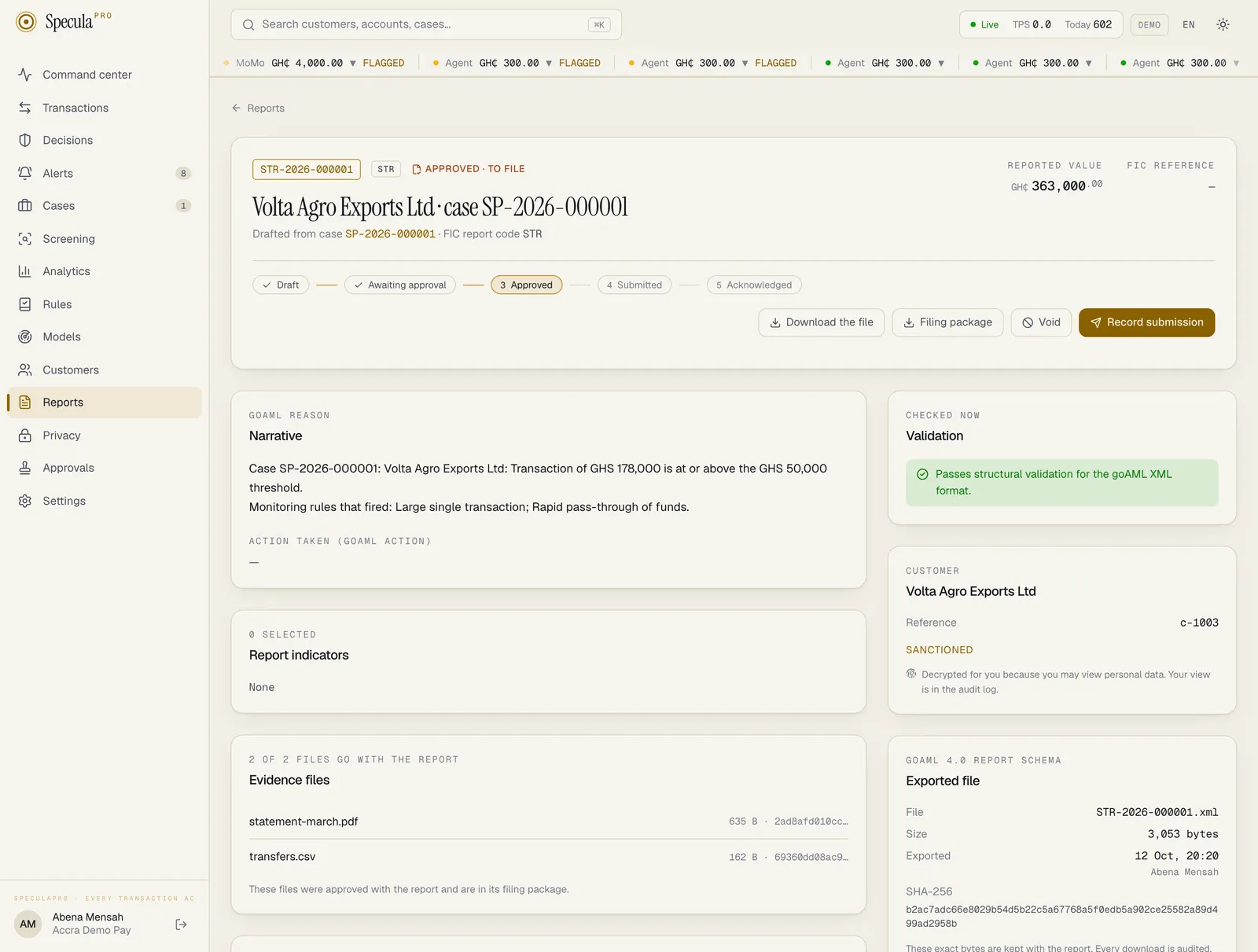
- Select Export goAML XML. The button is named after the report’s format, so in a UEMOA or Guinean workspace it reads Export CENTIF declaration: see Filing with a CENTIF. SpeculaPro checks the report once more and writes the file. It refuses while the report has validation errors, for example because a setting changed since approval.
- The Exported file panel appears, with the file name (the report number, such as
STR-2026-000014.xml), its size, who exported it and when, and its SHA-256 fingerprint. - Select Download the file and save it somewhere only authorised people can read: it holds your customer’s identity in full.
The file is made once. Exporting again returns the same file, and every later download gives you exactly the same bytes, checked against the fingerprint recorded at export. The file is stored encrypted with your workspace’s key.
Each export and each download is written to the audit log with the fingerprint, so you can always prove which file left SpeculaPro and who took it.
The filing package
Section titled “The filing package”When the report has evidence files chosen to go with it, a second button appears beside Download the file once the report is exported: Filing package. It downloads one ZIP that holds everything you send:
| In the ZIP | What it is |
|---|---|
The exported file, such as STR-2026-000014.xml |
The export exactly as recorded, byte for byte. It is read from the stored export, not made again |
| Each chosen evidence file, under its own name | The bytes as they were added to the case, each checked against its recorded SHA-256 before it goes in. When two files share a name (or one is named like the export), the later one gets a number in front, such as 2-statement.pdf |
MANIFEST.txt |
One line for each file above: its SHA-256, its size and its name |
The ZIP is named after the export: STR-2026-000014-package.zip. For a CENTIF declaration, whose
export is already an archive, it is DOS-2026-000003-centif-package.zip, with the declaration
archive inside it.
MANIFEST.txt looks like this (fingerprints shortened here):
SHA-256, size and name of each file in this filing package.
3f1c…9ab2  18422 bytes  STR-2026-000014.xmla07e…51d0  245761 bytes  statement.pdf9c44…e3f7  88310 bytes  id-card.jpg
How to download it:
- Export the report, as above.
- Select Filing package and save the ZIP somewhere only authorised people can read. It holds your customer’s identity and documents in full.
What to know:
- Who can download it: the same people who can download the export:
reports.approveorreports.submit, andentities.view_pii. - Every download is in the audit log as
report.package_download, with the export’s fingerprint and the names of the files in the package. - The package is put together at each download from the stored export and the stored files. The export and the files inside are always the same bytes, each checked against its fingerprint; if a stored file no longer matches, the download fails and nothing is served.
- The button shows only when at least one file goes with the report. Without files, the export alone is what you file.
- The files are there for as long as the report is. A case a report was drafted from is never removed by the retention purge, and a file that goes with a report past draft can’t be removed from its case.
- A support session can’t download it, or any report.
How to upload it in goAML Web
Section titled “How to upload it in goAML Web”Upload the exported file through goAML Web’s XML upload, as the FIC instructs. Add any attachments the FIC asks for there, from the filing package or from your own records: the goAML XML itself doesn’t carry attachments, or the list of their titles. goAML gives the submission a reference number. Note it, and the date and time you uploaded.
If goAML Web refuses the file, don’t record a submission. Fix the cause (usually a setting; see Before you go live) and contact [email protected] if the file itself is at fault. The exported file can’t be changed or re-exported, because the report is final.
How to record the submission
Section titled “How to record the submission”- Open the report. It must be Approved · to file and exported.
- Select Record submission. A panel opens, titled after your jurisdiction’s FIU and the report’s format, for example Record the submission to FIC (goAML XML): Upload the downloaded XML in goAML Web first, then record the reference goAML gave the submission.
- Under FIC reference number (the label names your own FIU), enter the reference goAML gave you (up to 100 characters).
- Under Submitted at, check when you uploaded it. It starts at the current time, in your computer’s time zone, and can’t be in the future.
- Select Record submission.
The report becomes Submitted, and the reference and time appear on it, in the register and on the approval trail. Neither can be changed afterwards.
How to record the FIC’s answer
Section titled “How to record the FIC’s answer”- Open the submitted report and select Record the FIC outcome. The button, the panel and its labels name your own FIU: FIC in Ghana, and another short name elsewhere.
- Under What the FIC said, choose Acknowledged (Accepted by the FIC) or Rejected (Returned with errors; draft a corrected report).
- For a rejection, enter the Reason given by the FIC (required, at least 3 characters). For an acknowledgement, a Note is optional.
- Select Record outcome.
The report becomes Acknowledged or Rejected by the FIC (the status names your own FIU too: Rejected by the NFIU in Nigeria). Either is final.
If the FIC rejects a report
Section titled “If the FIC rejects a report”A rejected report stays in the register as it was, with the FIC’s reason. SpeculaPro has no “corrected copy” of the same report:
- For an STR, select Draft STR on the case again. Because the earlier report was rejected, this starts a new STR, pre-filled afresh. Fix what the FIC pointed out, and mention the rejected report’s number in the narrative if the FIC asks you to.
- For a CTR, SpeculaPro can’t draft another for the same customer and day. File the correction directly in goAML Web as the FIC instructs, and record what you did with the customer’s records.
What’s in the file
Section titled “What’s in the file”The file follows the goAML 4.0 report schema, in this order:
| Part | Holds |
|---|---|
rentity_id, rentity_branch |
Your reporting entity ID and branch, from the settings |
submission_code |
E (electronic) or M (manual) |
report_code |
STR or CTR, or the codes in your settings |
entity_reference |
The report number, such as STR-2026-000014 |
submission_date |
When the file was exported, in your workspace’s time zone |
currency_code_local |
Your base currency, such as GHS |
reporting_person, location |
The compliance officer and office address from the settings |
reason, action |
The narrative and the action taken |
transaction (one per transaction) |
Its number (your reference), internal reference, description, date and time, conduction type (transmode_code), amount in your base currency, then who the money came from and went to: t_from_my_client or t_from, and t_to_my_client or t_to, each with the funds code, any foreign currency, the account (from_account/to_account), person or business, and country. A cash deposit also names your customer as the person who conducted it (t_conductor). See How each transaction is reported |
activity |
Only when the report has no transactions: the subject as a report_party |
report_indicators |
The indicator codes |
Dates and times are written as 2026-03-21T14:05:00, in your workspace’s time zone, and amounts in
major units (12345.67).
The same goAML file serves Nigeria’s NFIU, which also receives reports through goAML: the
jurisdiction sets the NFIU’s report codes (STR, CTR, SAR,
FTR). Confirm the NFIU’s goAML schema and lookup tables at registration; until they are loaded,
the generic goAML codes are used.
Not on goAML: the UEMOA states and Guinea
Section titled “Not on goAML: the UEMOA states and Guinea”The eight UEMOA states and Guinea report to a national CENTIF, and none is known to use goAML. For those workspaces the export is a CENTIF declaration: a French form to print, sign and file, with the same content as XML. Its layout is SpeculaPro’s own and unconfirmed with every CENTIF. See Filing with a CENTIF.