
Reviewing an alert
In short
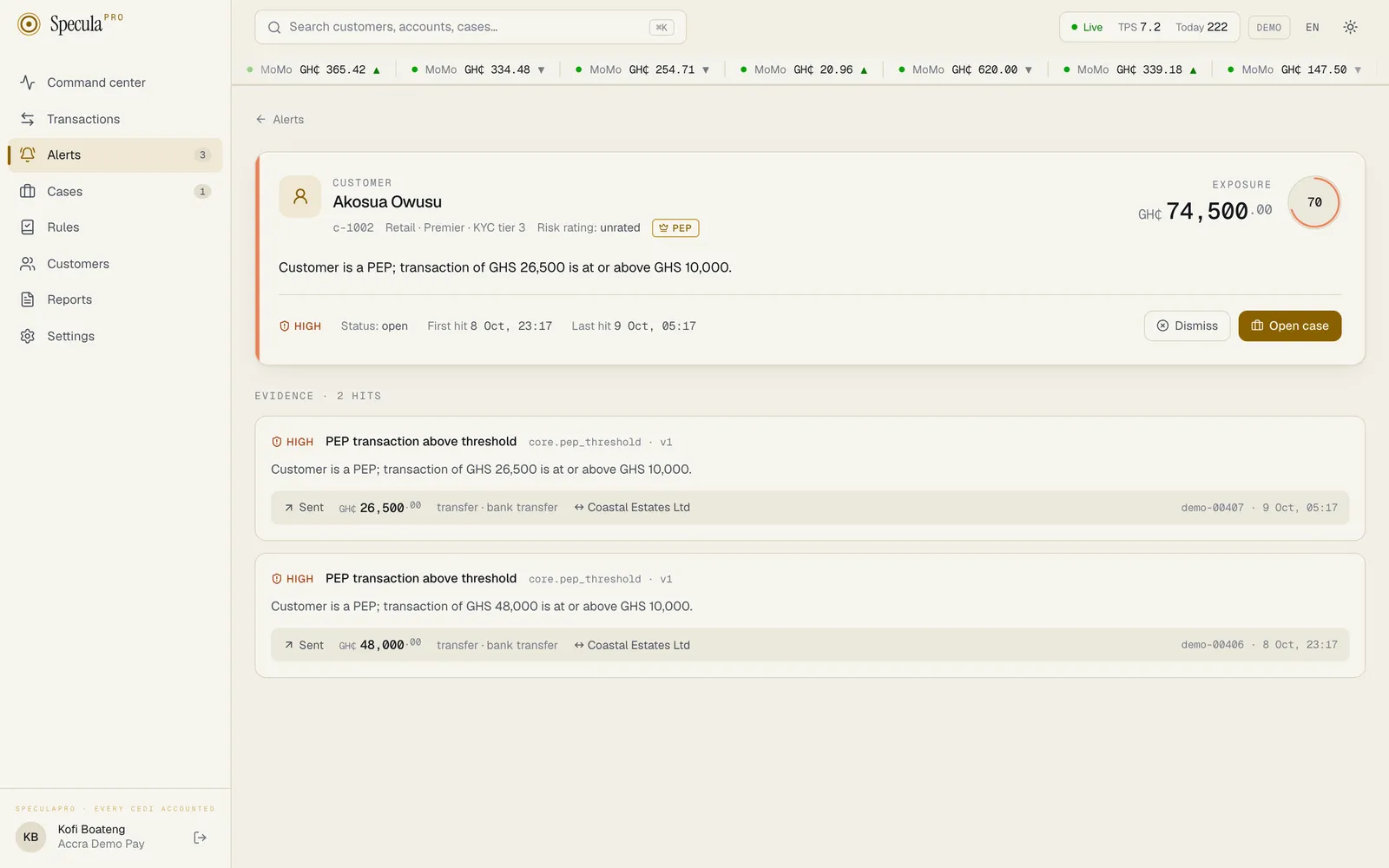
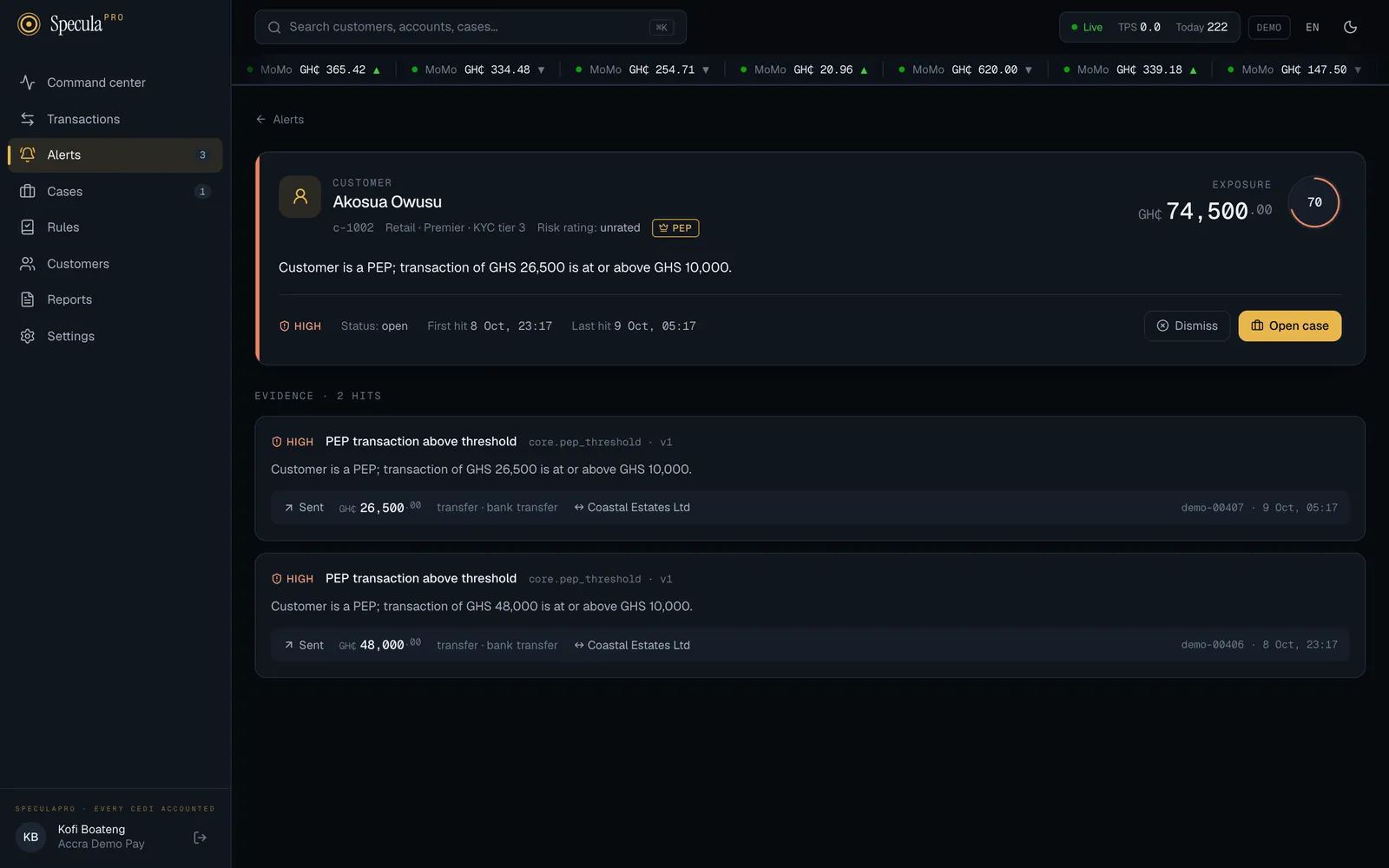
Section titled “In short”Selecting an alert in the queue opens its detail page. At the top you see who the alert is about and how serious it is; underneath, the evidence: one card for every rule hit, with the rule’s explanation, the transaction and the figures the rule looked at.
When you have read it, you make one of two decisions:
- Dismiss the alert, choosing False positive, No action needed or Duplicate, when it plainly needs nothing further.
- Open case when it needs investigating. If the customer already has an open investigation of the same kind (AML or fraud), the alert joins it instead of starting a new one.
You need cases.work to do either (by default Analyst, Senior analyst and MLRO). Without it you can read the alert but the buttons don’t appear.
The header
Section titled “The header”Who it is about
Section titled “Who it is about”The left of the header is the subject card:
| Item | Example | Meaning |
|---|---|---|
| Type | CUSTOMER | Whether the alert is about a customer, an account or a counterparty (someone outside your institution) |
| Name | Kwame Asante | The subject’s name, or a code such as Customer 3f9a1c if your role can’t view customers. For a customer, the name is a link: select it to open their profile, with 90 days of activity, accounts and flags |
| Reference | CUS-004417 |
Your own system’s reference for the subject, so you can find them in your core banking or wallet system |
| Detail | retail · KYC tier 2 | For customers, their segment and KYC tier; for counterparties, their provider |
| Risk rating | Risk rating: high | The customer’s risk rating, when one has been sent |
| Designations | pep · sanctioned · high risk | Badges for any active risk designations: pep, PEP associate, sanctioned, high risk and any custom ones your institution uses |
How serious it is
Section titled “How serious it is”On the right: Exposure, the total value of the transactions behind the alert in your base currency, and the score ring with the risk score (0–100). A coloured stripe down the left edge of the header shows the severity at a glance.
Under the subject is the alert’s summary: one sentence describing the most recent activity.
The bottom line of the header shows:
- the severity (Critical, High, Medium or Low),
- Status: open, in case or closed,
- First hit and Last hit: when the first and the most recent rule hit arrived,
- the case number in gold, if the alert is already in a case. Select it to go to the case,
- the Dismiss and Open case buttons, while the alert is open and you have
cases.work.
A closed alert
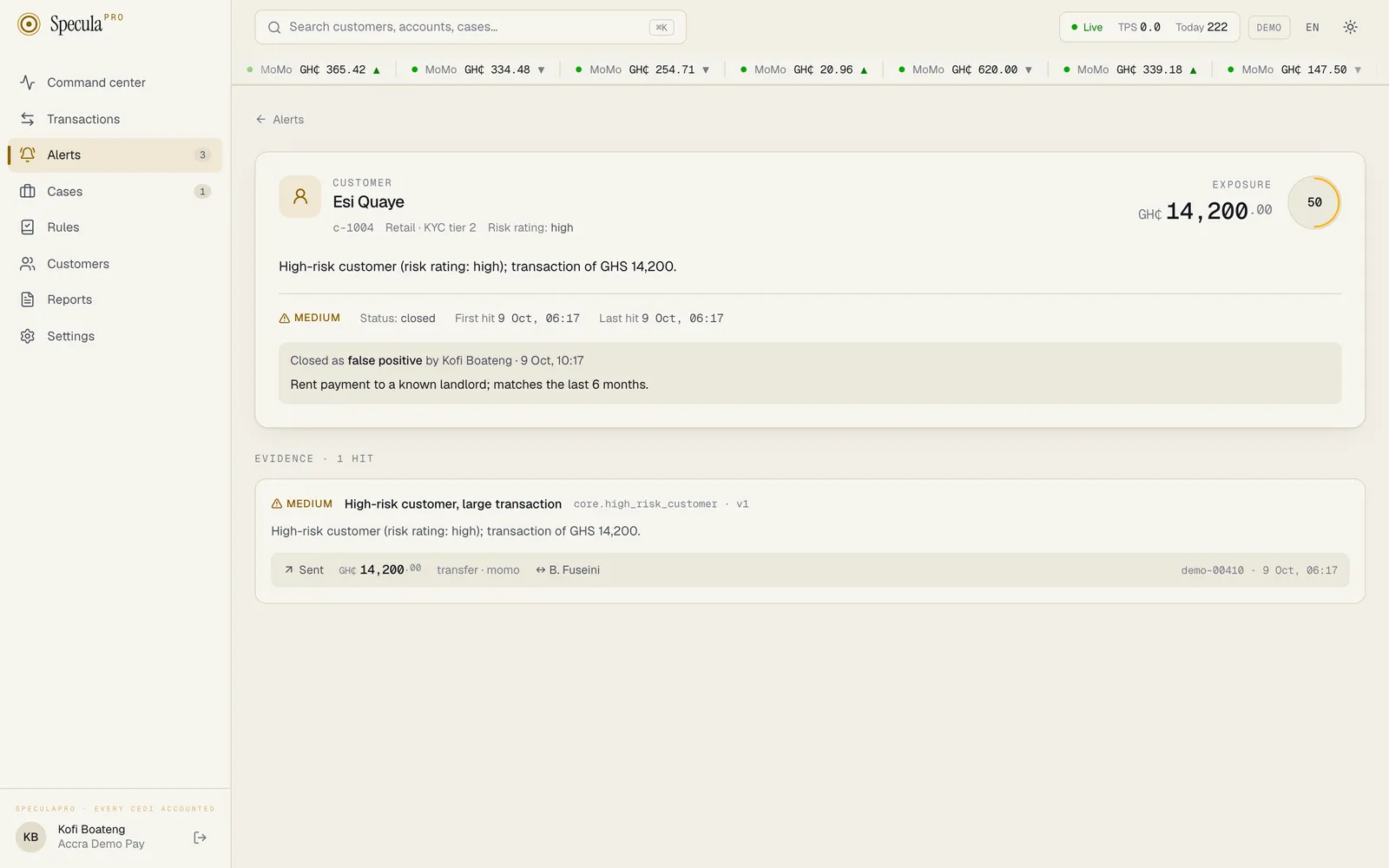
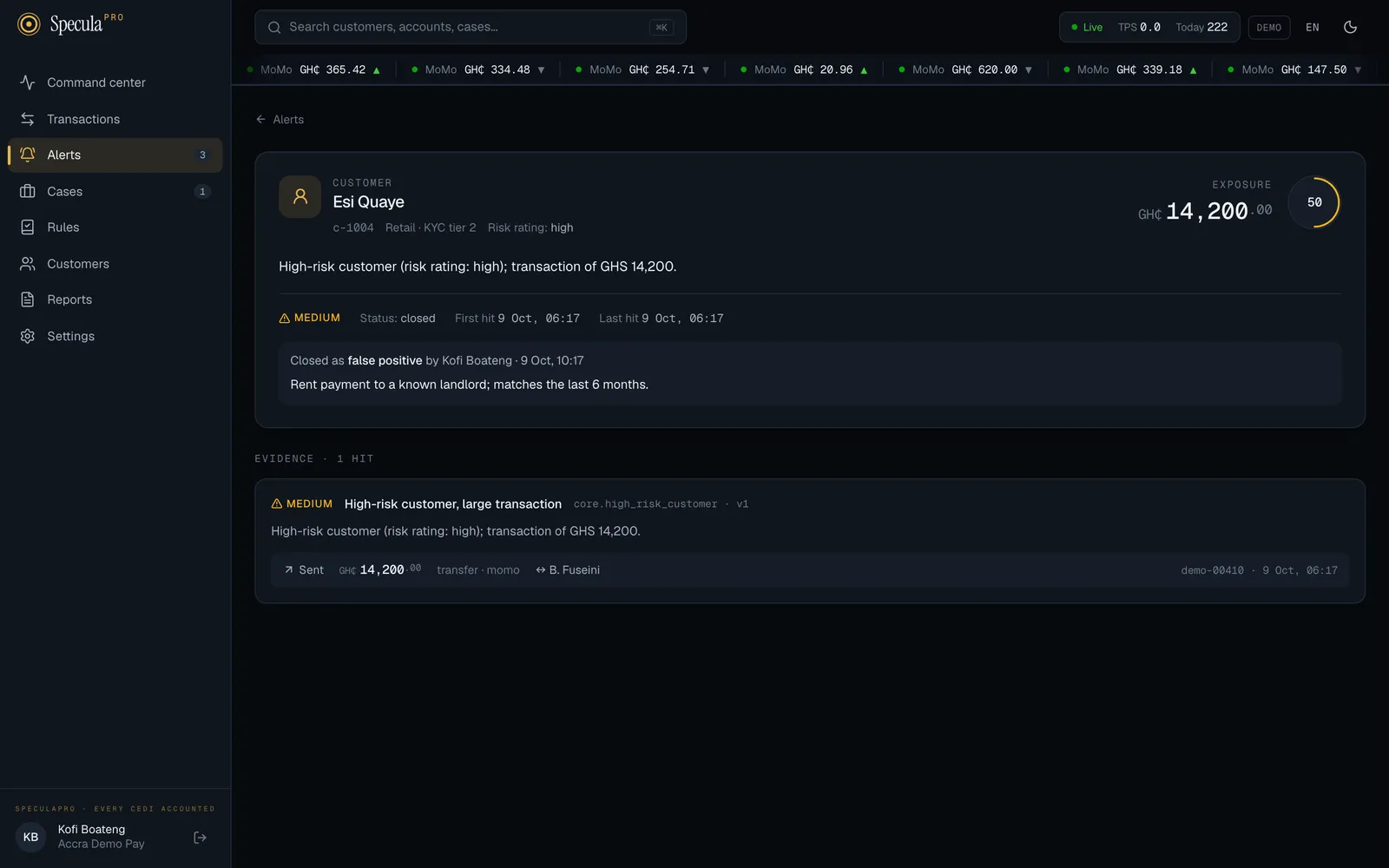
Section titled “A closed alert”Once an alert is closed, a grey box under the summary says how it ended, for example:
Closed as false positive by Kofi Boateng · 9 Oct, 14:32
followed by the rationale written when it was dismissed, if there was one. An alert closed together with its case reads Closed as escalated to case; the case’s own outcome is on the case.
The AI assistant’s advice
Section titled “The AI assistant’s advice”Where your workspace has switched the AI assistant on, a panel headed AI assistant · advice
only sits between the header and the evidence. It shows what the assistant makes of the alert
(Looks like a false positive, Needs investigating or Not enough to tell), with its reasons
and what to check, and people with cases.work can select Ask the assistant. It is advice
from a model that can be wrong: it changes nothing about the alert, and dismissing it or opening
a case stays your decision. See The AI assistant’s advice.
The evidence
Section titled “The evidence”Below the header, Evidence · N hits lists every rule hit in the alert. Each hit card shows:
- The rule: its severity, its name, and its key and version (for example
gh.split_cash_in_agents · v3). The version tells you exactly which approved wording of the rule fired. - The explanation: a sentence written by the rule, with the real figures filled in, for example Cash-ins via 5 different agents totalling GHS 46,500 in 24h.
- The transaction that triggered the hit, on a grey strip:
- Received (green) or Sent,
- the amount, in the currency the transaction was made in,
- the transaction type and channel, for example cash in · agent,
- ↔ and the other party, when known,
- on the right, the transaction’s reference in your system and its date and time.
- The feature values: small boxes with the figures the rule calculated at the moment the transaction arrived, for example agents 24h 5 and cash in 24h 46,500. These are the numbers the rule compared against its thresholds.
The risk model score
Section titled “The risk model score”If your workspace has a live risk model, a hit card also carries a Risk model score box for its transaction:
- the score, from 0 to 1 (about 0.5 is ordinary; closer to 1 is more unusual);
- how it ranks, for example more unusual than 99.2% of training transactions;
- the model version that gave it;
- under it, up to three reasons: the features that pushed the score up most, each with its value for this transaction, a bar and its contribution.
When several rules fired on the same transaction, the box is shown once, on the first of their cards. A workspace with no live model shows no box.
How to dismiss an alert
Section titled “How to dismiss an alert”Dismiss an alert when you are satisfied that it needs no investigation.
-
On the alert, select Dismiss. A panel titled Dismiss alert opens.
-
Under Outcome, choose one:
Outcome When to choose it False positive Activity is explained and legitimate. The rule fired, but what happened is normal for this customer No action needed Unusual but within the customer’s profile. Out of the ordinary, but consistent with what you know about them Duplicate Already covered by another alert. Someone is already dealing with the same activity -
Under Rationale (optional), write what you checked and why you reached this outcome. The box reminds you: Examiners read this.
-
Select Dismiss alert.
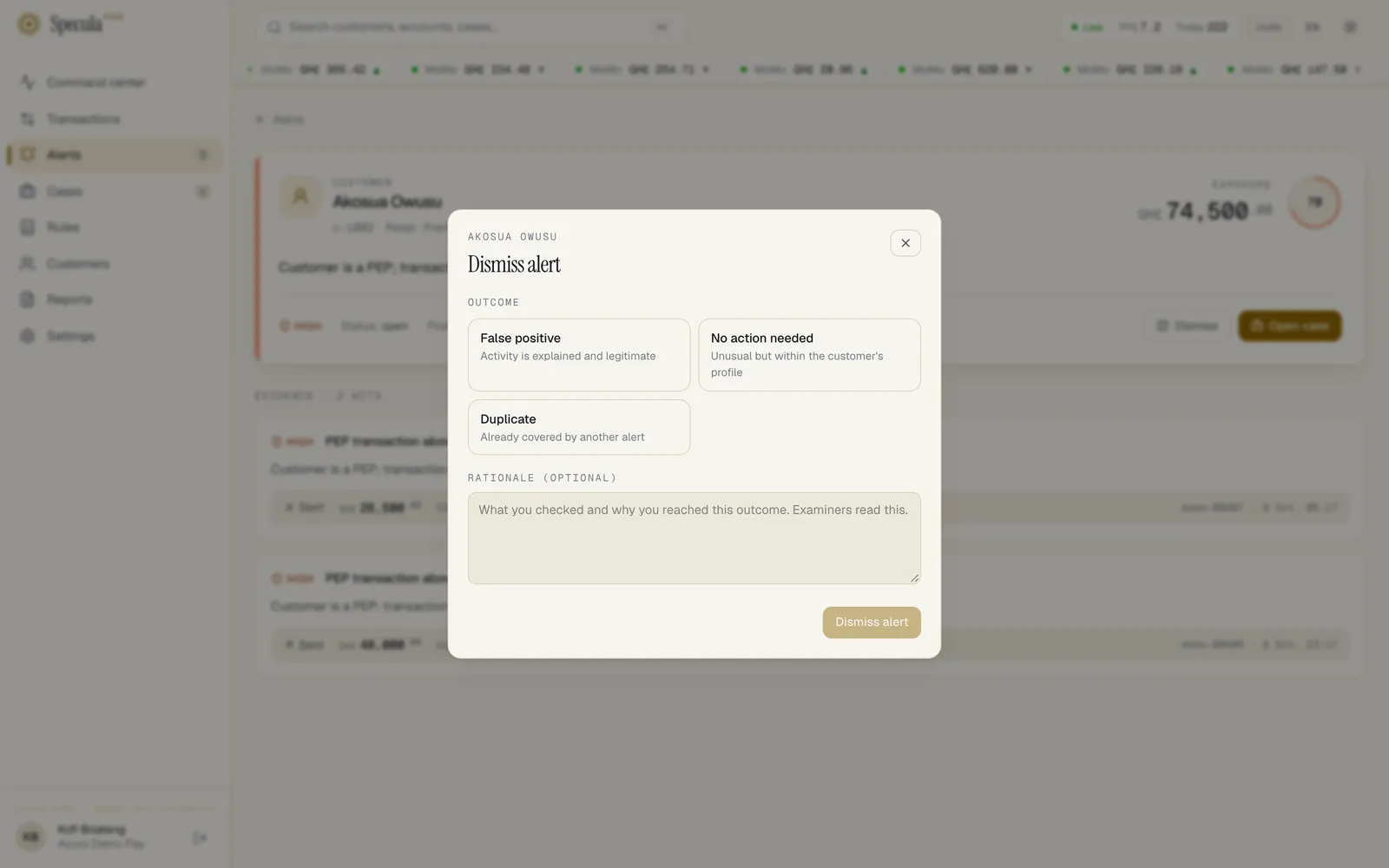
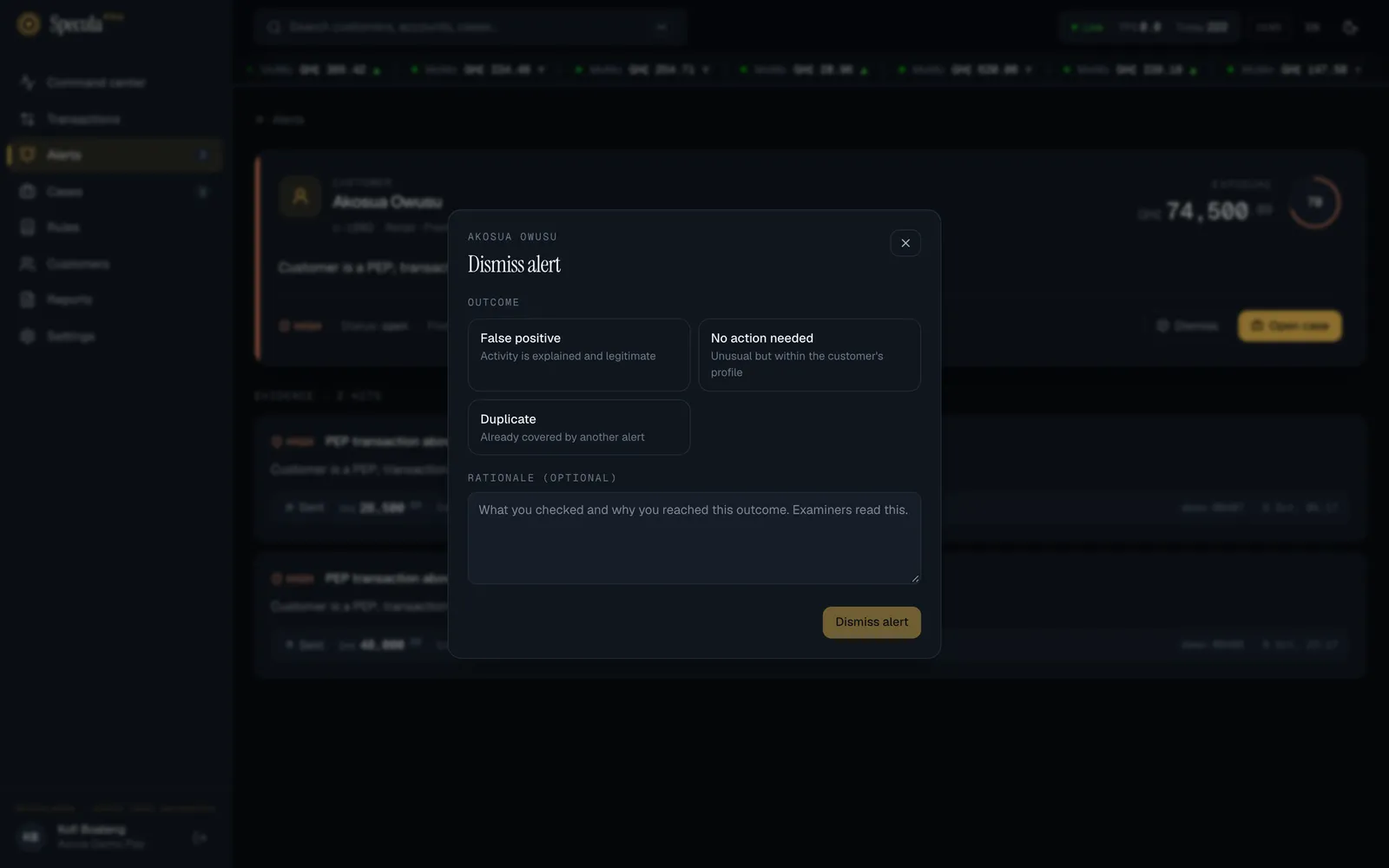
You return to the alert queue and the alert moves to the Closed tab, showing its outcome.
What is recorded: the outcome, your rationale, your name and the time are written to the permanent audit log, and shown on the alert itself (see A closed alert).
To close the panel without dismissing, select the ×, press Esc, or click outside the panel.
To dismiss several alerts that share one explanation, see How to close several alerts at once. A reason is required there, and sanctions alerts, critical alerts and alerts about PEPs or sanctioned subjects must still be dismissed here, one at a time.
How to open a case
Section titled “How to open a case”Open a case when the alert needs a proper look: more checks, a conversation with a colleague, or a possible report.
- On the alert, select Open case.
- SpeculaPro takes you straight to the case.
What happens depends on whether the subject already has an investigation that isn’t closed:
| Situation | What happens |
|---|---|
| No active case of the same kind on this subject | A new case is created with the next number, for example SP-2026-000124. It is assigned to you, starts at level 1, takes its priority from the alert’s severity (a high alert makes a high-priority case), and gets a deadline from that priority. Its status is Open until you start work. Where your workspace has escalation policies, the first one that fits the new case can change this: its team queue, its deadline and its starting level. A case that starts at level 2 or 3 opens Escalated and unassigned, for that level to take; see Cases that open above level 1 |
| An active case of the same kind already exists | The alert joins that case. An AML alert never joins a fraud case, nor a fraud alert an AML case. If the alert is more severe than the case, the case’s priority is raised to match and its deadline is brought forward if the new priority’s deadline is sooner. The case’s owner doesn’t change |
Either way, the alert’s status becomes in case, its case number appears on it, and from now on new activity of the same kind about this subject joins the case automatically until the case is closed.
What is recorded: the case timeline shows opened the case (for a new case), assigned the case and linked an alert; if the priority rose, raised priority to high: a higher-severity alert joined. Each action is also written to the audit log.