
Change data capture
In short
Section titled “In short”Change data capture (CDC) means SpeculaPro follows the changes your core-banking database records anyway (every insert, update and delete) and turns them into the same transactions, customers, accounts and account events the ingest API receives. Your developers don’t write an integration: your database administrator gives SpeculaPro read access to a few tables, and an administrator writes a mapping that says which column means what.
It suits an institution whose core system can’t push events, and whose IT team would rather grant read access to a replication stream than build and maintain an export.
There are two ways to connect, both set up under Settings → Data sources:
| Kind | On screen | How SpeculaPro reads | Suits |
|---|---|---|---|
cdc |
Debezium topics | Debezium (Kafka Connect, run by you or by us) publishes your tables’ change events to Kafka topics; SpeculaPro reads them, as JSON or as Avro through a schema registry | Postgres, MySQL, MariaDB, Oracle or SQL Server, if you run Debezium or are happy to |
postgres_cdc |
Postgres replication | SpeculaPro connects to your Postgres database itself and reads its logical replication stream (the built-in pgoutput plugin), with no Kafka Connect in between |
Postgres only, with the least moving parts |
Whatever the kind, every row goes through the same checks, currency conversion, encryption, duplicate protection and monitoring as the API. SpeculaPro keeps its own copy and never queries your database for monitoring: CDC is a feed into SpeculaPro, not a live connection your daily work depends on.
| You need | Held by default by |
|---|---|
Data sources (datasources.manage) to add a source, write its mapping, resynchronise or drop its slot |
Administrator |
Settings: view (settings.view) to see sources, mappings and their status, read-only |
Auditor |
On a self-hosted installation the connector role must be running. See
Connector, and give your DBA
Postgres replication for DBAs.
How it works
Section titled “How it works”First a copy, then every change
Section titled “First a copy, then every change”When a source starts, SpeculaPro first reads the whole of every mapped table (the first copy, or snapshot), then follows every change made after it.
- Postgres replication takes the first copy from the same consistent point its replication slot starts at, so nothing that happens between the copy and the stream is missed or read twice.
- Debezium does its own snapshot (its
r, read, events) before streaming. How it is taken is set in your Debezium connector.
The status of a source shows where it is: Waiting to start, Taking the first copy, Following changes or Stopped.
Nothing is lost, nothing is applied twice
Section titled “Nothing is lost, nothing is applied twice”SpeculaPro only moves its bookmark forward once the changes before it were accepted:
- Postgres replication: the position SpeculaPro confirms to your database, and the checkpoint it keeps itself, advance only after the changes up to them were accepted. If the connector stops half-way, it restarts from the last checkpoint.
- Debezium: offsets are committed only once a change was applied or dead-lettered.
Restarting can therefore read some changes again. That is harmless: SpeculaPro keeps a ledger of the
changes it applied, keyed by the source, the table, the row’s primary key and the change’s log
position (the LSN on Postgres, the SCN on Oracle, the binlog position on MySQL). A change it has
already applied is recognised and skipped as replayed. On top of that, every item still has the
usual duplicate protection by external_id.
Changes to the same row are applied in order. Customers and accounts are versioned by the change’s
log position, so an older change never overwrites a newer one (unless your mapping sets version
itself).
The ledger is kept for SP_CONNECTOR_CDC_APPLIED_RETENTION_DAYS (30 days by default). See
Configuration: connectors.
What happens to each change
Section titled “What happens to each change”| Outcome | Meaning |
|---|---|
| Accepted | Became a transaction, customer, account or account event |
| Duplicate / Stale | Already known, or older than what SpeculaPro has; as for the API |
| Replayed | This exact change was applied before (same row, same log position) |
| Skipped | Nothing to do: the table isn’t mapped, the row doesn’t match the table’s condition, or it was a delete that is kept as evidence (below) |
| Superseded | A transaction already accepted was changed at the source. Transactions are evidence and never change once accepted, so the later version isn’t applied |
| Rejected | The mapping couldn’t produce a valid item (a value missing from a value map, a date it can’t read, a failed check). See Rejected changes |
Deletes become status changes
Section titled “Deletes become status changes”SpeculaPro never deletes what it monitors. A row deleted in your database becomes:
| Table maps to | A delete becomes |
|---|---|
| Customers | The customer’s status set to exited (or dormant or restricted, if the mapping’s on_delete says so) |
| Accounts | The account’s status set to closed, with the time of the delete as closed_at (or frozen or dormant) |
| Transactions, account events | Nothing: the record is kept unchanged as evidence |
Any table with "on_delete": "ignore" |
Nothing |
To turn a delete into a status change, SpeculaPro needs the deleted row’s values, not only its key.
On Postgres, the customer and account tables need REPLICA IDENTITY FULL; with Debezium on other
databases, full before-images. Without them the delete is rejected with a message saying so.
Truncating a table is ignored: SpeculaPro never deletes.
When your tables change shape
Section titled “When your tables change shape”| Change in your database | What SpeculaPro does |
|---|---|
| A column is added | Nothing. The mapping only reads the columns it names |
| A column the mapping reads is dropped or renamed | The source stops at that change, with the message column … is used by the mapping of … but is no longer in the table (dropped or renamed): update the mapping. Nothing after it is applied or lost. Fix the mapping: saving a new version makes the source resume from where it stopped |
| A table is added to the publication or topics | Its changes are skipped as table not mapped until you map it |
Data-source managers are notified when a source stops, and on a self-hosted installation the
SpeculaProCDCSourceFailed alert fires. See Monitoring.
The mapping
Section titled “The mapping”A source reads nothing until it has a mapping. The mapping says, for each of your tables, which
kind of item its rows become (transactions, customers, accounts or account_events) and which
column fills each field. Each table becomes one kind of item.
You edit it on the source under Write the mapping (or Edit mapping). The mapping sheet has two tabs above the editor:
| Tab | What it is |
|---|---|
| Form (opens first) | One card for each source table and one row for each field, with lists and tick boxes. See The form view |
| JSON | The mapping as one JSON document, for everything the form has no control for. See The JSON view |
Both tabs edit the same mapping. The form writes the JSON for you, and switching tabs keeps everything you did in the other one. Nothing is saved until you select Save as version ….
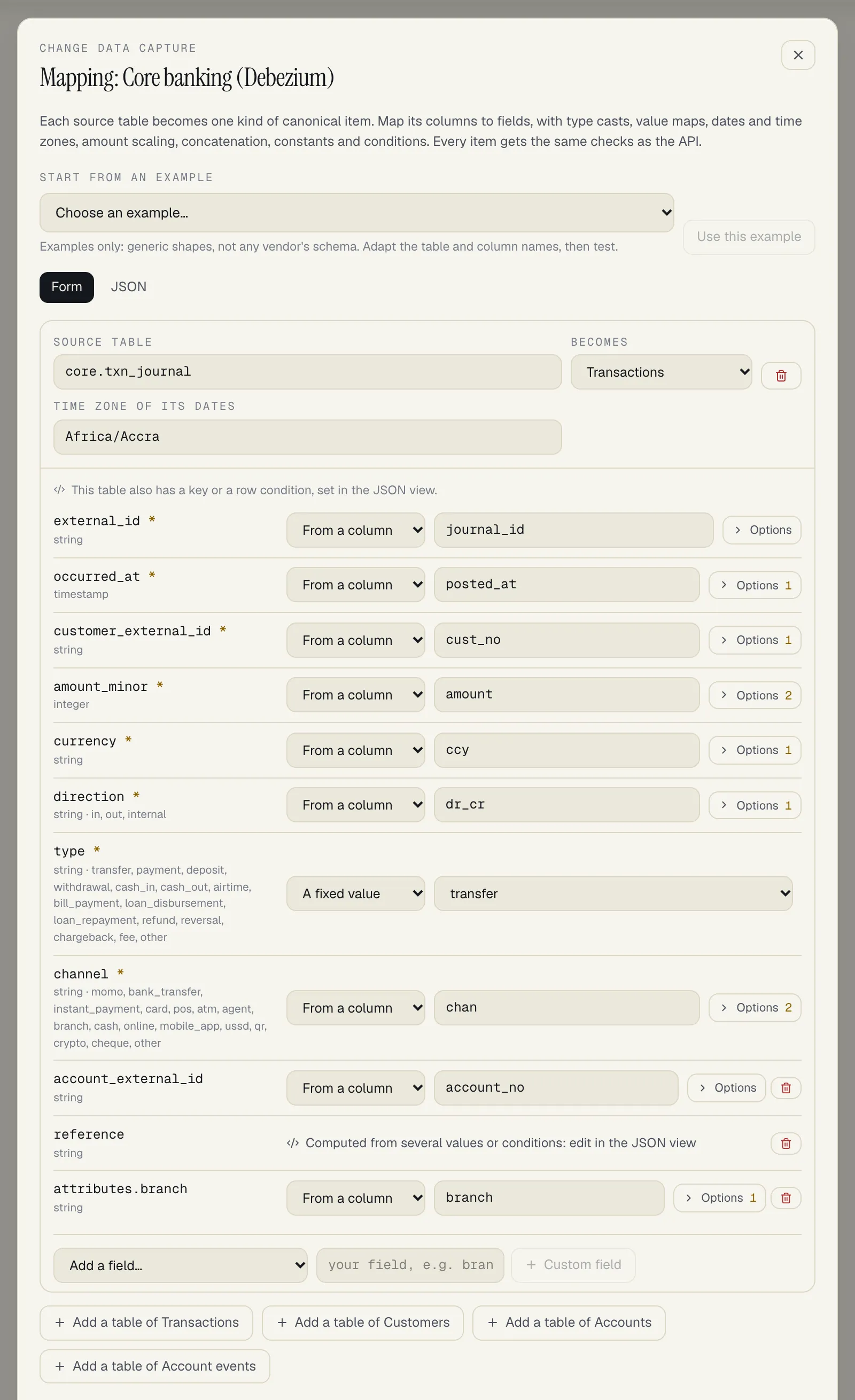
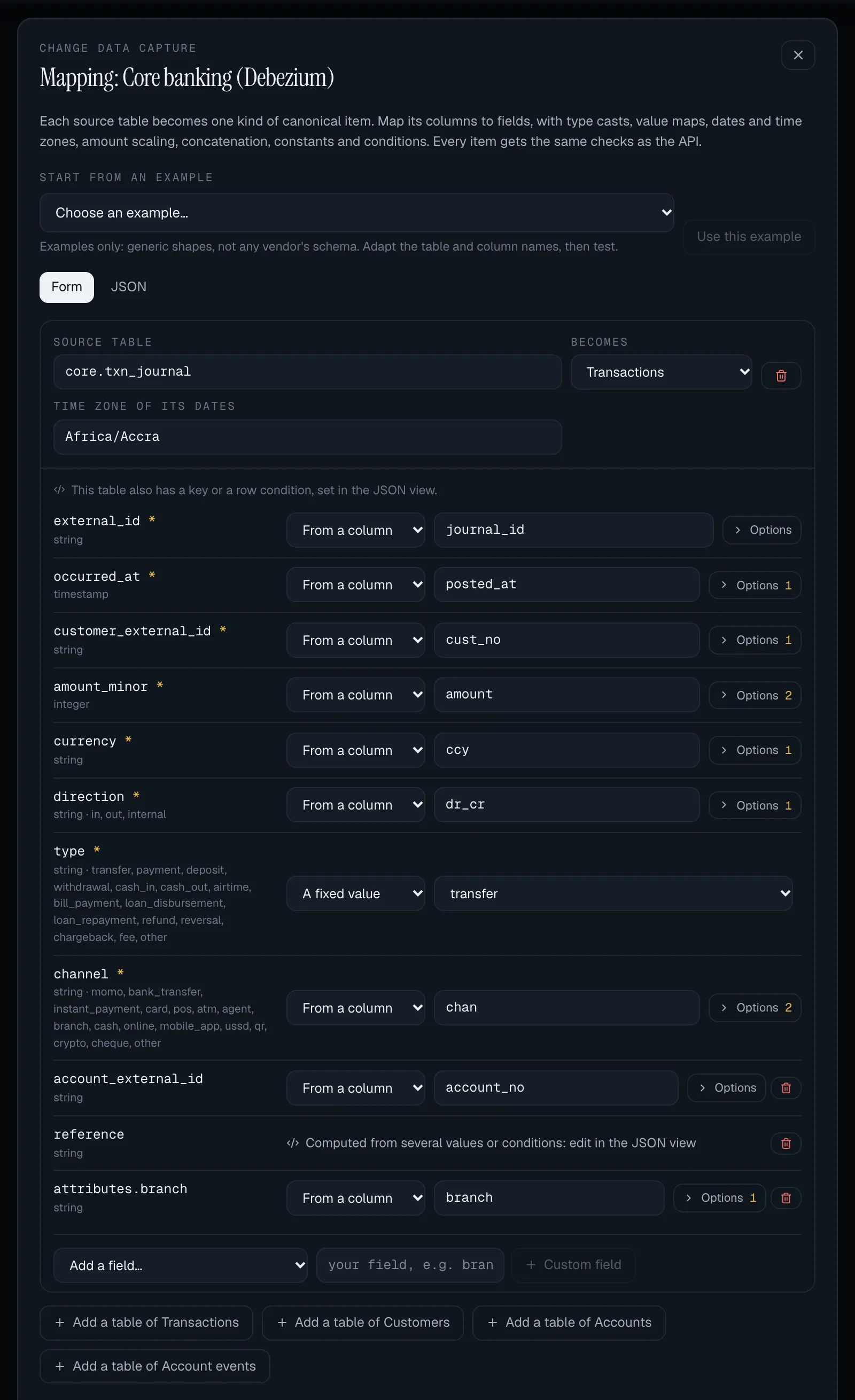
The form view
Section titled “The form view”How to map a table
Section titled “How to map a table”- Open the source and select Write the mapping (or Edit mapping). The Form tab is shown. To begin from a ready-made shape, see Starting from an example.
- At the bottom, select Add a table of Transactions (or Customers, Accounts, Account events). A card appears with the fields that kind requires, each waiting for a column.
- In Source table, type the table as the change events name it, for example
core.txn_journal. - Check Becomes: the kind of item each row becomes. If you change it, the fields the new kind also has are kept and its required fields are added. When mapped fields would be removed, SpeculaPro asks first: Change this table to accounts? 3 mapped fields that accounts doesn’t have will be removed.
- In Time zone of its dates, type the zone of dates stored without one, such as
Africa/Accra. Leave it empty for UTC. - For a table of customers or accounts, choose what A deleted row becomes: The usual status (a customer becomes exited, an account closed), another status, or Nothing (ignored). See Deletes become status changes.
- Fill in each field (below), test the mapping, and save it.
To take a table out, select the bin button on its card and confirm.
How to map a field
Section titled “How to map a field”Each row shows the SpeculaPro field, with * when it is required, its type and, where the field only takes certain values, the values allowed.
- Choose where the value comes from:
- From a column: type the column’s name, exactly as in your table.
- A fixed value: type the value every row gets, or choose it from the list when the field
has allowed values. For example
type=transfer.
- For a column, select Options if the value needs tidying or converting first (next section).
- To map a field that isn’t on the card, choose it under Add a field…, which lists the fields of this kind you haven’t mapped yet.
- To keep a column SpeculaPro has no field for, type a name beside Custom field (for example
branch) and select Custom field. It is stored asattributes.branch. - To remove a field, select its bin button. Required fields have none.
Switching a row between From a column and A fixed value starts that field again: its column and its options are cleared.
Anything still missing is outlined, and the card counts it: 2 things to fill in. That covers a table with no Source table, a column row with no column, and a required field that isn’t mapped.
Options for a column
Section titled “Options for a column”Options opens the settings for one column. The button shows how many are set.
| Option | Shown for | What it does | Example |
|---|---|---|---|
| Trim spaces | Every field | Removes spaces before and after the value | " ACC01 " becomes ACC01 |
| UPPER CASE, lower case | Every field | Changes the letters’ case | ghs becomes GHS |
| Drop the sign | Numbers | Removes a minus sign, for ledgers that store debits as negative amounts | -250.00 becomes 250.00 |
| To minor units of the row’s currency | Numbers | Converts an amount to the smallest unit of that row’s currency. Needs currency mapped |
12.50 GHS becomes 1250; 500 XOF stays 500 |
| Multiply by 10 to the power | Numbers | Multiplies by 10 that many times, when every row has the same currency or the column isn’t money. Not available while the option above is ticked | Power 2: 12.50 becomes 1250 |
| How the date is written | Dates and times | The pattern your column uses, or rfc3339, epoch_s, epoch_ms and the other formats listed under A field |
YYYY-MM-DD HH:mm:ss reads 2026-10-09 14:02:11 |
| Value when empty | Every field | The value used when the column is empty, or when its value isn’t in the translation list | other |
| Translate values | Every field | Turns your system’s codes into SpeculaPro’s values, one line for each: your value on the left, the SpeculaPro value on the right (a list to choose from when the field has allowed values). A new empty line appears as you fill the last one; clear a line’s left box to drop it | D → out, C → in |
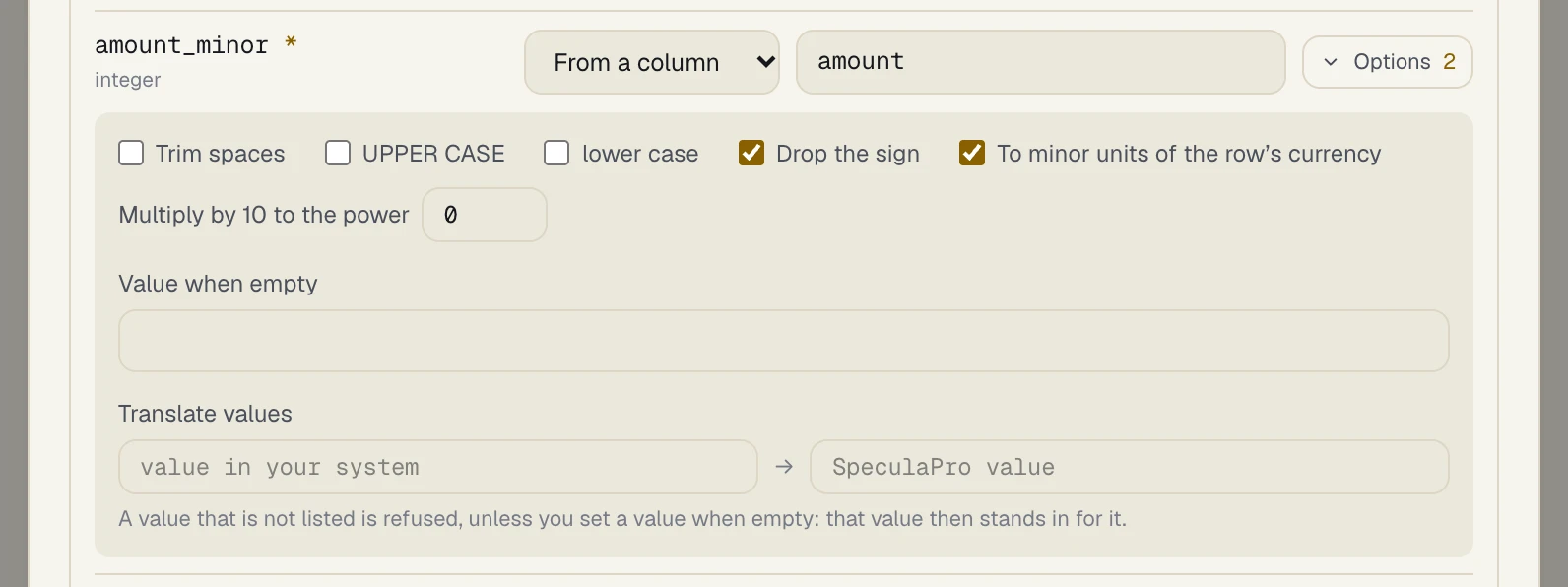
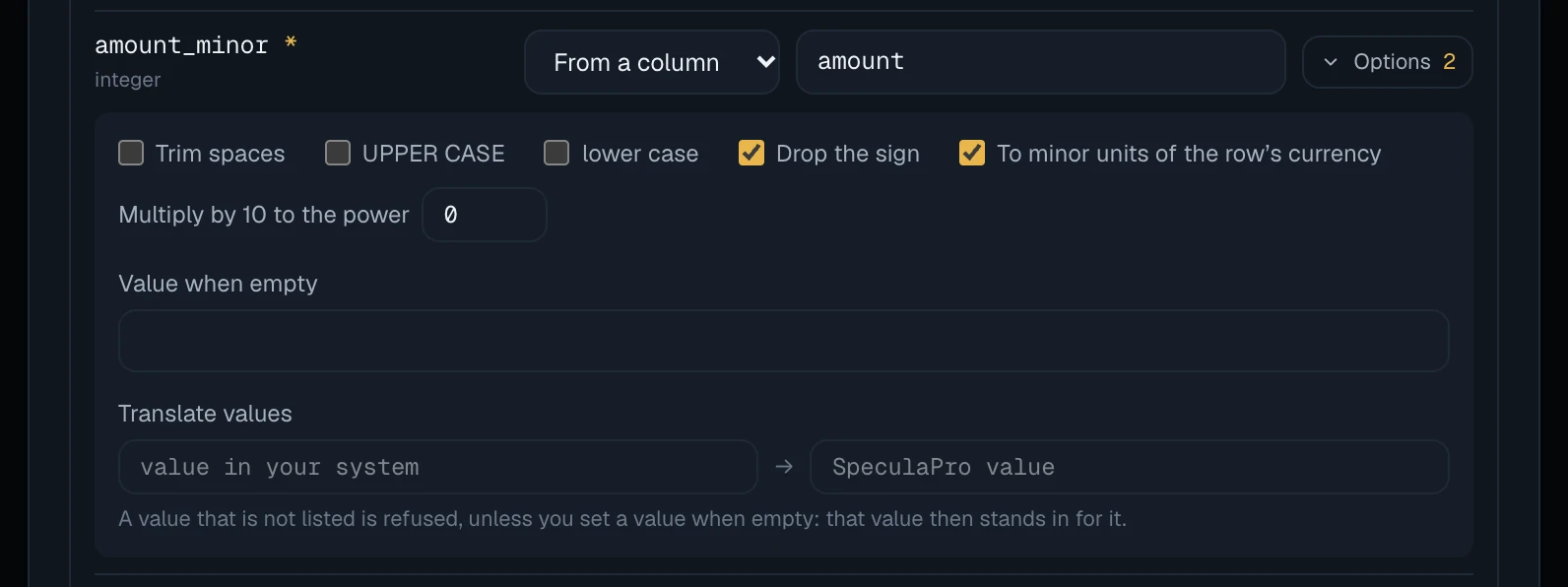
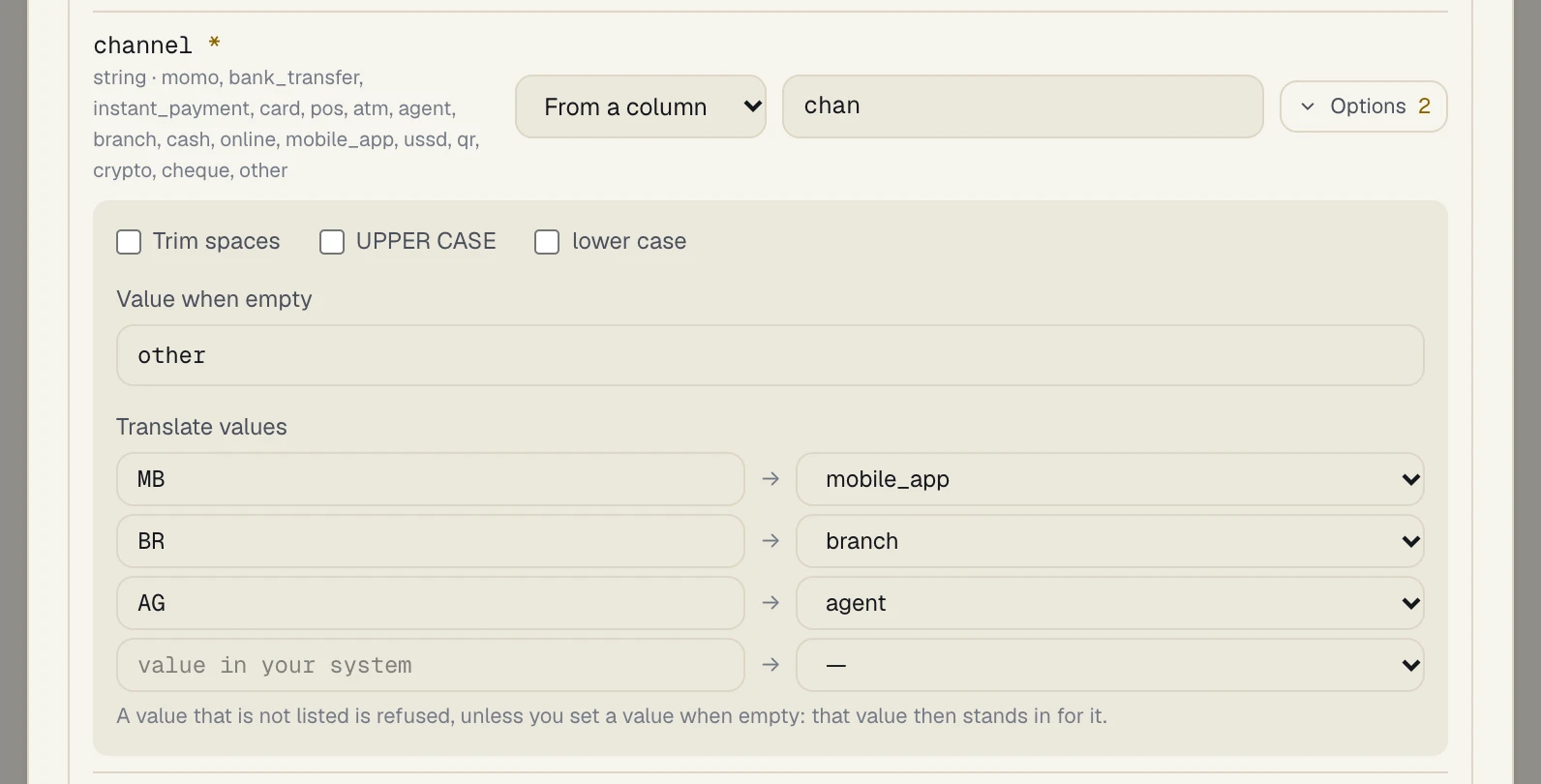
With Translate values filled in, a row whose value is not in the list is refused, not
passed through, unless you set Value when empty (for example other): that value then stands
in for it. The form says so under the list. Test the mapping with a value you
didn’t list to see what happens.
What the form leaves to the JSON view
Section titled “What the form leaves to the JSON view”The form has no control for some parts of a mapping. It shows that they are there, leaves them exactly as written, and you edit them on the JSON tab:
| In the mapping | What the form shows |
|---|---|
A field joined from several columns (concat) or chosen by conditions (cases) |
The row reads Computed from several values or conditions: edit in the JSON view. You can remove it, not change it |
A table’s key or its row condition (when) |
A note on the card: This table also has a key or a row condition, set in the JSON view. |
A field’s cast, or its own time_zone |
Nothing; they are kept as written |
If the JSON has a mistake, the form can’t read it and shows The JSON has an error. Fix it in the JSON view to use the form.
The JSON view
Section titled “The JSON view”The JSON tab shows the whole mapping as one document. The form writes this same document, so you can build most of a mapping in the form and finish it here.
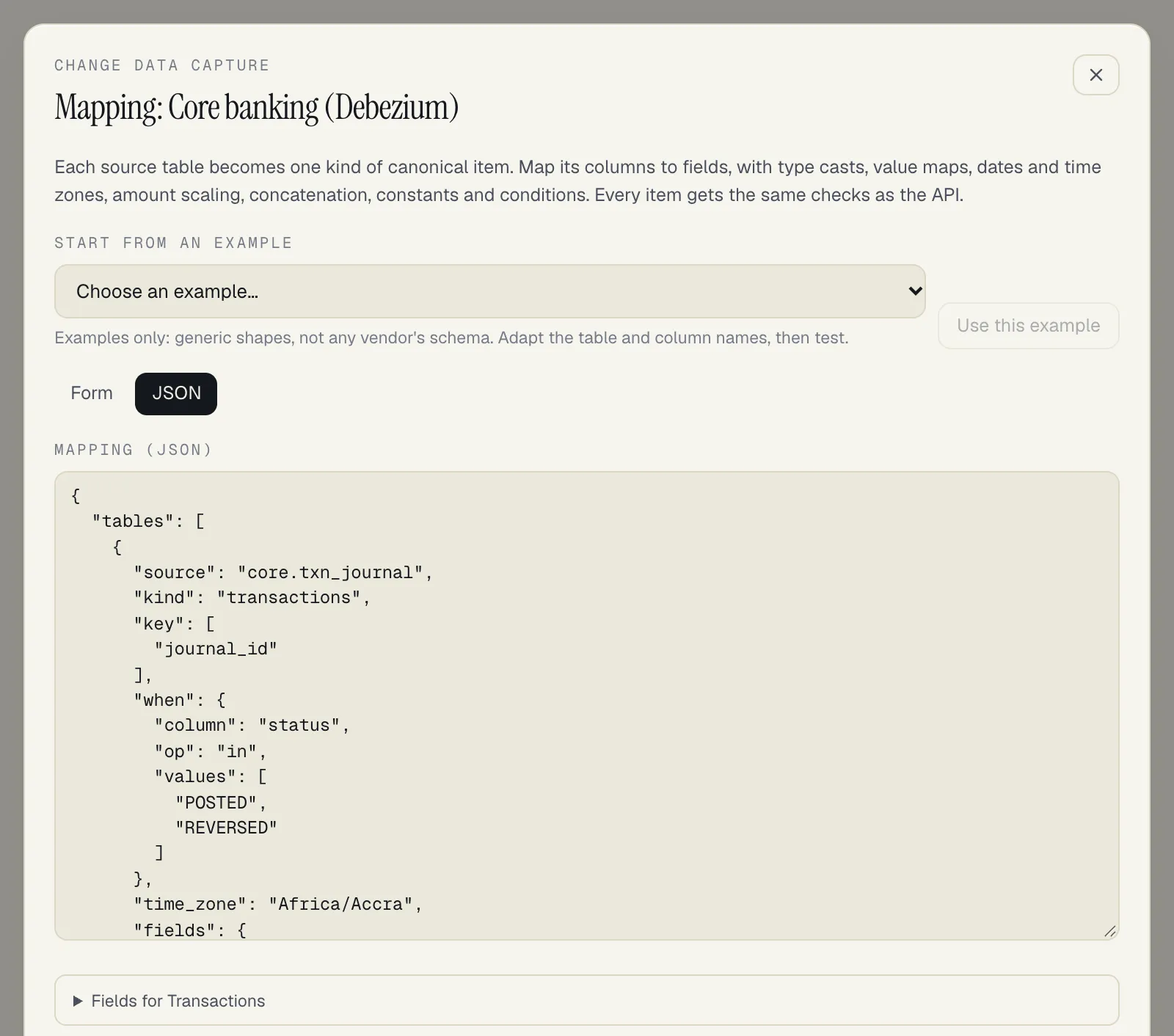
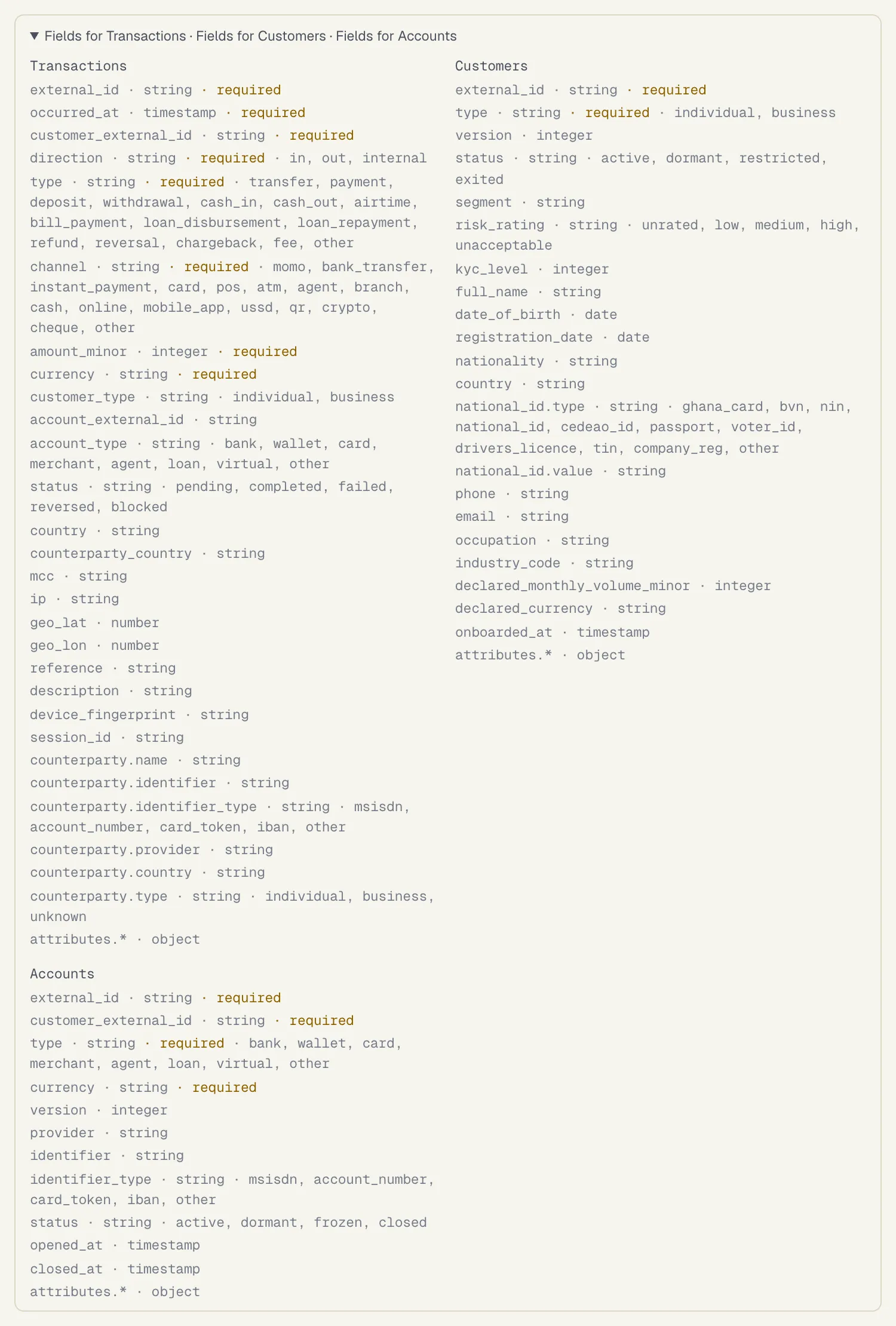
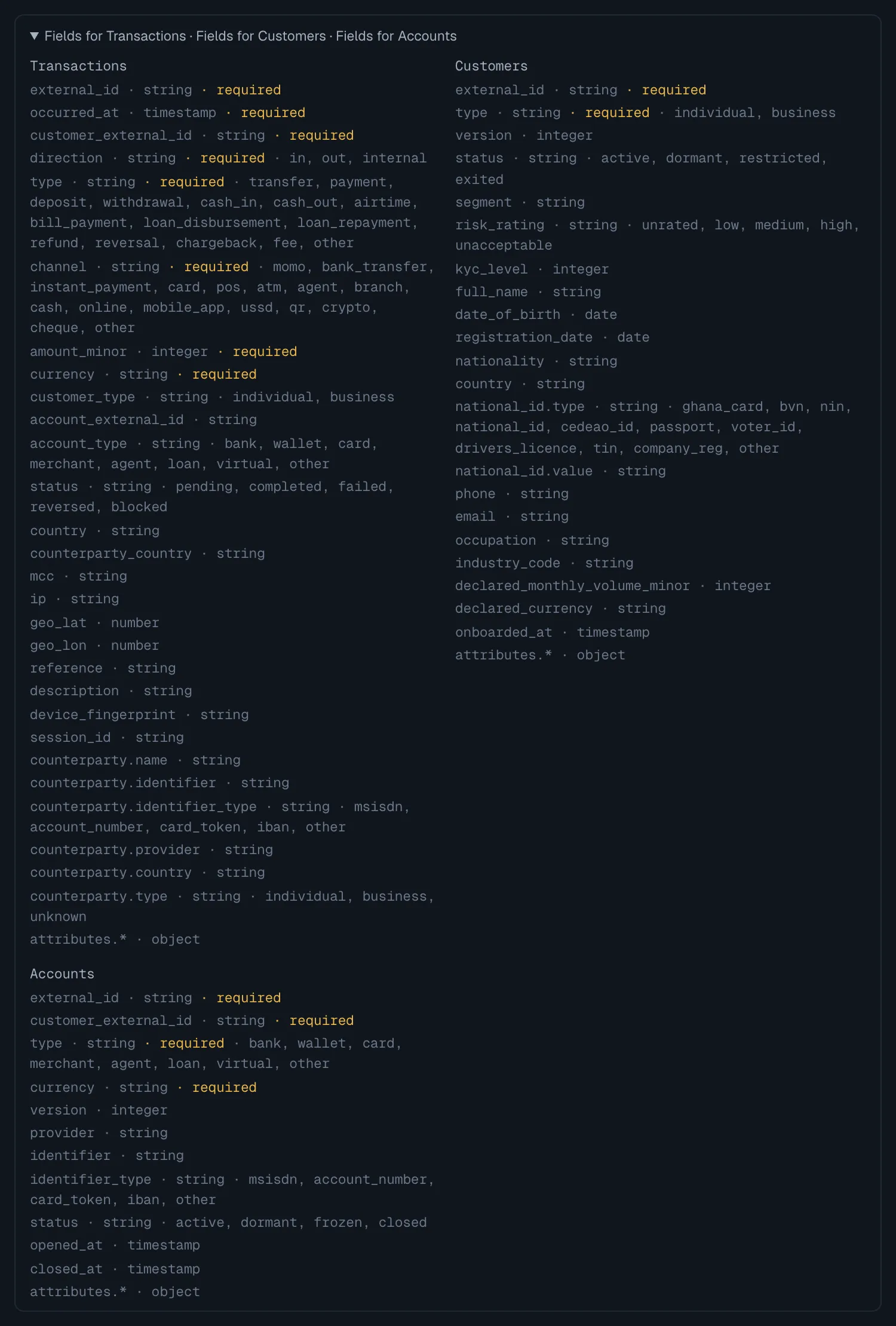
Open Fields for … under the editor (on either tab) to see every field you can map for the kinds of item in your mapping, with its type, whether it is required and its allowed values:
{"tables": [{ "source": "core.txn_journal", "kind": "transactions", "key": ["journal_id"], "when": {"column": "status", "op": "in", "values": ["POSTED", "REVERSED"]}, "time_zone": "Africa/Accra", "fields": { "external_id": {"column": "journal_id"}, "occurred_at": {"column": "posted_at", "format": "YYYY-MM-DD HH:mm:ss"}, "customer_external_id": {"column": "cust_no", "trim": true}, "amount_minor": {"column": "amount", "scale_currency": true, "abs": true}, "currency": {"column": "ccy", "upper": true}, "direction": {"column": "dr_cr", "map": {"D": "out", "C": "in"}}, "type": {"const": "transfer"}, "channel": {"column": "chan", "map": {"MB": "mobile_app", "BR": "branch"}, "default": "other"}, "reference": {"concat": [{"column": "branch"}, {"column": "seq"}], "separator": "-"} }}]}Read it as: every row of core.txn_journal whose status is POSTED or REVERSED becomes a
transaction; its ID is journal_id, its time is posted_at in Accra time, its amount is amount in
the currency’s minor units without its sign, and so on.
A table
Section titled “A table”| Key | Required | Meaning |
|---|---|---|
source |
Yes | The table as the change events name it: schema.table (MySQL: database.table). Case doesn’t matter |
kind |
Yes | transactions, customers, accounts or account_events |
fields |
Yes | Each canonical field and how to compute it (below). Every field the item kind requires must be mapped |
key |
No | The primary key columns. Default: the key the change event carries |
when |
No | A condition: only rows matching it become items; others are skipped |
time_zone |
No | The IANA time zone of date-times stored without one, such as Africa/Accra or Africa/Lagos. Default UTC |
on_delete |
No | What a deleted row becomes (see Deletes): customers exited (default), dormant or restricted; accounts closed (default), frozen or dormant; or ignore |
The field names are those of the API: see Transactions,
Customers, Accounts and
Account events. Nested fields are written with a dot:
counterparty.name, attributes.branch.
A mapping can hold up to 200 tables and 256 KiB.
A field
Section titled “A field”Each field takes its value from exactly one of:
| Source | Example | Gives |
|---|---|---|
column |
{"column": "journal_id"} |
That column’s value |
const |
{"const": "transfer"} |
A fixed value |
concat |
{"concat": [{"column": "branch"}, {"column": "seq"}], "separator": "-"} |
The values joined as text (empty ones left out): ACC-000123 |
cases |
see below | The value of the first case whose condition holds, else else |
Then, in this order, it can be transformed:
| Transform | Example | Does |
|---|---|---|
trim, upper, lower |
{"column": "ccy", "upper": true, "trim": true} |
Tidy text |
map |
{"column": "dr_cr", "map": {"D": "out", "C": "in"}} |
Look the value up. A value not in the map is rejected, unless there is a default |
default |
{"column": "channel", "map": {…}, "default": "other"} |
Used when the value is empty, or missing from the map |
cast |
{"column": "TXN_ID", "cast": "string"} |
Convert to string, integer, decimal, boolean, timestamp or date first (the field’s own type is applied anyway) |
format |
{"column": "posted_at", "format": "DD/MM/YYYY HH:mm"} |
How a date is written: a pattern such as YYYY-MM-DD HH:mm:ss.SSS ZZ, or rfc3339, epoch_s, epoch_ms, epoch_us, epoch_ns, epoch_days |
time_zone |
{"column": "value_date", "time_zone": "UTC"} |
The time zone of this value, instead of the table’s |
scale |
{"column": "amount", "scale": 2} |
Multiply by 10 to that power: 12.50 becomes 1250 minor units |
scale_currency |
{"column": "amount", "scale_currency": true} |
Scale by the item’s own currency (2 for GHS and NGN, 0 for XOF). Needs currency mapped |
abs |
{"column": "amount", "abs": true} |
Drop the sign, for ledgers that store debits as negative amounts |
An amount with more decimals than its scale allows is rejected, never rounded: 12.505 GHS
can’t become minor units.
Conditions (in when and in cases) compare a column with op: eq (the default), ne, in,
not_in, lt, lte, gt, gte, null, not_null, prefix, contains. Combine them with
all, any and not.
"direction": { "cases": [{"when": {"column": "amount", "op": "lt", "value": 0}, "then": {"const": "out"}}], "else": {"const": "in"}}Starting from an example
Section titled “Starting from an example”Start from an example offers five generic shapes, which you adapt to your own table and column names, in the form or in the JSON. Choose one and select Use this example:
| Example | Shape |
|---|---|
| Core banking: transaction journal | One journal table with debits and credits, a posted status, branch codes and local times |
| Core banking: customers | A customer master with status and risk codes; a deleted customer becomes exited |
| Core banking: accounts | An account master with product and status codes; a deleted account becomes closed |
| Wallet ledger: signed amounts | One table for credits and debits, the direction from the amount’s sign |
| Oracle through Debezium: upper-case names | Upper-case tables and columns, DATE columns as local times |
They are invented examples, not descriptions of any vendor’s product.
Testing a mapping
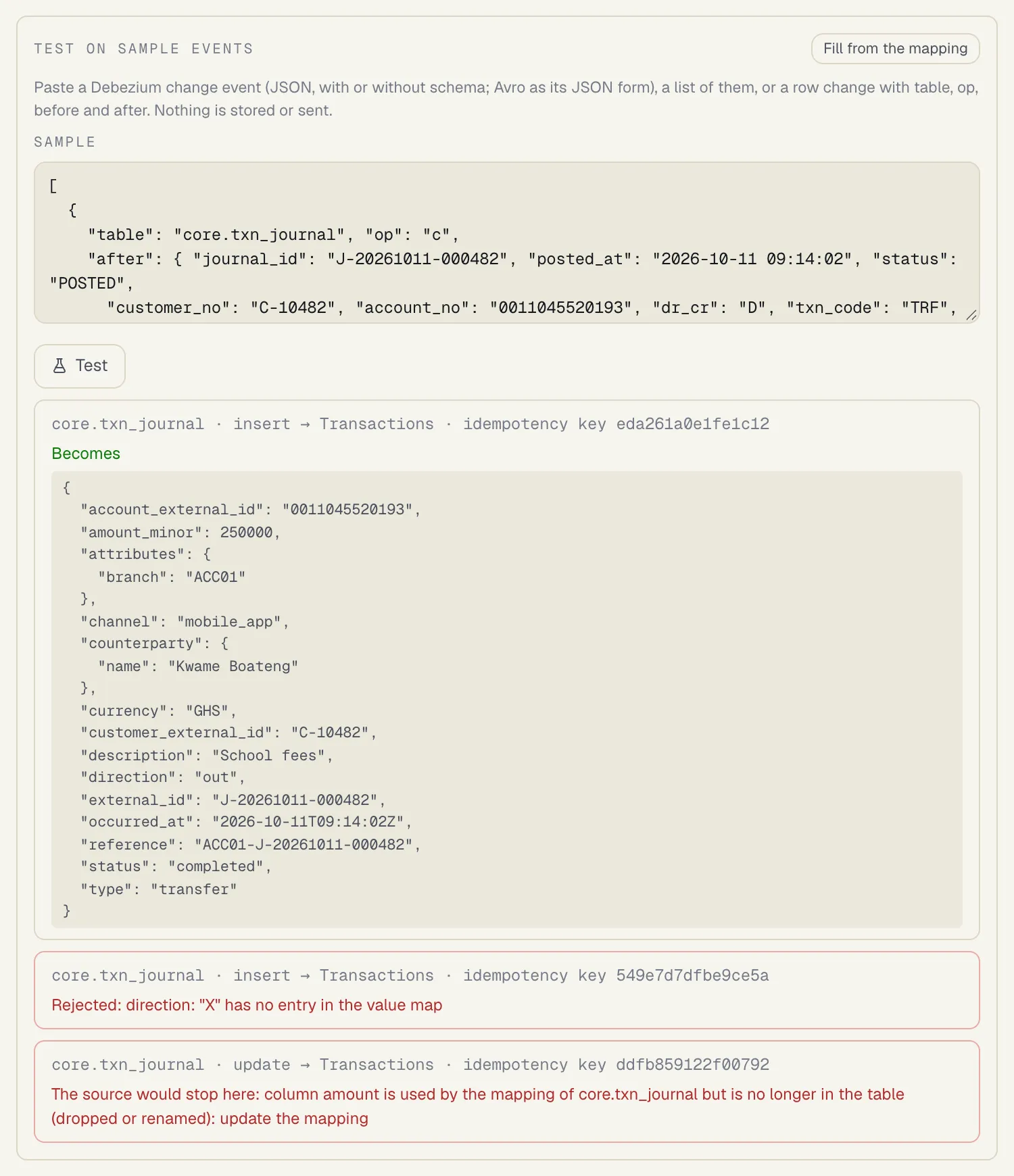
Section titled “Testing a mapping”Test on sample events shows what a mapping does without storing or sending anything. Paste a Debezium change event (JSON, with or without its schema; an Avro event as its JSON form), a list of up to 100, or a simple row change:
{"table": "core.txn_journal", "op": "c", "after": {"journal_id": 88123, "posted_at": "2026-10-09 14:02:11", "amount": "-250.00", "ccy": "ghs", "dr_cr": "D", "status": "POSTED", "branch": "ACC", "seq": "000123"}}op is r (first copy), c (insert), u (update) or d (delete). Fill from the mapping
writes a sample with your mapping’s columns. For each change the test shows what it becomes
(the item exactly as the API would receive it), or why it would be skipped or rejected, or
that the source would stop there, and the change’s idempotency key.
Versions and approval
Section titled “Versions and approval”Saving a mapping creates a new version: Save as version 3, with a note on what changed. The new version applies at once, and a source stopped by a mapping problem resumes from where it stopped. Earlier versions are kept, and Versions lists them so you can see exactly which mapping produced any stored item.
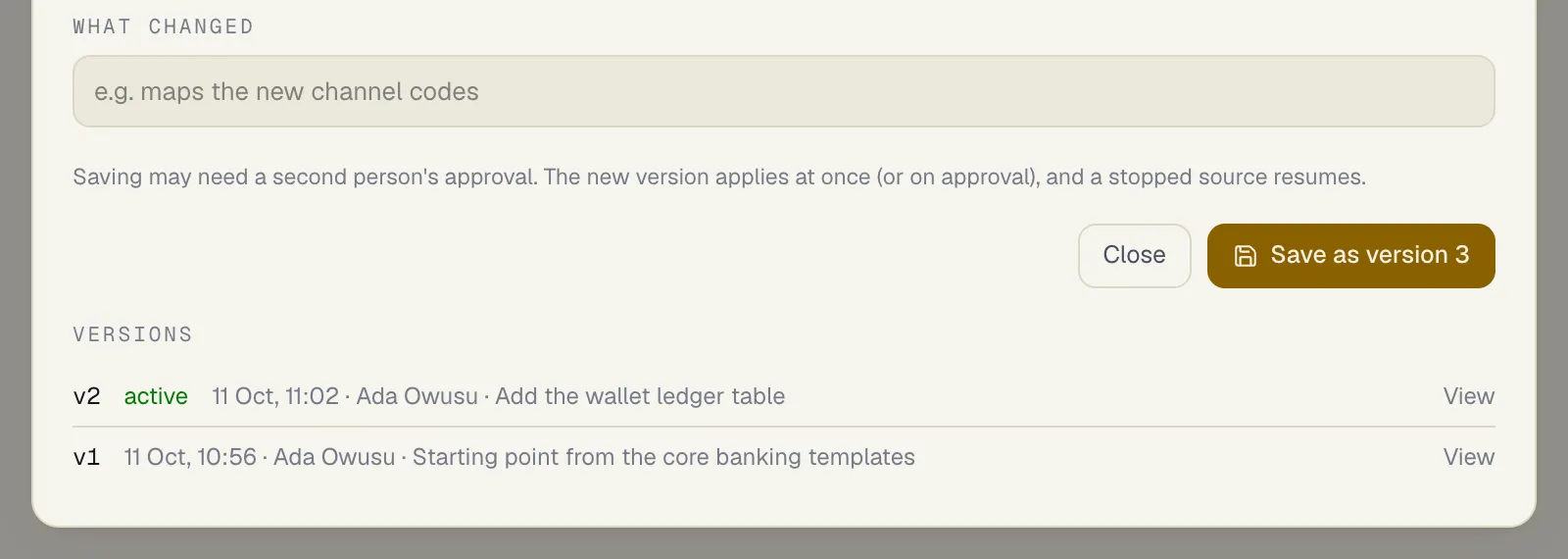
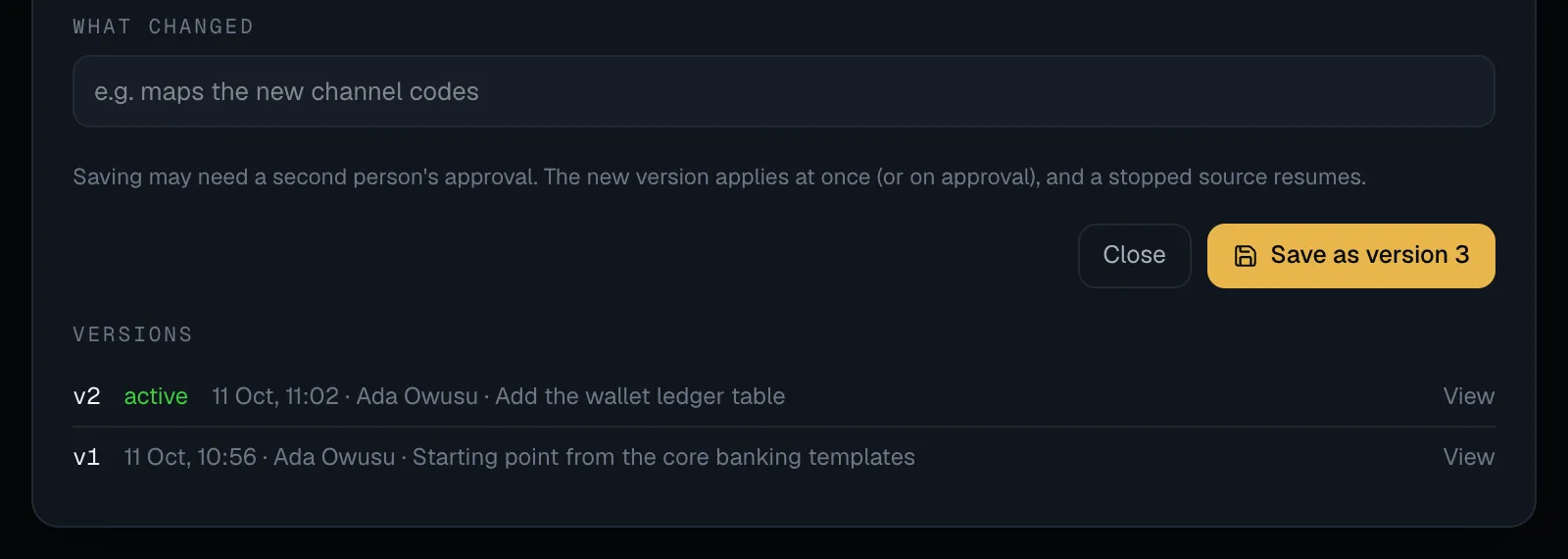
A new mapping version needs a second person’s approval when the workspace requires it for
Data source mappings (datasources.mapping), which is on by default once at least two people in the workspace can approve it
(datasources.approve); until then a version applies as soon as it is saved. The version then
applies when approved. See Approvals.
Rejected changes
Section titled “Rejected changes”A rejected change isn’t applied, and the source carries on with the next one.
- Debezium: the rejected change event goes, unchanged, to the source’s dead-letter topic,
with the reasons in
sp-errorheaders, as for Kafka topics. - Postgres replication: every rejected change is written to the source’s dead-letter topic
on the connector’s Kafka cluster, as JSON (the table, operation, key, the row before and after,
the log position and the reasons), with the reasons in
sp-errorheaders too. The topic is named<workspace>.<slot>.dlq, after your installation’s topic namespace if it has one, unlessdlq_topicis set on the source through the API. The source also shows its Last rejected changes (the newest 50) in the app.
To get a rejected change applied, fix the cause first (a new mapping version, or the data at the source), then:
- Postgres replication: select Read everything again. SpeculaPro drops its slot, takes a new first copy of every mapped table and follows changes from there. Rows already applied are recognised and nothing is duplicated; rejected rows get another chance with the current values.
- Debezium: Read everything again restarts from the last committed offsets; it doesn’t re-read the topics. Republish the dead-lettered events to the source topic, or have Debezium take a new snapshot (or reset the consumer group) to read a topic from the start.
Setting up a source
Section titled “Setting up a source”Debezium topics
Section titled “Debezium topics”- Under Settings → Data sources, select Add data source, then Debezium topics.
- Enter the Topics, one per line, usually one per table (
server.schema.table). They follow the same ownership rules as Kafka topics: never one of SpeculaPro’s own, never a shared topic, inside your namespace on a shared cluster. - Optionally, a Dead-letter topic (default: the first topic +
.dlq). - Choose the Format: Debezium JSON, or Debezium Avro (schema registry) with the
Schema registry URL (Confluent-compatible,
https://) and, if needed, a registry user and password. SpeculaPro’s connection to your Kafka cluster is the installation’s; only a registry password can be stored per source. - Leave Start paused ticked and select Add data source. Open the source, select Write the mapping, and when a version is saved, select Resume in the list.
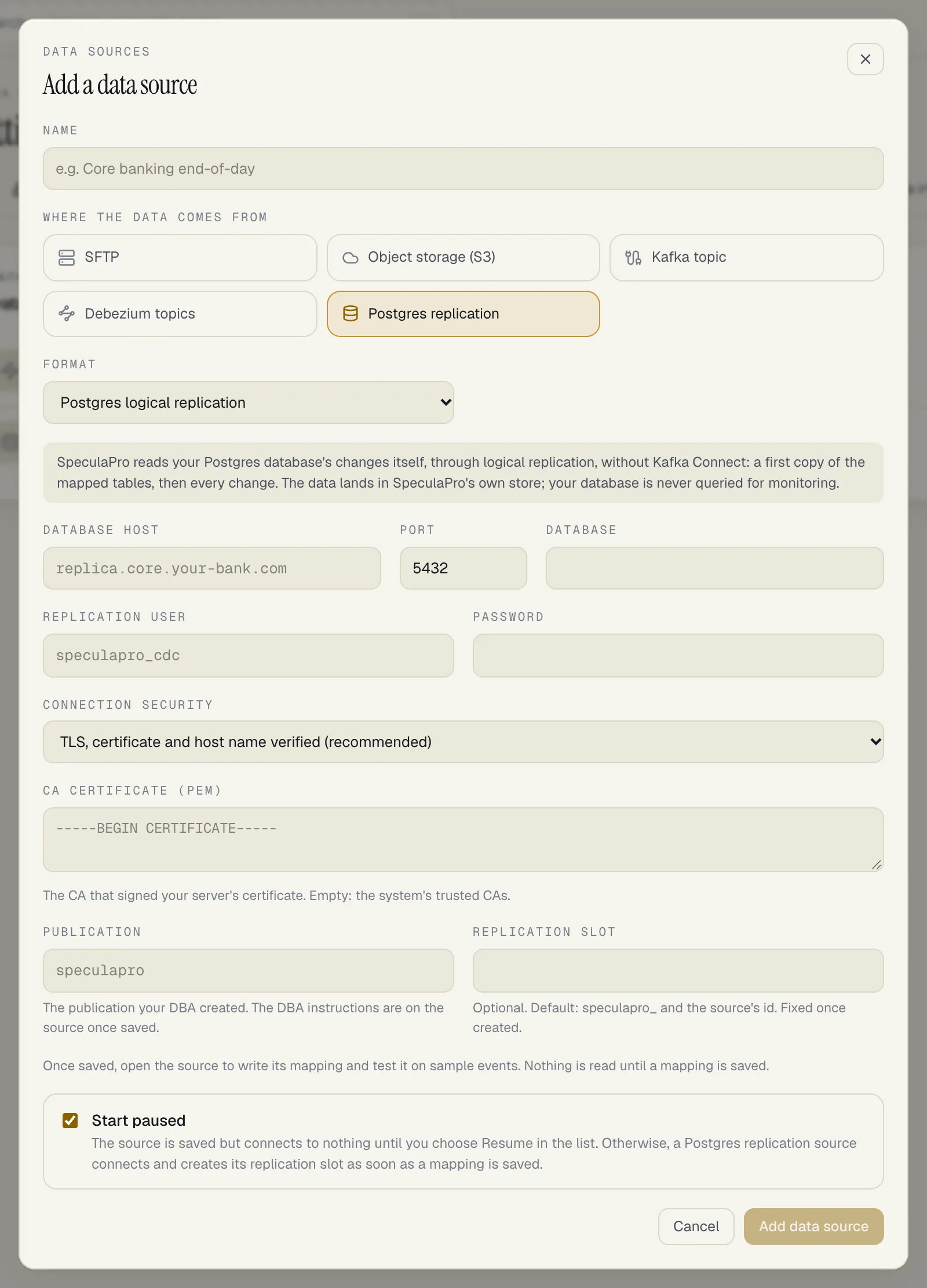
Postgres replication
Section titled “Postgres replication”- Ask your DBA to prepare the database: see Postgres replication for DBAs. The source shows the exact SQL, with its own names filled in, under DBA instructions once saved.
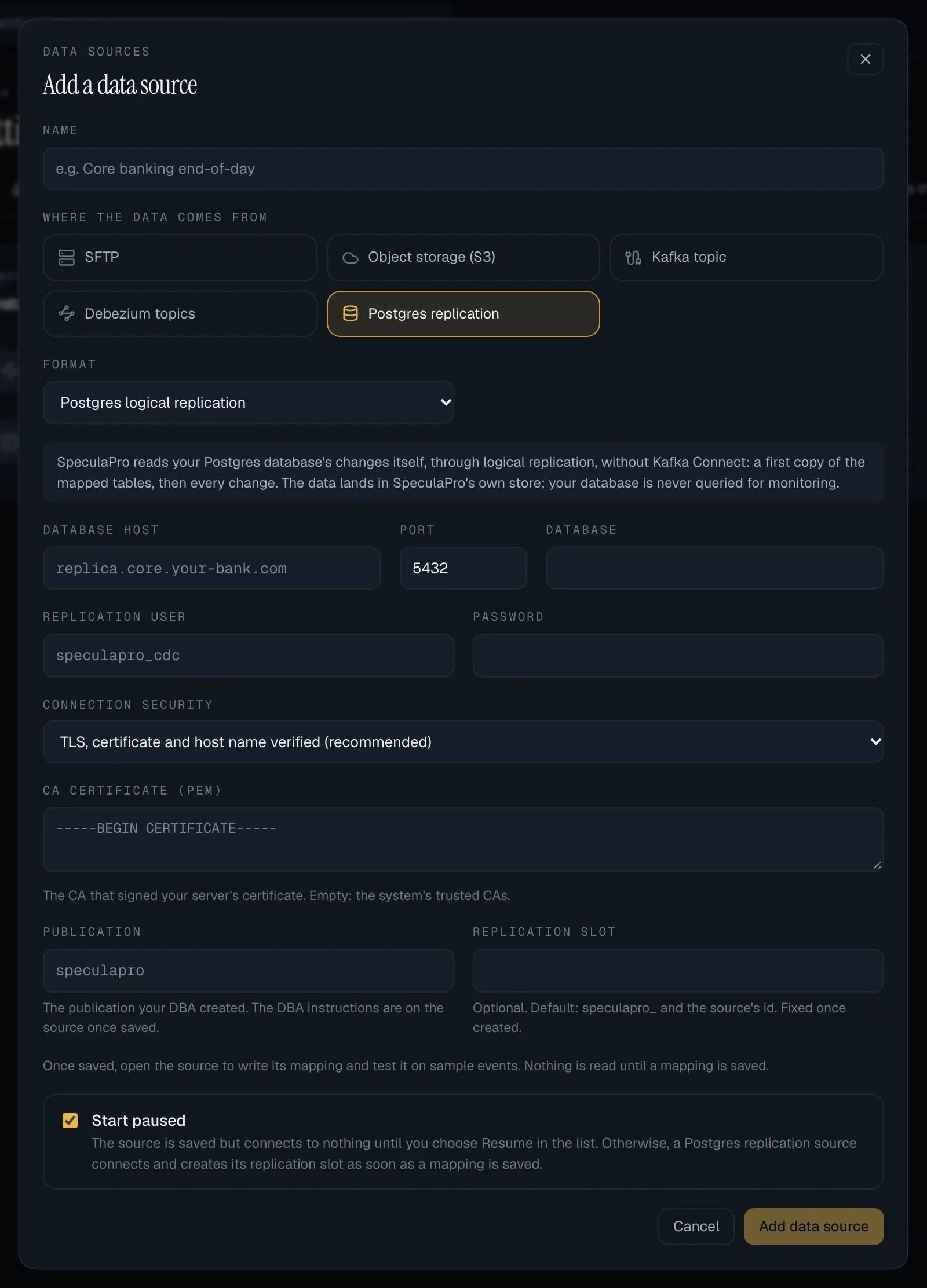
- Select Add data source, then Postgres replication.
- Enter the Database host, Port, Database, Replication user and Password, and the Publication your DBA created.
- Choose the Connection security. TLS, certificate and host name verified is the default and the recommended one; add a CA certificate if your server’s certificate isn’t signed by a public authority. Without TLS is possible only if your installation allows it.
- Optionally, name the Replication slot (default
speculapro_and the source’s ID). It can’t be changed once the slot exists. - Leave Start paused ticked (the default) and select Add data source. The source is saved but connects to nothing.
- Open the source and select Write the mapping. When a version is saved and your DBA is ready, select Resume in the list. SpeculaPro then connects, creates its replication slot and takes the first copy.
Adding a source, or changing where it connects, can need approval under Data sources
(datasources.connection, off by default). The same setting covers Read everything again,
Drop slot and deleting a Postgres source whose slot still exists. See
Data sources.
Known limits
Section titled “Known limits”- The form doesn’t cover everything. Joined values (
concat), conditions (cases), a table’skeyand row condition (when), and a field’scastor own time zone are edited in the JSON view. See What the form leaves to the JSON view. - Not yet tested against a real Oracle, a real Debezium deployment, or a production replica. The decoding is tested with Debezium’s documented event formats and against Postgres in the test suite. Run a pilot against a copy of your database first.