
Plans and limits
In short
Section titled “In short”A plan is the provider’s record of what was agreed with an institution: a plan name, a number of transactions per month, a number of people, a number of AI assistant calls per month, and private staff notes.
Limits are recorded and shown next to usage. They do not stop monitoring: a workspace over its monthly transactions still has every transaction taken and every decision answered. SpeculaPro holds two limits: the number of people, where it only refuses adding one more, and the AI assistant’s calls per month on the installation’s key, where a call past the number is refused. Neither stops any monitoring.
| Limit | When a workspace goes over |
|---|---|
| Transactions per month | Marked Over limit in the console and counted in a metric that can alert you. Nothing is blocked: ingest, monitoring and real-time decisions carry on |
| Users | Marked Over limit the same way. Adding or re-enabling one more person is refused in the workspace. Nobody who already has access is deactivated |
| AI assistant calls per month | Enforced. A call past the number, plus any calls you added for the month, is refused in the workspace with this month’s AI allowance is used up, and automatic review stops until the next month or until you add calls. It is not marked Over limit and is not in the over-limit metric: the workspace can’t go over it. See The AI assistant in the plan |
How to set a plan
Section titled “How to set a plan”You need the Owner or Billing role.
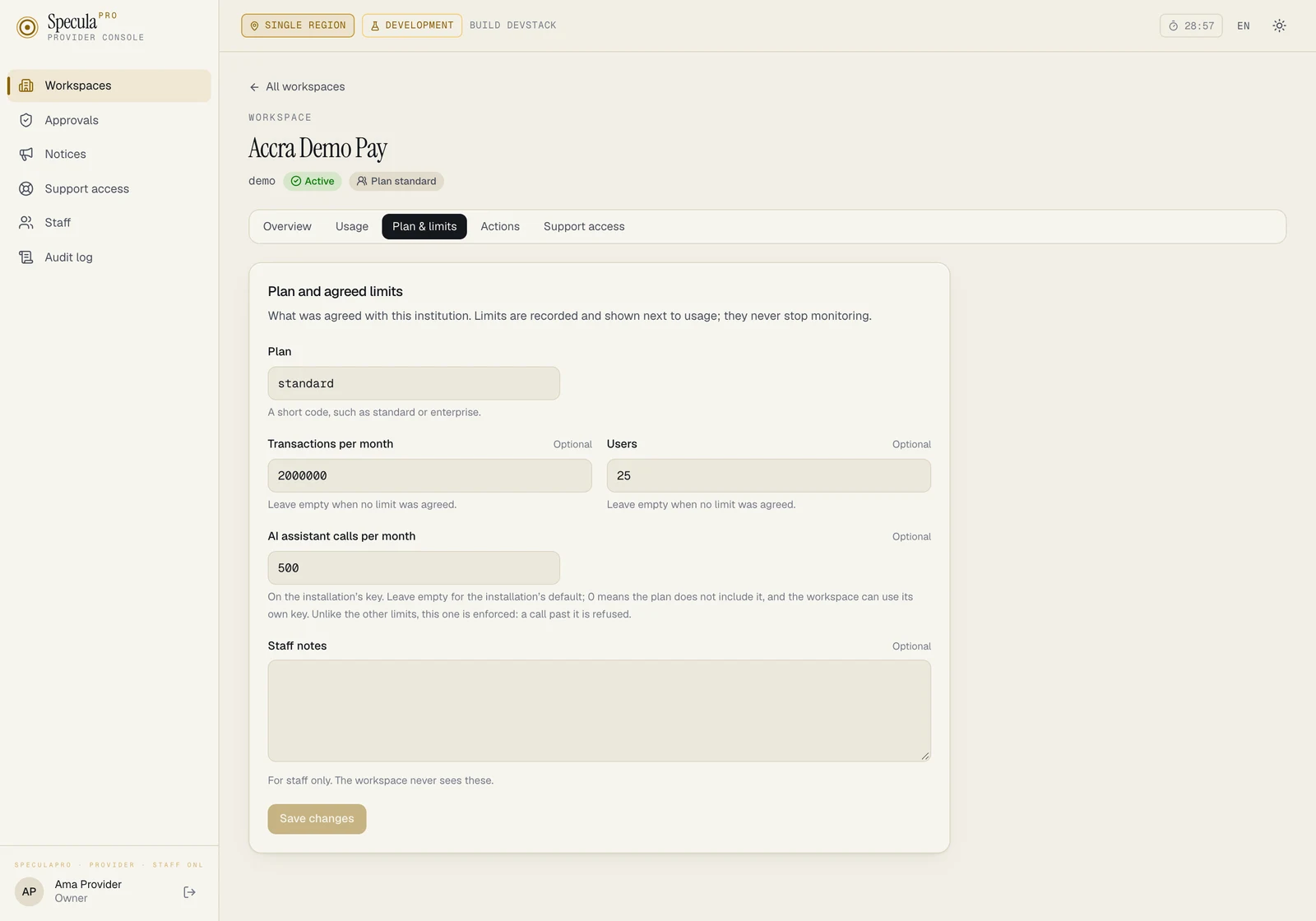
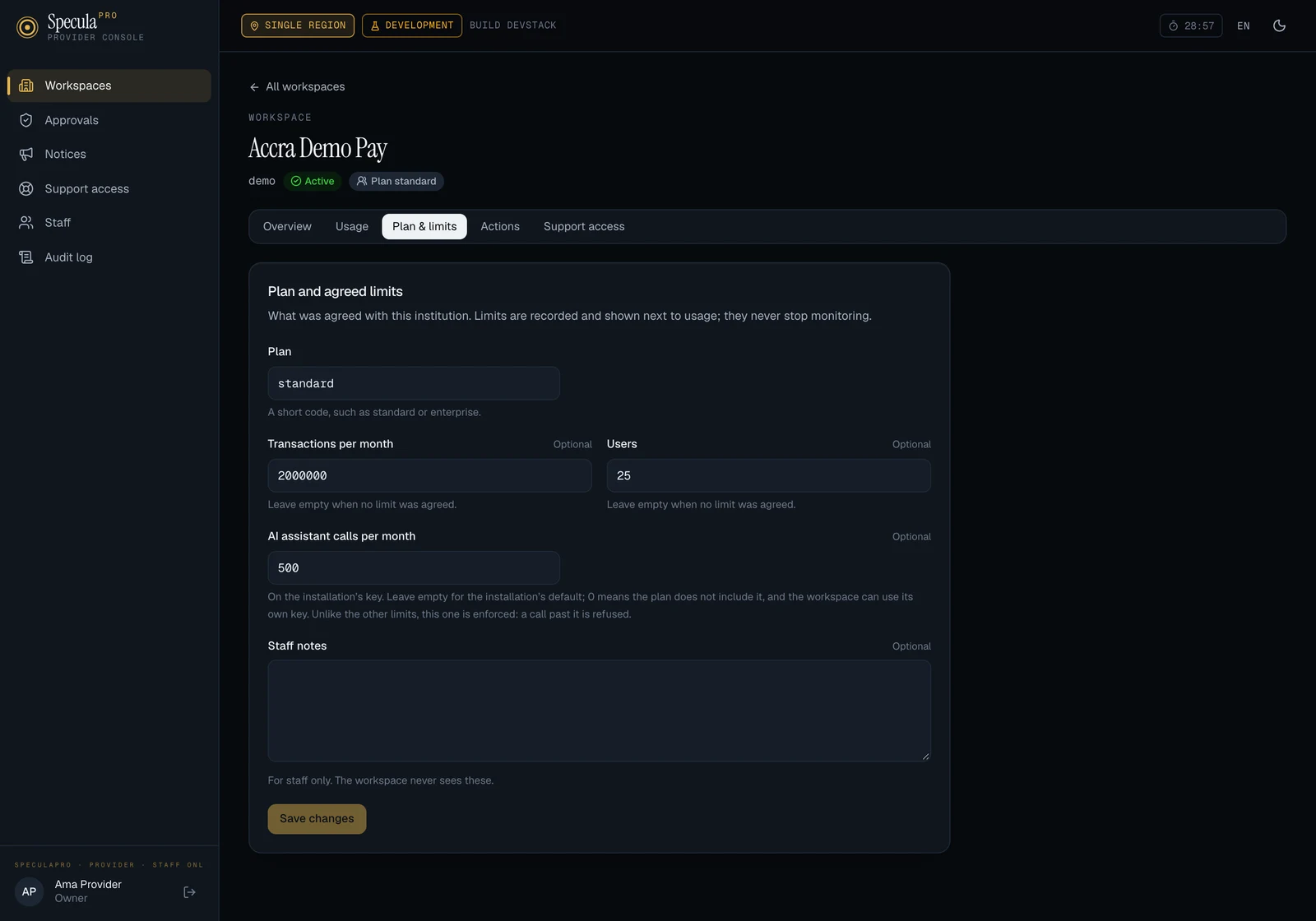
- Open the workspace and select the Plan & limits tab.
- Enter the Plan: a short code such as
standardorenterprise. It is 2 to 32 characters: a lowercase letter, then lowercase letters, digits, dashes or underscores. - Enter Transactions per month and Users, or leave either empty when no limit was agreed.
- Enter AI assistant calls per month, or leave it empty for the installation’s default. Enter
0when the plan doesn’t include the assistant on your key. See The AI assistant in the plan. - Write any Staff notes. They are for staff only.
- Select Save changes.
Other roles that can read plans see the same tab with the note Your role can read the plan but not change it.
What the workspace sees
Section titled “What the workspace sees”A plan change is written to the workspace’s own audit log as provider.plan_changed, with the new
plan name and limits (the AI allowance among them) and the name of the member of staff. The
console’s own audit log records workspace.plan_changed with the limits before and after. The staff notes are never shown to the
workspace and are not in that entry.
The AI assistant in the plan
Section titled “The AI assistant in the plan”A workspace that switches the AI assistant on chooses whose key pays for it: the installation’s (Provided with your subscription) or its own. AI assistant calls per month says how many calls the workspace may make in a calendar month (UTC) on the installation’s key.
| You enter | The workspace gets |
|---|---|
| Nothing (empty) | The installation’s default, SP_AI_MONTHLY_CALLS. With that at 0, no limit |
A number, such as 500 |
That many calls a month on the installation’s key, in place of the default. Its settings page reads, for example, 412 of 500 calls used on your subscription this month |
0 |
The installation’s key is not in the plan. The workspace’s settings no longer offer Provided with your subscription, and a call on that key is refused with the AI assistant has no API key to use. The workspace can still use a key of its own. Calls added for the current month override this until the month ends: see Adding calls for a month |
What to know:
- It is enforced. A call is counted before it is made, one at a time for each workspace, so
the number can’t be overrun. Past it, asking answers this month’s AI allowance is used up
(
429through the API) and automatic review stops for the workspace until the 1st. Monitoring, alerts and cases are not affected. - The workspace is warned. Its administrators (
settings.manage) are notified once when four fifths of the month’s total is used and once when all of it is, and their settings page shows a meter. From there they can ask you for more. - A workspace’s own key is never limited. Those calls are counted and shown, and billed to the institution by the model’s provider.
- A change applies at once, to the current month. Lowering the number below what has already been used refuses the next call; nothing already answered is taken back.
- Setting
0doesn’t change the workspace’s settings. A workspace that is already on with the subscription’s key stays “on”, but every call is refused until it enters a key of its own or you raise the number. Its AI assistant settings show a banner: Your plan no longer includes the assistant on the subscription’s key, so it cannot answer. Choose your institution’s own key below, or ask your service provider to add it to your plan. Nobody is notified, so tell the institution before you do it. - The field is also on the Create a workspace sheet, under Plan and agreed limits.
- No prices and no invoices. SpeculaPro counts calls and tokens. What a call costs, and what you charge for it, is yours to work out from the usage figures.
Adding calls for a month
Section titled “Adding calls for a month”When a workspace needs more calls than its plan gives in one month (a backlog, a busy quarter
end), you can add calls for the current calendar month without changing the plan. This is a
top-up. You need the Owner or Billing role (plans.manage).
- Added calls come on top of the agreed allowance and are available at once.
- They are for the current month (UTC) only and do not carry over: unused ones are gone on the 1st.
- You can add them unasked, or in answer to a request the workspace’s administrators sent from their settings.
- A workspace with no limit gains nothing from a top-up.
- A workspace whose plan says
0(Not in this plan) can’t be topped up: the console refuses with this workspace’s plan does not include the assistant on the installation’s key; change the plan before adding calls. Put a number in the plan first. Its administrators can’t ask for more calls either: their settings don’t offer it, and a request is refused. - A closed workspace can’t be topped up: this workspace is closed.
How to add calls
Section titled “How to add calls”- Open the workspace and select the Usage tab.
- Under More AI calls, enter Calls to add (1 to 1,000,000).
- Optionally write a Note. For the record: an order or an invoice number. On a top-up nobody asked for, the note stays in the console.
- Select Add calls for this month. The console confirms Calls added. The workspace has been notified.
The panel then reads, for example, 5 calls added for this month, on top of the agreed allowance. Added calls do not carry over.
How to answer a request
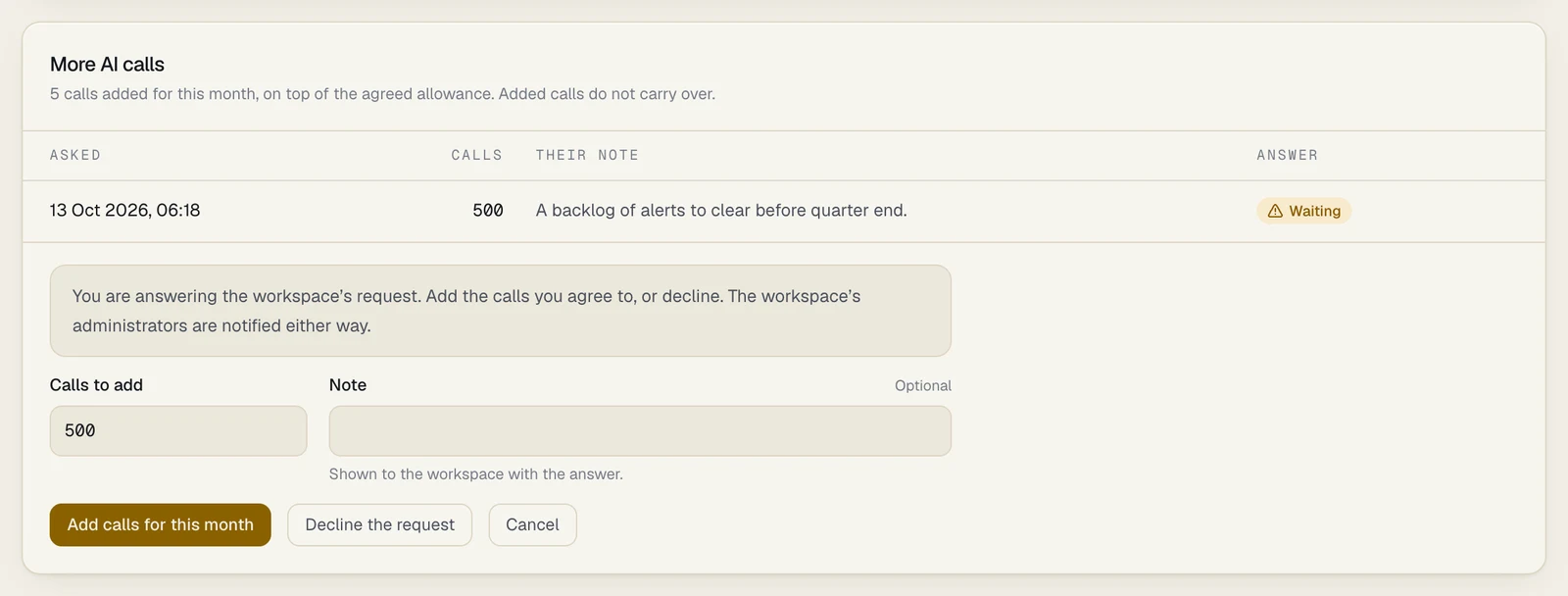
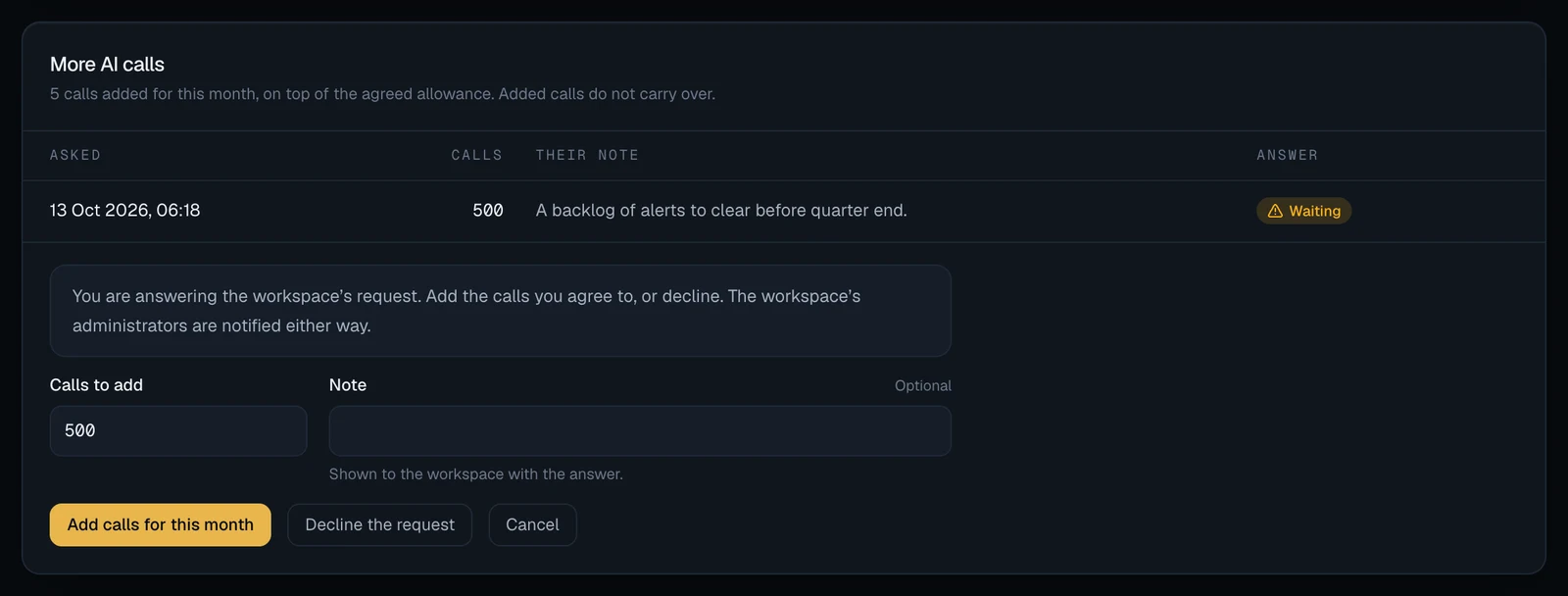
Section titled “How to answer a request”A workspace that has asked for more calls is marked AI calls requested in the Workspaces list, and its request is listed under More AI calls → Requests from the workspace: when it was Asked, how many Calls, Their note and your Answer. A request that hasn’t been answered reads Waiting, and one left unanswered past the end of its month reads Expired, unanswered.
- Open the workspace’s Usage tab and select Answer on the waiting request. You are answering the workspace’s request. Add the calls you agree to, or decline. The workspace’s administrators are notified either way.
- To grant it, enter Calls to add. It doesn’t have to be the number asked for. Then select Add calls for this month.
- To refuse it, select Decline the request. The console confirms Request declined. The workspace has been notified.
- Either way you can write a Note. Here it is shown to the workspace with the answer, so don’t write anything in it that is for staff only.
What to know:
- The workspace’s side. See How to ask for more calls. One request can wait at a time; the workspace can’t send another until you answer.
- You see the number and the note, never who asked. The note is free text written by the workspace’s administrator. Treat it as the customer’s own words: it may hold details you shouldn’t copy elsewhere.
- A request is answered once. A second answer is refused with this request has already been answered.
- Calls go to the month in which you answer, and a request is for the month it was asked in.
- A waiting request blocks the workspace from asking again in the same month, and it can’t be withdrawn. Decline requests you won’t grant.
- A request still waiting when its month ends expires. From the 1st it reads Expired,
unanswered, has no Answer button, and the workspace no longer shows AI calls
requested in the list. The workspace’s settings tell its administrators that the request
expired and that they can send a new one. Nothing is written when this happens: there is no
audit entry and no notification, on either side. Through the API, a top-up that names an
expired request is refused (
409this request was for an earlier month and has expired; add the calls without it); add the calls unasked if you still mean to. - Who is told. Everyone with
settings.managein the workspace is notified: 500 more AI assistant calls for this month or Your request for more AI assistant calls was declined. An unasked top-up is notified in the same way. - What is recorded. The console’s audit log records
workspace.ai_topup(slug, month, calls, and the request answered, if any) andworkspace.ai_request_declined. The workspace’s own audit log recordsprovider.ai_topup(month and calls) andprovider.ai_request_declined, with the name of the member of staff. Your notes are in neither entry. - Requests and top-ups are your records. Like the usage counts, they are kept when the
workspace is deleted, but then only in the database (
provider_ai_requests,provider_ai_topups). - A move between regions leaves them behind. After a move the target region knows nothing of this month’s top-ups or of a waiting request: the workspace is back on the plan’s number, and can ask again.
- Through the API:
POST /workspaces/{id}/ai-topupsandPOST /workspaces/{id}/ai-requests/{request_id}/decline. See Console API.
Where “over limit” appears
Section titled “Where “over limit” appears”- In the workspace list, an Over limit mark next to the plan, and the share used of each agreed number.
- On the workspace’s Usage tab, the agreed monthly limit drawn on the chart, and Over the limit next to this month’s figure or the number of users.
- In the metric
speculapro_provider_workspaces_over_limit, bylimit(usersorevents), sampled every minute and counting active workspaces only. - In the Helm alert
SpeculaProWorkspaceOverPlanLimit(severityinfo), which fires when that metric has been above zero for an hour. The alert doesn’t name the workspace; the console’s list shows which.
What counts:
| Limit | Compared with |
|---|---|
| Transactions per month | Transactions this calendar month, UTC, as last counted (hourly) |
| Users | People who can sign in today: active and invited |
A limit of zero means anything at all is over. No limit means never over.
The people limit, in the workspace
Section titled “The people limit, in the workspace”When a workspace has reached its agreed number of people, one more is refused wherever people are added. The rule sits in the database, so every path answers the same way.
| Where | What happens |
|---|---|
Settings → People in the app, or POST /api/v1/users, and re-enabling a deactivated person |
Refused with 409 and the message below |
| SCIM (the identity provider creates or reactivates someone) | Refused with 403 and the same message |
| Single sign-on, first sign-in (a just-in-time account) | No account is made and the sign-in fails; the workspace’s audit log records auth.sso_failed with the reason plan_user_limit |
The message people see:
This workspace’s plan allows 25 people, and all of those places are taken. Deactivate someone who no longer needs access, or ask SpeculaPro to raise the limit.
What the limit never does:
- It never deactivates anyone. Lowering the limit below the current number leaves everyone in place; the workspace is simply over, and can’t add until it is back under.
- It never touches API keys, transactions or decisions.
- It doesn’t apply to a workspace with no limit recorded.