
Teams
In short
Section titled “In short”A team is a named group of people who share a queue of cases: a sanctions desk, a PEP desk, a fraud team. A case joins a team’s queue in one of two ways:
- an escalation policy names the team for a level, or
- someone working the case puts it in a team’s queue by hand, on the case page.
Team members can then filter the case list to My teams, and they are the people notified when a case arrives in their queue or misses its deadline there.
You manage teams under Settings → Escalation, in the Teams panel. You need the
settings.manage permission (in the default roles, the Administrator). People with
settings.view can read the tab.
What a team contains
Section titled “What a team contains”| Part | What it is |
|---|---|
| Name | 1 to 80 characters, unique in the workspace, for example Sanctions desk |
| Members | Any number of active people in the workspace, up to 500. A person can be in several teams |
| Lead | A mark on a member. The team list shows a star beside each lead, and leads are listed first |
Each team’s row shows its members and how many open cases are in its queue.
How to create a team
Section titled “How to create a team”- Open Settings → Escalation.
- In Teams, select New team.
- Enter a Name.
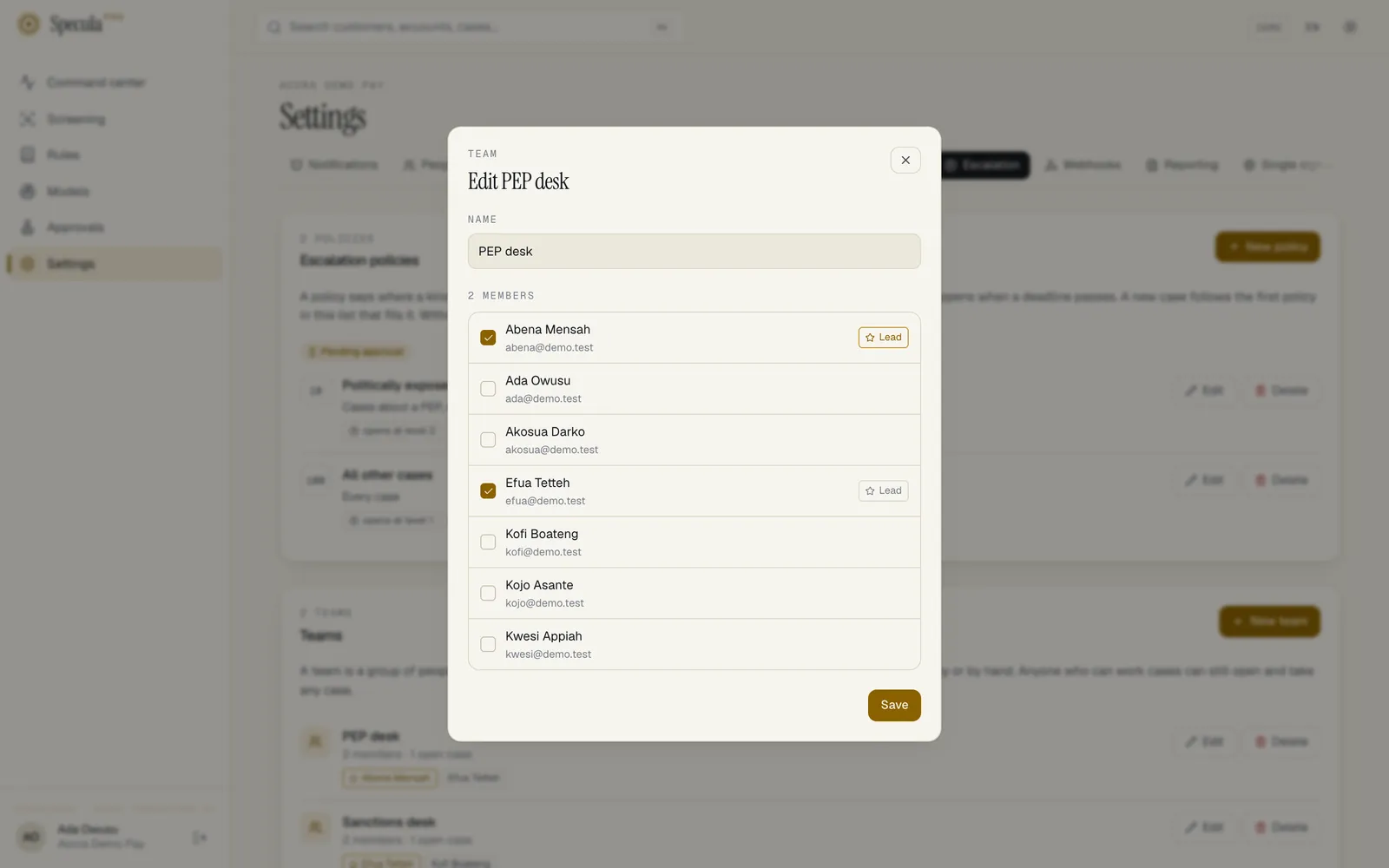
- Tick each person who belongs to the team. Only active people are listed.
- For each person who heads the team, select Lead beside their name.
- Select Create team.
The team exists at once. Creating, changing and deleting teams does not go through approval; only escalation policies do.
How to change a team
Section titled “How to change a team”- On the team’s row, select Edit.
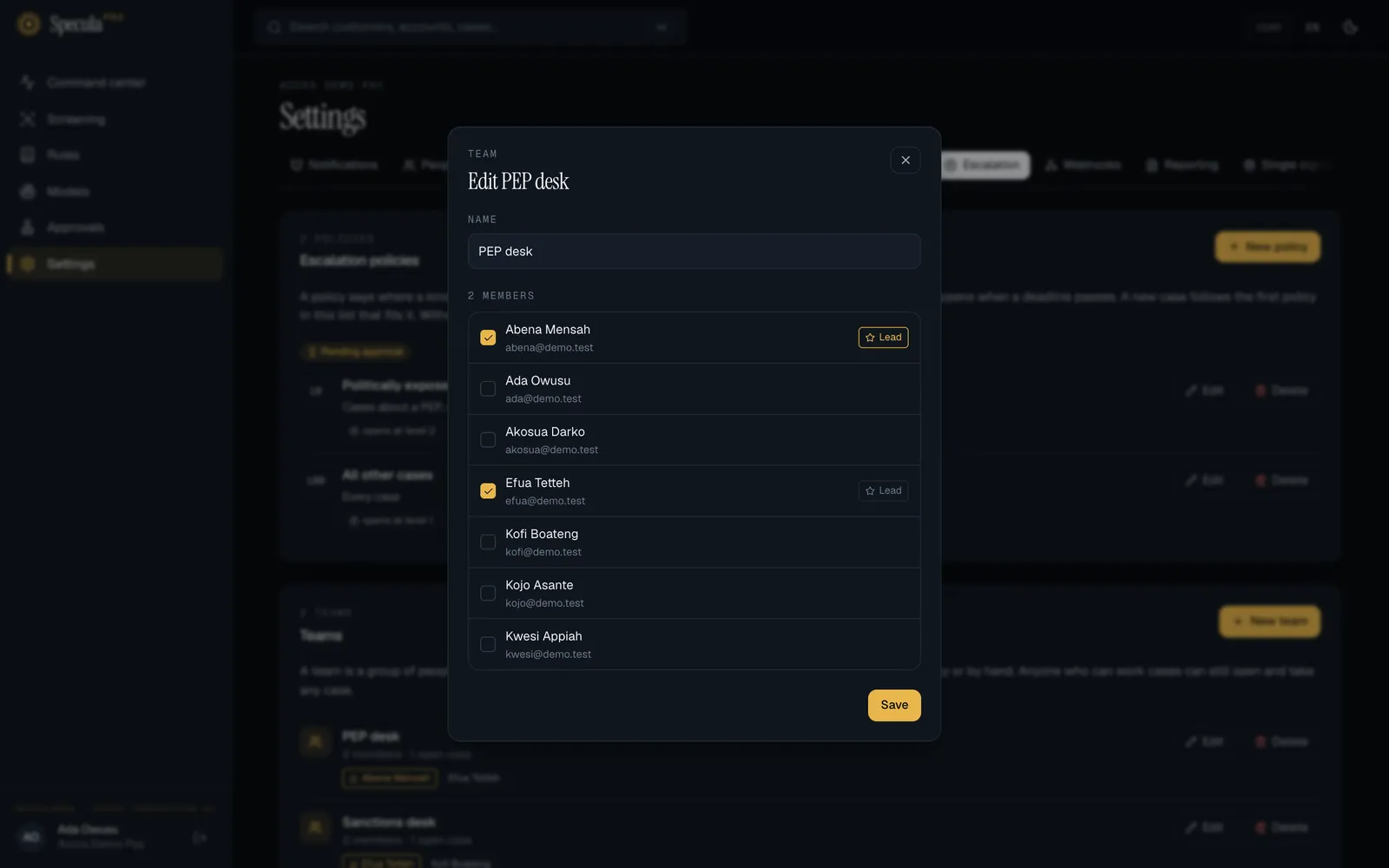
- Change the name, tick or untick people, or switch Lead on or off.
- Select Save.
The members you save replace the team’s members. Cases already in the queue stay there.
When a member is deactivated, they stay on the team’s list but stop receiving its notifications. Remove them when you next edit the team.
How to delete a team
Section titled “How to delete a team”- On the team’s row, select Delete.
- Read the confirmation, which says how many open cases are in the queue, and confirm.
| If | What happens |
|---|---|
| An escalation policy sends cases to the team | The deletion is refused: the escalation policy “name” sends cases to this team; change the policy first. Edit the policy to use another team, or none, then delete |
| No policy names it | The team is deleted. Its cases leave the queue and stay with their owners: nothing else about them changes |
Using team queues
Section titled “Using team queues”Once the workspace has at least one team:
- The Cases list gains a Team queue filter: Any queue, My teams (if you belong to one), In no team’s queue, and each team by name. The owner column shows the case’s team.
- The case page shows the queue the case is in, and a Team queue selector to move it to another
team or to No team queue. This needs
cases.work. The case’s owner keeps it; the new team’s members are notified.
See Working a case.
What is recorded
Section titled “What is recorded”| Action | Audit log entry |
|---|---|
| Team created | team.create, with its name and members |
| Team renamed or members changed | team.update, with its name and members |
| Team deleted | team.delete, with its name |
Putting a case in a team’s queue, or taking it out, is written on the case’s timeline.
If something goes wrong
Section titled “If something goes wrong”| What you see | Why | What to do |
|---|---|---|
| a team with this name already exists | Names are unique in a workspace | Choose another name |
| a member is not an active person in this workspace | Someone on the list was deactivated while you were editing | Reopen the sheet, untick them and save |
| the escalation policy “…” sends cases to this team; change the policy first | A policy names the team for a level | Change the policy, then delete |
| No Team queue filter on the Cases list | The workspace has no teams yet | Create one |