
Staff and roles
In short
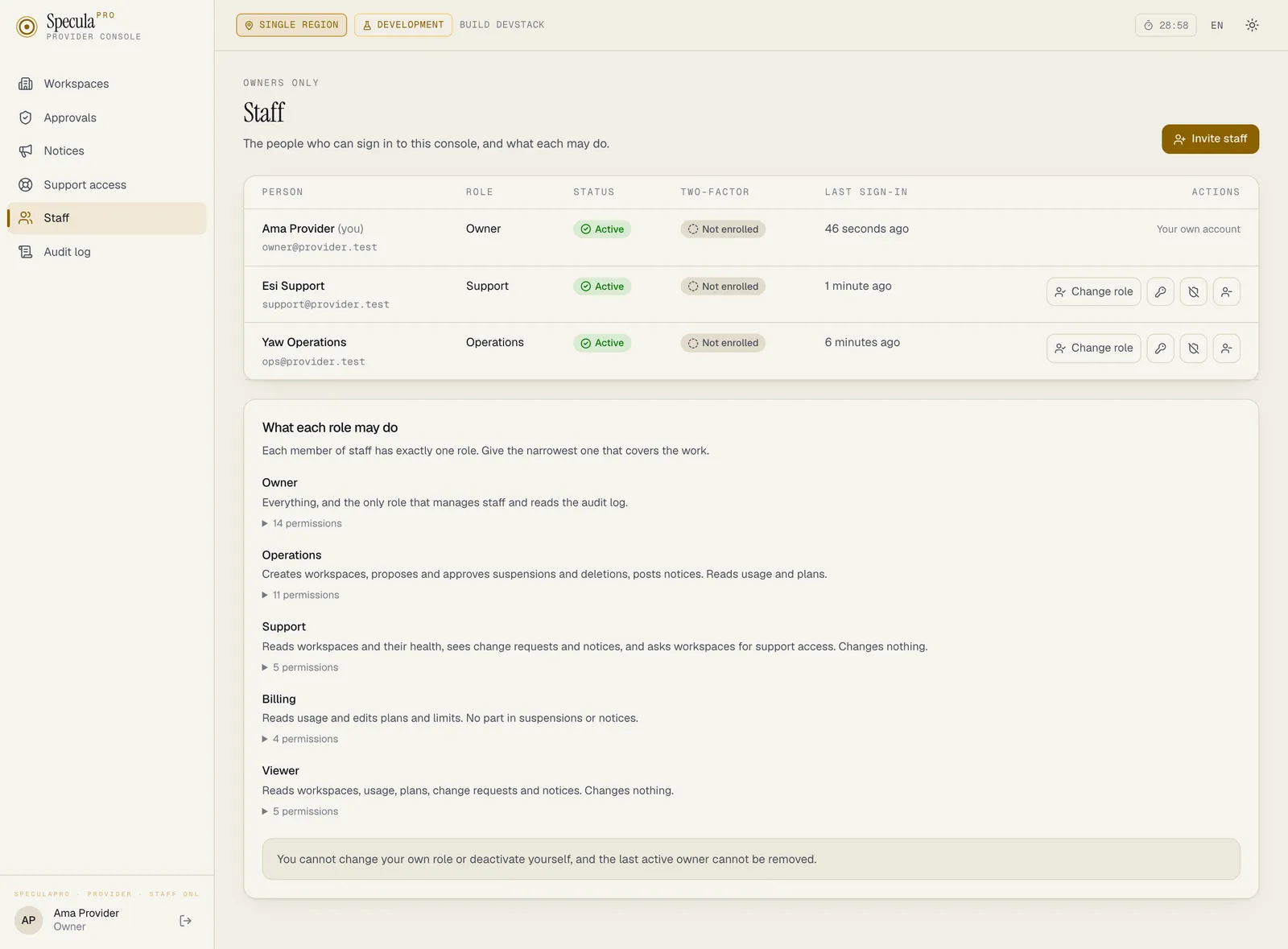
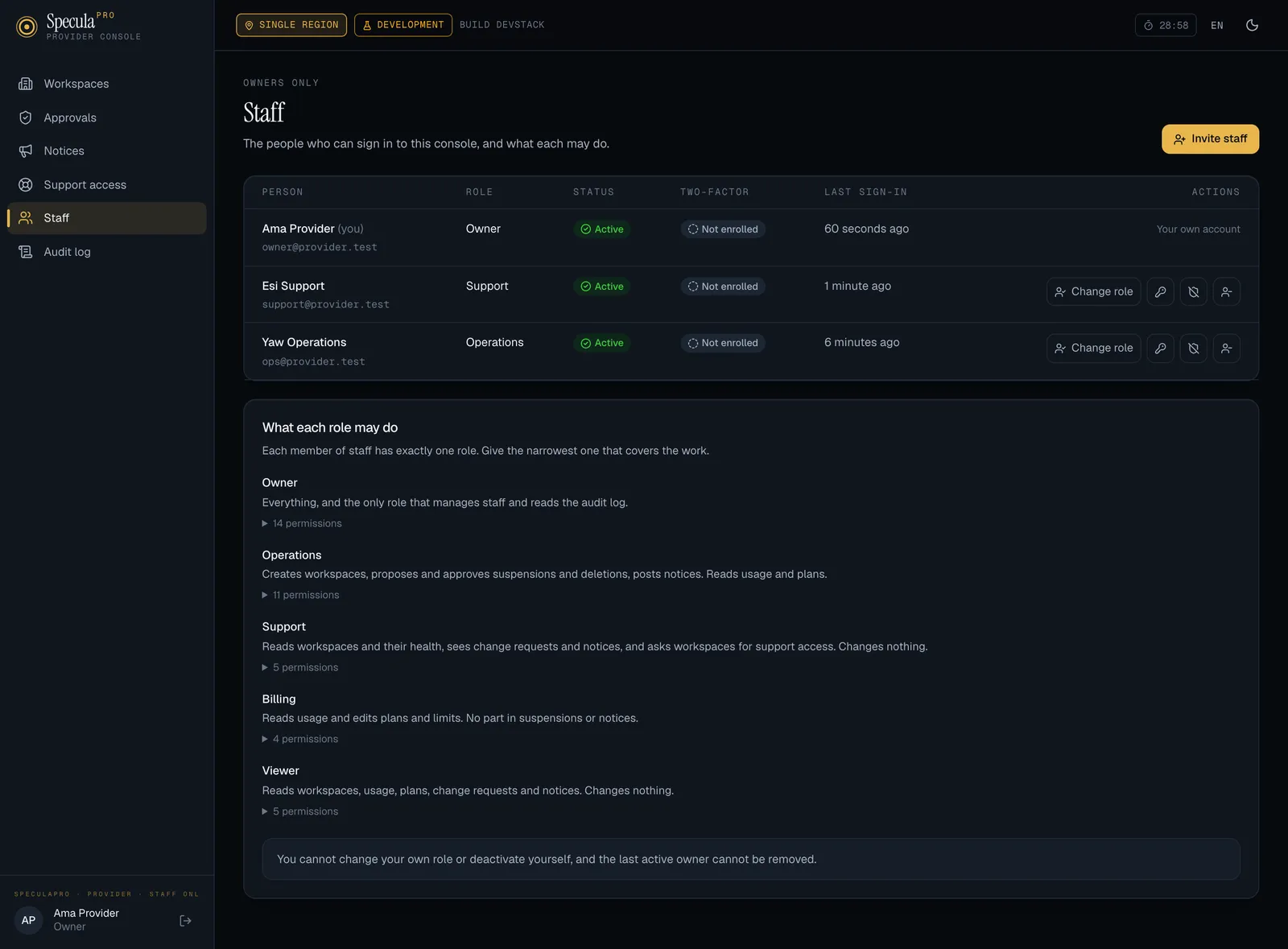
Section titled “In short”Provider staff are the people of the organisation running the service. Each has exactly one role, signs in with an email, a password and a code from an authenticator app, and can do only what that role allows. Only an Owner manages staff and reads the audit log.
Staff accounts are separate from workspace accounts. A workspace user can’t sign in to the console, a member of staff can’t sign in to a workspace, and an API key opens nothing here.
The roles
Section titled “The roles”| Role | In one sentence |
|---|---|
| Owner | Everything, and the only role that manages staff and reads the audit log |
| Operations | Creates workspaces, proposes and approves suspensions and deletions, posts notices, and asks for support access. Reads usage and plans |
| Support | Reads workspaces and their health, sees change requests and notices, and asks workspaces for support access |
| Billing | Reads usage and edits plans and limits. No part in suspensions or notices |
| Viewer | Reads workspaces, usage, plans, change requests and notices. Changes nothing |
Exactly what each role may do
Section titled “Exactly what each role may do”| Permission | What it opens | Owner | Operations | Support | Billing | Viewer |
|---|---|---|---|---|---|---|
workspaces.view |
The workspace list, a workspace’s overview and health, the list of deleted workspaces | ✓ | ✓ | ✓ | ✓ | ✓ |
workspaces.create |
Create a workspace and its first administrator | ✓ | ✓ | |||
usage.view |
A workspace’s monthly usage | ✓ | ✓ | ✓ | ✓ | |
plans.view |
A workspace’s plan, limits and staff notes | ✓ | ✓ | ✓ | ✓ | |
plans.manage |
Change them; add AI assistant calls for a month and answer requests for more | ✓ | ✓ | |||
changes.view |
See requests to suspend, reactivate or delete | ✓ | ✓ | ✓ | ✓ | |
changes.request |
Propose one, and withdraw your own | ✓ | ✓ | |||
changes.approve |
Approve or reject one somebody else proposed | ✓ | ✓ | |||
notices.view |
See service notices | ✓ | ✓ | ✓ | ✓ | |
notices.manage |
Post, change and withdraw them | ✓ | ✓ | |||
support.view |
See support access requests | ✓ | ✓ | ✓ | ||
support.request |
Ask a workspace for support access, open a session on your own grant, end it | ✓ | ✓ | ✓ | ||
staff.manage |
List, invite, change roles, deactivate, reset | ✓ | ||||
audit.view |
Read the console’s audit log | ✓ |
The roles are fixed: there are no custom staff roles. The check runs on the server before a request is even read, so hiding a link in the web app is only a courtesy. A role change takes effect on the person’s next request; they don’t need to sign in again.
Signing in
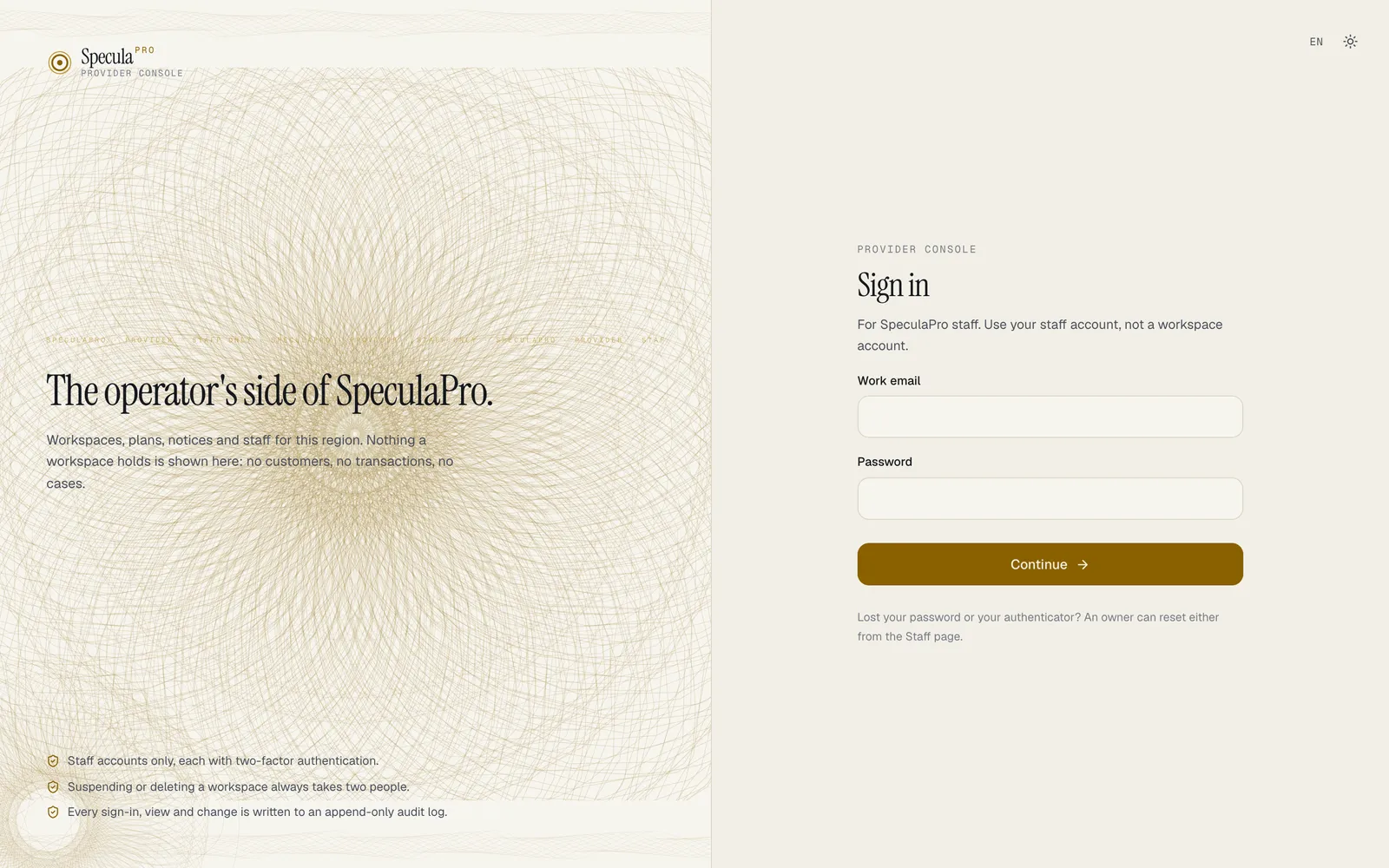
Section titled “Signing in”- Open the console’s address and enter your Work email and Password. Select Continue.
- Enter the six-digit code from your authenticator app and select Verify and sign in.
The first time, with a temporary password, there are two more steps before anything else works:
- Choose a new password. At least 12 characters, and different from the temporary one.
- Set up two-factor authentication. Scan the QR code with an authenticator app, or type the setup key into it, then enter the code the app shows and select Verify and finish.
Until both are done, the session can only do those two things and sign out.
What protects the sign-in page
Section titled “What protects the sign-in page”| Guard | Value |
|---|---|
| Wrong attempts before an account is locked | 10, then locked for 15 minutes |
| Attempts from one address | 30 a minute |
| Attempts on one account | 10 in 15 minutes, wherever they come from |
| Temporary password | Works for 72 hours |
| Wrong email, wrong password, locked or deactivated account | All answer the same: The email or password is not right. |
If the shared rate limiter (Valkey) can’t be reached, each process keeps its own count against the same limits, and the lockout in the database still applies.
Sessions
Section titled “Sessions”| Default | Setting | |
|---|---|---|
| Signed out after no activity | 30 minutes | SP_PROVIDER_SESSION_IDLE |
| Longest a session lasts | 8 hours | SP_PROVIDER_SESSION_TTL |
The console shows the time left and asks Are you still there? before an idle sign-out. When a session nears its absolute end it says so; you sign in again to carry on. Changing your password signs out your other sessions.
Managing staff in the console
Section titled “Managing staff in the console”Owners only, on the Staff page.
How to invite a member of staff
Section titled “How to invite a member of staff”- Select Invite staff.
- Enter their Name and Work email, and choose a role.
- Select Create account.
- Copy the temporary password and pass it to them over a channel you trust. It is shown once and is not sent by email.
How to change a role, deactivate or reactivate
Section titled “How to change a role, deactivate or reactivate”Use the actions on the person’s row: Change role, Deactivate, Reactivate.
- Deactivating signs the person out at once. Their history stays in the audit log.
- Reactivating gives back the password and second factor they had.
How to help someone who is locked out
Section titled “How to help someone who is locked out”| They lost… | Use | What happens |
|---|---|---|
| Their password | Issue a new temporary password | They are signed out and must use the temporary password at their next sign-in. Their second factor stays as it is |
| Their authenticator | Reset two-factor authentication | They are signed out, their second factor is removed and they get a new temporary password. At the next sign-in they choose a password and enrol again |
A second-factor reset always comes with a new password. Otherwise anyone who knew the old password could enrol an authenticator of their own.
What the console refuses
Section titled “What the console refuses”| You try to… | Answer |
|---|---|
| Change your own role, deactivate yourself or reset your own credentials | another owner must make this change to your own account |
| Demote or deactivate the only active owner | the last active owner can’t be demoted or deactivated |
| Invite an email that is already on the staff | someone with that email is already on the staff |
| Reset someone who is deactivated | this person is deactivated; reactivate them first |
From the command line
Section titled “From the command line”The command line creates the first owner and is the way back in when every owner is locked out. It
works on the database directly, whether or not the console is running, needs SP_DB_SYSTEM_URL,
and is refused on a self-hosted installation. Everything it does is written to the console’s audit
log with Command line as the actor.
speculapro provider staff list| Command | Prints |
|---|---|
create |
provider staff [email protected] created (owner, <id>), then the temporary password, how long it works, and a reminder that an authenticator app is needed at that sign-in. --role is owner (the default), operations, support, billing or viewer |
list |
A table: EMAIL, NAME, ROLE, STATUS, TWO-FACTOR (enrolled or not enrolled), LAST SIGN-IN |
deactivate |
<email> deactivated; their sessions are ended |
reactivate |
<email> reactivated |
reset-totp |
two-factor reset for <email>; their sessions are ended, then a new temporary password |
reset-password |
password reset for <email>; their sessions are ended, then a new temporary password |
The last-owner rule holds here too: the command line can’t deactivate the only active owner.