
The Decisions page
In short
Section titled “In short”The Decisions page shows what the real-time decision API has been answering: how many payments it allowed, challenged, held and blocked, how quickly, and why. Open any decision to see the rules that fired, the values they saw, the fraud alert it raised and what happened to the payment afterwards. If your role can work cases, you can label it as fraud or legitimate from there.
You need the alerts.view permission to open the page. Every default role has it except the
Administrator. Customer IDs and names are shown only if your role also has
entities.view, which the default Rule approver lacks.
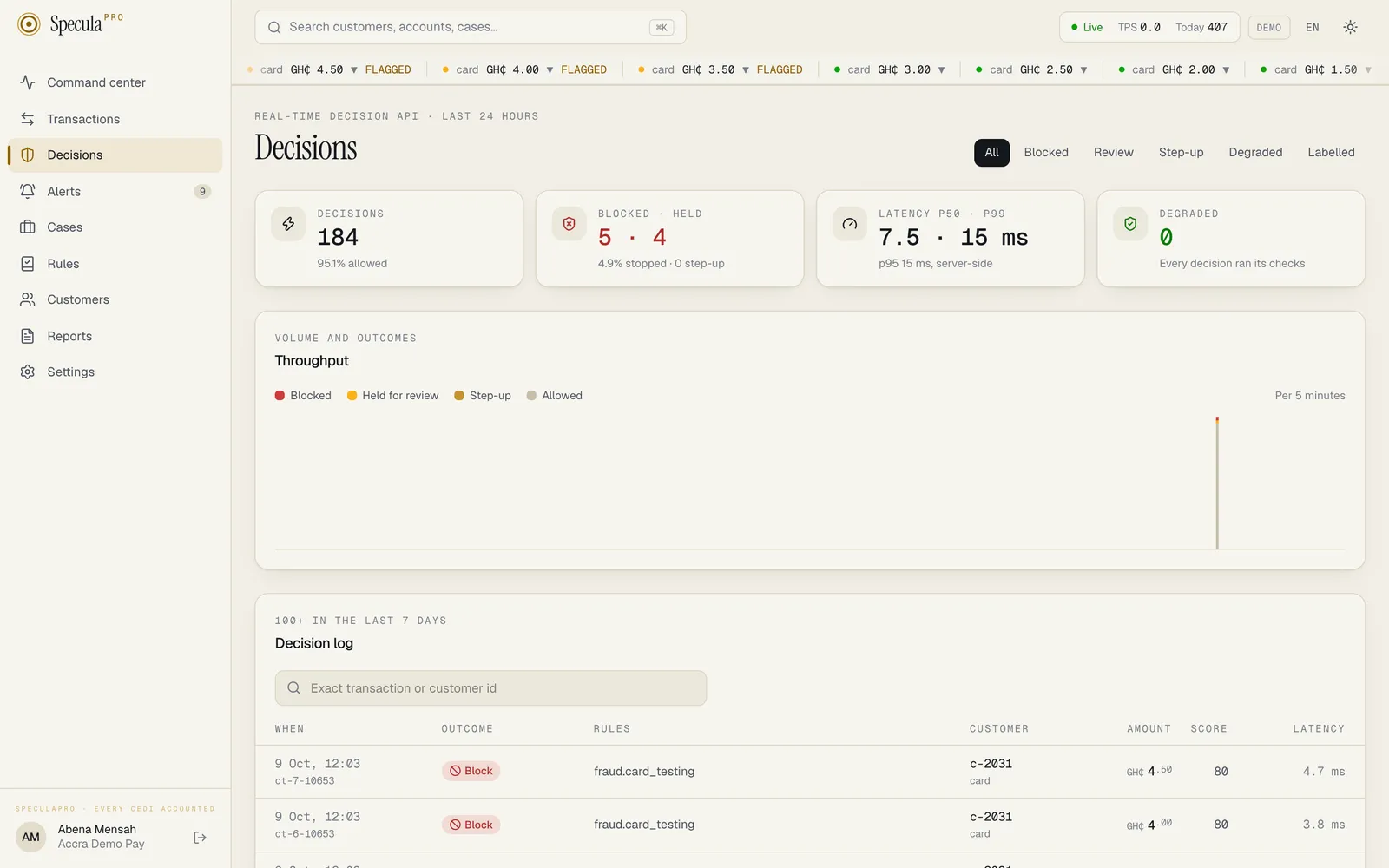
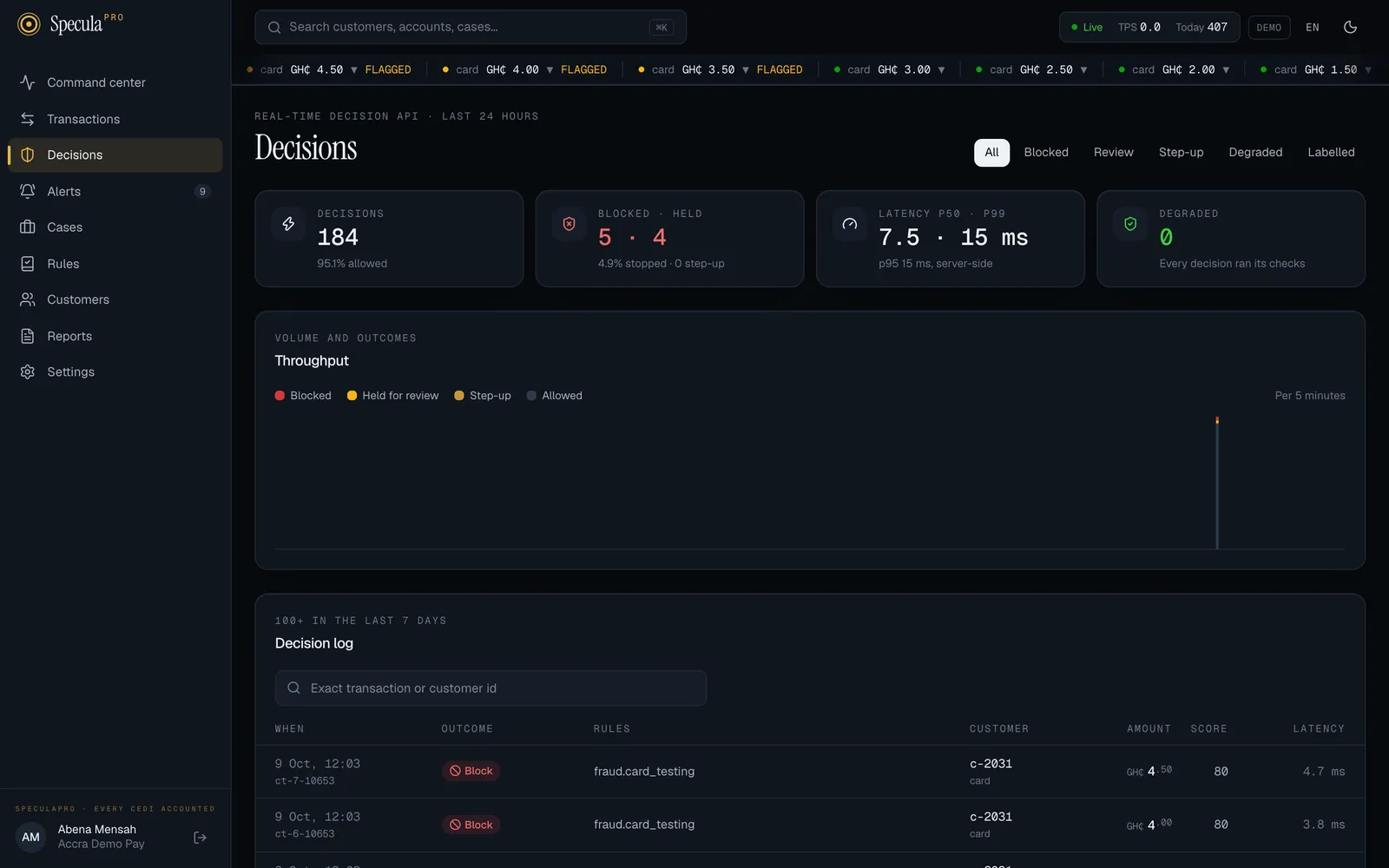
The figures in these pictures come from a demonstration workspace.
How to open it
Section titled “How to open it”Select Decisions in the menu, under Transactions. The page refreshes itself: the log every 15 seconds and the figures every 30 seconds.
The four figures
Section titled “The four figures”The figures at the top cover the last 24 hours, whichever tab you are on.
| Figure | What it shows |
|---|---|
| Decisions | How many decisions were made, and what share were allowed |
| Blocked · held | How many were blocked and how many held for review; underneath, the share stopped (blocked plus held) and how many were sent for step-up |
| Latency p50 · p99 | How long SpeculaPro took to answer, measured on its server: half the decisions were answered within the first figure, 99 in every 100 within the second. Underneath, the p95 |
| Degraded | How many were answered by the failure policy because the checks couldn’t finish. Every decision ran its checks when there were none |
Throughput
Section titled “Throughput”The Throughput chart shows the last 24 hours in five-minute bars, each split by answer: Blocked, Held for review, Step-up and Allowed. Hover over a bar to read its time and counts, including how many were degraded. The chart appears once there has been at least one decision in the last 24 hours.
A sudden rise in blocked or held payments usually means one of two things: an attack (for example card testing, many small payments in a few minutes), or a rule that has just started firing too often. Open a few of the decisions to see which.
The decision log
Section titled “The decision log”The Decision log lists decisions from the last 7 days, newest first, 100 at a time. Select Load more at the bottom for the next 100.
| Column | What it shows |
|---|---|
| When | When the decision was made, and the transaction’s ID from your system |
| Outcome | Allow, Step-up, Review or Block; degraded if the failure policy answered; and the label, fraud or legitimate, once someone has reported it |
| Rules | The keys of the live rules that fired, such as fraud.card_testing |
| Customer | The customer’s ID in your system, linking to their page, and the channel |
| Amount | In your base currency |
| Score | The combined score, 0 to 100 |
| Latency | How long the decision took on the server |
How to find a decision
Section titled “How to find a decision”- By answer. Select a tab: All, Blocked, Review, Step-up, Degraded (the failure policy answered) or Labelled (someone has reported fraud or legitimate).
- By ID. Type a transaction ID or a customer ID from your system into the search box. It
matches the whole ID exactly, not part of it. Customer IDs are only matched if your role has
entities.view; without it, only transaction IDs are.
To look further back than 7 days, up to 90, use the Decisions API.
How to see why a decision was made
Section titled “How to see why a decision was made”-
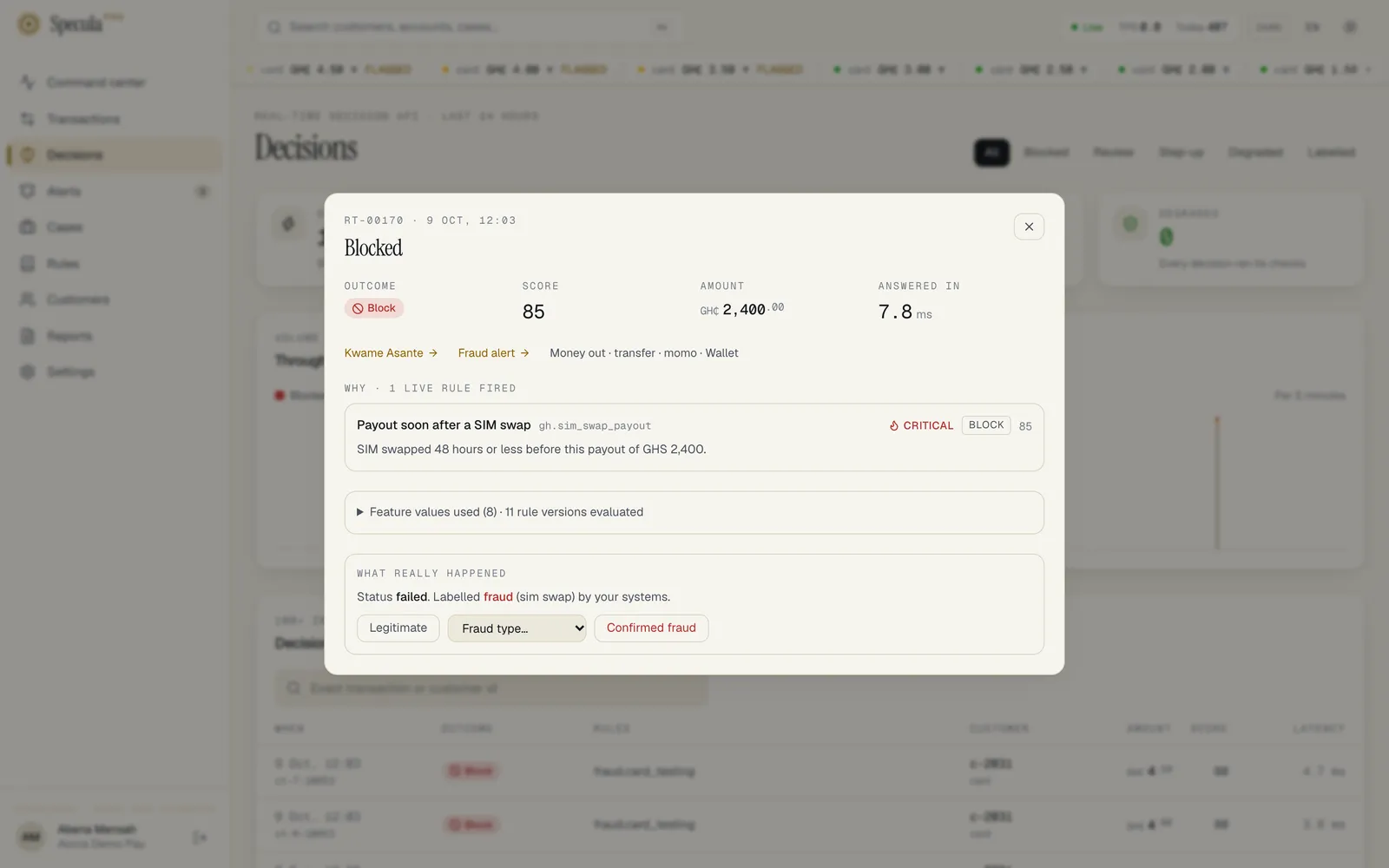
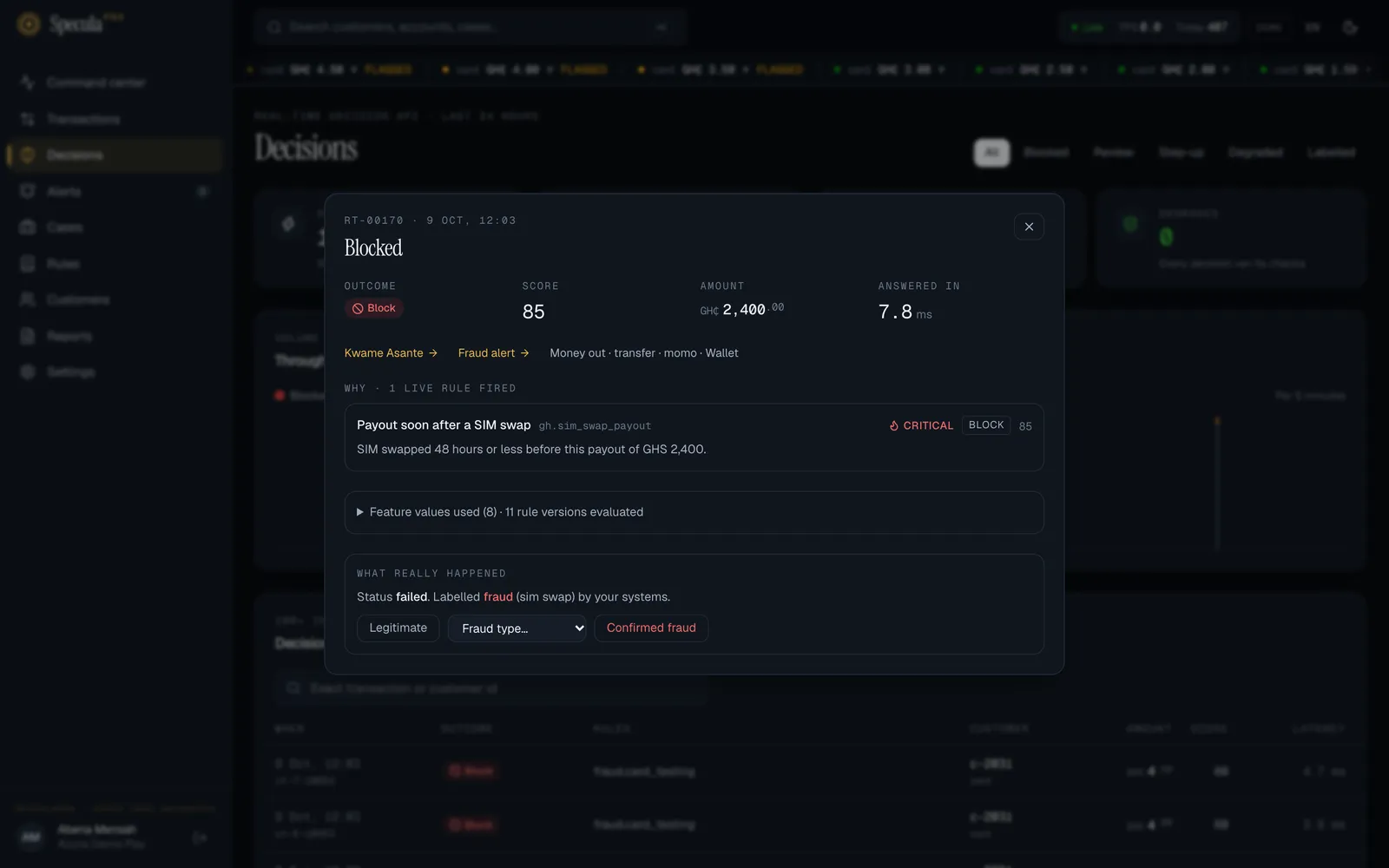
Select a row in the decision log. A panel opens, headed with the transaction ID, the time and the answer.
-
Read the top row: Outcome, Score, Amount and Answered in. If the failure policy answered, or a score threshold or an
allowrule changed the answer, a line underneath says so, for example Degraded: checks didn’t finish (timeout); fail-open policy applied. -
Follow the links: the customer’s name opens their page, and Fraud alert opens the alert this decision’s hits joined. The line beside them describes the payment: money in or out, the type and channel, the counterparty, the country and the start of the device’s fingerprint.
-
If your workspace has a live risk model, a Risk model score box comes next: the score from 0 to 1, how it ranks against the model’s training data, the model version (a link to it if you can see the Models page), and up to three reasons with their values. The score never changes an answer by itself: only a rule that reads it can. A decision answered by the failure policy has no score.
-
Under Why, read each rule that fired: its name and key, severity, action, score and explanation, with the feature values it used, such as customer|count|out||card|10m = 7.
-
If any shadow rules would have fired, they are listed separately, with a dashed border, under Shadow rules that would have fired · no effect on the outcome.
-
Expand Feature values used to see every value the real-time rules read, described in words, and how many rule versions were evaluated.
The payment’s details appear a few seconds after the decision, once the transaction has been stored.
How to label a decision
Section titled “How to label a decision”The What really happened box shows what your systems have reported about the payment: its final status, whether it was fraud and of what type, and whether the customer passed a step-up. Labelled fraud (sim swap) by your systems means the label came through the API; a label set on this screen shows the person’s name.
You need the cases.work permission to label (Analysts, Senior analysts and the MLRO).
- Open the decision from the log.
- In What really happened:
- if the payment was genuine, select Legitimate;
- if it was fraud, choose the kind in Fraud type… (optional), then select Confirmed fraud.
- The label appears in the box and in the log at once.
A new label replaces the previous one, whoever set it. Labels feed the precision figure on each real-time rule’s page; see Feedback and fraud labels.