
Managing people
In short
Section titled “In short”Everyone who uses SpeculaPro has their own account in your workspace. On the People tab of Settings, an administrator can:
- add a person, choosing their roles; SpeculaPro creates a temporary password for them, valid for 72 hours,
- change their roles,
- reset their two-factor if they lose their phone,
- issue a temporary password if they forget theirs or are locked out,
- disable the account when they leave, and re-enable it if needed.
You need the users.manage permission. In the default roles, only the Administrator has it.
Every change is written to the audit log.
If your workspace uses single sign-on, some of this works differently; see When single sign-on is required.
The People list
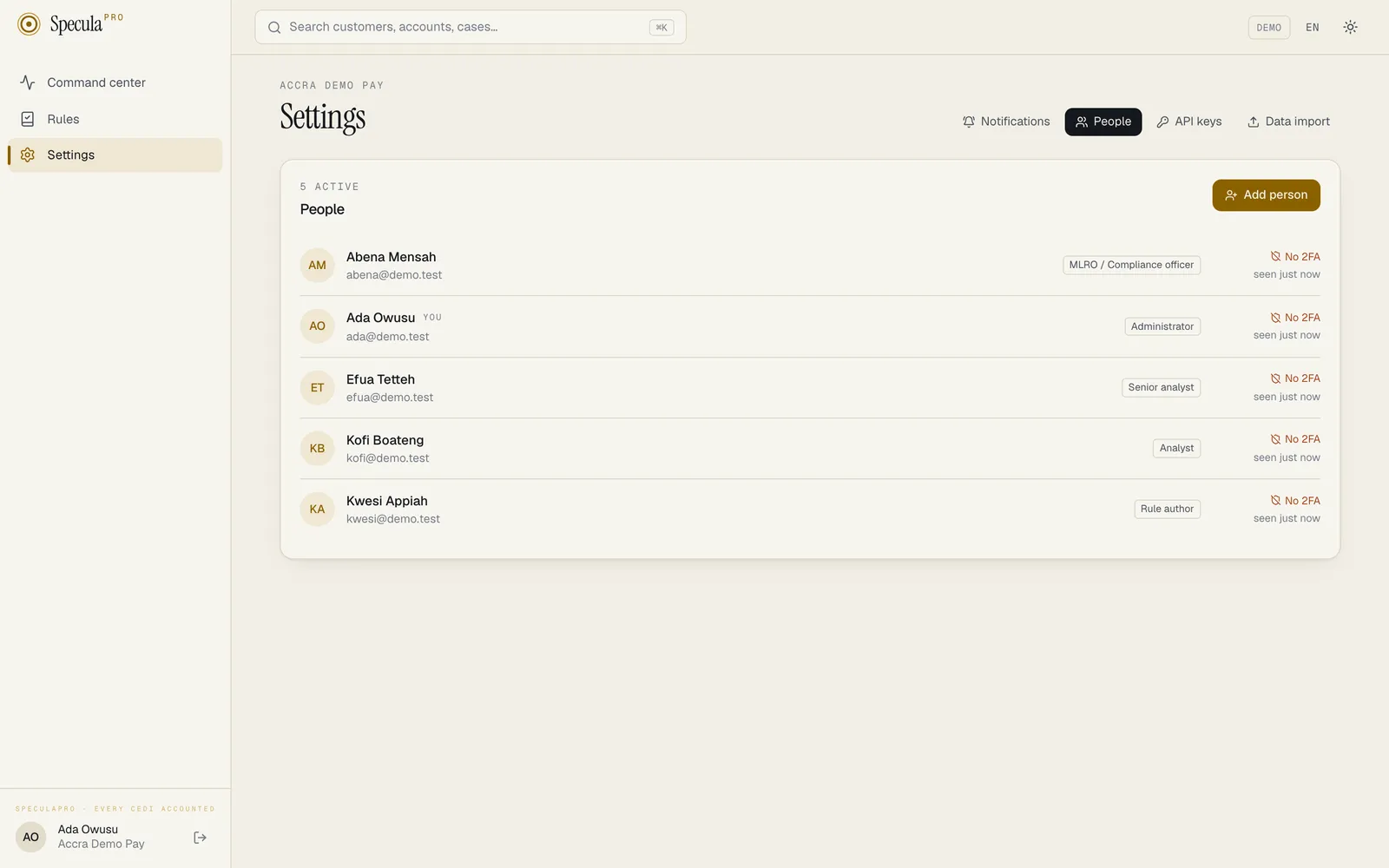
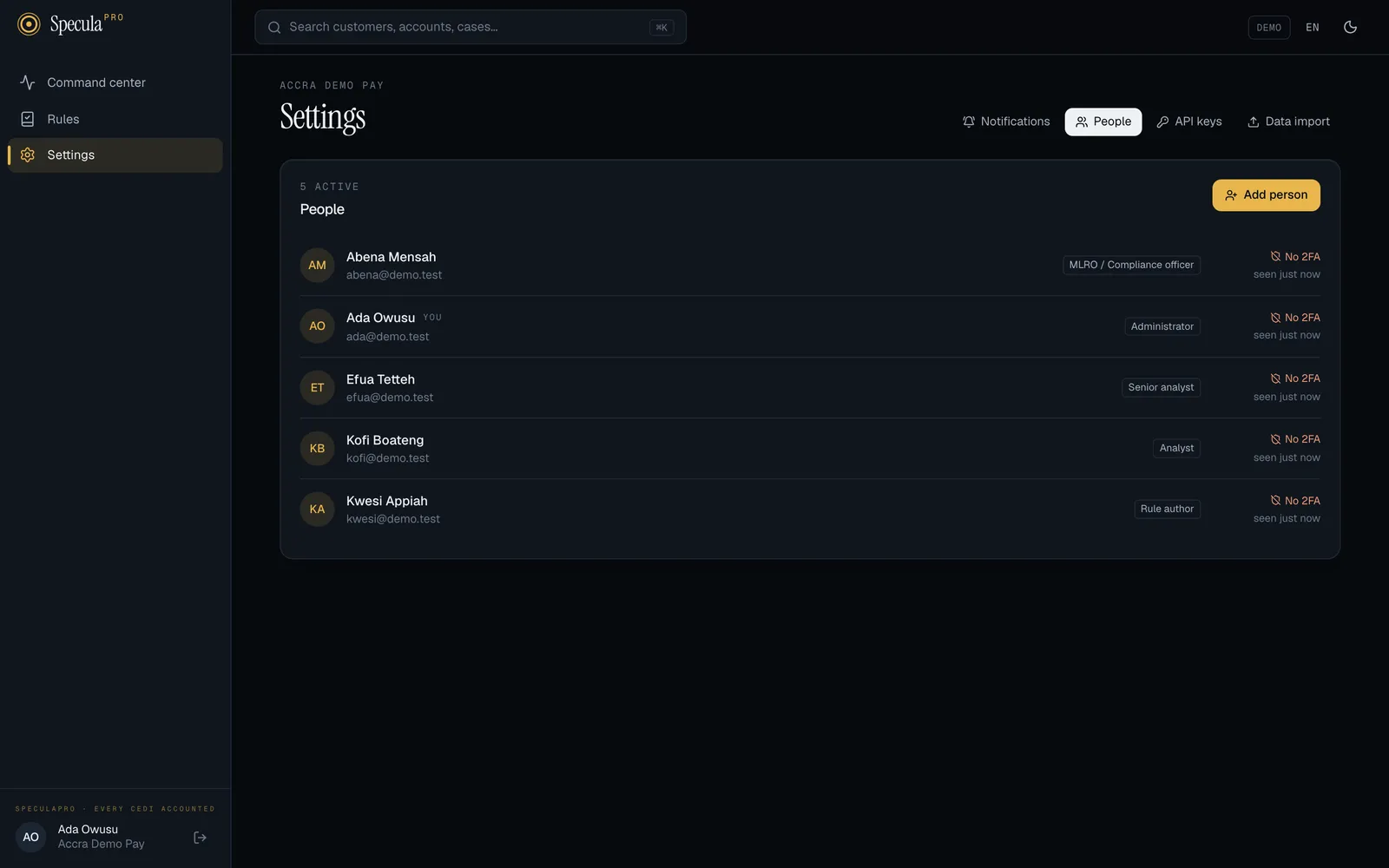
Section titled “The People list”Select Settings, then the People tab (or go straight to /settings#people). The panel’s heading shows how many people are active; invited people who haven’t signed in yet are counted too.
Each row shows:
| Item | Meaning |
|---|---|
| Initials and name | A disabled person’s name is greyed out and struck through. Your own row is marked you |
| The work email they sign in with | |
| Role badges | Each role they hold (hidden on narrow screens) |
| Status | One of the statuses below |
| Last seen | seen 2h ago, or never signed in |
The status shows the most important thing about the account, in this order:
| Status | Meaning | What to do |
|---|---|---|
| Disabled | The account is switched off and can’t sign in | Nothing, unless they are coming back: see re-enable |
| Locked | Too many wrong passwords in a row. The lock lifts by itself after 15 minutes | Wait, or issue a temporary password, which also unlocks it |
| Invite expired | You added them, but they didn’t sign in within 72 hours, so their temporary password no longer works | Issue a new temporary password |
| Password expired | An administrator issued them a temporary password more than 72 hours ago and they never used it | Issue a new one, the same way |
| Invited | You added them and they haven’t finished their first sign-in yet. Point at the status to see until when their temporary password works | Check they received the password. If it was lost, issue a new one |
| Setup pending | They have used SpeculaPro before, and now have a temporary password from a reset that they haven’t replaced yet. Point at the status to see until when it works | Check they received it |
| 2FA on | Signed in properly, with an authenticator app | Nothing |
| No 2FA | No authenticator app set up yet | If your workspace requires two-factor (the default), they’ll be asked to set it up at their next sign-in |
Disabled people are listed last.
How to add a person
Section titled “How to add a person”- Select Settings, then People.
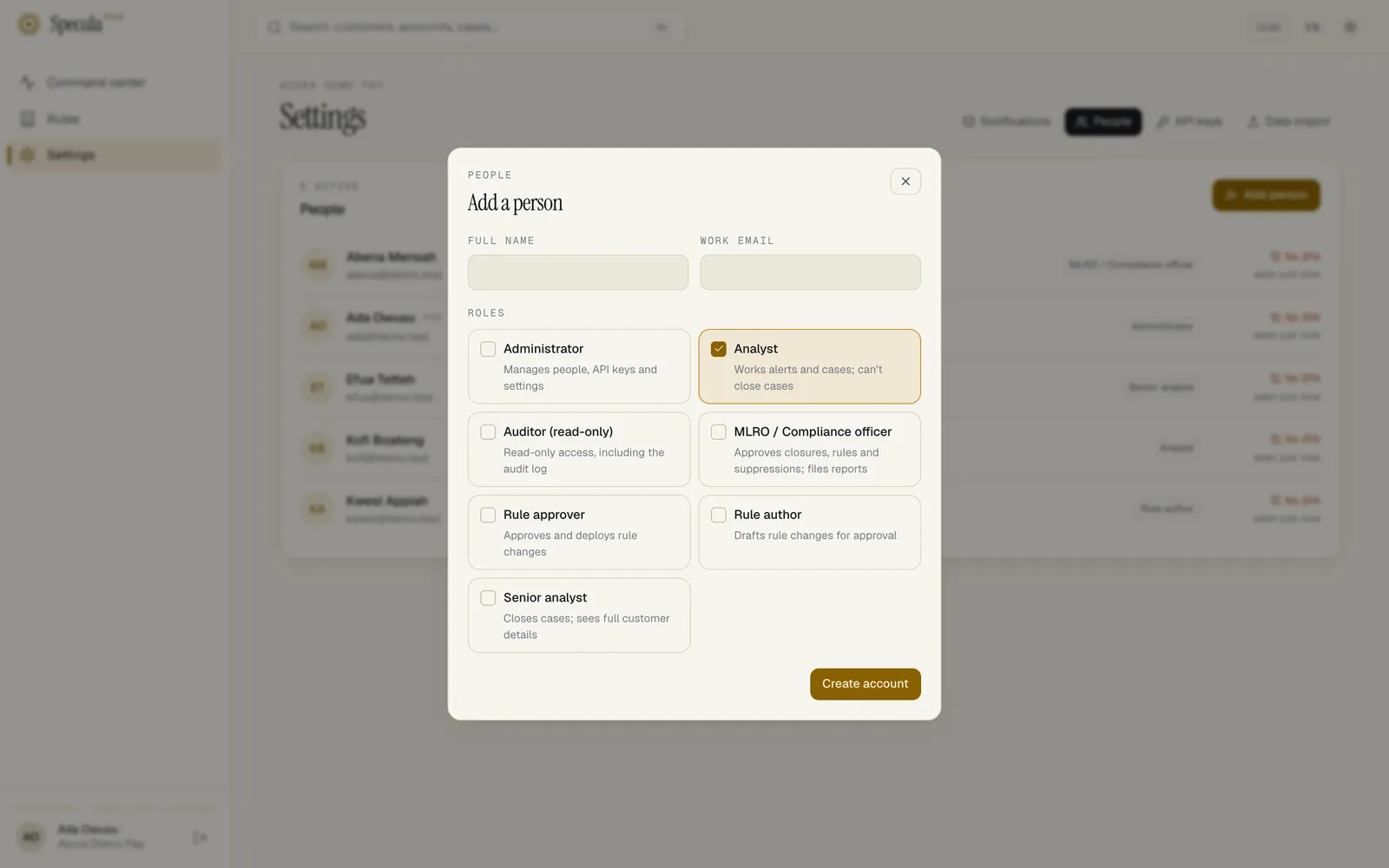
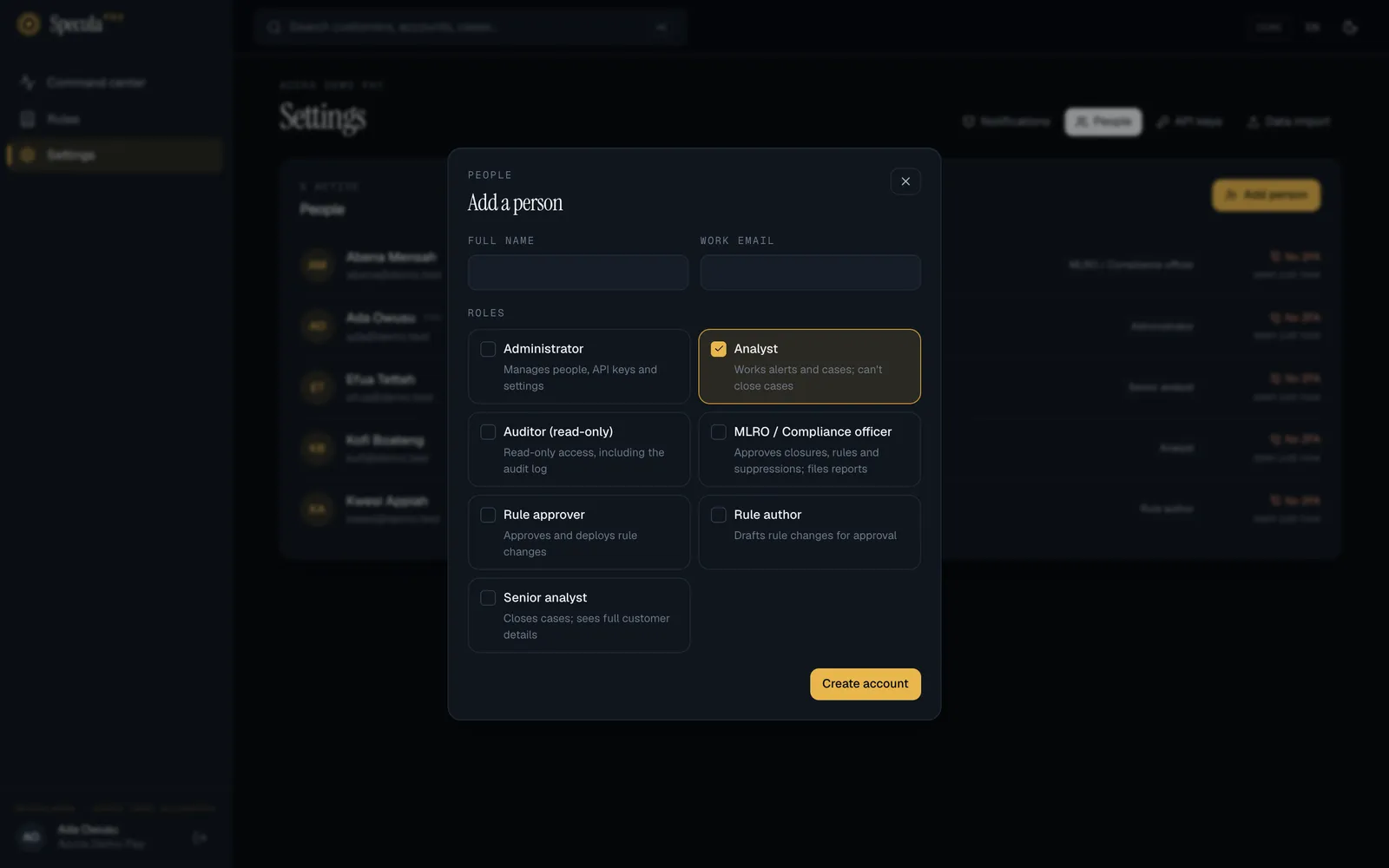
- Select Add person. A panel titled Add a person opens.
- Enter their Full name (at least 2 characters) and their Work email.
- Under Roles, tick one or more roles. Analyst is ticked to start with. Each role shows a one-line summary, for example Works alerts and cases; can’t close cases. If you aren’t sure which to choose, see Roles.
- Select Create account.
- The panel changes to Account created and shows the temporary password for that email. Select Copy, hand it over (see below), then select Done.
The account is ready straight away, with the status invited. At their first sign-in, the person must choose their own password and set up an authenticator app before they can use anything else. Until they have chosen their own password, the list shows them as Invited; after that the account is active.
Handing over a temporary password safely
Section titled “Handing over a temporary password safely”The temporary password is a random 20-character string. Anyone who has it, together with the workspace name and email, can finish setting up the account as that person. So:
- Give it in person, or over a channel you trust that is separate from where they get the workspace name and email. For example, send the sign-in details by email and read the password out on a phone call.
- Never put the password and the email address in the same message, ticket or chat.
- Don’t keep a copy. Once they’ve signed in, the temporary password stops working, because they have replaced it.
- Ask them to sign in soon. A temporary password works for 72 hours. Hand it over when they are ready to use it, not days ahead. Issuing a new one cancels the old one straight away.
If your workspace requires single sign-on
Section titled “If your workspace requires single sign-on”There is no temporary password. The panel says This workspace requires single sign-on, so there is no password to hand over: the person signs in with Continue with SSO, and that first sign-in makes the account active. Their email must be at a claimed domain.
People you add while SSO is only offered, not required, get a temporary password as usual. If they sign in with SSO first instead, the account becomes active and the temporary password stops working.
If adding fails
Section titled “If adding fails”| Message | Why | What to do |
|---|---|---|
| someone with this email is already in the workspace | Each email can have only one account per workspace, including disabled accounts | Find them in the list. If they’re disabled, re-enable them instead |
| The Create account button is greyed out | No role is ticked | Tick at least one role |
How to change someone’s roles
Section titled “How to change someone’s roles”- Select Settings, then People, then the person’s row. A panel with their name opens.
- Under Roles, tick or untick roles. They must keep at least one.
- Select Save roles. The button is greyed out until you change something.
The change applies to their next action. SpeculaPro checks permissions on every request, so they can’t keep using a permission you’ve removed. Their menu updates when they reload the page.
How to help someone who lost their phone (reset two-factor)
Section titled “How to help someone who lost their phone (reset two-factor)”Use this when someone can’t produce a code because they lost, replaced or reset their phone.
They may still be able to sign in by themselves: with one of the recovery codes they saved when they set up their authenticator, or with a passkey on another device. Neither replaces the authenticator, so they still need this reset to set it up on the new phone.
-
Confirm who is asking before you do anything, for example by calling them back on the number in your staff directory. Resetting two-factor for an impostor hands them half of the account.
-
In Settings › People, select the person’s row.
-
Under Access, select Reset two-factor. This option is greyed out if they haven’t set up an authenticator yet.
-
You are asked to confirm: Reset two-factor for Kofi Boateng? They are signed out and must set up a new authenticator. (with the person’s name). Confirm.
Their authenticator is removed, together with all their recovery codes and all their passkeys. Every session they have open is signed out, and at their next sign-in they set up a new authenticator app and save ten new recovery codes. They can then add their passkeys again. Their password doesn’t change.
How to help someone who forgot their password or is locked out
Section titled “How to help someone who forgot their password or is locked out”- Confirm who is asking, as above.
- In Settings › People, select the person’s row.
- Under Access, select Issue a temporary password.
- You are asked to confirm: Issue a new temporary password for Kofi Boateng? Their current password stops working and they are signed out. Confirm.
- The panel shows New temporary password. Select Copy, hand it over safely, then select Done.
Issuing a temporary password signs them out everywhere, unlocks the account if it was locked, and makes them choose a new password at their next sign-in. Their authenticator app, recovery codes and passkeys are kept. The new password works for 72 hours.
Use the same steps for someone whose status is Invite expired or Password expired: the new temporary password replaces the expired one.
How to disable an account
Section titled “How to disable an account”Disable an account the day someone leaves, moves to a role that doesn’t need SpeculaPro, or is suspected of misuse.
- In Settings › People, select the person’s row.
- Under Access, select Disable.
- You are asked to confirm: Disable Kofi Boateng? They are signed out everywhere immediately. Confirm.
The person is signed out everywhere immediately and can’t sign in again. Nothing is deleted: their comments, decisions and audit trail stay exactly as they were, which examiners will expect. In the list they appear greyed out, marked Disabled, at the bottom.
You can’t disable your own account. The option doesn’t appear on your own row.
How to re-enable an account
Section titled “How to re-enable an account”- In Settings › People, select the disabled person’s row.
- Under Access, select Re-enable.
They can sign in again with their existing password and authenticator. Re-enabling also clears any lockout. Someone who never finished their first sign-in goes back to Invited; if their temporary password has expired by then, issue a new one. If they’ve forgotten their password while away, also issue a temporary password.
When a change needs approval
Section titled “When a change needs approval”Once two people can approve access changes (users.approve, held by every Administrator), these
changes need a second administrator by default (maker-checker):
| Change | Needs approval when |
|---|---|
| Adding a person | Their roles include a privileged permission (below). With the built-in roles, that is every role except Analyst |
| Changing someone’s roles | The new roles add a privileged permission they didn’t have |
| Re-enabling an account | Always |
| Resetting someone else’s two-factor, or issuing them a temporary password | Always |
A permission is privileged when it lets someone:
- manage the workspace:
users.manage,api_keys.manage,settings.manage,webhooks.manage,sso.manage,datasources.manage,lists.manage, or write rules (rules.author); - approve someone else’s work: any
….approvepermission, andrules.packs_downgrade; - see customers’ personal data in clear:
entities.view_pii, the audit log (audit.view), and reports (reports.view,reports.draft,reports.approve,reports.submit); - change a customer’s risk flags:
designations.manage; - run data protection:
privacy.manage(retention, legal holds, the registers, breaches) anddsr.handle(data subject requests).
So with the built-in roles, giving someone Senior analyst, L2 investigator, Auditor or Data protection officer needs approval too, because they unmask personal data, read the audit log or run data protection.
What applies straight away: adding someone with only casework and read-only roles (the built-in
Analyst, or a custom role without any of the permissions above), removing roles,
disabling an account, and anything you do to your own account. Read-only settings access
(settings.view) isn’t privileged: it shows staff email addresses and configuration, never customer
data. Nor is reading the Privacy area (privacy.view) on its own.
Roles that single sign-on gives people from their identity-provider groups, at each sign-in, don’t go through approval either; the group-to-role mapping itself does, as part of the single sign-on settings.
When a change needs approval, SpeculaPro asks Why is this change needed? and sends it for approval instead of making it. The person’s row shows it as waiting. When another administrator approves it under Approvals, it is made as you proposed it. For a new person or a password reset, the temporary password then waits for you: open the request under Approvals → My requests and collect it there, once. See Approvals.
The workspace always keeps an administrator
Section titled “The workspace always keeps an administrator”SpeculaPro refuses any change that would leave the workspace with no active person who can manage people. Only active accounts count: an administrator who is still Invited doesn’t, because they can’t do anything until they have signed in. In practice you’ll rarely see this, because you can’t remove your own access and you are yourself an active administrator. It is a safety net: if a change would ever lock everybody out, it fails with this change would leave the workspace without an administrator, and nothing is changed.
When single sign-on is required
Section titled “When single sign-on is required”When your workspace requires single sign-on:
- Adding a person creates a passwordless invitation (see above).
- Issue a temporary password isn’t offered for anyone except break-glass administrators: their panel says This workspace requires single sign-on: they sign in through your identity provider, so there is no password to reset here. (Through the API it is refused with this workspace requires single sign-on; only break-glass administrators have a password.) People who forgot their work password reset it at your identity provider.
- Reset two-factor still works: people whose identity provider doesn’t report multi-factor use their SpeculaPro authenticator after SSO.
- Any change that would leave no usable break-glass administrator is refused: disabling the last one, changing their roles so they can’t manage people, or resetting their two-factor. The message is this change would leave no break-glass administrator with a password and two-factor; single sign-on is required in this workspace. Add another break-glass administrator first.
- If role mapping is on, people’s roles follow their identity provider groups at every SSO sign-in, so a role you change here may be changed back at their next sign-in. Change their groups at the identity provider instead. Break-glass administrators’ roles are never changed this way.
- Disabling someone here still stops them at once, whatever the identity provider says. When someone leaves, disable them in both places.
What is recorded
Section titled “What is recorded”Every change is written to the audit log, with who made it, when and from where:
| Action | Recorded as | Details kept |
|---|---|---|
| Add a person | user.invite |
Email and roles, and sso: true for a passwordless invitation |
| Change roles | user.roles |
The roles before and after |
| Disable, re-enable | user.disable, user.enable |
A disable also records how many of the person’s API keys were marked rotation due (api_keys_rotation_due) or revoked (api_keys_revoked) |
| Reset two-factor | user.reset_2fa |
|
| Issue a temporary password | user.reset_password |
via: cli when an operator issued it from the command line; the actor is then system |
| Sign-in with an expired temporary password | auth.login_failed |
Reason temp_password_expired |
Temporary passwords themselves are never recorded.