
Approvals (maker-checker)
In short
Section titled “In short”Some changes are too important to rest on one person: giving someone administrator powers, creating an API key, pointing a webhook at a new address, loosening the real-time decision policy. Maker-checker (also called dual control or the four-eyes principle) means one person proposes the change, the maker, and a different person approves it, the checker. Until then nothing changes.
In SpeculaPro, when your workspace requires approval for a kind of change, doing that change creates a change request instead of making the change. Everyone who can approve it is notified. When one of them approves, the change is made exactly as proposed. The person who proposed a change can never approve it, and approving first checks that nothing else changed in the meantime.
Rule versions, case closures, suppressions and regulatory reports already have their own built-in second-person approval, which is always on. This page is about everything else.
Which changes need approval
Section titled “Which changes need approval”Settings → Approvals lists each kind of change, whether it needs approval in your workspace, and how many people can approve it.
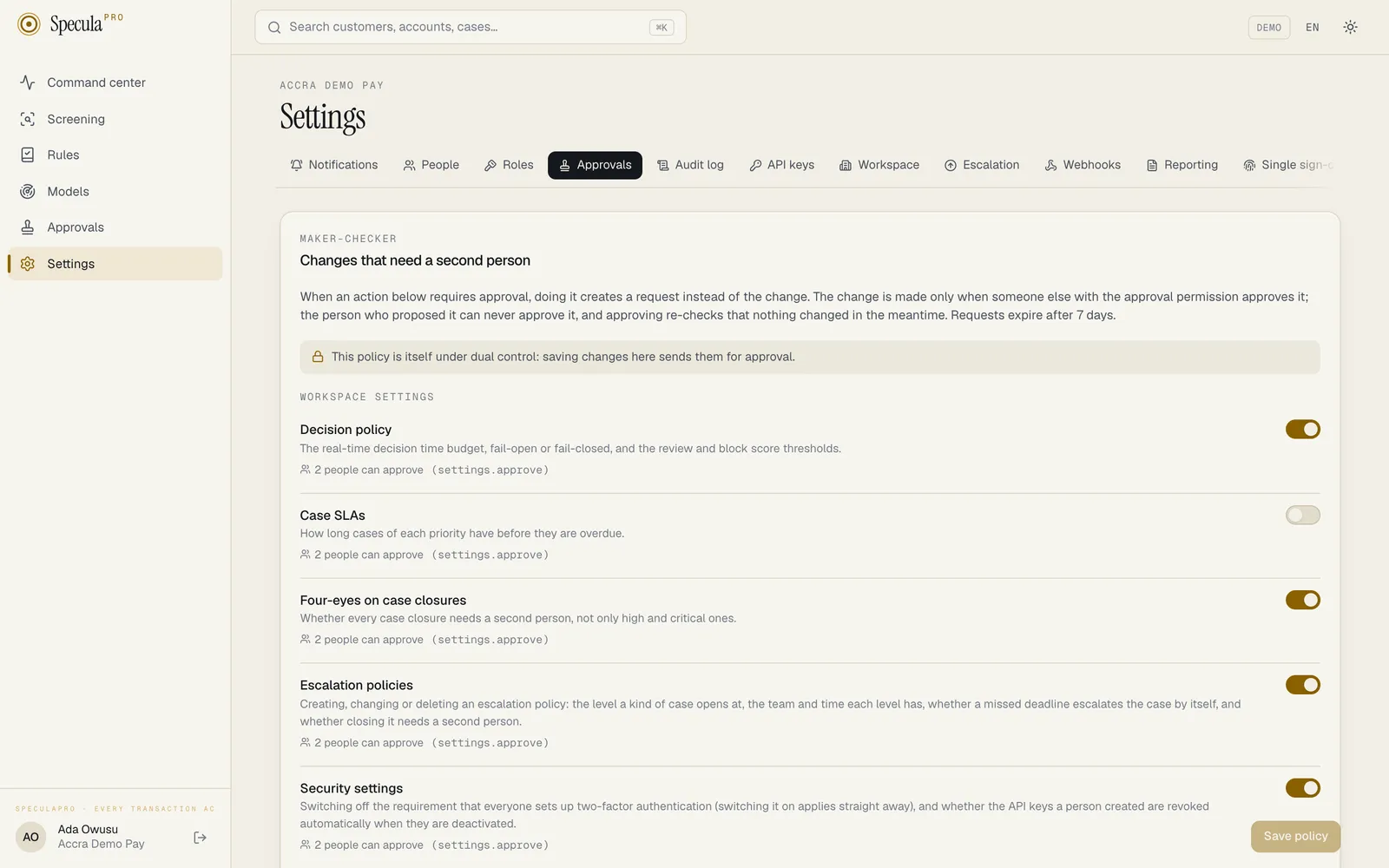
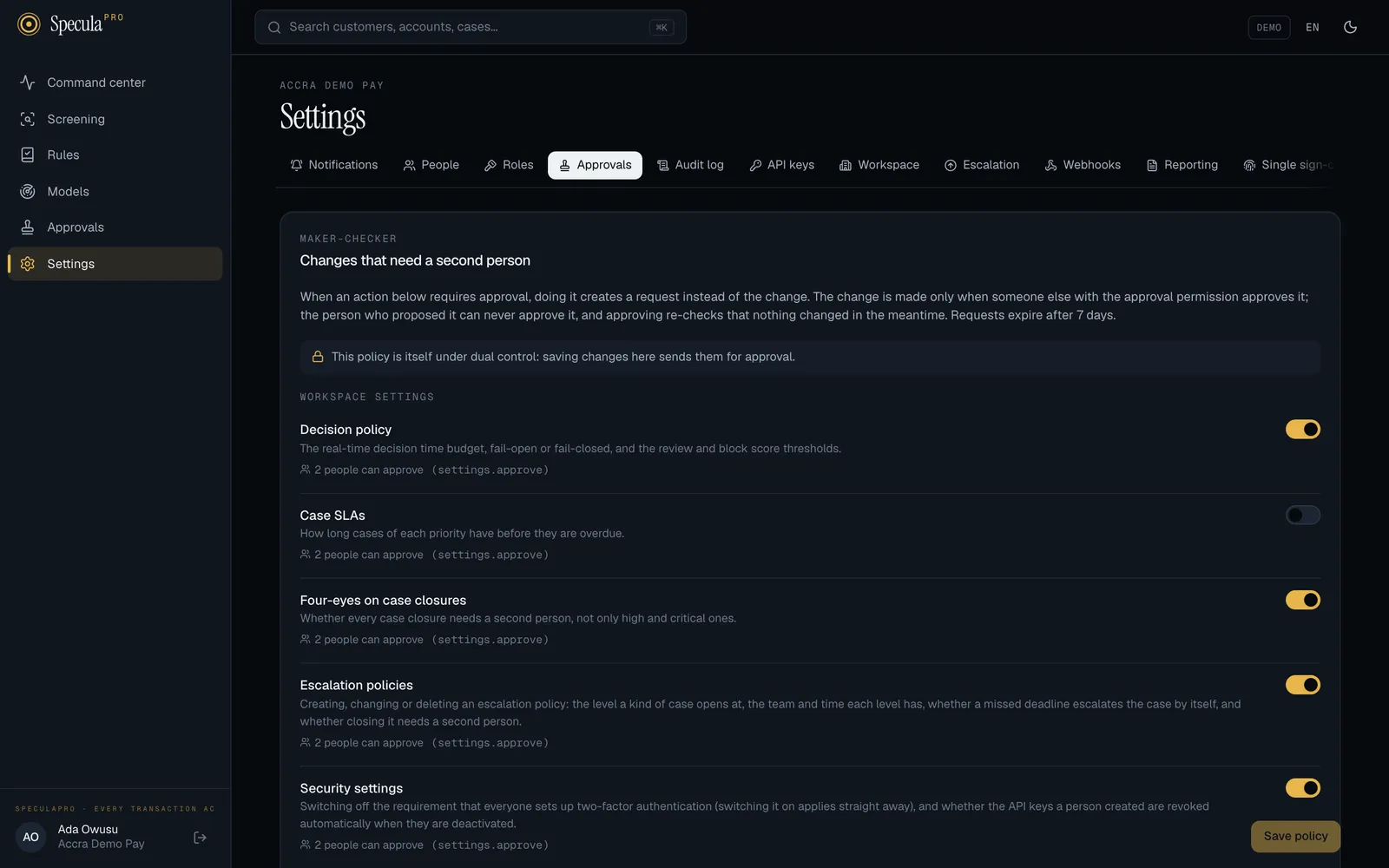
| Area | Kind of change | Approval by default | Proposed by people with | Approved by people with |
|---|---|---|---|---|
| Workspace settings | Decision policy: the real-time time budget, fail-open or fail-closed, and the review and block score thresholds | On | settings.manage |
settings.approve |
| Workspace settings | Case SLAs: how long cases of each priority have | Off | settings.manage |
settings.approve |
| Workspace settings | Four-eyes on case closures: a second person for every closure, not only high and critical | On | settings.manage |
settings.approve |
| Workspace settings | Escalation policies: creating, changing or deleting an escalation policy: the level a kind of case opens at, the team and time each level has, whether a missed deadline escalates the case by itself, and whether closing it needs a second person. Teams are not covered: changing one applies straight away | On | settings.manage |
settings.approve |
| Workspace settings | Security settings: switching off the requirement that everyone sets up two-factor authentication (switching it on applies straight away), and whether the API keys a person created are revoked automatically when they are deactivated, and loosening the support access policy: accepting requests again, allowing full read, or a longer access (tightening it applies straight away) | On | settings.manage (or support_access.manage for the support access policy) |
settings.approve |
| Workspace settings | Jurisdiction: the jurisdiction the workspace follows (reporting and CTR defaults, identifier checks, recommended rule packs) and how strictly identifiers are checked | On | settings.manage |
settings.approve |
| Workspace settings | Regulatory reporting settings: The institution’s details for its FIU filings, the report format and codes, and the CTR threshold | On | settings.manage or reports.approve |
settings.approve |
| Workspace settings | Approval policy: turning approval on or off for anything on this page | On | settings.manage |
settings.approve |
| People and access | Role assignments that add a management or approval permission, or one that shows personal data (personal data, the audit log, reports) or flags customers, when inviting someone or changing their roles. See which grants count | On | users.manage |
users.approve |
| People and access | Re-enabling a disabled person | On | users.manage |
users.approve |
| People and access | Resetting someone else’s two-factor or password | On | users.manage |
users.approve |
| People and access | Custom roles: creating, changing or deleting one | On | users.manage |
users.approve |
| People and access | Single sign-on: the identity-provider connection, requiring SSO, the break-glass administrators, claiming or releasing an email domain, and letting SCIM give roles with administration, approval or security permissions | On | sso.manage |
sso.approve |
| Integrations | API keys: creating one, or rotating one (a new key replaces it). Revoking applies straight away | On | api_keys.manage |
api_keys.approve |
| Integrations | Webhook endpoints: registering one, or changing where one sends events | On | webhooks.manage |
webhooks.approve |
| Integrations | Data sources: adding a Kafka topic, file drop or change data capture source, or changing its connection settings. Also reading a change data capture source again from the start, dropping its replication slot, and deleting a Postgres replication source whose slot still exists | Off | datasources.manage |
datasources.approve |
| Integrations | Data source mappings: a new mapping version for a change data capture source, which decides how its tables become transactions, customers, accounts and account events | On | datasources.manage |
datasources.approve |
| Screening | Screening sources and thresholds: which lists the workspace screens against, the match threshold, what is screened, screening providers and their credentials, importing one of the workspace’s own lists, and importing a signed list bundle through the API (self-hosted; the bundle is kept on the server while the request waits, and the request shows its SHA-256, signing key and lists) | On | screening.manage |
screening.approve |
| Screening | Sanctions matches and true matches: confirming a potential match as a true match (the customer or counterparty is designated and a case is opened), and clearing a match against a sanctions list as a false positive. While this is not in effect, a match against a sanctions list is decided only by someone with screening.approve |
On | screening.review |
screening.approve |
| Screening | PEP and adverse-media false positives: clearing a potential PEP, adverse-media or watch-list match as a false positive | Off | screening.review |
screening.approve |
| Detection | AI assistant: switching the AI assistant on, having it review alerts without being asked, changing whose API key it uses or the model, and giving or removing the workspace’s own key. With it on, masked alert data is sent to the model’s provider. A save that only switches it off, or only stops automatic review, applies straight away | On | settings.manage |
settings.approve |
| Detection | Deny and allow lists: adding, removing or expiring values, or deleting a list. A bulk add is one request | Off | lists.manage |
lists.approve |
| Detection | Rule packs: installing or upgrading a pack, or importing a signed rule-pack file | Off | rules.approve |
rules.approve (a different person) |
| Detection | Risk models: retiring the live risk model, after which rules that read its score read none until another version goes live | On | models.manage |
models.approve |
| Data protection | Retention and purging: changing a retention period or what happens at its end, switching the purge on or off, and changing the data protection jurisdictions (which change the minimums) | On | privacy.manage |
privacy.manage (a different person) |
| Data protection | Legal holds: placing or releasing a legal hold | On | privacy.manage |
privacy.manage (a different person) |
What applies straight away, whatever the policy:
- Taking access away: disabling someone, removing roles, or giving only casework and read-only roles. Removing access should never wait.
- Your own two-factor and password.
- Workspace name, time zone and language, and switching the two-factor requirement on.
- Revoking an API key; deleting, pausing or renaming a webhook endpoint or data source; changing which events a webhook receives; rotating a webhook’s signing secret; reading a change data capture source again, or dropping its replication slot.
- Reference lists (only deny and allow lists can need approval), and creating or renaming a list.
- The rest of the Privacy area: running a dry run, the registers (settings other than the
jurisdictions, processing activities, lawful bases, transfers), data subject requests and the
breach register. Only one person with
privacy.manageis needed for these. - Verifying a single sign-on email domain (the DNS check only records proof for a domain whose claim was already approved; it can’t add, re-point or remove one), and installing a licence.
Defaults start once two people can approve
Section titled “Defaults start once two people can approve”A kind of change marked On by default only starts needing approval once at least two active people hold its approval permission. With one, that person’s own changes could never be approved; with none, nobody’s could. So a new workspace with a single administrator isn’t locked out: the defaults wait. The tab says on by default once two people can approve next to them.
The moment a second approver exists (for example, when you give a second person the Administrator
role), the default takes effect by itself, is written into the policy and is recorded in the
audit log as approval_policy.default, by the system. From then on it is your workspace’s setting,
and stays on until someone turns it off.
The built-in Administrator and MLRO roles both hold settings.approve, so in a workspace
with one administrator and one MLRO, the workspace-settings defaults are on from the start: an
administrator’s change to the decision policy waits for the MLRO, and the other way round.
How to change the policy
Section titled “How to change the policy”You need settings.manage.
- Go to Settings → Approvals.
- Switch each kind of change on or off.
- Select Save policy.
You can’t switch a kind of change on unless at least two active people can approve it. The
switch is disabled, and the API answers 422 with, for example, API keys can’t require approval:
only 1 active people hold api_keys.approve, and nobody approves their own change.
Once Approval policy itself requires approval (the default as soon as two people hold
settings.approve), saving the policy sends your change for approval like any other. The tab says
This policy is itself under dual control: saving changes here sends them for approval. People with
settings.view, or any approval permission (such as the MLRO with settings.approve), but not
settings.manage see the tab read-only, so checkers can see the policy they approve under.
Roles from single sign-on groups
Section titled “Roles from single sign-on groups”Roles a person gets from their identity-provider groups at each single sign-on are applied without approval: the identity provider is the authority for group membership. Changing the group-to-role mapping itself does need approval, as part of the single sign-on settings. If you want dual control over every grant of an administrator or approver role, don’t map IdP groups to those roles. See Single sign-on: accounts and roles.
What the maker sees
Section titled “What the maker sees”When you do something that needs approval, SpeculaPro first checks the change exactly as if it were being made. If something is wrong (a duplicate name, an invalid value), you get the usual error and nothing is stored. If it is valid, a box asks Why is this change needed?: The approver reads this, and so do auditors. E.g. ticket number, who asked, what it fixes. Write 3 to 2,000 characters and select Send for approval.
The change is then Sent for approval. It shows as waiting where it would apply, for example on the Workspace tab:
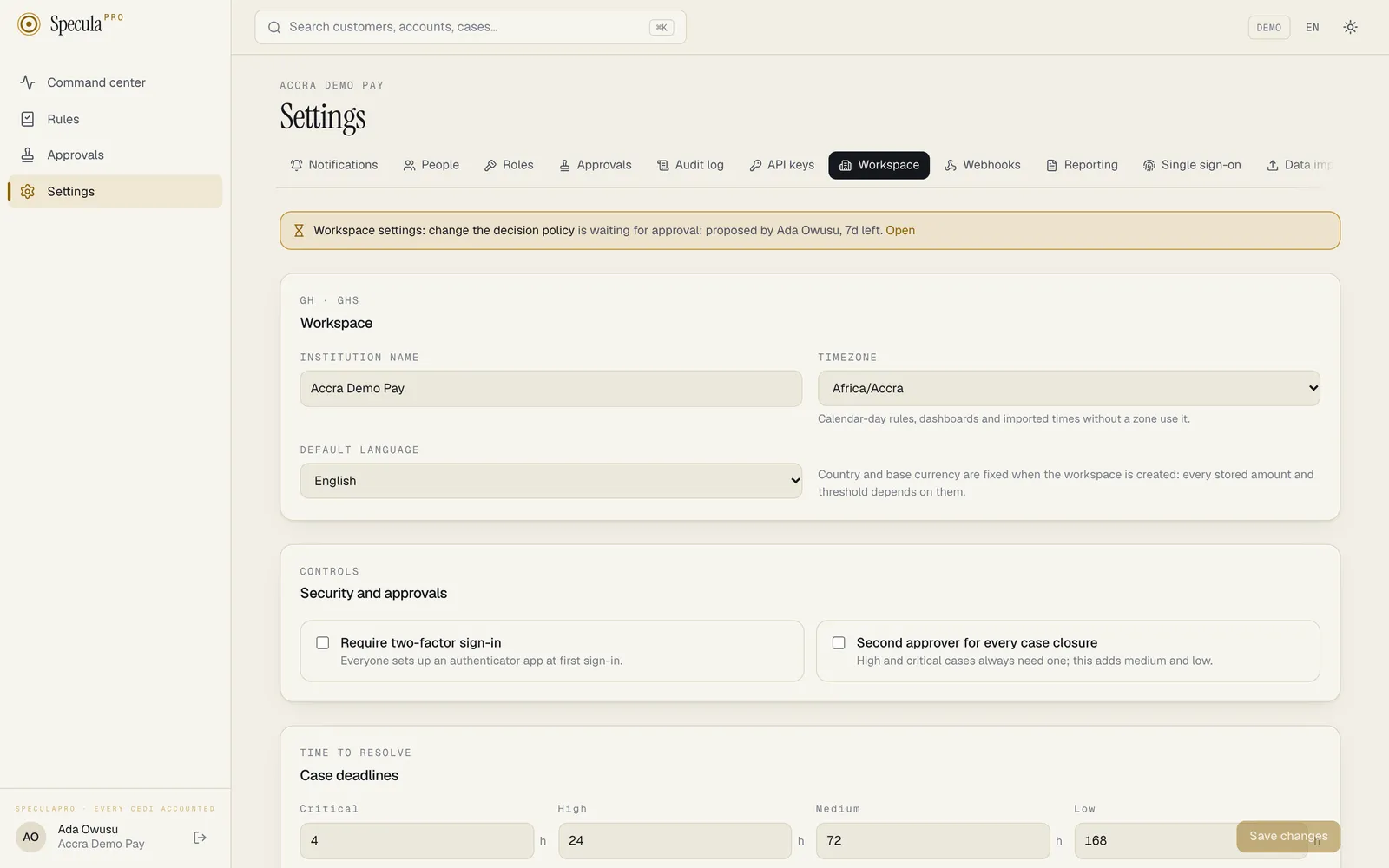
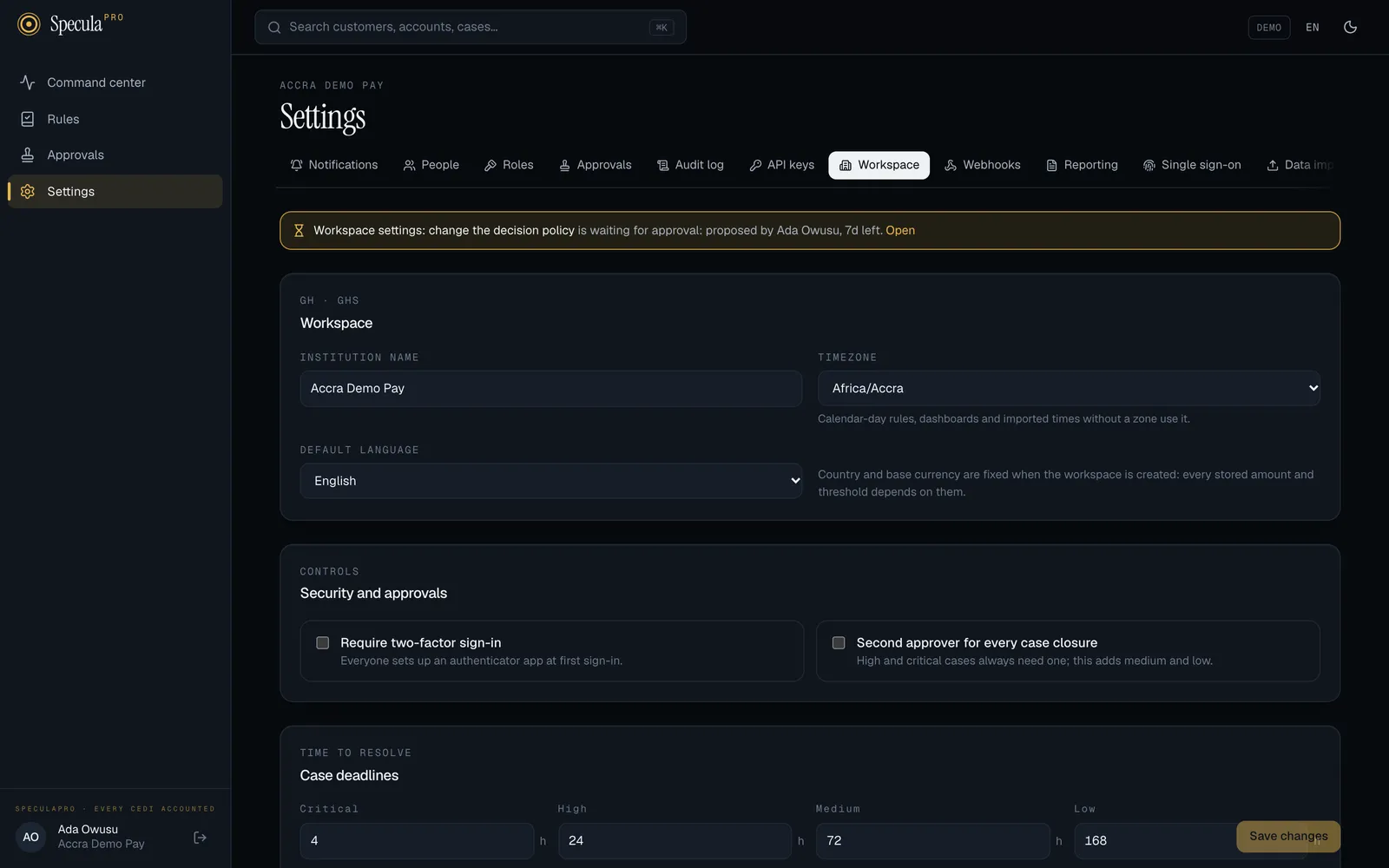
Only one request can wait for the same thing at a time. Proposing a second change to the same setting, person, role, list, endpoint or pack is refused with a change request for this is already waiting for approval: withdraw the first one, or wait for it. The same goes for creating something new: only one request can wait for each of these.
| Creating | Counts as the same when it has the same |
|---|---|
| An invitation | Email address |
| An API key | Name and scopes (case and order don’t matter) |
| A webhook endpoint | Address (URL) |
| A data source | Name (case doesn’t matter) |
| A custom role | Key |
| A single sign-on email domain claim | Domain |
A change that touches several kinds at once, for example the decision policy and four-eyes in one save, becomes one request carrying all of it.
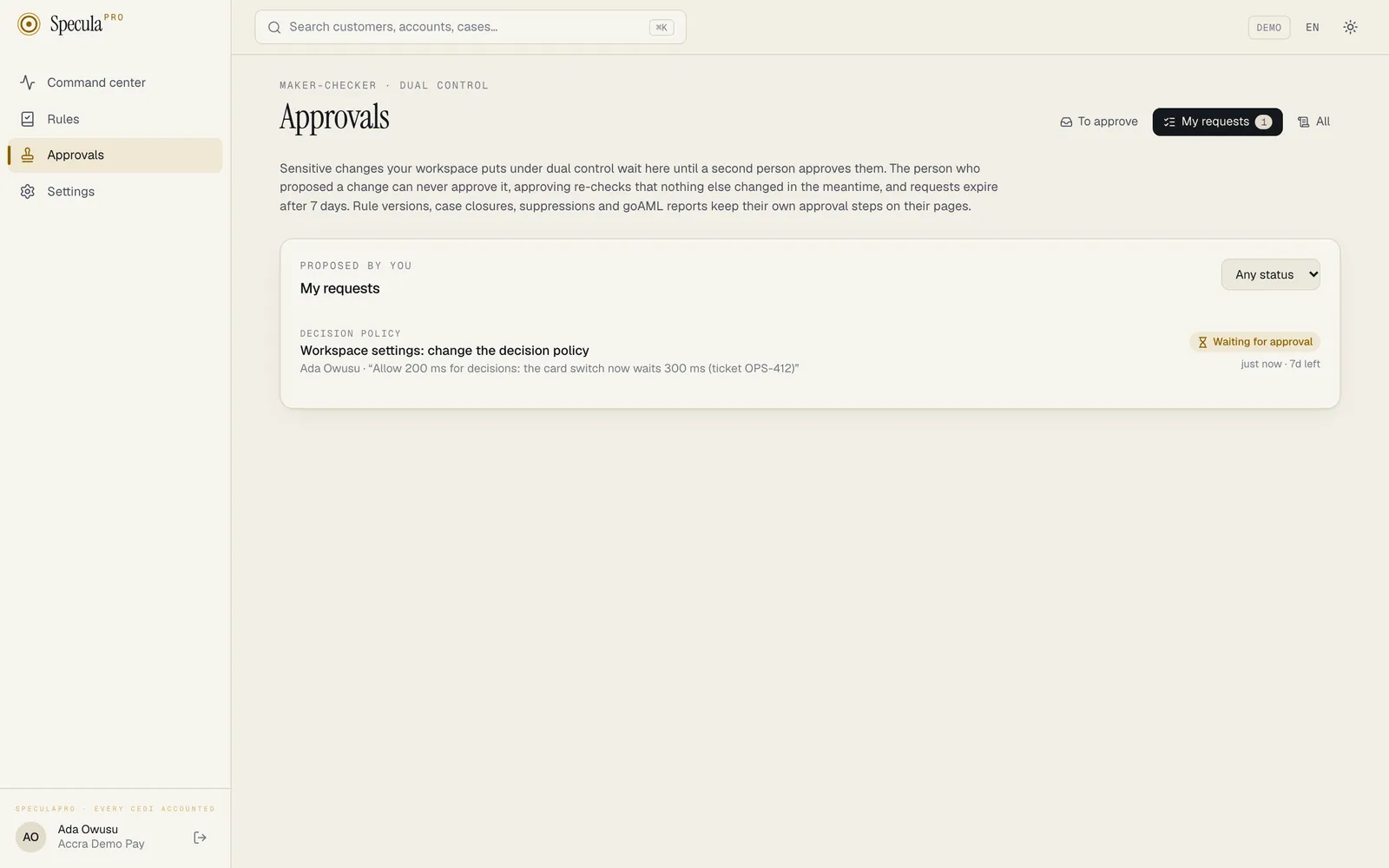
Your requests are under Approvals → My requests. You’re notified when one is approved, rejected, found out of date or expires.
How to withdraw a request
Section titled “How to withdraw a request”- Go to Approvals → My requests and open the request.
- Select Withdraw, optionally say why, and confirm.
Only the person who proposed a change can withdraw it.
Collecting a one-time secret
Section titled “Collecting a one-time secret”Some changes create a secret that is shown only once: a temporary password (inviting someone, or resetting their password), an API key, or a webhook signing secret. When such a request is approved, the secret waits, encrypted, for you, the person who proposed it. Open the request under My requests and collect it. It is shown once, then deleted: Shown once, now. It isn’t kept any more: if it is lost, issue a new one. The approver never sees it.
What the checker sees
Section titled “What the checker sees”Everyone who can approve a kind of change is notified when someone proposes one, by the channels they chose under Settings → Notifications. The notification names the kind of change and what it affects, never the values. Approvals in the menu shows a count of requests waiting for you.
How to approve or reject a request
Section titled “How to approve or reject a request”- Go to Approvals. To approve lists what is waiting for you.
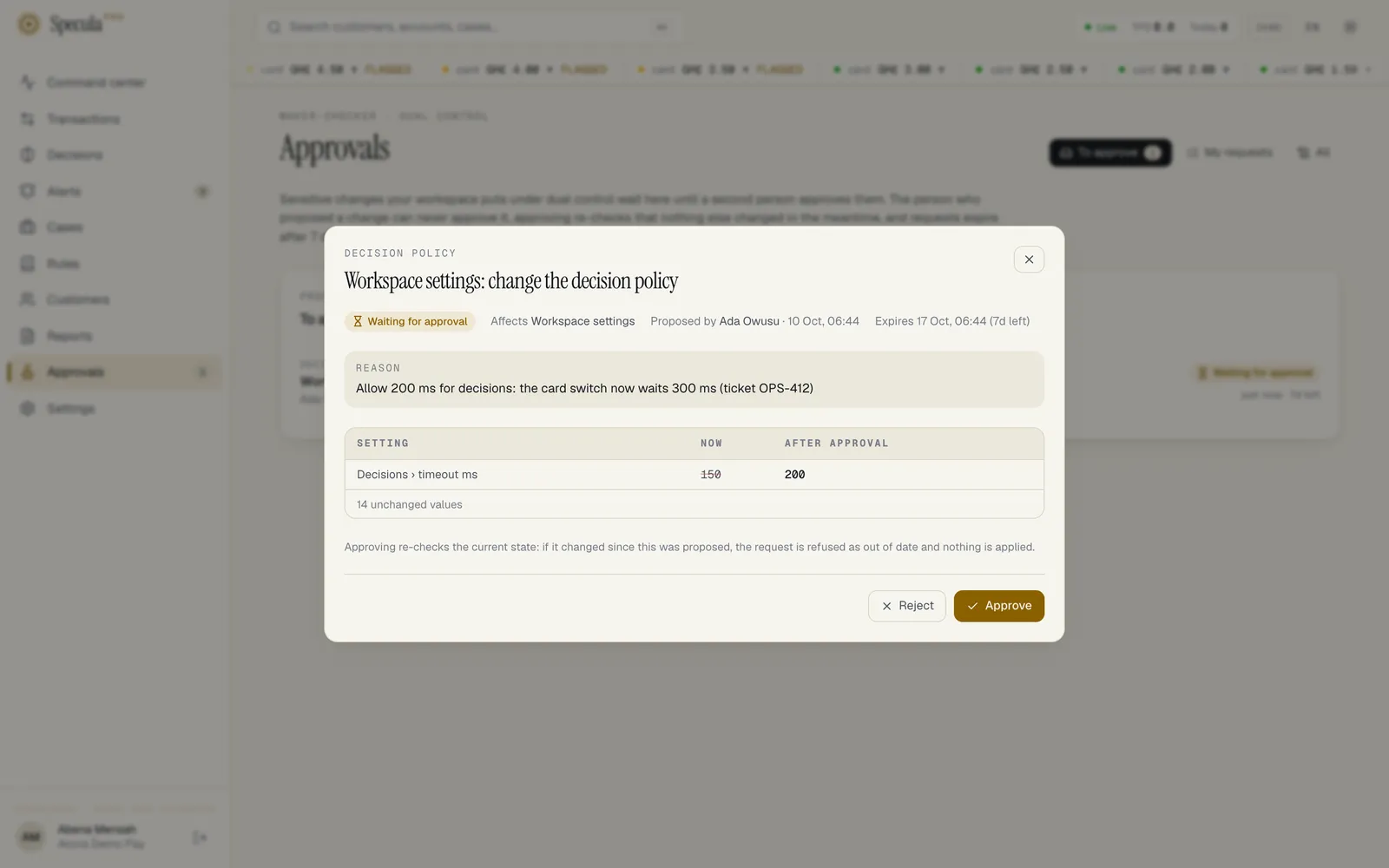
- Open a request. You see who proposed it and when, their reason, when it expires, and the difference: each value now and after approval. Hide unchanged keeps the table short.
- Check the change against the reason. If you need to, ask the maker.
- Select Approve (a note is optional) or Reject (say why: at least 3 characters; the maker reads it).
When you approve, SpeculaPro first re-reads what the change affects. If it changed since the proposal, nothing is applied: the request is closed as out of date (stale), and the maker is asked to propose it again against the current state. Otherwise the change is made as the maker proposed it, in the same database transaction as your approval and the audit entries, so either all of it happens or none of it.
You can’t approve:
- your own request (you proposed this change; someone else must approve it);
- without the approval permission for its kind;
- after it expired;
- when the maker is no longer active, or no longer holds a permission to make that change. Reject it instead.
What counts as “changed in the meantime”
Section titled “What counts as “changed in the meantime””| Kind of change | It goes out of date when |
|---|---|
| Workspace settings (decision policy, case SLAs, four-eyes, the two-factor requirement) | One of the sections the request changes is changed by someone else: the name, time zone and language; the two-factor requirement; the decision policy; four-eyes; or case SLAs. Renaming the workspace doesn’t affect a waiting decision-policy request, and approving it changes only its own sections |
| Escalation policies | That policy changes |
| Regulatory reporting settings | Any reporting setting changes |
| Role assignments, re-enabling, credential resets | That person’s status or roles change (for resets, also their two-factor or password state) |
| Custom roles | That role changes |
| Single sign-on | The SSO settings change (the daily metadata refresh doesn’t count), including the stored client secret being replaced directly, or the break-glass list changes |
| Single sign-on email domains | Releasing a domain: that domain is removed or verified meanwhile. Claiming a domain: nothing (it is new) |
| Webhook endpoints | That endpoint’s address changes, or a field the request sets (description, events) changes |
| Data sources | That data source changes |
| Data source mappings | The source’s active mapping version changes (someone saved another version meanwhile) |
| Sanctions matches and true matches; PEP and adverse-media false positives | The match’s status, score or list entry changed, or it was resolved meanwhile |
| AI assistant | The assistant’s settings change (on or off, the key’s source, the model, automatic review, or whether a workspace key is stored) |
| Risk models | The version’s state changed, or another version went live or was retired meanwhile |
| Deny and allow lists | The list itself, or one of the values the request adds, removes or expires, changes. Deleting a list depends on every value on it |
| Rule packs, including signed files | The installed or available version changes |
| Retention and purging | A retention period or action, the purge switch, or the data protection jurisdictions change. A jurisdiction change depends on the jurisdictions only |
| Legal holds | Placing: a hold is placed on the same target meanwhile. Releasing: that hold is released meanwhile |
Creating something new (an API key, an endpoint, a data source, a role, an escalation policy, inviting someone, claiming a domain) has nothing to go out of date.
The client secret of a single sign-on connection is never shown or stored in clear. A request that changes it shows Client secret: set → changed in the difference, and the request depends on a keyed fingerprint of the stored secret, so replacing the secret directly while the request waits makes it out of date.
Requests expire after 7 days
Section titled “Requests expire after 7 days”A request nobody decides within 7 days expires without being applied, and the maker is told. The worker closes overdue requests every minute, so this happens within about a minute of the expiry whether or not anyone opens the Approvals page; a request can’t be approved after its expiry in any case. Requests of a workspace that is suspended or being moved to another region are closed once it is active again. Propose it again if it is still needed.
The life of a request
Section titled “The life of a request”| Status | On screen | Meaning |
|---|---|---|
pending |
Waiting for approval | Proposed; nothing has changed yet |
applied |
Applied | Approved by someone else and made |
rejected |
Rejected | Turned down, with a reason |
withdrawn |
Withdrawn | Taken back by its maker |
expired |
Expired | Nobody decided within 7 days |
stale |
Out of date | The target changed after the proposal, so it wasn’t applied |
The database itself makes sure of the important parts:
- the person who decides a request is never its maker, except that only the maker withdraws;
- what was proposed (the change, the before and after, the reason, the expiry) can’t be edited;
- a decided request can’t change again, except that a one-time secret is wiped once collected;
- a rejection always has a reason;
- requests are never deleted.
Credentials inside a proposal (single sign-on client secrets, data source keys and passwords) are stored encrypted with your workspace’s key, as they would be once applied.
Who sees which requests
Section titled “Who sees which requests”- To approve: requests someone else proposed that you can approve.
- My requests: yours.
- All (people with
audit.view): every request, for audit.
Anyone else who can make or approve a kind of change also sees its requests. Everyone has the Approvals menu item, so makers can follow their own requests.
Always dual-controlled
Section titled “Always dual-controlled”These have their own approval steps on their own pages, enforced in the database, whatever the policy says. Settings → Approvals lists them under Always dual-controlled.
| Flow | Proposed with | Approved with | Guide |
|---|---|---|---|
| Rule changes | rules.author |
rules.approve |
Approving a rule change |
| Case closures (high and critical, or every closure with four-eyes on) | cases.close |
cases.approve |
Closing and approving |
| Suppressions | suppressions.create |
suppressions.approve |
Suppressions |
| Regulatory reports | reports.draft |
reports.approve |
Approving a report |
| A risk model going live (an ordinary request in the Approvals inbox; it just can’t be switched off) | models.manage |
models.approve |
Risk models |
What is recorded
Section titled “What is recorded”Every step is in the audit log: the proposal with its reason and the before and
after (change_request.propose), the decision (change_request.approve, .reject, .withdraw,
.stale, .expire), a collected secret (change_request.secret_collected), and policy changes
(approval_policy.update, approval_policy.default). The change itself is recorded under its usual
action, such as user.roles or tenant.settings, with the maker as the actor; the approval
entry names the checker.