
Screening settings
In short
Section titled “In short”Settings → Screening is where your workspace decides who is screened, against which lists, and how strict a match must be. It also shows each list’s current version and last fetch, the recent re-screens, and the providers set up for you.
You need screening.view to see the tab and screening.manage to change anything. Without
screening.manage, every control is greyed out and there is no Save button.
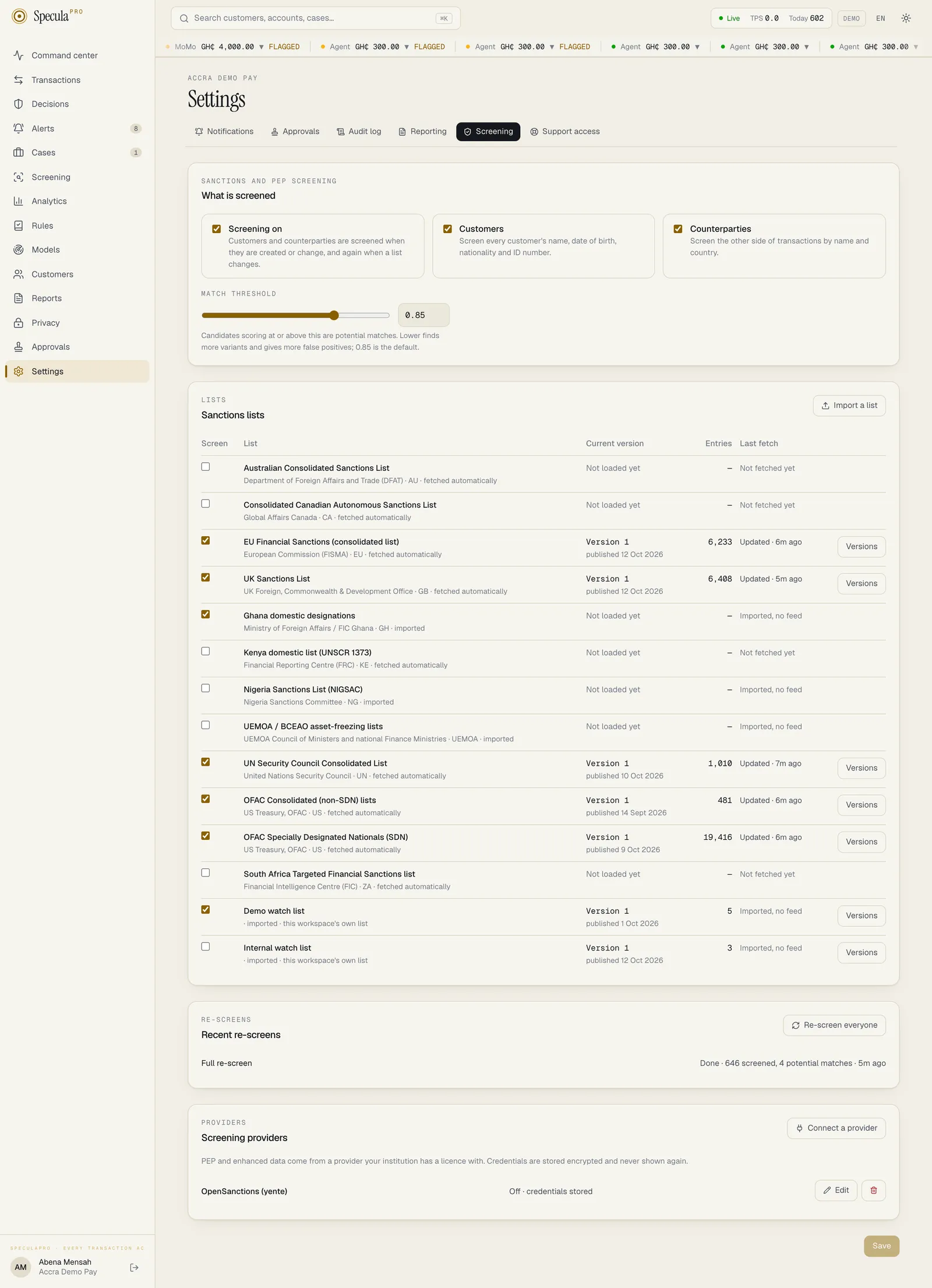
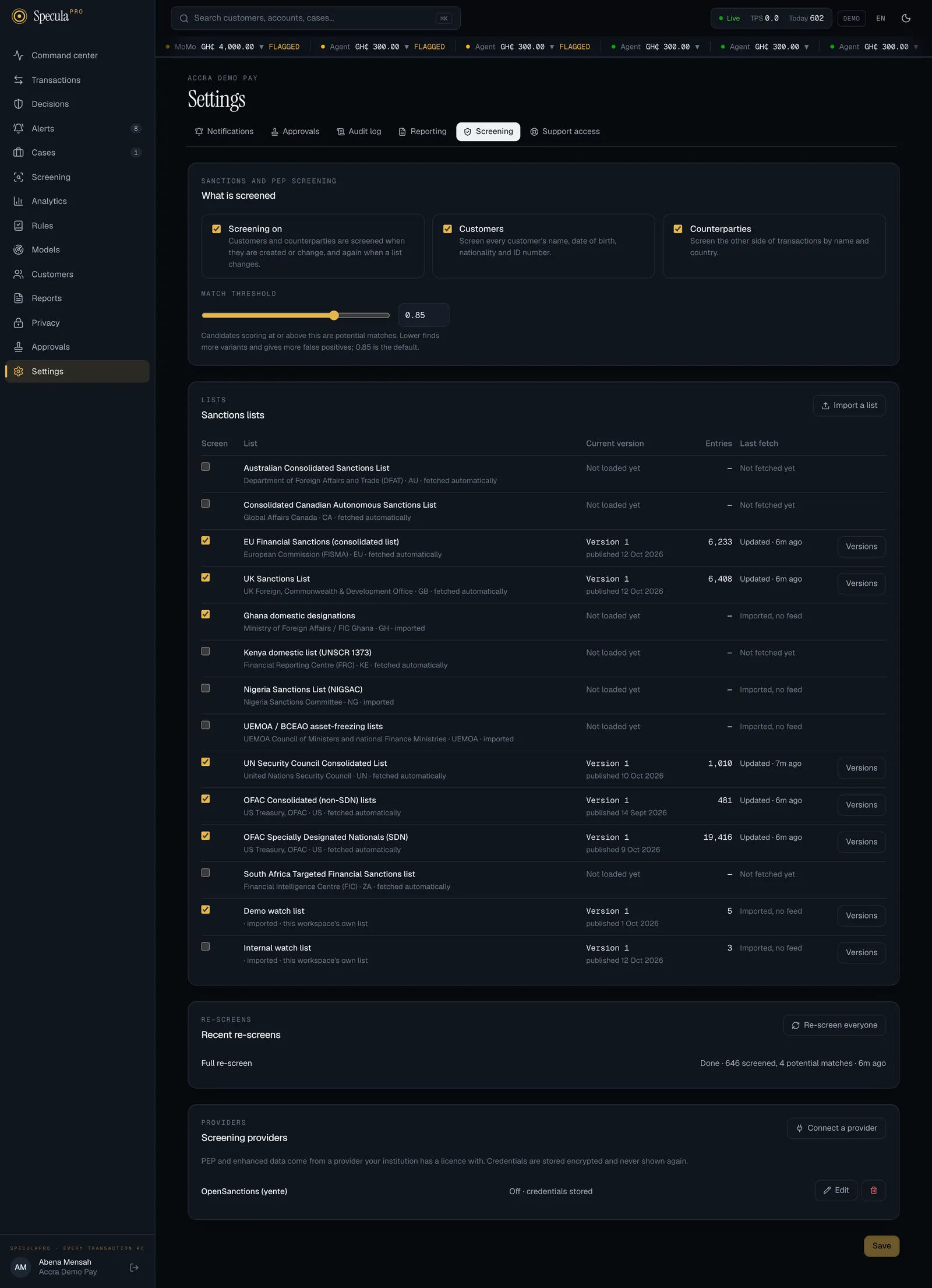
The page has four panels:
| Panel | What it shows |
|---|---|
| What is screened | Three switches and the match threshold |
| Sanctions lists | The installation’s lists and your workspace’s own, with a tick box for the ones you screen against |
| Recent re-screens | The last ten re-screens, and Re-screen everyone |
| Screening providers | The providers set up for your workspace or the whole installation, with Connect a provider, Edit and remove for your workspace’s own |
Changes to the first two panels are collected and saved together with Save at the bottom right. Discard throws away what you haven’t saved.
What is screened
Section titled “What is screened”| Switch | Meaning |
|---|---|
| Screening on | Master switch. Off: the worker does no automatic screening for your workspace, applies no list changes and runs no re-screen. Lists are still fetched for the installation |
| Customers | Screen every customer’s name, date of birth, nationality and ID number |
| Counterparties | Screen the other side of transactions by name and country |
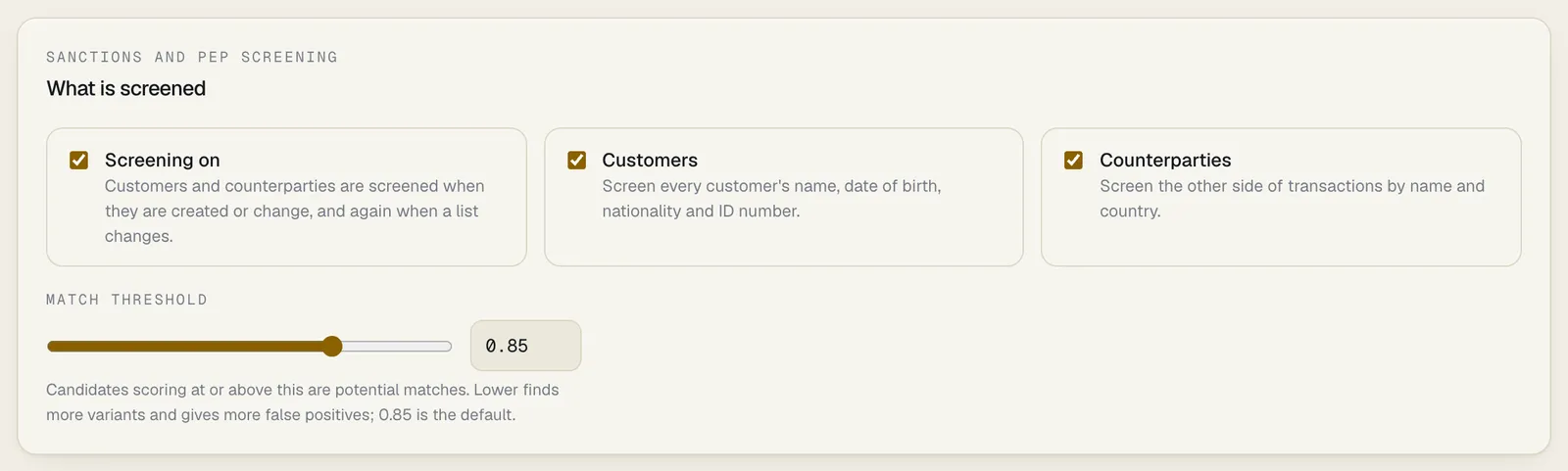
All three are on for a new workspace.
How to turn screening on or off
Section titled “How to turn screening on or off”- Open Settings, then the Screening tab.
- Under What is screened, tick or clear Screening on, Customers or Counterparties.
- Select Save.
- If your workspace requires approval for screening changes, give a reason when asked. The change waits for a second person. See Approvals.
Clearing Customers or Counterparties stops that group being screened from then on. It does not remove their existing potential matches.
The match threshold
Section titled “The match threshold”How to change the match threshold
Section titled “How to change the match threshold”- Open Settings → Screening.
- Under Match threshold, drag the slider or type a value from
0.50to0.99. Outside that range the hint turns red, Choose a threshold between 0.50 and 0.99, and Save is unavailable. - Select Save.
A changed threshold queues a full re-screen of your workspace, because everyone was screened against the old one. Lower finds more variants and gives more false positives. See How matching works.
Choosing lists
Section titled “Choosing lists”The Sanctions lists panel lists every list the installation keeps, and every list your workspace has imported for itself. You never see another workspace’s own lists.
| Column | Meaning |
|---|---|
| Screen | Ticked: your workspace screens against this list |
| List | Its name, publisher, jurisdiction, and whether it is fetched automatically or imported. A list of your own also reads this workspace’s own list |
| Current version | The version number and the publisher’s date (or the date it was stored). Not loaded yet when the list has never been fetched or imported |
| Entries | How many entries the current version has |
| Last fetch | Updated, No change, Newer version kept or Failed, and how long ago. Hover for the exact time, or the note or error. Imported, no feed for a list that is never fetched; Not fetched yet for a feed still waiting for its first fetch |
| Versions | Opens the list’s version history. Shown once the list has a version |
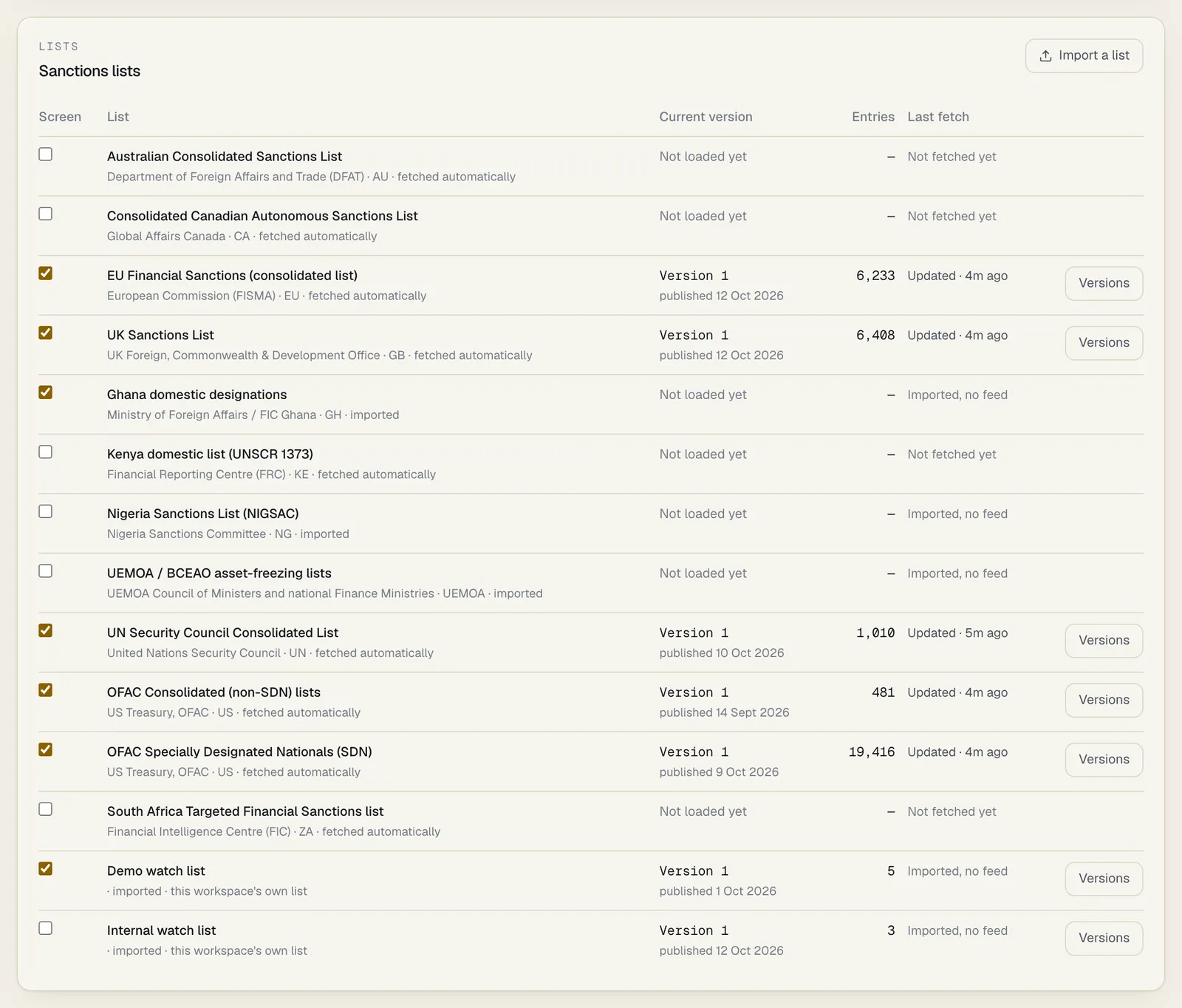
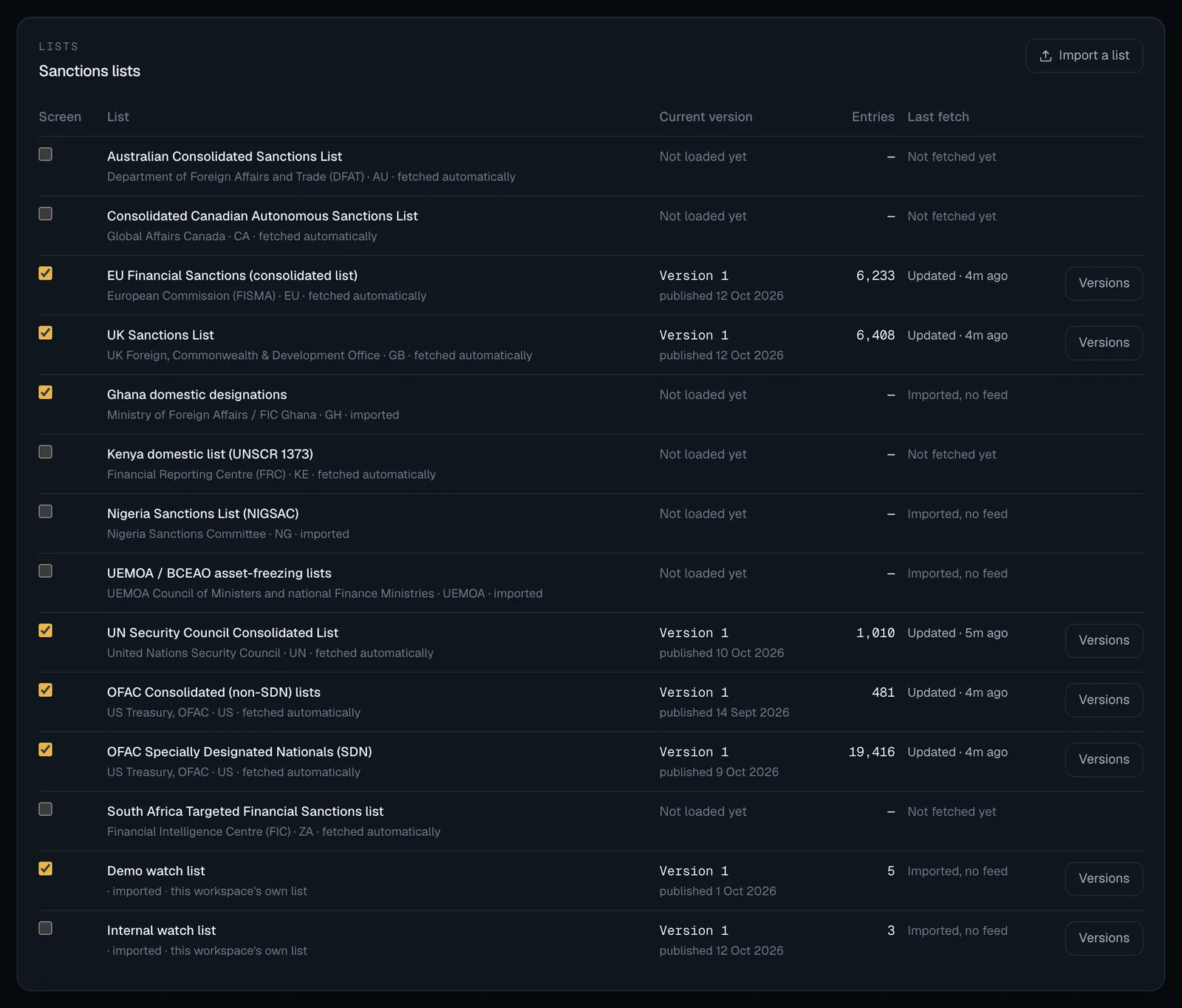
Newer version kept means the publisher’s file was older than the version the installation already holds, usually one loaded from a signed bundle. Nothing was stored and nothing needs doing. See A list never goes back in time.
Until someone saves a choice, a line above the table reads No choice saved yet: the lists of the workspace’s jurisdiction are screened (the ones ticked below). Which lists those are is in Default lists by jurisdiction. They follow the jurisdiction until the first Save; after that the workspace screens against exactly what was saved.
How to choose the lists you screen against
Section titled “How to choose the lists you screen against”- Open Settings → Screening.
- In Sanctions lists, tick each list to screen against and clear the ones you don’t want.
- Select Save.
What happens next:
- A full re-screen of your workspace is queued.
- A list that was not being fetched for anyone (South Africa, Canada, Australia, Kenya) starts being fetched, at the worker’s next pass. Until its first version arrives it shows Not loaded yet and matches nothing.
- With
screening.manage, the panel has an Import a list button, which loads your workspace’s own watch list from a CSV or XML file. See How to import your own list. - An imported list you tick matches nothing until it has a version. The Nigeria, Ghana and UEMOA lists are imported by the operator of the installation; a list of your own is imported by your workspace. See Importing a list.
- Open potential matches on a list you cleared are closed, in the same save. See below.
What happens to matches on a list you clear
Section titled “What happens to matches on a list you clear”A potential match on a list you no longer screen against would never be refreshed again. So when the save takes effect, every open potential match on a cleared list is closed:
- its status becomes
superseded, with the reasonsource_removedand the time; - the audit log gets one
screening.hits.closeentry with the number closed; - matches a person already cleared or confirmed are not touched;
- matches from a provider stay open. They are a person’s to decide.
Ticking the list again screens everyone against it again, and people who still match get a new potential match. See Potential matches.
How to see a list’s versions
Section titled “How to see a list’s versions”- Open Settings → Screening.
- In Sanctions lists, select Versions on the list’s row.
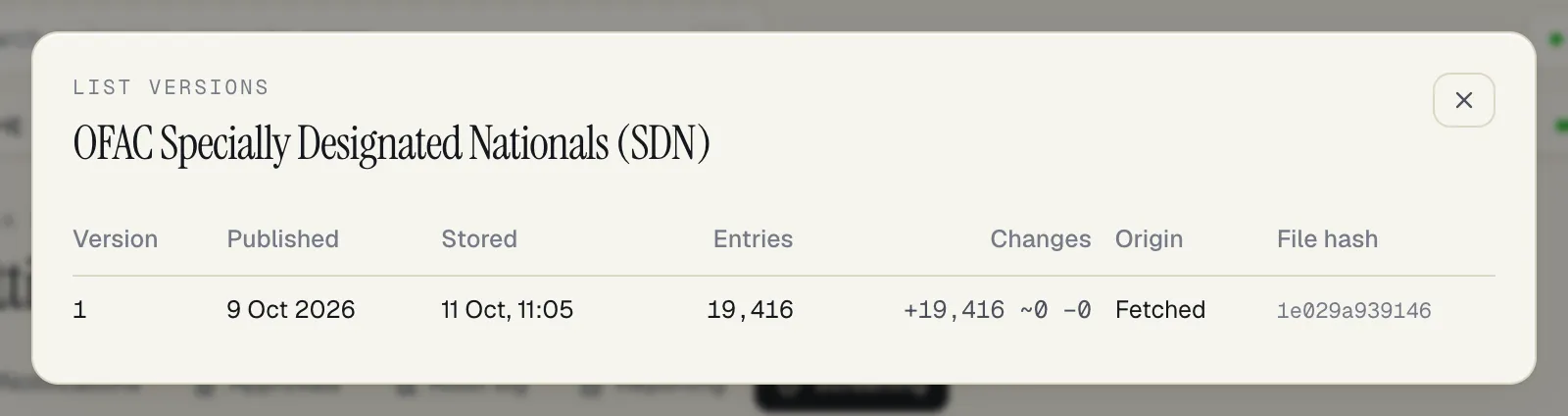
A panel opens with up to 50 versions, newest first: version number, Published, Stored,
Entries, Changes (+added ~changed −removed), Origin and the first 12 characters of
the File hash. Hover over the hash to see all of it. See
Sanctions lists: versions.
Re-screens
Section titled “Re-screens”Recent re-screens shows the last ten, newest first. Each line has the kind, the list it came from (for a list change), the status, how many people were screened, how many potential matches they have, and how long ago.


| Kind | What started it |
|---|---|
| Full re-screen | Someone selected Re-screen everyone, or the lists, the threshold or Screening on changed |
| List change | A list you screen against got a new version. Only people the change could affect are screened |
| Status | Meaning |
|---|---|
| Waiting | Queued for the worker |
| Running | In progress |
| Done | Finished |
| Failed | Stopped with an error, or was not run because screening was turned off meanwhile. Hover over the line to read why |
The everyday screening of new and changed customers and new counterparties is not listed here.
How to re-screen everyone
Section titled “How to re-screen everyone”- Open Settings → Screening.
- In Recent re-screens, select Re-screen everyone.
A Full re-screen appears as Waiting and the worker starts it at its next pass. It screens every customer and counterparty with a name against your lists, whether or not anything changed.
- Only one full re-screen waits or runs per workspace. Selecting the button again while one is waiting or running does nothing new.
- A full re-screen checks lists only. It does not call your providers, so it doesn’t run up a provider bill. A person waiting for a provider retry keeps waiting for it: a lists-only re-screen doesn’t cancel the retry.
- It needs
screening.manage. It does not need approval, and is written to the audit log asscreening.rescreen. - It is refused while Screening on is clear.
- A re-screen that has been Running for more than two hours, for example because the worker was stopped, is put back to Waiting and starts again.
You rarely need this button: list changes and settings changes re-screen by themselves. The one time you do is after an upgrade that changes how names are matched, because an upgrade doesn’t go back over matches already raised. Re-screen everyone once, and open matches that no longer reach the threshold close as No longer matches. See After an upgrade that changes matching.
Screening providers
Section titled “Screening providers”The last panel lists the providers set up for your workspace, and any set up for the whole installation. Each line shows On, Off or Not available yet, whether credentials are stored, and the last error if a call failed.


With screening.manage you set providers up here: Connect a provider adds one, and each of your
workspace’s own providers has Edit and a remove button. See
How to connect a provider. A provider for the
whole installation is read-only here: the operator of a self-hosted installation sets it up from
the command line.
Approvals
Section titled “Approvals”Under your workspace’s approval policy, the action type
Screening sources and thresholds (screening.config) covers:
- saving the What is screened switches, the threshold and the choice of lists;
- adding, changing or removing a provider;
- importing a list file for your workspace (see When approval is required);
- importing a signed list bundle through the API, on a self-hosted installation.
It is on by default, and starts applying once at least two active people hold
screening.approve. By default only the MLRO role has that permission.
When it applies:
- You select Save and are asked for a reason.
- The page shows a banner that a change is waiting, and nothing changes yet.
- Someone else with
screening.approveapproves or rejects it under Approvals. - On approval the change is applied, exactly as if they had saved it.
A second change can’t be proposed while one is waiting.
If what the change depends on moved on in the meantime (for example the list got a newer version while an import waited), the request is closed as out of date and you propose it again.
Re-screen everyone doesn’t go through approval. Neither does anything the operator does from the command line.
What is recorded
Section titled “What is recorded”| Action | Audit log entry |
|---|---|
| Settings saved | screening.settings, with the settings before and after |
| Open matches closed because their list was cleared | screening.hits.close, with the reason source_removed, how many, and the lists now screened |
| Re-screen started by a person | screening.rescreen |
| A person imported a list or a signed bundle | screening.list.version, in that person’s workspace, with the list, version and counts. Versions the worker fetches, and what the operator loads from the command line, are recorded at installation level and don’t appear in any workspace’s audit log |
| Provider saved or removed | screening.provider.save, screening.provider.delete |
| A name screened on demand | screening.screen_name, with a keyed fingerprint of the name, never the name |
| A customer or counterparty screened on demand | screening.screen_subject |
The full list of fields is in the audit log reference.