
Single sign-on
In short
Section titled “In short”With single sign-on (SSO), your staff sign in to SpeculaPro with their usual work account at your organisation’s identity provider (IdP), such as Microsoft Entra ID, Okta, Google Workspace, Keycloak or ADFS, instead of a separate SpeculaPro password. When someone leaves, disabling them at the IdP stops them signing in to SpeculaPro too.
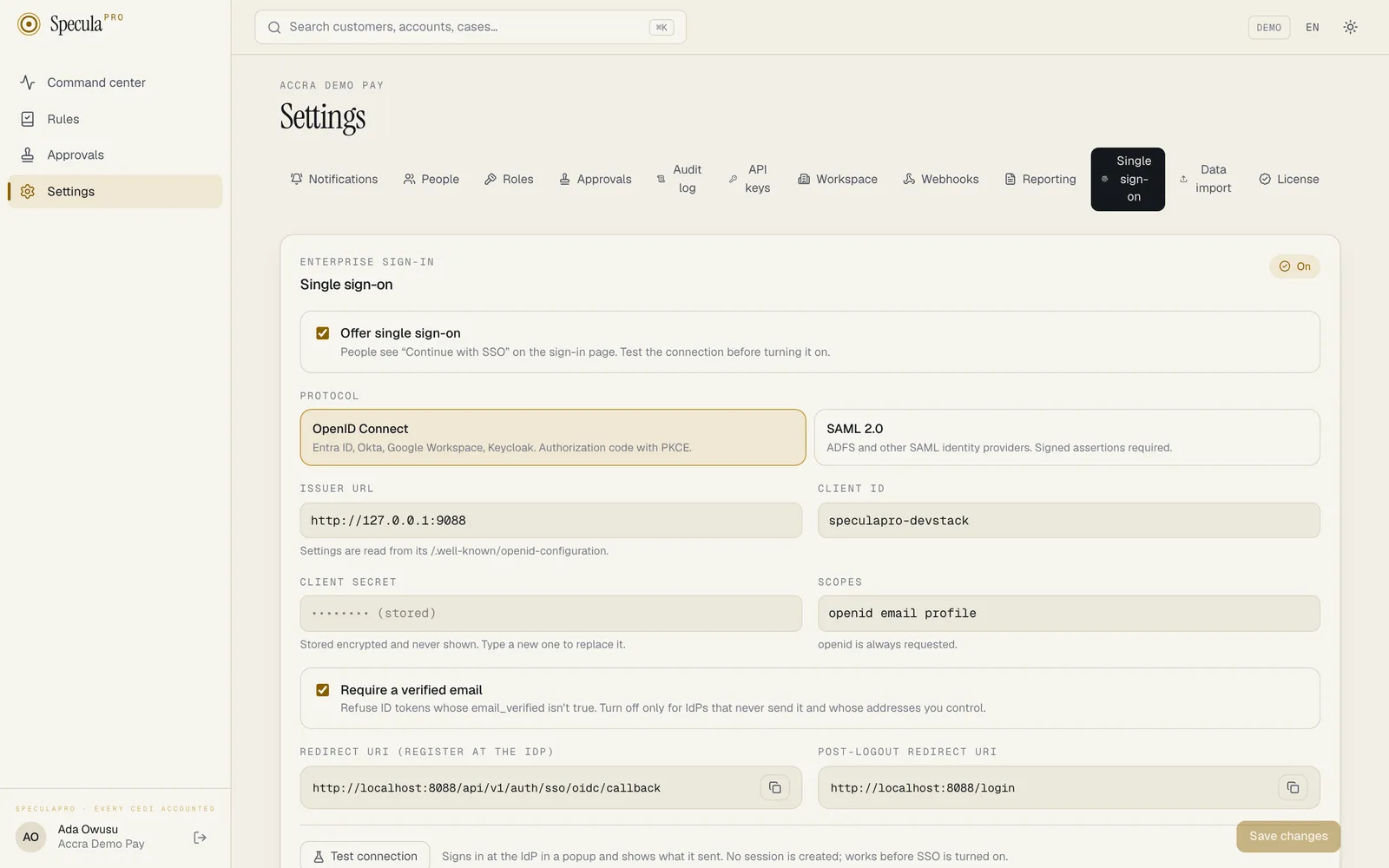
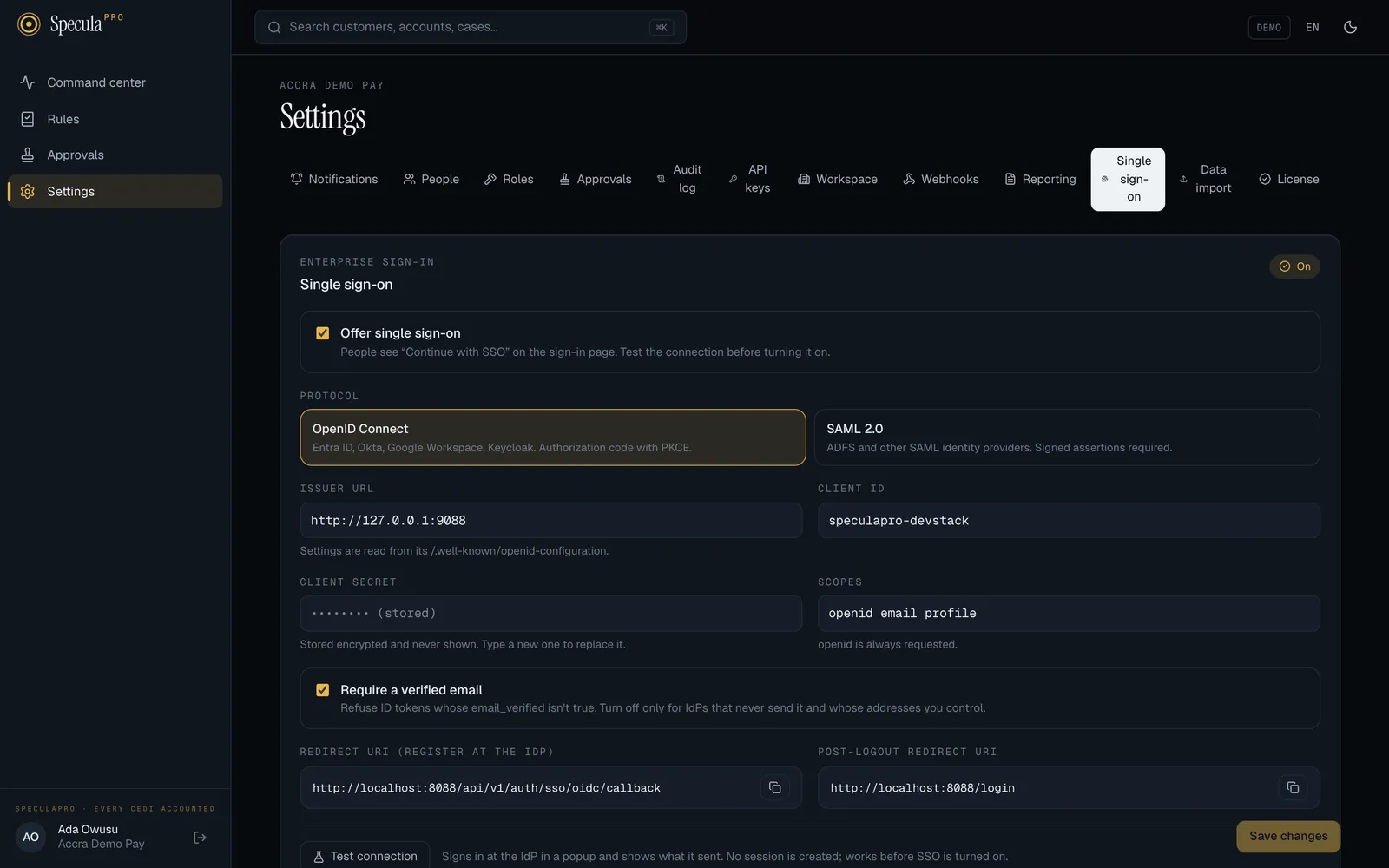
Each workspace has one SSO connection, using either OpenID Connect (OIDC) or SAML 2.0. You set it up under Settings → Single sign-on:
- You need the
sso.managepermission. In the default roles, only the Administrator has it. People withsettings.view(the Auditor) can open the tab read-only, including the SCIM tokens’ names and dates; no secret is ever shown. The tab then carries the note Read-only: you can see this configuration, but not change it. - Every change is written to the audit log.
- The security design, for your security reviewers, is in Single sign-on security.
SSO comes in stages, and you choose how far to go:
| Stage | What people see |
|---|---|
| SSO off (the default) | Workspace, email, password and authenticator code, as today |
| SSO offered | The sign-in page also shows Continue with SSO. Passwords still work |
| SSO required | Everyone signs in through the IdP, except a few break-glass administrators who keep a password and authenticator for emergencies |
Before you start
Section titled “Before you start”You need:
- Someone who can register an application in your IdP.
- The email domains your staff’s addresses use, for example
acmebank.com.gh. On SpeculaPro SaaS you’ll also need someone who can add a DNS record for each domain. - At least one administrator with their own password and authenticator app, if you plan to require SSO. See Break-glass administrators.
Self-hosted? Your operator sets the address identity providers use to reach SpeculaPro, with
SP_SSO_PUBLIC_URL. Check that the Redirect URI or ACS URL shown in Settings starts with your
real address, not http://localhost:8080. Outside development, SpeculaPro refuses to turn SSO on
while the address is local (localhost, a .localhost name or a loopback address), with this deployment’s public address is “http://localhost:8080”: identity providers would send people back to their own computer. Set SP_SSO_PUBLIC_URL (or SP_NOTIFY_PUBLIC_URL) to the https address people use, then configure single sign-on. See
Configuration: single sign-on.
How to connect with OpenID Connect
Section titled “How to connect with OpenID Connect”Use OIDC with Microsoft Entra ID, Okta, Google Workspace, Keycloak and most modern IdPs.
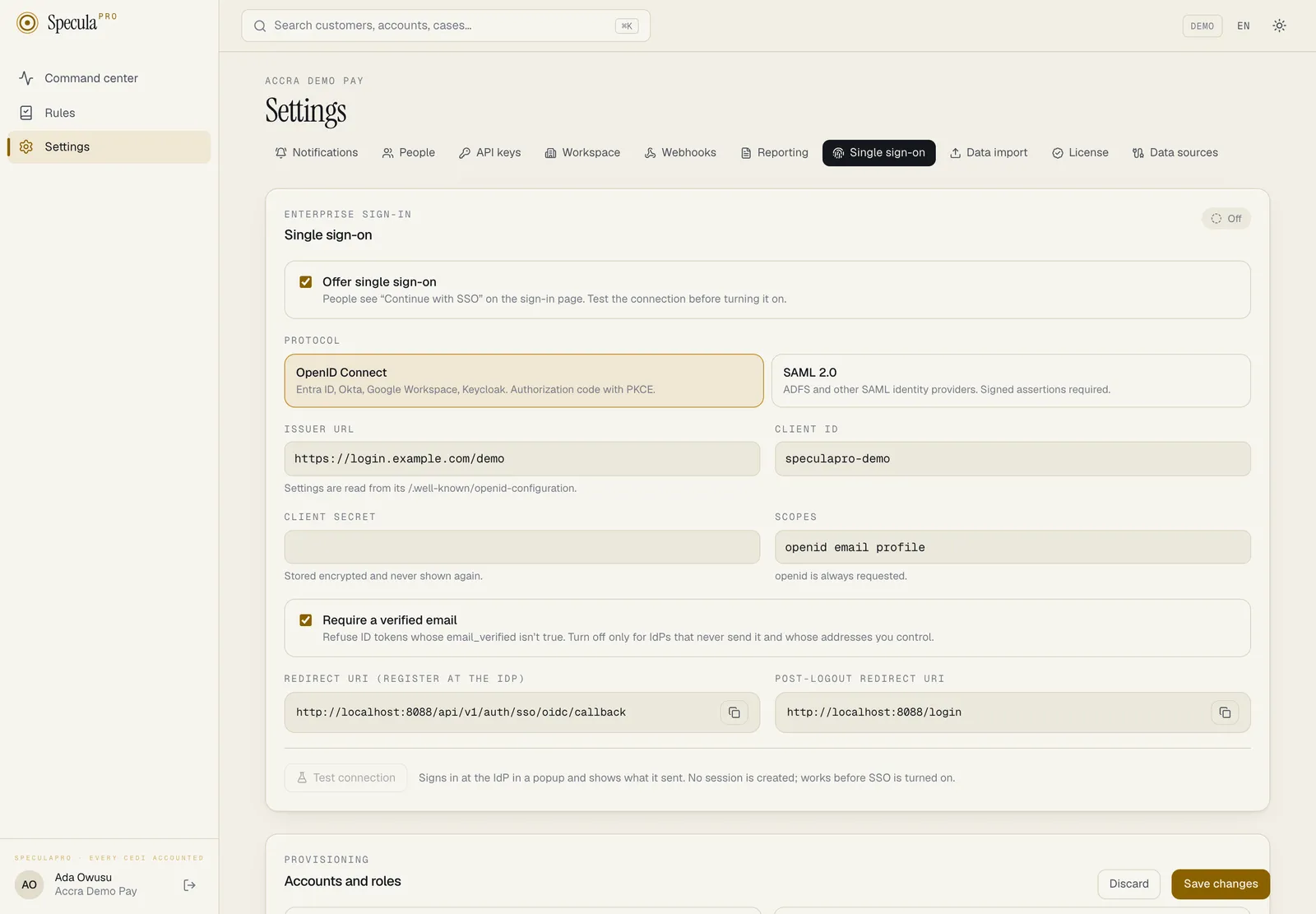
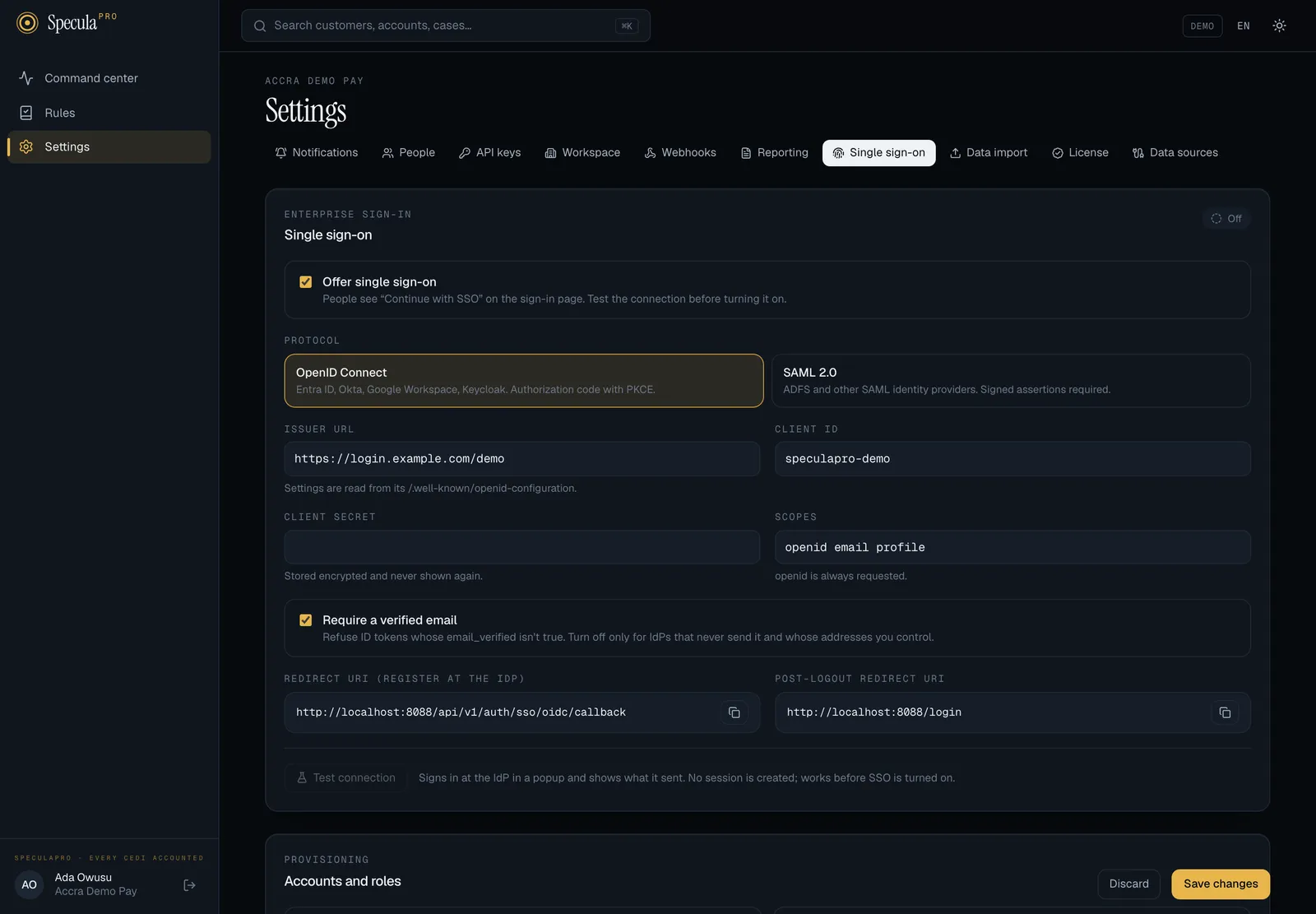
- In Settings → Single sign-on, under Protocol, select OpenID Connect.
- Copy the Redirect URI (register at the IdP). It looks like
https://speculapro.example.com/api/v1/auth/sso/oidc/callback. - In your IdP, register a web application (a confidential client that has a client secret),
using the authorization code flow. Add the redirect URI you copied. If you want sign-out to
reach the IdP too, also add the Post-logout redirect URI (your SpeculaPro address followed by
/login). - From the IdP, copy the issuer URL, the client ID and a client secret.
- Back in SpeculaPro, fill in Issuer URL, Client ID and Client secret. SpeculaPro reads
the rest of the settings from the issuer’s
/.well-known/openid-configuration. - Leave Scopes as
openid,emailandprofileunless your IdP needs more. Add the scope that carries groups if you will map groups to roles.openidis always requested. - Leave Require a verified email on. See the caution below.
- Select Save changes. Whenever SSO is switched on, SpeculaPro first checks it can read the issuer’s configuration and that a client secret is stored. If it can’t, it says couldn’t read the issuer’s OpenID configuration (or enter the client secret) and saves nothing.
- Claim your email domains, then test the connection.
The client secret is stored encrypted and never shown again. To replace it, type a new one and save. Leave the field empty to keep the current one.
How to connect with SAML
Section titled “How to connect with SAML”Use SAML with ADFS and other SAML 2.0 identity providers.
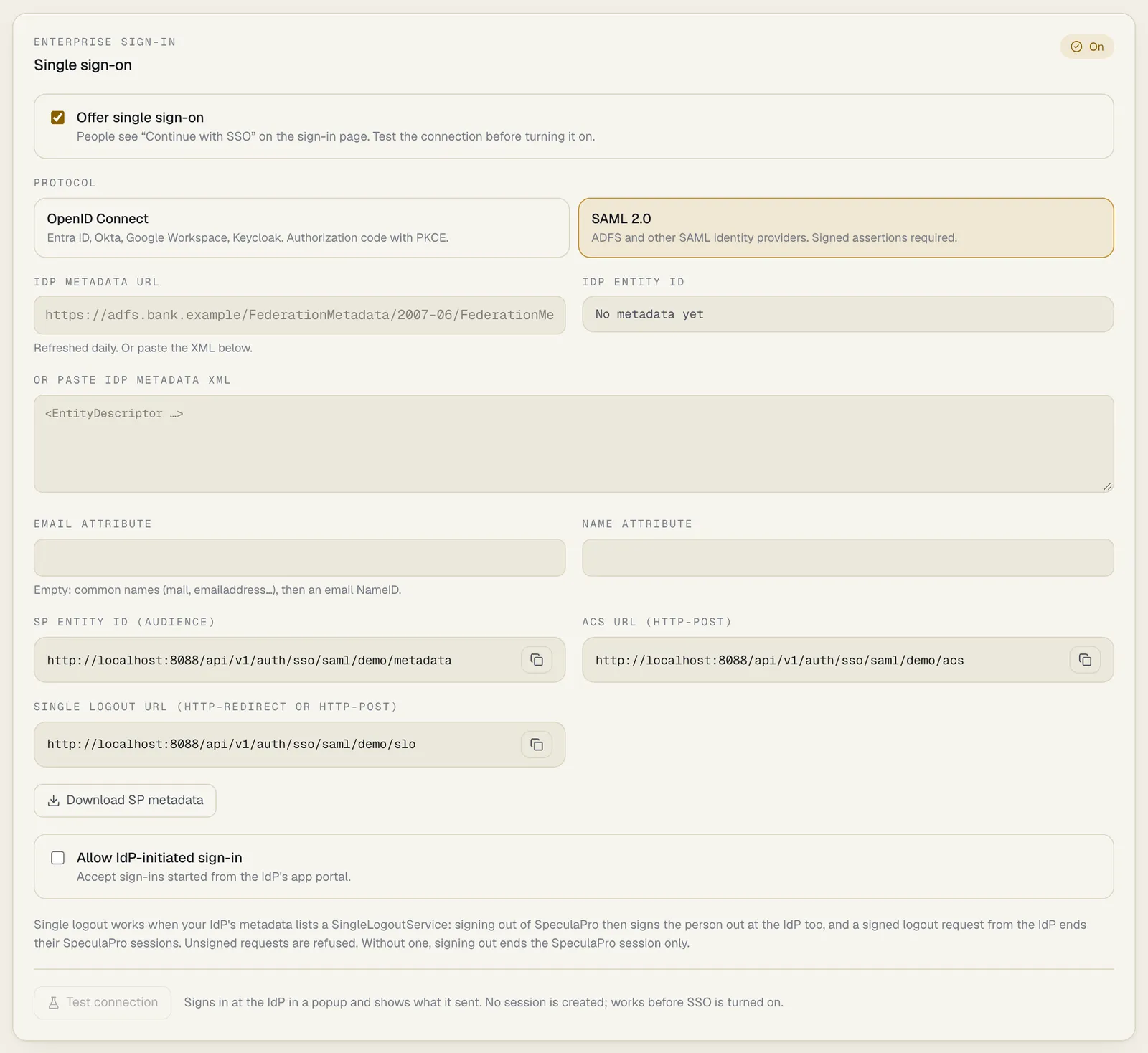
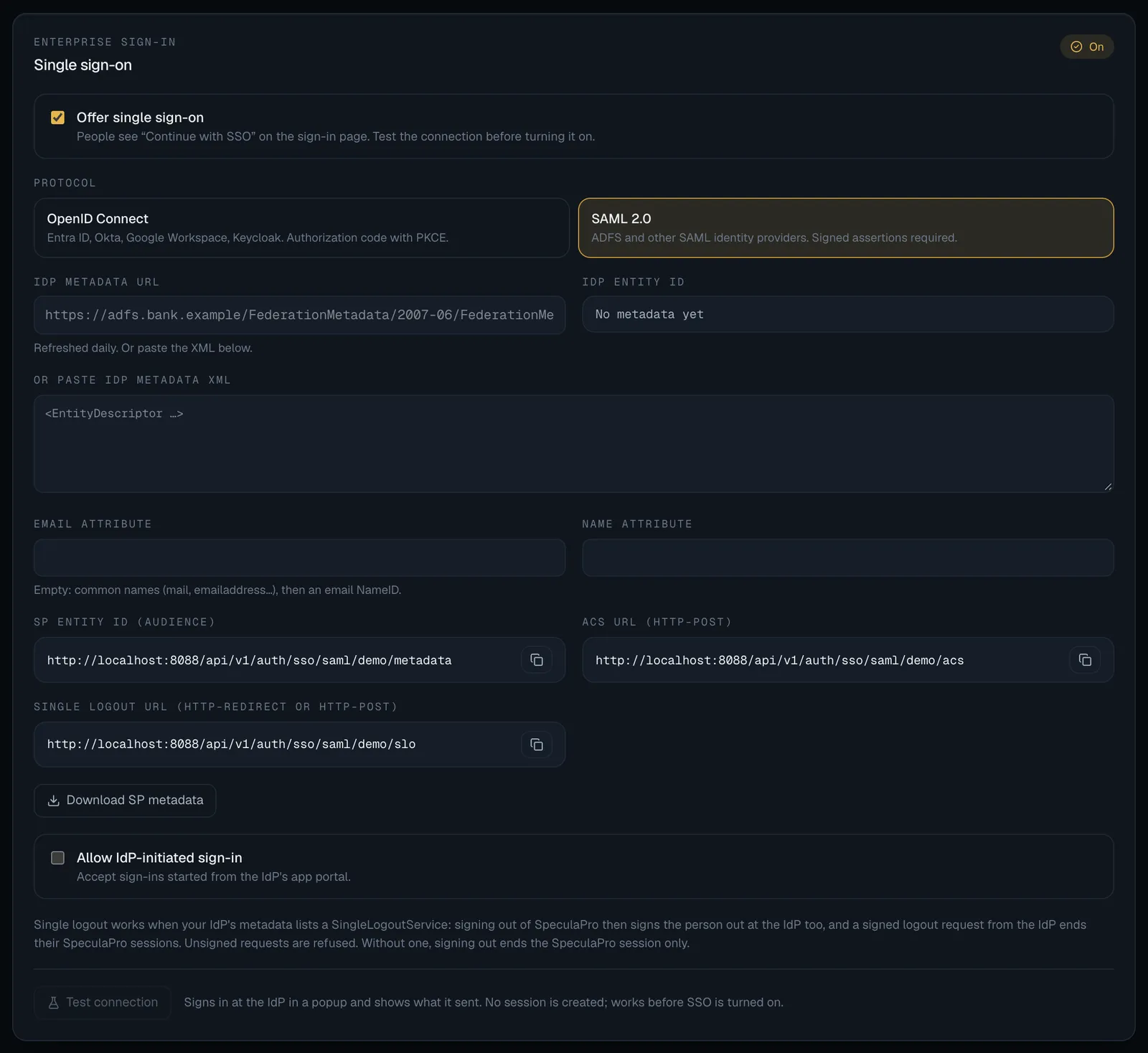
- In Settings → Single sign-on, under Protocol, select SAML 2.0.
- Give SpeculaPro the IdP’s metadata, in one of two ways:
- IdP metadata URL: SpeculaPro fetches it, and fetches it again once a day. Use the refresh button next to the field to fetch it now.
- Or paste IdP metadata XML: SpeculaPro keeps that copy until you paste another. Pasted metadata replaces a URL.
- Select Save changes. The IdP entity ID field then shows who SpeculaPro will accept assertions from. If a metadata URL can’t be fetched, SpeculaPro says couldn’t fetch the IdP metadata and keeps your other settings; if pasted XML isn’t valid metadata, it says the IdP metadata isn’t valid and saves nothing.
- Give your IdP SpeculaPro’s details. Either select Download SP metadata (available once SAML
settings are saved) and import the file, or copy the values:
- SP entity ID (audience), which looks like
https://speculapro.example.com/api/v1/auth/sso/saml/<workspace>/metadata; - ACS URL (HTTP-POST), which looks like
https://speculapro.example.com/api/v1/auth/sso/saml/<workspace>/acs.
- SP entity ID (audience), which looks like
- At the IdP, configure the application so that:
- each assertion is signed (signing only the response isn’t enough);
- the NameID is persistent or an email address, not transient;
- the IdP’s single sign-on service accepts the HTTP-Redirect binding;
- the assertion carries the person’s email address, and their groups if you will map groups to roles.
- If the email isn’t in one of the usual attributes (
mail,email,emailaddressand their common long forms), or in an email-format NameID, enter its attribute name under Email attribute. Name attribute works the same way for the display name. - Claim your email domains, then test the connection.
SpeculaPro signs its sign-in requests with a key it creates for your workspace when you first save SAML settings. The certificate is in the SP metadata.
Sign-ins started from the IdP’s portal
Section titled “Sign-ins started from the IdP’s portal”By default a SAML sign-in must start at SpeculaPro (Continue with SSO). Sign-ins started from your IdP’s app portal are refused, because such an answer isn’t tied to a request from the person’s browser: a stolen or forwarded response could sign someone in.
If your staff must start from the portal, turn on Allow IdP-initiated sign-in. SpeculaPro shows a warning when you do. Each assertion is still accepted only once.
How to claim your email domains
Section titled “How to claim your email domains”A claimed domain tells SpeculaPro that addresses at that domain belong to your IdP. It is used twice:
- On the sign-in page, a person who types their email and selects Continue with SSO is sent to the IdP only if their domain is claimed.
- The first SSO sign-in of a person is matched to an existing account, or creates one, only if their email domain is claimed. After that, they are recognised by the IdP’s own identifier for them.
-
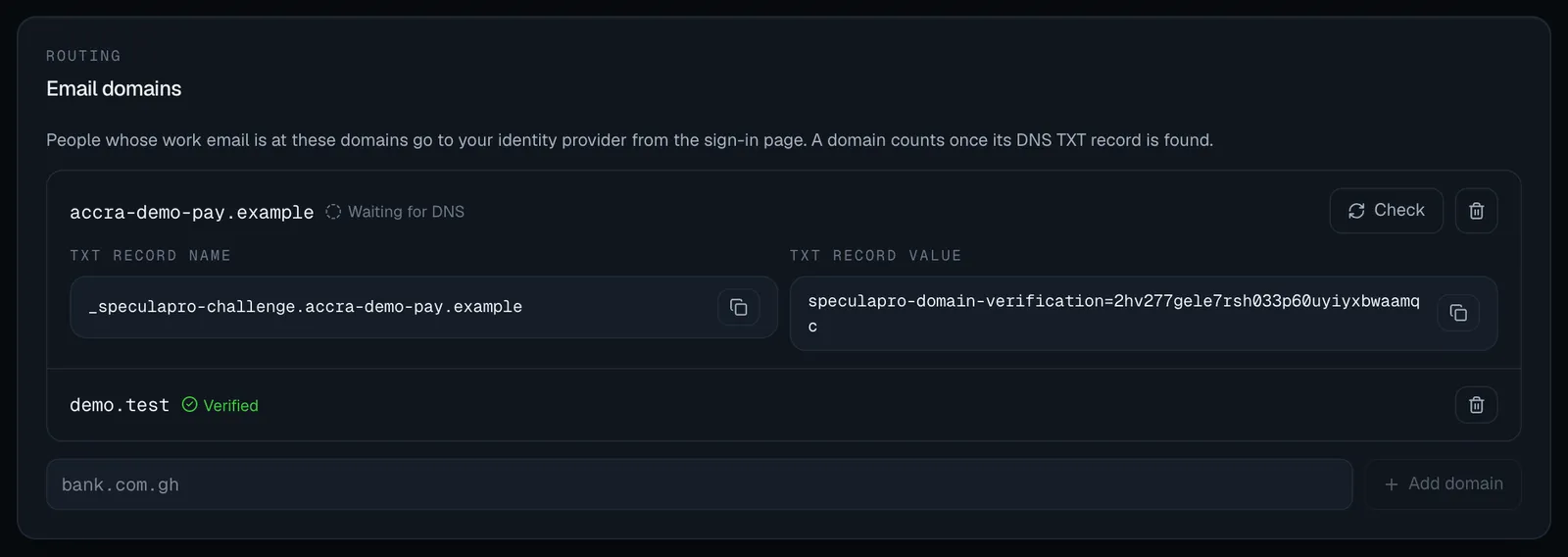
In Settings → Single sign-on, under Email domains, type the domain, for example
acmebank.com.gh, and select Add domain. -
Where verification is required (always on SpeculaPro SaaS), the domain shows Waiting for DNS with a TXT record to create:
DNS record Value Name _speculapro-challenge.acmebank.com.ghType TXT Value speculapro-domain-verification=followed by the code shown in Settings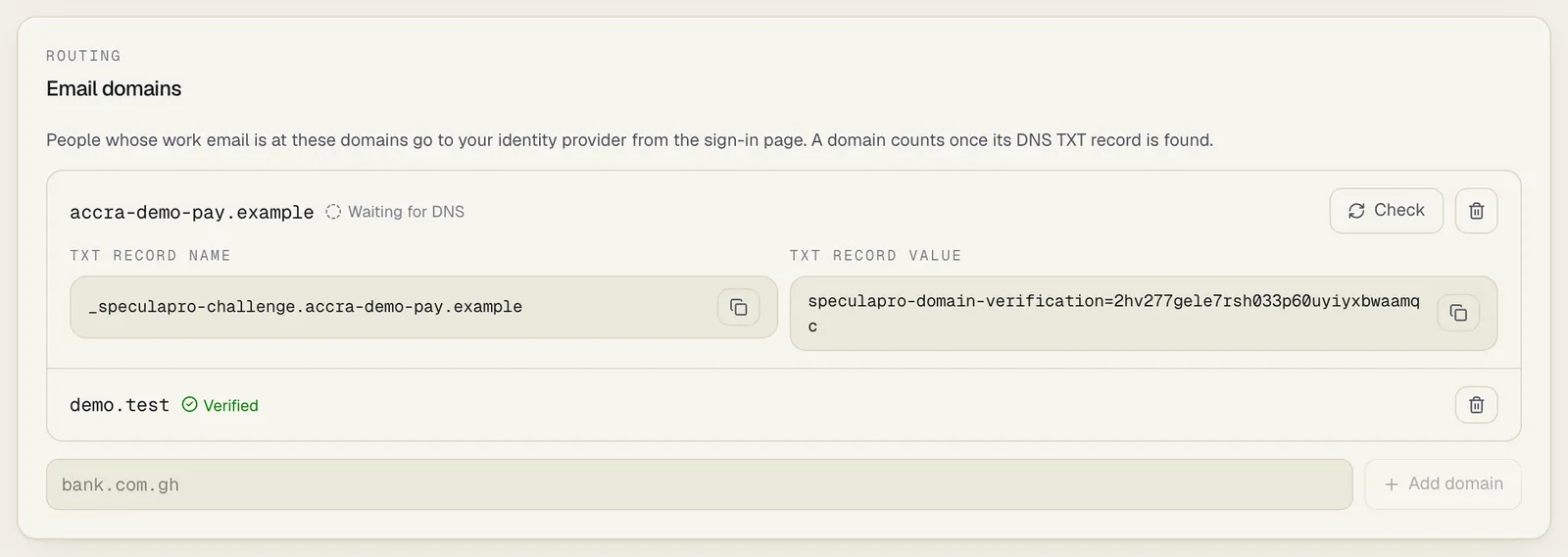
-
Ask whoever manages your DNS to create it, then select Check. When SpeculaPro finds the record, the domain is marked verified. If not, it says the TXT record … wasn’t found yet; DNS changes can take a while to appear: wait and check again.
Remove a domain with the bin icon. People at that domain then can’t be routed to SSO by their email, and nobody new at that domain is linked or created; people already linked still sign in.
Self-hosted installations can switch verification off with SP_SSO_VERIFY_DOMAINS=false. Domains
are then verified as soon as you add them.
How to test the connection
Section titled “How to test the connection”Test before you turn SSO on, and after every change at the IdP.
- Save your changes. Test connection is greyed out while there are unsaved changes.
- Select Test connection. A popup opens at your IdP. Sign in there with a test user.
- The popup lands on a Connection test page, and the result also appears in Settings. It shows:
- whether The identity provider answered and the response is valid, or A real sign-in would be
refused, with a reason code such as
email_domain_not_claimed; - what a real sign-in would do, for example Links the existing account … to this IdP subject, and the roles the person would have;
- whether the IdP reported multi-factor;
- the issuer, subject, email, name, groups and every claim or attribute received.
- whether The identity provider answered and the response is valid, or A real sign-in would be
refused, with a reason code such as
A test works before SSO is turned on. It creates no session and no account, and changes nobody’s roles. The result is kept for 10 minutes and only the administrator who ran it can see it.
How to turn SSO on
Section titled “How to turn SSO on”- Select Offer single sign-on, then Save changes. The panel shows On, and the client secret appears only as (stored): it is never shown again.
- The sign-in page now shows Continue with SSO for your workspace. Passwords still work.
People enter the workspace and, optionally, their email, then select Continue with SSO. If they type an email whose domain isn’t claimed, they’re told Single sign-on isn’t set up for … Sign in with your password.
If an SSO sign-in fails, the person sees only Single sign-on didn’t complete. Try again, or ask your
administrator (reference …). The reference matches the request in your logs, and the reason is in
the audit log as auth.sso_failed. See Why a sign-in failed.
Accounts and roles
Section titled “Accounts and roles”Under Provisioning:
| Setting | What it does |
|---|---|
| Create accounts at first sign-in | Off (the default): only people an administrator has added can sign in. On: a person at a claimed domain who has no account gets one at their first SSO sign-in (just-in-time provisioning) |
| Groups claim or attribute | The OIDC claim or SAML attribute that lists the person’s groups, for example groups, roles or http://schemas.microsoft.com/ws/2008/06/identity/claims/groups |
| Set roles from IdP groups | On: a person’s roles are set from their groups at every SSO sign-in, using the Group → role table. Someone in several mapped groups gets every mapped role |
| Default role | The role given when no group matches, and to new accounts when mapping is off |
| Refuse when no group matches | On (the default): a person whose groups match nothing is refused, instead of getting the default role |
How a person is matched, in order:
- By the IdP’s identifier for them (OIDC issuer and subject, or the SAML IdP and NameID), once linked. An email change at the IdP therefore keeps the same SpeculaPro account; the account keeps its original email.
- By email, at their first SSO sign-in, if the email’s domain is claimed (and verified where required) and, for OIDC with Require a verified email on, the IdP says the address is verified. If that account is already linked to a different identifier at the same IdP, the sign-in is refused: an address reassigned to someone else doesn’t inherit the old account.
- New account, if Create accounts at first sign-in is on and a role can be given.
Otherwise the sign-in is refused (
not_provisioned).
Also:
- A disabled SpeculaPro account stays disabled, whatever the IdP says.
- With SCIM provisioning, your IdP creates accounts ahead of the first sign-in, so you can leave Create accounts at first sign-in off. Groups the IdP pushed over SCIM count together with the groups a sign-in carries.
- A person you added who is still Invited becomes active at their first SSO sign-in, and their temporary password stops working.
- Break-glass administrators keep their roles: group mapping never changes them, so a mistake at the IdP can’t remove your way back in.
- If applying the IdP’s roles would leave the workspace with no active administrator, SpeculaPro
keeps the person’s current roles and records
sso.roles_sync_skipped.
Signing out
Section titled “Signing out”What signing out of SpeculaPro does depends on how the person signed in:
| Signed in with | Signing out of SpeculaPro | Signing out at the IdP |
|---|---|---|
| Password | Ends the SpeculaPro session | Not applicable |
| OpenID Connect | Ends the SpeculaPro session, then sends the browser to the IdP’s sign-out page if the IdP offers one | Doesn’t end SpeculaPro sessions |
| SAML, with single logout | Ends the SpeculaPro session, then sends the browser to the IdP with a signed logout request, so the IdP session ends too | Ends the person’s SpeculaPro sessions |
| SAML, without single logout | Ends the SpeculaPro session only | Doesn’t end SpeculaPro sessions |
SAML single logout needs nothing switched on in SpeculaPro. It works when both sides know each other’s logout address:
-
In your IdP’s SAML application, enter SpeculaPro’s Single logout URL (HTTP-Redirect or HTTP-POST), shown under SAML 2.0 on the Single sign-on tab. If your IdP read SpeculaPro’s metadata URL, it already has it.
-
Make sure your IdP’s metadata lists its own logout address (a
SingleLogoutService). If you pasted the metadata before your IdP had one, paste it again or select Refresh metadata. -
Make sure your IdP signs its logout requests. Unsigned ones are refused.
What to expect:
- A logout request from the IdP ends every SpeculaPro session the person has in the workspace, or only the sessions the request names when it names them. It doesn’t need the person’s browser to be signed in to SpeculaPro at that moment.
- Signing out of SpeculaPro always ends the SpeculaPro session, whatever the IdP then does. The browser is then sent on to the IdP with the logout request by HTTP-Redirect where the IdP’s metadata offers it, and by HTTP-POST when that is all the IdP accepts. With HTTP-POST the person briefly sees a page titled Signing out that submits itself to the IdP.
- Sessions started before single logout was available carry no IdP session details, so a logout at the IdP doesn’t reach them. They end when the person signs out or the session expires.
- A refused logout request shows the browser The logout request was refused with a reference, and
is recorded in the audit log as
auth.sso_logout_failedwith the reason.
Multi-factor authentication
Section titled “Multi-factor authentication”Under Multi-factor authentication:
- Values that mean multi-factor lists the OIDC
amrandacrvalues and SAMLAuthnContextClassRefvalues that SpeculaPro accepts as proof the IdP checked a second factor. The defaults cover common IdPs (for examplemfa,otp,hwk,http://schemas.microsoft.com/claims/multipleauthnandurn:okta:loa:2fa:any). Only add a value if it really means two factors at your IdP. - Require multi-factor at the IdP: on, SSO sign-ins the IdP doesn’t mark as multi-factor are
refused (
idp_mfa_missing).
When the IdP reports multi-factor, the person is signed in without a SpeculaPro code. When it doesn’t (and you don’t require it):
- someone who has a SpeculaPro authenticator enters their six-digit code after the IdP, under Signed in with SSO · one more step. Wrong codes count towards the account lockout, and a locked account can’t get past this step until the lock opens;
- someone who has none is asked to set one up, if the workspace requires two-factor sign-in.
Requiring SSO
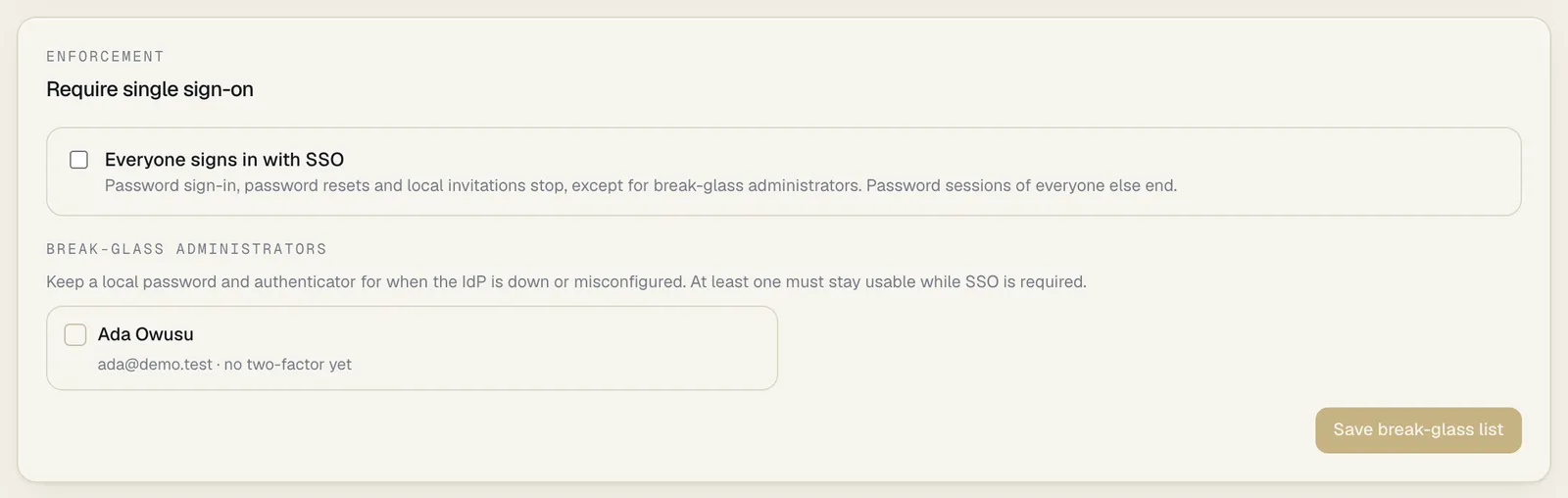
Section titled “Requiring SSO”Under Enforcement, Everyone signs in with SSO makes SSO the only way in, except for break-glass administrators. When you turn it on and save:
- Password sign-in stops for everyone else. Every refused password attempt in the workspace, for an account that exists or not, and a break-glass administrator’s wrong password too, gets the same answer, so nobody can use it to find out which accounts exist or which are break-glass.
- Everyone else’s password sessions end straight away. Sessions started through SSO continue.
- Adding a person creates a passwordless invitation. The panel says This workspace requires single sign-on, so there is no password to hand over; the person’s first SSO sign-in activates the account. Their email domain must be claimed.
- No temporary passwords for anyone who isn’t a break-glass administrator. Their People
panel shows This workspace requires single sign-on: they sign in through your identity provider,
so there is no password to reset here instead of Issue a temporary password. Through the API,
the request is refused with
409this workspace requires single sign-on; only break-glass administrators have a password.
The sign-in page for the workspace then shows This workspace signs in with single sign-on and one Continue with SSO button, with Break-glass administrator sign-in underneath.
Break-glass administrators
Section titled “Break-glass administrators”A break-glass administrator keeps a SpeculaPro password and authenticator, so someone can still get in if the IdP is down, misconfigured or compromised.
- Make sure the administrator has signed in with a password and set up an authenticator app.
- Under Break-glass administrators, tick them, then select Save break-glass list.
Each must hold a role that can manage people. A break-glass administrator counts as usable only if they are active, have their own password (not an unused temporary one) and two-factor. The list says what an unusable one still needs, for example needs two-factor. An administrator not on the list who hasn’t set up an authenticator yet shows no two-factor yet.
While SSO is required, SpeculaPro refuses any change that would leave no usable break-glass administrator, including removing the last one from the list, disabling them, changing their roles, or resetting their two-factor. The message is this change would leave no break-glass administrator with a password and two-factor; single sign-on is required in this workspace. You can’t require SSO in the first place until one is usable.
Why a sign-in failed
Section titled “Why a sign-in failed”Every failed SSO sign-in in a known workspace is recorded in the audit log as
auth.sso_failed, with a reason. Test connection shows the same reason. The common ones:
| Reason | Means | What to do |
|---|---|---|
email_domain_not_claimed |
The person’s email domain isn’t claimed, or isn’t verified yet | Claim the domain |
not_provisioned |
No account for this email, and accounts aren’t created at first sign-in | Add the person, or turn on Create accounts at first sign-in |
no_role_mapping |
None of the person’s groups is mapped, and Refuse when no group matches is on | Map their group, or set a default role |
email_not_verified |
OIDC: the IdP didn’t say the email is verified | Fix it at the IdP; see the caution above |
email_missing |
No email address in the token or assertion | Release the email claim or attribute; for SAML set Email attribute |
email_linked_to_other_subject |
The account is linked to a different person at the IdP | Check who owns the address now |
user_disabled |
The SpeculaPro account is disabled | Re-enable it if they should have access |
workspace_suspended |
On the hosted service: SpeculaPro has suspended the workspace. The person is told so on the sign-in page, after the identity provider has vouched for them; nobody is signed in | Contact SpeculaPro. See A suspended workspace |
idp_mfa_missing |
Multi-factor is required at the IdP and wasn’t reported | Check the IdP’s MFA policy and Values that mean multi-factor |
state_browser_mismatch |
The answer reached a different browser from the one that started the sign-in, or cookies were blocked | Start again in one browser |
saml_signature_invalid |
The assertion isn’t signed, or not by a certificate in the IdP metadata | Sign assertions; refresh the metadata after a certificate change |
saml_audience_mismatch, saml_recipient_mismatch |
The IdP has the wrong SP entity ID or ACS URL | Copy them again from Settings |
saml_transient_nameid |
The IdP sent a transient NameID | Use a persistent or email NameID |
saml_assertion_expired |
The assertion’s validity window has passed, or the clocks differ by more than 2 minutes | Check both clocks |
idp_initiated_not_allowed |
A sign-in started from the IdP’s portal | Start from SpeculaPro, or allow IdP-initiated sign-in |
assertion_replayed |
The same assertion arrived twice | Usually the back button; start again |
id_token_invalid, nonce_mismatch, token_exchange_failed |
OIDC token problems: wrong client secret, a token for another client, an expired token | Check the client ID and secret |
Failures that happen before SpeculaPro knows the workspace, such as a sign-in link that expired after 10 minutes, aren’t in the workspace’s audit log. They are in the server logs, under the reference the person was shown.
What is recorded
Section titled “What is recorded”| Action | Recorded as | Details kept |
|---|---|---|
| Change the SSO settings | sso.config_update |
Every setting before and after. The client secret appears only as (changed), pasted metadata only as its size |
| Re-read SAML metadata | sso.metadata_refresh |
The URL |
| Add, verify or remove a domain | sso.domain_add, sso.domain_verify, sso.domain_remove |
The domain |
| Change break-glass administrators | sso.break_glass |
Their emails before and after |
| A successful connection test | sso.test |
Protocol, subject and email |
| A failed connection test | sso.test_failed |
The reason |
| An SSO sign-in | auth.login |
method sso_oidc or sso_saml, the IdP issuer and subject, whether the IdP reported multi-factor, and whether a SpeculaPro code was entered |
| A failed SSO sign-in | auth.sso_failed |
The reason, and a technical detail |
| A password sign-in refused because SSO is required | auth.login_failed |
Reason sso_required |
| First SSO sign-in linked to an account | sso.identity_linked |
The IdP issuer, subject and email. Recorded as the system |
| Account created at first sign-in | sso.user_provisioned |
Email, roles and issuer. Recorded as the system |
| Roles changed from IdP groups | user.roles |
Roles before and after, via: sso. Recorded as the system |
| IdP roles not applied | sso.roles_sync_skipped |
Applying them would have left no administrator |
| A sign-out at the IdP that ended SpeculaPro sessions (SAML single logout) | auth.sso_logout |
The IdP, the person’s identifier there, the sessions named and how many ended. Recorded as the system |
| A logout request refused | auth.sso_logout_failed |
The reason (for example unsigned, wrong signature, expired, replayed) and a technical detail |
| SCIM tokens and what the IdP changed over SCIM | scim.* |
See SCIM provisioning |
Each session also records how it was started (password, sso_oidc or sso_saml).