
Notifications
In short
Section titled “In short”SpeculaPro tells you when something needs you: a case or a screening match assigned to you, a case arriving in your team’s queue, a closure, rule change or suppression to approve, an escalation to your level, a critical alert, or a case that is about to miss its deadline or has missed it. You don’t have to keep the app open to know.
- Email is on by default and goes to the address you sign in with.
- Text messages (SMS) are off by default. Switch them on and add a work phone number to get urgent items away from your desk.
- WhatsApp is off by default, and only available where your institution has set it up. You confirm your number with a code sent to it on WhatsApp, then switch it on.
- Messages contain case or rule references and a link, never customer names or account details.
- There is no inbox in the app: notifications reach you by email, text message or WhatsApp only.
You choose your own channels under Settings → Notifications. Every role can do this.
What you’ll be told about
Section titled “What you’ll be told about”| You are told when… | Who receives it | Message subject (English) |
|---|---|---|
| Someone assigns a case to you | You. Not when you take a case yourself | Case SP-2026-000123 is assigned to you |
| A case arrives in your team’s queue at level 1: someone puts it there by hand, or it is opened under an escalation policy that names your team for level 1 | The team’s members, except the person who did it. The case may already have an owner; open it to see | Case SP-2026-000123 is in your team’s queue |
| A risk model has drifted: a shadow or live version’s stability index is significant (above 0.25) | Everyone with models.manage or models.approve. Once a week for each version, for as long as it drifts |
Risk model version 3 has drifted. See Risk models |
| The workspace has used four fifths of the month’s AI assistant calls on the subscription’s key, and again when all are used | Everyone with settings.manage. Once each for a month and a total |
The AI assistant has used 400 of this month’s 500 calls; This month’s AI assistant calls are used up. Alerts, cases and monitoring are not affected. See The monthly allowance |
| Your service provider adds AI assistant calls for the month, or declines a request for more | Everyone with settings.manage |
500 more AI assistant calls for this month; Your request for more AI assistant calls was declined. See How to ask for more calls |
| Someone signs in to your account with a recovery code | You | A recovery code was used to sign in to your account. The message says how many codes you have left. If it wasn’t you, tell your administrator at once: whoever it was also has your password. See Recovery codes |
| Someone assigns a potential screening match to you | You. Not when you take a match yourself, and not when a match is unassigned | A potential screening match is assigned to you |
| A case closure is proposed and needs approval | Everyone who can approve closures (cases.approve, by default the MLRO), except the person who proposed it |
Case SP-2026-000123: closure needs your approval |
| Your proposed closure is approved | You, the proposer | Case SP-2026-000123 is closed |
| Your proposed closure is sent back | You, the proposer | Case SP-2026-000123: closure sent back |
| A case is escalated to level 2, or opens at level 2 under an escalation policy | The members of the team the case’s policy names for level 2. With no policy, no team for that level, or a team with no active members: everyone who can close cases (cases.close, by default Senior analysts and the MLRO). Never the person escalating |
Case SP-2026-000123 escalated to level 2 |
| A case is escalated to level 3, or opens at level 3 under an escalation policy | The members of the team the policy names for level 3; otherwise everyone who can approve closures (cases.approve, by default the MLRO). Never the person escalating |
Case SP-2026-000123 escalated to level 3 |
| A case misses its deadline while still open, in progress or escalated | The case’s owner, the members of the team whose queue it is in, and everyone who can approve closures (cases.approve) |
Case SP-2026-000123 has missed its deadline |
| A case is escalated automatically by its escalation policy after a missed deadline | The same people as for an escalation by hand to that level | Case SP-2026-000123 escalated to level 3 after a missed deadline |
| A rule change is submitted for approval | Everyone who can approve rules (rules.approve), except the author |
Rule change to approve: Large single transaction |
| A suppression is proposed | Everyone who can approve suppressions (suppressions.approve), except the proposer |
Suppression to approve |
| A new critical alert is raised | Everyone who can approve closures (cases.approve) |
Critical alert: gh.wallet_sweep_to_bank |
| A case is due within the hour | The case’s owner; if nobody owns it, everyone with cases.approve |
Case SP-2026-000123 is due in 45 min |
A webhook endpoint is switched off because every delivery failed for 3 days (on a self-hosted installation, SP_WEBHOOKS_DISABLE_AFTER) |
Everyone who can manage webhooks (webhooks.manage, by default the Administrator) |
Webhook endpoint disabled |
| Someone who created API keys is deactivated while the keys still work | Everyone who can manage API keys (api_keys.manage), except the person deactivated |
API keys to rotate: Ama Owusu was deactivated, or API keys revoked: Ama Owusu was deactivated where the workspace revokes them automatically |
| On the hosted service, SpeculaPro’s support staff ask for access to your workspace | Everyone who can decide support access (support_access.manage, by default Administrators and the MLRO) |
Support access requested by Jane Doe |
| On a self-hosted installation, the licence is close to expiry, in its grace period, or has lapsed (also during the last 7 days of the evaluation period) | Everyone who can change workspace settings (settings.manage, by default the Administrator). At most once a week for the same licence state |
SpeculaPro license: action needed |
You never receive a notification about something you did yourself.
The webhook message names the receiver’s host and when the failures began, and links to Settings → Webhooks. It also says that events raised while the endpoint is disabled aren’t kept and can’t be sent later, and that after the receiver is fixed and the endpoint re-enabled, deliveries still waiting resume and failed ones can be resent one by one. See When an endpoint is switched off.
What a message contains
Section titled “What a message contains”Each message has a short subject, as in the table above, and a link straight to the case, alert, rule, screening match or the Rules page.
- Email adds a sentence of context, for example Efua Owusu proposes closing case SP-2026-000123 as report filed. A second person must approve before it closes. It is laid out as described under What an email looks like.
- SMS is the subject only, prefixed with SpeculaPro: and followed by the link, so it fits in one or two text messages.
- WhatsApp shows the subject in bold on the first line, then the same sentence of context as the email, shortened to about 320 characters so it reads in a lock-screen preview, then the link on its own line.
Messages name the colleague who acted, the case number, its priority and deadline, and rule keys or names. They never contain a customer’s name, account number, phone number or transaction amounts, because email, SMS and WhatsApp leave your institution’s control. An automatic test checks every message template, in both languages, for anything that could carry customer data.
The message about a screening match says only that a match waits and who assigned it: it carries no name, no list and no score. Open the match under Screening to read it.
The message about a support access request names the member of staff and how long they ask for. Their reason and what they would be able to read are shown in the app, under Settings → Support access, where you decide. See Support access.
The message asking an approver to review a rule change doesn’t quote the author’s change note; it says the change note is in SpeculaPro, so the approver reads it there.
What an email looks like
Section titled “What an email looks like”Every notification email has the same layout, so you can tell at a glance what it is and what to do:
| Part | What it shows |
|---|---|
| Header | The SpeculaPro mark and the area of the app the message is about: Cases, Alerts, Rules, Approvals, Screening, Webhooks, License, Data sources, API keys, Privacy or Support access |
| Coloured line under the header | Gold for something to do or to know. Red for what can’t wait: a deadline, a failure, a critical alert. Green when something you asked for went through, such as your closure being approved |
| Heading | The subject, as in the table above |
| Body | The sentence or two of context |
| Details | A short block that repeats the references from the body so they are easy to find, for example Case, Priority, Due and Assigned by for a case assigned to you. It never adds anything the body doesn’t say. Some messages have none |
| Button | One button that opens the right page, named for what it does: Open the case, Review the closure, Review the rule change, Review the match and so on. Under it, the same address in full, in case the button doesn’t work in your mail program |
| Footer | Why you received the email, where to change that (Settings → Notifications, as a link), a reminder that replies aren’t read, and who to ask for help |
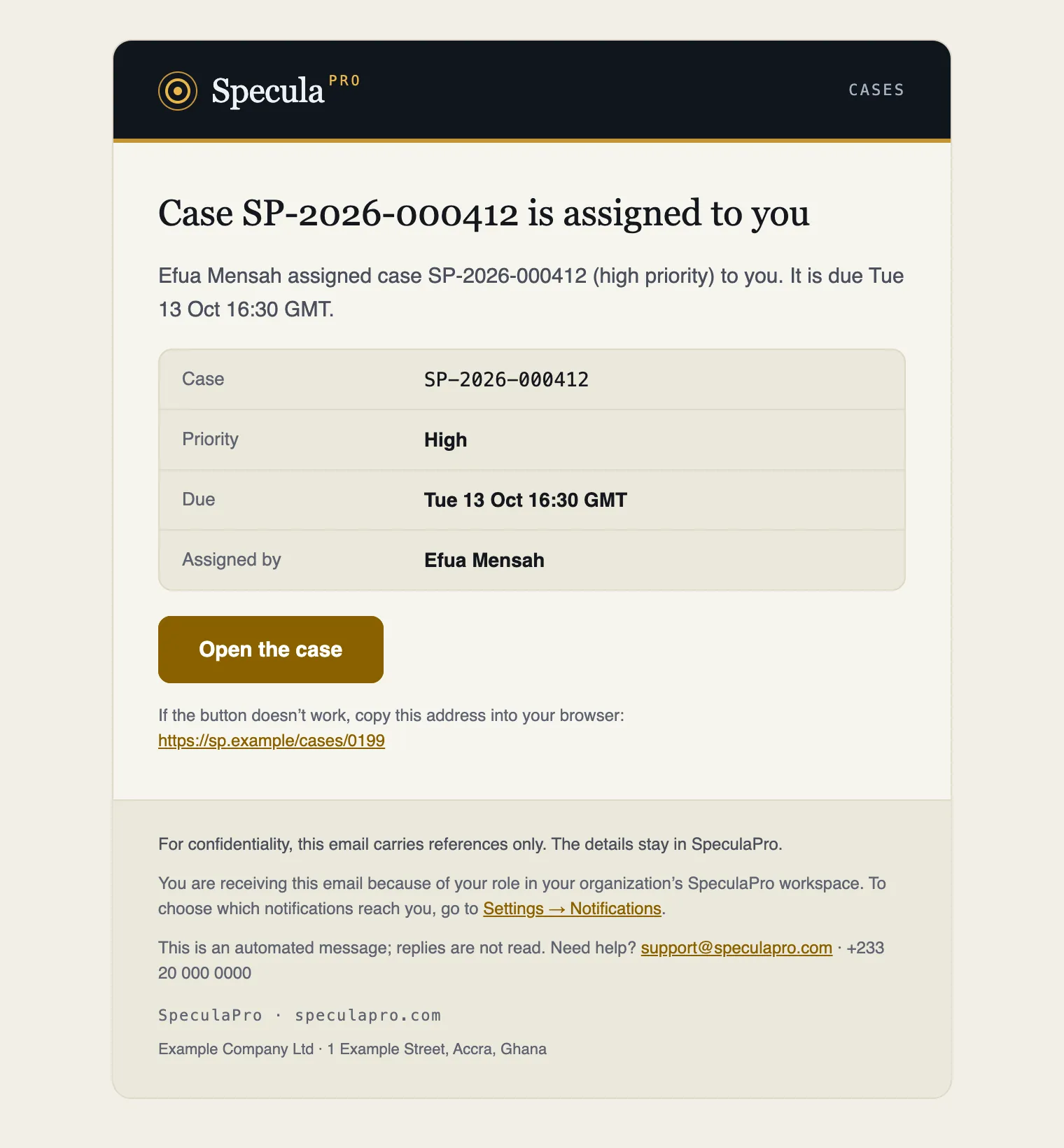
The footer also says: For confidentiality, this email carries references only. The details stay in SpeculaPro.
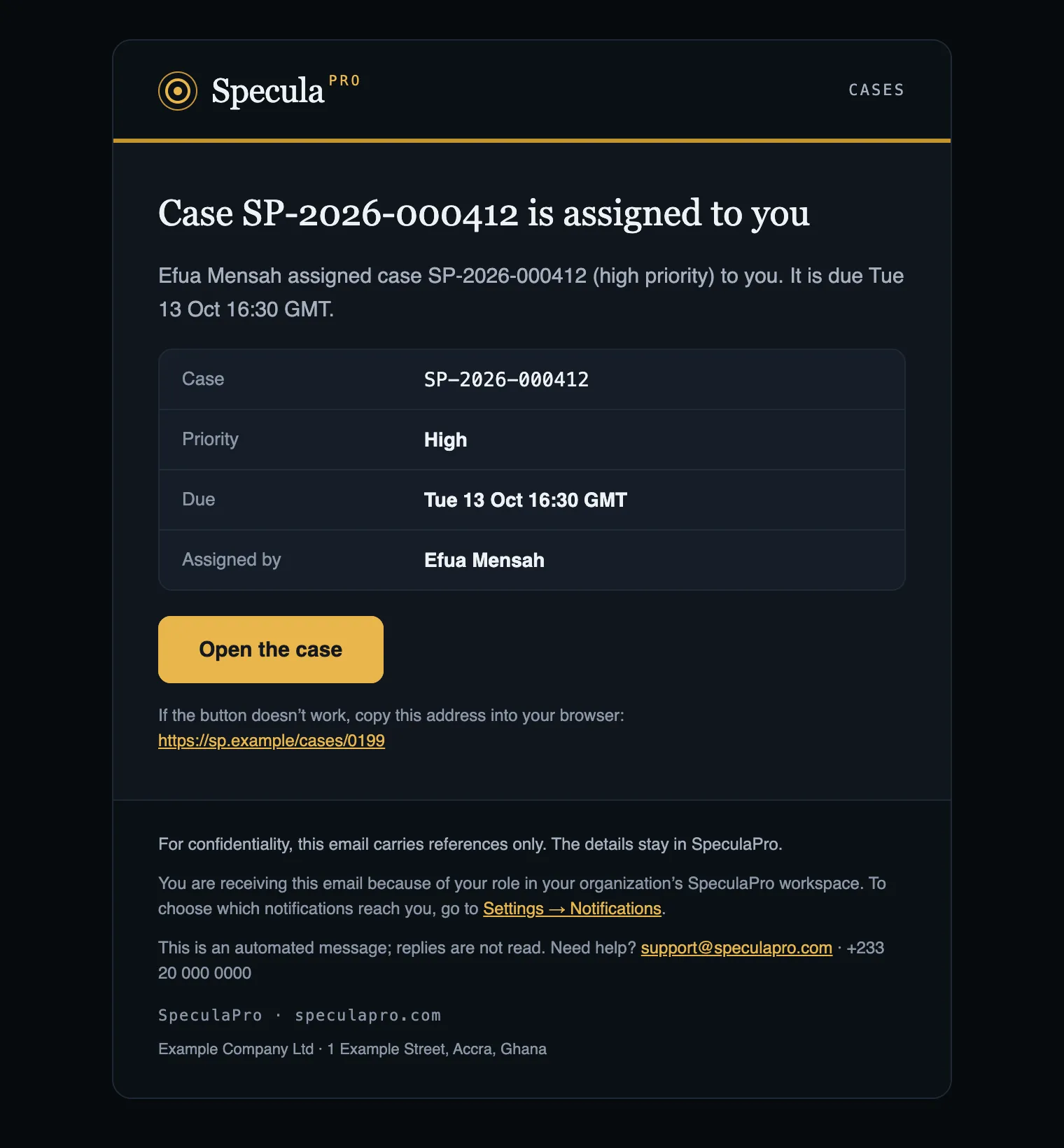
The email follows your mail program’s light or dark appearance. It is also sent as plain text with the same content, for mail programs and people that read text only:
SpeculaPro · Cases
Case SP-2026-000412 is assigned to you======================================
Efua Mensah assigned case SP-2026-000412 (high priority) to you. It is due Tue 13 Oct 16:30 GMT.
Case:        SP-2026-000412Priority:    HighDue:         Tue 13 Oct 16:30 GMTAssigned by: Efua Mensah
Open the case: https://speculapro.example.com/cases/0199…
The header, the button, the footer and the labels in the details block are in your language, like the subject and the body.
On a self-hosted installation, your operator sets the help address, phone number, website and company lines of the footer; see Notifications settings.
Messages arrive in your language, English or French. By default that is your workspace’s language. Choosing EN or FR in the top bar saves your language for both the screens and your messages, and Language of messages (below) shows and changes the same setting; choose Workspace default there to follow the workspace again. See Languages.
How to choose email or text messages
Section titled “How to choose email or text messages”- Select Settings in the menu. The Notifications tab opens first.
- Tick Email to receive messages at the address shown underneath (To your sign-in address). Untick it to stop email.
- To receive text messages:
- Tick Text message.
- Under Work phone (for text messages), enter your number in international format: a plus sign, the country code, then the number without its leading zero. For a Ghanaian mobile number
024 412 3456, enter+233244123456.
- Optionally, under Language of messages, choose English or Français, or leave Workspace default.
- Select Save. The button is only active once you have changed something.
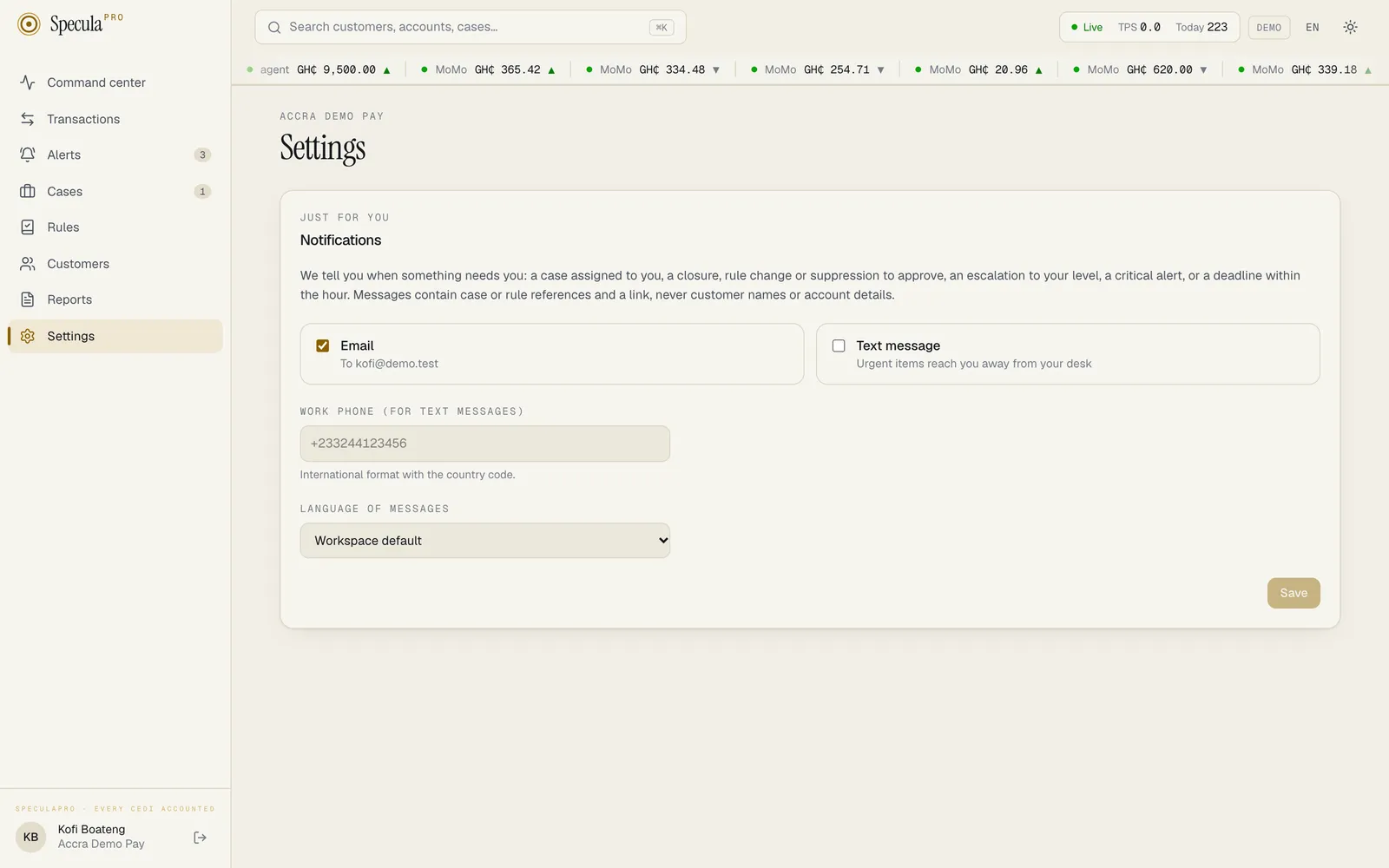
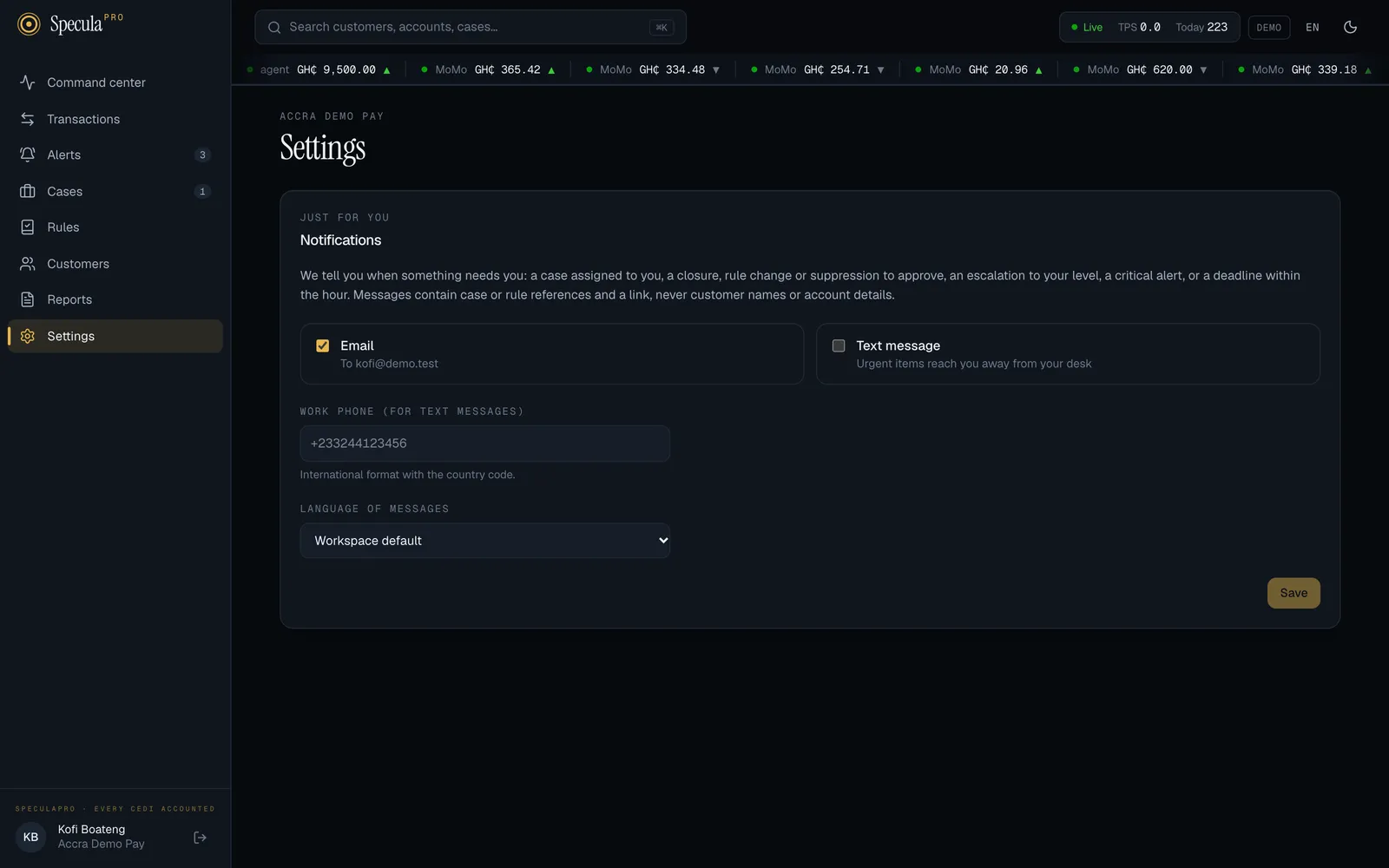
The change applies to the next message. Each change to your settings is recorded in the audit log as user.notify_prefs.
How to get notifications on WhatsApp
Section titled “How to get notifications on WhatsApp”You need WhatsApp on the phone you want to use, and your institution must have set WhatsApp up. If it hasn’t, the WhatsApp switch says Not available on this installation. If it has, the switch stays greyed out with Verify your number below first until you confirm your number.
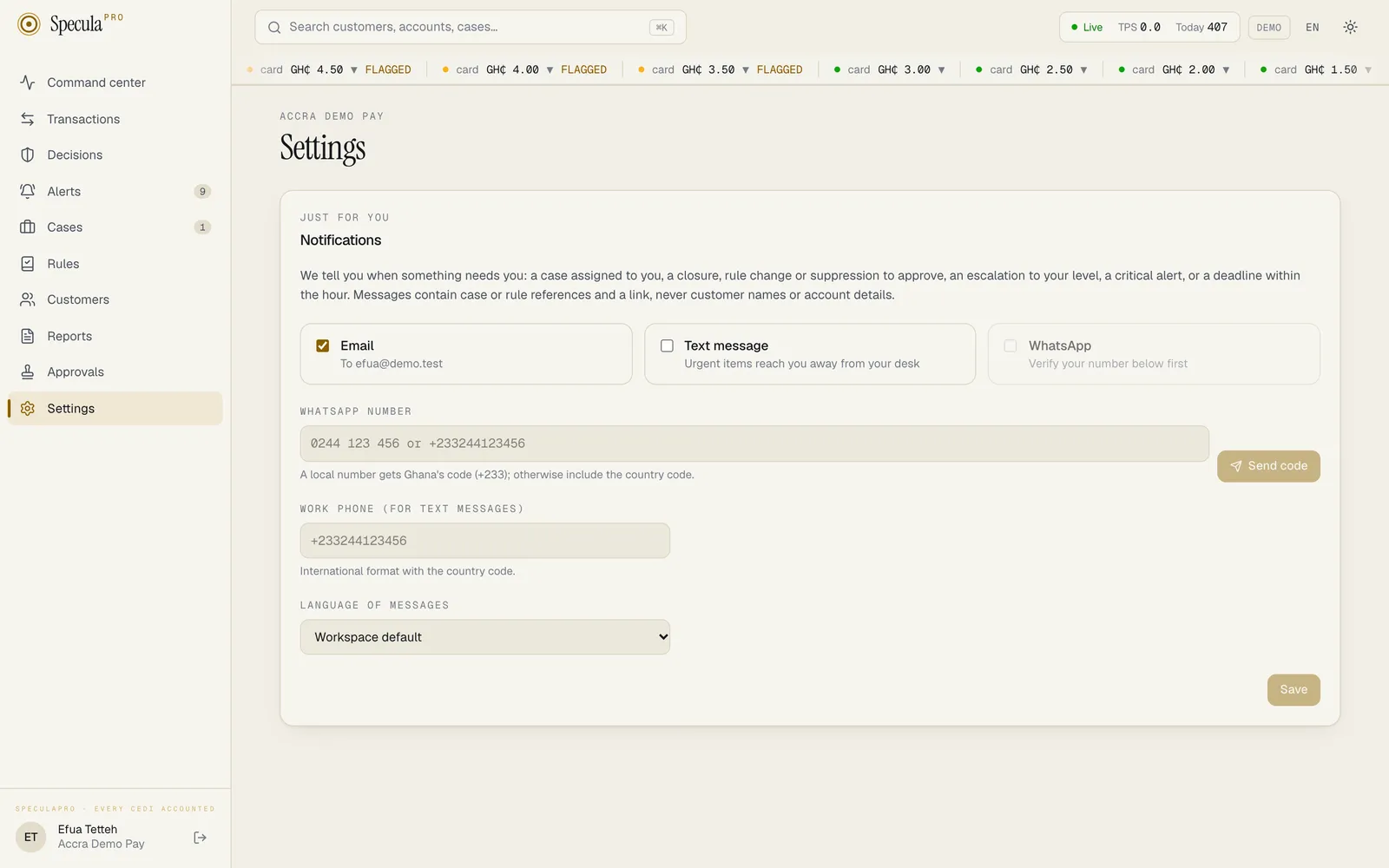
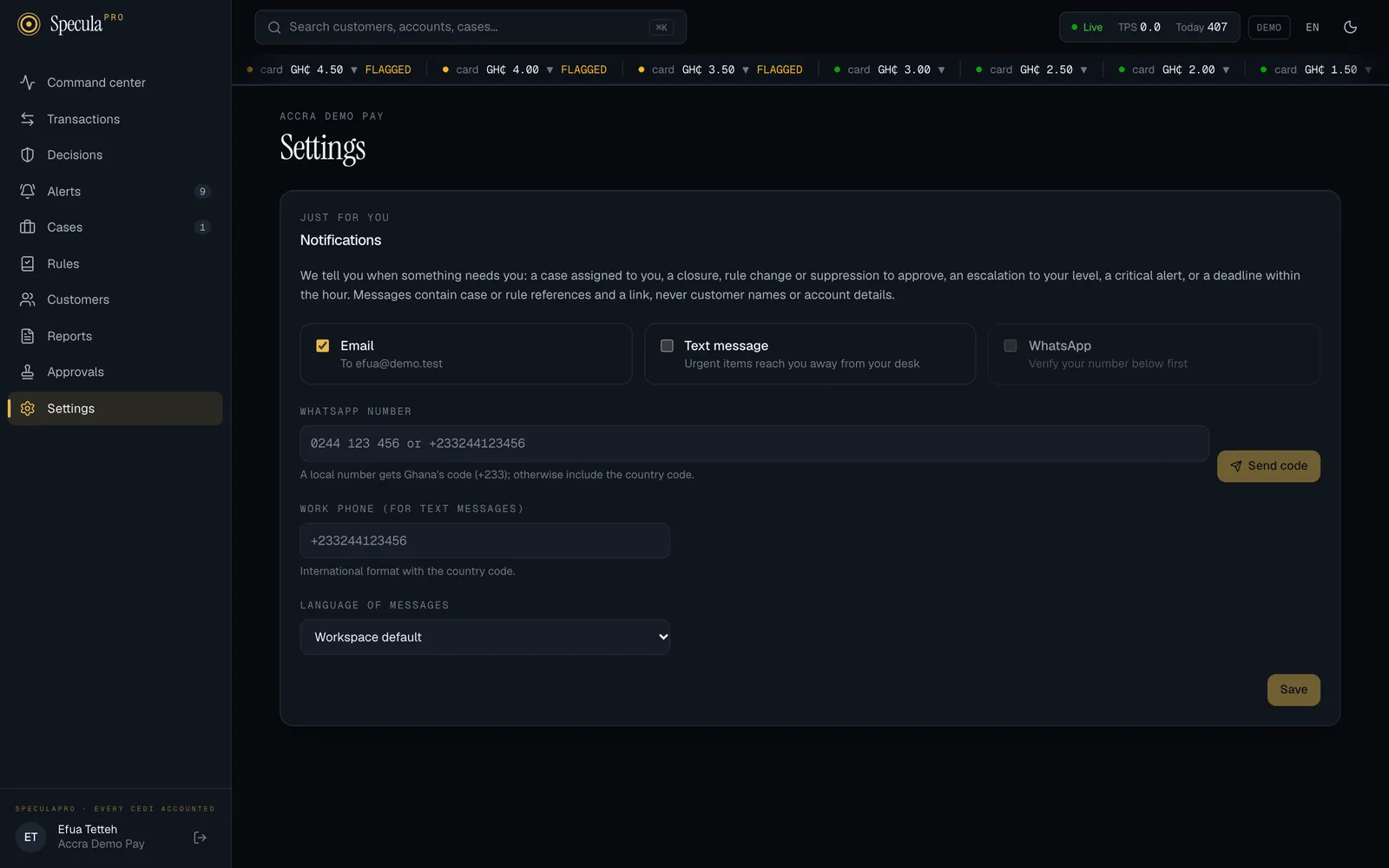
- Select Settings. The Notifications tab opens first.
- Under WhatsApp number, type your number. A local number is fine: SpeculaPro adds your
installation’s default country code for you (Ghana’s
+233unless your operator chose another), so0244 123 456becomes+233244123456. A number from another country needs its country code, for example+234…. Underneath, SpeculaPro shows the number it will use: We’ll send a 6-digit code to +233244123456 on WhatsApp. - Select Send code. A WhatsApp message arrives on that phone: SpeculaPro verification code, with six digits.
- Type the six digits in the box and select Confirm. The number now shows as Verified, and WhatsApp notifications are switched on.
From then on, the WhatsApp switch reads To +233244123456. Untick it and select Save to pause WhatsApp messages while keeping your number; tick it again to resume.
- To use another number, select Change, then follow steps 2 to 4 with the new number. The old number keeps receiving messages until the new one is confirmed.
- To stop and forget your number, select Remove. WhatsApp messages stop at once.
The limits on codes
Section titled “The limits on codes”| Limit | Value |
|---|---|
| How long a code lasts | 10 minutes |
| Wrong tries per code | 5. After that the code no longer works: ask for a new one |
| Codes you can ask for | One a minute, and 5 a day |
| Codes to one number | 3 a day, however many people or workspaces ask for it |
| Codes from your whole workspace | 100 a day |
| Asking for a new code | Cancels the previous one |
“A day” means the last 24 hours. The limits on a number and a workspace stop anyone from flooding a stranger’s phone with codes.
Only a fingerprint (a one-way hash) of the code is kept, never the code itself. Asking for a code, confirming a number and removing it are each recorded in the audit log.
If WhatsApp verification fails
Section titled “If WhatsApp verification fails”| What you see | What it means | What to do |
|---|---|---|
| enter the number in international format, e.g. +233244123456, or as a local number such as 0244123456 | SpeculaPro can’t read the number. A Ghanaian number must have 9 digits after +233 | Check the digits. For a number outside Ghana, start with + and the country code |
| the number is not on WhatsApp | WhatsApp has no account for that number | Check the number, or use the phone you have WhatsApp on |
| too many WhatsApp messages; try again in … | You asked for a code less than a minute ago, or have asked for 5 today | Wait the time shown |
| this number has had too many codes today; try again in … | That number has already been sent 3 codes in the last 24 hours, by you or anyone else | Wait the time shown. If you didn’t ask for those codes, tell your administrator |
| this workspace has sent its WhatsApp codes for today; try again in … | Your workspace has sent 100 codes in the last 24 hours | Wait the time shown |
| that code is wrong or has expired; ask for a new one | The digits don’t match, more than 10 minutes have passed, or the code has had 5 wrong tries | Select Use another number or send a new code |
| WhatsApp is unavailable right now; try again in a few minutes | SpeculaPro couldn’t reach its WhatsApp connection | Try again later. If it keeps happening, tell your administrator |
If saving fails
Section titled “If saving fails”| What you see | What it means | What to do |
|---|---|---|
| An error mentioning the phone number’s format | The number isn’t in international format: it starts with 0, has spaces or dashes, or misses the + |
Enter it as + country code and number, digits only, for example +233244123456 |
| add a phone number to receive text messages | Text message is ticked but the phone box is empty | Enter your number, or untick Text message |
| verify your WhatsApp number to receive WhatsApp messages | WhatsApp was switched on without a confirmed number | Confirm your number first (see above) |
If messages don’t arrive
Section titled “If messages don’t arrive”- Check Settings → Notifications: is the channel ticked, and is the phone number right? For WhatsApp, is your number shown as Verified?
- Check your spam or junk folder for email from your institution’s SpeculaPro sender address.
- Remember you aren’t told about your own actions, and some events go only to certain roles (see the table above).
- WhatsApp messages can be late: if your institution’s WhatsApp connection is logged out, messages wait and go out once it is linked again. A message still waiting after 24 hours (or the time your operator chose) is dropped, so check SpeculaPro itself for anything urgent.
- Ask your SpeculaPro administrator or operator. Self-hosters can follow Troubleshooting: notifications don’t arrive.
Using the API instead
Section titled “Using the API instead”Your settings are also available at GET and PUT /api/v1/me/notifications, signed in as yourself (API keys can’t use them):
{ "email": true, "sms": true, "phone": "+233244123456", "locale": "fr" }locale is en, fr, or an empty string for the workspace default.
In a PUT, every field is optional, and a field you leave out keeps its current value, so you
can change one setting without sending the others:
| Field | In a PUT |
|---|---|
email, sms, whatsapp |
true or false switches that channel on or off |
phone |
A number in the format + followed by 7 to 15 digits sets it; an empty string "" removes it |
locale |
en, fr, or "" for the workspace default |
PUT returns 204 on success. It returns 422 when phone isn’t in the right format, and 409
when the result would be impossible: add a phone number to receive text messages (sms on
without a phone number), or verify your WhatsApp number to receive WhatsApp messages (whatsapp
on without a confirmed number).
GET also returns, read-only, whatsapp (whether WhatsApp messages are on), whatsapp_number (your
confirmed number, if any), whatsapp_available (whether this installation can send WhatsApp
messages) and default_country_code (the country code a local number is given, such as 233).
The number itself changes only through a code:
| Endpoint | Body | Does | Answers |
|---|---|---|---|
POST /api/v1/me/notifications/whatsapp/code |
{"number": "0244123456"} |
Sends a code to that number | 204; 422 for a number that can’t be read or isn’t on WhatsApp; 429 with Retry-After when over a limit; 409 when WhatsApp isn’t set up; 503 when WhatsApp can’t be reached |
POST /api/v1/me/notifications/whatsapp/verify |
{"code": "123456"} |
Confirms the number and switches WhatsApp messages on | 200 {"whatsapp_number": "+233244123456"}; 422 that code is wrong or has expired; ask for a new one |
DELETE /api/v1/me/notifications/whatsapp |
none | Forgets your number and stops WhatsApp messages | 204 |