
Alert queue
In short
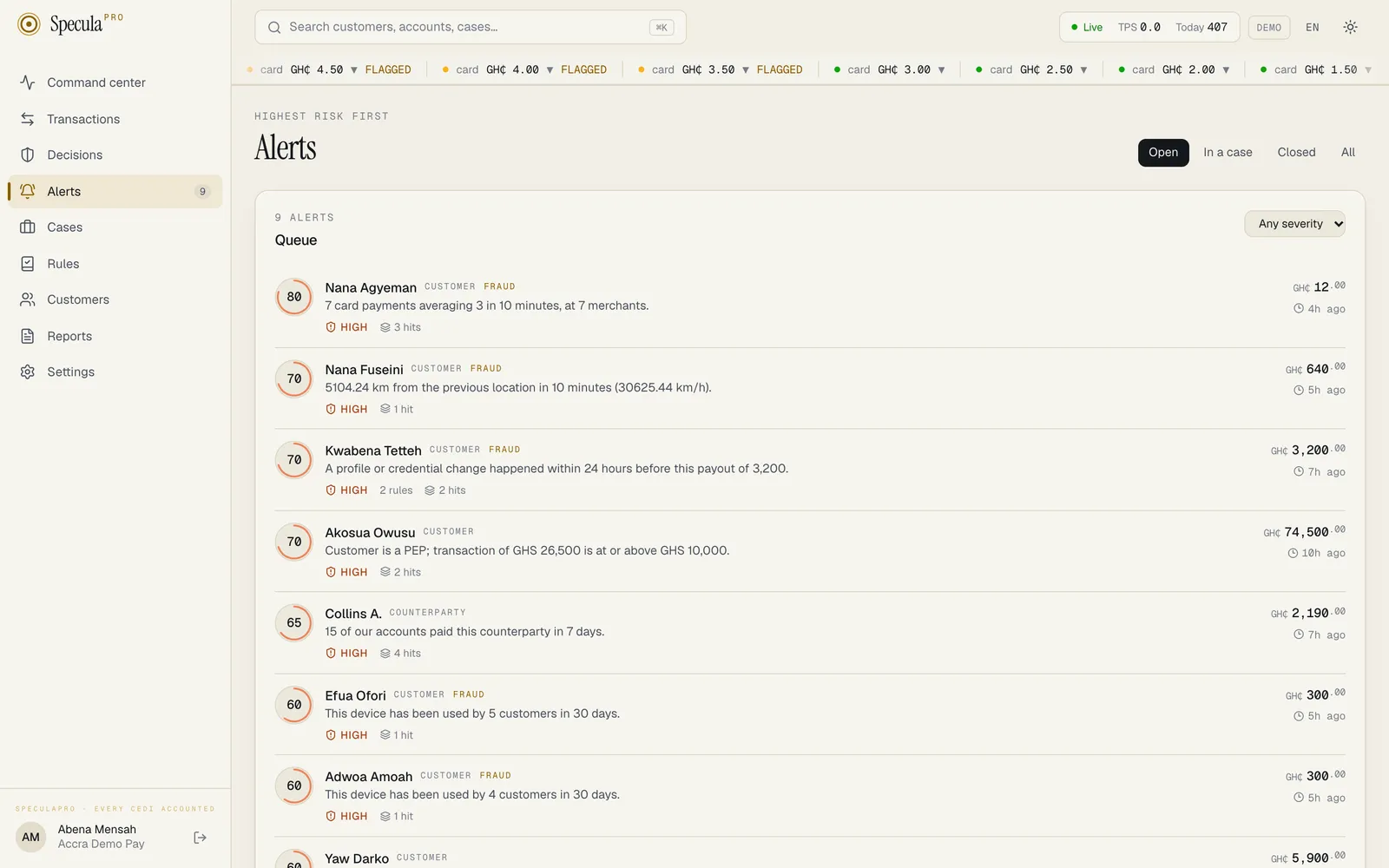
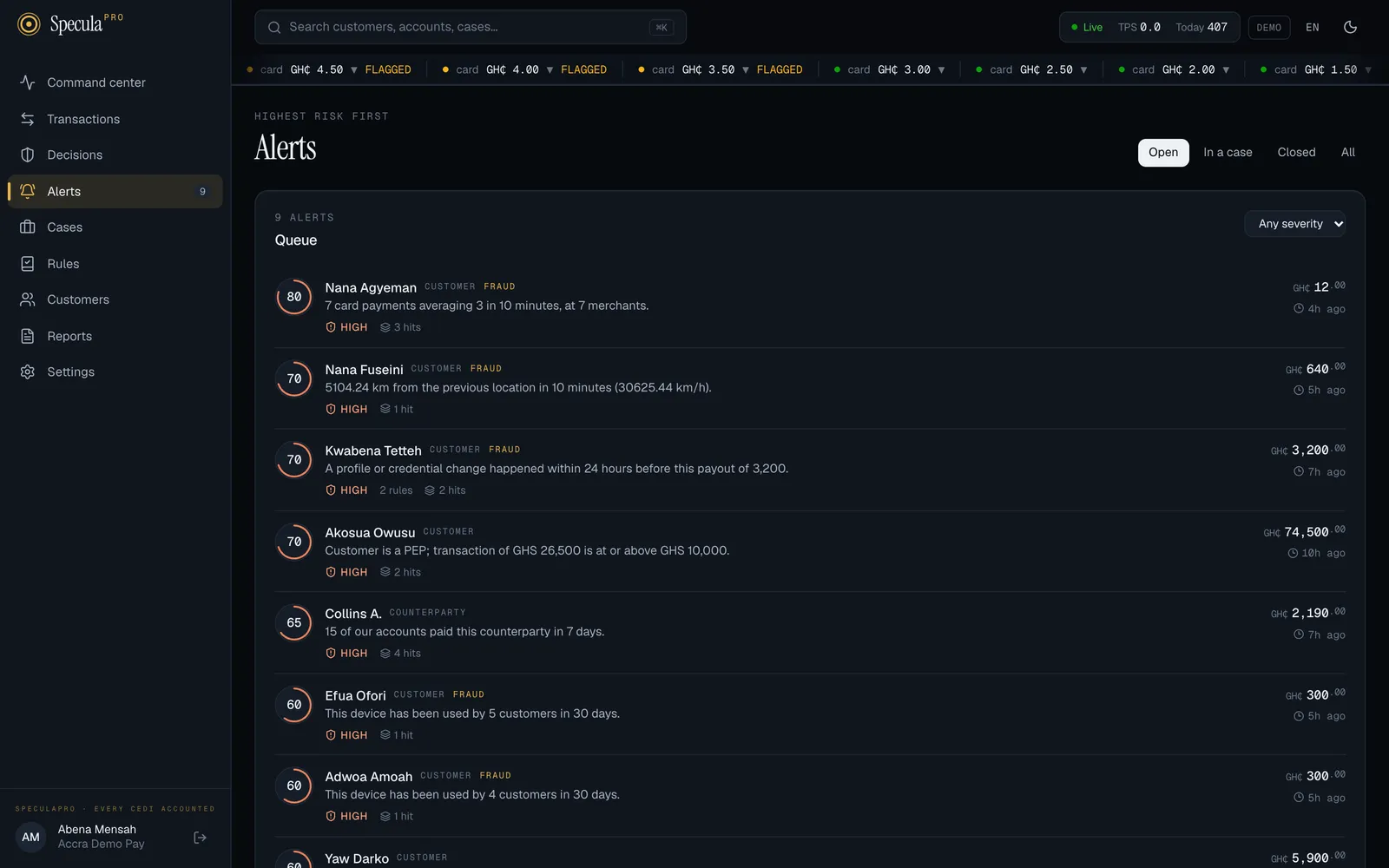
Section titled “In short”The Alerts screen is the work queue for everything your rules have raised. Open alerts are listed riskiest first, so the top of the list is always the next thing to look at. Tabs let you switch to alerts already in a case, closed alerts, or all of them, and a filter narrows the list by severity. On the Open tab you can also tick several alerts and close them together, with one outcome and one reason.
Who can see it: anyone with alerts.view (by default every role except Administrator). See Who can do what.
How to open the alert queue
Section titled “How to open the alert queue”- Select Alerts in the menu. The number beside it is how many alerts are open.
- The Open tab is selected. Work from the top of the list down.
- Select any row to review the alert.
The tabs
Section titled “The tabs”| Tab | Shows | Order |
|---|---|---|
| Open | Alerts waiting for someone to dismiss them or open a case. This is your work queue | Highest risk first: critical, then high, medium and low; within a severity, the highest score first; then the most recent activity |
| In a case | Alerts that are part of an open or closed investigation | Newest first, by latest activity |
| Closed | Alerts that were dismissed, or closed together with their case | Newest first |
| All | Every alert, whatever its status | Newest first |
The line above the page title reminds you of the order: Highest risk first or Newest first.
How to filter by severity
Section titled “How to filter by severity”- Open the drop-down at the top right of the Queue panel. It reads Any severity.
- Choose Critical, High, Medium or Low.
The filter applies to whichever tab is selected. Choose Any severity to remove it.
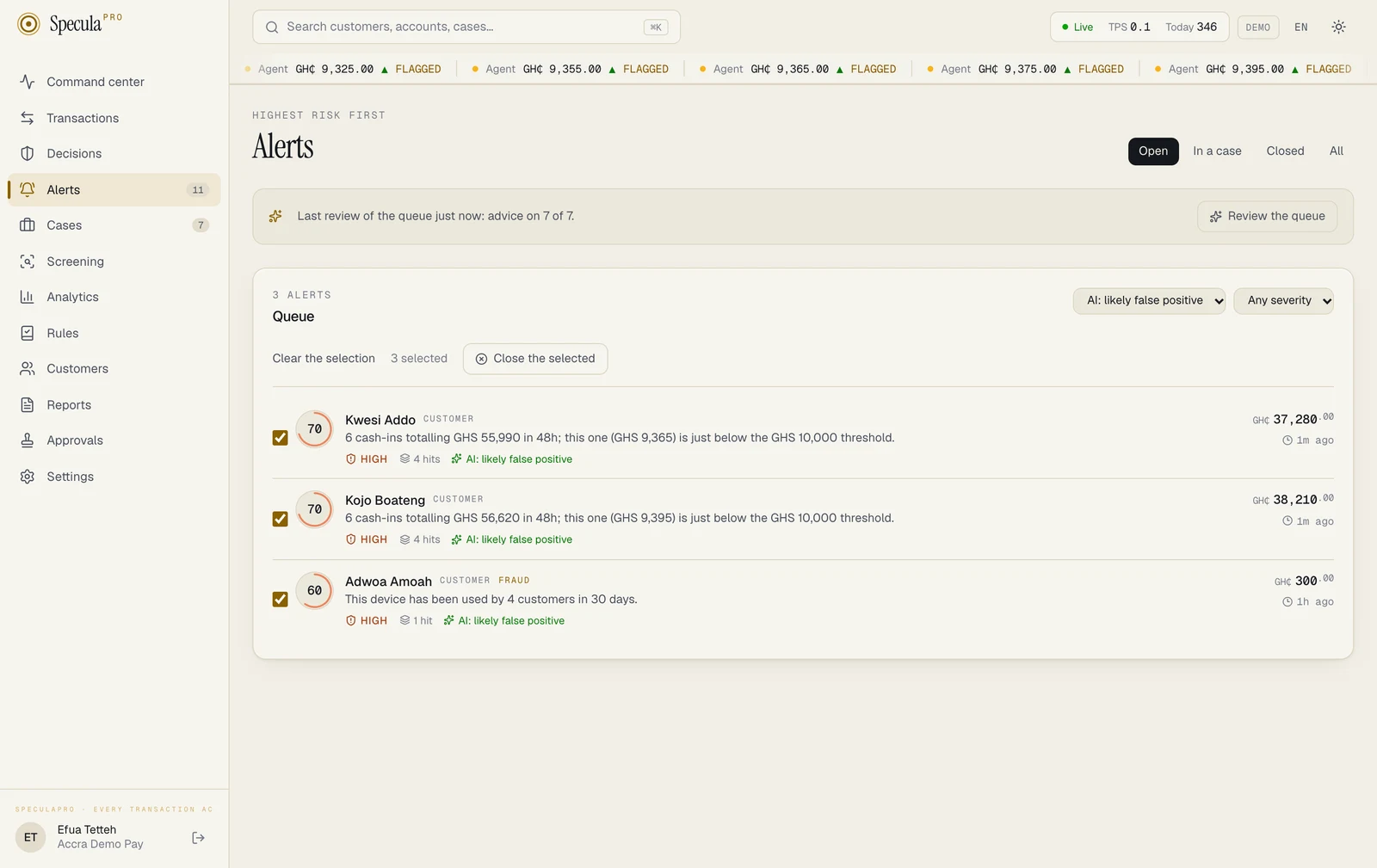
Where your workspace uses the AI assistant, the Open tab has a second filter, Any advice, that narrows the queue by what the assistant currently advises, and a bar with Review the queue that asks it about every open alert without advice. See Asking about the whole queue.
How to close several alerts at once
Section titled “How to close several alerts at once”When several open alerts have the same explanation (the same agent’s device, the same payroll run, a rule you know is misfiring this week), you can close them together. It is still your decision about each alert: every alert you close this way is recorded as closed by you, with the outcome and the reason you gave.
You need cases.work. The tick boxes appear only on the Open tab.
- Open each alert you mean to close and read it. Closing in bulk saves typing, not reading.
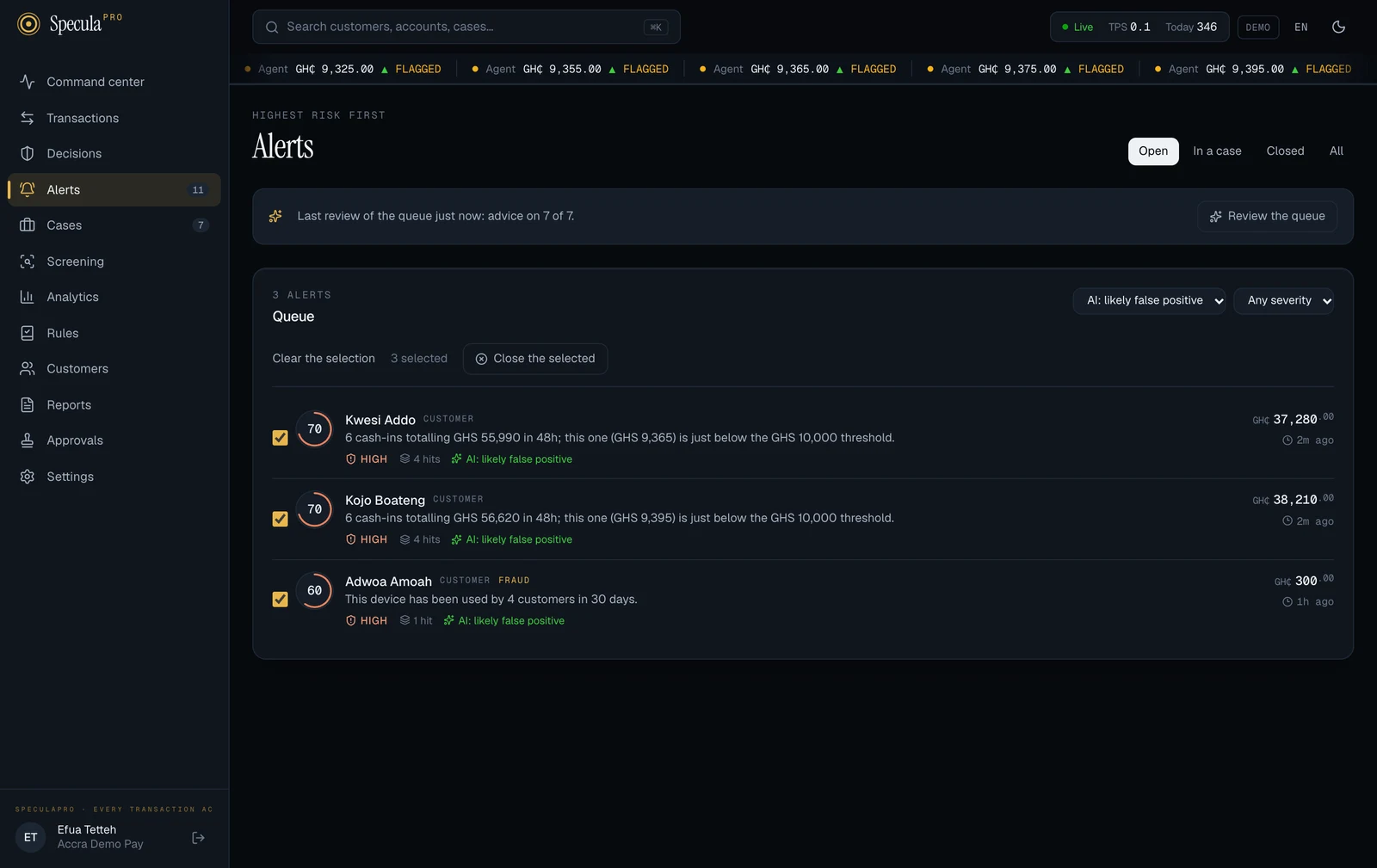
- On the Open tab, tick the box at the left of each alert. To tick everything listed, select Select all N above the list; Clear the selection unticks them.
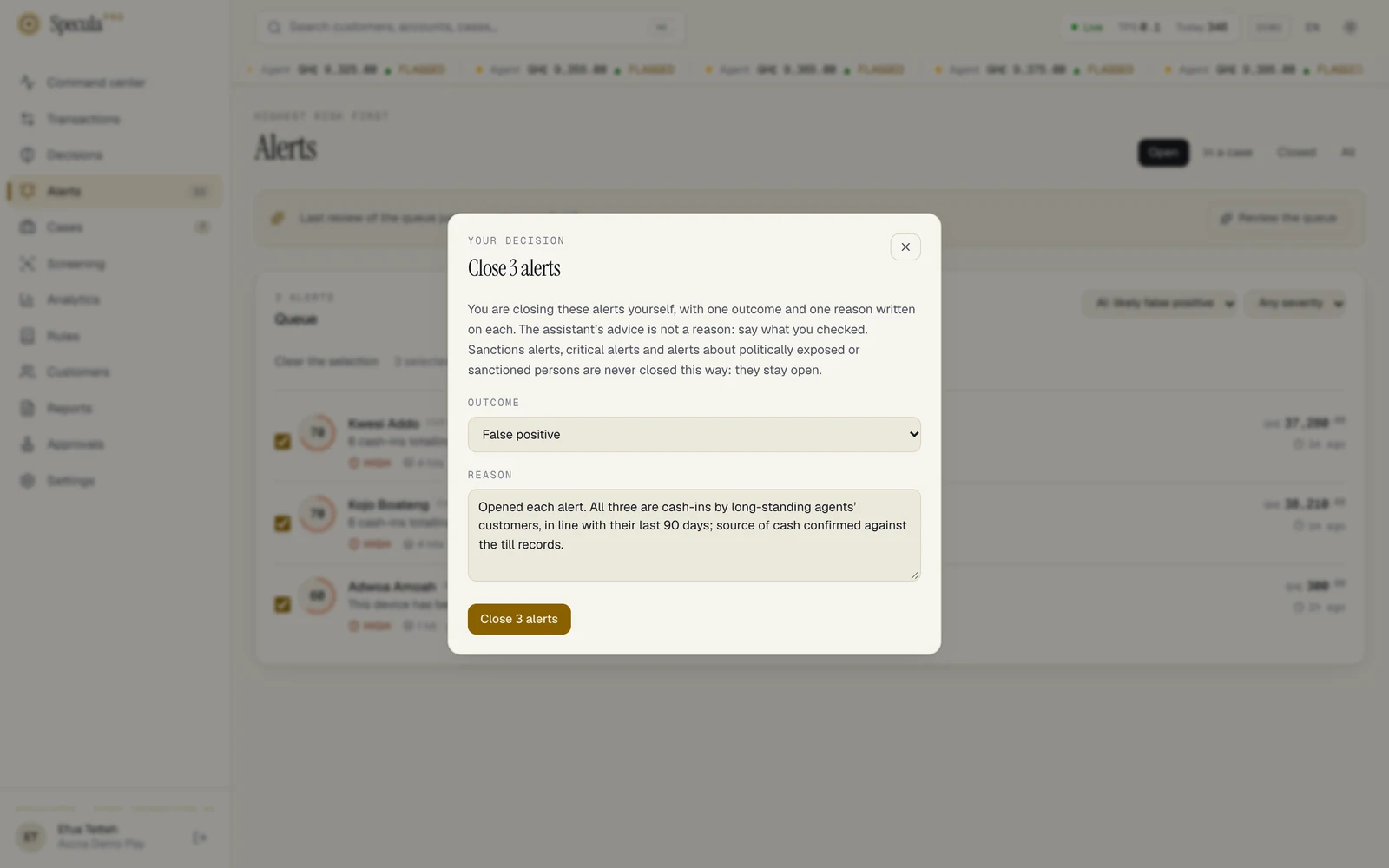
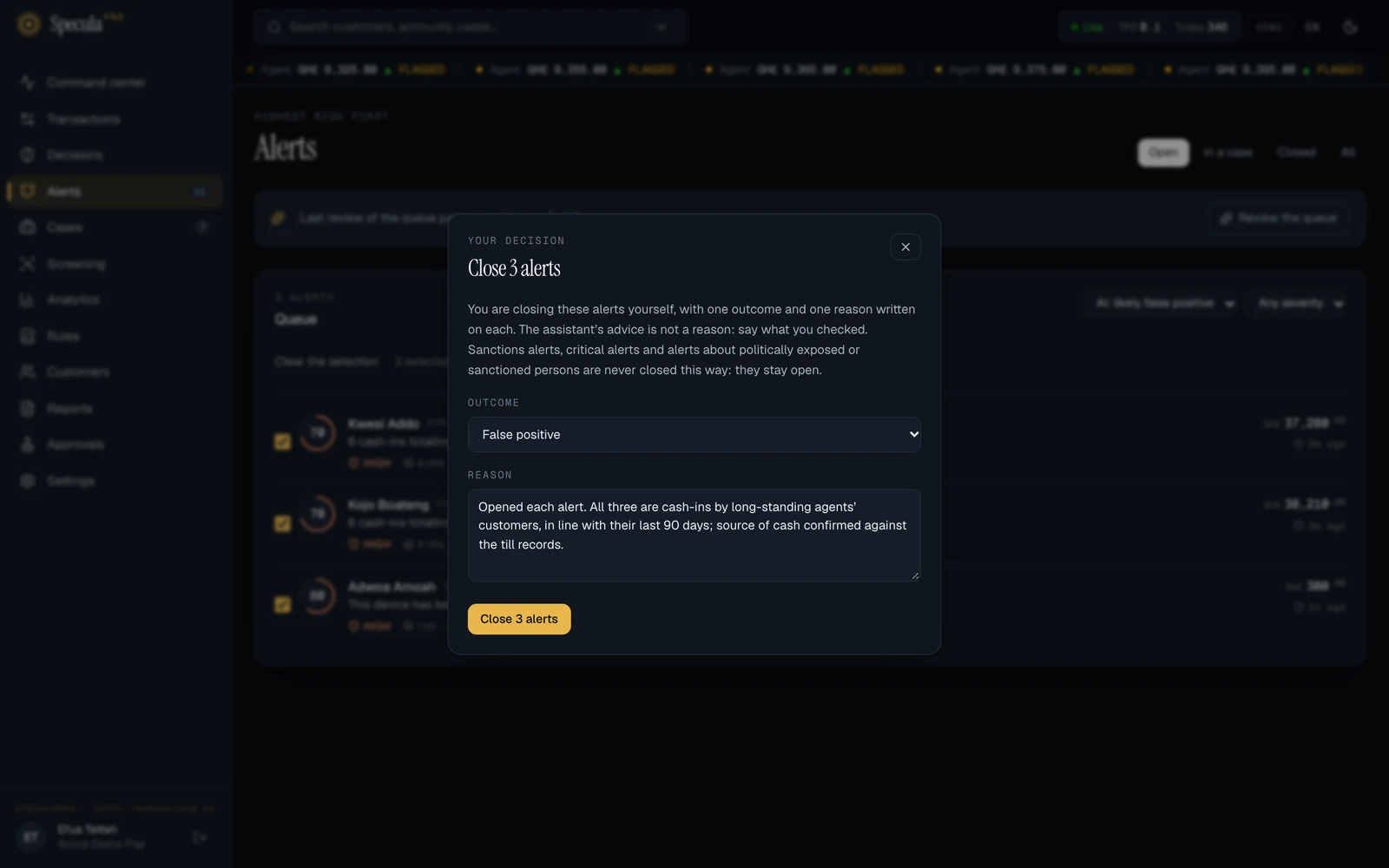
- Select Close the selected. A sheet headed Your decision, titled Close N alerts, opens.
- Under Outcome, choose False positive, No action needed or Duplicate. The meanings are the same as when you dismiss one alert.
- Under Reason, write what you checked and why these alerts can be closed together. A reason is required here (at least 10 characters, at most 2,000), unlike the optional rationale on a single alert.
- Select Close N alerts.
If every alert was closed you return to the queue. If some were not, the sheet says so, for example 2 alerts were left open: they were no longer open, or have to be closed on their own page. Select Back to the queue; the alerts left open are still in the list.
What is never closed in bulk
Section titled “What is never closed in bulk”SpeculaPro leaves these open, and you close them one at a time on their own page. The first three
kinds are called held alerts (held: true in the API): the server
refuses them even if a request names them, answering sanctions alerts and critical alerts are
closed one at a time or alerts about politically exposed or sanctioned persons, their relatives
and their accounts are closed one at a time.
| Left open | How you can tell |
|---|---|
| A sanctions alert | It has no tick box. Point at the gap to read Sanctions alerts, critical alerts and alerts about politically exposed persons are closed one at a time |
| A critical alert | It has no tick box |
An alert whose subject is designated PEP (pep), relative or close associate of a PEP (pep_rca) or sanctioned (sanctioned), or is an account owned by such a customer |
It has no tick box |
| An alert that someone dismissed or put in a case meanwhile | Counted among the alerts left open |
What is recorded: for each alert closed, the outcome, your reason, your name and the time, in
the permanent audit log as alert.close, with the number of alerts in the same
request (bulk). Someone reviewing closures can therefore find every alert that was closed as part
of a batch and how large the batch was. All the alerts in one request are closed together or, if
the request fails part-way, not at all.
Reading an alert row
Section titled “Reading an alert row”Each row is one alert: one subject (usually a customer) and every rule hit about them in this episode of activity.
| Part of the row | What it means |
|---|---|
| Score ring (the circle with a number) | The alert’s risk score, 0 to 100: the highest score of any hit in the alert. The coloured arc fills in proportion to the score and takes the severity’s colour. Hover over it to read Risk score … |
| Subject | Who the alert is about, with a small label: customer, account or counterparty. If your role can’t view customers you see a code such as Customer 3f9a1c instead of the name |
| FRAUD (gold) | A fraud alert, raised by a real-time decision rather than by post-event monitoring. AML alerts have no tag. See AML and fraud alerts |
| Summary | A one-line description of the most recent activity, written by the rule that fired. When there is none, the names of the rules that fired |
| Severity | Critical, High, Medium or Low: the highest severity among the hits |
| N rules | Shown when more than one rule fired. Several independent rules agreeing is a stronger signal than one |
| Hits | How many rule hits the alert holds. Further hits of the same kind on the same subject are added to the same alert instead of creating new ones |
| Case number (gold, for example SP-2026-000123) | The case this alert belongs to, once it is in one |
| Outcome | On closed alerts, how they ended: false positive, no action, duplicate, or escalated to case when the alert was closed together with its case |
| AI: likely false positive, AI: investigate or AI: can’t tell | On open alerts, when your workspace uses the AI assistant: its current advice. It is advice only, changes nothing about the alert, and disappears when the alert gets a hit the assistant hasn’t read |
| Exposure (right) | The total value of the transactions behind the alert, in your workspace’s base currency |
| Time (right, with a clock) | How long ago the latest hit arrived: just now, 12m ago, 3h ago, 2d ago |
How many alerts are listed
Section titled “How many alerts are listed”The Queue panel heading shows how many alerts are listed, for example 37 alerts. The screen lists at most 100 alerts at a time. When it shows 100+ alerts, there are more than the screen can list.
- On the Open tab you always see the 100 riskiest, so the most important work is never hidden. Dismissing or opening cases for alerts at the top brings the next ones into view.
- On the other tabs you see the 100 most recent. Use the severity filter to narrow the list, or ask someone with API access to page through older alerts.
When the queue is empty
Section titled “When the queue is empty”- On Open: Queue is clear. No open alerts. New ones arrive here within seconds of the transaction that triggers them.
- On any other tab, or with a filter: Nothing here. No alerts match this filter.