
Approving a rule change
In short
Section titled “In short”Every rule change is made by one person and accepted by another: this is called maker–checker, or the four-eyes principle. A rule author tunes the rule; you, the approver, check the change and approve or reject it. Approving doesn’t make it run. You then decide when it goes live: straight away with Make live, or after a Shadow test that shows what it would flag without raising alerts.
Who can do it: you need rules.approve. In the built-in roles that is the Rule approver
and the MLRO / Compliance officer. You can never approve a version you wrote yourself.
How to find changes waiting for you
Section titled “How to find changes waiting for you”- On the Rules screen, select the Needs attention tab. It lists every rule with a version awaiting approval or a shadow test running. Rows with a change waiting show N awaiting approval in gold.
- Open the rule. In the Versions panel on the right, a version waiting for you is marked Awaiting approval and is already expanded so you can read it.
The Versions list
Section titled “The Versions list”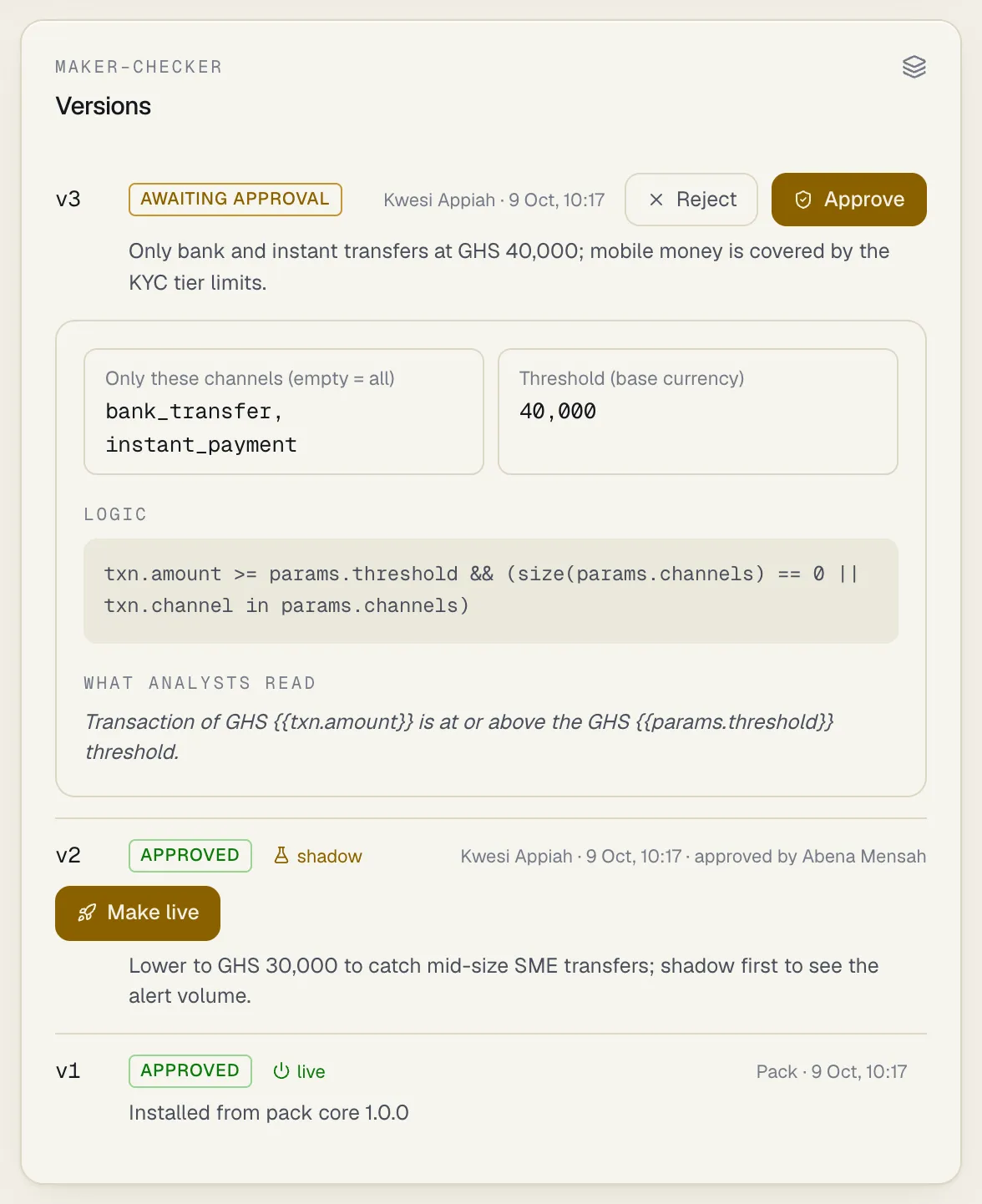
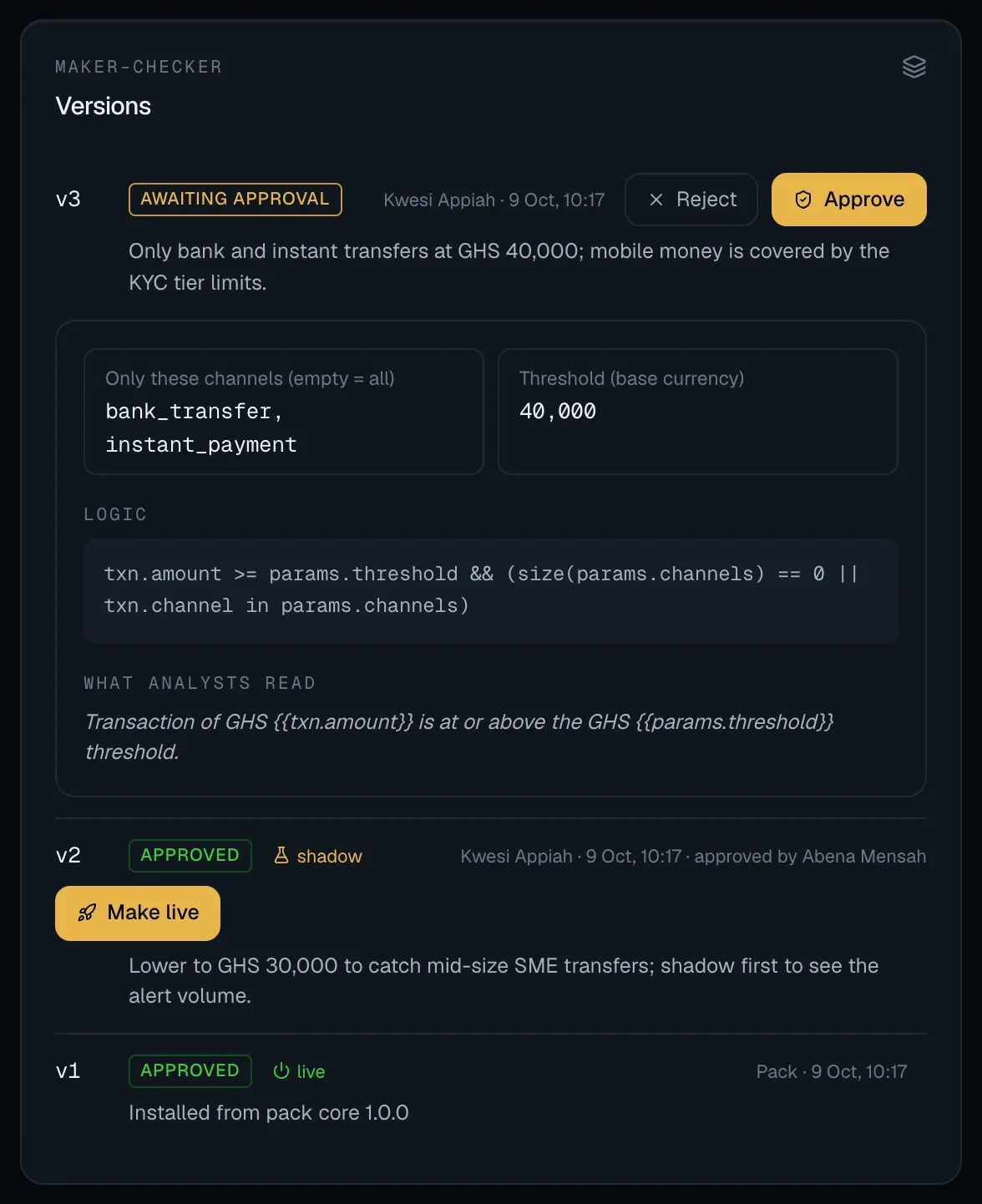
Every version of the rule is listed, newest first. Each row shows:
| Item | Meaning |
|---|---|
| v1, v2, … | The version number |
| State | Draft (saved, not sent for approval), Awaiting approval, Approved or Rejected |
| live (green) | This version is the one running and raising alerts |
| shadow (gold flask) | This version is being shadow-tested |
| Author and date | Who wrote it, and when. Versions installed with a pack show Pack |
| approved by / rejected by | Who decided it |
| The line underneath | The author’s change note. Select it, or the version number, to expand the full definition: parameters, logic, aggregates and the analyst explanation |
What to check before approving
Section titled “What to check before approving”You are the control. Read the change as an examiner would:
- The change note. Does it say what changed and why, with evidence: a review of recent alerts, a typology bulletin, a ticket number? “Adjusted threshold” is not enough.
- The difference. Expand the new version and the live version and compare the parameters, severity and score box by box. Is the change what the note says, and nothing more?
- The direction. A change that reduces alerts (a higher threshold, fewer channels, a lower severity) can be right, or can hide a problem. It needs the strongest evidence. See Rules and versions.
- The effect on the queue. Will this create far more alerts than your analysts can work? If you’re unsure, approve it and shadow test it before making it live.
- The author. It must be someone else. On a version you wrote yourself, Approve is greyed out, with the tooltip You wrote this version; someone else must approve it. Ask another approver.
How to approve a version
Section titled “How to approve a version”- Open the rule and find the version marked Awaiting approval in Versions.
- Select Approve. A panel titled Approve version opens, showing the author’s change note.
- Under Approval note (optional), add anything worth recording, for example Agreed. Review again after month-end volumes.
- Select Approve.
The version is now Approved, and its logic is frozen: its expression, aggregates, parameters, severity, score and action can never change again. It is not running yet.
If the version is yours, approving is refused with a version must be approved by someone other than its author. The database enforces this too, so no one can get around it.
How to reject a version
Section titled “How to reject a version”- Select Reject on the version. A panel titled Reject version opens.
- Under Why reject, tell the author what is missing or wrong. This is required (at least 3 characters). For example: Threshold too high for agent accounts; check last quarter’s cash-in STRs first.
- Select Reject.
The version is marked Rejected and stays on record. It can’t be resubmitted: the author tunes the rule again, which creates a new version.
How to make an approved version live
Section titled “How to make an approved version live”Approved versions that aren’t live show two buttons:
- Shadow test: run it on live traffic next to the live version, recording hits but raising no alerts. Use this when you’re not sure of the effect. See Shadow mode.
- Make live: it replaces the live version straight away. Its hits raise alerts from now on.
Select Make live. The version is marked live, and the running system picks it up within about 15 seconds. The previous live version stays Approved on record, so every alert it raised can still be explained and you can return to it.
How to roll back
Section titled “How to roll back”If a change causes problems, open the rule, find the previous version in Versions (it is still Approved) and select Make live. No new approval is needed, because it was already approved. The change is recorded in the audit log like any other deployment.
Everything is audited
Section titled “Everything is audited”Each decision is written to the audit log with your name, the time, where you were connected from
and your note: rule_version.approve or rule_version.reject, and rule.deploy for
Shadow test and Make live, with what was in each slot before.
Using the API instead
Section titled “Using the API instead”The same steps are POST /api/v1/rule-versions/{id}/approve or /reject, and
POST /api/v1/rules/{id}/deploy with slot set to shadow or active (live). See the
Rules API.