
Suppressing alerts
In short
Section titled “In short”Some customers trigger the same alert again and again for activity you have already checked and understood: a payroll account that pays hundreds of staff on the 25th, or a merchant who moves their daily float. A suppression stops those alerts for a limited time, so analysts can spend their time on real risk.
A suppression:
- is proposed by one person, from the customer’s profile, with a business explanation;
- takes effect only after someone else approves it;
- covers one rule or every rule for that customer, including rules that alert on the customer’s accounts;
- can be narrowed to the customer’s dealings with one counterparty, such as salary from a known employer, so everything else they do is still monitored;
- always expires, 7 to 365 days after it is approved;
- doesn’t hide anything: rules still run and record their hits, which show which suppression applied. Only the alert is held back.
See Suppressions for the full concept.
Who can do what
Section titled “Who can do what”| Action | Permission | Default roles |
|---|---|---|
| Propose a suppression | suppressions.create |
Analyst, Senior analyst |
| Approve or reject one | suppressions.approve |
MLRO |
| Withdraw your own pending proposal | The person who proposed it | The proposer |
| End an active suppression early | The person who proposed it, or anyone with suppressions.approve |
The proposer; MLRO |
Nobody can approve or reject a suppression they proposed. On the Rules page both buttons are disabled for the proposer, and the server refuses them too. If you change your mind about your own proposal, withdraw it instead.
How to propose a suppression
Section titled “How to propose a suppression”-
Open the customer’s profile.
-
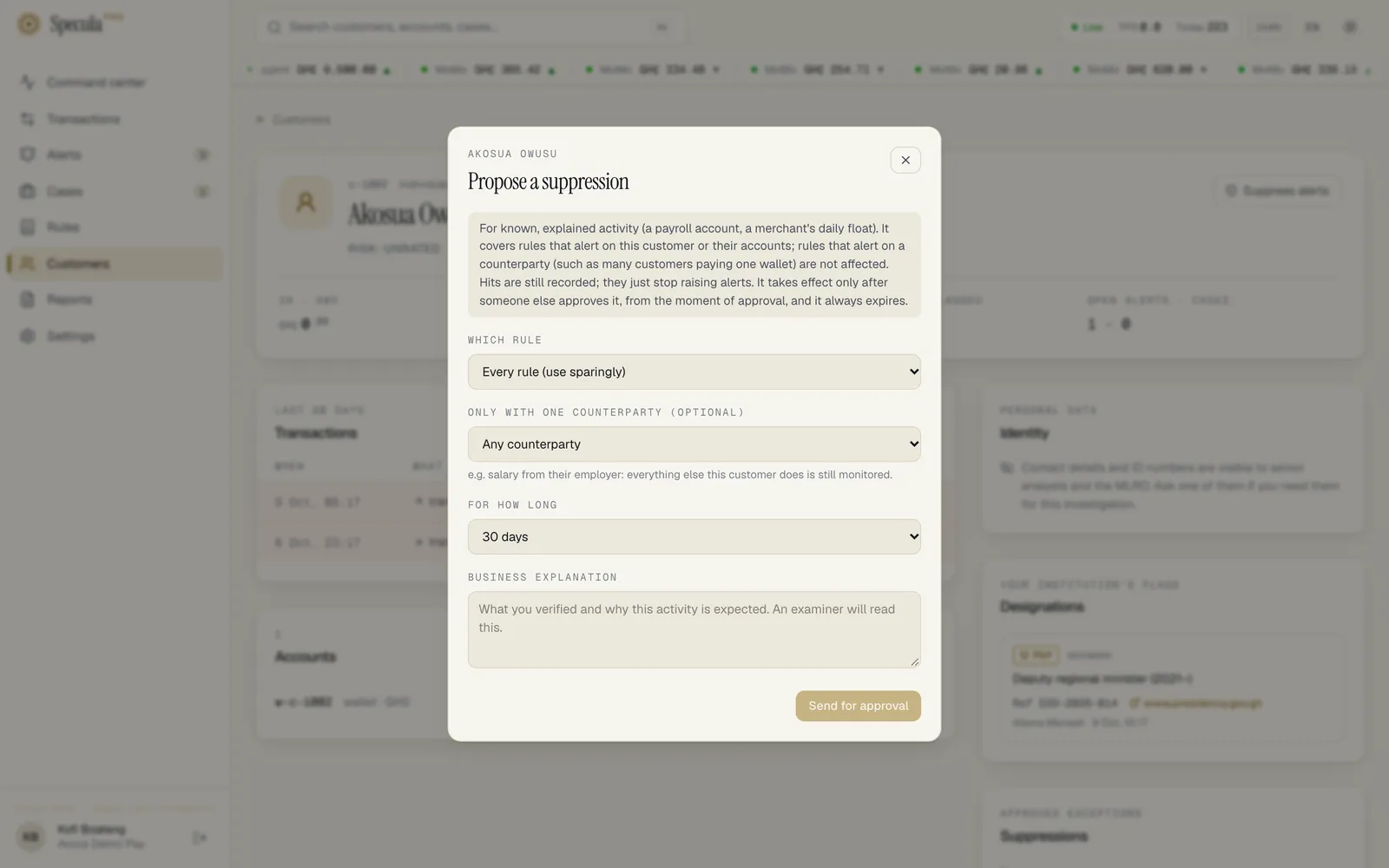
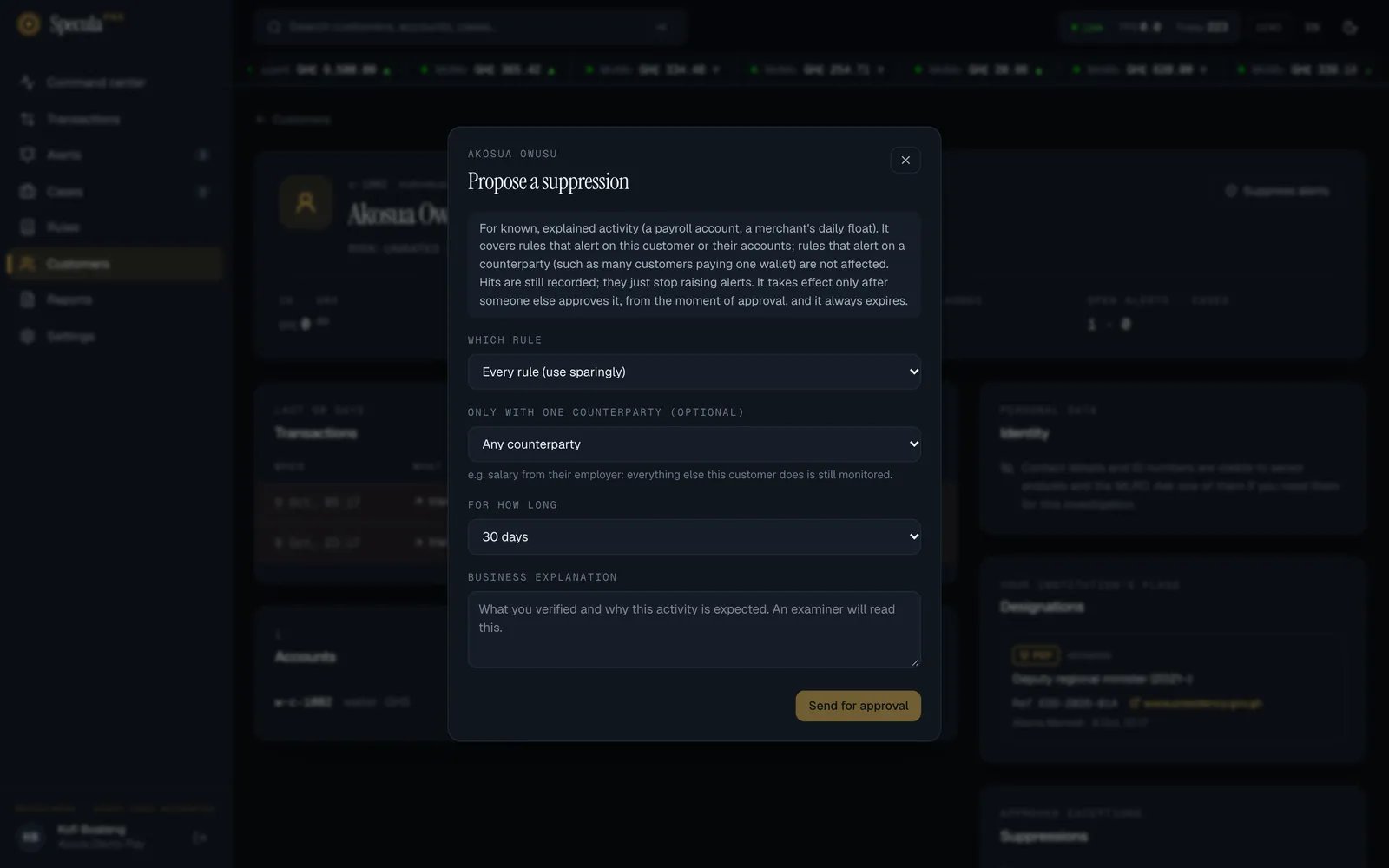
Select Suppress alerts. A panel titled Propose a suppression opens. It starts with a reminder of what a suppression does:
For known, explained activity (a payroll account, a merchant’s daily float). It covers rules that alert on this customer or their accounts; rules that alert on a counterparty (such as many customers paying one wallet) are not affected. Hits are still recorded; they just stop raising alerts. It takes effect only after someone else approves it, from the moment of approval, and it always expires.
-
Under Which rule, choose:
- the rule that keeps alerting on this activity. Only rules that are switched on and alert on a customer or an account are listed; or
- Every rule (use sparingly), to stop alerts from all those rules for this customer.
-
Optionally, under Only with one counterparty (optional), choose the one party this activity is with, for example the employer that pays the customer’s salary. The list shows the customer’s 20 most frequent counterparties in the last 90 days, each with its masked account or wallet number and how many payments it has had with the customer. Leave it on Any counterparty to cover all of the customer’s activity on the chosen rule. If the customer has had no counterparties in the last 90 days, the box says No counterparties in the last 90 days and can’t be used.
-
Under For how long, choose 7, 30, 90, 180 or 365 days.
-
Under Business explanation, write what you verified and why the activity is expected. At least 10 characters are required, but a good explanation is several sentences, for example:
Payroll account for Volta Agro Exports Ltd. Pays 140–160 staff on the 25th of each month, GHS 1,200–4,800 each. Verified against the payroll schedule on file (doc ref HR-2026-114) and confirmed by phone with the finance director on 3 Oct 2026. The fan-out rule fires every payday.
-
Select Send for approval.
The suppression appears in the profile’s Suppressions panel as PENDING, awaiting approval. Nothing changes for alerts yet. A suppression.propose entry is written to the audit log.
How to approve or reject a suppression
Section titled “How to approve or reject a suppression”Pending suppressions wait on the Rules page.
- Select Rules in the menu.
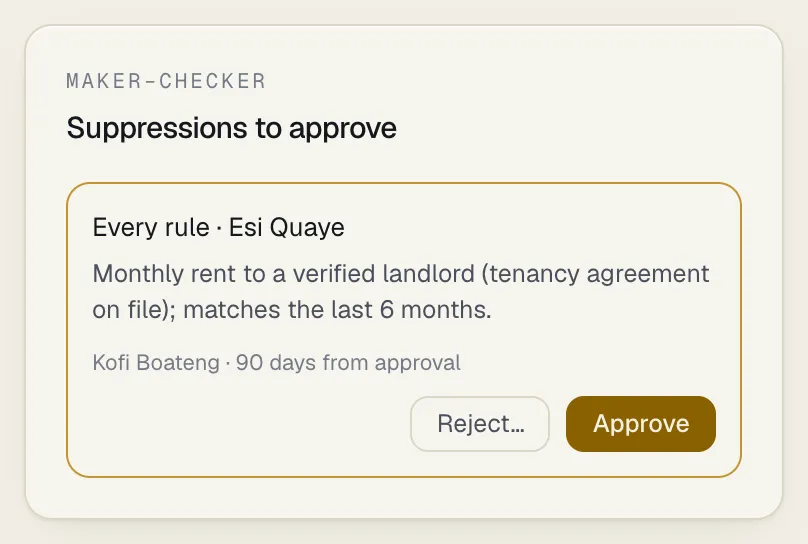
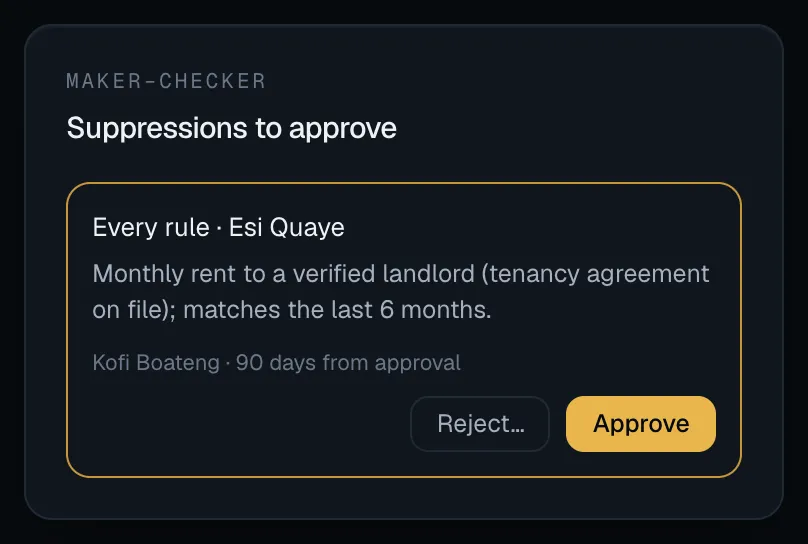
- In the right-hand column, find the panel Suppressions to approve. It appears only when you have
suppressions.approveand at least one suppression is waiting. - For each suppression, read:
- what it covers, for example Large single transaction · Ama Owusu with Volta Agro Exports Ltd, Every rule · Kojo Asante, or Large single transaction, for everyone;
- the business explanation;
- who proposed it, and how long it lasts, for example 30 days from approval.
- Open the customer’s profile in another tab if you need to check the activity yourself.
- Select Approve to put it into effect.
- Or, to turn it down:
- Select Reject…. A box opens under the proposal: Why not? The proposer reads this.
- Write your reason. At least 3 characters are required, but say what is missing, for example No evidence of the payroll schedule. Attach the HR letter and propose 30 days, not 365.
- Select Reject, or Cancel to go back.
If you proposed it yourself, Approve is greyed out with the tip Someone other than the proposer must approve, and Reject… with the tip Withdraw your own proposal from the customer page.
After approval: the suppression shows as ACTIVE on the customer’s profile, with your name as approver. Within about 15 seconds new hits on the covered rules stop raising alerts. A suppression.approve entry is written to the audit log.
After rejection: the suppression is marked REJECTED and never takes effect. The customer’s profile shows Rejected by your name and your reason, so the proposer can improve the explanation or drop the idea. A suppression.reject entry, with the reason, is written to the audit log.
How a suppression ends
Section titled “How a suppression ends”- It expires. On its end date it stops applying and shows as EXPIRED. Alerts resume from the next hit. If the activity is still legitimate, propose a new one, with an up-to-date explanation.
- It is ended early. The proposer, or anyone with
suppressions.approve, can end it at any time. See How to end a suppression early below. It then shows as REVOKED.
| State | Meaning |
|---|---|
| PENDING | Proposed, waiting for a second person. Not in effect |
| ACTIVE | Approved and in effect until its end date |
| EXPIRED | Reached its end date |
| REVOKED | Approved, then ended early |
| REJECTED | Turned down before it took effect |
| WITHDRAWN | Taken back by the person who proposed it before anyone approved it |
End a suppression straight away if the customer’s circumstances change, for example if the “payroll” account starts receiving money from outside the company.
How to end a suppression early or withdraw a proposal
Section titled “How to end a suppression early or withdraw a proposal”Who can do it:
- Withdraw a pending proposal: only the person who proposed it. To turn down someone else’s proposal, an approver uses Reject… on the Rules page, which needs a reason (see How to approve or reject a suppression).
- End early an active suppression: the person who proposed it, or anyone with
suppressions.approve.
- Open the customer’s profile.
- In the Suppressions panel, find the suppression. Next to who proposed it:
- an active suppression shows End early;
- a pending proposal shows Withdraw.
- Select it. A panel opens, titled End suppression early or Withdraw proposal.
- Optionally, under Reason (optional), say why, for example Payroll arrangement ended in September. The reason is kept in the history and shown on the profile.
- Select End now or Withdraw.
An ended suppression shows as REVOKED; within about 15 seconds new hits raise alerts again. A withdrawn proposal shows as WITHDRAWN and never reaches an approver. Either way a suppression.revoke entry, with your reason, is written to the audit log.
To do the same from a script, use POST /api/v1/suppressions/{id}/revoke from the Suppressions API.
What is recorded
Section titled “What is recorded”| Event | Where you see it |
|---|---|
| Proposed, approved, rejected, withdrawn or ended | The profile’s Suppressions panel, with who rejected, withdrew or ended it and why, and the audit log (suppression.propose, suppression.approve, suppression.reject, suppression.revoke) |
| A hit that the suppression held back | The hit is stored with a reference to the suppression, so you can show exactly which alerts it prevented |
Related
Section titled “Related”- Suppressions: the concept in depth
- Customer profile
- Suppressions API