
Passkeys
In short
Section titled “In short”A passkey lets you sign in with your fingerprint, your face or your device’s PIN, with no workspace name, no email, no password and no code. Your device keeps a secret key that never leaves it; SpeculaPro keeps only the matching public key.
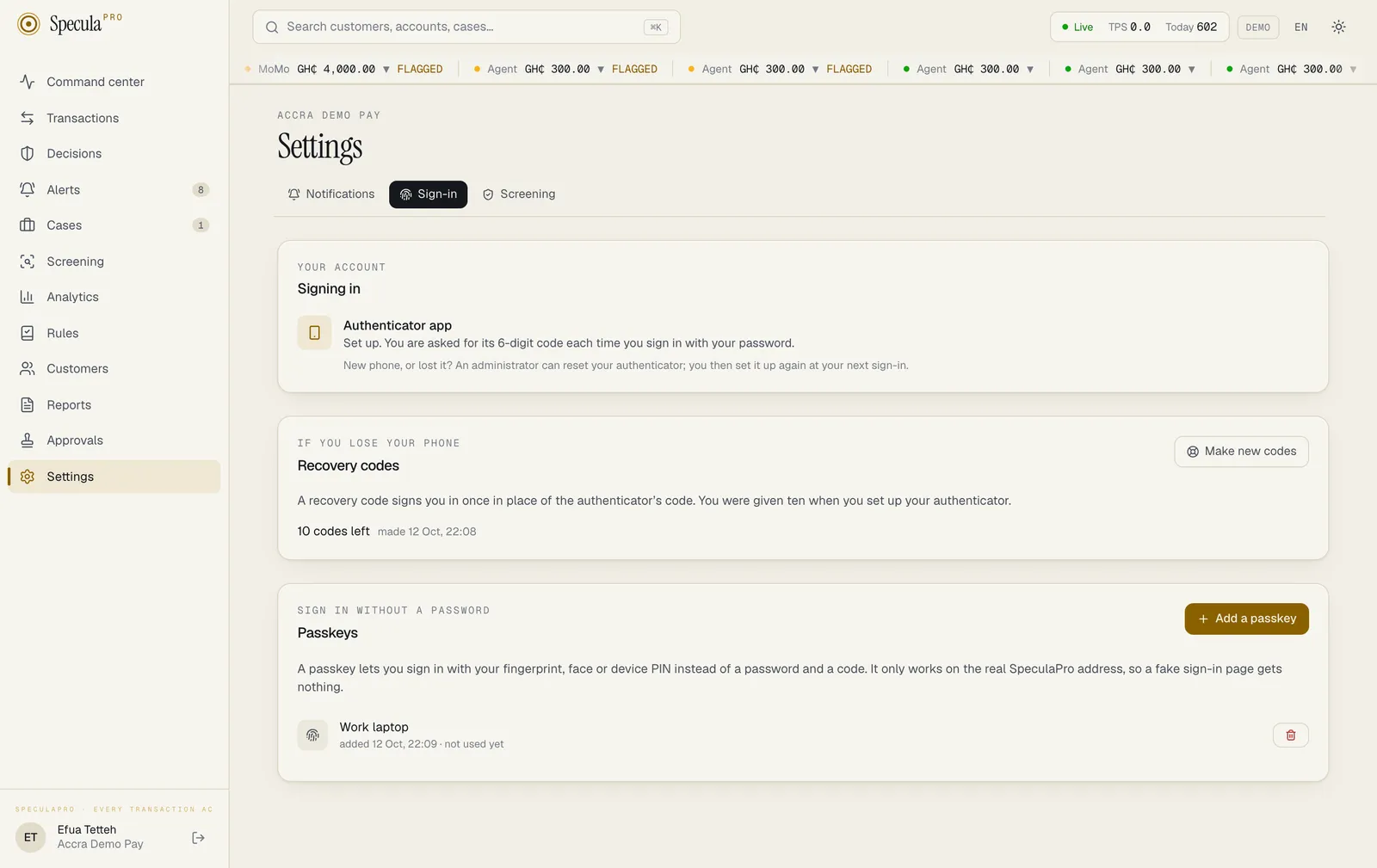
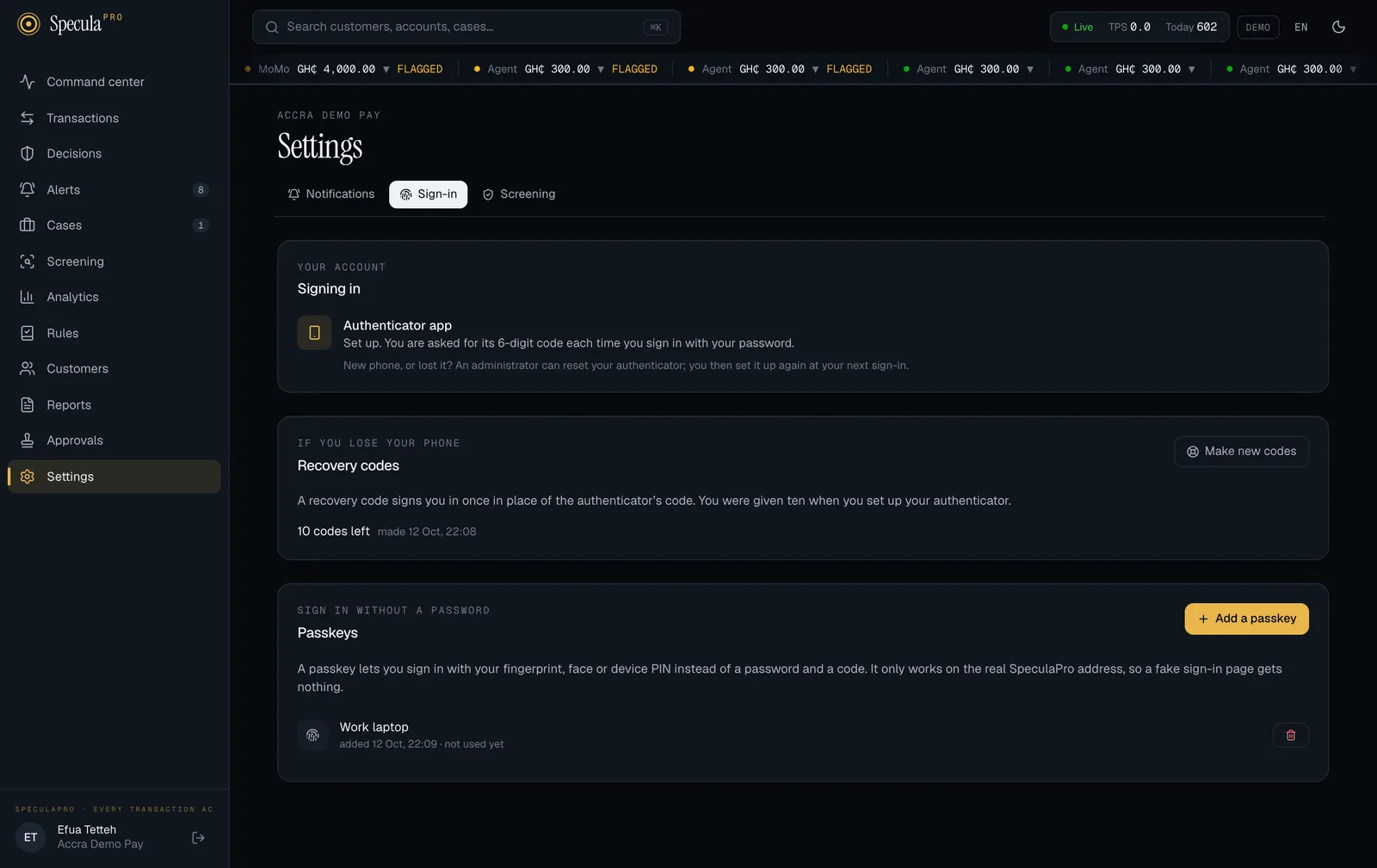
- You add a passkey under Settings → Sign-in, once you have an authenticator app set up.
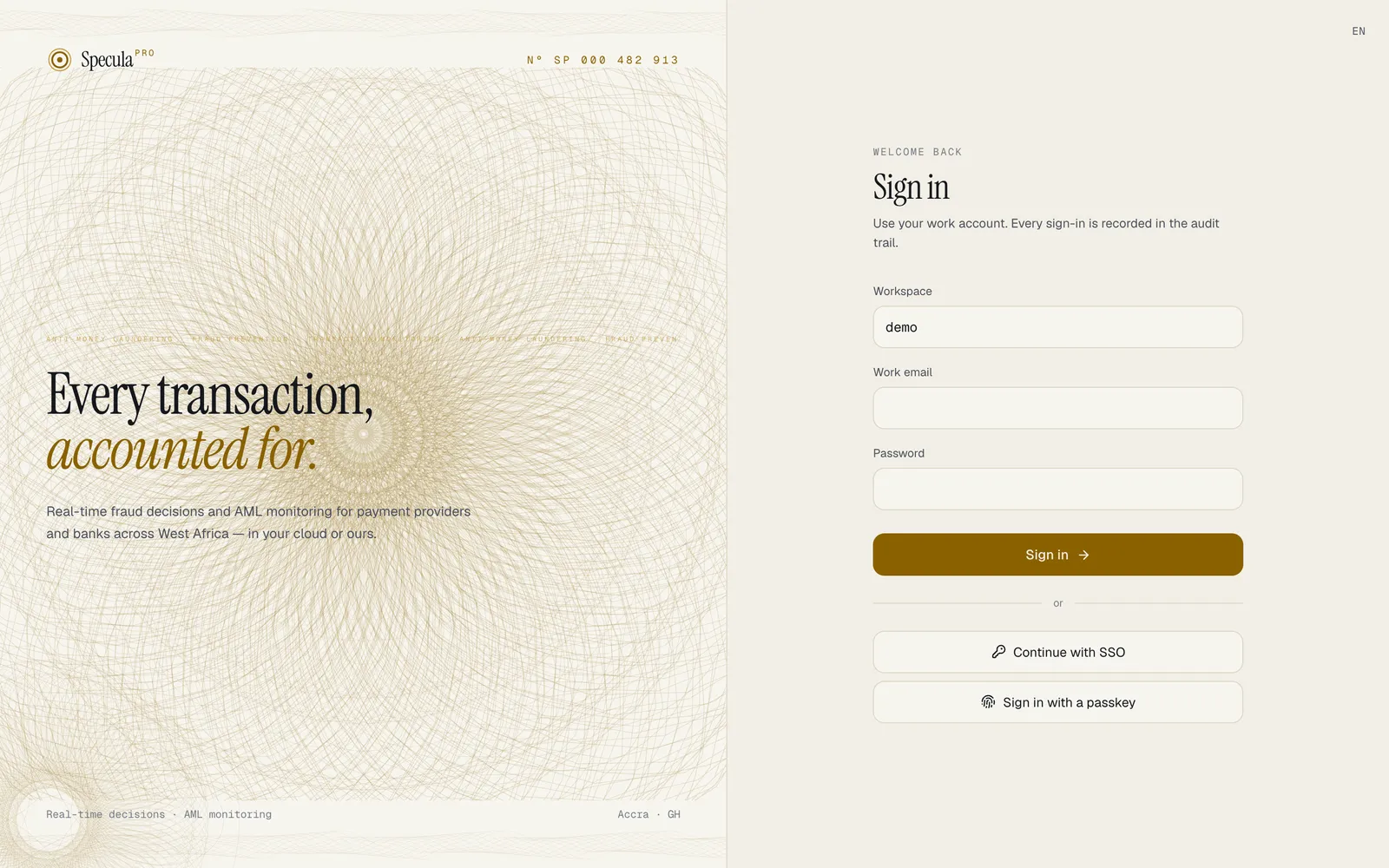
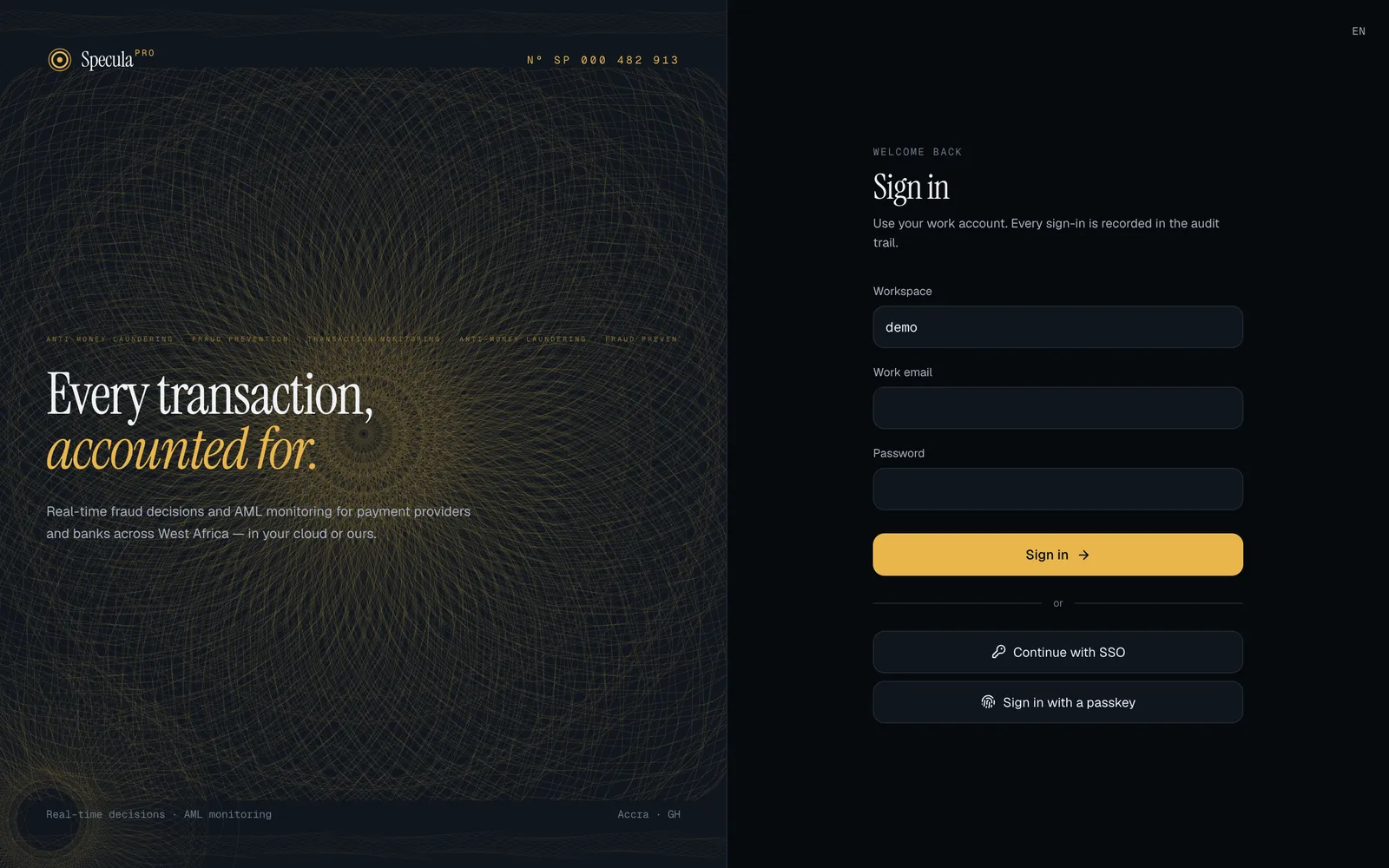
- On the sign-in page, select Sign in with a passkey.
- A passkey only works on the real SpeculaPro address it was made for, so a fake sign-in page gets nothing it can use.
- A passkey sign-in counts as two-factor: you have the device, and the device checked it is you.
- You can keep up to 10 passkeys, one for each device you use.
A passkey is an extra way in, not a replacement: your password and authenticator app keep working, and you need the authenticator to add a passkey.
What you need
Section titled “What you need”| You need | Why |
|---|---|
| An authenticator app already set up | Adding a passkey asks for its code. People who sign in only through their organisation’s single sign-on see You sign in through your organisation’s identity provider. Your sign-in methods are managed there. and can’t add one |
| A browser and device that support passkeys | A recent browser, on a device with a fingerprint reader, face unlock, a PIN, or a password manager that stores passkeys. Otherwise the panel says This browser can’t use passkeys here. |
A SpeculaPro address that starts with https:// |
Passkeys are tied to the address people open SpeculaPro at. If your installation has no public https address configured, the panel says Passkeys are not available on this server: it needs a public https address. This is for your operator to fix; see For operators |
How to add a passkey
Section titled “How to add a passkey”Do this on the device you want to sign in from.
- Open Settings and choose the Sign-in tab.
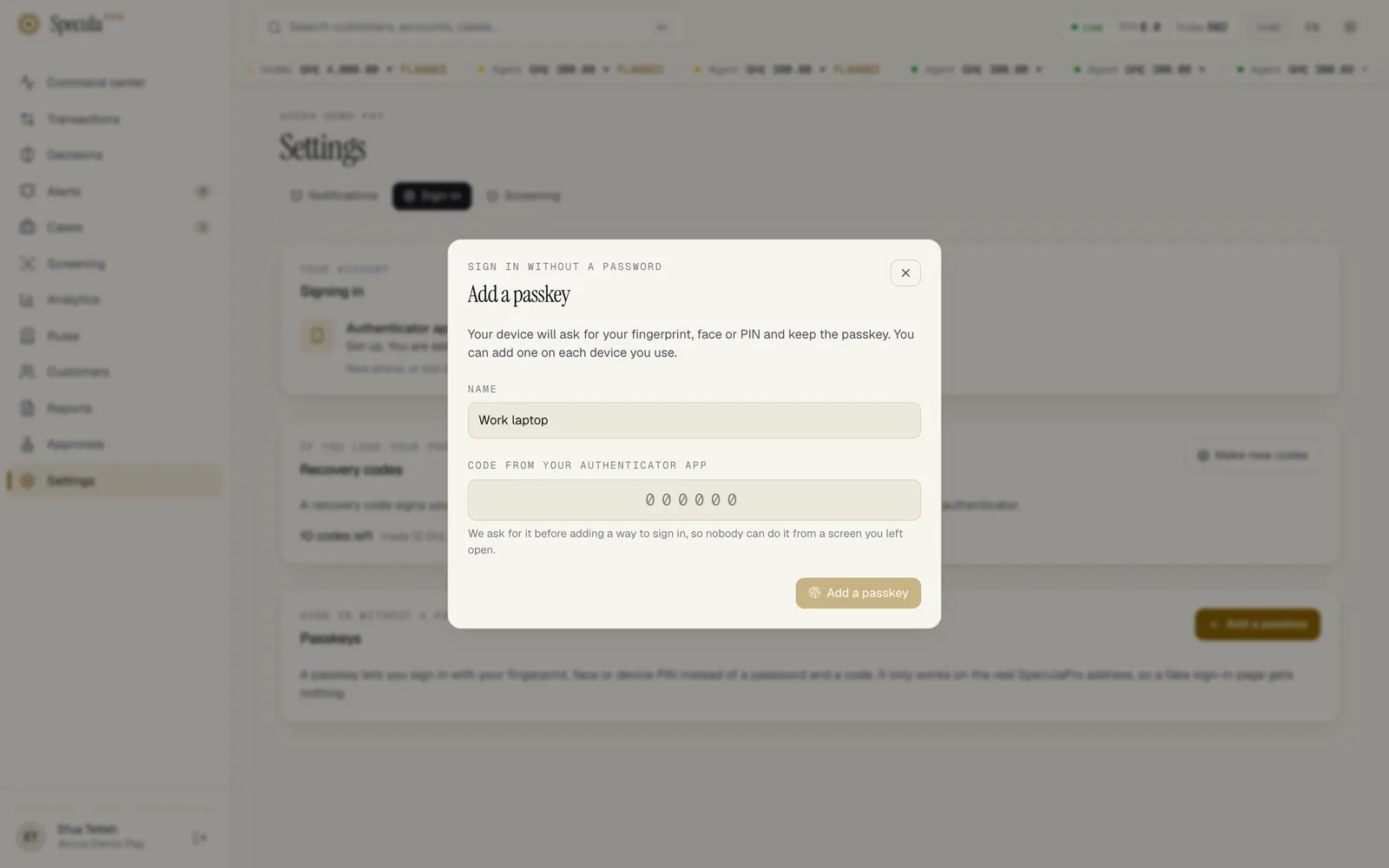
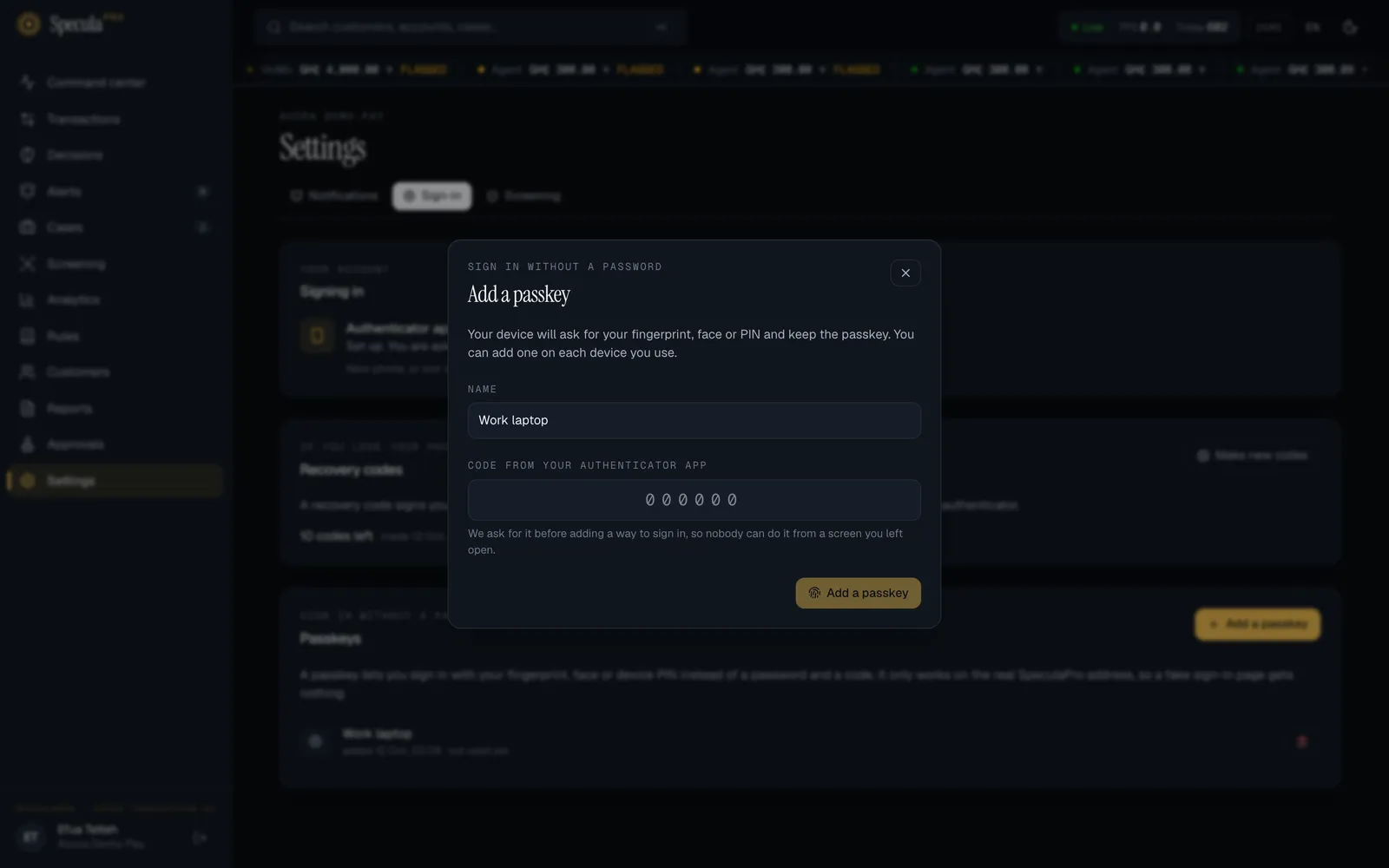
- In the Passkeys panel, select Add a passkey.
- Check the Name. It is filled in from your device (for example Mac or iPhone); change it to something you’ll recognise, such as Work laptop. Up to 80 characters.
- Enter the Code from your authenticator app.
- Select Add a passkey. Your browser or device now asks for your fingerprint, face or PIN, and may ask where to keep the passkey.
- Approve it. The passkey appears in the list with its name and not used yet.
SpeculaPro asks for the authenticator’s code before adding a way to sign in, so nobody can do it from a screen you left open.
What you may see instead:
| Message | Why | What to do |
|---|---|---|
| Nothing was added. Enter the next code from your authenticator and try again. | You closed the device’s prompt or it timed out. The code you typed is spent | Wait for the app’s next code and try again |
| This device already has a passkey for your account. | One passkey per device (or per password manager) | Nothing to do: use the one it has |
| That code didn’t match. Wait for the next one and try again. | The authenticator code was wrong or already used | Wait for the next code. You have five tries in fifteen minutes; each wrong code is written to the audit log and counts toward the account lockout |
| you already have the most passkeys an account can hold; remove one first | You have 10 | Remove one you no longer use |
| that took too long or was already used; start again | More than five minutes passed between starting and approving | Start again |
A passkey marked synced is kept in a password manager or a cloud keychain, so it is on your other devices too. One without the mark lives on that one device only.
How to sign in with a passkey
Section titled “How to sign in with a passkey”- Open the SpeculaPro sign-in page, at the same address where you added the passkey.
- Select Sign in with a passkey. You don’t fill in anything first.
- Your device shows the passkeys it holds for this address. Choose yours and confirm with your fingerprint, face or PIN.
You are signed in, in the workspace the passkey belongs to. The button is shown only when your browser supports passkeys.
If it doesn’t work you see That passkey could not be used here. Sign in with your password instead. The message is deliberately the same whatever the reason; sign in with your password and authenticator code, and see What is refused.
How to remove a passkey
Section titled “How to remove a passkey”Remove a passkey when you stop using a device, or at once if a device is lost or stolen.
- Open Settings and choose the Sign-in tab.
- Beside the passkey, select the bin button (Remove name).
- Confirm Remove the passkey … ? It will no longer sign you in.
Removing takes effect at once and needs no code. It deletes SpeculaPro’s record; the device may still list an entry for SpeculaPro, which no longer works and which you can delete in the device’s own passkey or password settings.
Removing a passkey also ends the other sessions that were opened with it, so whoever holds the device is signed out at once. The session you are removing it from stays, even if that passkey opened it. Sessions opened in other ways (your password and a code, another passkey, single sign-on) are not touched: if you think someone knows your password too, change it, which signs out your other sessions, or ask an administrator to reset your two-factor, which signs out everything. See Sessions.
Why a passkey is safer than a password
Section titled “Why a passkey is safer than a password”| Password and code | Passkey | |
|---|---|---|
| A fake sign-in page | Can collect your password and a code and use them straight away | Gets nothing: the browser only offers the passkey to the address it was made for, and what the device signs names that address |
| A copy of SpeculaPro’s database | Holds password hashes, which are slow but possible to guess | Holds public keys only. There is no secret to steal |
| Someone watching you type | Sees the password | There is nothing to see |
| What proves it is you | Something you know, and your phone | Having the device, and passing the device’s own check |
Passkeys follow the W3C WebAuthn standard, part of FIDO2. SpeculaPro requires the device to check the person (user verification) both when the passkey is made and at every sign-in, which is why a passkey sign-in counts as two factors. This describes how the feature works; it is not a certification.
What is refused
Section titled “What is refused”A passkey sign-in follows the same rules as a password sign-in. It is refused when:
| Situation | What you see |
|---|---|
| Your account is disabled or locked | That passkey could not be used here. |
| The workspace is suspended | The suspended workspace message |
| The workspace requires single sign-on and you are not a break-glass administrator | The single sign-on message |
| The passkey was removed, or deleted by an administrator’s two-factor reset | That passkey could not be used here. |
| The sign-in was started more than five minutes ago, or its one-time challenge was already used | That passkey could not be used here. Start again |
| The signature was made for another address | Refused |
| The device didn’t check who was using it | Refused |
| The passkey’s use counter went backwards, which means a copy of the key is in use somewhere | Refused |
More than 30 sign-in attempts a minute from one network address are refused, counted together with password attempts.
If an administrator has issued you a temporary password, a passkey still signs you in, but only as far as the screen that asks you to choose a new password; you need the temporary password there.
What an administrator’s reset does
Section titled “What an administrator’s reset does”When an administrator resets your two-factor, all your passkeys are deleted, along with your authenticator and your recovery codes, and every session you have open ends. Set up the authenticator again at your next sign-in, then add your passkeys again.
Issuing you a temporary password does not remove your passkeys. An administrator who suspects an account has been taken over should reset two-factor as well as the password.
When the address changes
Section titled “When the address changes”A passkey is tied to the host name of the address it was made at. It stops working when:
- your installation’s public address changes to another host name;
- your workspace is moved to another region, which has its own address.
Nothing is lost: sign in with your password and authenticator code (or a recovery code), remove the old passkeys under Settings → Sign-in, and add new ones.
On a service with several regions, use Sign in with a passkey at your region’s own address, where you added it.
What is recorded
Section titled “What is recorded”| What happened | Audit log entry |
|---|---|
| You added a passkey | auth.passkey_added, with its name and whether it is synced |
| You removed a passkey | auth.passkey_removed, with its name and sessions_ended, the number of other sessions it had opened that were ended |
| You signed in with a passkey | auth.login, with method: passkey and the passkey’s ID. The session is recorded as started with passkey |
| A passkey’s signature didn’t check out | auth.login_failed, reason bad_passkey |
| The use counter went backwards | auth.login_failed, reason passkey_cloned |
| The device didn’t check the person | auth.login_failed, reason passkey_unverified |
| Refused for the account or workspace | auth.login_failed, with account_unavailable, workspace_suspended or sso_required |
An attempt with a passkey SpeculaPro doesn’t know leaves no entry, because there is no account to record it against.
Limits
Section titled “Limits”- No passkey-only accounts. You can’t remove your password or authenticator and keep only passkeys.
- An authenticator is required first, even in a workspace that has switched off Require two-factor sign-in.
- Adding and removing is by each person. An administrator can’t add a passkey for someone, and can only remove them all at once, with a two-factor reset.
- No list for administrators. The People tab doesn’t show who has passkeys; the audit log does.
- Failed passkey attempts don’t count toward the account lockout. There is nothing to guess: a wrong signature can’t be improved by trying again, and counting them would let anyone who knows a passkey’s identifier lock its owner out. They are audited and limited per network address. A locked account still refuses passkeys.
- Only sessions opened after the upgrade are tied to their passkey. A session opened with a passkey before SpeculaPro recorded which passkey opened it (migration
00071) is not ended when that passkey is removed. It ends at sign-out, when it expires, or with a password change or two-factor reset. - Removing a passkey asks for no code. It takes away a way to sign in; it doesn’t add one. Adding one always asks for the authenticator code.
For operators
Section titled “For operators”Passkeys need to know the public address people open SpeculaPro at. It is taken from the cell’s public URL on a multi-region installation, otherwise from SP_SSO_PUBLIC_URL, otherwise from SP_NOTIFY_PUBLIC_URL. See Configuration.
- The address must be
https://. Plainhttp://is accepted only forlocalhost, for development. - Without a usable address, passkeys are off: the Sign-in tab says so and the passkey endpoints answer
409with passkeys are not available on this server. - Changing the host name makes every existing passkey unusable. Tell people before you change it.
- The one-time use of each sign-in challenge is kept in Redis/Valkey. While Redis is unavailable, each API process remembers the challenges it has seen itself.
- The upgrade adds one database grant, applied by
speculapro migrate up. See Upgrading.