
AI assistant settings
Ce contenu n’est pas encore disponible dans votre langue.
In short
Section titled “In short”The AI assistant is a language model that reads an open alert and tells the analyst whether it looks like a false positive or needs investigating, with its reasons. It advises and nothing more: it never dismisses, closes or escalates anything. It can also summarise a case for whoever picks it up, draft the narrative of a suspicious transaction report for the person writing it to correct and sign, and suggest settings of a rule that are worth testing in a backtest. Analysts use it as described in The AI assistant’s advice.
It is off for every workspace until someone switches it on, under Settings → AI assistant. On that tab you choose:
- whether the assistant is on;
- whose API key pays for it: the one provided with your subscription, or your institution’s own;
- with your own key, which provider it is a key for: Claude, OpenAI, Google Gemini, Mistral, or a model your institution hosts;
- which model answers;
- whether new alerts are reviewed automatically.
The tab also shows this month’s usage, how much of the month’s allowance is left with a way to ask for more, and how often people agreed with the advice.
You need settings.manage to change the settings (in the default roles, the
Administrator). People with settings.view, such as the Auditor, can read the tab.
What the tab shows
Section titled “What the tab shows”| Panel | What it holds |
|---|---|
| Detection · AI assistant | What the assistant is, three statements about it (it advises and nothing more; what it reads is masked first; every question and answer is kept), and the settings |
| Last 30 days · How often people agreed with it | Three figures: the share handled the way it advised, the number of alerts advised on, outcome known, and the number handled differently |
| This month · Usage | A meter of the month’s allowance on the subscription’s key, with Ask for more calls where that is possible, then calls and tokens by what was done, model and key |
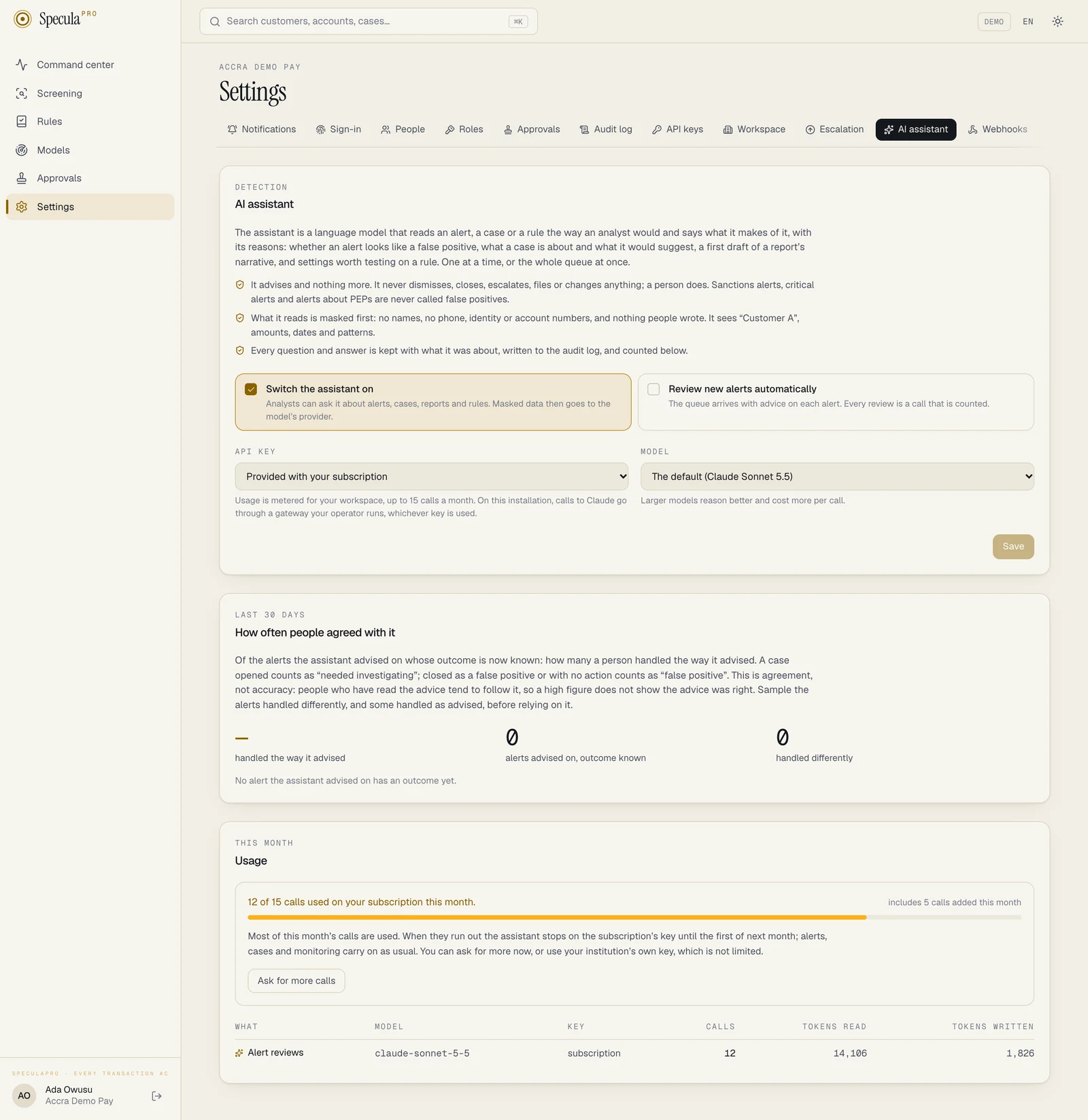
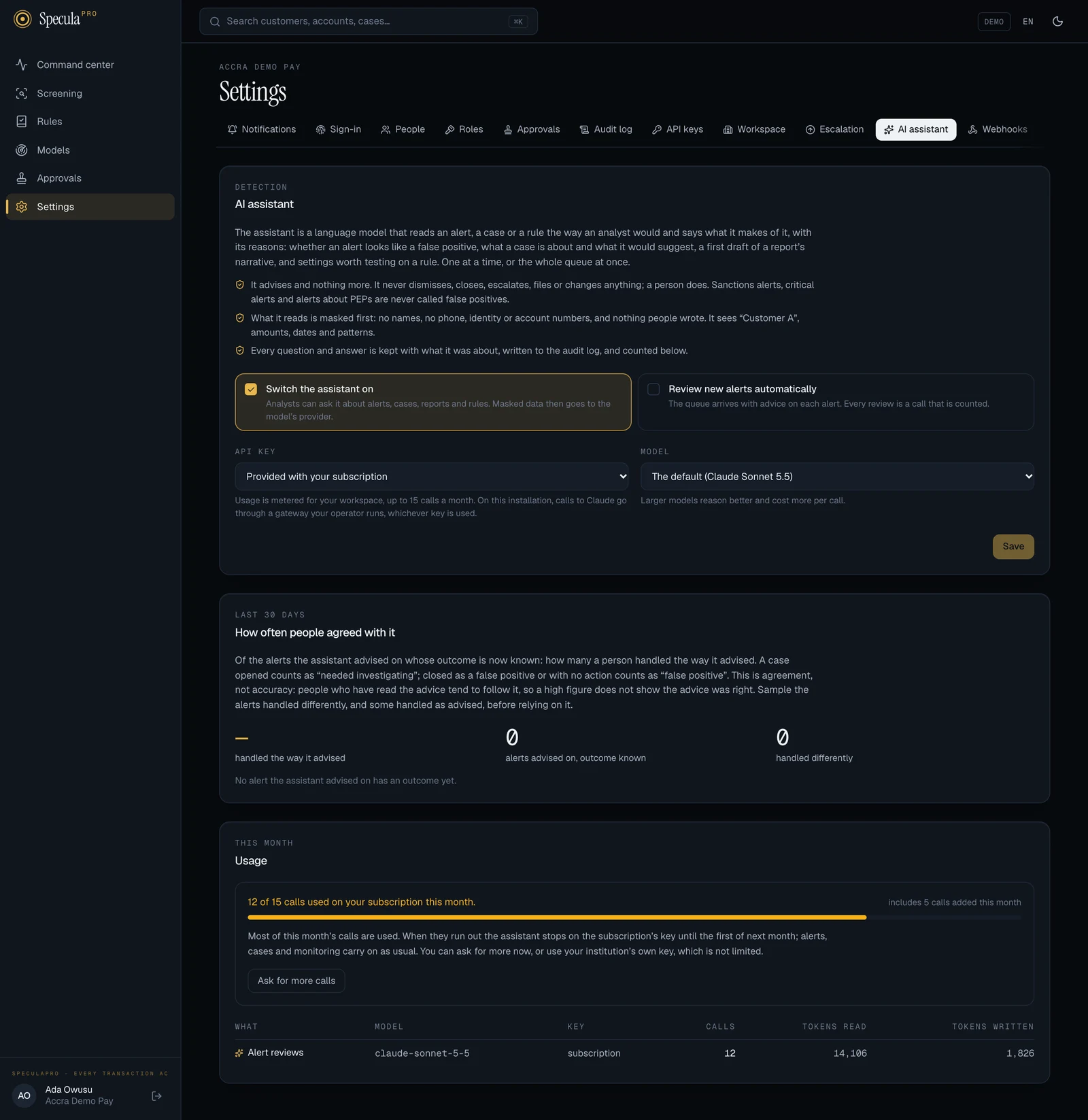
The settings
Section titled “The settings”| Setting | What it does |
|---|---|
| Switch the assistant on | Analysts with cases.work and entities.view can ask it about an open alert or for a case summary, people who draft reports can ask for a draft narrative, and rule authors can ask for tuning suggestions on a rule. Masked alert data then goes to the model’s provider (for a rule: its definition and counts, no customer). Off: nobody can ask, automatic review stops, and advice already given stays readable on its alerts |
| Review new alerts automatically | Open alerts are reviewed without anyone asking, so the queue arrives with advice. Can only be ticked while the assistant is on; switching the assistant off unticks it. See Automatic review |
| API key | Provided with your subscription or Your institution’s own key. See Whose key |
| Provider | Shown when the key is your institution’s own: whose models the key is for. See The provider |
| Model | The default or one of the Claude models; for another provider, the model’s id typed in. See The model |
| API address | Shown for Another OpenAI-compatible API: where that API is. See The provider |
| Your API key | Shown when the key is your institution’s own. See Whose key |
Whose key
Section titled “Whose key”| Choice | What it means | Limit |
|---|---|---|
| Provided with your subscription | Calls are made with the installation’s key, to the provider and model the installation was set up with. Usage is metered for your workspace. Offered only when the installation has a key (on the hosted service; on a self-hosted installation only if your operator set one) and your plan includes it | A number of calls per calendar month may apply; the tab then reads …up to N calls a month. See The monthly allowance |
| Your institution’s own key | Calls are made with an API key from your own account with a provider you choose. Calls are billed by the provider to your own account, under your own contract. It can be a key for Claude, OpenAI, Google Gemini, Mistral, or a model your institution hosts. | Never capped by SpeculaPro. Your provider account’s own limits apply |
Your own key is typed into Your API key. It is stored encrypted and never shown again: the box afterwards reads Stored. Leave empty to keep it. Nobody, including administrators and SpeculaPro’s support staff, can read it back. While a change that includes a key waits for approval, the key is stored encrypted in the request.
You can’t switch the assistant on with your own key until a key is given: Enter your API key to switch the assistant on with it.
The provider
Section titled “The provider”With Your institution’s own key, Provider says whose models the key is for. Masked alert data goes to that provider, under your contract with it.
| Provider | Model | Where calls go |
|---|---|---|
| Anthropic (Claude) | Chosen from the list | Anthropic’s API, or the operator’s gateway where the installation has one |
| OpenAI | The model’s id, typed in | https://api.openai.com/v1 |
| Google (Gemini) | The model’s id, typed in | https://generativelanguage.googleapis.com/v1beta/openai |
| Mistral | The model’s id, typed in | https://api.mistral.ai/v1 |
| Another OpenAI-compatible API | The model’s id, typed in | The API address you give: a gateway your institution runs, or a model it hosts itself |
What to know:
- Everything except Claude is spoken to in the OpenAI chat format. SpeculaPro sends
POST <address>/chat/completionswith the key as a bearer token. OpenAI, Google and Mistral each offer that format at the address in the table; for another API you give the address, which normally ends in/v1. - The same masked data goes out whichever provider you choose. Masking happens before the call and doesn’t depend on the provider. What the provider does with what it receives is governed by your agreement with it, not by SpeculaPro.
- The API address must be a public
httpsaddress. Addresses on a private network,localhost, cloud metadata services and plainhttpare refused, when you save and again each time a connection is opened. A user name or password in the address, a?and a#are refused, and redirects are not followed. On an installation you run yourselves, your operator can allow private addresses and plainhttpfor a model on your own network (SP_CONNECTOR_ALLOW_PRIVATE,SP_CONNECTOR_ALLOW_HTTP; see Configuration). Nothing checks that the address ends in/v1: a wrong path shows up as the AI provider could not answer. - The model must be able to answer in structured JSON. SpeculaPro first asks for an answer
held to a JSON schema. If the API refuses that form (
400,404or422), it asks once more for plain JSON with the schema written into the instructions. Either way the answer is checked on SpeculaPro’s side before anything is shown, and an answer in the wrong shape is discarded (the AI provider could not answer). A call that is asked twice is counted once. - Other providers are spoken to directly, not through the operator’s gateway. Only Claude calls go through a gateway where one is configured.
- Changing the provider or the address is a change of where data goes, so it needs approval like switching on. See Approval.
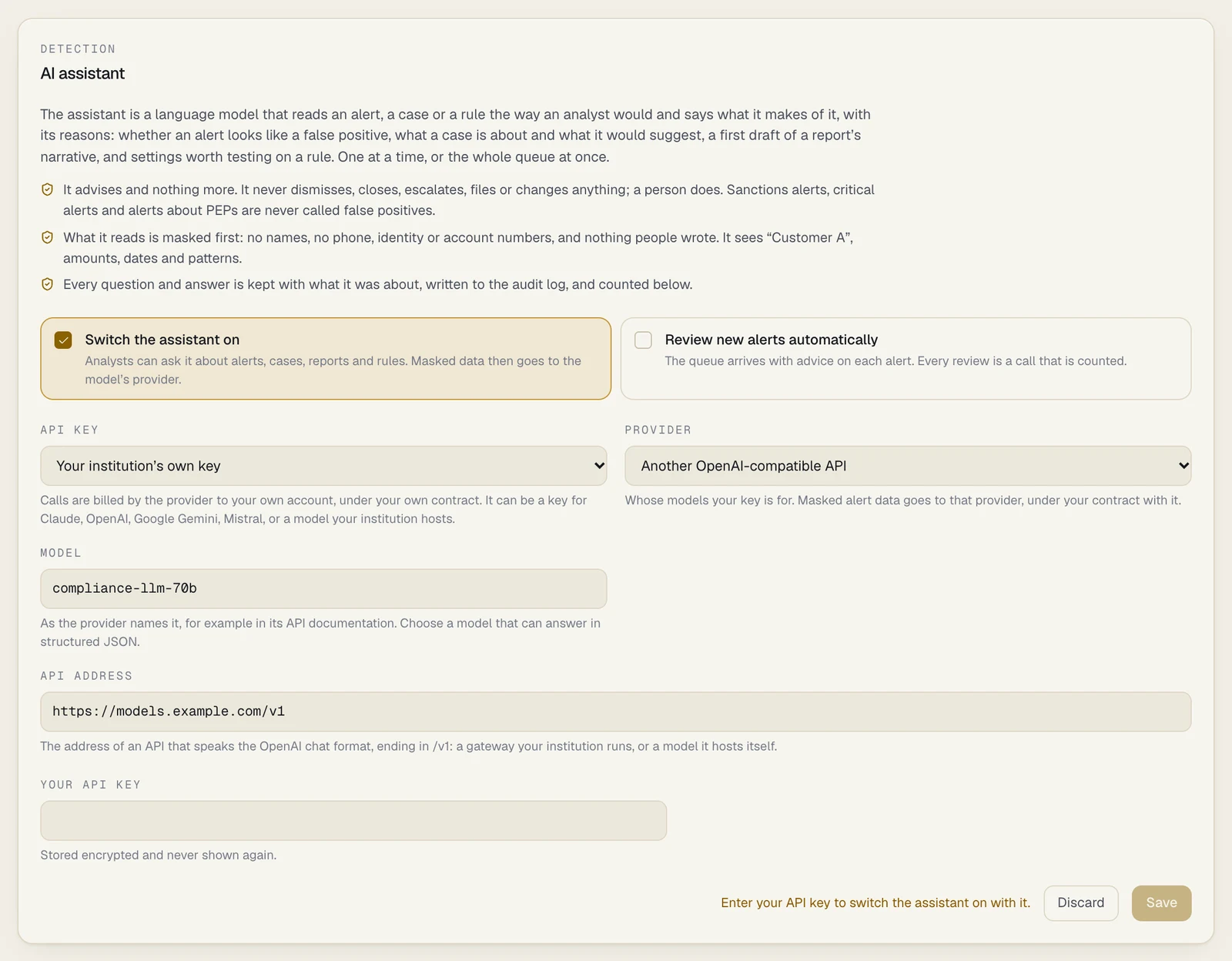
The model id and the address in the picture are made up.
The monthly allowance
Section titled “The monthly allowance”On the subscription’s key, your workspace may have a number of calls per calendar month (counted in UTC). It is made of two parts:
- the allowance: on the hosted service, the number agreed in your plan; where the plan names
none, or on an installation you run yourself, the installation’s default
(
SP_AI_MONTHLY_CALLS), which may be no limit at all; - any calls added for this month by your service provider, on top (a top-up). Added calls are available at once and do not carry over to the next month.
The settings page shows the total that applies to you, whichever it comes from. The usage panel reads, for example, 412 of 1,000 calls used on your subscription this month, with a meter and, where calls were added, includes 500 calls added this month.
- A review asked by a person and an automatic review each count as one call. A call is counted before it is made, so a call that fails at the provider still counts: the provider may bill it. A request that is refused before any call (the allowance is used up, or you asked again too soon) is not counted. Tokens are added when an answer comes back.
- Calls are counted one at a time for each workspace, so calls started at the same moment can’t take the month’s total over the allowance.
- Calls on your institution’s own key don’t count toward it and are never limited.
- A plan can also leave the subscription’s key out altogether. Provided with your subscription is then not offered. A workspace that was already using it sees a banner on the tab: Your plan no longer includes the assistant on the subscription’s key, so it cannot answer. Choose your institution’s own key below, or ask your service provider to add it to your plan. Asking answers the AI assistant has no API key to use until then. Calls can’t be added for the month to such a plan: your provider has to change the plan first.
- On the hosted service the provider keeps its own record of your usage: calls and tokens by month, feature, model and key, plus your requests for more calls and the calls it added. It holds counts, dates and the notes exchanged, never what was asked or answered, and it is kept after a workspace is closed.
When the allowance runs low or out
Section titled “When the allowance runs low or out”Nothing about monitoring depends on the allowance: Monitoring, alerts and cases never depend on it. Transactions are still screened and scored, alerts are raised, and cases are worked. Only the assistant stops, and only on the subscription’s key.
| State | The usage panel | What happens |
|---|---|---|
| Normal | The count starts again on the first day of each month (UTC). Monitoring, alerts and cases never depend on it. | Nothing |
| Four fifths used | The meter turns amber: Most of this month’s calls are used. When they run out the assistant stops on the subscription’s key until the first of next month; alerts, cases and monitoring carry on as usual. You can ask for more now, or use your institution’s own key, which is not limited. | Everyone with settings.manage is notified once: The AI assistant has used 400 of this month’s 500 calls |
| All used | The meter turns red: This month’s calls are used up. The assistant gives no new advice, summaries or drafts on the subscription’s key until the first of next month; what it already wrote stays, and alerts, cases and monitoring carry on as usual. To continue now, ask for more calls or switch to your institution’s own key. | Everyone with settings.manage is notified once: This month’s AI assistant calls are used up. Asking answers this month’s AI allowance is used up (429 through the API); automatic review and the rest of any batch stop for the workspace |
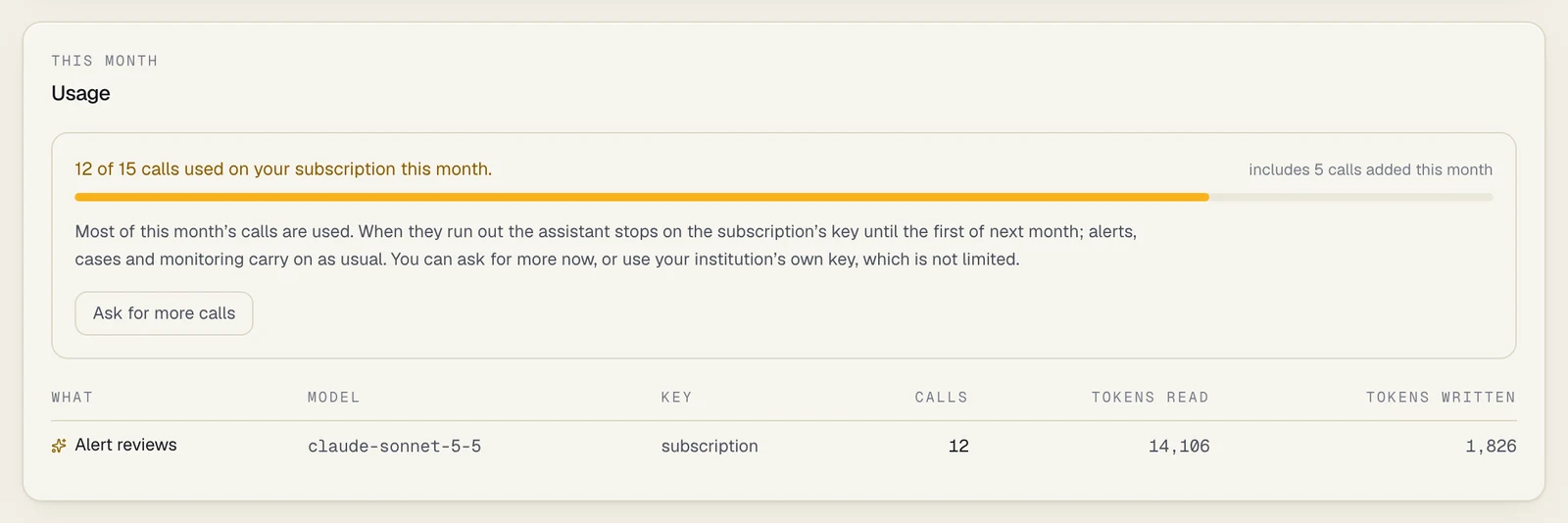
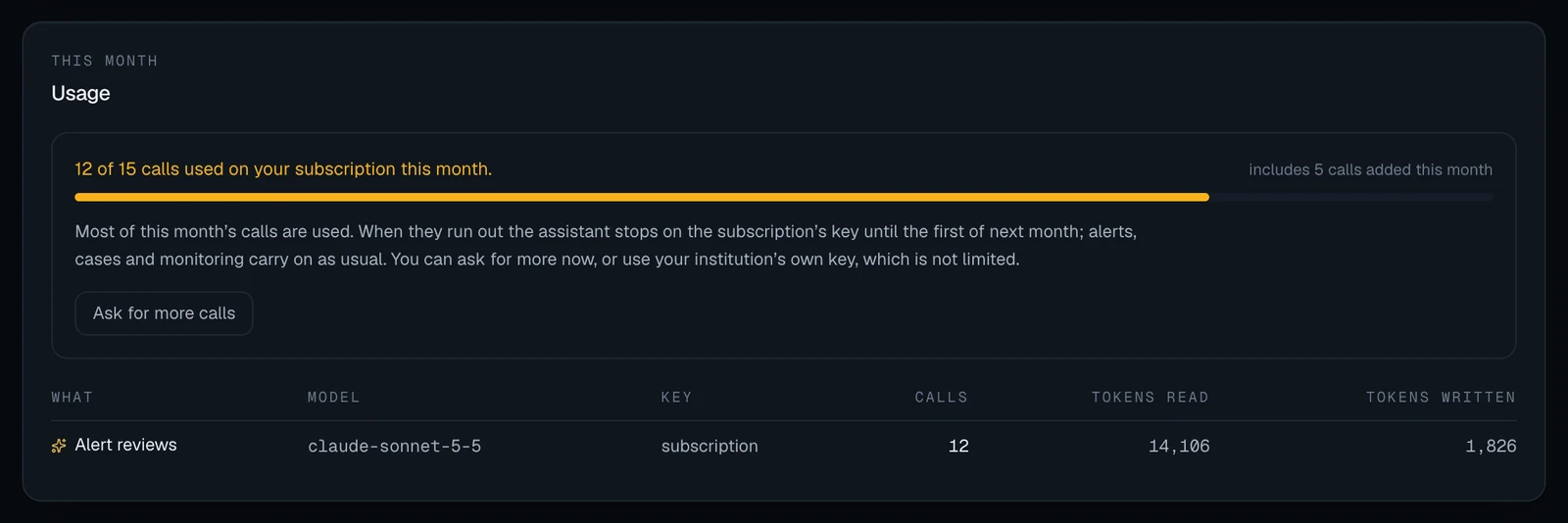
The two notifications are sent once each for a month and a total: when calls are added, the total changes, so you are warned again at four fifths of the new total and when it is used. With an allowance under five calls there is no “low” warning, only “used up”. After a top-up that leaves you already past four fifths of the new total, the “low” warning comes with the next call. People receive these in the app and by the channels they chose, under the category AI assistant; see Notifications.
When the month’s calls are used up you have three ways on:
- Wait for the first of next month (UTC). The count starts again by itself.
- Ask for more calls for this month, where your installation has a service provider behind it. See below.
- Switch to your institution’s own key. That is a change of key, so it needs approval where the approval rule applies.
How to ask for more calls
Section titled “How to ask for more calls”You need settings.manage. The button is offered where there is an allowance and someone to ask:
on the hosted service, and on any installation that runs a provider console and has a key of its
own. You can ask at any time, not only when the calls have run out.
- Open Settings → AI assistant and go to This month · Usage.
- Select Ask for more calls.
- Enter How many more this month (1 to 1,000,000).
- Optionally write a Note for your provider, up to 1,000 characters, for example: a backlog to clear before quarter end.
- Select Send the request.
The panel then reads You asked for 500 more calls on 14 Oct 2026. Waiting for your provider’s answer.
- The request goes to your service provider. Nothing changes until they answer; calls they add are available at once and do not carry over to next month. Extra calls may be charged under your agreement.
- One request waits at a time. A second is refused with a request for more AI calls is already waiting for an answer until the first is answered. A request you sent can’t be withdrawn or changed. One left unanswered when its month ends expires: the panel reads Your request of {date} was not answered in its month and has expired. You can send a new one., and it no longer blocks you. Nobody is notified when a request expires and the audit log has no entry for it; the wording appears the next time you open the tab.
- Your provider sees the number and your note, not who asked. Don’t put a customer’s name or any case detail in the note: it leaves your workspace as you wrote it.
- The answer comes as a notification to everyone with
settings.manageand on the tab: 500 calls were added on 14 Oct 2026. or Your last request was declined on 14 Oct 2026., with Their answer: “…” when your provider wrote one. Your provider may add a different number from the one you asked for. - Calls are added for the month in which your provider answers. A request sent on the last day of a month and answered on the 1st adds calls to the new month.
- Your provider can also add calls without being asked. You are notified in the same way.
- Sending a request is recorded in your audit log as
ai.allowance_requestwith the number asked for; the answer asprovider.ai_topuporprovider.ai_request_declined.
The model
Section titled “The model”With Claude, The default is the model your operator set for the installation. You can instead choose one of the three the assistant supports: Claude Sonnet 5.5 (the default where the operator set nothing), Claude Haiku 5.5 or Claude Opus 5.5. Larger models reason better and cost more per call. Each answer records the model that gave it.
With another provider on your own key there is no list and no default: type the model’s id
as the provider names it, for example in its API documentation. Choose a model that can answer in
structured JSON. An id is up to 120 characters: letters, digits and . _ : / @ -, starting with a
letter or digit. SpeculaPro doesn’t check that the model exists; a wrong id shows up as the AI
provider could not answer at the first call.
On the subscription’s key, where the installation’s key is for a provider other than Claude, the Model box shows the installation’s model and can’t be changed: Set for the whole installation.
Automatic review
Section titled “Automatic review”With Review new alerts automatically ticked, the worker looks every minute for open alerts that have no advice, or have had hits since their last advice, and asks the assistant about them:
- up to 10 alerts per workspace per minute, the most severe first, then the most recent;
- an alert whose advice was Looks like a false positive and which has since become held (its subject designated, its severity raised to critical) counts as having no advice, so it is asked about again, once: the new answer can’t be a false positive and then stands as its advice;
- it stops for your workspace, until its next pass, when the month’s allowance is used up, the key is refused, or the assistant is switched off;
- suspended workspaces, workspaces being moved to another region, and workspaces whose settings were saved in another region (see After a move) are skipped;
- the answers are marked Reviewed automatically and audited with the system as the actor;
- it reviews alerts only. Case summaries, narrative drafts and rule tuning suggestions are written only when a person asks.
How to switch the assistant on
Section titled “How to switch the assistant on”Before you start, go through Before you switch it on.
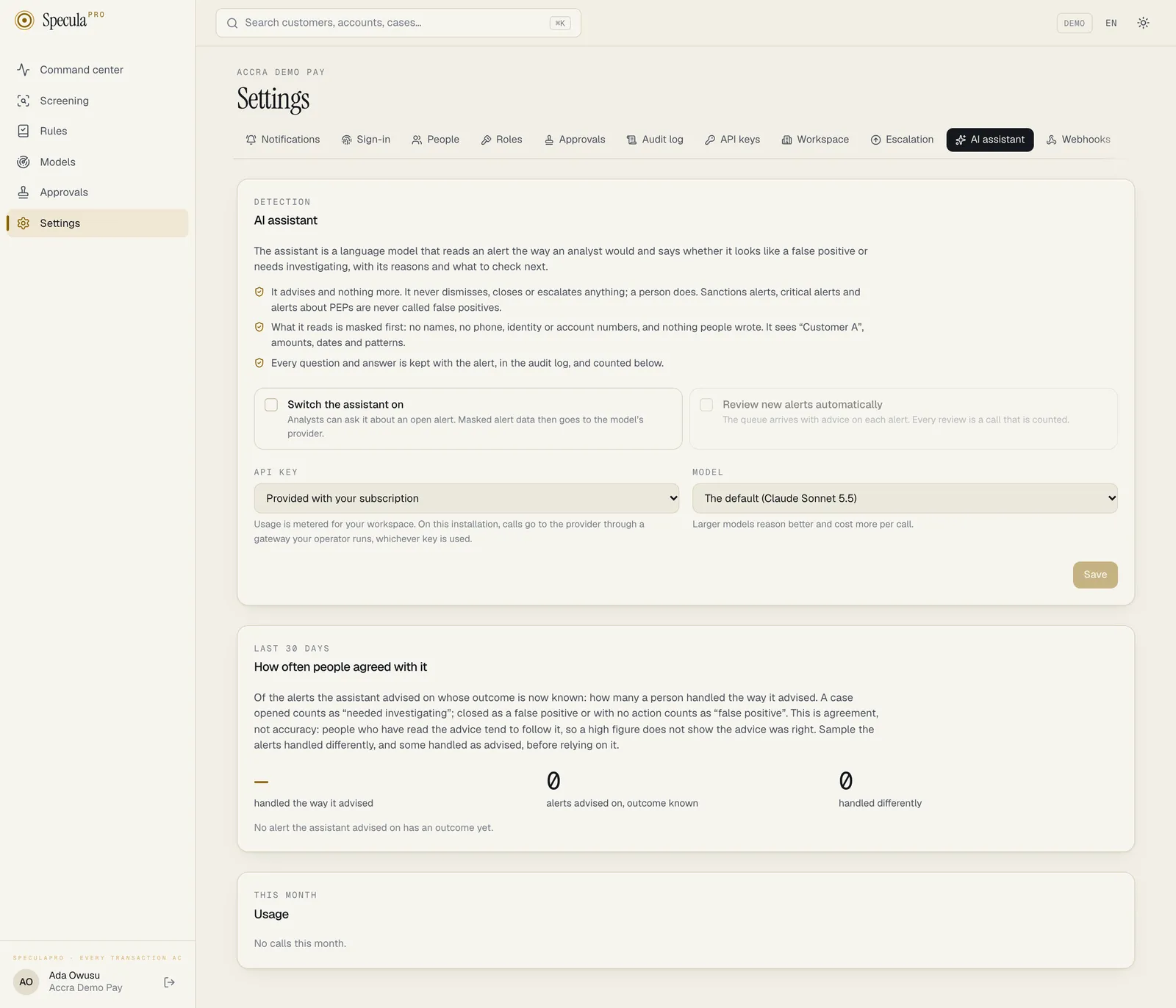
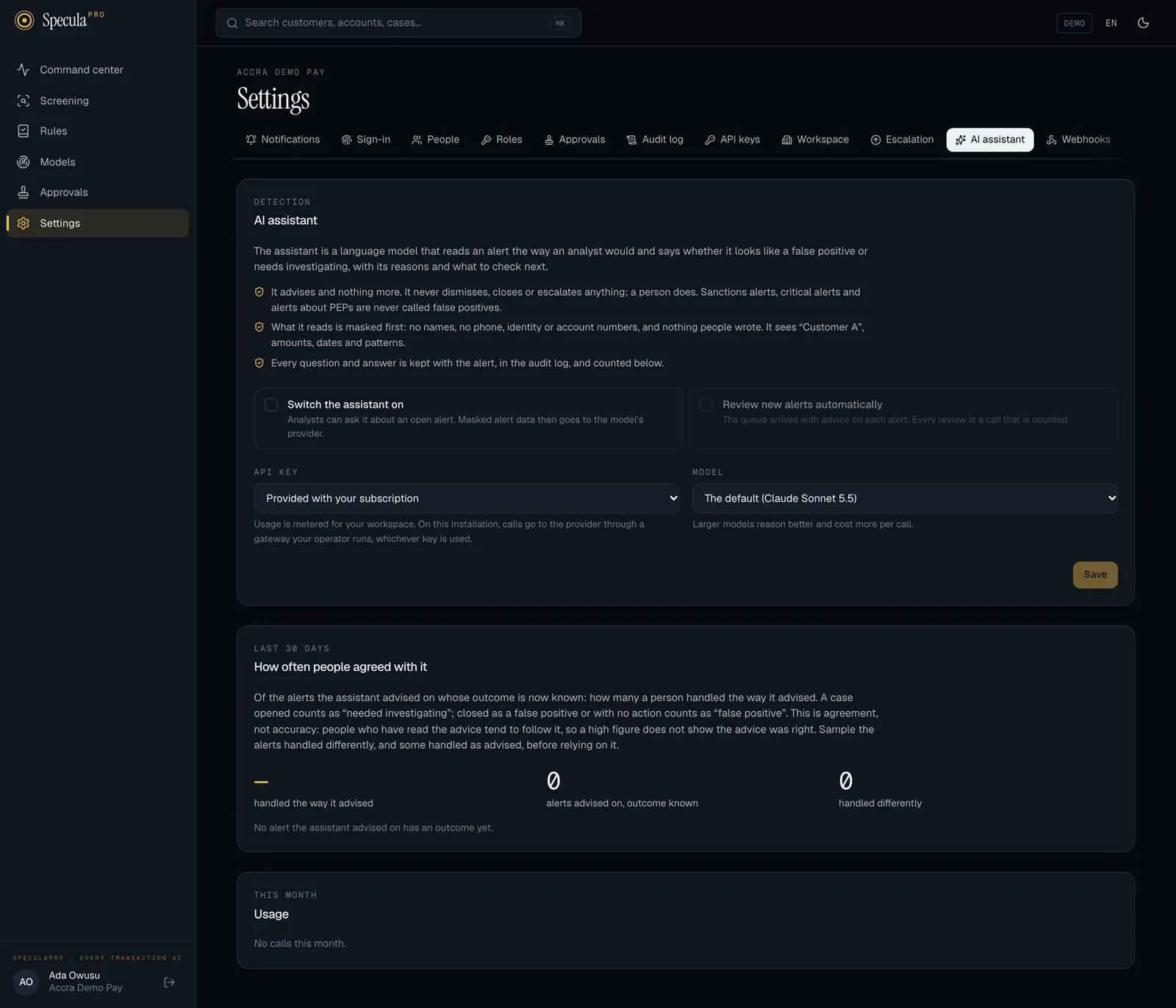
With the key provided with your subscription
Section titled “With the key provided with your subscription”- Open Settings → AI assistant.
- Tick Switch the assistant on.
- Under API key, choose Provided with your subscription.
- Leave Model on The default, or choose one.
- Select Save. If approval applies, give the reason when asked; the change waits under
Approvals for someone with
settings.approve, and a banner on the tab says so.
With your institution’s own key
Section titled “With your institution’s own key”- Create an API key in your institution’s account with the model’s provider. Give it a spending limit there.
- Open Settings → AI assistant and tick Switch the assistant on.
- Under API key, choose Your institution’s own key.
- Under Provider, choose whose models the key is for. See The provider.
- Under Model, choose a Claude model or leave The default; for any other provider, type the model’s id. Until you do, the tab reads Enter the model’s id.
- For Another OpenAI-compatible API, enter the API address, for example
https://models.example.com/v1. Until you do, the tab reads Enter the API’s address. - Paste the key into Your API key.
- Select Save, and give the reason if asked.
Then open any open alert and select Ask the assistant to check that it answers. A wrong key shows the AI provider refused the API key; check it under Settings, AI assistant.
How to change the model, or review alerts automatically
Section titled “How to change the model, or review alerts automatically”- Open Settings → AI assistant.
- Choose the Model, or tick Review new alerts automatically.
- Select Save.
How to change the provider
Section titled “How to change the provider”- Create a key with the new provider first.
- Open Settings → AI assistant. Choose the new Provider; the model and the address are cleared.
- Enter the Model and, for another OpenAI-compatible API, the API address.
- Type the new provider’s key into Your API key. Without it the save is refused; see the note under The provider.
- Select Save. The change waits for approval where the rule applies; until it is approved the assistant keeps using the old provider.
- Update your registers: the recipient of the data has changed. Then revoke the old key in the old provider’s account.
How to replace or remove your key
Section titled “How to replace or remove your key”- Open Settings → AI assistant.
- To replace it, type the new key into Your API key and select Save. The old one is overwritten.
- To stop using it, switch API key to Provided with your subscription, or switch the
assistant off. The stored key stays, unused, until it is replaced. Removing a stored key
outright is possible through the API only (an empty
api_key).
Revoke the old key in your provider account as well: SpeculaPro can’t do that for you.
How to switch the assistant off
Section titled “How to switch the assistant off”- Open Settings → AI assistant.
- Untick Switch the assistant on and select Save.
This applies at once, with no reason asked and no second person, whatever the approval rule says, as long as the save changes nothing else. Change the key or the model in a separate save: those wait for approval. Nobody can ask, automatic review stops, and no alert data is sent. Advice already given stays on its alerts and in the audit log.
After a move to another region
Section titled “After a move to another region”On an installation with more than one region, the assistant’s settings belong to the region they were saved in: the provider’s address or the operator’s gateway, and where your data sits, are part of what was approved. When your workspace is moved to another region:
- the tab shows the assistant off and automatic review off, although nobody switched it off;
- asking on an alert is refused with the AI assistant is off for this workspace, and the automatic pass skips the workspace;
- advice already given stays readable on its alerts;
- the key source, the model and your stored key are kept. The stored key may need entering again: whether it can be read in the new region has not been verified.
To use the assistant again, switch it on in the new region. That is a switch-on like any other and needs approval when the rule applies. Review your cross-border transfers first: the region has changed.
An installation with one region is not affected: nothing switches off by itself. Settings saved before an installation had regions carry no region and stand, so giving the installation regions later switches nothing off either.
Approval
Section titled “Approval”| Action type | AI assistant (ai.settings), under Detection on Settings → Approvals |
| Requires approval | On by default, once two people hold settings.approve |
| Proposed by | settings.manage |
| Approved by | settings.approve, someone other than the proposer |
| Covers | A save that does any of these: switches the assistant on, starts automatic review, changes whose key is used, changes the provider, changes the API address of another OpenAI-compatible API, changes the model, or gives or removes a key of your own. All but the first two are covered whether the assistant is on or off, because they decide what the next switch-on would use |
| Applies at once, whatever the rule | A save that does nothing but switch the assistant off, stop automatic review, or both |
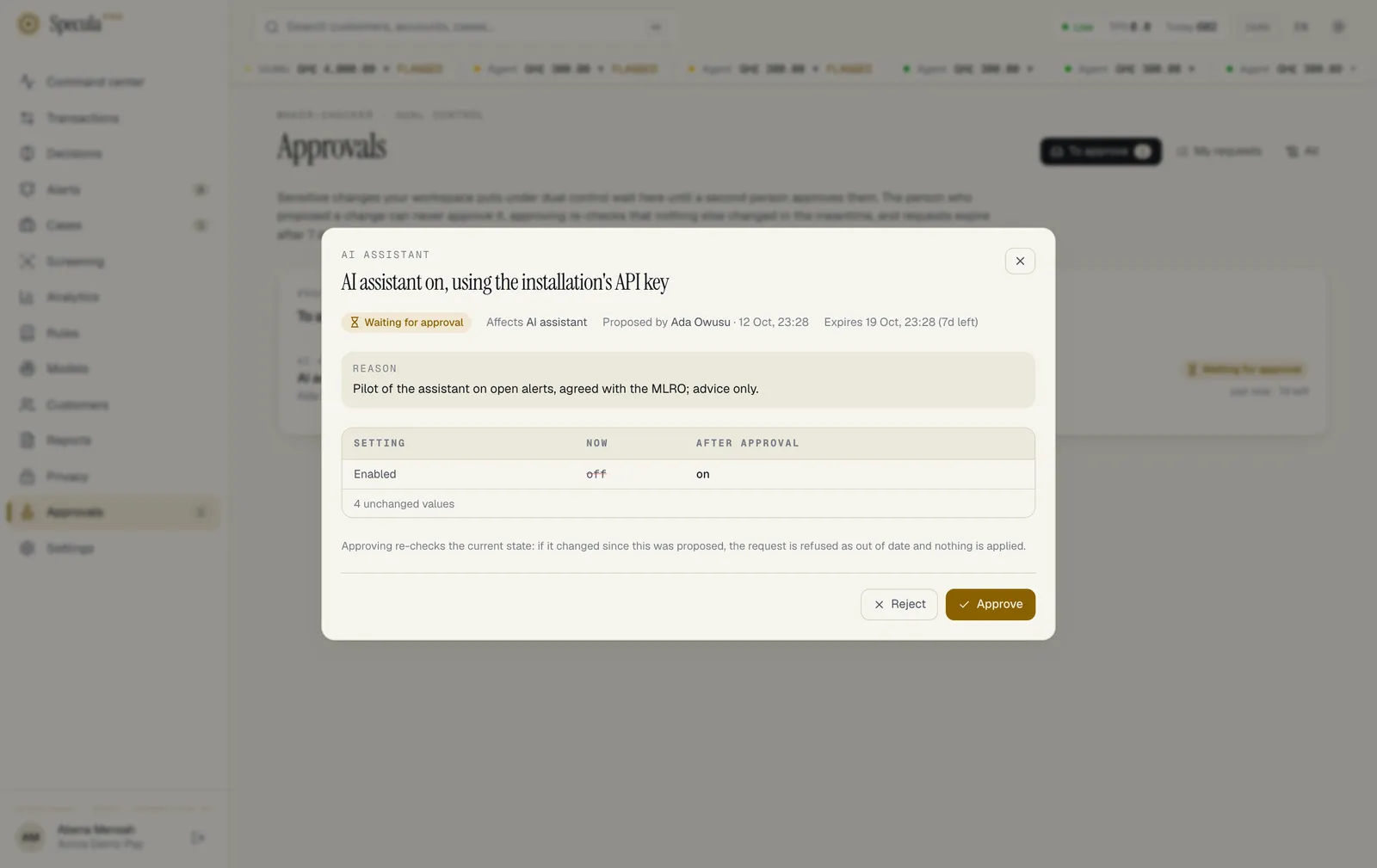
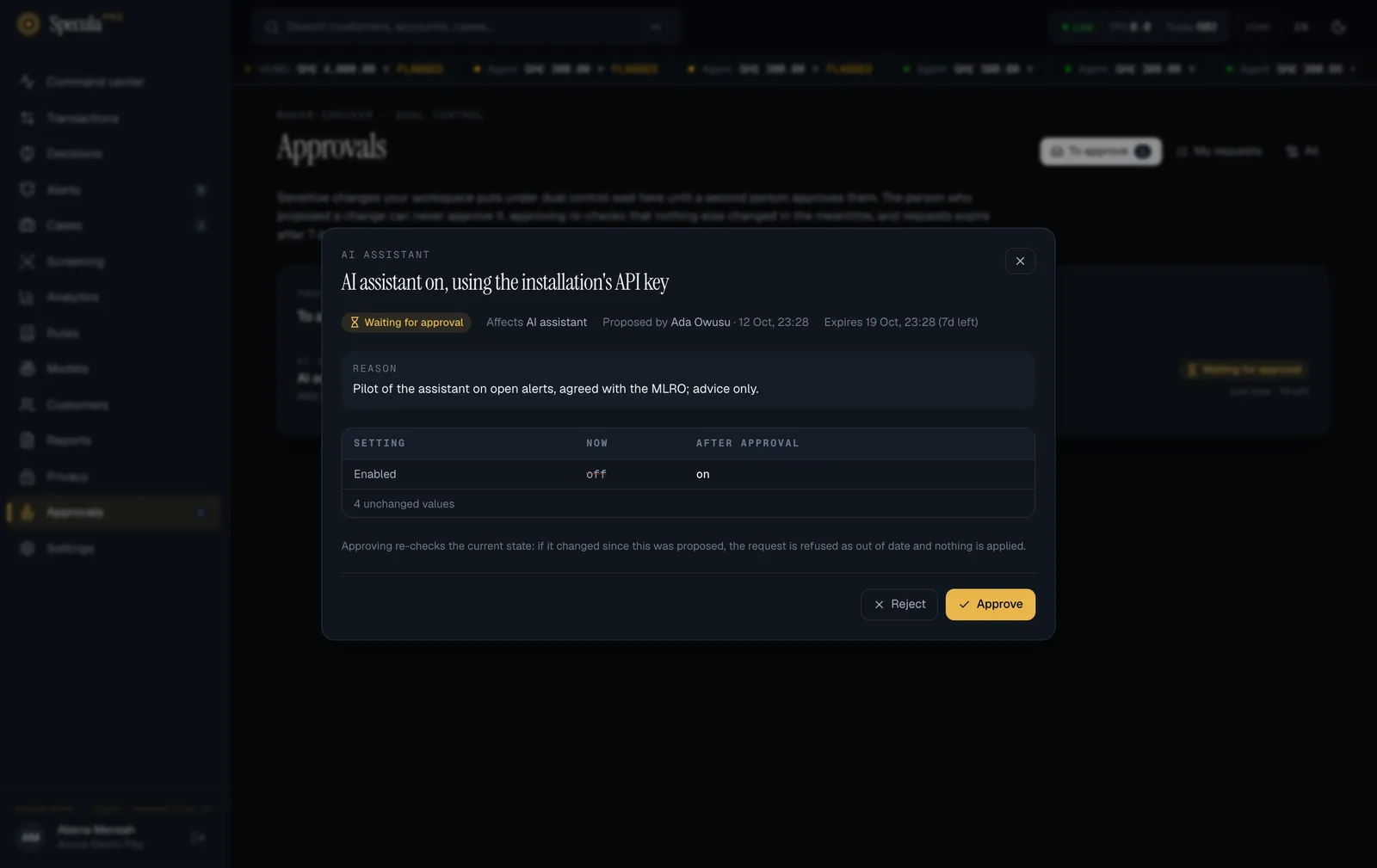
The request reads, for example, AI assistant on, using the workspace’s own API key, reviewing new alerts automatically. With another provider it names it, and for another OpenAI-compatible API the address too: AI assistant on, using the workspace’s own API key for custom at https://models.example.com/v1. Asking for more calls is not a settings change and needs no approval. The approver sees the settings before and after, and whether a key is stored, never the key. See Approvals.
How often people agreed with it
Section titled “How often people agreed with it”The panel counts, over the last 30 days, the alerts the assistant advised on whose outcome is now known, and how many of them a person then handled the way it advised.
| Rule | Detail |
|---|---|
| Which advice counts | The latest advice on each alert, given in the last 30 days |
| Left out | Advice of Not enough to tell; alerts still open; alerts closed as duplicate |
| “Needed investigating” | The alert went into a case |
| “False positive” | The alert was closed as false positive or no action |
| handled the way it advised | The share where the two match, as a whole percentage |
This month · Usage lists the calls of the current calendar month:
| Column | Meaning |
|---|---|
| What | What the assistant was asked to do: Alert reviews, Case summaries, Report narrative drafts or Rule tuning suggestions |
| Model | The model that answered |
| Key | subscription or your key |
| Calls | Answers received |
| Tokens read, Tokens written | The size of what was sent and of what came back, in the units the provider bills by |
Case summaries are counted in the same way as alert reviews and draw on the same monthly allowance. Only a person can ask for one, for one case or for every case being worked at once: automatic review covers alerts, never cases. A summary now carries the assistant’s suggestion of what to do with the case; the agreement figure above still counts alert reviews only, so a case’s suggestion is not in it.
Batches spend the allowance quickly. Anyone with cases.work and entities.view can ask the assistant about the whole queue at once: up to 200 open alerts, or 200 cases, in one batch. Each alert or case read is one counted call, under the same features as above (Alert reviews, Case summaries), so a single batch can use 200 calls. When the allowance runs out part-way, the rest of the batch is skipped. If the provider can’t be reached, the batch stops after three failures in a row; those failed calls are counted. A batch runs under the name of the person who started it and stops once their account is disabled or their role no longer lets them ask; to stop one yourself, switch the assistant off. Tell your analysts how many calls the workspace has before batches become a habit.
Next to the assistant’s filter in the alert queue, people with cases.work can also close several alerts at once. That is their own action, not the assistant’s, but the two together make it quick to dismiss everything marked AI: likely false positive without reading it (held alerts apart: sanctions, critical, and PEP-related or sanctioned subjects are never closed in bulk). Include bulk closures in your quality review: each one is in the audit log as alert.close with bulk.
Report narrative drafts are counted in the same way and draw on the same allowance. Only a person who drafts reports and can read customer identity (entities.view_pii) can ask for one; there is no automatic pass. A request from someone whose role doesn’t include entities.view is refused before any call is made, for alerts, cases and reports alike, so it is never counted.
Rule tuning suggestions are counted in the same way and draw on the same allowance. Only a rule author (rules.author) can ask, one rule at a time; there is no automatic pass. A request that is refused because the rule has too little history, has no live version or is a sanctions rule is not counted.
Usage is counted for your information and for the monthly allowance. On the hosted service your provider sees the same counts, by month, model and key. SpeculaPro computes no prices and no invoices: what extra calls cost is a matter for your agreement with your provider.
Before you switch it on
Section titled “Before you switch it on”- Your data protection officer has read The AI assistant and your data and agreed. The transfer is recorded under Privacy → Registers → Cross-border transfers, and the processing activity is updated. SpeculaPro does not add these entries for you.
- You know whose contract covers the provider: yours (your own key) or your SpeculaPro subscription’s (the subscription’s key). With your own key, you know which provider receives the data, and you have tried the model you chose on a few alerts.
- Your AML policy or procedure says the assistant is advice only, and that an analyst’s rationale must stand without it.
- Your MLRO has decided whether report narratives may start from an assistant’s draft. With the assistant on, everyone who drafts reports and can see customers is offered one; there is no separate switch. The request tells the provider that a report is being prepared about the masked subject.
- Your rule authors know that the assistant’s tuning suggestions are tests to run, never changes to make, and that they rest on how analysts closed past alerts. The name and description of a rule your workspace wrote are not sent; a bare number written into a condition, and a single short lowercase word in a parameter, are.
- Analysts have been told: it can be wrong; verify the figures; write your own rationale; disagreeing is expected. Point them to The AI assistant’s advice.
- You have decided whether to review automatically, and set a spending limit on your own key if you use one.
- Someone will look at the agreement figure and sample dismissed alerts each month.
What is recorded
Section titled “What is recorded”| Action | Audit log entry |
|---|---|
| Settings changed | ai.settings_update, with whether it is on, the key source, the provider, the API address, the model, automatic review, and whether your own key was changed. Never the key |
| More calls asked for | ai.allowance_request, with the number asked for. By the person who asked. The note is not in the entry |
| Your provider added calls, or declined a request | provider.ai_topup with the month and the number; provider.ai_request_declined with the number asked for. Shown as done by your service provider’s staff |
| The assistant advised on an alert | ai.alert_review, on the alert, with the review’s ID, the recommendation, the confidence, the model, the key source and the tokens read and written. By the person who asked, or by the system for an automatic review |
| The assistant summarised a case, drafted a report’s narrative or suggested tuning for a rule | ai.case_summary on the case, ai.narrative_draft on the report, ai.rule_tuning on the rule: the record’s ID, the model, the key source and the tokens, never the text. Always by the person who asked |
| A change proposed, approved or rejected | The usual approval entries |
Each review is also kept with its alert, with exactly what was sent and what came back, encrypted.
Troubleshooting
Section titled “Troubleshooting”| Problem | Likely cause | What to do |
|---|---|---|
| The AI assistant tab isn’t there | You hold neither settings.manage nor settings.view |
Ask an administrator |
| Provided with your subscription isn’t offered | The installation has no key of its own, or your plan doesn’t include the assistant on it | Use your institution’s own key, or ask your operator to set one. See Configuration |
| this installation has no AI key of its own; use your workspace’s key | The same, through the API | The same |
| give the workspace’s API key to switch the assistant on with it | On, with your own key, and none stored | Enter the key |
| automatic review needs the assistant switched on | Automatic review asked for while the assistant is off | Switch the assistant on in the same change |
| “…” is not a model this installation offers | A model name the assistant doesn’t support on the subscription’s key, through the API | Choose one from the list |
| “…” is not a Claude model the assistant offers | The same, with your own Claude key | Choose one from the list |
| give the model’s id as the provider names it (letters, digits and . _ : / @ -) | Another provider, with no model id or one with other characters | Type the id from the provider’s documentation |
| give the API’s address, such as https://models.example.com/v1, the API’s address must start with https://, the API’s address can’t carry a user name or password; the key goes in its own field, the API’s address can’t carry a ? or a #: it is the base the calls are added to, usually ending in /v1 | The address is missing, isn’t https, or holds credentials, a query or a fragment |
Give the base address only, for example https://models.example.com/v1 |
| the API’s address is on a network this installation does not let workspaces reach | The address points at a private or internal host | Give a public address, or ask your operator about a model on your own network |
| an API address is only for another OpenAI-compatible API | An address was sent, through the API, with a provider that has its own | Leave base_url out |
| the stored key was given for another provider or address; enter the key for this one | You changed the provider or the address and gave no new key | Type the new provider’s key in the same save |
| Analysts see the AI provider could not answer; try again in a moment on every call | With another provider: a wrong model id, a wrong address, a model that can’t return structured JSON, or the provider is down | Check the id and the address; try a different model |
| Ask for more calls isn’t there | A request is already waiting, the workspace has no limit, your plan doesn’t include the subscription’s key, the installation has no provider console or no key, or you don’t hold settings.manage |
See How to ask for more calls |
| more calls can’t be asked for from here: this installation’s administrator sets the allowance | The same, through the API | Ask whoever runs the installation |
| Save did nothing visible | The change switches the assistant on, starts automatic review, or changes its key or model, and is waiting for approval; a banner at the top of the tab says so | Ask someone with settings.approve. A save that only switches off never waits |
| Analysts see the AI provider refused the API key | The key is wrong, revoked or out of credit | Replace it. Automatic review resumes on the worker’s next pass |
| Analysts see this month’s AI allowance is used up | The monthly allowance on the subscription’s key, with any calls added, is spent | Wait for the 1st, ask for more calls, or use your own key |
| Analysts see the AI assistant has no API key to use although the assistant is on | Your plan no longer includes the subscription’s key (the tab shows a banner), or your own key was removed | Enter your institution’s own key, or ask your provider |
| Alerts arrive without advice although automatic review is on | The allowance is used up, the key is refused, the worker isn’t running, or more than 10 alerts a minute are arriving | Check the usage panel; ask your operator about the worker |
| The agreement panel shows — | No alert the assistant advised on has an outcome yet. | Wait until advised alerts are dismissed or put in cases |