
Drafting an STR from a case
Ce contenu n’est pas encore disponible dans votre langue.
In short
Section titled “In short”When an investigation gives you reasonable grounds to suspect, you draft a suspicious transaction report (STR) from the case. Select Draft STR on the case and SpeculaPro starts the report for you: who it is about, the transactions behind the case’s alerts, a first narrative from the case’s notes, and report indicators from the rules that fired. You then rewrite the narrative, check the transactions and indicators, and send it for approval.
You need reports.draft and entities.view_pii. With the default roles, a senior analyst, an
L2 investigator or the MLRO drafts. See Who can do what.
For how to write a narrative the FIC can act on, see Writing an STR.
How to start an STR
Section titled “How to start an STR”- Open the case.
- Select Draft STR in the row of buttons under the case header. You’ll find it:
- on an open, in-progress or escalated case, if you also hold
cases.work; - on a case that is closed or awaiting closure approval.
- on an open, in-progress or escalated case, if you also hold
- SpeculaPro creates the draft and opens it.
If the case already has an STR that is a draft, awaiting approval or approved, Draft STR opens that one instead of starting another. Once the case’s STR has been submitted, acknowledged, rejected or voided, Draft STR starts a new one, for example to report continued activity, to correct a rejected report, or to replace one voided because it was wrong.
The case’s timeline records drafted STR STR-2026-000014, with a link to the report, and the
audit log records report.create.
What SpeculaPro fills in
Section titled “What SpeculaPro fills in”| Part of the report | Filled in with | goAML element |
|---|---|---|
| Number | STR-<year>-<number>, for example STR-2026-000014. The counter keeps counting across years |
entity_reference |
| Title | The subject’s name and the case number, for example Kwame Asante · case SP-2026-000124 | Not sent |
| Subject | The case’s subject: customer, account or counterparty | The parties of each transaction, or report_party when there are none |
| Transactions | Every transaction behind every alert in the case, all selected | transaction |
| Narrative | The case number and title, the names of the rules that fired, then every comment, escalation reason and closing rationale on the case, oldest first, with dates | reason |
| Indicators | The indicator codes your reporting settings map to the typologies, categories or keys of the rules that fired | report_indicators |
| Action taken | Empty | action |
The narrative SpeculaPro writes is a starting point that saves retyping, not a report. It reads like the case file. Rewrite it into the structure the FIC needs.
The report page
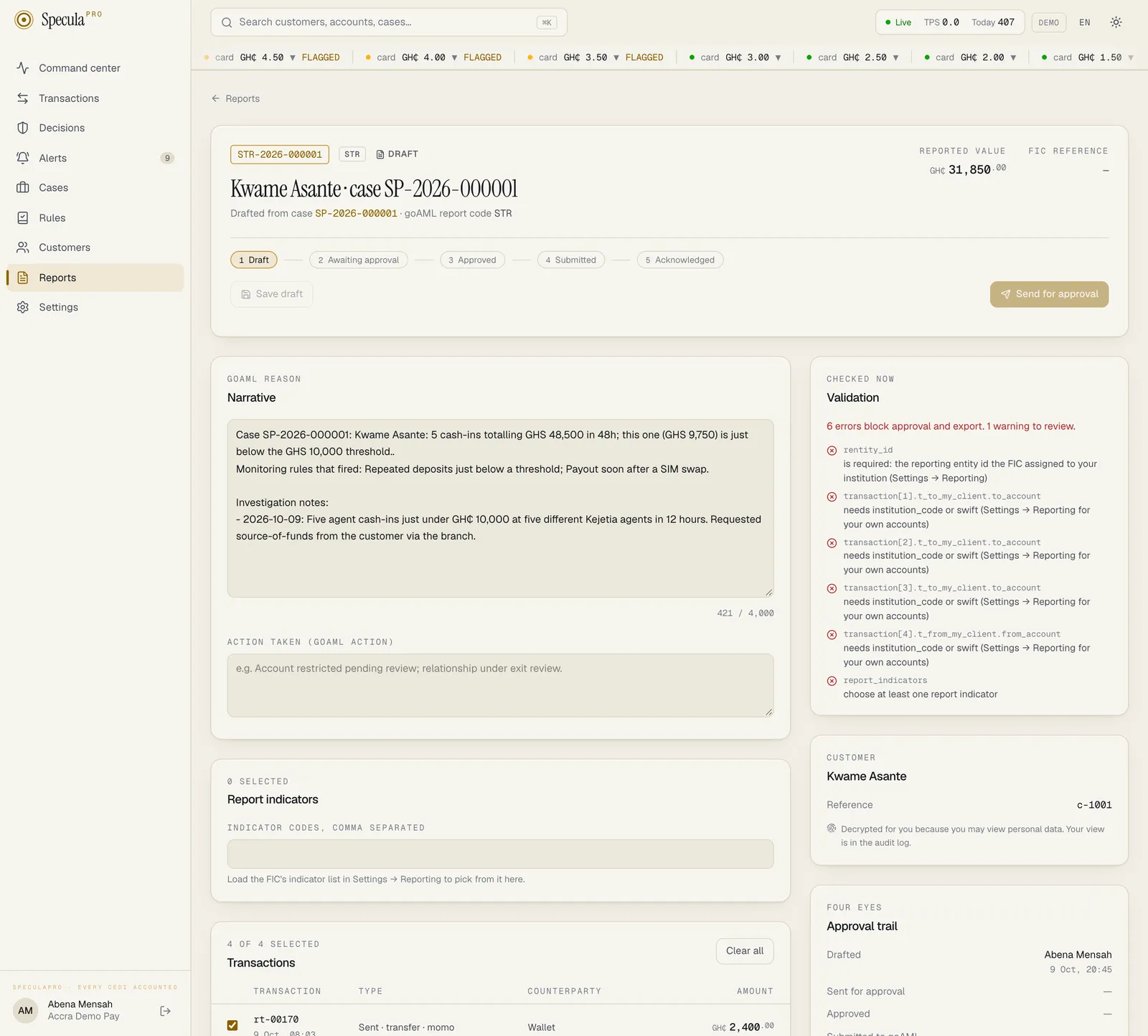
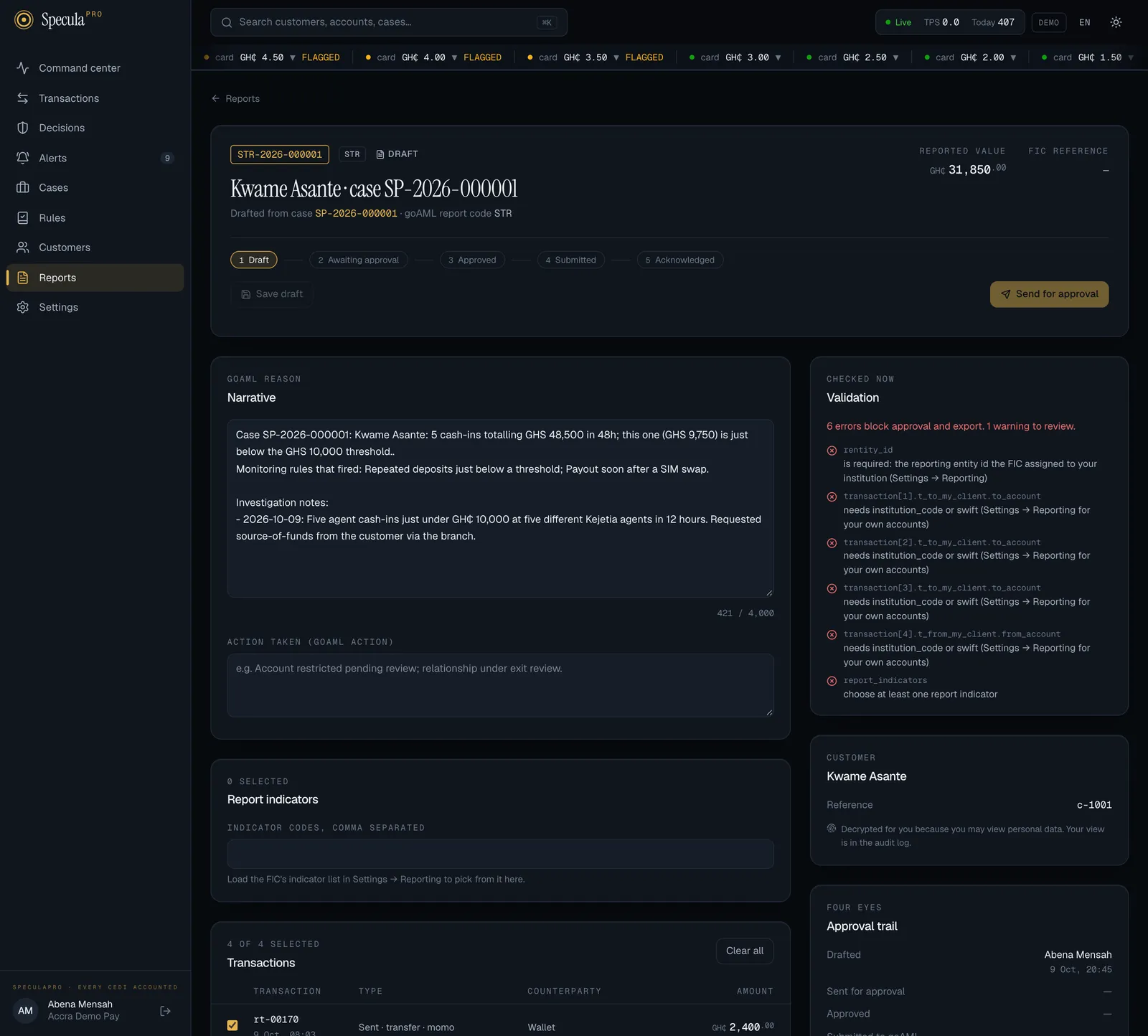
Section titled “The report page”The top of the page shows the report’s type, number and title, where it came from (Drafted from
case SP-2026-000124), its report code (FIC report code STR, with your own FIU’s name), the Reported value (the total of the selected
transactions in your base currency) and the FIC reference once it has one. A progress line
shows where it is: Draft, Awaiting approval, Approved, Submitted, then Acknowledged or Rejected by
the FIC.
Below:
- Narrative (goAML reason), up to 4,000 characters, and Action taken (goAML action), up to 4,000 characters.
- Report indicators: the FIC’s indicators as switches, when your settings hold the list. Without a list, type the codes separated by commas.
- Transactions: each one with its reference, date, type, counterparty and amount, and a box to include or leave it out. Select all and Clear all do what they say.
- Evidence files: the files on the case, each with a box to send it with the report. The panel appears once the case has at least one file. See Choosing the evidence files.
- Validation: what goAML would think of the report as it stands. See Fixing validation problems.
- The subject’s card: name, reference and identity details (ID, phone, email, date of birth, nationality, accounts) as they will be reported, and any active designations such as PEP. They are shown decrypted, and your view is recorded in the audit log.
- Approval trail: who drafted it, sent it for approval, approved it, submitted it, and the FIC’s answer, with times.
How to finish the draft
Section titled “How to finish the draft”- Rewrite the narrative. Answer who, what, when, where, why and how, in plain language. Follow Writing an STR.
- Write the action taken, for example Account restricted pending review; relationship under exit review. Leave it empty if you took none.
- Check the indicators. Keep the ones that fit and add any that are missing.
- Check the transactions. Clear the ones that don’t belong to the suspicion, such as a salary payment caught in the same alert. You can only choose among the case’s alert transactions; to report others, add them to the case first by linking their alerts.
- Choose the evidence files that go with the report, if the case has any. See Choosing the evidence files.
- Select Save draft. Check Validation again.
- When there are no errors, select Send for approval. Unsaved changes are saved first.
The report is now Awaiting approval and frozen. Tell the approver: SpeculaPro doesn’t notify them. If they send it back, it returns to Draft with their note in the audit log, and you can edit it again.
A draft narrative from the assistant
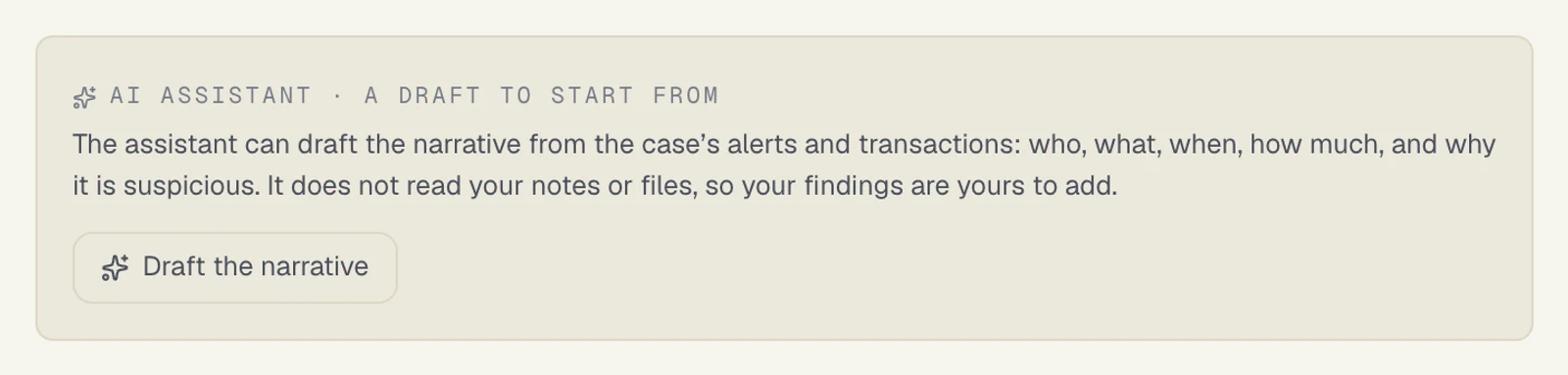
Section titled “A draft narrative from the assistant”If your workspace has switched on the AI assistant, a panel headed AI assistant · a draft to start from sits under the narrative box of a draft STR or SAR that was made from a case. The assistant reads the case and drafts a narrative: who, what, when, how much, and why it is suspicious. You correct it, complete it and sign it.
- It is a suggestion beside the report. Asking changes nothing in the report. The draft becomes the narrative only when you select Use as the narrative and then Save draft.
- You are the author. The report goes to your FIU under your institution’s name, approved by your MLRO. Every sentence in it is yours to check, whoever typed it first.
- It doesn’t read your notes or files. It is given the case’s alerts, rule hits, transactions and what was done and when, with names and identifying numbers removed. What you found out in the investigation is yours to add.
- You see it only if you hold
reports.draftandentities.view_pii(what opening a report takes anyway), the report is an STR or SAR, it is still a draft, and it was made from a case. There is no assistant draft for a CTR. - It is working material, and it goes when the report leaves draft. When the report is sent for approval or voided, the assistant’s drafts for it are deleted. A report that comes back to draft starts with none; ask again if you want one.
![The panel AI assistant · a draft to start from with a draft and a Draft again button: a narrative in four paragraphs that names the customer and the counterparties, gives the dates, amounts and channels of four transactions and the 90-day totals, and reads The account concerned is [number]; then For you to add with four items (the account number, the occupation and source of funds, what the customer said, what the investigation found), a Use as the narrative button, who asked and the model, and the note that it was written by an AI model, that identifying numbers were never sent and that nothing is in the report until you use the draft and save. The draft is sample text from a test stand-in, not a real model's answer](/screens/report-ai-narrative-light.webp)
![The panel AI assistant · a draft to start from with a draft and a Draft again button: a narrative in four paragraphs that names the customer and the counterparties, gives the dates, amounts and channels of four transactions and the 90-day totals, and reads The account concerned is [number]; then For you to add with four items (the account number, the occupation and source of funds, what the customer said, what the investigation found), a Use as the narrative button, who asked and the model, and the note that it was written by an AI model, that identifying numbers were never sent and that nothing is in the report until you use the draft and save. The draft is sample text from a test stand-in, not a real model's answer](/screens/report-ai-narrative-dark.webp)
The draft in the second picture is sample text from a test stand-in, not a real model’s answer.
How to draft the narrative with the assistant
Section titled “How to draft the narrative with the assistant”- Open the draft report.
- Under the narrative box, in AI assistant · a draft to start from, select Draft the narrative. The button reads Reading the case… while it works. On a report that already has a draft it reads Draft again.
- Read the draft in the panel. Under For you to add, the assistant lists what a narrative needs and the case’s data doesn’t hold, for example the customer’s explanation or the source of funds.
- Select Use as the narrative. If you have already written something, SpeculaPro asks first: Replace the narrative you have written with this draft? The draft now fills the narrative box. Nothing is saved yet.
- Edit it. Check each fact against the case, fill in every
[number], add what For you to add names and what your own investigation found, and take out anything you can’t stand behind. - Select Save draft, then carry on as for any report.
Each request is one counted call to the model’s provider and is written to the audit log
(ai.narrative_draft). After a draft is written, nobody can ask for another for that report for
five minutes: the assistant answered this a moment ago and nothing has changed since; ask again
in a few minutes.
What to check before you rely on it
Section titled “What to check before you rely on it”| Check | Why |
|---|---|
| Every figure, date and count against the case and the transactions on the report | The model is told to use only what it was given, but it can misstate a number or a date |
| Every name | The assistant never receives names. It writes placeholders such as Customer A, and SpeculaPro puts the names back afterwards. A placeholder left in the text (Counterparty 3), or a name that reads wrongly in its sentence, must be corrected by hand |
Every [number], [email] and [document number] |
Account, phone and identity numbers are never sent, so the draft holds these markers where one would go. Replace each with the real value, or reword the sentence |
| The transactions it describes | The draft is written from the case, not from the transactions you selected for this report. Make the narrative match what the report includes |
| Anything that reads as a conclusion | The assistant is told to describe activity (is consistent with) and never to say an offence was committed. Nothing checks that it obeyed. Remove any accusation |
| What is missing | It doesn’t know what is in your notes, the customer’s file or the evidence files. A narrative with only the monitoring’s view is rarely complete |
For how to write a narrative your FIU can act on, the guide is still Writing an STR. For what is sent to the model’s provider when you ask, and what is kept, see The AI assistant and your data.
Choosing the evidence files
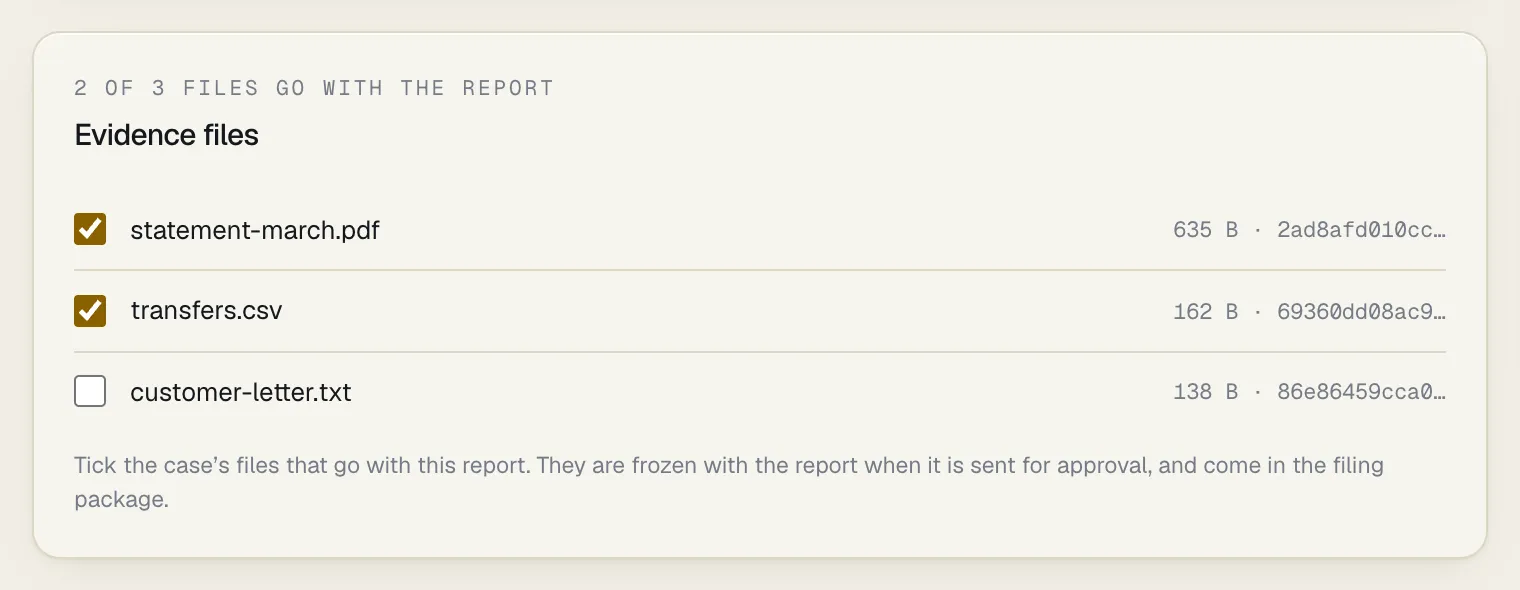
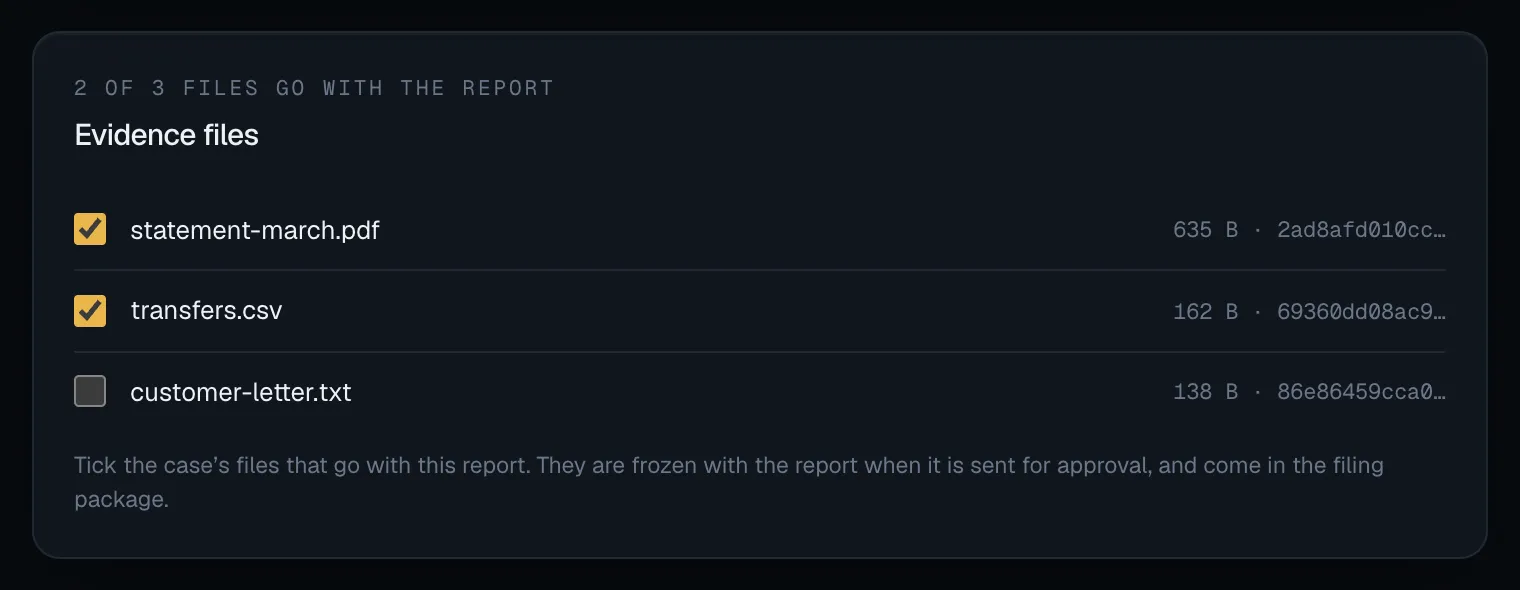
Section titled “Choosing the evidence files”A case can hold the documents the investigation collected: an identity document, a statement, the customer’s letter, an email. See Evidence files. On a draft made from a case, the Evidence files panel lists the case’s files, each with its size and the start of its SHA-256 fingerprint (hover over it for the whole fingerprint). The line above the list counts them, for example 2 of 3 files go with the report.
- Open the draft report.
- In the Evidence files panel, tick each file that should go with the report, and clear the ones that shouldn’t.
- Select Save draft.
Under the list: Tick the case’s files that go with this report. They are frozen with the report when it is sent for approval, and come in the filing package.
What to know:
- The files you tick may add up to at most 100 MB. The filing package is one upload. Over that, saving fails with the files chosen add up to more than 100 MB; a filing package takes at most that, and the selection stays as it was.
- The panel shows only when the case has a file. Add files on the case’s page first, then come back to the draft. A file removed from the case isn’t offered, and leaves the selection of any draft that had it ticked.
- Nothing is ticked for you. A new draft has no file selected.
- Cash transaction reports have no panel. They aren’t made from a case.
- The choice is frozen with the report. Once the draft is sent for approval, the selection can’t change, like the narrative and the transactions; the database itself refuses it. The panel then lists only the chosen files, with These files were approved with the report and are in its filing package. If the approver sends the report back, it is a draft again and you can change the selection.
- A chosen file can’t be removed from the case once the report has left draft. What was approved is what gets filed.
- The files don’t change the exported report. The goAML XML or CENTIF declaration is the same with or without them. They come in the filing package, a separate download.
Fixing validation problems
Section titled “Fixing validation problems”SpeculaPro builds the report as the goAML file would be, and checks it every time you open the
page and before every step. Each problem names the place in the report (such as
transaction[3].t_to.to_person.last_name) and what’s wrong.
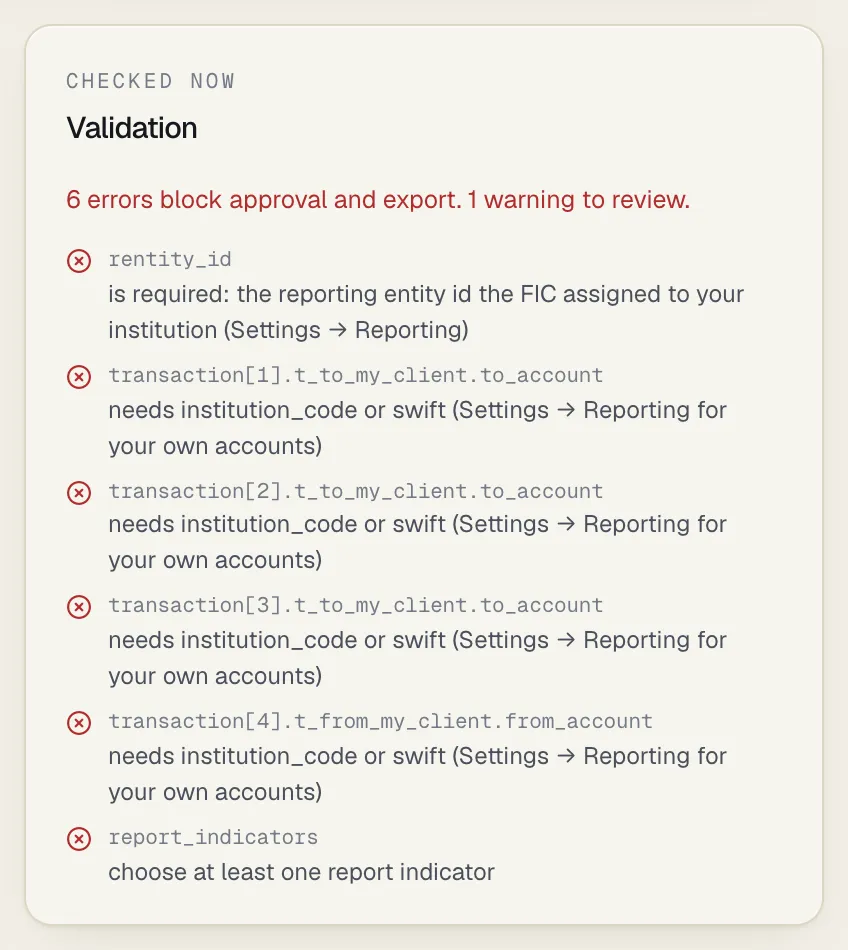
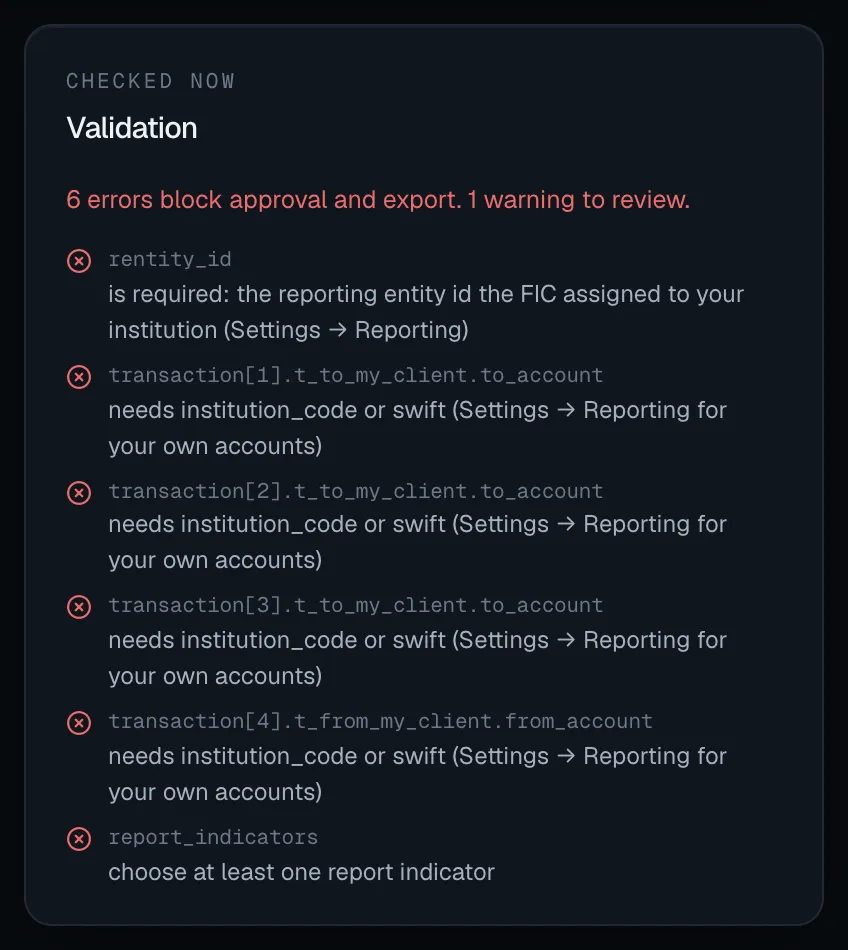
- Errors (red) block sending for approval, approval and export. The panel says, for example, 2 errors block approval and export.
- Warnings (amber) don’t block, but read every one: goAML or the FIC may still refuse the report.
- With none, it says Passes structural validation for the goAML XML format. That means the structure is right, not that the FIC will accept it. See Before you go live.
| Problem | What to do |
|---|---|
rentity_id: is required: the reporting entity id the FIC assigned to your institution (the message names your own FIU, or says your FIU) |
Ask an administrator or the MLRO to set it under Settings → Reporting |
…t_from_my_client.from_account: needs institution_code or swift (Settings → Reporting for your own accounts) |
Your institution code or SWIFT/BIC isn’t set. Ask for it to be set under Settings → Reporting. Every report with one of your accounts in it needs it |
reason: an STR needs a narrative |
Write the narrative |
report_indicators: choose at least one report indicator |
Pick at least one. Your settings require it for STRs |
report_indicators: “X” is not in the workspace’s indicator list |
Use a code from the FIC’s list in your settings, or ask for the list to be updated |
transaction: a report needs at least one transaction, or the subject as an involved party |
Select at least one transaction |
| Warning: has a single name; the first name is reported as UNKNOWN | goAML needs a first and last name. Correct the customer’s name in your core system so the next update fixes it, or explain in the narrative |
| Warning: the counterparty has no name; it is reported as UNKNOWN | Find the name if you can and give it in the narrative |
| Warning: could not be decrypted with the configured keys; it is left out | A protected field couldn’t be read. Tell whoever runs SpeculaPro: an encryption key may be missing. See Encryption keys |
| Warning: no reporting person | Ask for the reporting person to be set under Settings → Reporting |
| Warning: no narrative | Write one |
How each transaction is reported
Section titled “How each transaction is reported”goAML describes each transaction as money moving from one party to another, and marks which side is your own customer (“my client”). SpeculaPro fills it in from your data:
- Your customer’s side is their account (with the account number, currency, status and the customer as account holder) or, when the transaction has no account, the customer.
- The other side is the counterparty: one of your own accounts if it is one, otherwise a person or a business with the wallet or account number and provider in the comments.
- Cash paid in or out, as your cash definition defines it, is reported with the cash funds code, with your customer as the person who conducted a cash deposit.
- Amounts are in your base currency. A transaction in another currency also carries its original amount, currency and rate.
- Times are in your workspace’s time zone.
- The transaction’s reference, and its status when it isn’t completed, go in the comments.