
Finding a customer
Ce contenu n’est pas encore disponible dans votre langue.
In short
Section titled “In short”Customers in the menu opens a search page. Type the customer’s ID from your core banking or wallet system, or part of their name, and the list narrows as you type. The Flagged tab lists every customer who currently carries a flag, such as PEP or high risk.
You need entities.view (by default Analyst, Senior analyst, MLRO, Auditor and Rule author). Without it, Customers isn’t in your menu.
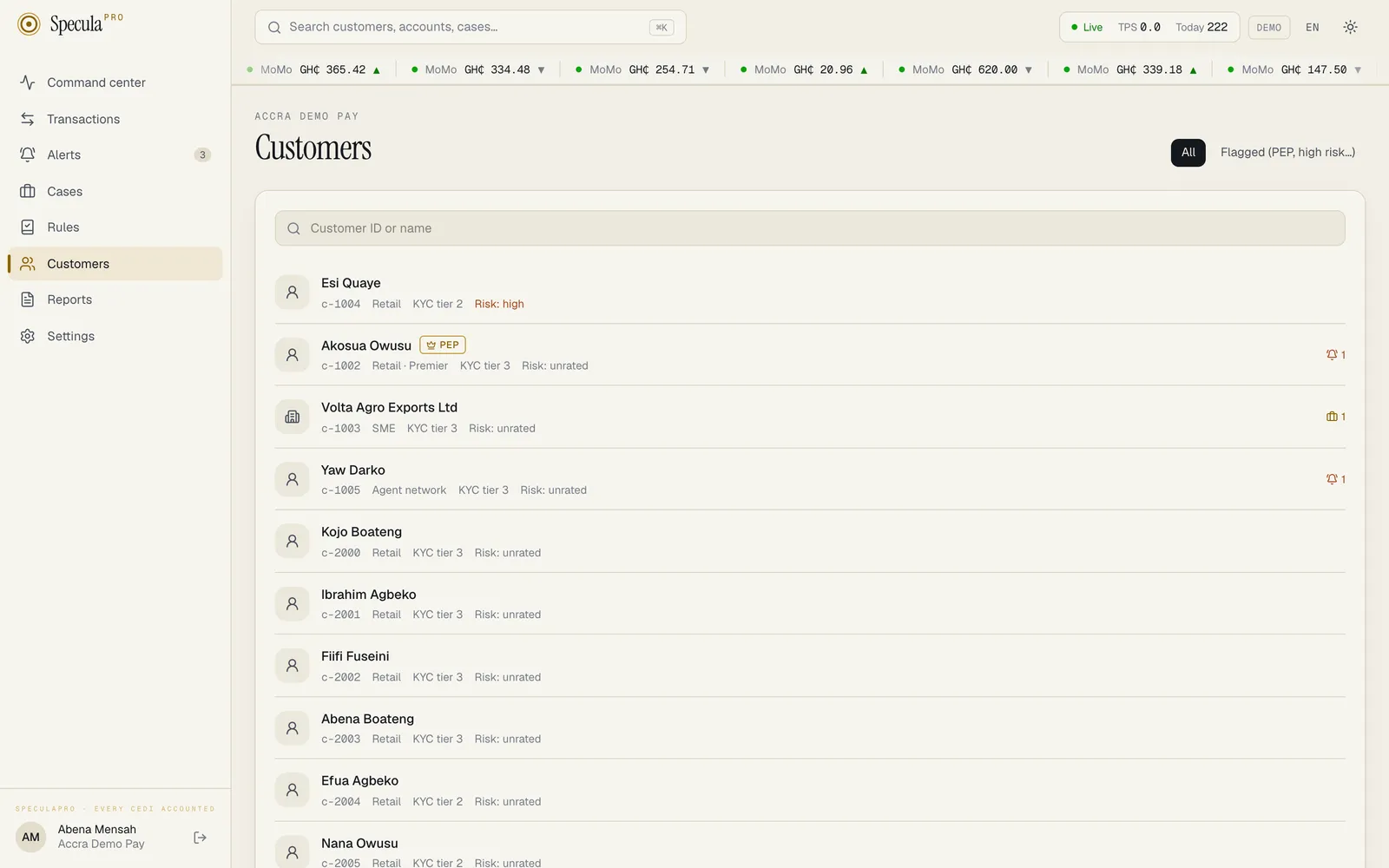
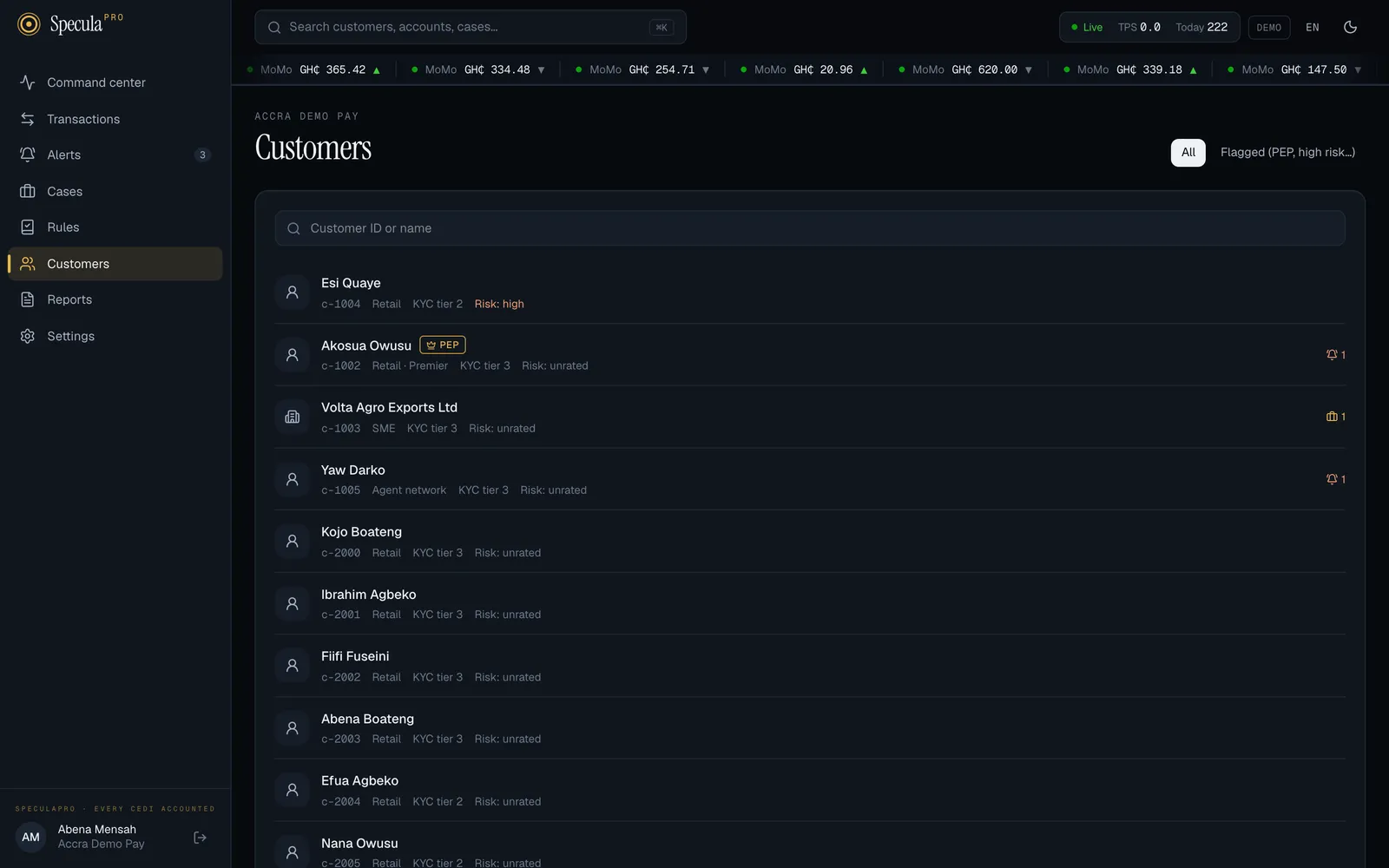
How to find a customer
Section titled “How to find a customer”- Select Customers in the menu.
- In the box marked Customer ID or name, type one of:
- the customer’s ID in your own system, exactly as your core system shows it (for example
c-1002). An exact ID match is always listed first; - part of their name (for example
owusu). Upper and lower case don’t matter.
- the customer’s ID in your own system, exactly as your core system shows it (for example
- Select the customer to open their profile.
You can also reach a profile from an alert or a case: select the customer’s name at the top of the page. See Reviewing an alert.
How to list flagged customers
Section titled “How to list flagged customers”- Select Customers in the menu.
- Select the Flagged (PEP, high risk…) tab.
The list shows every customer with at least one active flag: one that hasn’t been removed and hasn’t passed its end date. You can still type in the search box to narrow it. To learn what each flag means, see Flagging a customer.
Use this tab for periodic reviews, for example a quarterly check that every PEP still has an up-to-date enhanced due diligence file.
Reading the results
Section titled “Reading the results”Each row shows:
| Item | Example | Meaning |
|---|---|---|
| Icon | person or building | An individual or a business |
| Name | Akosua Owusu | The customer’s name as your systems sent it |
| Flags | PEP, HIGH RISK | Badges for each active flag |
| ID | c-1002 |
The customer’s ID in your own system |
| Segment and KYC | Retail · Premier · KYC tier 3 | As your systems sent them |
| Risk | Risk: high | Your institution’s risk rating for the customer. It is coloured: red for high and unacceptable, amber for medium, green for low |
| Status | dormant | Shown only when the customer isn’t active |
| Bell and number | 🔔 2 | Open alerts about this customer |
| Briefcase and number | 💼 1 | Active cases about this customer |
Results are ordered with an exact ID match first, then customers rated unacceptable, then high, then the most recently updated. Up to 100 customers are shown; if you don’t see the one you want, type more of the name or the ID.
If nothing matches, the page says No customers found. Customers only appear once your systems have sent them to SpeculaPro; see Sending customers.