
Support access
Ce contenu n’est pas encore disponible dans votre langue.
In short
Section titled “In short”On the hosted service, SpeculaPro’s support staff can’t see inside your workspace unless someone in your workspace says yes. When they need to look (for example to find out why a data source stopped loading), they send a request with a reason, a scope and a duration. You approve it, narrow it, or deny it. While the access runs:
- it is always read-only: nothing can be changed, approved, created or sent from it;
- it is limited to the scope you gave and ends when the time you gave is up;
- every page it opens is written to your audit log, and so is every attempt that was refused;
- you can revoke it at once.
Regulatory reports, exports, the data protection pages and what your investigators wrote are never shown, whatever you approve.
For the security design behind this page, see Support access security.
Who can do this
Section titled “Who can do this”| To | You need |
|---|---|
| Open Settings → Support access and read it | support_access.manage, settings.manage or settings.view |
| Approve, deny or revoke, and change the policy | support_access.manage |
By default the Administrator and the MLRO hold support_access.manage. It is a security
permission: giving it to a custom role lets that role let the
provider’s staff in. Someone who can open the tab but doesn’t hold it sees the same page with a
Read-only note and no buttons.
The two scopes
Section titled “The two scopes”| Scope | What support can read | What it leaves out |
|---|---|---|
| Configuration | Settings, rules, rule packs, data sources, webhooks and operational figures (counts, rates and timings) | Alerts, cases, customers, transactions, screening matches, models and the audit log |
| Full read | What an auditor reads: alerts, cases, customers and transactions too. ID numbers, phone numbers, email addresses, dates of birth and full account numbers stay masked; customer names are visible | Reports, exports, the data protection pages, and the notes and comments your people wrote |
The exact list, endpoint by endpoint, is in Support access security.
The policy: what support may ask for
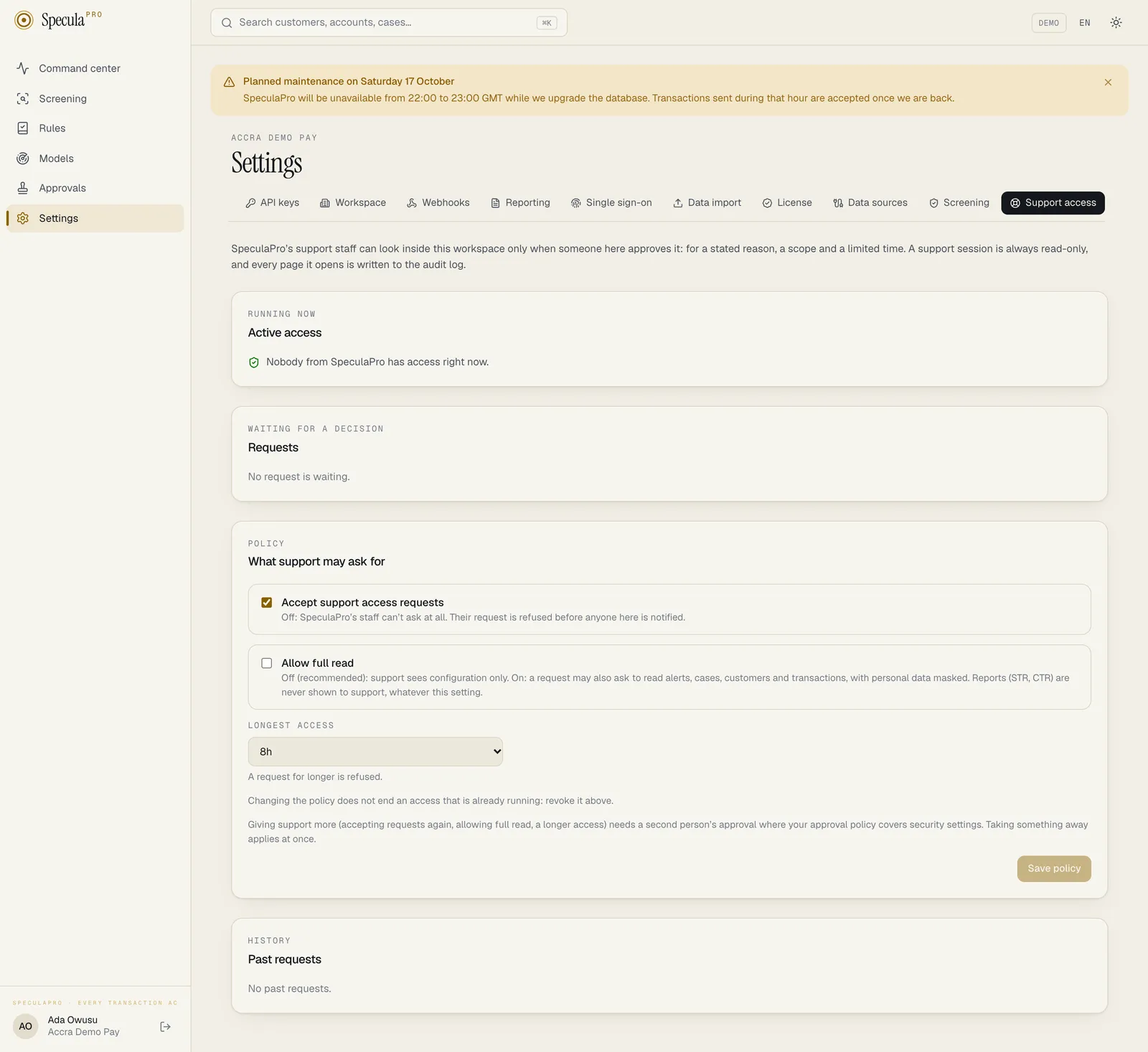
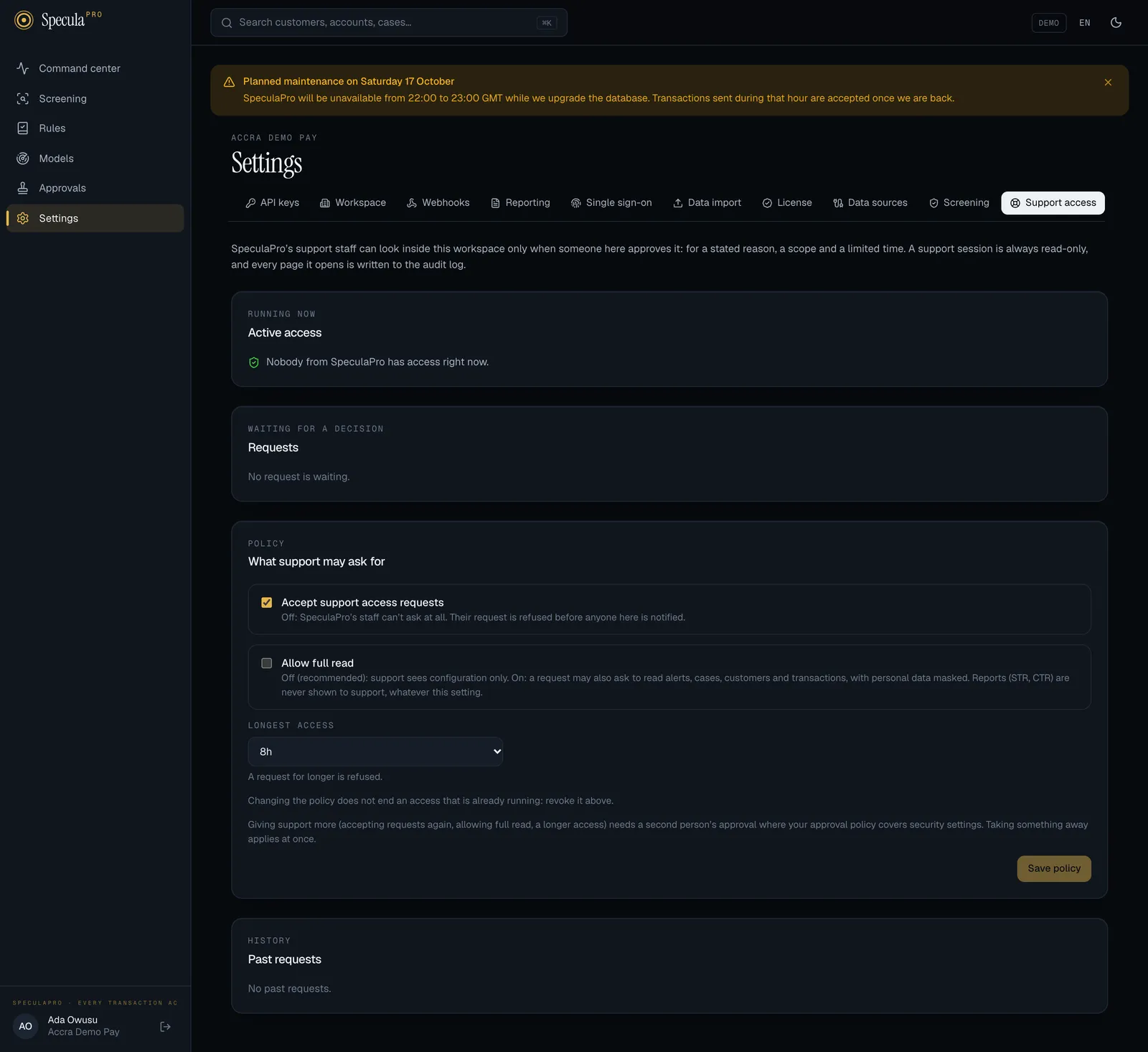
Section titled “The policy: what support may ask for”The Policy panel, What support may ask for, sets the limits for every future request.
| Setting | What it does | Default |
|---|---|---|
| Accept support access requests | Off: SpeculaPro’s staff can’t ask at all. Their request is refused before anyone here is notified | On |
| Allow full read | Off: support sees configuration only. On: a request may also ask for full read. Reports (STR, CTR) are never shown to support, whatever this setting | Off (recommended) |
| Longest access | The longest one access can run. A request for longer is refused | 8 hours, the most there is. The shortest you can set is 15 minutes |
How to change the policy
Section titled “How to change the policy”- Go to Settings → Support access.
- In the Policy panel, change the settings.
- Select Save policy.
Two things to know:
- Taking something away applies at once. Switching requests off, switching full read off or shortening the longest access needs nobody else.
- Giving support more needs a second person where your
approval policy covers Security settings. Accepting requests
again, allowing full read or a longer access is then sent for approval, and someone with
settings.approvedecides it on the Approvals page. If one save does both, the part that takes away applies now and the rest waits.
When a request arrives
Section titled “When a request arrives”Everyone who holds support_access.manage gets a notification, Support access requested by
<name>, on the channels they have switched on (see
Notifications). It names who asks and for how long. The reason and
the scope are read in the app, where the decision is made.
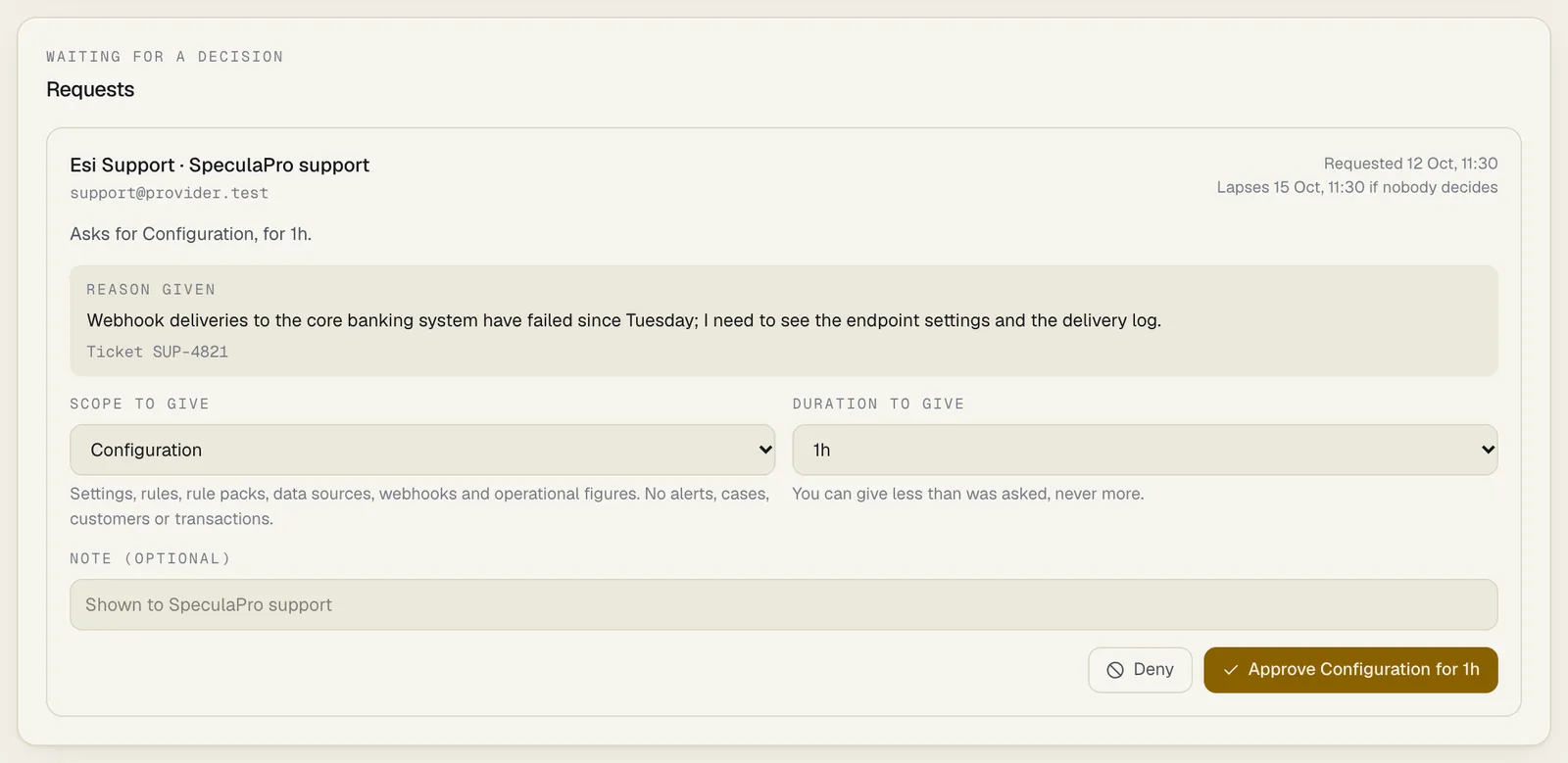
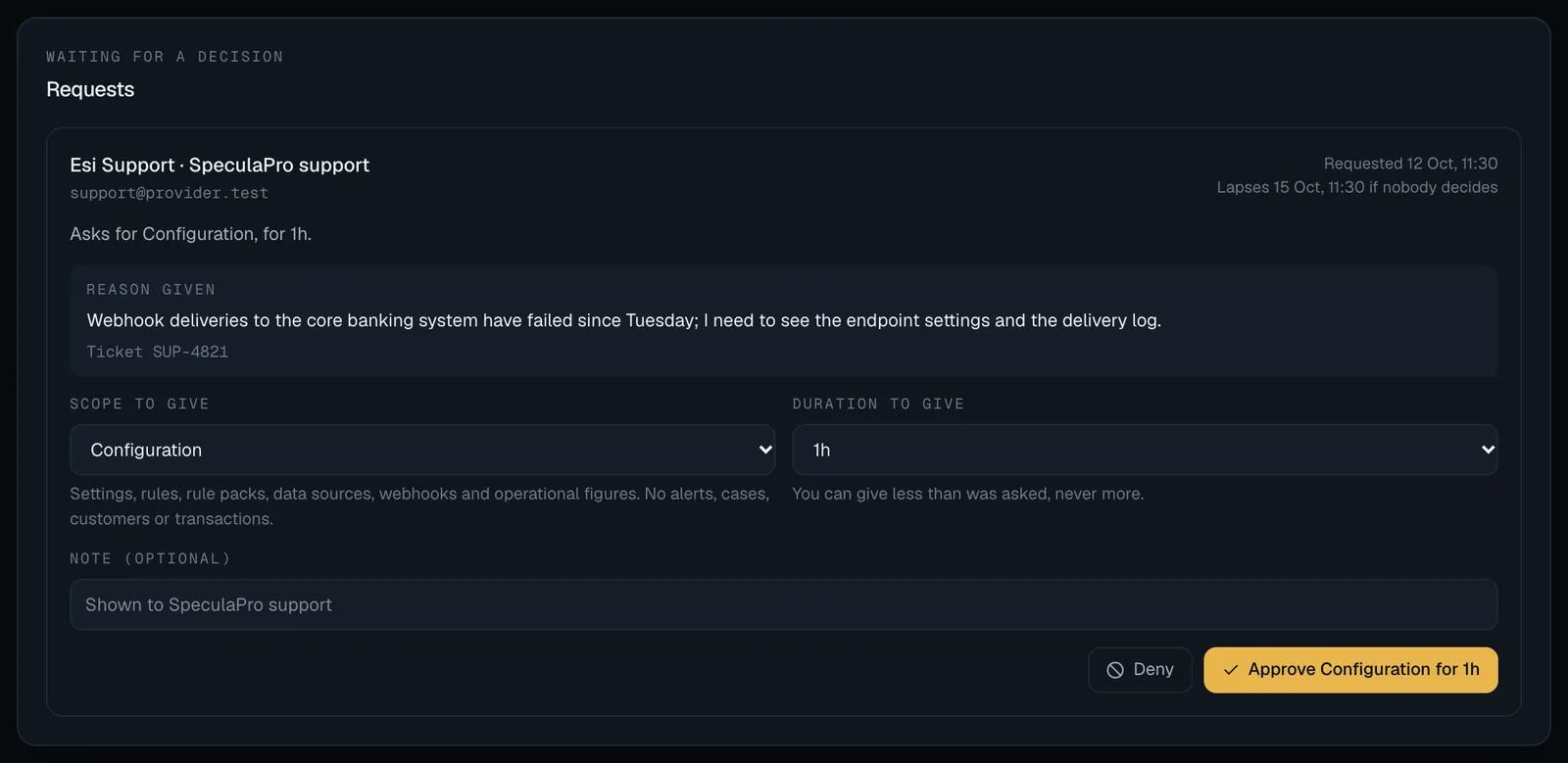
The request appears in the Requests panel, under Waiting for a decision, with:
- who asks (<name> · SpeculaPro support) and their email address;
- the reason given, and the ticket reference when there is one;
- what is asked: the scope and the duration;
- when it was requested, and when it lapses if nobody decides: 72 hours after it was made.
How to approve a request
Section titled “How to approve a request”- Go to Settings → Support access.
- Read the reason. If it doesn’t tell you enough, deny the request with a note, or ask your contact at SpeculaPro.
- Under Scope to give, choose Configuration or, if it was asked for and your policy allows it, Full read.
- Under Duration to give, choose how long. You can give less than was asked, never more.
- Optionally add a Note. It is shown to SpeculaPro support.
- Select Approve <scope> for <duration>.
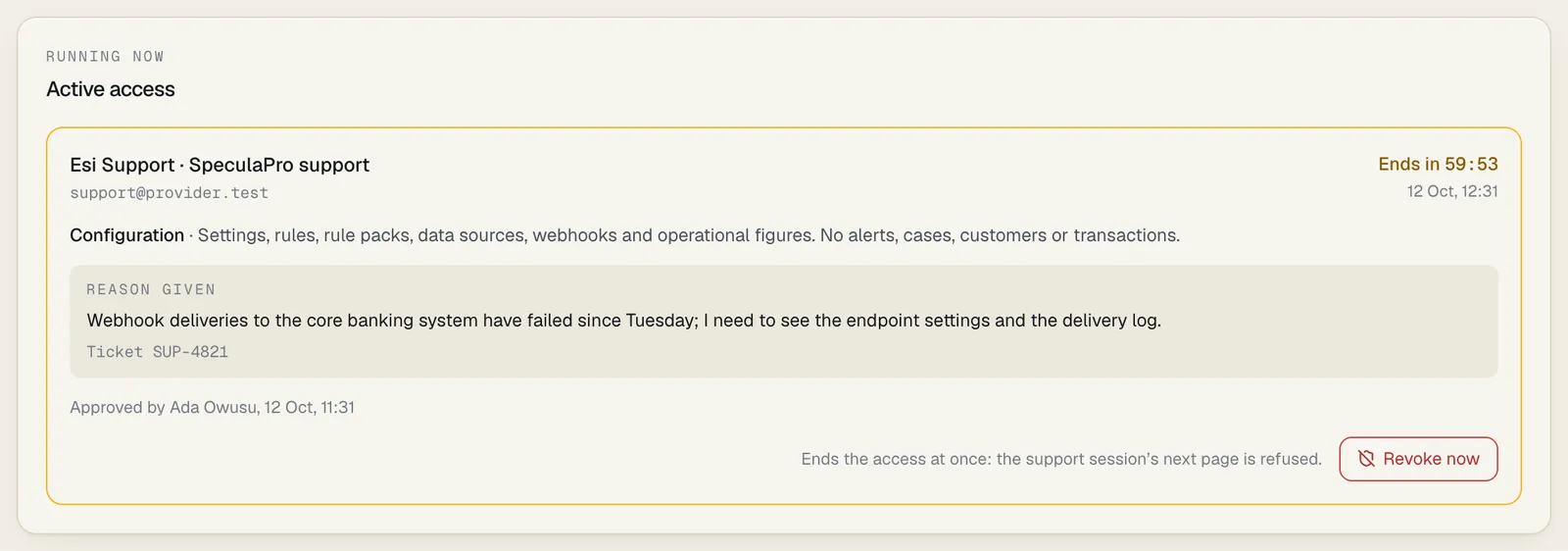
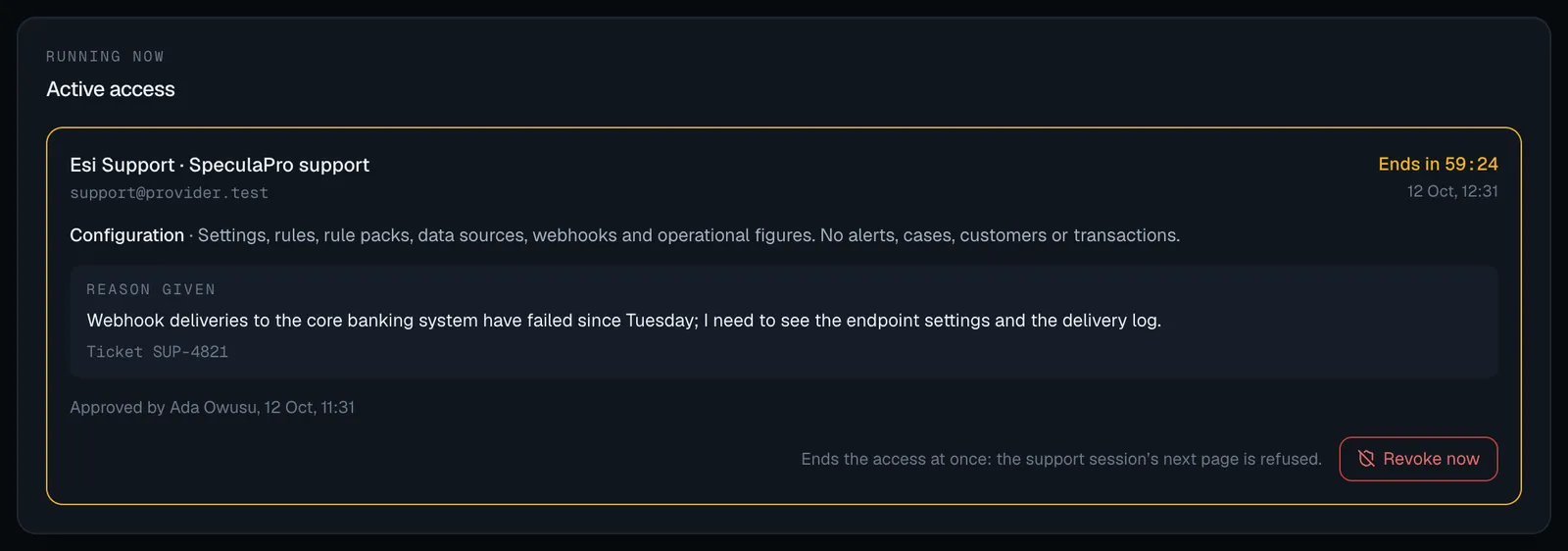
The access starts now and runs for the duration you gave. It moves to the Active access panel, with a countdown.
How to deny a request
Section titled “How to deny a request”- Optionally add a Note saying why.
- Select Deny.
Nothing is opened. The request moves to Past requests with the outcome Denied.
How to revoke an access
Section titled “How to revoke an access”- Go to Settings → Support access.
- In the Active access panel, select Revoke now.
The access ends at once: the support session’s next page is refused. Nothing needs undoing, because a support session can’t change anything.
What the support person sees
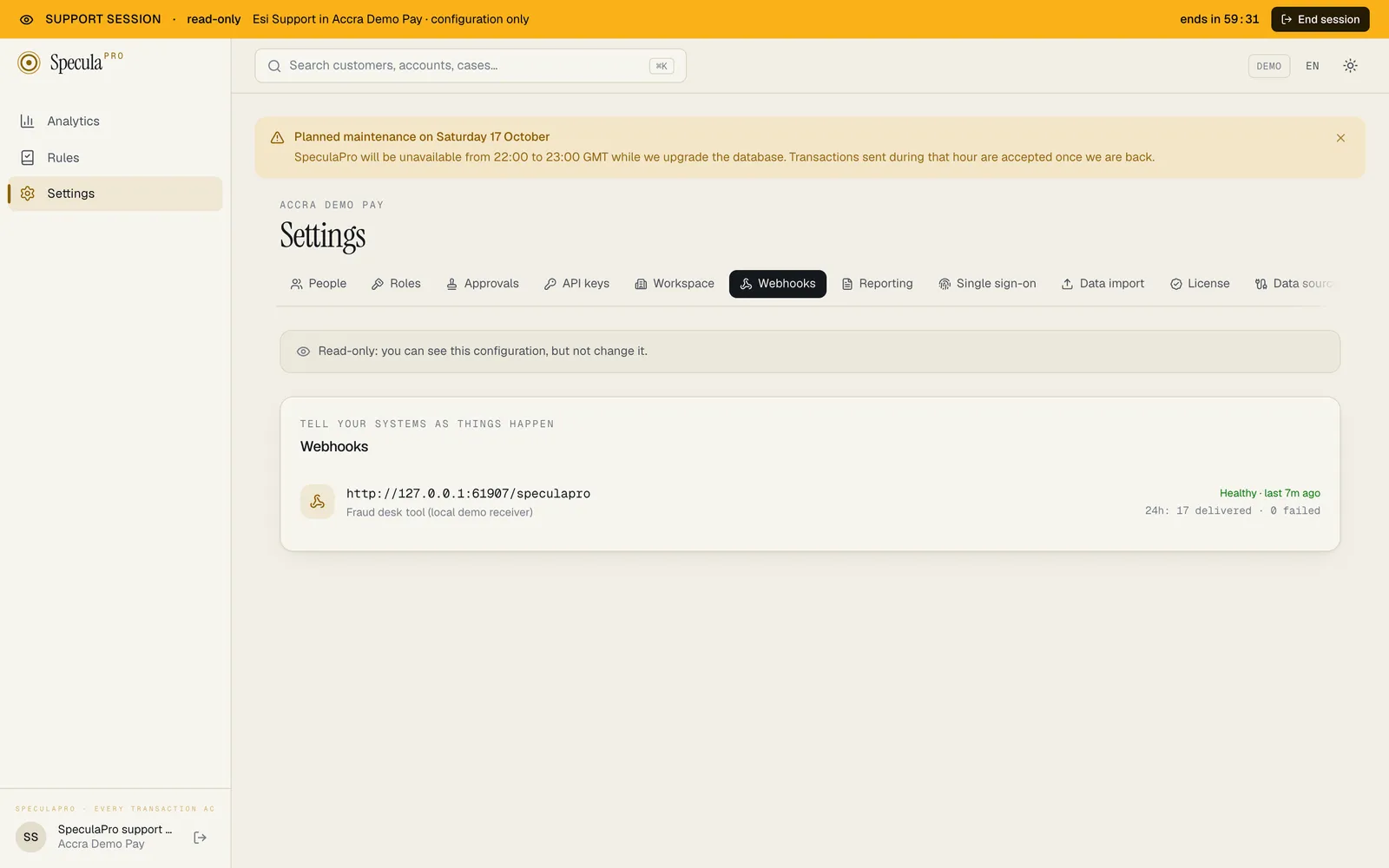
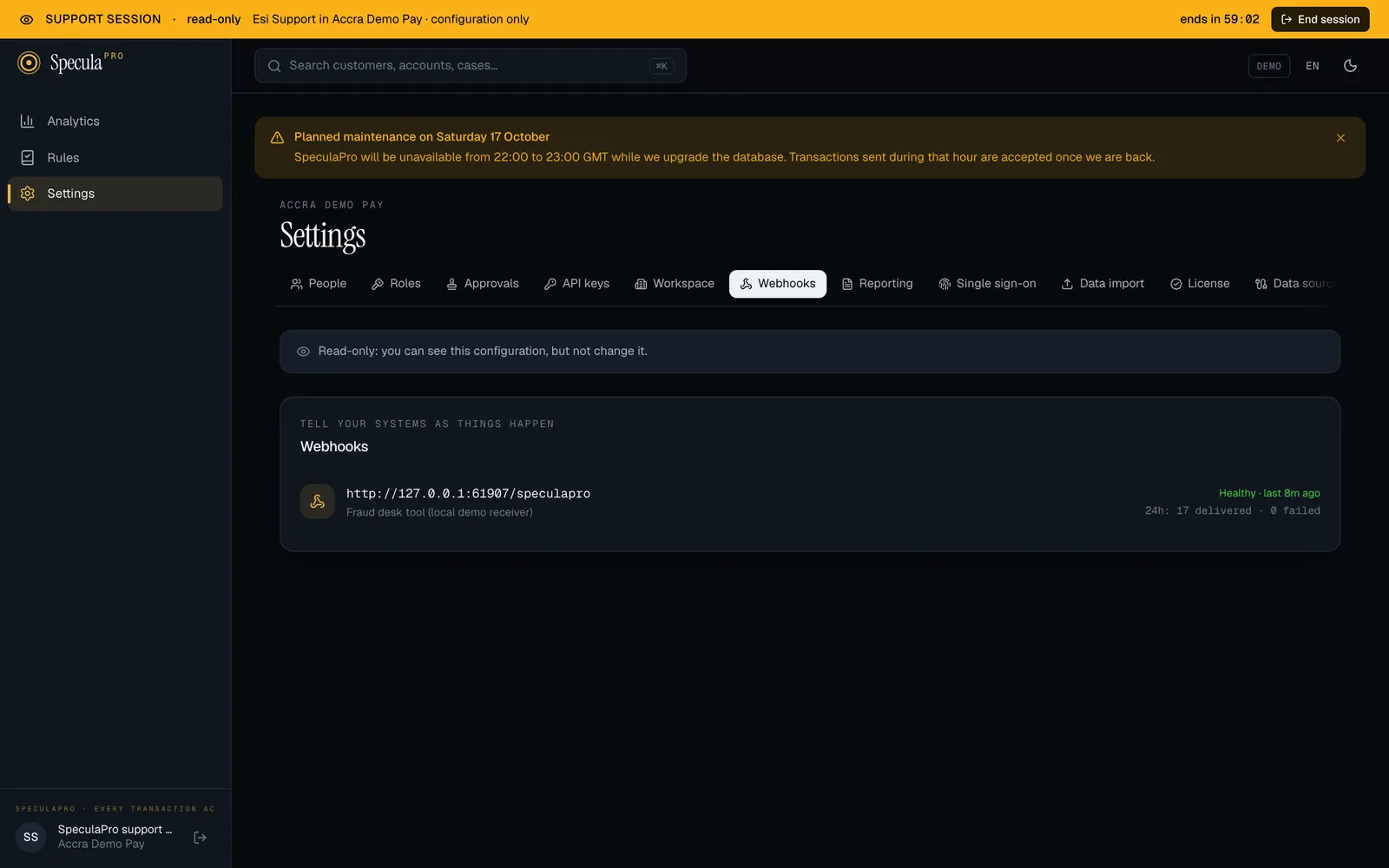
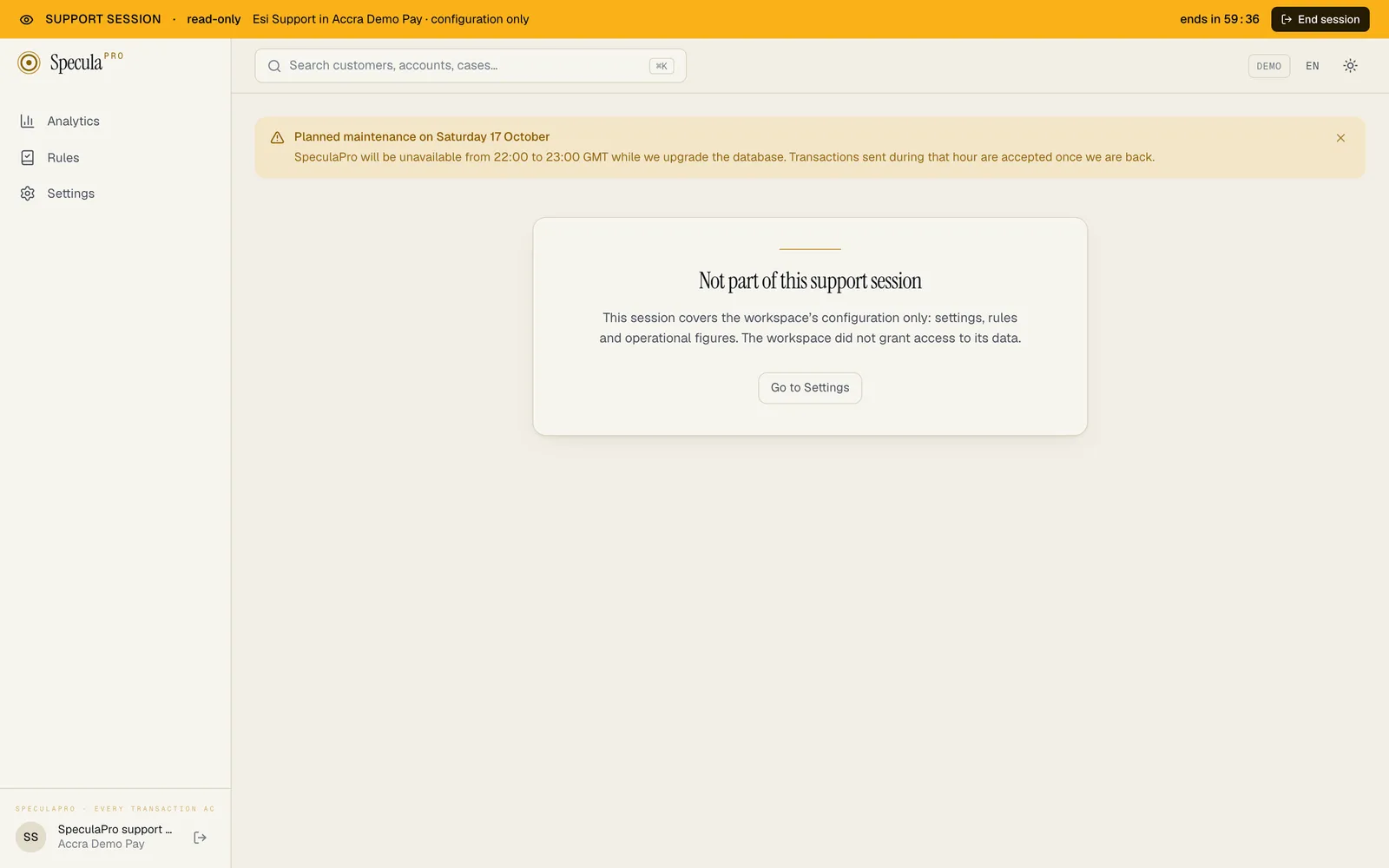
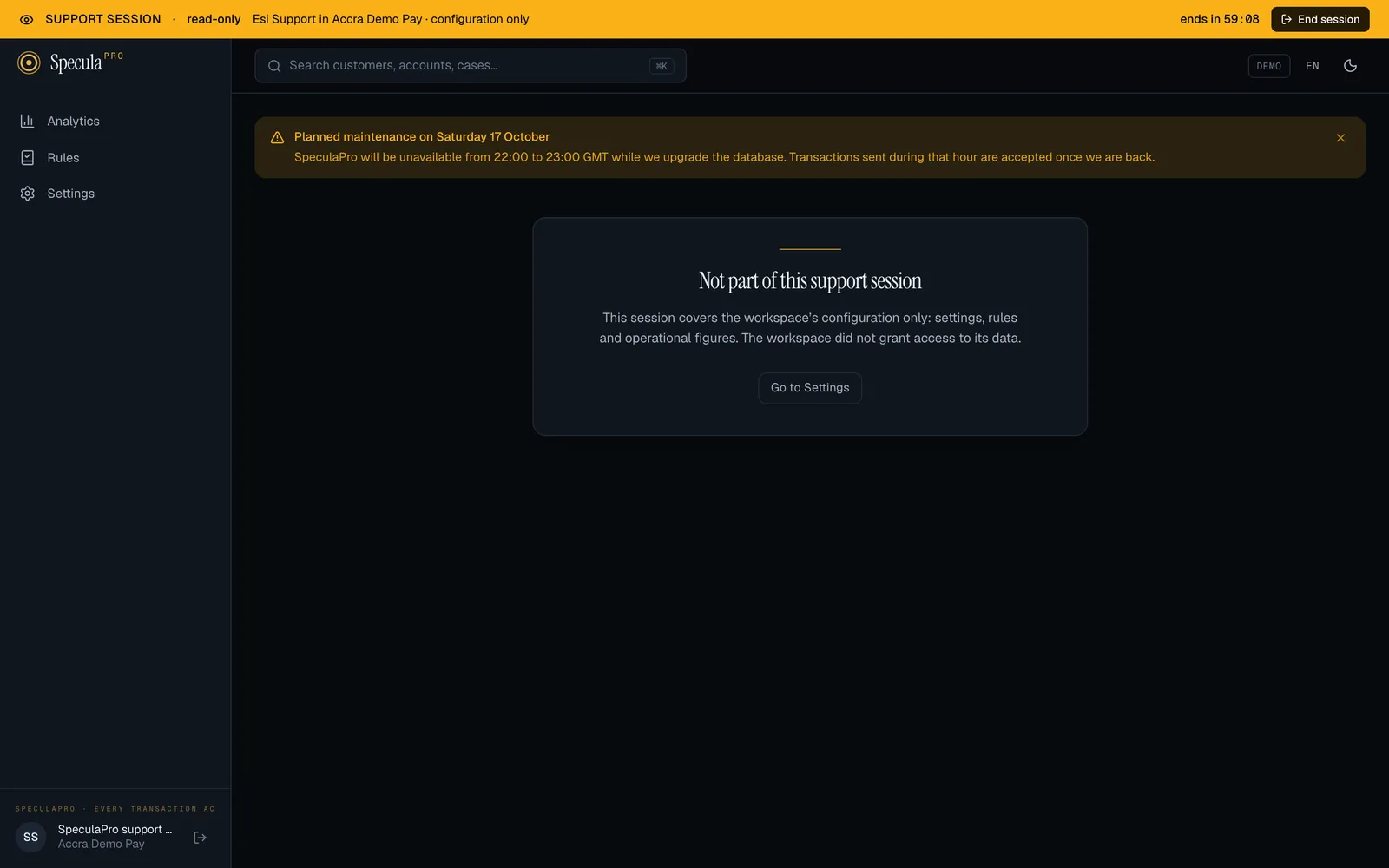
Section titled “What the support person sees”After you approve, the member of staff opens the session from SpeculaPro’s own console, through a link that works once, for one minute. They then see your workspace in the ordinary app, with a bar across every page:
- Support session, read-only;
- their name and your workspace’s name;
- the scope: configuration only or full read;
- a countdown, ends in …;
- End session.
Every button that changes something is absent or refused. A page outside the scope shows Not part of this support session instead of its content. With the configuration scope, the session opens on Settings, because there is no dashboard to show.
When the time is up, you revoke, or they select End session, they see The support session has ended. Ending a session doesn’t end the access you approved: while its time runs, the same person can open another session. To stop that, revoke.
Reading what happened
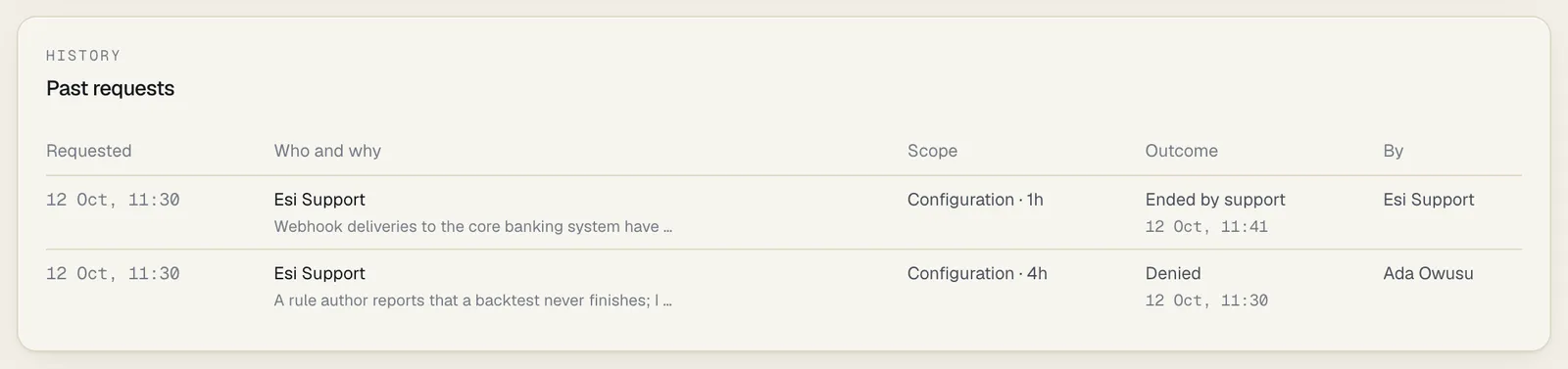
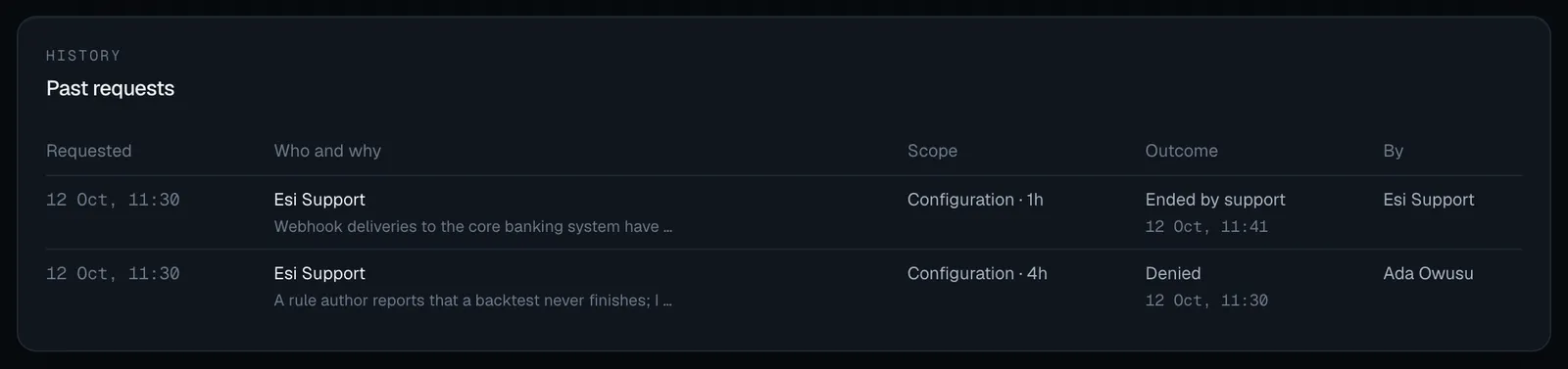
Section titled “Reading what happened”The Past requests panel lists every request, newest first, with who asked and why, the scope and the outcome:
| Outcome | Meaning |
|---|---|
| Pending | Waiting for your decision |
| Active | Approved and running |
| Denied | Someone here denied it |
| Withdrawn by support | The member of staff cancelled it before you decided |
| Expired | Nobody decided within 72 hours, or the access ran its full time |
| Revoked | Someone here ended it early |
| Ended by support | SpeculaPro gave the access back early |
For what was read, open Settings → Audit log and look for the actor SpeculaPro support —
<name>. Each page read is one support.read entry with the address that was read; each
refused attempt is a support.refused entry. See Audit log.
Good practice
Section titled “Good practice”- Leave full read off until a case needs it. Most support questions are about configuration, and full read shows customer names, alerts and transactions to someone outside your institution.
- Give the shortest time that does the job. A new request is quick to make.
- Ask for a ticket reference in every request, so the reason can be checked later.
- Revoke when the question is answered, even if time remains.
- Keep
support_access.managewith few people, and keep Security settings under approval so that loosening the policy always takes two.
Troubleshooting
Section titled “Troubleshooting”| What you see | Why | What to do |
|---|---|---|
| the request is no longer pending | Someone else decided it, support withdrew it, or its 72 hours passed | Reload the page. Ask support to send a new request if it is still needed |
| this workspace’s support access policy does not allow full read; approve with the configuration scope, or change the policy first | Full read was asked for and the policy has it off | Approve configuration, or change the policy |
| this workspace’s support access policy allows at most N minutes | The duration is longer than Longest access | Give a shorter duration, or change the policy |
| there is no running grant to revoke | The access already ended | Nothing: it is over |
| Saving the policy answers that it was sent for approval | The change gives support more, and Security settings is under approval | Ask someone with settings.approve to decide it under Approvals |
| Support says they can’t send a request | Accept support access requests is off, they asked for more than the policy allows, the workspace is suspended, or 10 requests are already waiting | Check the policy, and decide the requests that are waiting |