
Installing a pack
Ce contenu n’est pas encore disponible dans votre langue.
In short
Section titled “In short”Installing a pack copies its rules into your workspace. Every rule arrives as version 1,
approved and live, but stopped. Nothing runs until someone with rules.approve switches it on.
That pause is deliberate: it gives you time to check each rule’s numbers against your own
customers first.
Who can do it: installing packs and switching rules on or off needs rules.approve. In the
built-in roles that is the Rule approver and the MLRO / Compliance officer. Everyone with
rules.view can read the rules.
How to install a pack
Section titled “How to install a pack”-
Select Rules in the left-hand menu.
-
In the Rule packs panel on the right, find the pack. Each shows its name, version, country (for example
GH) and a short description. The panel is grouped by jurisdiction:- Your jurisdiction: … lists the packs for your workspace’s country or region;
- Any country lists
core,fraudandglobal-fatf; - Other jurisdictions folds away the packs for other countries. You can still open it and install one.
A Recommended badge marks the packs your jurisdiction recommends for your kind of institution, for example
gh-pspfor a Ghanaian PSP andgh-bankfor a Ghanaian bank. Under a pack’s description, Sources, and N values to confirm with the regulator lists where its values come from and what to confirm before relying on them.

-
Check the line about amounts, if the pack shows one (see Packs written in another currency).
-
Select Install N, where N is the number of rules in the pack.
The button is replaced by a green tick and the number of rules, and the pack’s rules appear in the list, grouped by category, all stopped.
- Installing again is harmless. An installed pack has no Install button. Even through the API, installing an already installed pack changes nothing.
- Your rules are never overwritten. If a rule with the same key already exists in your workspace, the pack skips it.
- If you don’t see an Install button, you don’t have
rules.approve.
Installation is recorded in the audit log as rule_pack.install, with the pack, its version and
the rules added. SpeculaPro also stores a SHA-256 digest of the pack’s contents, so you can always
prove exactly which rule definitions arrived.
Packs written in another currency
Section titled “Packs written in another currency”A pack’s default amounts are written in one currency: a country pack in its country’s currency
(gh-psp in cedis, ng-bank in naira, the UEMOA packs in francs CFA, ke-bank in Kenyan
shillings), core and fraud in
cedis, and global-fatf in US dollars. SpeculaPro never converts amounts, so a pack installed in a workspace with a different
base currency could bring in figures that mean something else: NGN 10,000 is not USD 10,000.
The Rule packs panel tells you which case you are in, on packs you haven’t installed yet:
| What the pack’s row shows | What it means | What to do |
|---|---|---|
| Nothing about amounts | The pack’s amounts are in your base currency | Install as usual |
| Written in USD; installs with default amounts for GHS. They are starting points: calibrate them before go-live. | The pack carries a set of defaults for your currency, and installing uses them. Today global-fatf (written in USD) has them for GHS, NGN, XOF, EUR, SLE, LRD, GMD, GNF and KES, and core and fraud (written in GHS) for NGN, XOF, USD, EUR, SLE, LRD, GMD, GNF and KES |
Install, then calibrate with a backtest |
| A warning: This pack’s amounts are in GHS, but your workspace’s base currency is NGN. Installing it brings in the GHS figures unchanged: set every amount for NGN before you start its rules. | The pack has no defaults for your currency | Install only if you mean to. Then tune every amount before enabling a rule |
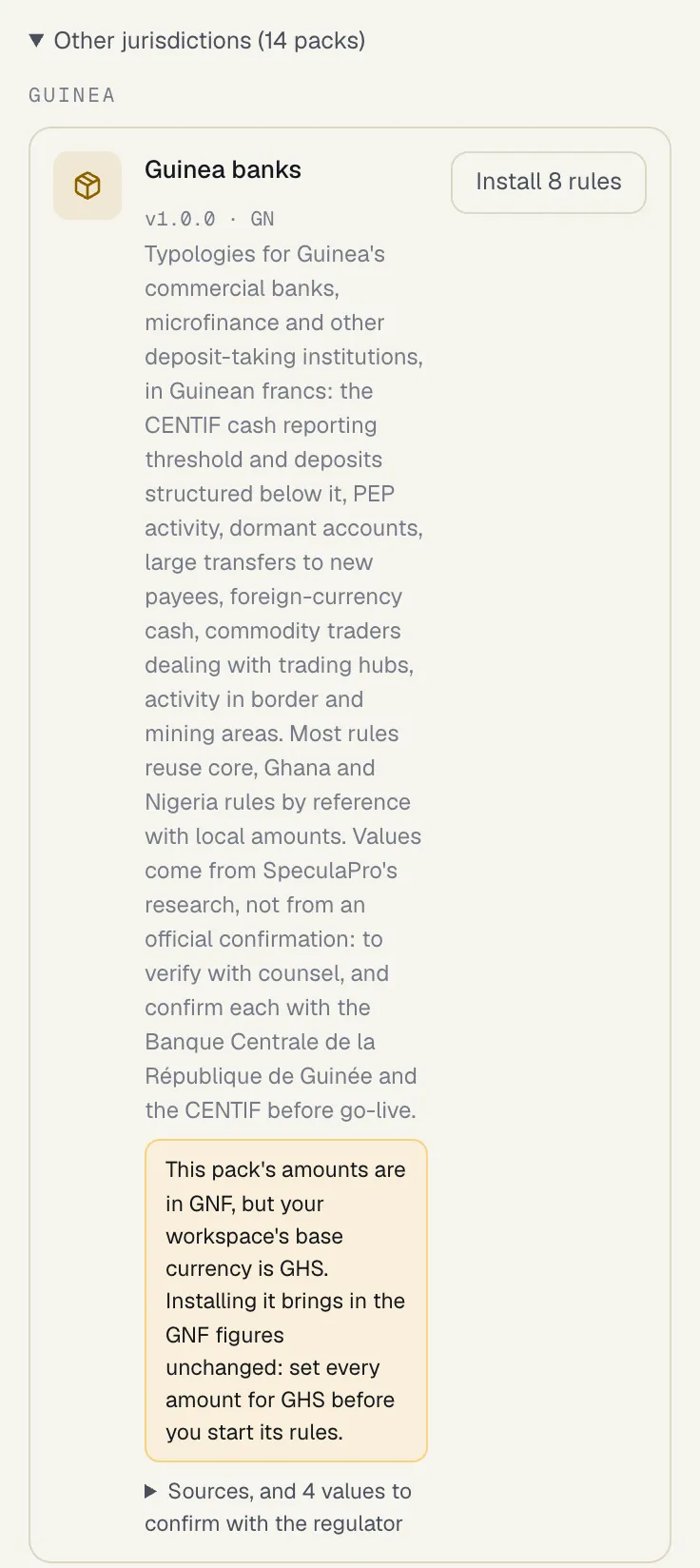
The same defaults apply when you upgrade: SpeculaPro compares the old
and new versions as your workspace installs them, in your base currency. The amounts per currency
are listed in Pack contents for core and fraud, and in
Pack contents: FATF baseline for global-fatf.
How to upgrade a pack
Section titled “How to upgrade a pack”When a newer version of a pack you’ve installed is available, for example core 1.1.0 with eight
new rules, the pack’s row in Rule packs shows Update to v1.1.0 to people with
rules.approve, and Update available to everyone else. A newer version arrives with a SpeculaPro
upgrade, or as a signed pack file.
- On the Rules screen, find the pack in the Rule packs panel.
- Select Update to v….
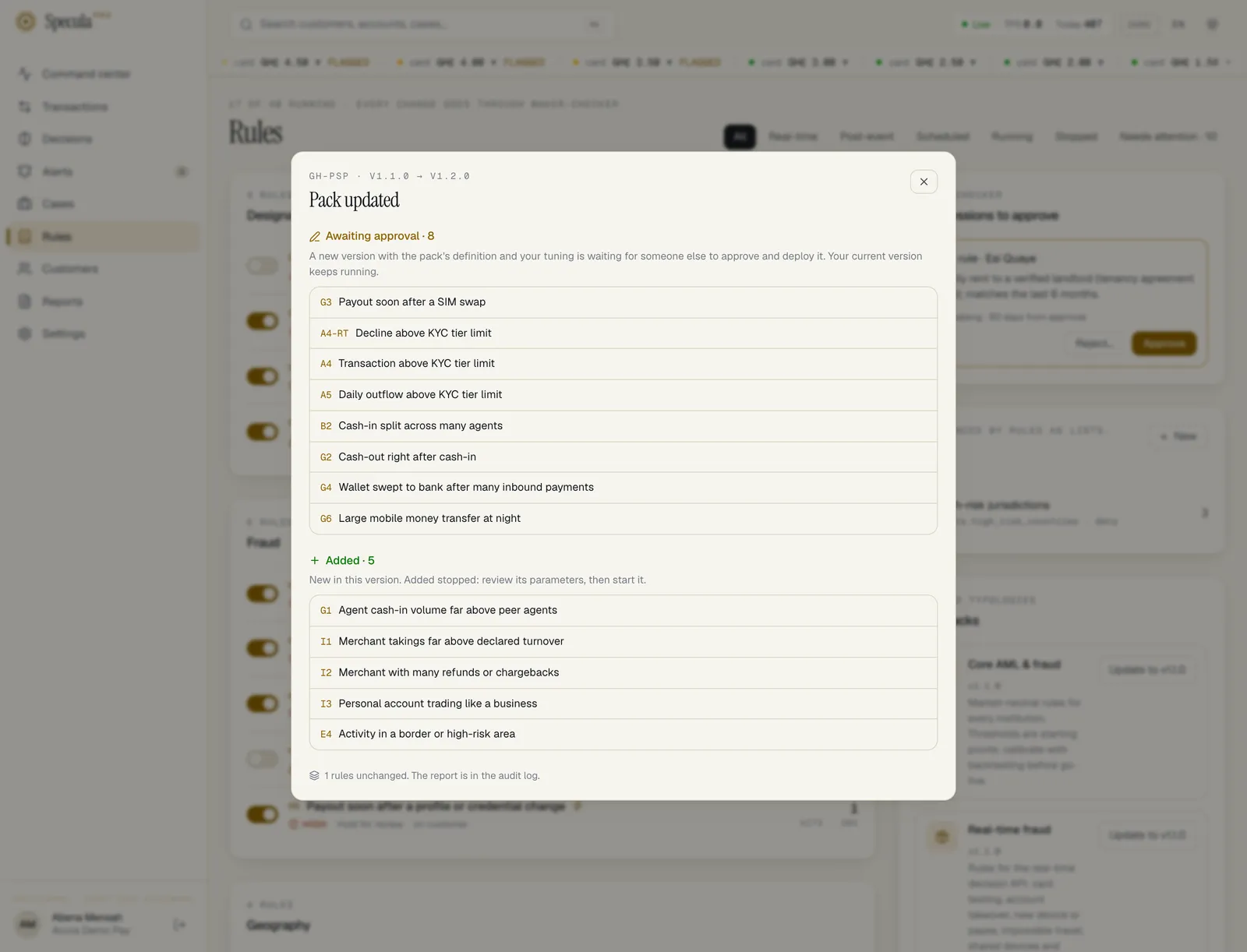
- Read the Pack updated report that opens. It lists what happened to each rule (below).
- For every rule marked Awaiting approval, ask a second person to review the new version on the rule’s page and approve and deploy it, or reject it. Ideally, shadow test it first.
- For every rule marked Needs attention, read the reason and tune the rule by hand.
What happens to each rule:
| In the report | What happened | What you do |
|---|---|---|
| Added | A rule new in this version was added, stopped, exactly as at install: version 1, approved, in the live slot, switched off | Review it and switch it on like any other |
| Awaiting approval | The pack changed this rule’s definition (its logic, wording, defaults, severity or score). A new version was drafted from the new definition, with your tuning carried over, and sent for approval. kept your threshold, score lists what was carried over | Someone other than you approves and deploys it. Your current version keeps running until then |
| Needs attention | The pack changed the rule, but a value you tuned doesn’t fit the new definition (for example it is now above a new maximum), or the pack moved the rule to another mode. No version was created | Tune the rule by hand to adopt the change, or keep your version |
| Left alone | You changed this rule’s logic yourself (its expression or the aggregates it reads), so the pack’s new definition wasn’t applied | Compare your version with Pack contents, and update it by hand if you want the change |
| Unchanged | Nothing in the pack’s definition changed, or your rule already matched it. Rules with the same key that came from another pack, or that you wrote yourself, are also left unchanged | Nothing |
How your tuning is carried over. For each parameter, and for severity and score: if your current version has a value different from the old pack default, your value is kept. If you never changed it, the rule takes the new default. So a threshold you raised stays raised, while a default that SpeculaPro improved reaches you.
What else to know:
- Nothing is switched on, off or made live by an upgrade. Running switches, live versions and shadow tests stay exactly as they were. Because you are the author of the new versions, you can’t approve them yourself: four-eyes applies as to any other change.
- Upgrading again is harmless. When the installed version is already current, the report says Already up to date.
- A pack can’t go back. If the installed version is newer than the one available, the upgrade is
refused. Only a signed pack file can force a downgrade, by someone with
rules.packs_downgrade.
The upgrade is recorded in the audit log as rule_pack.upgrade, with the version before, the new
version, the number of rules added and the report for every rule that changed. Through the API it’s
POST /api/v1/rule-packs/{key}/upgrade, which returns the same report; see
Rules API.
Signed pack updates
Section titled “Signed pack updates”SpeculaPro can update a pack without upgrading the program: we send you a signed pack file
(.sppack) and you load it on the Rules screen. This is how a self-hosted installation, even
one with no internet access, receives new and improved rules between releases.
A pack file is the pack’s rules with a digital signature (Ed25519) made with one of SpeculaPro’s pack-signing keys, which are separate from the keys used for licences. Your installation checks the signature before it reads anything in the file. A file that was altered, or signed with a key your version of SpeculaPro doesn’t trust, is refused.
Who can do it: rules.approve. Forcing a downgrade needs rules.packs_downgrade as well,
which the built-in MLRO role holds.
How to load a signed pack file
Section titled “How to load a signed pack file”- Select Rules in the left-hand menu.
- At the bottom of the Rule packs panel, under Signed pack update, select Choose a .sppack file from SpeculaPro and pick the file.
- Select Import pack. SpeculaPro checks the signature first. If your workspace requires
approval for rule packs, it then asks why and sends the import for approval; it is applied, as
you, when someone else approves it. A forced downgrade is checked again at that moment: you must
still hold
rules.packs_downgrade. - Read the result under the button, for example Ghana banks v1.1.0 updated, 2 new rules (disabled until you enable them). Signed with pack-2026-1. When the pack was upgraded, the same Pack updated sheet opens as after Update to v…, with the outcome for each rule.
What loading a file does:
- If the pack isn’t installed in your workspace, it is installed, exactly as from the Install button: every rule stopped.
- If an older version is installed, it is upgraded exactly as with Update to v…: new rules are added, stopped; a rule whose packaged definition changed gets a new version, with your tuning carried over, waiting for someone else to approve; rules your workspace changed are left alone and reported. The version that runs today keeps running until the new one is approved and made live. See How to upgrade a pack.
- If the same version is installed, nothing changes (already at this version).
- The file is kept for the whole installation. Other workspaces then see Update to v… on that pack and upgrade it the usual way, with the report. Stored files are checked again every time SpeculaPro reads them, so a file edited in the database is ignored.
What is refused:
| You see | Why |
|---|---|
| rule-pack bundle rejected: … signature does not match | The file was changed after it was signed |
| rule-pack bundle rejected: … signed with an unknown key | Signed with a key your version of SpeculaPro doesn’t trust: ask SpeculaPro for a file signed with a current key |
| rule-pack bundle rejected: … signed for a different purpose | Not a rule-pack file, for example a licence file |
| conflict: pack … differs from the built-in pack of the same version | Its version number matches the pack inside your SpeculaPro, but its rules don’t |
| conflict: pack … is already present with different content | A different file with the same pack and version was loaded before |
| conflict: … is older than the installed version …; someone allowed to downgrade packs can force it | The file holds an older version than the one installed |
Forcing a downgrade. When the file is older than the installed version, someone with
rules.packs_downgrade (the MLRO, by default) sees Install the older version anyway (its rule
changes go for approval like an update; recorded in the audit trail as a downgrade). Ticking it
and importing again goes the same way as an upgrade, towards the older definitions: rules the older
version has that you lack are added, stopped, and rules whose definition differs get versions
awaiting someone else’s approval. Nothing that runs today changes until then. The audit log
records it as rule_pack.downgrade, marked as forced.
Each load is recorded in the audit log as rule_pack.install or rule_pack.upgrade (or
rule_pack.downgrade), with source: bundle and the signing key’s ID.
How to review an installed rule
Section titled “How to review an installed rule”Before switching a rule on, read it with your MLRO. Select the rule in the list to open its page, then check:
| On the rule’s page | What to check |
|---|---|
| How it works → the parameter boxes | The thresholds and settings. Are they right for your customers? Each box shows the parameter’s plain-language title and its value |
| The Severity in the list, and the Action figure | How serious a hit is, and whether it raises an alert at all |
| Alerts on | Who the alert is about: the customer, the account or the counterparty |
| What analysts read | The sentence analysts will see on the alert. Does it make sense to them? |
| Logic and Aggregates it reads | What the rule actually tests, and over which period. Your technical lead can check these against the CEL reference |
The defaults for every pack rule are also listed in one place in Pack contents, which is easier to review as a group.
How to switch a rule on
Section titled “How to switch a rule on”- On the Rules screen, find the rule.
- Select the switch at the left of its row. It turns gold and moves to the right.
You can also use the switch on the rule’s own page, next to Running / Stopped.
A real-time or post-event rule starts running on new transactions within about 15 seconds. It does not go back over transactions that arrived before it was switched on.
A scheduled rule runs at its next slot (for example 02:00 tonight), and its first run looks back over one full rule window, so it does see recent history: D3’s first run reads the last 72 hours. See Scheduled rules.
To stop a rule, select the switch again. Hits and alerts it already created stay. Stopping a rule also stops any shadow test running on it.
Each change is recorded in the audit log as rule.enable or rule.disable.
A sensible first week
Section titled “A sensible first week”- Install Core AML & fraud, plus Ghana PSP & mobile money if you’re a PSP or mobile money operator, Ghana banks if you’re a bank, and Real-time fraud if you’ll call the decision API.
- With your MLRO, read through Pack contents and mark each rule: switch on as is, tune first, or not relevant to us.
- Switch on the as is rules that tend to be quiet:
core.sanctioned_party,core.pep_threshold,core.large_cross_border. - Tune the tune first rules, and shadow test the new versions.
- After a few days, compare the shadow hits with what you expected, make the good versions live, and switch on the rest in small groups.
- For real-time rules, start with actions that don’t stop a payment. A real-time rule that
blocks wrongly stops a genuine customer at the till. Shadow test them first, then prefer
step_uporreviewuntil the numbers are right. See Choosing an action.
Using the API instead
Section titled “Using the API instead”Every step on this page has an API equivalent for people who script their set-up:
GET /api/v1/rule-packs, POST /api/v1/rule-packs/{key}/install,
POST /api/v1/rule-packs/{key}/upgrade, POST /api/v1/rule-packs/bundles (a signed pack file),
GET /api/v1/rules and POST /api/v1/rules/{id}/enable or /disable. They need a signed-in person, not an API key:
sign in with curl and keep the session cookie, as described in
Rules API: before you start. That page also has examples, fields
and error messages for every endpoint.