
Closing and approving
Ce contenu n’est pas encore disponible dans votre langue.
In short
Section titled “In short”You close a case when the investigation is finished, choosing an outcome and writing a rationale that explains your decision.
- Low and medium priority cases close straight away.
- High and critical cases don’t close on your say-so alone. They go to Awaiting approval, and a second person must approve the closure or send it back. This is the four-eyes (maker–checker) principle. Your workspace can also require it for every case, and an escalation policy can require it for the cases that follow it.
The person who proposed a closure can never approve it. This is enforced by the database, not only by the screen.
| Action | Needs | Default roles |
|---|---|---|
| Close a case | cases.close |
Senior analyst, MLRO |
| Approve or send back a closure | cases.approve |
MLRO |
| Reopen a closed case | cases.approve |
MLRO |
How to close a case
Section titled “How to close a case”-
Make sure the timeline holds your findings. Add a final note if needed.
-
Select Close case. A panel titled Close case opens.
-
If the closure will need a second approver, the panel tells you why. For a high or critical case: This is a high-priority case: closing it sends your outcome to a second approver. If your workspace requires a second approver for every closure: Your workspace requires a second approver for every closure. If the case’s escalation policy requires one: The escalation policy “…” requires a second approver to close this case.
-
Under Outcome, choose one:
Outcome Hint on screen Use it when Report filed STR/SAR submitted to the FIU You have reasonable grounds to suspect and a report was filed. Draft it with Draft STR on the case, before or after closing. See Drafting an STR from a case Suspicious, no report Confirmed, below the reporting bar Something was wrong, but it doesn’t meet the reporting test Customer exited Relationship ended Your institution ended the relationship. This doesn’t replace a report False positive Activity is explained and legitimate The investigation found a legitimate explanation Duplicate Covered by another case The same activity is being investigated elsewhere Other Explain in the rationale None of the above fits -
Under Rationale, explain what you checked and why you reached this outcome. It is required (at least 3 characters) and the box reminds you: Examiners read this. For what a good rationale contains, see Investigating an alert and Choosing a disposition.
-
Select Close case.
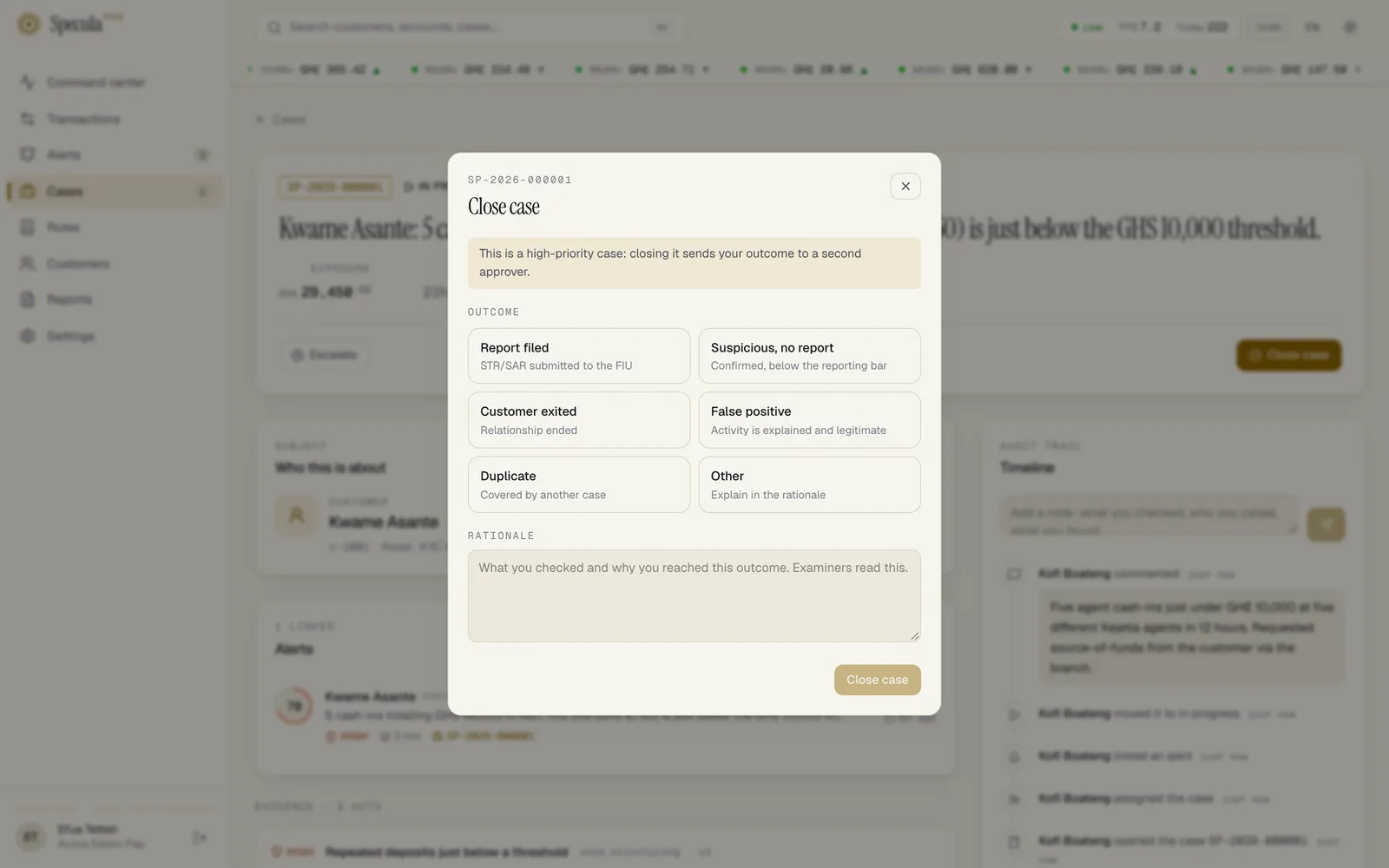
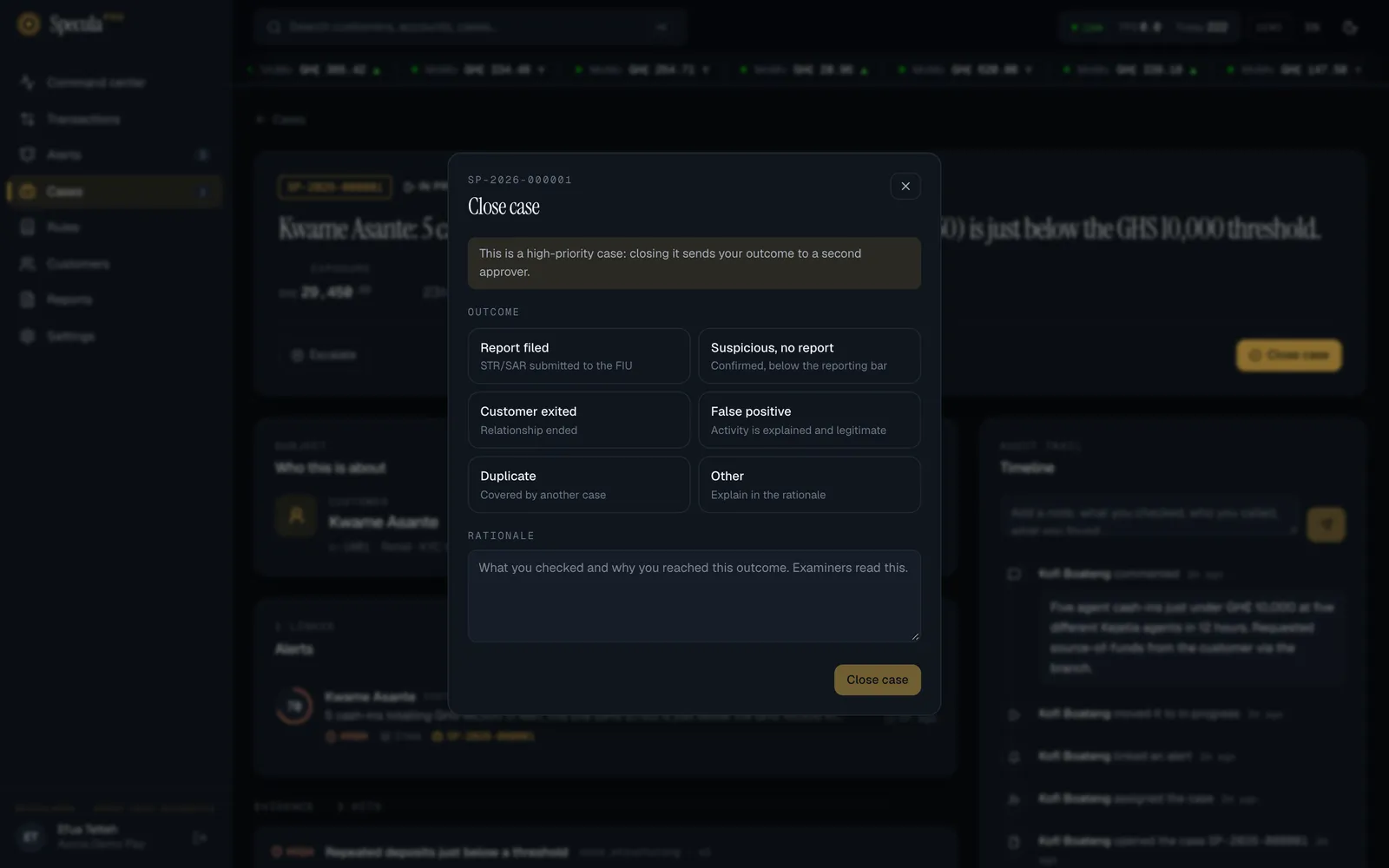
What happens next:
- Closes straight away (low or medium priority): the case moves to Closed, and every alert in it is closed with the outcome escalated to case. The timeline shows closed as … with your rationale.
- Needs approval: the case moves to Awaiting approval. The timeline shows proposed closing as … with your rationale, and the case appears on the Command center’s Waiting for a second approver panel. Its alerts stay in case until the closure is approved.
Four-eyes closing
Section titled “Four-eyes closing”While a case is Awaiting approval:
- the header says, for example, Efua Owusu proposed closing as report filed. A second person must approve.
- the Close case, Escalate, Take it and Release buttons are hidden,
- you can still add notes,
- new activity about the subject can still arrive in the case. Approvers should check the evidence for anything new before approving.
How to approve or send back a closure
Section titled “How to approve or send back a closure”You need cases.approve (by default the MLRO). Find closures waiting for you on the Awaiting approval tab of Cases, or on the Command center’s Waiting for a second approver panel.
- Open the case. Read the proposed outcome, the rationale in the timeline, the evidence and the notes.
- Decide:
- To approve, select Approve closure. Under Approval note you may add a comment (optional), then select Approve and close. The case is Closed, its alerts are closed with the outcome escalated to case, and the timeline shows approved the closure.
- To send it back, select Send back. Under What’s missing, tell the analyst what to check before proposing again (at least 3 characters), then select Send back. The case returns to In progress with the same owner, the proposed outcome is cleared, and the timeline shows sent the closure back with your note.
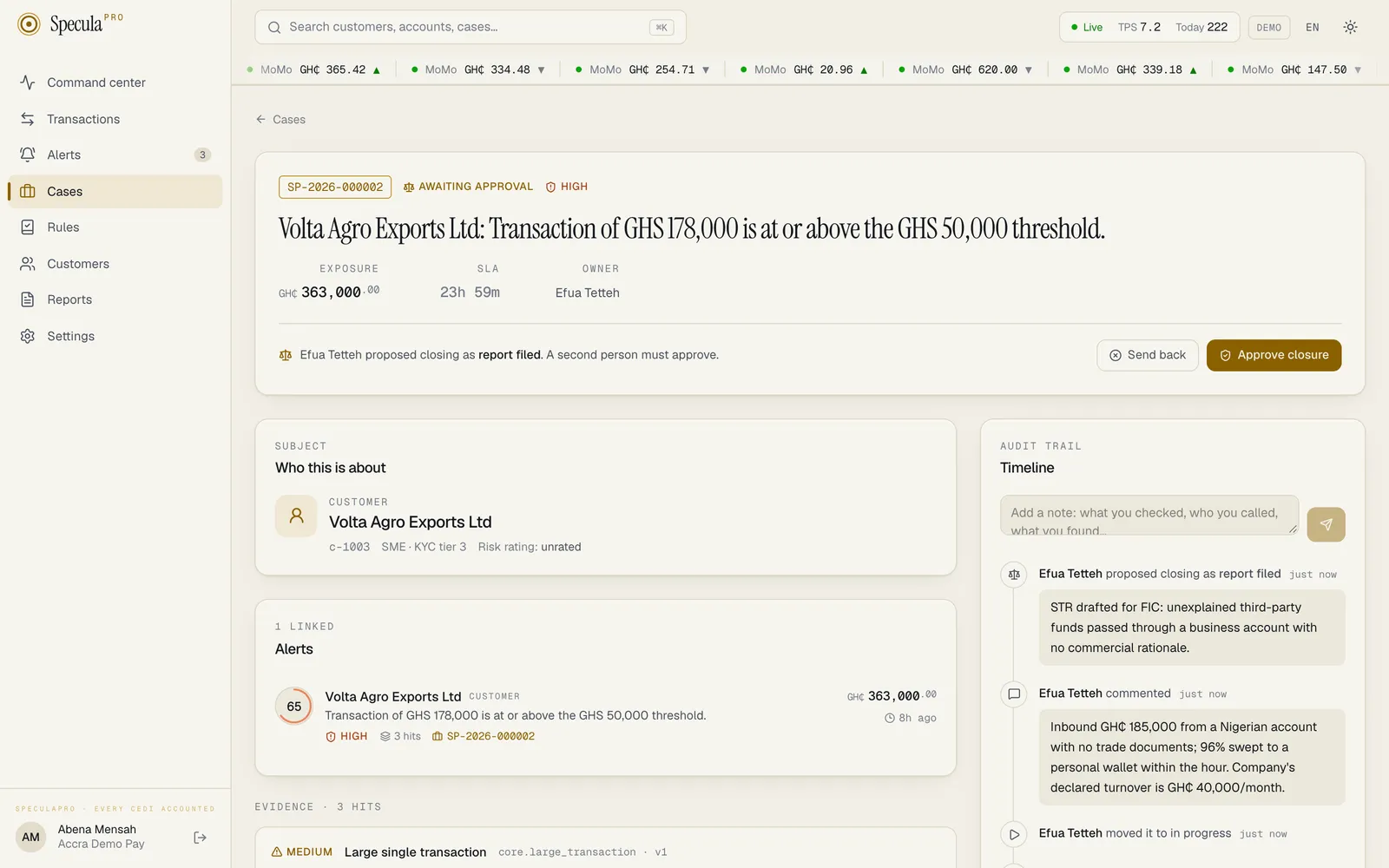
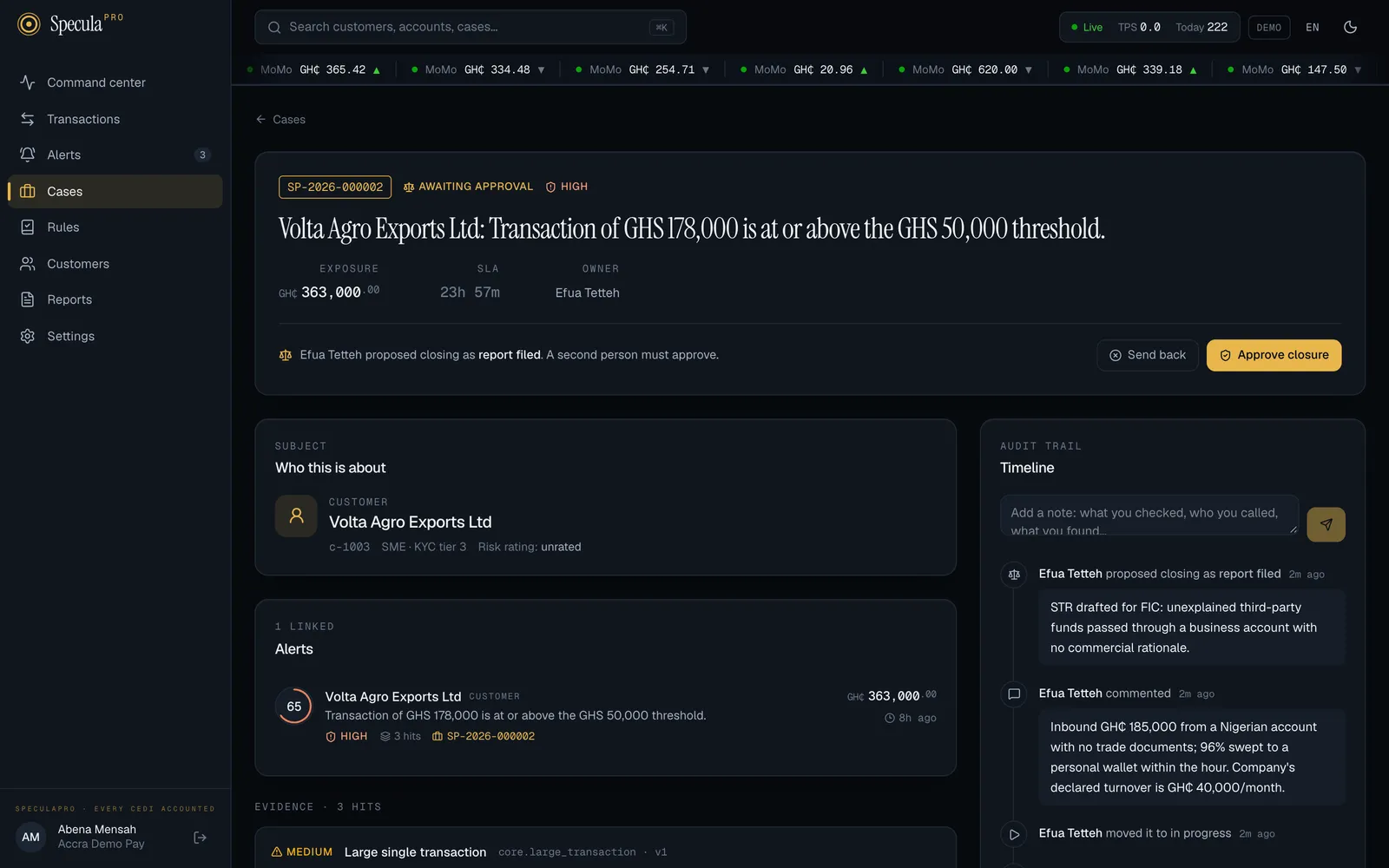
How to reopen a closed case
Section titled “How to reopen a closed case”Reopen a case when new information arrives after it was closed: a request from the regulator or law enforcement, new activity, or an error found during quality review. You need cases.approve.
- Open the case from the Closed tab.
- Select Reopen. Under Why reopen, give the reason (for example New information, a regulator request…), at least 3 characters.
- Select Reopen.
The case moves to In progress, assigned to you, with a new deadline from its priority. The outcome is cleared and the timeline shows reopened the case with your reason. The case’s earlier alerts stay closed; new activity about the subject now joins the case again.
Evidence files and closed cases
Section titled “Evidence files and closed cases”A closed case takes no new evidence files, and none can be removed from it. Add what you collected before you close; a case waiting for a closure approval still takes files. Files on a closed case can still be downloaded, and each download is recorded. To add a file afterwards, reopen the case.
What is recorded
Section titled “What is recorded”Every closure, proposal, approval, rejection and reopening is on the case timeline and in the audit log, with who did it, when and the rationale. None of it can be edited or deleted.