
Writing a custom rule
Ce contenu n’est pas encore disponible dans votre langue.
In short
Section titled “In short”When no pack rule fits a pattern you care about, a rule author can write one. A custom rule works
exactly like a pack rule: CEL logic, declared features, tunable parameters, versions, four-eyes
approval. Its key always starts with custom., so everyone can tell it apart from vendor rules.
A custom rule is one of two kinds, chosen when you create it and fixed from then on:
| Mode | Runs | Can |
|---|---|---|
| Real-time | Inside a real-time decision, before your system lets the payment through | block, review (hold), step_up, allow, tag or score_only |
| Post-event | Seconds after each transaction arrives, through the ingest API or a decision | alert, tag or score_only |
You can’t write a scheduled rule. Scheduled rules run vetted queries built into SpeculaPro, which you tune but can’t change; see Scheduled rules.
There are two ways to write one:
- The visual rule builder, on the Rules screen. You pick fields and comparisons from lists, and the builder writes the CEL for you. Most rule authors start here.
- The Rules API, for scripted set-ups and rules too intricate for the builder.
Either way, the rule is saved as a draft and does nothing until someone else approves it.
Before you start
Section titled “Before you start”- To open the builder and test rules you need
rules.view, which every built-in role has. To save a rule you need the Rule author role (rules.author). Someone else withrules.approveapproves, deploys and switches it on. - Keep the CEL reference and the features reference to hand. Every field in the builder’s lists is described there.
How to build a rule on screen
Section titled “How to build a rule on screen”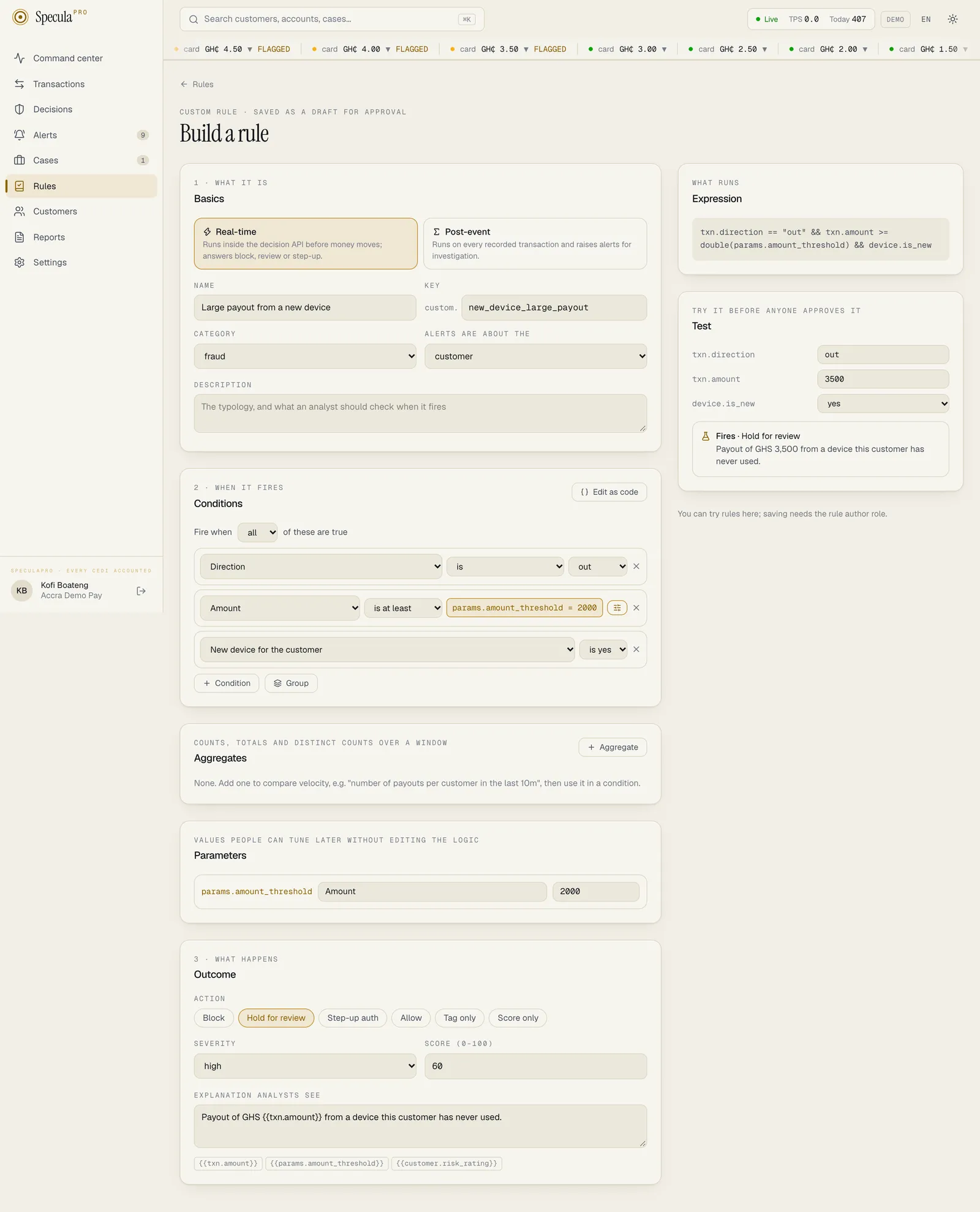
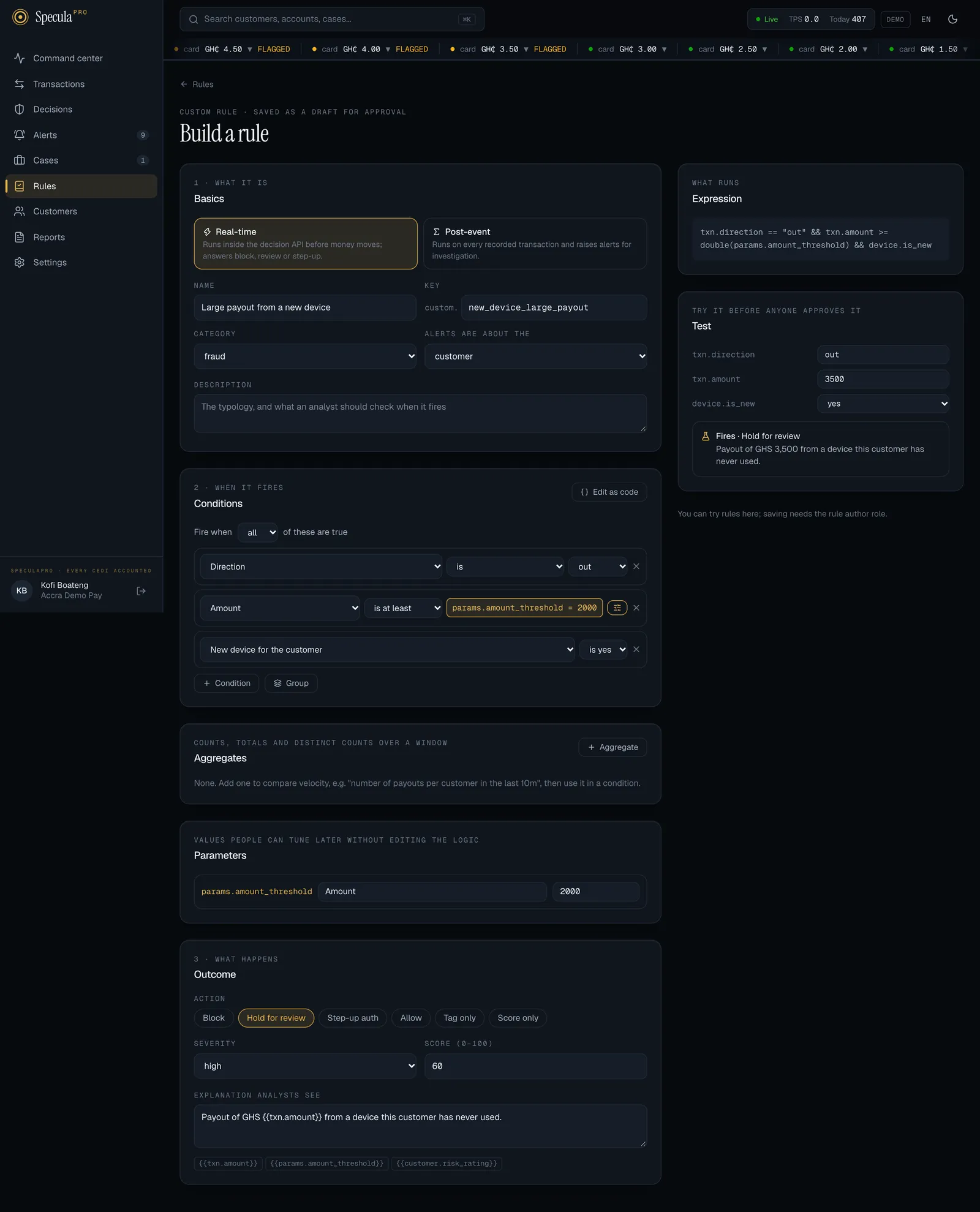
-
Select Rules in the left-hand menu, then New rule next to the heading. (The button only shows for rule authors.)
-
Under 1 · What it is, fill in the Basics:
Field What to enter Real-time or Post-event When the rule runs. You can’t change this later Name What the rule looks for, in plain words. At least 3 characters Key A short code after custom., such asnight_payout_new_wallet: 3 to 64 lowercase letters, digits,_,.or-Category Groups the rule on the Rules screen: fraud, velocity, thresholds, structuring, network, geography, designations, mobile money, lists or monitoring Alerts are about the The customer, the account or the counterparty Description The typology, and what an analyst should check when it fires -
Under 2 · When it fires, build the Conditions. Choose whether the rule fires when all or any of them are true, then select Condition for each one. Each condition is a field, a comparison and, usually, a value:
- Fields come in groups: Transaction, Customer, Account, Counterparty and Device, plus Your aggregates once you’ve added one (step 4).
- Comparisons depend on the field. Numbers: is more than, is at least, is less than, is at most, equals, doesn’t equal. Text: is, is not, is one of, is none of, is on workspace list, is not on workspace list, is empty, is set. Yes/no fields: is yes, is no. Lists such as designations: includes, doesn’t include, is empty.
- Hours since each account event asks which event (for example sim swap) and offers happened within (hours) or has ever happened.
- Most recent profile or credential change and Hours since that change (under
Customer) cover any change at once: a phone, email, password, PIN or address change, a reset,
a new device, a limit change or a SIM swap. The hours read
-1when there has been none, so pair is less than with is at least 0. - Is on workspace list lets you pick one of your lists.
To mix “all” and “any”, select Group: a group has its own all or any, and can hold another group, two levels deep. Select × to remove a condition or a group.
-
If the rule needs a count or total over time, add it under Aggregates with Aggregate. For each one, set its name (the condition reads it as
features.<name>), what to compute (count, sum, max, avg, distinct counterparties, distinct customers), per what (customer, account, counterparty, device), which flow (all money, money in, money out, money internal or account events), an optional type or channel (or, for account events, which event), and the window, such as10mor168h. The line beside the name reads it back in words, for example Number of money out per customer, last 1h. See the features reference, and use the new aggregate in a condition. Two options of an aggregate, counting only round amounts (round_minor) or only transactions at the same hour of the day (same_hour), aren’t in the builder’s lists: write the rule as code or through the API to use them. -
Under 3 · What happens, set the Outcome: the Action (the choices depend on the mode), the Severity, a Score from 0 to 100, and the Explanation analysts see. Select a chip such as
{{txn.amount}}to add a placeholder. To work a value out, for example which of several events happened, type a computed placeholder,{{= … }}, with a CEL expression inside; see Explanations. -
Check the Expression panel on the right. It shows the CEL the builder wrote, which is exactly what will run. Any problem, such as an aggregate used but not declared, is listed in red under it.
-
Test the rule. The Test panel lists every field your conditions read and every aggregate. Type the values of an example transaction (leave a field empty for its default) and read the verdict:
Verdict Meaning Fires · the action, then the explanation The rule would fire on this example, and this is the sentence the analyst would read Doesn’t fire for this sample. It wouldn’t Couldn’t evaluate this sample: … The rule fails on these values, for example a value of the wrong type Fix the problems above to test. The rule isn’t valid yet The test re-runs by itself a moment after every change. It saves nothing and touches no real data. Try one example that should fire and one that shouldn’t.
-
Under Save as a draft, write a Change note (optional for a new rule, but write one: it starts the rule’s history) and select Save draft. The button stays greyed out until the test panel finds the rule valid, the name has 3 characters and the key is valid.
-
On the rule’s page, version 1 is a Draft. Select Submit, and ask a rule approver to approve it, select Make live and switch it on.
Making a value tunable
Section titled “Making a value tunable”A number in a condition can become a tunable parameter, so it can later be changed with Tune on the rule’s page without touching the logic, the way pack rules’ thresholds are. A tuned value is a new version and needs a second person’s approval, like any other change. See Tuning a rule.
- Beside the number, select the sliders button (Make this value a tunable parameter). The
button turns gold, and the value is replaced by a gold label such as
params.amount_threshold = 5000. The name comes from the field, for exampleparams.amount_thresholdfor a condition on the amount, orparams.sim_swap_hoursfor within hours of a SIM swap. A number is added if the name is already taken. - A Parameters panel appears below the aggregates. Give the parameter a clear label (it is what people see when tuning) and check its value.
- To go back to a fixed number, select the gold button again.
Writing the CEL yourself
Section titled “Writing the CEL yourself”Select Edit as code above the conditions to see the expression as text and change it. The aggregates, outcome and test panels still work. Select Use the builder to go back, which discards what you typed.
A rule saved as code no longer opens in the builder’s lists: its next edit starts as code too.
How to change a rule in the builder
Section titled “How to change a rule in the builder”- Open the rule from the Rules screen and select Edit in How it works (rule authors only).
- The latest version opens in the builder if it was made there, or as code if it wasn’t (pack rules, and rules written through the API). The mode and basics can’t change. A scheduled rule has no Edit button: the builder says it has no logic to edit there, and points you to Tune and Change schedule on the rule’s page.
- Make the change, test it, write a Change note (required, at least 3 characters) and select Save draft. It becomes a new version that needs a second person’s approval, like any tuning.
On an existing rule, Edit as code keeps the parameters of the latest version: you can use them, but not add new ones. To change only a number, Tune is quicker.
How to write a rule with the API
Section titled “How to write a rule with the API”The API takes the same definition the builder produces. You sign in with curl as described in
Rules API: before you start.
Worked example: heavy cash-out by an individual
Section titled “Worked example: heavy cash-out by an individual”Acme Pay wants to know when an individual (not a business) takes out more than GHS 20,000 in cash within a day, across all their wallets. No pack rule does exactly that.
In words: on a cash-out by an individual customer, if their cash-outs in the last 24 hours add up to the threshold or more, raise an alert about the customer.
-
Validate it
Section titled “Validate it”Check the definition before saving anything.
POST /api/v1/rules/validatetakes just the definition:Terminal window curl -s -b ~/.sp-cookies -H 'Content-Type: application/json' -d '{"expression": "txn.type == '\''cash_out'\'' && customer.type == '\''individual'\'' && features.cash_out_24h >= params.threshold","features": {"cash_out_24h": { "entity": "customer", "agg": "sum", "direction": "out", "type": "cash_out", "window": "24h" }},"params": { "threshold": 20000 },"severity": "medium","score": 45,"action": "alert","explanation": "Individual customer cashed out {{txn.base_currency}} {{features.cash_out_24h}} in 24h (threshold {{txn.base_currency}} {{params.threshold}})."}' "$SP/api/v1/rules/validate"{ "valid": true, "problems": [] }If something is wrong,
validisfalseandproblemslists every issue, for examplefeatures.cash_out_24 is used but not declared. -
Create the rule
Section titled “Create the rule”Wrap the definition with the rule’s identity:
rule.json {"key": "individual_cash_out_24h","name": "Heavy cash-out by an individual in 24 hours","description": "Individuals rarely need large amounts of cash in a day. Large cash-outs can be the last step of laundering through wallets.","category": "thresholds","typology": "Cash extraction","entity_scope": "customer","definition": {"expression": "txn.type == 'cash_out' && customer.type == 'individual' && features.cash_out_24h >= params.threshold","features": {"cash_out_24h": { "entity": "customer", "agg": "sum", "direction": "out", "type": "cash_out", "window": "24h" }},"params": { "threshold": 20000 },"severity": "medium","score": 45,"action": "alert","explanation": "Individual customer cashed out {{txn.base_currency}} {{features.cash_out_24h}} in 24h (threshold {{txn.base_currency}} {{params.threshold}})."},"change_note": "New rule requested by MLRO after Q3 review of cash extraction cases (CMP-131)."}Terminal window curl -s -b ~/.sp-cookies -H 'Content-Type: application/json' -d @rule.json "$SP/api/v1/rules"{ "id": "0192f2a8-3c41-7f0e-b6d2-81a9e4c07d55" }The rule is saved as
custom.individual_cash_out_24h, with version 1 as a draft. It doesn’t run yet.Field Rules key3 to 64 characters: lowercase letters, digits, _,.,-.custom.is added for youname3 to 120 characters, shown to analysts category2 to 40 characters. Reuse the pack categories ( thresholds,structuring,velocity,network,geography,designations,mobile_money,fraud,merchant,trade) so reports group sensiblyentity_scopeWho the alert is about: customer,account,counterpartyoragent(the agent on the other side of a cash-in or cash-out, that is the transaction’s counterparty). The rule builder offers the first three;agentis set through the APImodepost_event(the default) orrealtime. It can’t be changed later.scheduledisn’t acceptedchange_noteOptional here, but write one: it’s the first entry in the rule’s history A key that’s already taken returns
409a rule with key custom.… already exists. -
Submit, approve and deploy
Section titled “Submit, approve and deploy”The new rule appears on the Rules screen with No approved version and a greyed-out switch. Open it: version 1 is listed as Draft.
- The author selects Submit on version 1 (or calls
POST /api/v1/rule-versions/{id}/submit; the version id is inGET /api/v1/rules/{id}). - A different person approves it and selects Make live.
- They switch the rule on.
Within about 15 seconds it runs on new transactions.
- The author selects Submit on version 1 (or calls
Trying a new rule without creating alerts
Section titled “Trying a new rule without creating alerts”A shadow test only runs for rules that are running, and a rule can only be switched on once a version is live. A brand-new rule has neither, so to trial it quietly, give it a silent version 1 first:
-
Create the rule with the same body as above, except
"expression": "false".features,paramsandexplanationcan stay as they are. A rule that is always false never fires. In the builder, select Edit as code, typefalse, and save. -
Submit and approve version 1, select Make live, and switch the rule on. Nothing happens, by design.
-
Draft version 2 with the real expression:
Terminal window curl -s -b ~/.sp-cookies -H 'Content-Type: application/json' -d '{"expression": "txn.type == '\''cash_out'\'' && customer.type == '\''individual'\'' && features.cash_out_24h >= params.threshold","change_note": "Real logic, for a shadow trial."}' "$SP/api/v1/rules/0192f2a8-3c41-7f0e-b6d2-81a9e4c07d55/versions" -
Submit and approve version 2, then select Shadow test on it.
-
After a week or more, compare its Shadow hits · 30d with what you expected, then select Make live on version 2, or Stop test and try again.
A shadow version of a real-time rule is evaluated in every decision and its hits are recorded, but it never changes the answer your system gets.
Tips for good rules
Section titled “Tips for good rules”- Say it in words first. If you can’t write the rule as one plain sentence, it will be hard for the approver to judge and for analysts to act on.
- Put every number in
params.features.cash_out_24h >= params.threshold, not>= 20000. Then tuning never requires changing the logic. - Filter early. Start with cheap checks such as
txn.type == 'cash_out', so most transactions are ruled out before any feature comparison. - Real-time rules must be fast and certain. A real-time
blockstops a customer’s payment. Preferstep_uporreviewunless the signal is very strong, and run the rule in shadow first. See Choosing an action. - Write the explanation for the analyst. Say what happened, with numbers. See Explanations.
- Pick the right subject.
entity_scopedecides whose alert a hit joins. A pattern about a person’s total behaviour belongs tocustomer; one about a single wallet,account; one about a recipient many people pay,counterparty. - Learn from the packs. The shipped rules in Pack contents are working examples of every technique on this page.