
Flagging a customer
Ce contenu n’est pas encore disponible dans votre langue.
In short
Section titled “In short”A flag (in SpeculaPro’s terms, a risk designation) tells everyone, and every rule, that a customer needs extra care and why. You add one from the customer’s profile with Flag, giving the reason and the source you relied on. Rules pick it up within about 15 seconds.
Flags are never deleted. When one no longer applies you remove it with a reason, and it stays in the customer’s history, greyed out, so you can always show what was in force when a transaction happened. A flag that reaches its end date stays too, marked ended.
You need designations.manage (by default Senior analyst and MLRO). Without it you can see flags but the Flag and Remove buttons aren’t shown.
The kinds of flag
Section titled “The kinds of flag”| On screen | Stored as | Use it when |
|---|---|---|
| Politically exposed person | pep |
The customer holds or held a prominent public function: a minister, a senior judge, a senior military officer, a director of a state-owned company and similar |
| PEP relative or close associate | pep_rca |
The customer is a family member or known close associate of a PEP |
| High risk | high_risk |
Your own risk assessment puts the customer in a higher-risk category, for reasons other than the above |
| Adverse media | adverse_media |
There is credible negative news about the customer, such as reports of fraud or corruption |
| Watchlist | watchlist |
There is internal or law-enforcement interest, for example a production order |
| Sanctioned | sanctioned |
You have confirmed a sanctions match. Freeze and report according to your procedures |
| Your own flag | custom:<key> |
A category your institution defines, which your own rules can test, for example custom:key_client or custom:dormant_reactivated |
For PEPs and their relatives or associates you also choose a PEP class:
- Domestic: a prominent public function in your own country;
- Foreign: a prominent public function in another country;
- International organisation: a senior role in an international organisation, such as a director of a UN agency.
Agree your own flag keys in your AML policy before anyone uses them, and keep a list of what each one means. A flag nobody’s rule tests changes nothing except the badge.
How to flag a customer
Section titled “How to flag a customer”- Open the customer’s profile.
- Select Flag. A panel titled Flag this customer opens.
- Choose the kind of flag.
- For Your own flag, enter the Flag key, for example
key_client. Capitals are turned into lowercase, and anything other than letters, digits and_becomes_as you type. It is stored ascustom:key_client. - Optionally, under Ends (optional), pick the last day the flag applies, for example 12 months after a PEP leaves office. The flag stops applying at the end of that day (23:59:59) in your workspace’s time zone, and the profile shows · until that date next to the flag. Leave it empty for a flag that applies until someone removes it.
- For Politically exposed person or PEP relative or close associate, choose the PEP class.
- Under Reason and source, write why, and what you relied on. Be specific enough that an examiner could check it, for example: Deputy Regional Minister since 2021, per Gazette No. 112. At least 3 characters are required.
- Optionally, record the evidence:
- Under Evidence links (optional), paste the web address of each public source you relied on, such as the gazette notice, an official register or a news article, one per line. Each must start with
https://orhttp://. Up to 10 links; with more, Add flag stays greyed out. - Under Your file reference, enter the reference of the document in your own records, for example your enhanced due diligence file
EDD-2026-014. Up to 200 characters.
- Under Evidence links (optional), paste the web address of each public source you relied on, such as the gazette notice, an official register or a news article, one per line. Each must start with
- Select Add flag.
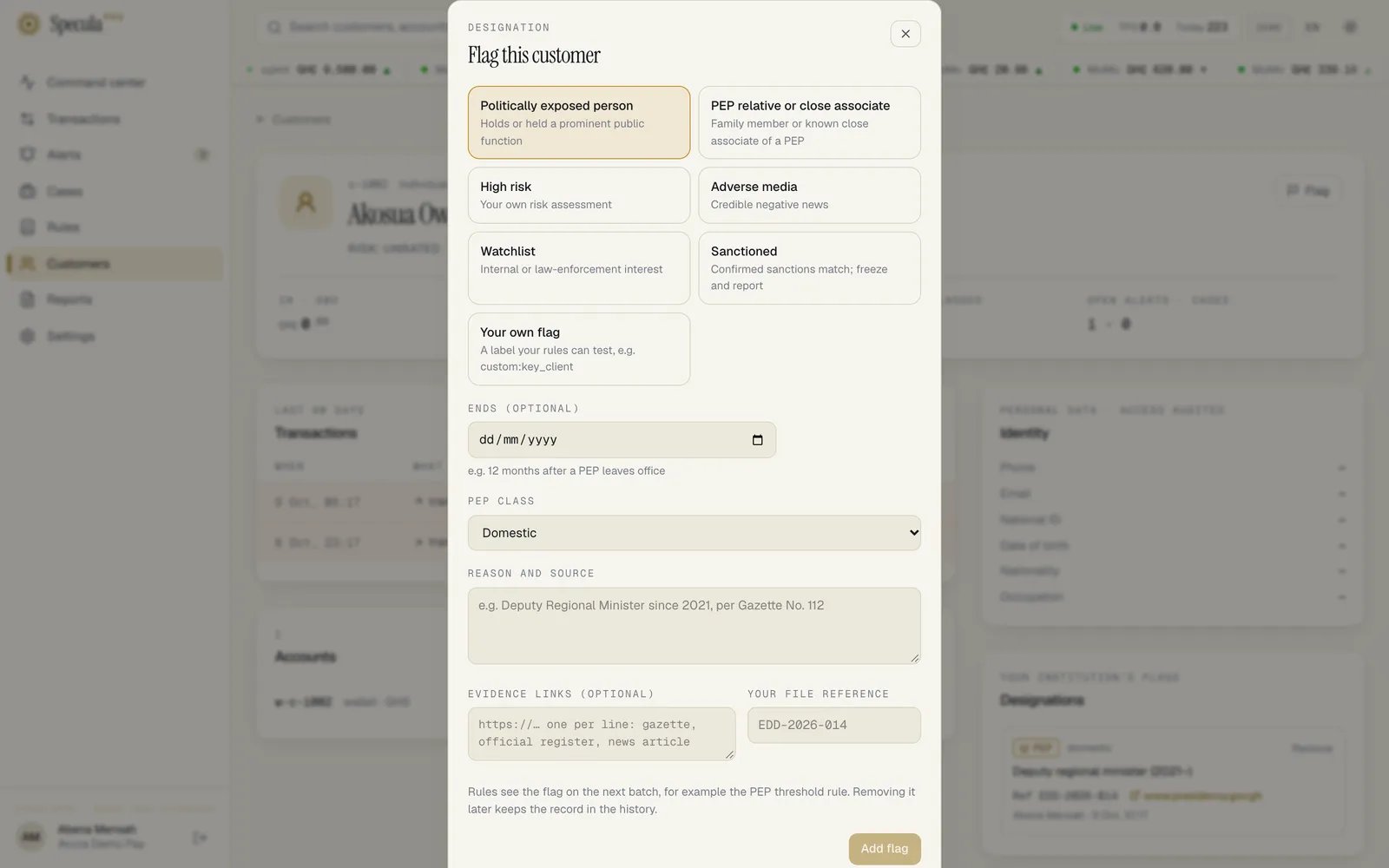
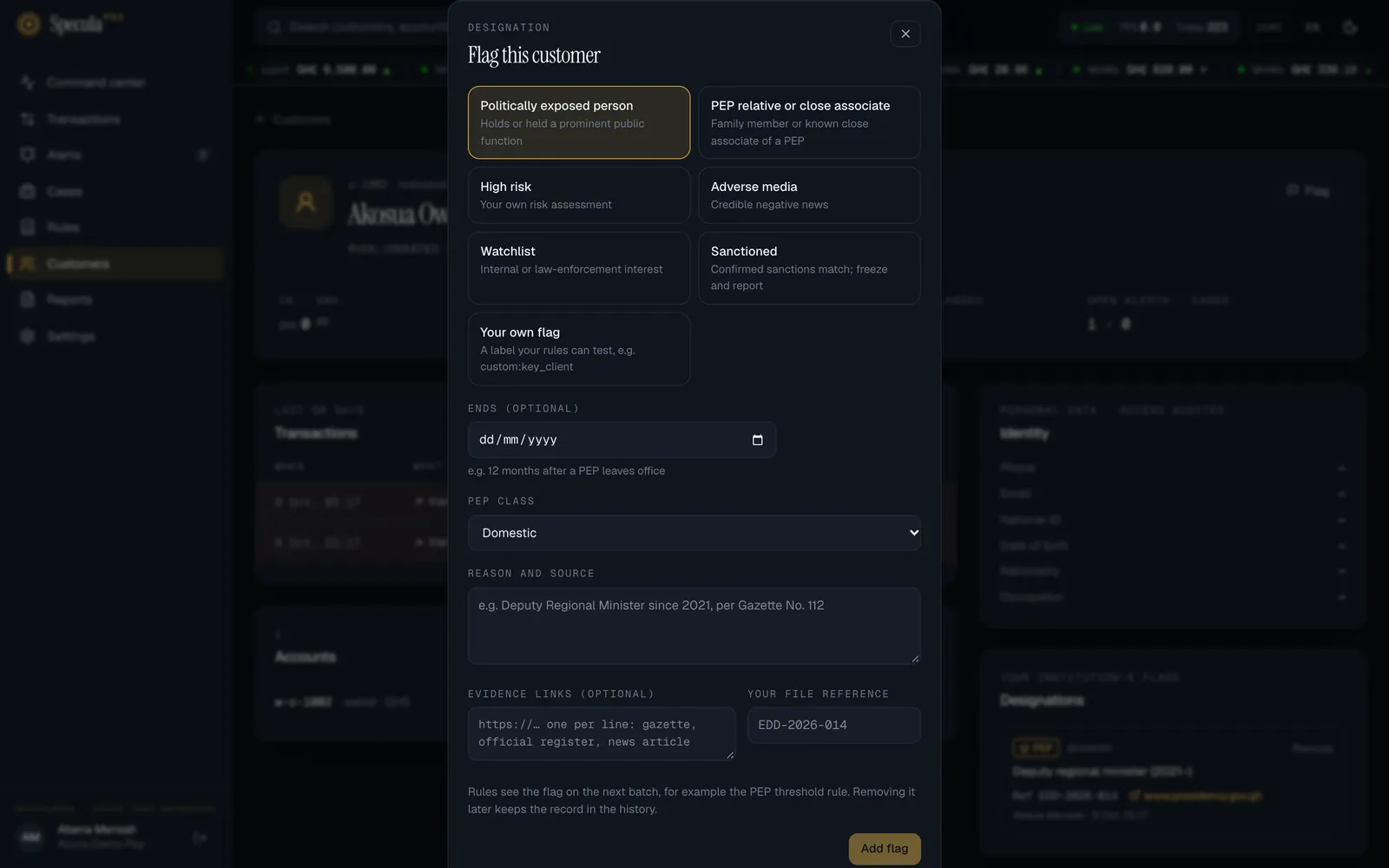
The flag appears straight away as a badge in the profile header and at the top of the Designations panel, with your name and the time.
What happens next:
- Rules see the flag on the next batch of transactions they evaluate, within about 15 seconds. If you set an end date, they stop seeing it after that day, and the customer drops off the Flagged tab, without anyone removing it.
- The customer appears under the Flagged tab in Customers.
- Alerts and cases about the customer show the flag as a badge next to their name.
- A
designation.createentry is written to the audit log.
Why record evidence
Section titled “Why record evidence”Months later, an examiner or your internal auditor will ask how did you know this customer was a PEP? A reason such as per Gazette No. 112 answers it only if someone can still find the gazette. Evidence links and a file reference let anyone with access to the profile go straight to the source. They are shown under the flag’s reason on the profile: the reference as Ref EDD-2026-014, and each link labelled with its website, opening in a new tab.
Evidence can only be recorded when the flag is added. To correct it, remove the flag with a reason and add it again.
If saving fails
Section titled “If saving fails”| What you see | What it means | What to do |
|---|---|---|
conflict: already designated followed by the kind of flag and for part of that period, for example pep |
The same flag is already in place for this customer (see below) | Remove the existing one first, if the reason has changed |
| invalid: evidence source “…” must be an http(s) link of up to 500 characters | A line under Evidence links isn’t a web address, for example it is a file path or has words around it | Leave only the addresses, one per line, starting with https:// |
| invalid: valid_to must be after the designation starts | The end date has already passed | Pick today or a later date, or leave it empty |
If you get “already designated”
Section titled “If you get “already designated””A customer can’t carry two flags of the same kind at the same time. If the same flag is already in place, adding it again is refused with a message saying the customer is already designated for part of that period. That protects the history from duplicates, and a double-click on Add flag can’t create two. If the reason has changed, Remove the existing flag with an explanation, then add a new one.
How to remove a flag
Section titled “How to remove a flag”- Open the customer’s profile.
- In the Designations panel, find the flag and select Remove. A panel titled Remove flag opens. Remove is shown on active flags and on scheduled ones, which haven’t started yet; removing a scheduled flag cancels it.
- Under Why remove it, give the reason, for example: Left office in 2019; 12-month cooling-off period has passed. At least 3 characters are required.
- Select Remove flag.
The flag stays in the panel, greyed out and marked removed, with who removed it and why. Rules stop seeing it within about 15 seconds. A designation.revoke entry is written to the audit log.
How flags change what rules do
Section titled “How flags change what rules do”Rules can read a customer’s flags. The starter rule library uses them like this:
| Rule | What the flag does |
|---|---|
| F1 Any transaction by a sanctioned entity | Sanctioned: every transaction involving the customer alerts, at critical severity, whatever the amount |
| F2 PEP transaction above threshold | PEP or PEP relative or close associate: a transaction of GHS 10,000 or more (by default) alerts |
| F3 High-risk customer | High risk: a transaction of GHS 10,000 or more (by default) alerts. F3 also applies to customers whose risk rating is high or unacceptable, flagged or not |
Custom rules can test any flag, for example 'adverse_media' in customer.designations. See the CEL reference.
A flag is separate from the customer’s risk rating, which comes from your own systems. You can have a customer rated medium who is flagged PEP; each tells the analyst something different.
Related
Section titled “Related”- Risk designations: the concept in depth
- PEPs and high-risk customers: the investigation playbook
- Designations API