
Customer profile
Ce contenu n’est pas encore disponible dans votre langue.
In short
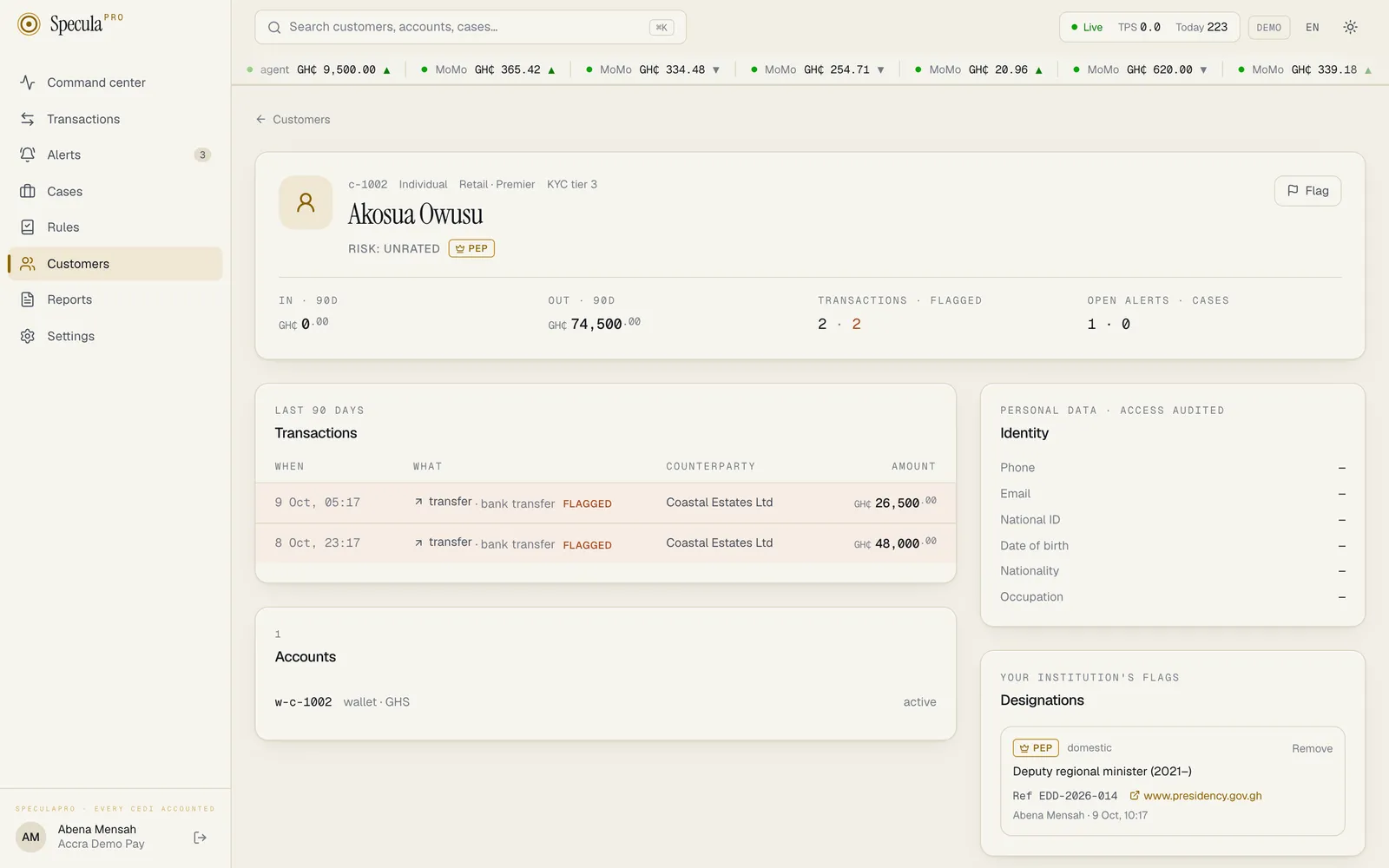
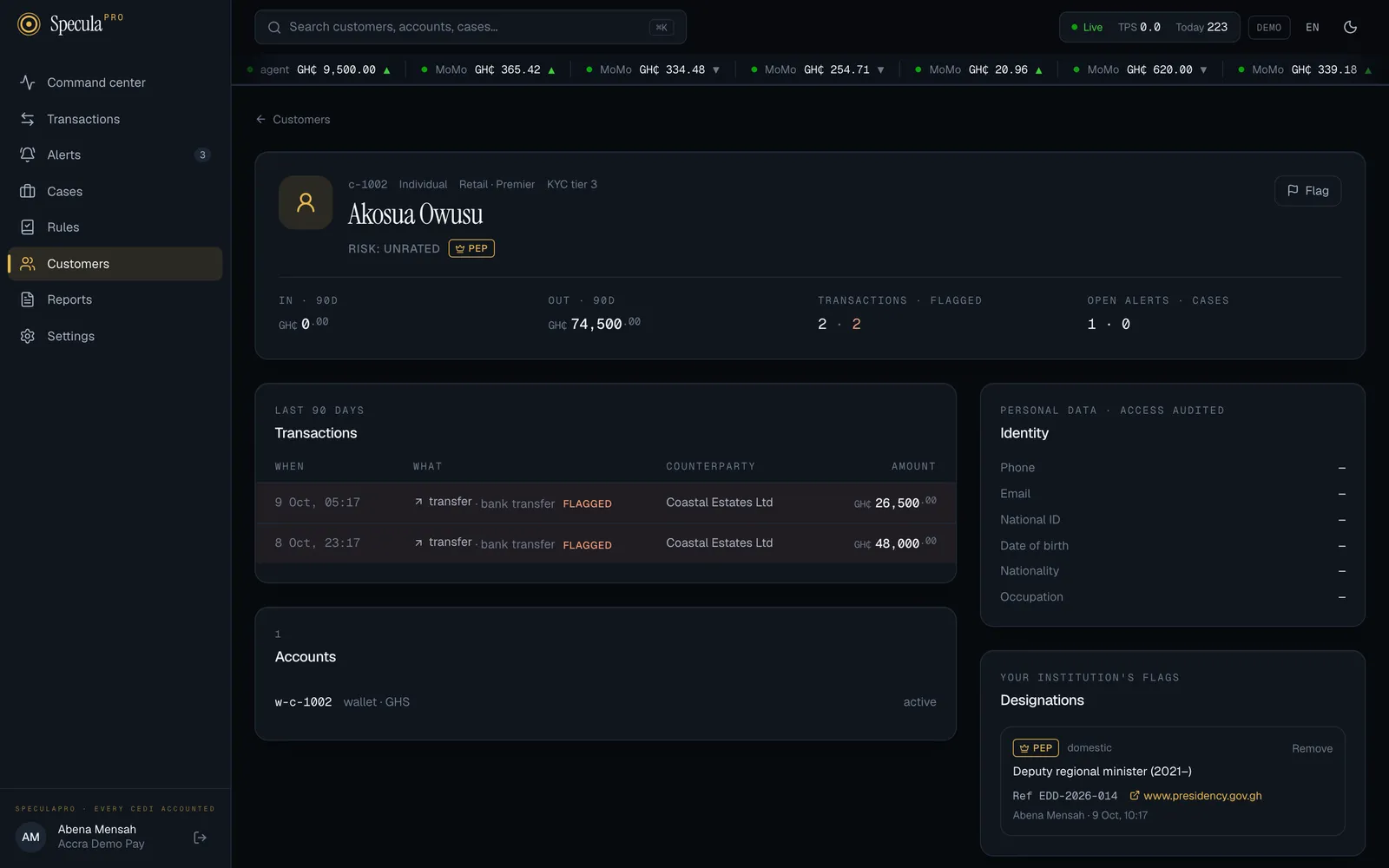
Section titled “In short”The customer profile puts everything SpeculaPro knows about one customer on a single page, so you can judge an alert against the customer’s normal behaviour:
- a header with who they are, their risk rating, their flags and 90 days of activity in numbers;
- their transactions from the last 90 days, with the ones that triggered a rule highlighted;
- their devices and account activity, when your systems send them;
- their accounts;
- their identity details, shown only to people allowed to see them, and every viewing recorded;
- their designations (flags) and suppressions, with full history.
Open it from Customers, or by selecting the customer’s name on an alert or a case.
The header
Section titled “The header”| Item | Example | Meaning |
|---|---|---|
| ID, type, segment, KYC | c-1002 · individual · Retail · Premier · KYC tier 3 |
The customer’s ID in your system, whether they are an individual or a business, and their segment and KYC tier as your systems sent them |
| Name | Akosua Owusu | |
| Risk | RISK: HIGH | Your institution’s risk rating: unacceptable, high, medium, low or unrated |
| Flags | PEP | One badge for each active designation |
| In · 90d | GH₵ 74,500.00 | Total money received in the last 90 days |
| Out · 90d | GH₵ 120,000.00 | Total money sent in the last 90 days |
| Transactions · flagged | 42 · 2 | How many transactions in the last 90 days, and how many of them triggered a live rule (shown in amber when above zero) |
| Open alerts · cases | 1 · 0 | Open alerts and active cases about this customer |
Amounts are in your workspace’s base currency. The in and out totals count completed transactions only; pending, failed and reversed ones are left out.
On the right of the header are the actions your role allows: Flag (see Flagging a customer) and Suppress alerts (see Suppressing alerts).
Transactions
Section titled “Transactions”The Transactions panel lists the customer’s 50 most recent transactions from the last 90 days, newest first:
| Column | Meaning |
|---|---|
| When | Date and time, in your workspace’s time zone |
| What | Received (green arrow) or sent, the transaction type and the channel, for example transfer · bank transfer. A status such as pending or reversed is added when the transaction isn’t completed |
| Counterparty | Who was on the other side, when your systems sent it |
| Amount | In the transaction’s own currency |
A row with an amber background and the word FLAGGED triggered at least one live rule. Hits from rules in a shadow test don’t count. To see which rule fired and why, open the alert from Alerts.
Devices and account activity
Section titled “Devices and account activity”When your systems send device fingerprints or account events, a Digital footprint panel appears below the transactions. It isn’t shown for a customer with neither.
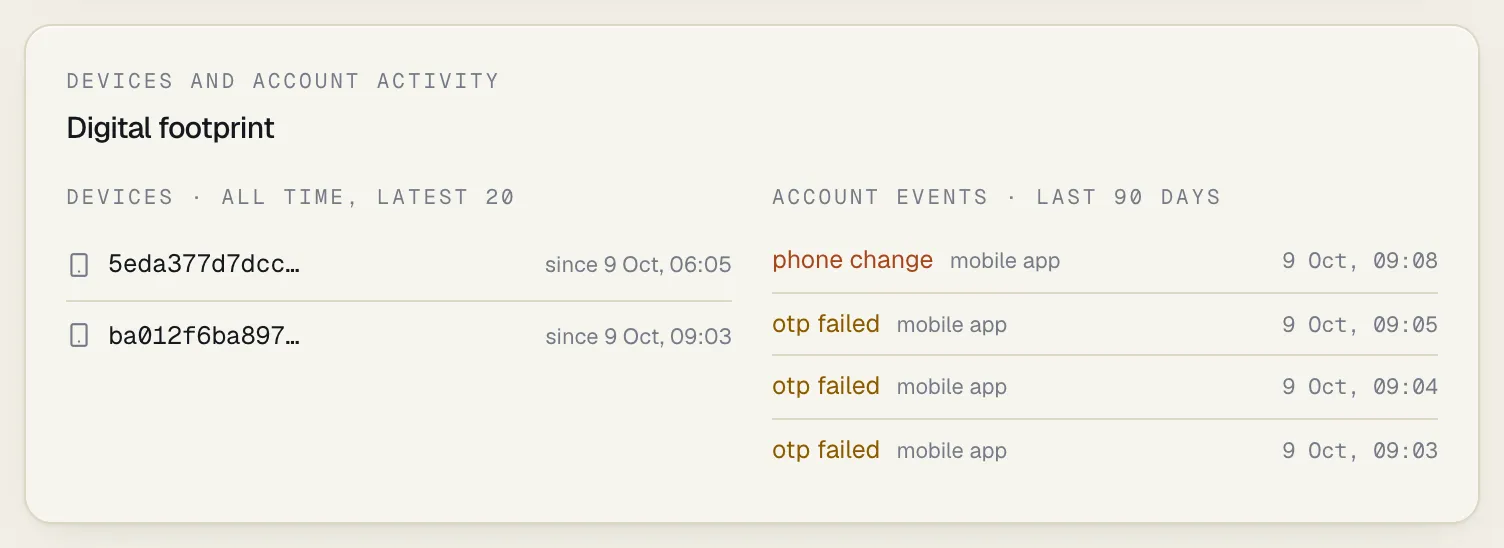
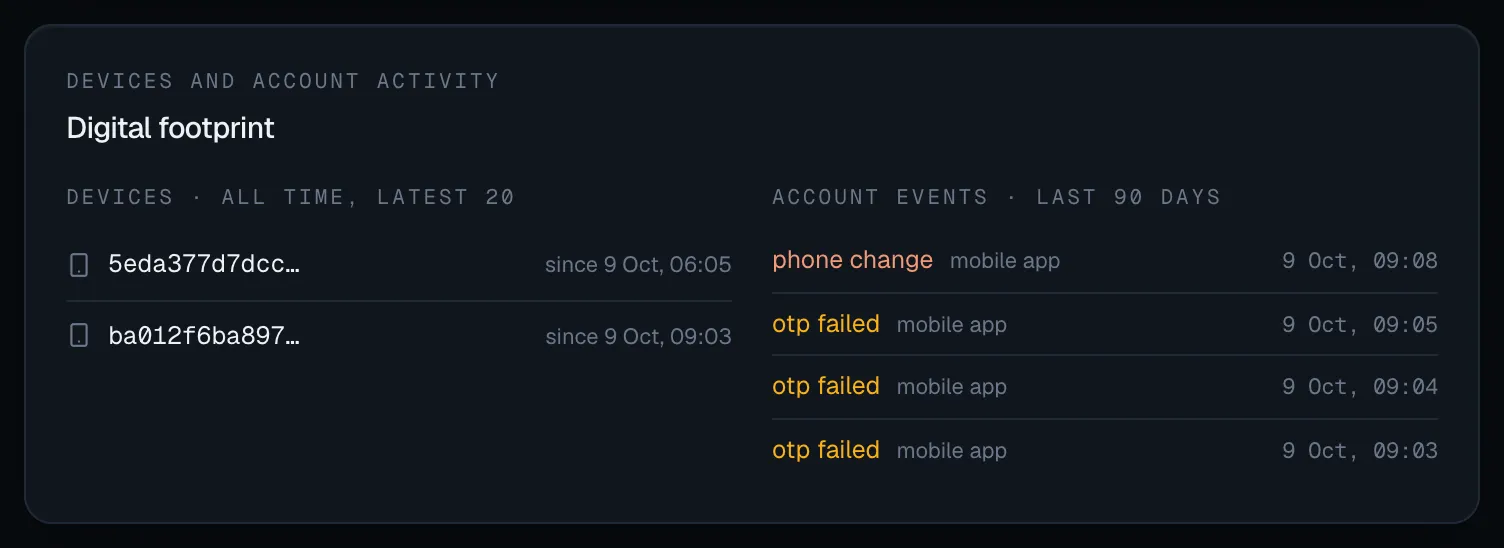
Devices · all time, latest 20 lists the phones and browsers the customer has used, however long ago, most recently used first, up to 20:
- Each device is shown by the first 12 characters of a keyed hash, such as
5eda377d7dcc…, never by the fingerprint your systems sent. The same device shows the same code on every customer’s page, so you can compare. - since is when the customer first used it.
- An orange shared · N customers badge means N customers have used this device in total, this one included. One device used by many customers can mean an account farm or a mule herder; see D5.
Account events · last 90 days lists the latest 30 events from the last 90 days, newest first, with the channel and time. For a customer with devices but no events in that time, it says None in the last 90 days.
| Colour | Events |
|---|---|
| Orange | The ones that usually come before a takeover: SIM swap, phone change, email change, password reset, device added, PIN change |
| Yellow | Failed attempts: failed logins, OTPs and PINs, and any event your systems marked as unsuccessful |
| Plain | Everything else, such as logins |
Accounts
Section titled “Accounts”The Accounts panel lists every account the customer holds with you: the account number or wallet number in masked form (for example +233•••••••67), the account type, the provider, the currency and the status. Full account numbers are never shown.
Identity
Section titled “Identity”The Identity panel shows contact and identity details:
| Item | Meaning |
|---|---|
| Phone, Email | As your systems sent them |
| ID number | Labelled with the type of document, for example Ghana Card, Passport, Voter ID, Driver’s licence, TIN or Company registration |
| Date of birth | |
| Nationality, Occupation | |
| Declared monthly volume | The customer’s expected monthly volume, when you sent one |
Phone, email and ID numbers are stored encrypted. They are decrypted and shown only to people with the entities.view_pii permission (by default Senior analyst and MLRO). For everyone else, the panel says:
Contact details and ID numbers are visible to senior analysts and the MLRO. Ask one of them if you need them for this investigation.
Designations
Section titled “Designations”The Designations panel, Your institution’s flags, lists every flag the customer has ever had, newest first. Each entry shows:
- the flag, and for PEPs the class (domestic, foreign or international organisation);
- the reason and source given when it was added;
- the evidence, when some was recorded: your file reference, shown as Ref and the reference (for example Ref EDD-2026-014), and a link for each source, labelled with its website (for example gazette.gov.gh). Links open in a new tab;
- who added it and when;
- for a removed flag: who removed it and why.
A flag that isn’t in force has a word next to it:
| Word | Means | Looks |
|---|---|---|
| (none) | Active: rules see it now | Normal |
| scheduled | It starts later. Its start shows after its details, as · from and the date. Rules don’t see it yet, and the customer isn’t on the Flagged tab until it starts | Normal, the word in gold |
| ended | Its end date has passed. Rules no longer see it, and the customer leaves the Flagged tab | Greyed out |
| removed | Someone removed it before it ended, with a reason | Greyed out |
A flag with an end date shows it after its details, as · until and the date. Ended and removed flags stay on the page, so you can see what was in force at any time.
People with designations.manage see Remove next to each active or scheduled flag. Removing a scheduled flag cancels it before it starts. See Flagging a customer.
Suppressions
Section titled “Suppressions”The Suppressions panel, Approved exceptions, lists every suppression for this customer. Each entry shows:
| Item | Meaning |
|---|---|
| State | PENDING (waiting for approval), ACTIVE, EXPIRED, REVOKED (ended early), REJECTED or WITHDRAWN |
| Rule | The rule it covers, or All rules, followed by · with and the counterparty’s name when it is limited to one counterparty |
| Until | When it expires |
| Reason | The business explanation given |
| Why it ended | For a rejected, withdrawn or ended suppression with a reason: Rejected by, Withdrawn by or Ended by, the person’s name and their reason |
| Who | Who proposed it and who approved it, or awaiting approval while pending |
| End early / Withdraw | End early on an active suppression, shown to its proposer and to people with suppressions.approve; Withdraw on a pending one, shown only to its proposer. Each opens a panel where you can give a reason |
See Suppressing alerts.
When you can’t open a profile
Section titled “When you can’t open a profile”- The name on an alert isn’t a link. Names link to the profile only for customers, and only if your role has
entities.view. Roles without it see a code such as Customer 3f9a1c instead of the name; see Roles and permissions. - “Not found”. The customer doesn’t exist in your workspace, or the link is from another workspace.