
Tuning a rule
Ce contenu n’est pas encore disponible dans votre langue.
In short
Section titled “In short”You never edit a running rule. You tune it: change its numbers on the rule’s page and send them as a new version for approval. A different person approves it, and then puts it in a shadow test or makes it live. Until then the current live version keeps running unchanged, and every older version stays on record, so every past alert can still be explained.
| Step | Who | On screen | Result |
|---|---|---|---|
| 1. Tune | Rule author (rules.author) |
Tune → Submit for approval | New version, Awaiting approval |
| Ask the assistant (optional) | Rule author, where the workspace uses the AI assistant | Ask the assistant | An assessment and up to four changes worth testing. Nothing changes |
| Backtest (optional, any time) | Rule author, Rule approver or MLRO (rules.backtest) |
Backtest panel → Run backtest | What the version would have done over past months, next to the live version. Nothing goes live |
| 2. Approve or reject | Rule approver or MLRO (rules.approve), not the author |
Approve or Reject on the version | Approved or Rejected |
| 3. Shadow test (optional) | Rule approver or MLRO | Shadow test | Runs on live traffic, raises no alerts |
| 4. Make live | Rule approver or MLRO | Make live | Becomes the live version |
This page covers step 1. Steps 2 to 4 are in Approving a rule change and Shadow mode. To see what new values would have done before you submit them, or to let the approver see it, run a backtest: it replays up to 180 days of history in minutes.
Worked example: raising a large-transaction threshold
Section titled “Worked example: raising a large-transaction threshold”Acme Pay installed the core pack and switched on Large single transaction
(core.large_transaction) with its default threshold of GHS 50,000. In the first week it flagged
dozens of routine supplier payments by bank transfer. The compliance team decides to raise the
threshold to GHS 75,000. Ama, a rule author, makes the change.
How to tune a rule
Section titled “How to tune a rule”You need rules.author (the built-in Rule author role). Without it there is no Tune
button.
- Select Rules in the left-hand menu, then the rule.
- In the How it works panel, select Tune. A panel titled Tune this rule opens.
- Change the values you need. There is one field for each of the rule’s parameters, labelled
with its plain-language title:
- Numbers, such as a threshold, take a plain number. Amounts are in your base currency’s
major units: type
75000for GHS 75,000. - Lists, such as channels or transaction types, take values separated by commas, for
example
bank_transfer, instant_payment. Leave the box empty to mean “all”. - A few rules have a grouped setting shown as (JSON); edit it carefully, keeping the braces and quotation marks. If what you type isn’t valid, the previous value is kept.
- Numbers, such as a threshold, take a plain number. Amounts are in your base currency’s
major units: type
- If needed, change Severity (low, medium, high or critical) and Risk score (0–100), which decides how high the rule’s alerts rank in the queue.
- Under Why this change, explain what you changed and why. This is required (at least 3 characters, at most 500). The approver reads it first, and an auditor may read it years from now. For example: Week-1 review: 41 of 44 hits were routine supplier payments under GHS 75k. Raise threshold to 75,000. Ticket CMP-112.
- Read the line above the button: This creates version 2 and sends it for approval. Nothing changes in production until someone else approves and deploys it.
- Select Submit for approval.
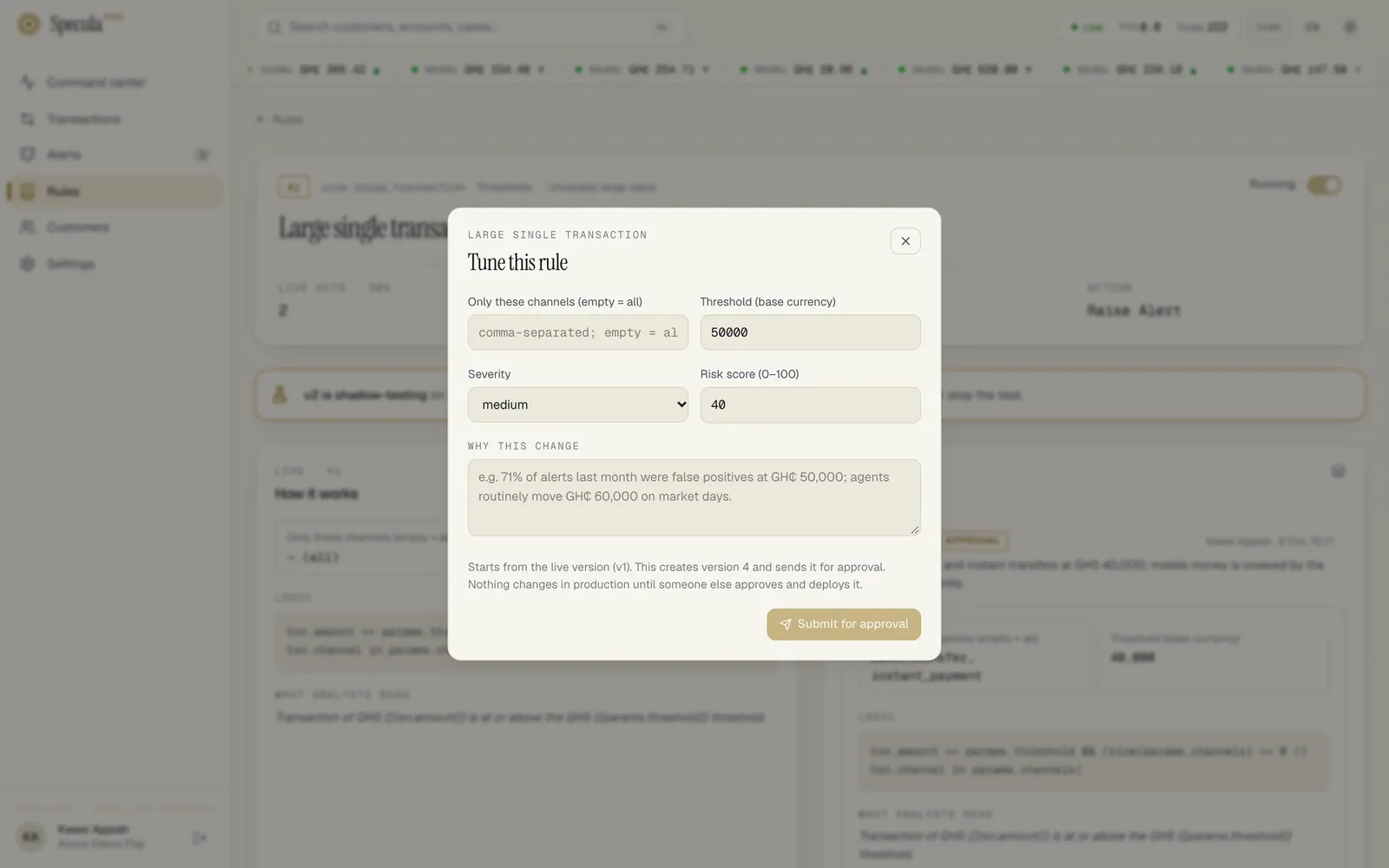
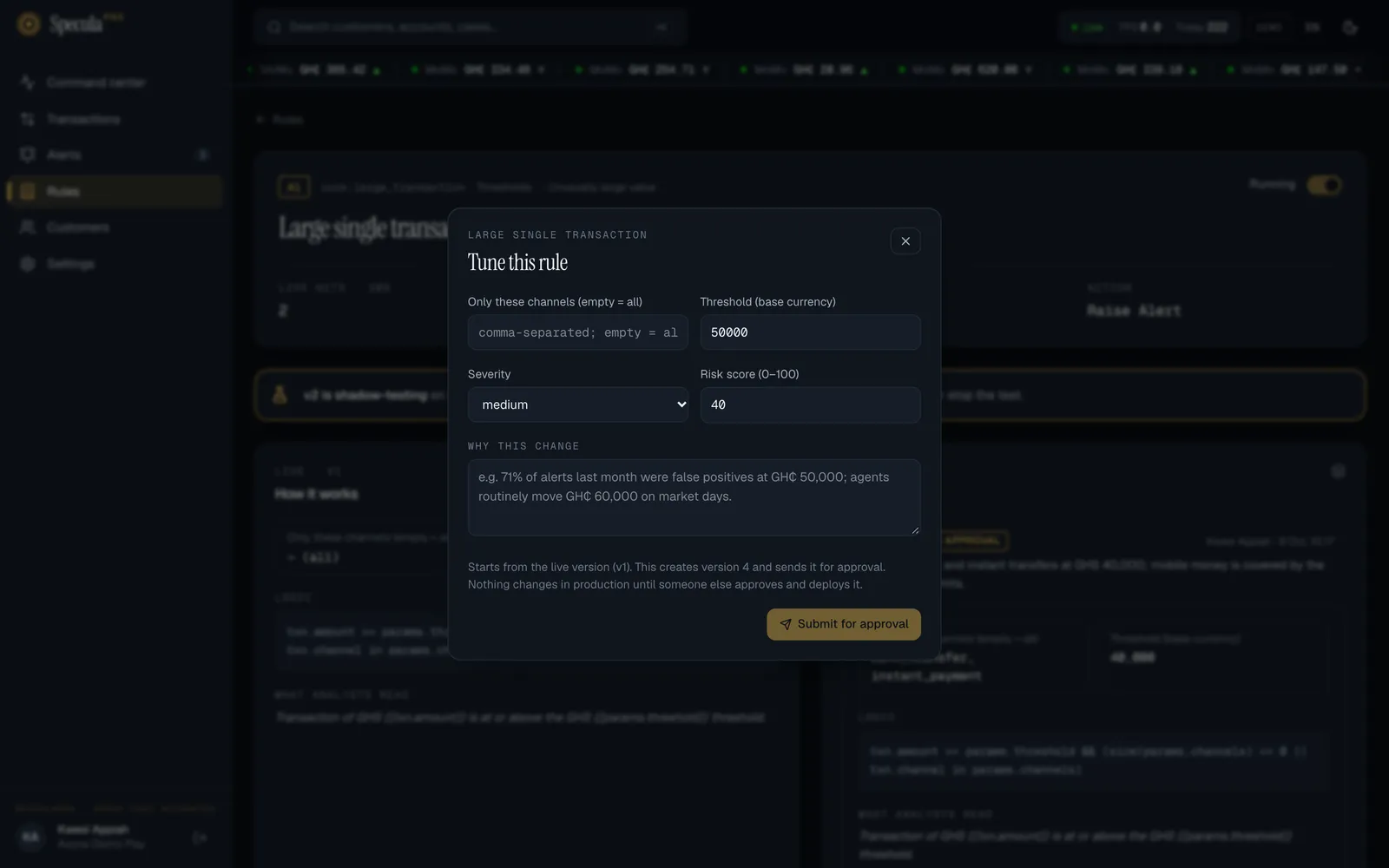
The panel closes. In the Versions list the new version appears at the top, marked Awaiting approval. On the Rules screen the rule shows 1 awaiting approval and is counted under Needs attention, which is where approvers look.
If something goes wrong
Section titled “If something goes wrong”- An error appears in the panel and nothing is saved. The new values don’t fit the rule, for example a number outside the allowed range. Every problem is listed; fix them and submit again.
- A version marked Draft appears in the list. The version was saved but couldn’t be sent for approval, for example because your session expired. Select Submit on that version.
What tuning can and can’t change
Section titled “What tuning can and can’t change”The Tune panel changes a rule’s parameters, severity and score: the things you adjust as you learn your customers.
It doesn’t change the rule’s action, its explanation or its logic (expression and aggregates). For those, select Edit instead, which opens the latest version in the rule builder, or use the Rules API. Either way the change goes through the same draft, approval and deployment steps.
For pack rules, think twice before changing the logic: your version no longer matches the pack’s, and later pack improvements won’t apply to it. If you need different logic, consider a custom rule instead.
Suggestions from the AI assistant
Section titled “Suggestions from the AI assistant”Where your workspace has switched the AI assistant on, a rule’s page has a panel above the Backtest panel: AI assistant · suggestions to test, titled How this rule is doing. The assistant reads the rule’s live version and what became of its alerts over the last 90 days, and answers with an assessment and up to four changes worth testing.
- It changes nothing. There is no button that applies a suggestion. You try one in a backtest; if the numbers hold, you Tune the rule as described above, and the new version goes through the same approval as any other.
- It reads counts, never customers. What is sent is the rule’s definition and figures: how many hits, how the alerts ended, and how what the rule measured was spread in each outcome. No customer, transaction, alert text or note. See what is sent.
- Its figures are your analysts’ decisions. “Closed as false positive” is what someone decided at the time. If those decisions were hurried or wrong, the suggestion inherits the mistake.


Who sees it, and when
Section titled “Who sees it, and when”| You | What you see |
|---|---|
Hold rules.view |
The panel and the latest answer, if there is one |
Hold rules.author as well |
The Ask the assistant button (Ask again once there is an answer) |
The panel is not shown when the assistant is off and the rule has no earlier answer, when the rule
has no live version, or on a rule about sanctioned or politically exposed parties (category
Designations, sanctions or screening). A rule with an
earlier answer keeps showing it, without the button, after the assistant is switched off.
How to ask for suggestions
Section titled “How to ask for suggestions”- Open Rules and select the rule.
- In How this rule is doing, select Ask the assistant. The button reads Reading the figures… while it works.
- Read the assessment: two or three sentences on how the rule is doing, with its figures.
- Read each suggestion. The heading is the change to test, for example a parameter and a value. Why gives the figures behind it. What it could miss says what the change could cost and what to look at in the backtest. When there is nothing to suggest, the panel reads The figures support no change worth testing. That is a proper answer, not a failure.
- Read What the figures cannot show: up to four cautions, such as a small sample.
- To try a suggestion, open the Backtest panel below, open Try other parameter values, enter the value and select Run backtest. Compare it with the live version, and look at the alerts that would no longer fire.
- If the backtest supports it, select Tune and submit the new values for approval, with a change note that says what you tested.
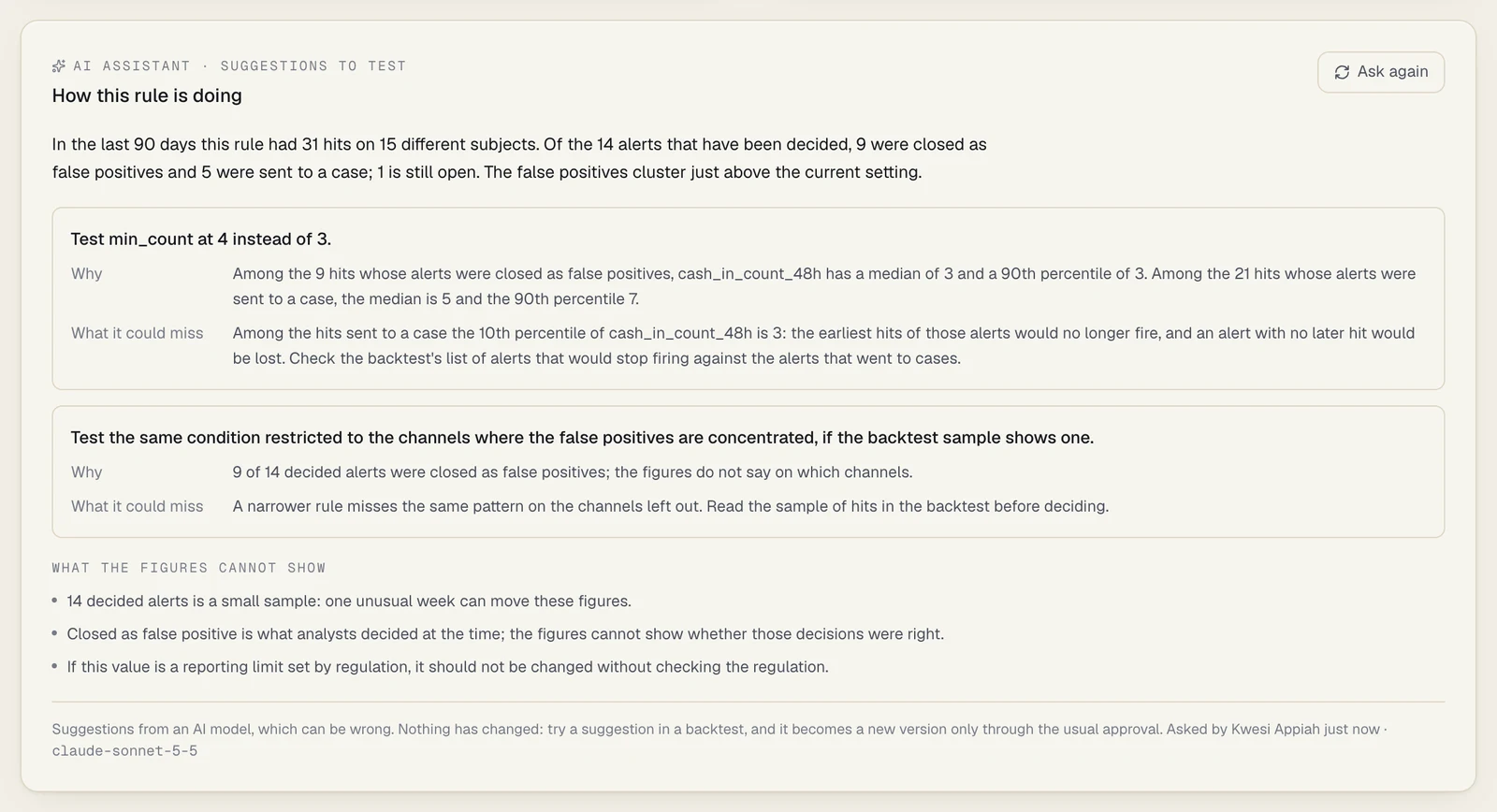
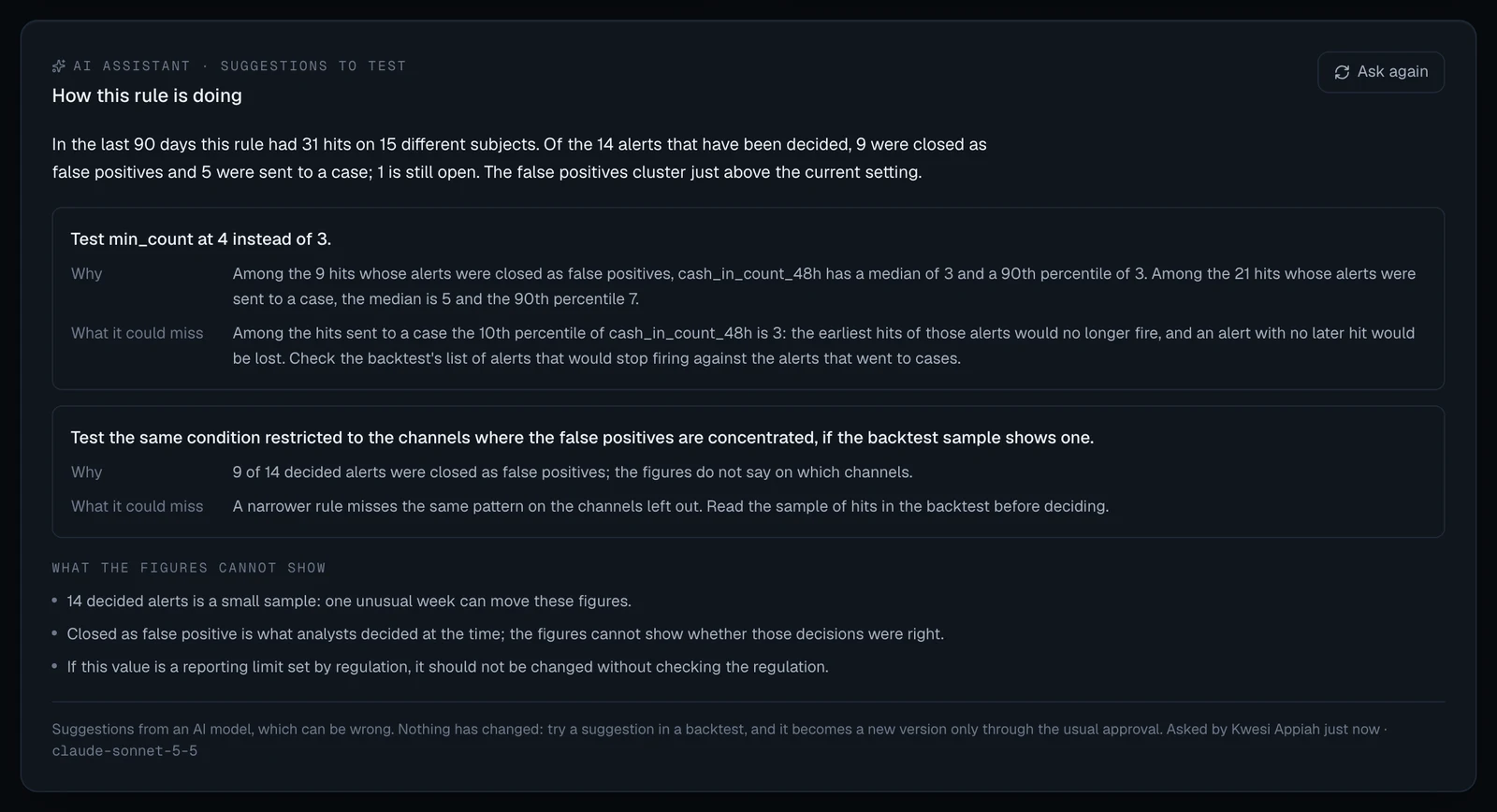
The answer in the picture is sample text from a test stand-in, not a real model’s answer.
Under the answer the panel says who asked, how long ago and which model answered. When the rule’s live version has changed since, the answer is marked given for version 3, since replaced: it was about the old settings, so ask again.
When the assistant can’t be asked
Section titled “When the assistant can’t be asked”| Message | Why | What to do |
|---|---|---|
| fewer than 10 of this rule’s alerts in the last 90 days have been decided: too few to suggest anything | Fewer than ten of its alerts have left the queue (dismissed, or sent to a case) | Wait for more history, or judge the rule by a backtest alone |
| the rule has no active version to look at | Nothing is live for this rule | Make a version live first |
| the assistant does not suggest changes to sanctions rules: what they must catch is set by law, not by how past alerts were closed | The rule’s category is Designations (the packs’ rules about sanctioned and politically exposed parties), sanctions or screening. The panel isn’t offered on these; the message is what the API answers |
Nothing; this is deliberate |
| the assistant answered this a moment ago and nothing has changed since; ask again in a few minutes | Someone asked about the same live version less than five minutes ago | Read that answer. A new live version lifts the wait |
| the AI assistant is off for this workspace, the AI assistant has no API key to use | The assistant isn’t set up, or was switched off | See AI assistant settings |
| this month’s AI allowance is used up | The workspace’s monthly allowance on the subscription’s key is spent | Wait for the 1st, or ask your administrator, who can ask for more calls |
A request that is refused for one of these reasons is not counted against the allowance. A request
that reaches the model is counted once, under Rule tuning suggestions in the usage panel, and
written to the audit log as ai.rule_tuning on the rule.
Using a suggestion well
Section titled “Using a suggestion well”- Backtest every suggestion. The assistant sees percentiles, not transactions. A backtest replays your real history and shows exactly which alerts would stop firing.
- Look hardest at what would be lost. A change that drops false positives usually drops some hits of alerts that went to cases as well. One missed case costs more than many false alerts.
- Don’t move a threshold the law sets. The assistant is told not to suggest moving a regulatory limit, such as a cash reporting threshold, but it can’t always tell which number is one. You can. This is not legal advice; confirm with your MLRO and counsel.
- Don’t tune to a quota. A high false-positive share is a reason to test, not proof the rule is wrong. See Tuning and calibration.
- The model can be wrong, and can state a wrong figure with confidence. Check its figures against Analytics and the backtest.
Limits
Section titled “Limits”- The assistant reads the live version only. It doesn’t see drafts, versions awaiting approval or shadow results, except the count of hits of a version on trial.
- It reads 90 days, whatever period your backtests use, and doesn’t know about seasons, product launches or a change in how your team works.
- The spread of a measure (10th percentile, median, 90th percentile) is sent for an outcome only when the hits with that outcome come from at least five different subjects. Smaller groups are sent as counts alone, so the assistant has less to go on for rare outcomes.
- Never suggest switching a rule off and the caution about regulatory limits are instructions to the model. Nothing in code checks the answer for them.
- The name and description are sent only for a rule that came from a rule pack. A rule your workspace wrote is sent as [a rule written by the workspace] with no description, so the assistant judges it from its condition, parameters and figures alone.
- Parameter lists that hold text are sent as a count (
[3 values]), so the assistant can’t suggest changes to the content of a list such aschannels.
Check the numbers with a backtest first
Section titled “Check the numbers with a backtest first”Before you submit, open the Backtest panel on the rule’s page, open Try other parameter
values, enter the numbers you have in mind and select Run backtest. In a few minutes you see
how many hits and alerts they would have produced over the last 90 days, next to the live version,
and which alerts would no longer fire. Try two or three values and submit the best. Backtests need
rules.backtest; see Backtesting.
How to roll back
Section titled “How to roll back”Any approved version can be put live again. A rule approver or MLRO opens the rule, finds the earlier version in the Versions list and selects Make live. No new approval is needed, because that version was already approved. See Approving a rule change.
Everything is audited
Section titled “Everything is audited”Each step is written to the audit log with who, when, from where, and the before and after
values: rule_version.create, rule_version.submit, rule_version.approve or
rule_version.reject, and rule.deploy. Asking the AI assistant about a rule is written as
ai.rule_tuning.
Using the API instead
Section titled “Using the API instead”The Tune button makes two API calls: POST /api/v1/rules/{id}/versions to draft the version,
then POST /api/v1/rule-versions/{id}/submit. If you script changes yourself, remember that
params is replaced as a whole: send the complete set of parameters, not just the one you
changed. See the Rules API.