
The AI assistant's advice
Ce contenu n’est pas encore disponible dans votre langue.
In short
Section titled “In short”The AI assistant is a language model that reads an open alert and says what it makes of it: whether it looks like a false positive, needs investigating, or there is not enough to tell, with its reasons and what you could check next.
- It advises. It decides nothing. It never dismisses an alert, opens a case, or changes anything about the alert. Dismiss and Open case work exactly as before, and they are yours to press.
- You answer for the decision. A regulator or auditor will ask you why an alert was dismissed, not the assistant. Its advice is not a reason.
- It can be wrong. It reads figures, not people, and it doesn’t see your notes, your evidence files or anyone’s name.
- It is off until an administrator switches it on for your workspace. See AI assistant settings.
On a case, the assistant writes a short summary for whoever picks the case up and says what it would suggest doing with the case: looks like a false positive, a report may be warranted, needs more investigation or not enough to tell. That is advice too: nothing on the case changes. See The case in brief.
You can ask about one alert or case at a time, or about the whole queue at once. See Asking about the whole queue.
You need alerts.view to read the advice and cases.work to ask for it. The assistant’s reasoning (its summary, reasons and checks) is shown only to people who can also see customers (entities.view); others see the recommendation alone.
Where you see it
Section titled “Where you see it”| Place | What it shows |
|---|---|
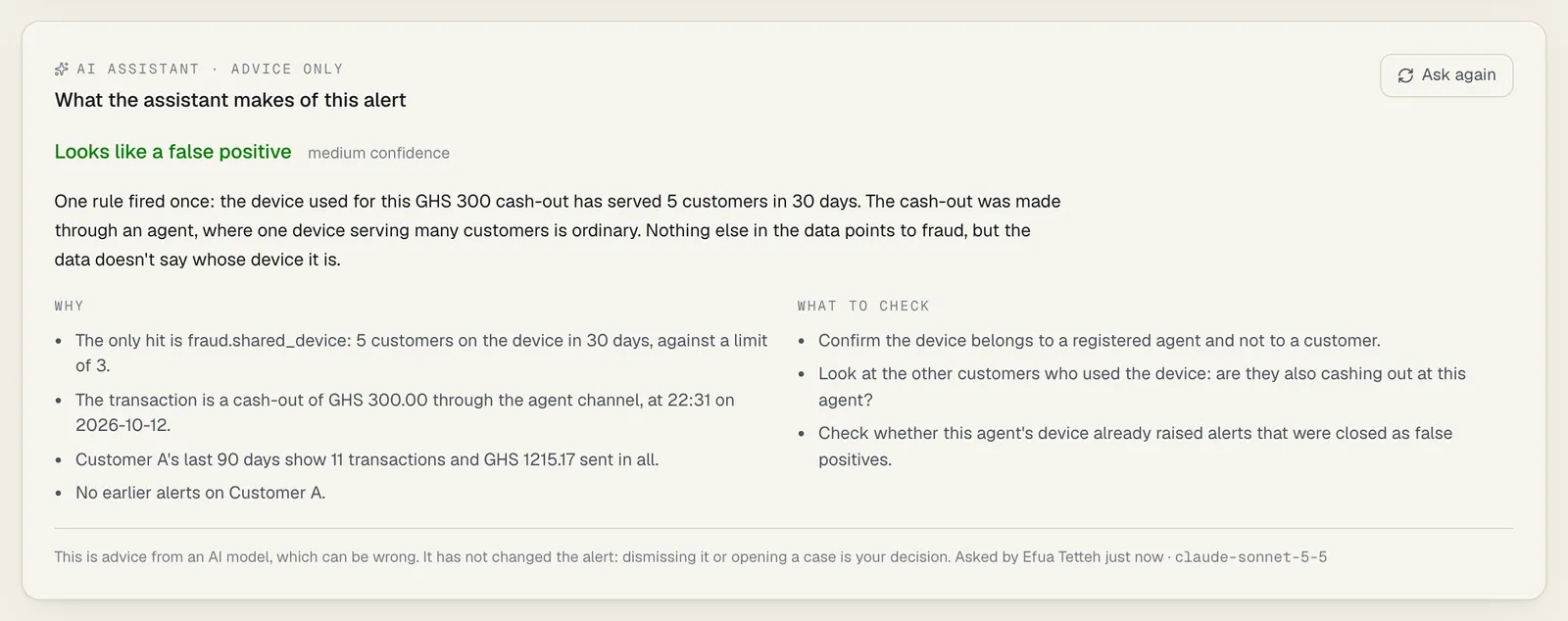
| The alert page, in a panel headed AI assistant · advice only – What the assistant makes of this alert, between the header and Evidence · N hits | The latest advice on this alert, and the button to ask |
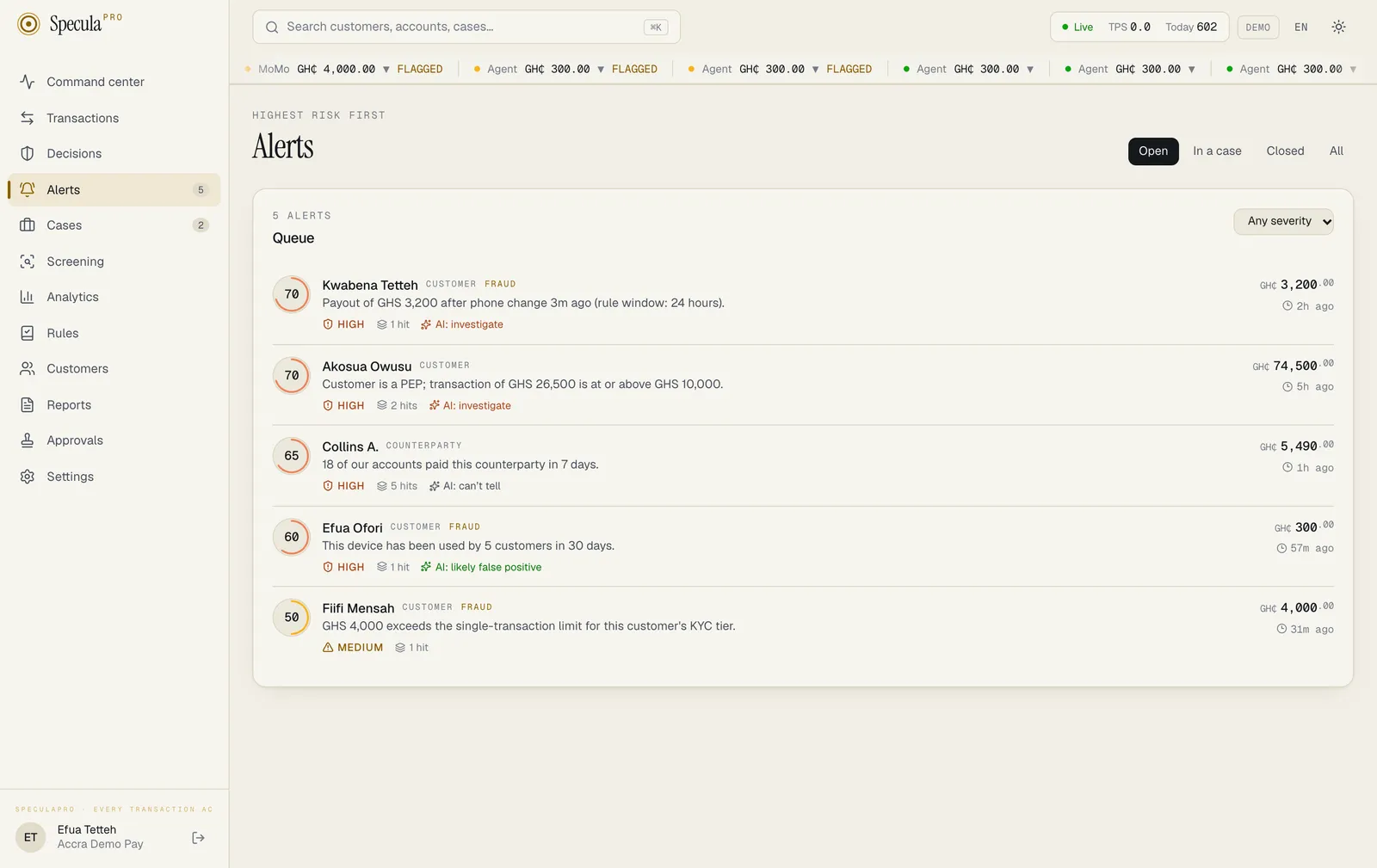
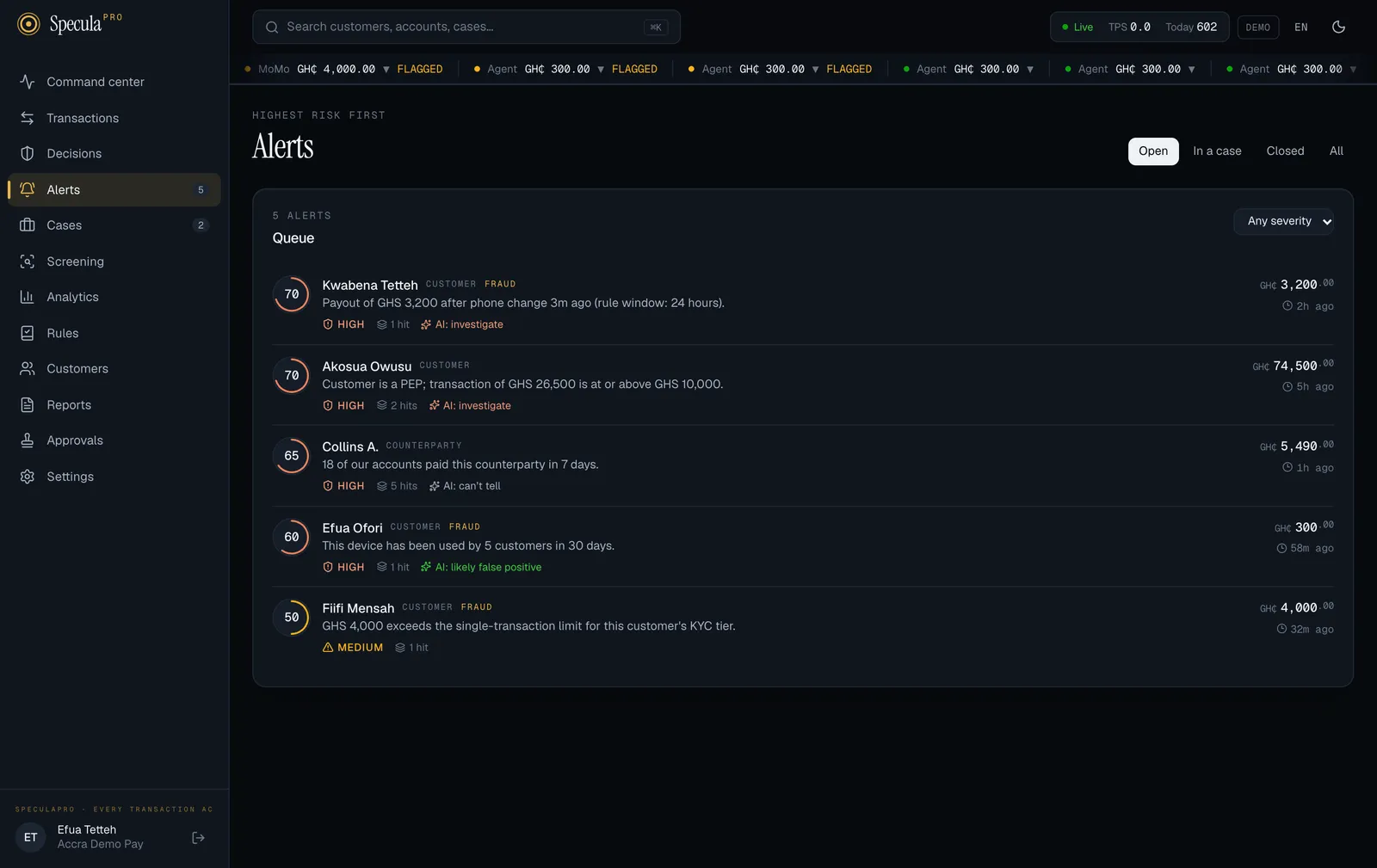
| The alert queue, as a small marker on the row of an open alert | The current advice in three words: AI: likely false positive, AI: investigate or AI: can’t tell. Point at it to read The AI assistant’s advice. A person decides. |
| The alert queue, as a bar above the Open tab and a filter beside the severity filter | Review the queue asks about every open alert that has no current advice; the filter narrows the queue by what the assistant advised. See Asking about the whole queue |
| The case page, in the panel The case in brief | The latest summary and suggestion for the case. See The case in brief |
| The case list, as a marker under the case’s title, and a bar above the Active tab | The assistant’s latest suggestion for the case, and Summarise the cases |
The panel is shown when the assistant is switched on for your workspace, or when it advised on this alert at some earlier time. Where it is off and never advised, there is no panel.
The marker in the queue shows only advice that is up to date: once the alert has a hit that arrived after the advice was given, the marker disappears until the assistant is asked again.
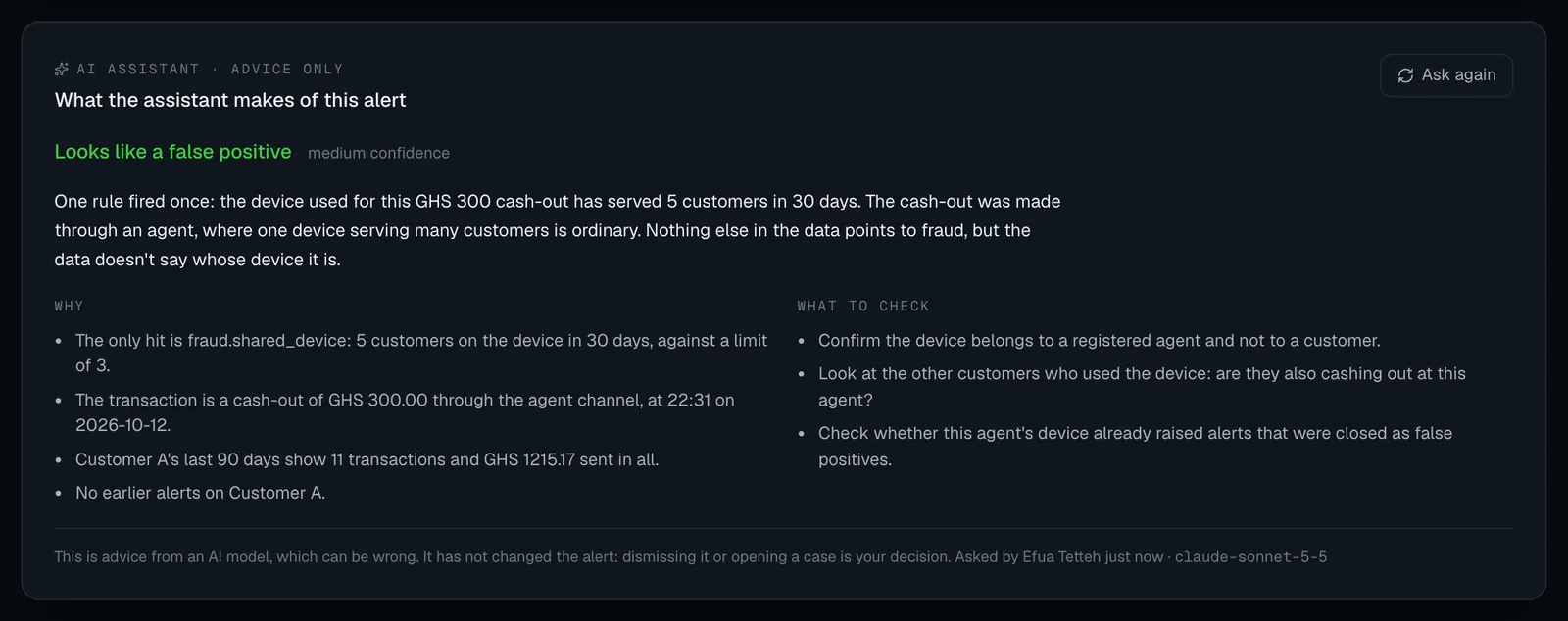
The advice in these pictures is sample text from a test stand-in, not a real model’s answer.
How to ask the assistant
Section titled “How to ask the assistant”You need cases.work and entities.view, and the alert must be open.
- Open the alert from the Alerts queue.
- In the AI assistant · advice only panel, select Ask the assistant. The button reads Reading the alert… while it works; an answer usually takes a few seconds.
- Read the answer (see below). The alert itself has not changed.
Where the alert already has advice, the button reads Ask again. Ask again when the panel says given before the latest hit or no longer stands, or when something about the customer has changed since (their risk rating, for example). The new answer replaces the old one on screen; every answer is kept in the record.
You can’t ask again straight away about advice that is still current. For five minutes after advice was given, by a person or automatically, asking again answers the assistant answered this a moment ago and nothing has changed since; ask again in a few minutes. A new hit on the alert lifts the wait at once, because the advice is then out of date.
If your administrator has switched on Review new alerts automatically, open alerts arrive in the queue with advice already given, and you don’t need to ask.
Asking about the whole queue
Section titled “Asking about the whole queue”Instead of opening alerts one by one, you can have the assistant read every open alert that has no current advice. The answers land on each alert exactly as if you had asked there. Nothing is closed, dismissed or opened: afterwards the queue is the same queue, with advice on it.
You need cases.work and entities.view, and the assistant must be on. Without them the bar isn’t
shown.
- Open Alerts. Above the Open tab’s queue is a bar that reads The assistant can read every open alert that has no advice yet and say what it makes of each. It closes nothing: you decide.
- Select Review the queue.
- The bar shows The assistant is reading the queue: 12 of 40 with a progress line. You can keep working or leave the page; the work carries on in the background, and the bar shows the same progress when you come back.
- When it finishes the bar reads Last review of the queue 2m ago: advice on 38 of 40. If some weren’t read it adds why, for example 2 were not read: it already has current advice.
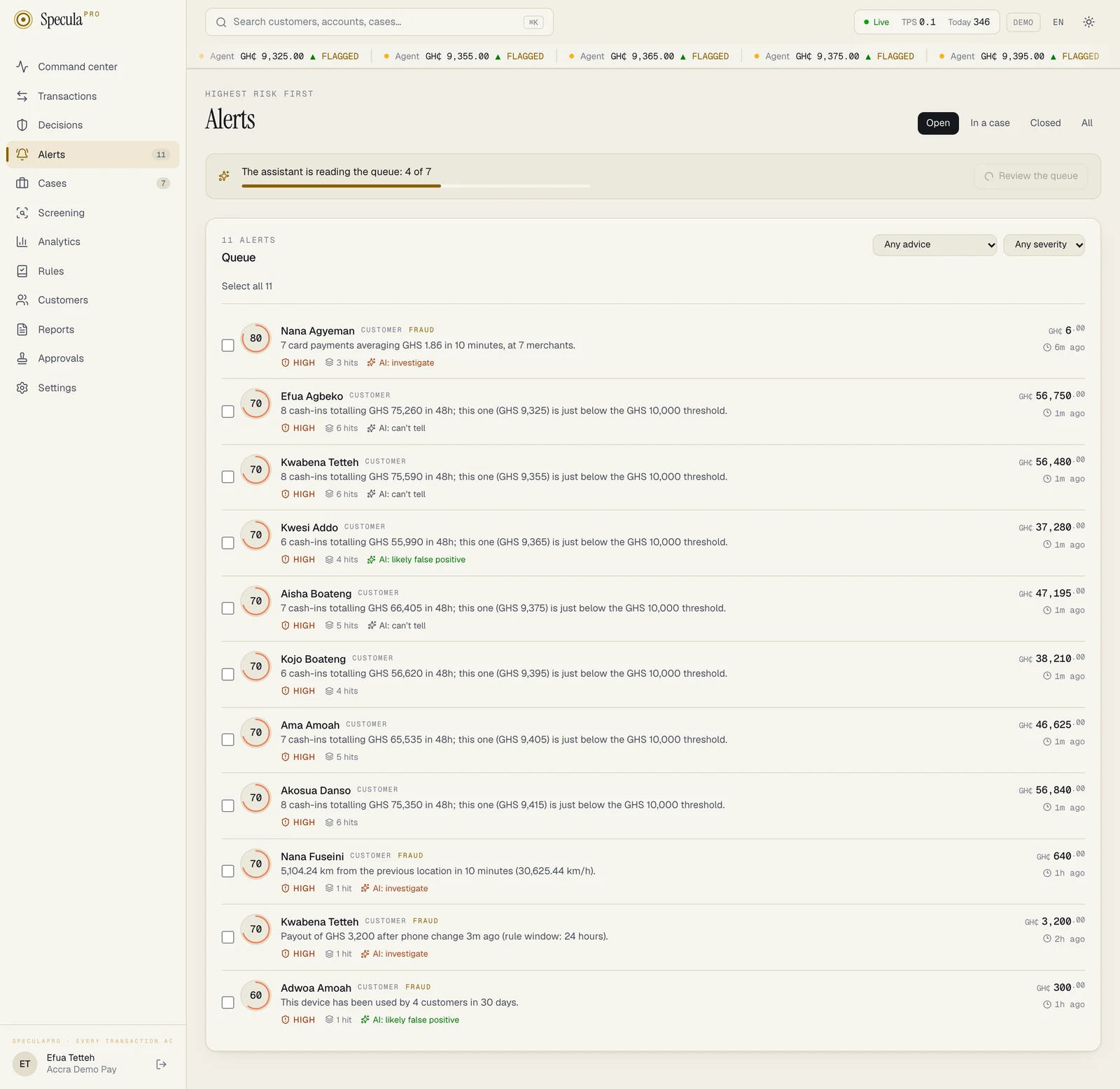
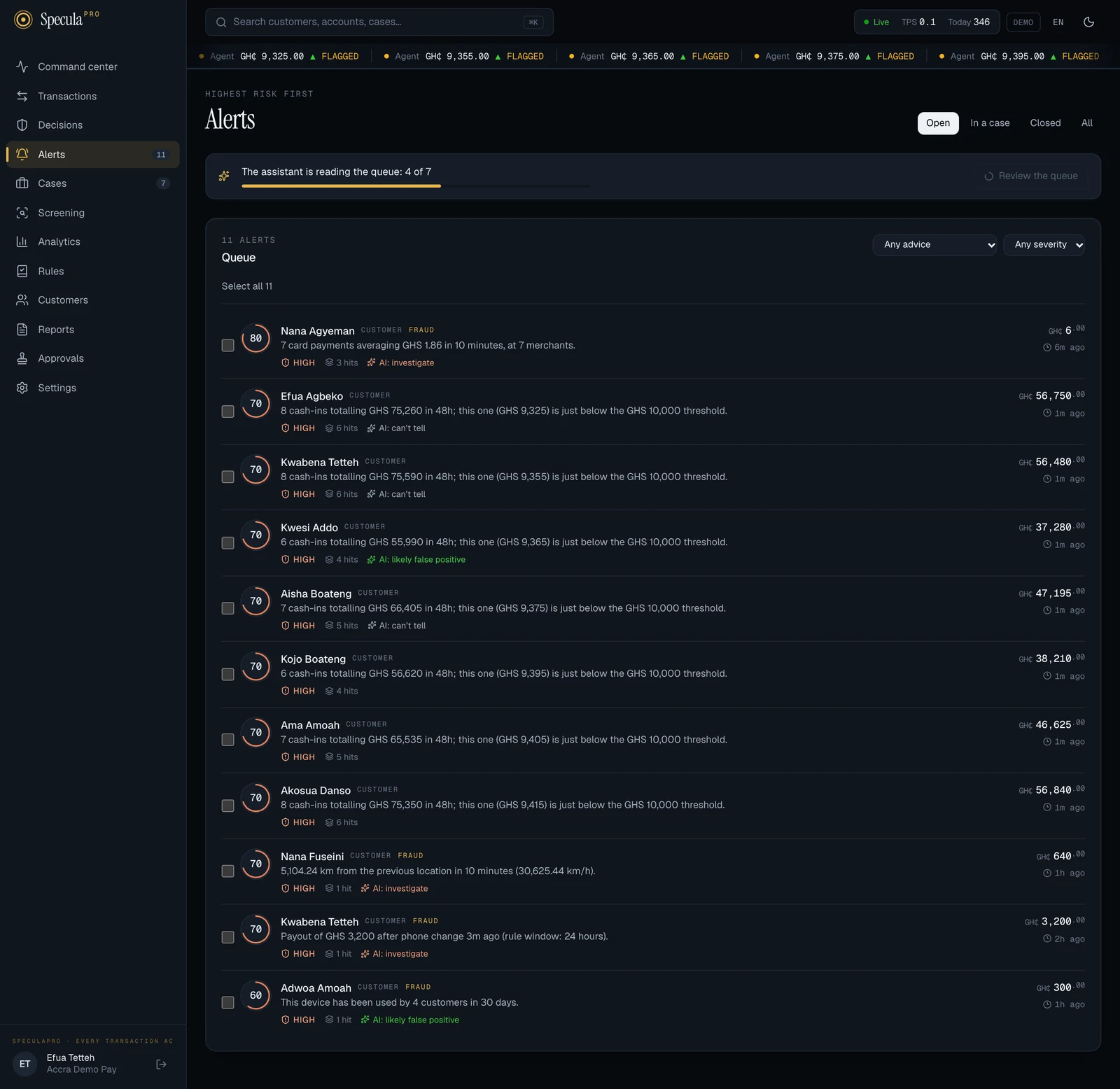
The advice in this picture is sample text from a test stand-in, not a real model’s answer.
What a batch takes and how it runs:
| Which alerts | Open alerts with no advice, or with hits since their last advice, that aren’t already waiting in another batch. Most severe first (critical, high, medium, low), then the most recent activity |
| How many | Up to 200 in one batch. Select Review the queue again for the next 200 |
| How fast | Four at a time, side by side. An answer usually takes a few seconds, so 200 alerts take a few minutes |
| What it costs | One counted call for each alert read. A batch of 200 alerts is 200 calls from your monthly allowance |
| What is skipped | An alert that got current advice meanwhile, or that is no longer open, is skipped and not paid for |
| When it stops early | If the month’s allowance runs out, the assistant is switched off, the provider refuses the key, the provider fails three times in a row, or your account is disabled or your role no longer lets you ask, the alerts not yet read are skipped and the bar gives that reason |
| Who is recorded | You. Each answer reads Asked by you, and the audit log has one ai.batch entry for the batch and one ai.alert_review entry for each answer |
The same works for cases: on Cases, above the Active tab, Summarise the cases has the assistant summarise every case being worked that has never had a summary, the most urgent first (by priority, then by deadline), up to 200. A case whose summary is merely out of date isn’t taken: open it and select Summarise again.
How to filter the queue by the assistant’s advice
Section titled “How to filter the queue by the assistant’s advice”On the Open tab, the drop-down that reads Any advice (beside the severity filter) narrows the queue:
| Choice | Shows open alerts where |
|---|---|
| Any advice | No filter |
| AI: likely false positive | The current advice is Looks like a false positive |
| AI: investigate | The current advice is Needs investigating |
| AI: can’t tell | The current advice is Not enough to tell |
| No advice yet | There is no advice, or the advice is older than the alert’s latest hit |
Only current advice counts: an alert that has had a hit since it was advised on is listed under No advice yet. The filter is there on the Open tab only.
Reading the answer
Section titled “Reading the answer”| Part | What it is |
|---|---|
| Recommendation | Looks like a false positive, Needs investigating or Not enough to tell |
| Confidence | low confidence, medium confidence or high confidence: how sure the model says it is. It is the model’s own estimate, not a measured probability |
| Summary | Two or three sentences to read first |
| Why | Up to six facts from the alert that support the recommendation: the rule, the amounts, the counts, the dates |
| What to check | Up to four things a person could look at next |
| The last line | This is advice from an AI model, which can be wrong. It has not changed the alert: dismissing it or opening a case is your decision. Then who asked and when (Asked by Efua Mensah 3m ago, or Reviewed automatically 2h ago) and the name of the model that answered |
| given before the latest hit | A marker beside the recommendation when the alert has had hits since this advice. The advice is out of date: read the new hits, or ask again |
| no longer stands: this alert now always needs a person’s own look | A marker beside Looks like a false positive when the alert has become one the assistant never recommends dismissing: its subject was designated, or its severity raised to critical, after the advice. Disregard the recommendation and investigate; the old text stays only as a record |
The answer is written in your workspace’s language (English or French). People appear as Customer A, Counterparty 1 and so on, because that is all the assistant was shown.
Not enough to tell is a proper answer, not a failure: the assistant is told to say so, and to say what is missing, when the data doesn’t settle the question.
What it never recommends
Section titled “What it never recommends”Whatever the model answers, SpeculaPro itself refuses to show Looks like a false positive for:
- a sanctions alert;
- a critical alert;
- an alert about a subject designated PEP (
pep), relative or close associate of a PEP (pep_rca) or sanctioned (sanctioned), or about an account owned by such a customer.
For these, a false positive answer is replaced by Needs investigating, high confidence, and the first reason reads: Sanctions alerts, critical alerts and alerts about politically exposed or sanctioned persons always need a person’s investigation, whatever else the data suggests. The model’s own reasons follow it.
The same rule is applied again each time the advice is read. If an alert was advised Looks like a false positive and its subject is designated afterwards, the queue stops showing that advice (the alert reads as having none, and no longer matches the AI: likely false positive filter), and the alert’s page marks it no longer stands: this alert now always needs a person’s own look. The next Review the queue, or automatic review where it is on, asks about that alert again, once; you can also select Ask again yourself.
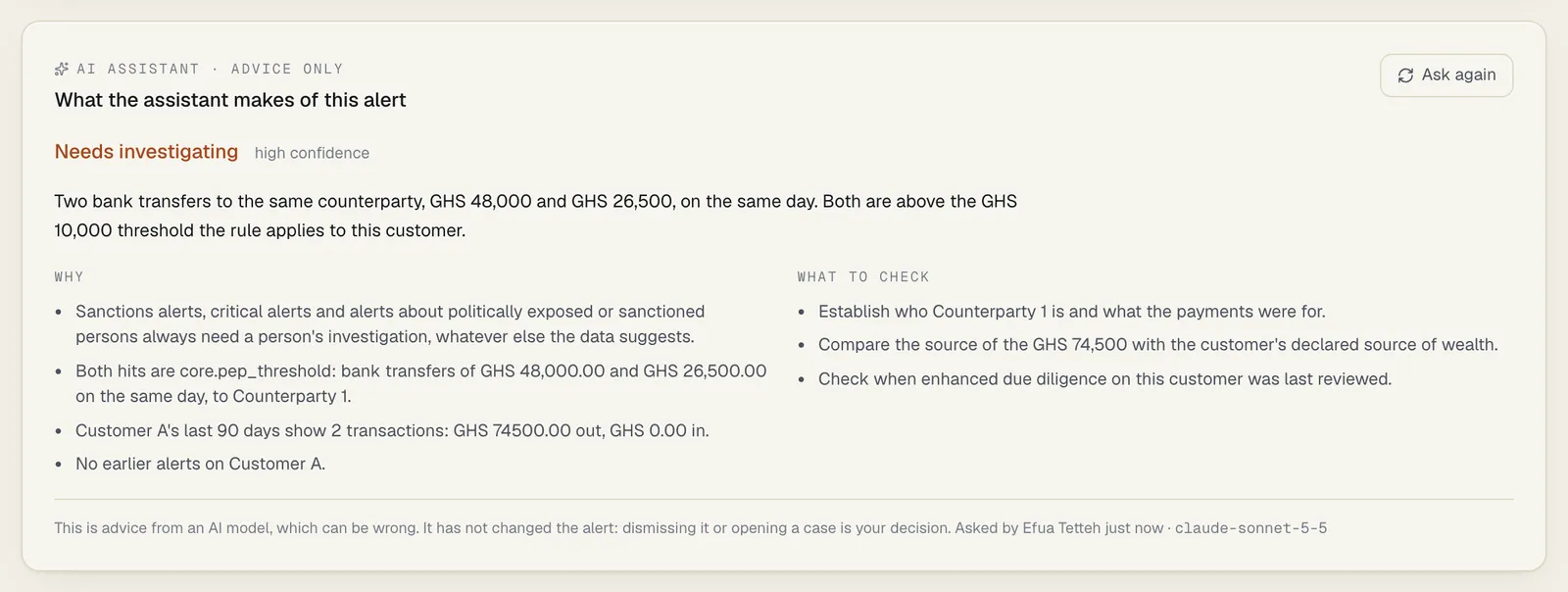
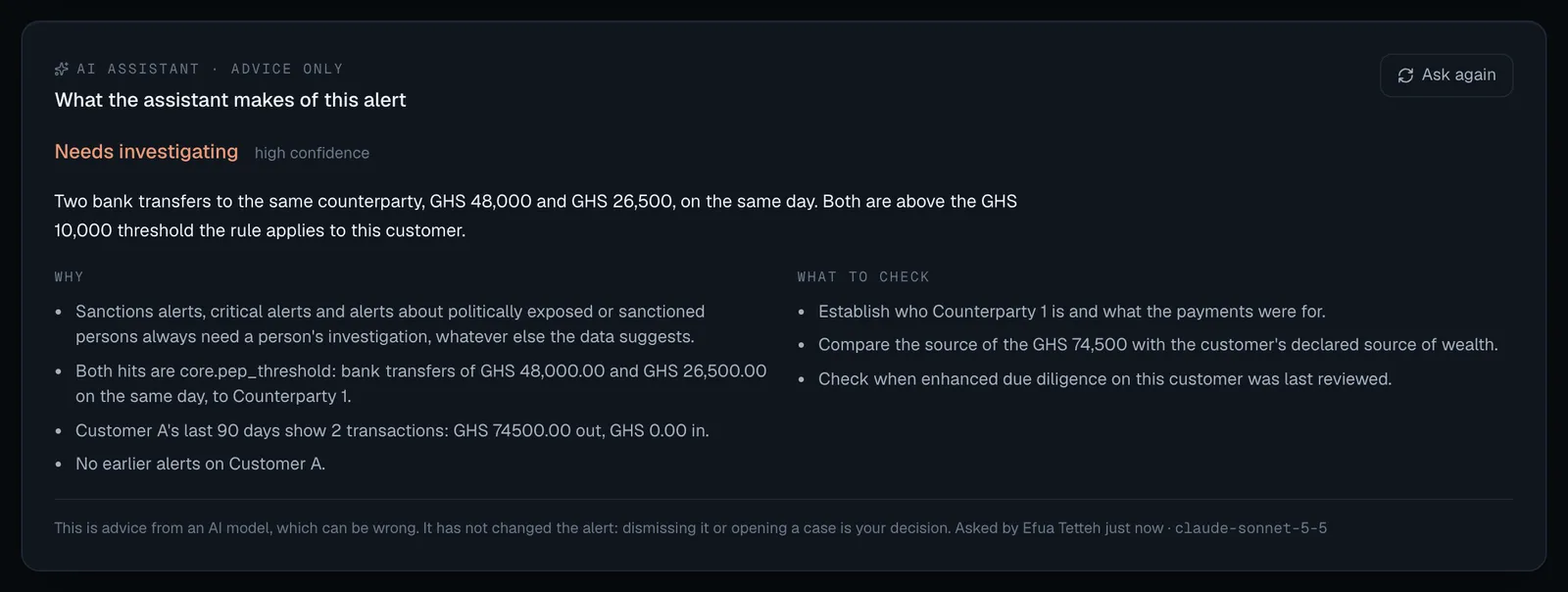
How to use it well
Section titled “How to use it well”- Read the alert first, then the advice. If you read the advice first you will tend to see what it told you to see.
- Check every figure it quotes against Evidence · N hits on the same page. The model is told to use only the data it was given, but it can still misread or misstate a number.
- Use What to check as a prompt, not a checklist. It can’t know what your institution’s procedure requires. See Investigating an alert.
- Write your own rationale when you dismiss. Say what you checked and why it explains the activity. The assistant said it was a false positive is not a rationale, and won’t satisfy an examiner. See Choosing a disposition.
- Disagree freely. When the advice and your reading differ, yours is the one that counts. Your administrator sees how often people’s decisions differed from the advice, and a healthy figure is not 100%.
What the assistant sees, and doesn’t
Section titled “What the assistant sees, and doesn’t”It is shown structured facts about the alert, with identities removed first:
| Shown to it | Not shown to it |
|---|---|
| The alert’s kind, severity, score, number of hits, rules, exposure and first and last hit | Anyone’s name: people become Customer A, Counterparty 1 |
| For up to the 25 newest hits: the rule (its name masked like any other text), its explanation, the measured values and thresholds, and the transaction (time, direction, type, channel, amount, the counterparty as a placeholder) | Phone numbers, email addresses, identity and account numbers: anything that looks like one is replaced |
| About the subject: its type, segment, KYC tier, risk rating and designations; for a customer, the last 90 days’ number of transactions, money in, money out and number of different counterparties | Comments and notes people wrote, including dismissal rationales |
| What became of the subject’s earlier alerts (how many were closed as what) | Evidence files, cases, reports, screening matches |
| Your workspace’s country and base currency | Your own customer references |
So it doesn’t know what you know from a phone call, a document, a branch visit or an earlier case’s notes. For exactly what leaves your workspace and where it goes, see the AI assistant and your data.
The case in brief
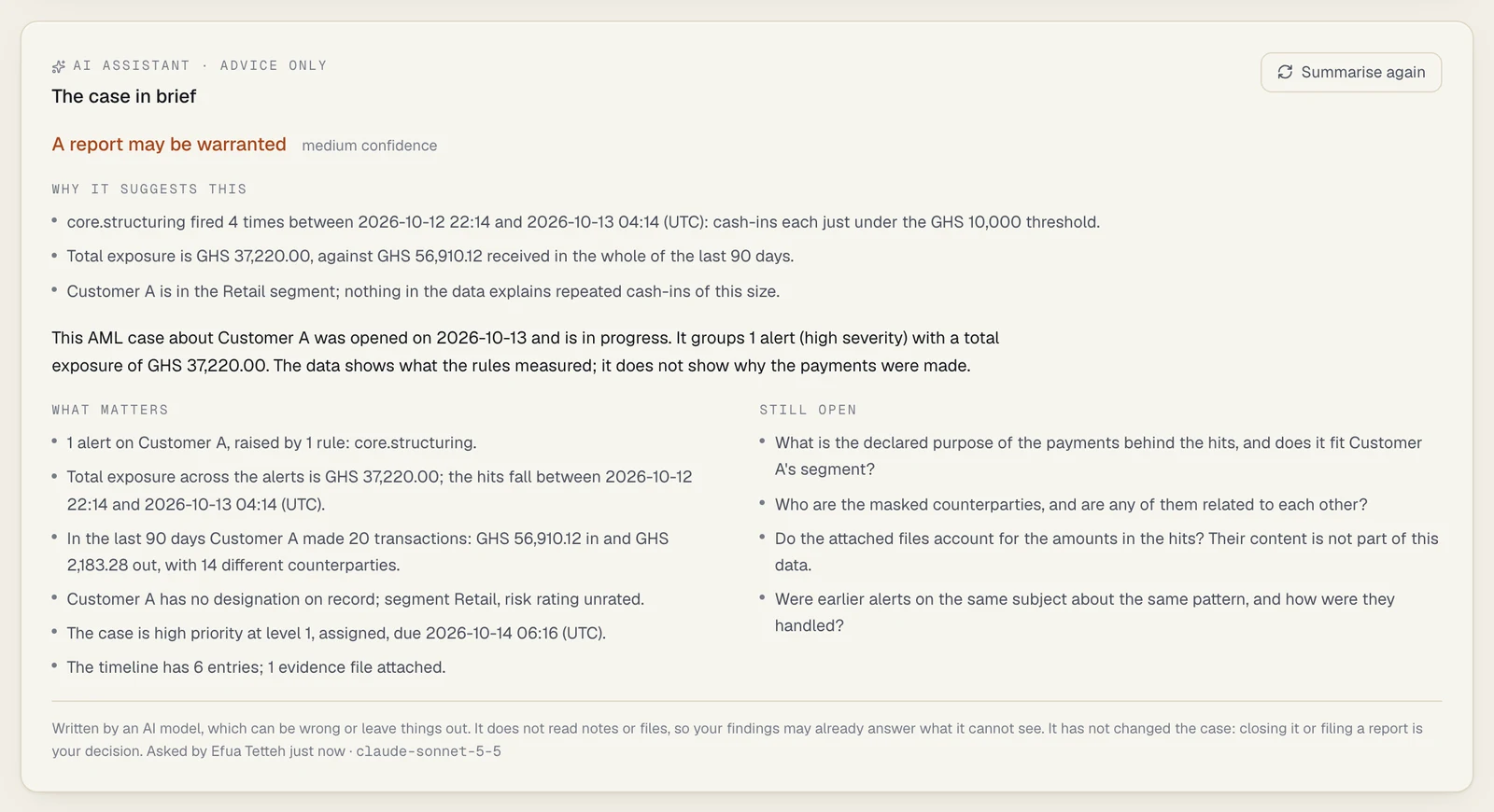
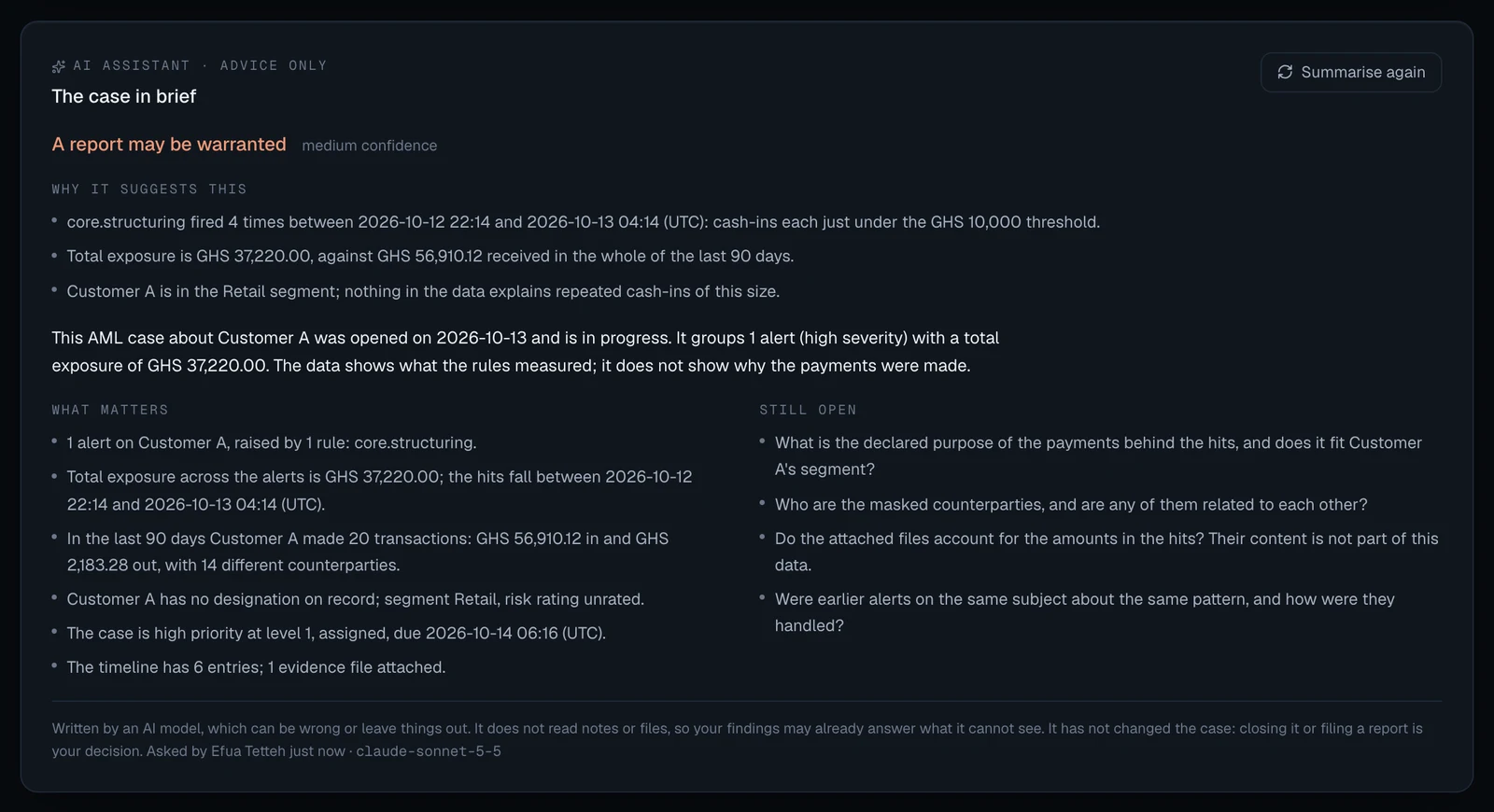
Section titled “The case in brief”On a case’s page, the panel The case in brief (headed AI assistant · advice only) holds what the assistant wrote about the case, for whoever picks it up: a suggestion of what to do with the case and why, a summary of what the case is about, the facts that matter, and what is still open.
- The suggestion is advice. It doesn’t close the case, escalate it or start a report. Closing a case and filing a report stay your decisions, with your own reasons, through the usual closing and approval.
- It changes nothing on the case. Asking doesn’t add to the timeline, assign the case or touch its deadline.
- It doesn’t read what people wrote or collected. It sees the case’s alerts, the rule hits and what was done and when. It does not see comments, closing notes, or evidence files (it is told only how many files there are). So what you have already found out may answer the very thing it calls open.
- It works on open and closed cases. A person asks, for one case or for all the cases being worked. Nothing summarises cases automatically.
The panel appears when the assistant is on for your workspace, or when the case already has a summary.


How to ask for a summary
Section titled “How to ask for a summary”You need cases.work and entities.view.
- Open the case.
- In The case in brief, select Summarise this case. On a case that already has a summary the button reads Summarise again.
- Wait while the button reads Reading the case…. It usually takes a few seconds.
Each request is one call to the model: it is counted against your workspace’s monthly allowance like an alert review, and written to the audit log.
You can’t ask again within five minutes of a summary while nothing new has happened on the case (no new alert, hit or timeline entry). Anything new on the case lifts the wait.
Reading the summary
Section titled “Reading the summary”| Part | What it is |
|---|---|
| The suggestion | One of Looks like a false positive, A report may be warranted, Needs more investigation or Not enough to tell. See the table below |
| Confidence | low confidence, medium confidence or high confidence: the model’s own estimate, not a measured probability. The assistant is told to give high rarely |
| Why it suggests this | Up to four facts from the case’s data that support the suggestion |
| The paragraph | What the case is about and where it stands |
| What matters | Up to six facts from the case’s data, each with its figures and dates |
| Still open | Up to four things the data doesn’t answer and an investigator would want to know |
| written before the latest activity on the case | The case has had an alert, a hit or a timeline entry since this was written. Select Summarise again for a current one |
| no longer stands: this case now always needs a person’s full investigation | Beside a suggestion of Looks like a false positive when the case has since become one the assistant never suggests closing that way (see What it never suggests). Disregard the suggestion; select Summarise again for a current one |
| The last line | Written by an AI model, which can be wrong or leave things out. It does not read notes or files, so your findings may already answer what it cannot see. It has not changed the case: closing it or filing a report is your decision. Then who asked, when, and the model |
A summary written before suggestions existed has no suggestion line; select Summarise again to get one.
People and organisations appear as placeholders such as Customer A and Counterparty 2, because the assistant never receives their names.
What the suggestions mean
Section titled “What the suggestions mean”| On the case page | In the case list | What the assistant is told it means |
|---|---|---|
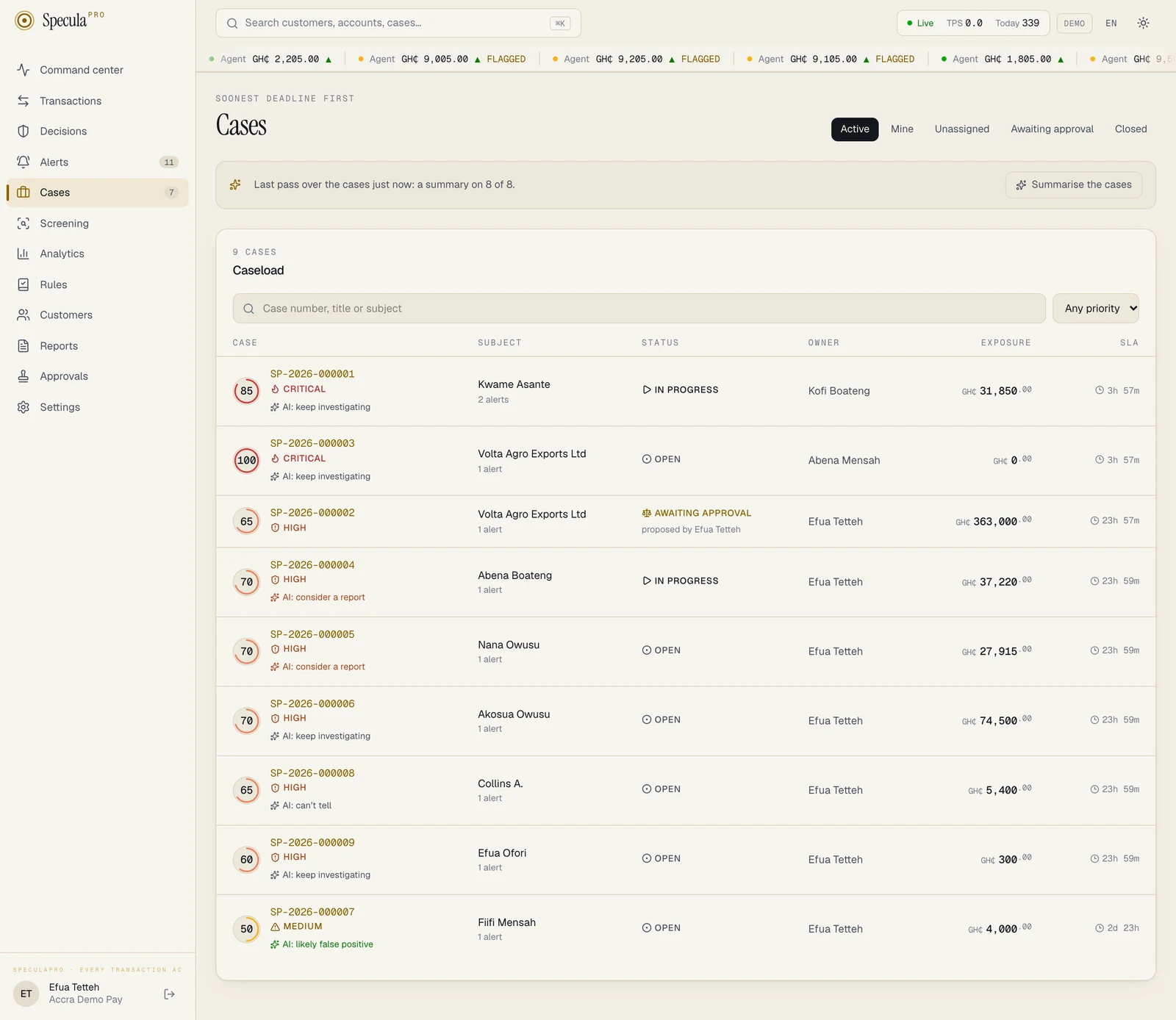
| Looks like a false positive | AI: likely false positive | The data shows an ordinary explanation: activity in line with the customer’s segment and last 90 days, low-severity alerts, nothing that departs from their pattern |
| A report may be warranted | AI: consider a report | The pattern is one that suspicious transaction reports exist for (structuring under a threshold, rapid movement through the account, activity far out of line with what is known of the customer) and nothing in the data explains it |
| Needs more investigation | AI: keep investigating | There is something to explain and the data doesn’t settle it. The assistant is told to choose this when in doubt |
| Not enough to tell | AI: can’t tell | The data is too thin to say anything |
Two things to keep in mind when you read one:
- A report may be warranted is a prompt to look, not a finding. The assistant is told never to say a report must be filed and never to say anyone is guilty. Whether to report is your compliance officer’s judgement, on the standard your law sets. This page is not legal advice; confirm your reporting obligations with counsel.
- Looks like a false positive was reached without your notes, your evidence files or anything a customer told you. It is the weakest of the four to rely on, because closing on it is the one action that can’t be put right if it was wrong.
What it never suggests
Section titled “What it never suggests”Whatever the model answers, SpeculaPro itself refuses to show Looks like a false positive for:
- a sanctions case;
- a case of critical priority;
- a case whose subject is designated PEP (
pep), relative or close associate of a PEP (pep_rca) or sanctioned (sanctioned), or is an account owned by such a customer; - a case that holds any alert of those kinds (a sanctions alert, a critical alert, or an alert about such a subject).
For these, a false positive answer is replaced by Needs more investigation, high confidence, and the first reason reads: Cases about sanctions, cases of critical priority and cases about politically exposed persons always need a person’s full investigation. The model’s own reasons follow it.
The marker in the case list
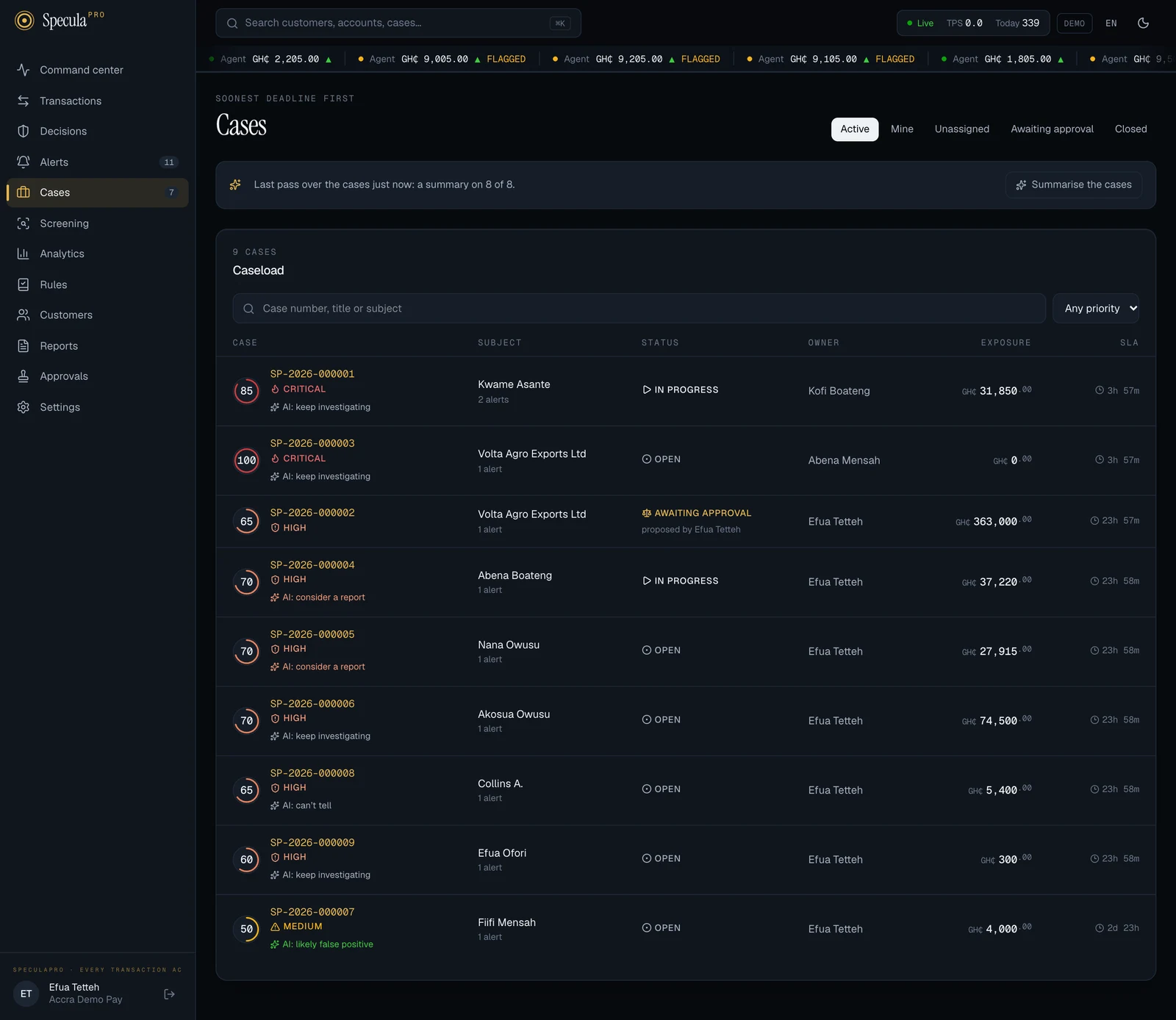
Section titled “The marker in the case list”In the Cases list, a case that isn’t closed shows the assistant’s latest suggestion under its title: AI: likely false positive, AI: consider a report, AI: keep investigating or AI: can’t tell. Point at it to read The AI assistant’s suggestion. A person decides.
The marker is shown only while the suggestion stands. It disappears as soon as the case gets a new alert, a new hit or a new timeline entry (a note, an assignment, a status change), until someone summarises the case again. AI: likely false positive also disappears once the case becomes critical, is a sanctions case, its subject is designated PEP, relative or close associate of a PEP, or sanctioned, or it holds an alert of one of those kinds.
The suggestions in this picture are sample answers from a test stand-in.
Using a summary well
Section titled “Using a summary well”- Read the case itself before you decide anything. The summary is a way in, not a substitute. Check each figure it gives against the alerts and the timeline.
- Read the notes and the evidence files. The assistant hasn’t. A case’s most important facts are often in what an investigator wrote or attached, and none of that is in the summary or behind the suggestion.
- Treat the suggestion as a colleague’s first impression, formed from the figures alone. Where it differs from your reading, yours counts.
- Don’t sort your work by the marker alone. Deadlines and priority come first; a case marked AI: likely false positive still has its deadline.
- Don’t treat Still open as a complete list. It is what the data it saw doesn’t answer.
- Don’t copy it into a closing note or a report as your own finding. Write what you verified. The assistant suggested a false positive is not a closing reason.
- On a long case the summary may miss early events: the assistant is given the 60 newest timeline entries (in the order they happened), the 20 alerts with the most recent hits and the 25 newest hits.
A draft of a report’s narrative
Section titled “A draft of a report’s narrative”When you write a suspicious transaction report (an STR or SAR) from a case, the assistant can draft its narrative for you to correct and complete. The panel AI assistant · a draft to start from sits under the narrative box on the draft report. The draft becomes the report’s narrative only when you select Use as the narrative and then save, and you remain the author of every sentence. The assistant’s drafts are deleted when the report leaves draft. See Drafting an STR: a draft narrative from the assistant.
What is recorded
Section titled “What is recorded”- Every answer is kept with the alert: the recommendation, confidence, summary, reasons and checks, the model, who asked (or that it was automatic), and, encrypted, exactly what was sent and what came back.
- Each one is written to the audit log as
ai.alert_review, with the recommendation, the confidence, the model and the size of the call. - Asking is not written on a case’s timeline, and the advice is not copied into a case or a report.
- The reviews are deleted with their alert when retention removes it.
- A case summary is kept with the case in the same way (the suggestion, its confidence and
reasons, the text, the model, who asked and, encrypted, exactly what was sent and what came
back), written to the audit log as
ai.case_summarywith the suggestion and confidence, and deleted with the case. It is not written on the case’s timeline. - A batch is written to the audit log once as
ai.batch(which kind, how many were asked, and whether it was everything without advice), and each answer it produces is recorded like any other. The list of what a batch was asked is kept for seven days after it finishes. - A draft of a report’s narrative is kept beside the report (the text encrypted, the model, who
asked and, encrypted, what was sent and what came back) and written to the audit log as
ai.narrative_draft. The report itself is not changed.
Troubleshooting
Section titled “Troubleshooting”| What you see | Why | What to do |
|---|---|---|
| No AI assistant panel on the alert | The assistant is off for your workspace and never advised on this alert | Nothing; or ask your administrator. See AI assistant settings |
| The panel is there but has no Ask the assistant button | The alert is closed, the assistant has been switched off since, or you don’t hold cases.work |
Only open alerts can be asked about |
| The assistant did not look at this alert. | The same, on an alert with no advice | Nothing to do |
| the AI assistant is off for this workspace | It was switched off while the page was open | Reload the page |
| the AI assistant has no API key to use | The workspace is set to use a key that isn’t there | Tell your administrator |
| only an open alert can be reviewed | Someone dismissed the alert or opened a case from it meanwhile | Reload the page |
| the assistant answered this a moment ago and nothing has changed since; ask again in a few minutes | You asked again within five minutes of an answer that is still current. The same message is used for alerts, cases and report narratives | Read the answer that is there. Ask again after a few minutes, or once there is something new |
| the assistant’s answer can mention customer details your role may not see (entities.view), so it is not asked on your behalf | Your role doesn’t include entities.view. No call was made |
Ask a colleague who can see customers |
| The assistant’s reasoning is not shown to you: it can mention customer details your role may not see. | Your role doesn’t include entities.view |
Nothing to do; you still see the recommendation |
| this month’s AI allowance is used up | Your workspace has made all the calls its subscription allows this calendar month | Work the alert as usual. The allowance starts again on the 1st (UTC), or your administrator can use your institution’s own key |
| the AI provider could not answer; try again in a moment | The provider was unreachable, slow, or gave an answer SpeculaPro couldn’t read | Try once more in a minute. Don’t wait for it: work the alert |
| the AI provider refused the API key; check it under Settings, AI assistant | The key is wrong, revoked or out of credit | Tell your administrator |
| No The case in brief panel on a case | The assistant is off for your workspace and never summarised this case | Nothing; or ask your administrator |
| The assistant has not summarised this case. with no button | The assistant has been switched off since, or you don’t hold cases.work |
Nothing to do |
| The assistant’s summary is not shown to you: it can mention customer details your role may not see. | Your role doesn’t include entities.view |
Ask a colleague who can see customers |
| No Review the queue or Summarise the cases bar | The assistant is off, or your role lacks cases.work or entities.view |
Ask your administrator |
| there is nothing to ask the assistant about: everything in the queue already has its advice, or is already being looked at | Every open alert has current advice (or every case being worked has a summary), or another batch already holds them | Nothing to do |
| none of the alerts or cases named can be asked about: they are not in this workspace, or the alerts are no longer open | Through the API, a batch named alerts or cases and none of them is an open alert, or a case, of this workspace | Check the IDs |
| N were not read: this month’s AI allowance is used up | The allowance ran out part-way through a batch; the rest was skipped | Work the alerts as usual; tell your administrator |
| N were not read: the AI provider failed three times in a row: … | The provider could not be reached or could not answer; the batch stopped so as not to spend more calls. The failed calls were counted | Try again later; tell your administrator if it persists |
| N were not read: the person who asked may no longer ask the assistant | Your account or role changed while the batch ran | Ask your administrator |
| N were not read: it already has current advice | Someone asked about those alerts while the batch was waiting | Nothing to do |
| A case had a marker in the list and now has none | Something was added to the case since the summary (an alert, a hit, a timeline entry), or the case became critical or its subject was designated | Open the case and select Summarise again |
| No marker in the queue on an alert that has advice | The alert has had hits since, or it is no longer open | Open it and Ask again |
Nothing about working alerts depends on the assistant. When it is unavailable, review the alert as you always have.
Limits to know about
Section titled “Limits to know about”- It advises on alerts, summarises cases with a suggestion of what to do next, and drafts the narrative of an STR or SAR made from a case. It never closes, escalates or files anything. For rule authors it also suggests settings of a rule worth testing.
- Looks like a false positive is checked when the answer is written and every time it is read. Advice or a summary written before the alert or case became held (the subject designated, the priority raised) loses its marker and is marked no longer stands on the page; the old words stay under that marker. The queue and automatic review ask about such an alert again; a case waits for someone to select Summarise again. See What it never suggests.
- A batch runs under the name of the person who asked. It carries on if that person signs out, and stops (the rest is skipped) once their account is disabled or their role no longer lets them ask.
- It reads at most the 25 newest hits of an alert; the total count is given to it.
- It has no memory between alerts or cases and is not trained on your decisions. All it is shown of the past is how the subject’s earlier alerts ended.
- Its confidence is its own estimate. Nothing in SpeculaPro measures whether it is right; the settings page counts only how often people went the way it advised.