
Service notices
Ce contenu n’est pas encore disponible dans votre langue.
In short
Section titled “In short”A notice is a banner the provider shows at the top of the customer app: planned maintenance, an incident, a change that needs attention. It goes to every workspace in this region, or to one. It has a severity, a title and a message in English (and optionally French), a start and an optional end.
Posting, changing and withdrawing notices needs the Owner or Operations role. Support and Viewer can read them.
How to post a notice
Section titled “How to post a notice”-
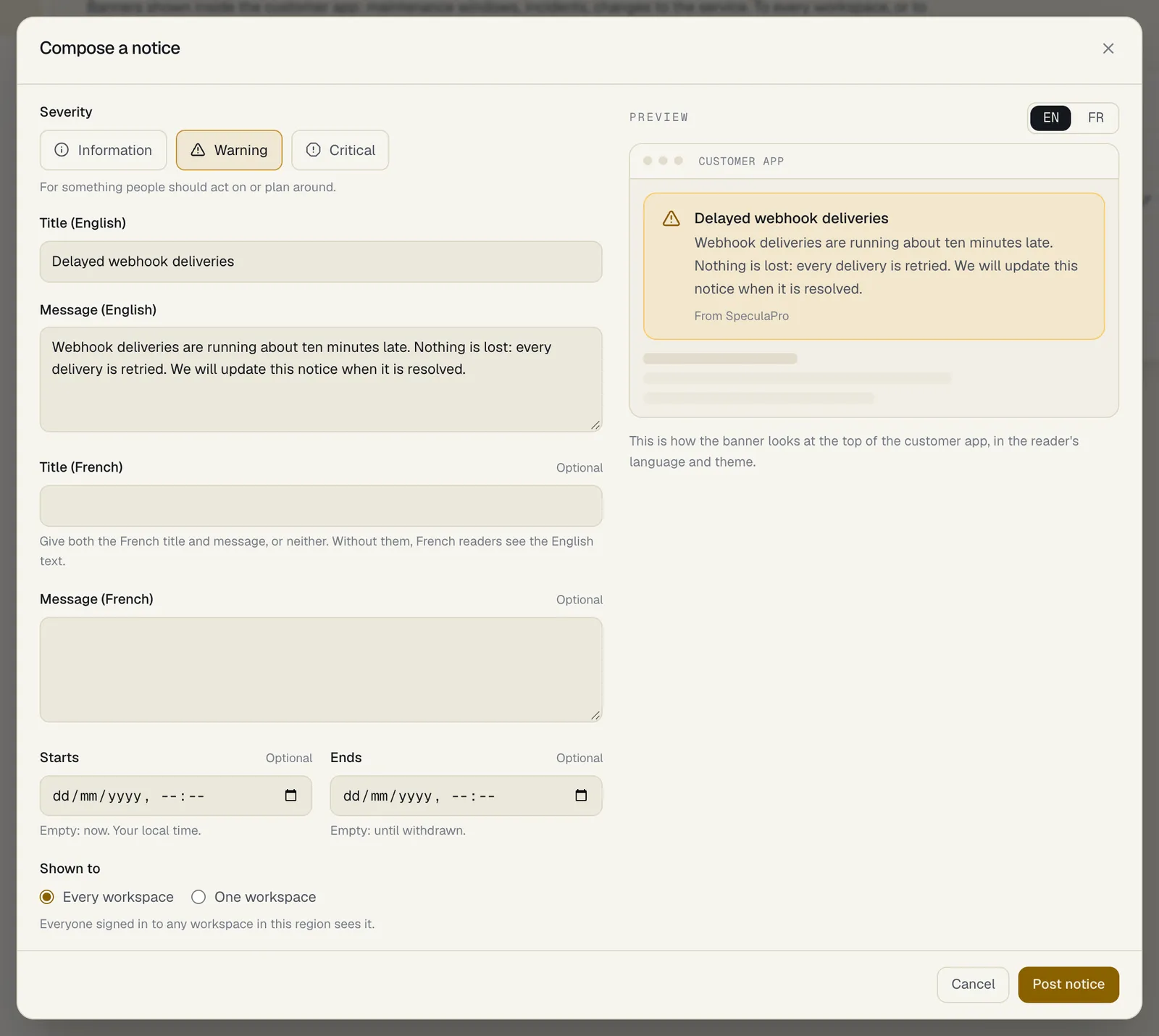
Open Notices and select Compose notice.
-
Choose the Severity:
Severity Use it for Information Planned work and news Warning Something people should act on or plan around Critical An incident affecting the service now -
Write the Title (English), up to 200 characters, and the Message (English), up to 4,000.
-
Optionally write the Title (French) and Message (French). Give both or neither. Without them, people who use the app in French see the English text.
-
Under Shown to, choose Every workspace or One workspace, and pick the workspace.
-
Optionally set Starts (empty means now) and Ends (empty means until withdrawn). The end must be after the start.
-
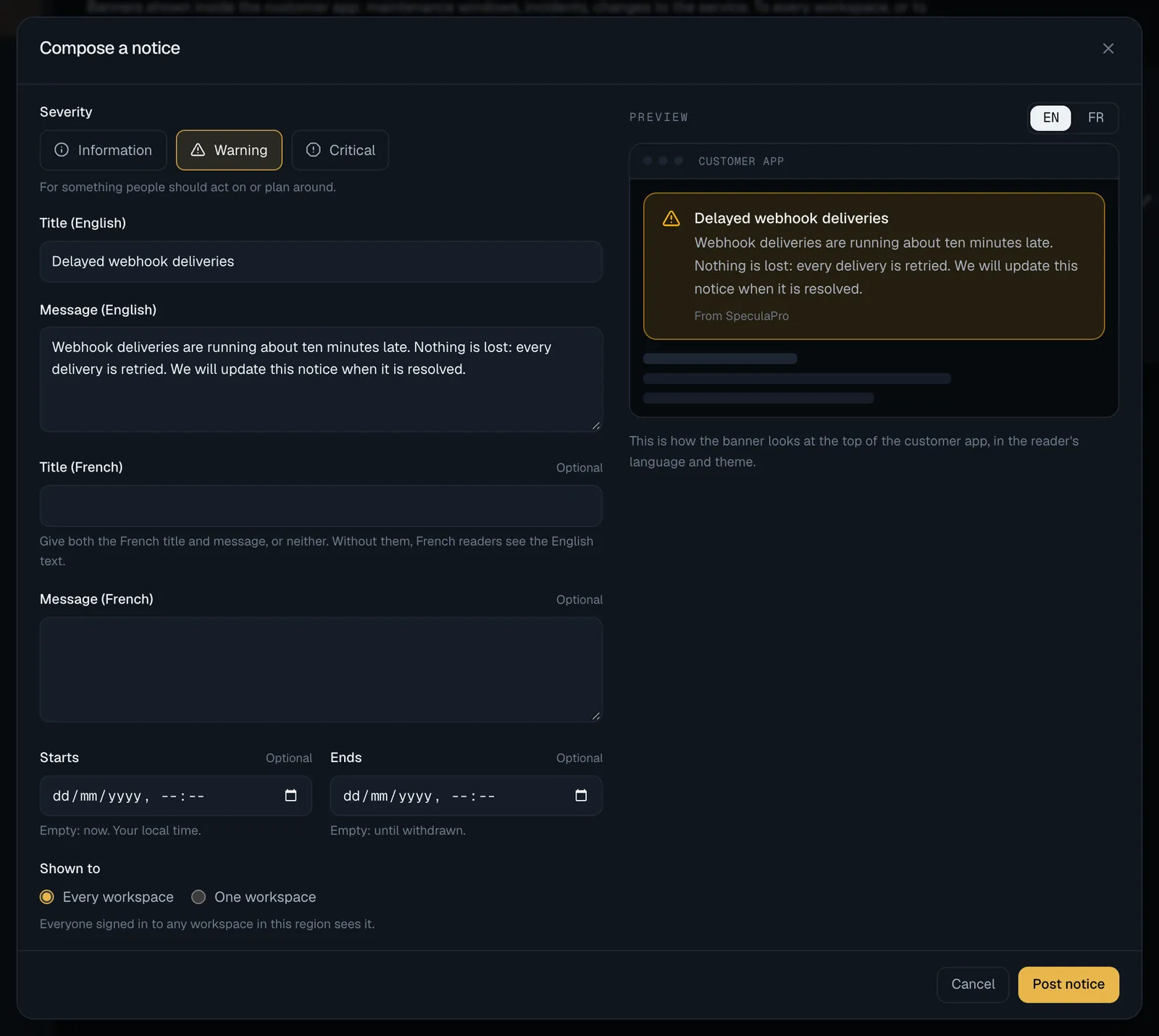
Check the Preview, which shows the banner as the customer app will draw it, in either language.
-
Select Post notice.
What the workspace sees
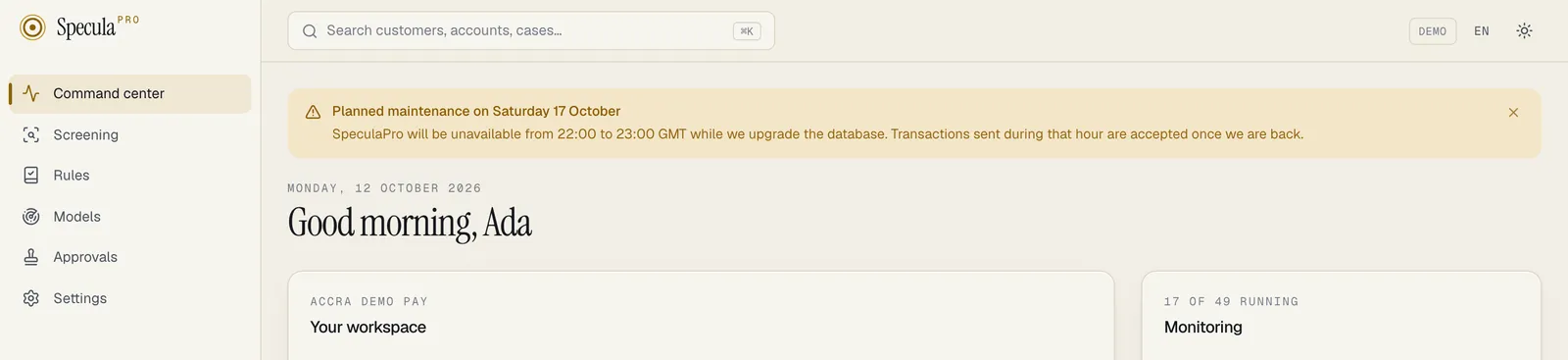
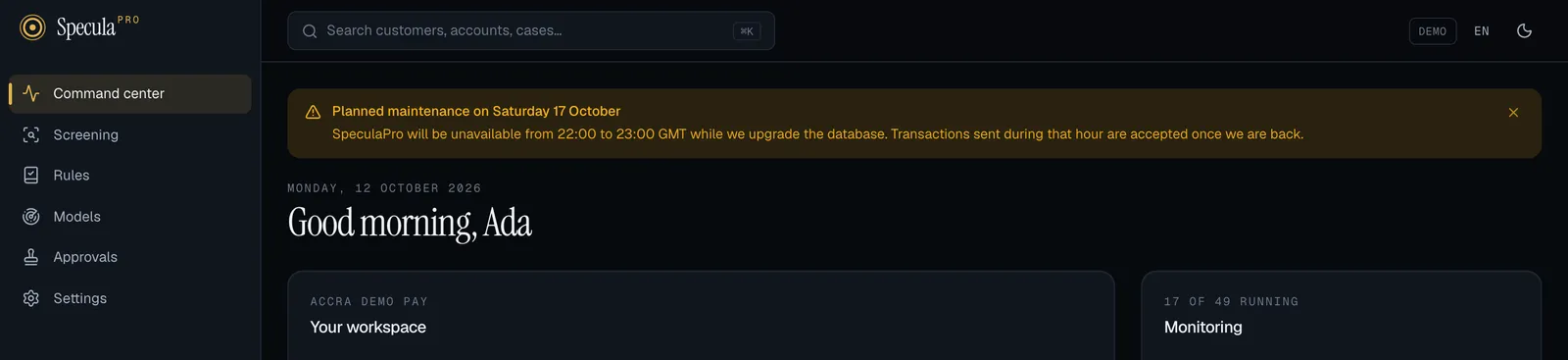
Section titled “What the workspace sees”Everyone signed in to a workspace the notice is for sees the banner at the top of the app for as long as the notice is in force. They see the title, the message and the severity. They don’t see who posted it or whether other workspaces got it. Each person can close an information or warning notice for themselves, in that browser; a critical notice stays until it ends or is withdrawn.
A notice addressed to one workspace is also written to that workspace’s own audit log:
provider.notice_posted, provider.notice_updated or provider.notice_withdrawn, with the
severity and title. A notice to every workspace is recorded in the console’s audit log only.
The list
Section titled “The list”| State | Meaning |
|---|---|
| Scheduled | Its start is in the future |
| In force | Showing now |
| Ended | Its end has passed |
| Withdrawn | Taken down by staff |
Tick Only notices in force now to hide the rest.
How to change or withdraw a notice
Section titled “How to change or withdraw a notice”- Edit changes the text, severity or dates. A withdrawn notice can’t be edited: the notice was withdrawn; post a new one.
- Withdraw takes the banner down at once. A withdrawn notice can’t be put back.