
Scheduled rules
Ce contenu n’est pas encore disponible dans votre langue.
In short
Section titled “In short”Most rules look at one transaction at a time, with running totals behind it. Some patterns can’t be seen that way: money collected from many people and paid on to many others, money that goes round a chain of accounts and comes back, an agent far busier than the agents around it. To find them, a rule has to look at many transactions and many customers at once.
A scheduled rule does that. On a timetable, for example every night at 02:00, it runs a fixed, reviewed query over the transactions stored in the database, and raises alerts for what it finds, exactly like a post-event rule.
| Post-event and real-time rules | Scheduled rules | |
|---|---|---|
| Runs | On every transaction, seconds after it arrives (post-event) or before it is approved (real-time) | On a timetable: hourly, daily or weekly |
| Looks at | One transaction, plus running totals for its customer, account and counterparty | Every transaction in a window that moved money (and, for two rules, blocked attempts too), across all customers |
| Its logic | An expression in CEL | A vetted query built into SpeculaPro. You tune its parameters; you can’t change the query |
| What a hit does | An alert (or a real-time answer) | An alert |
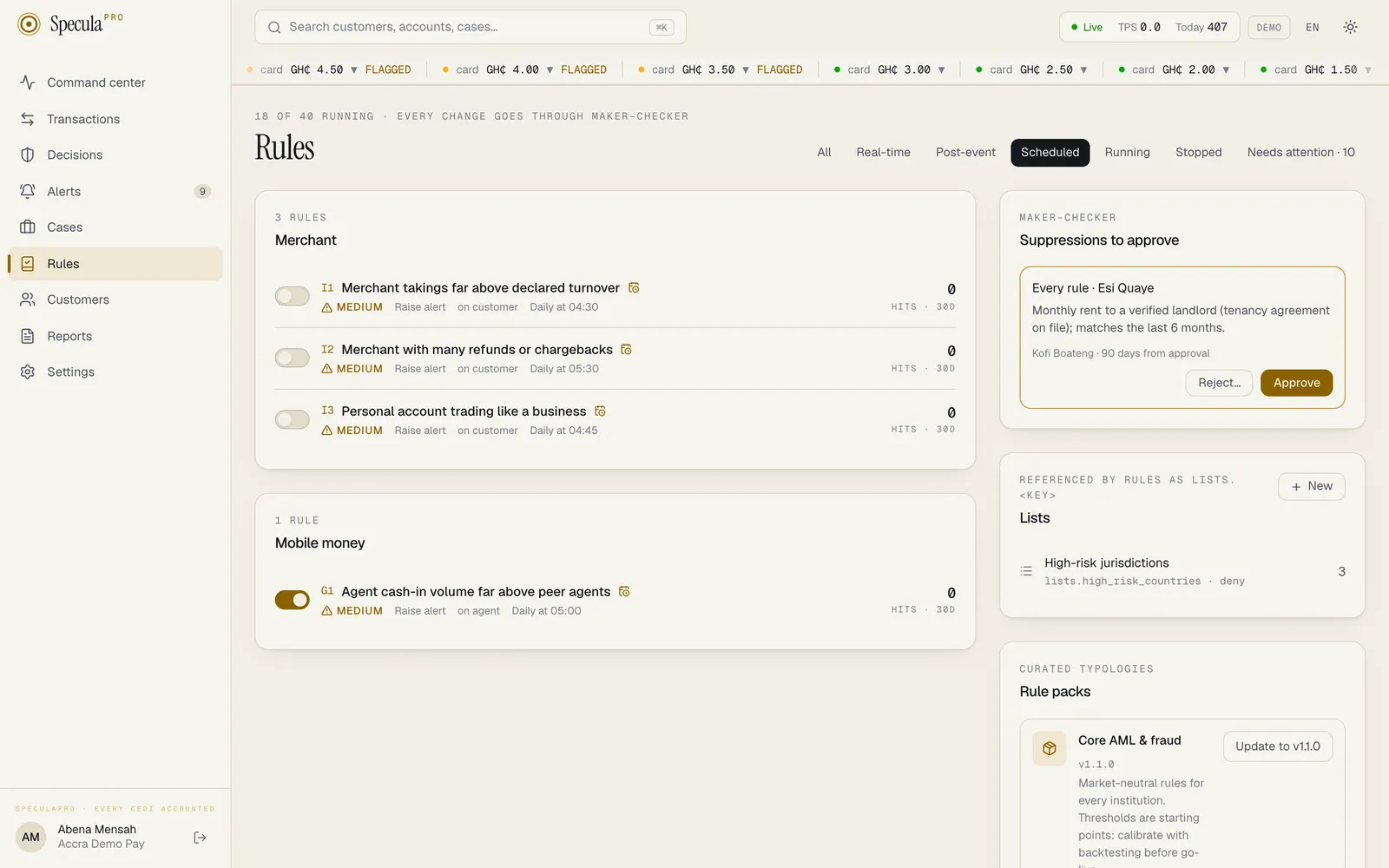
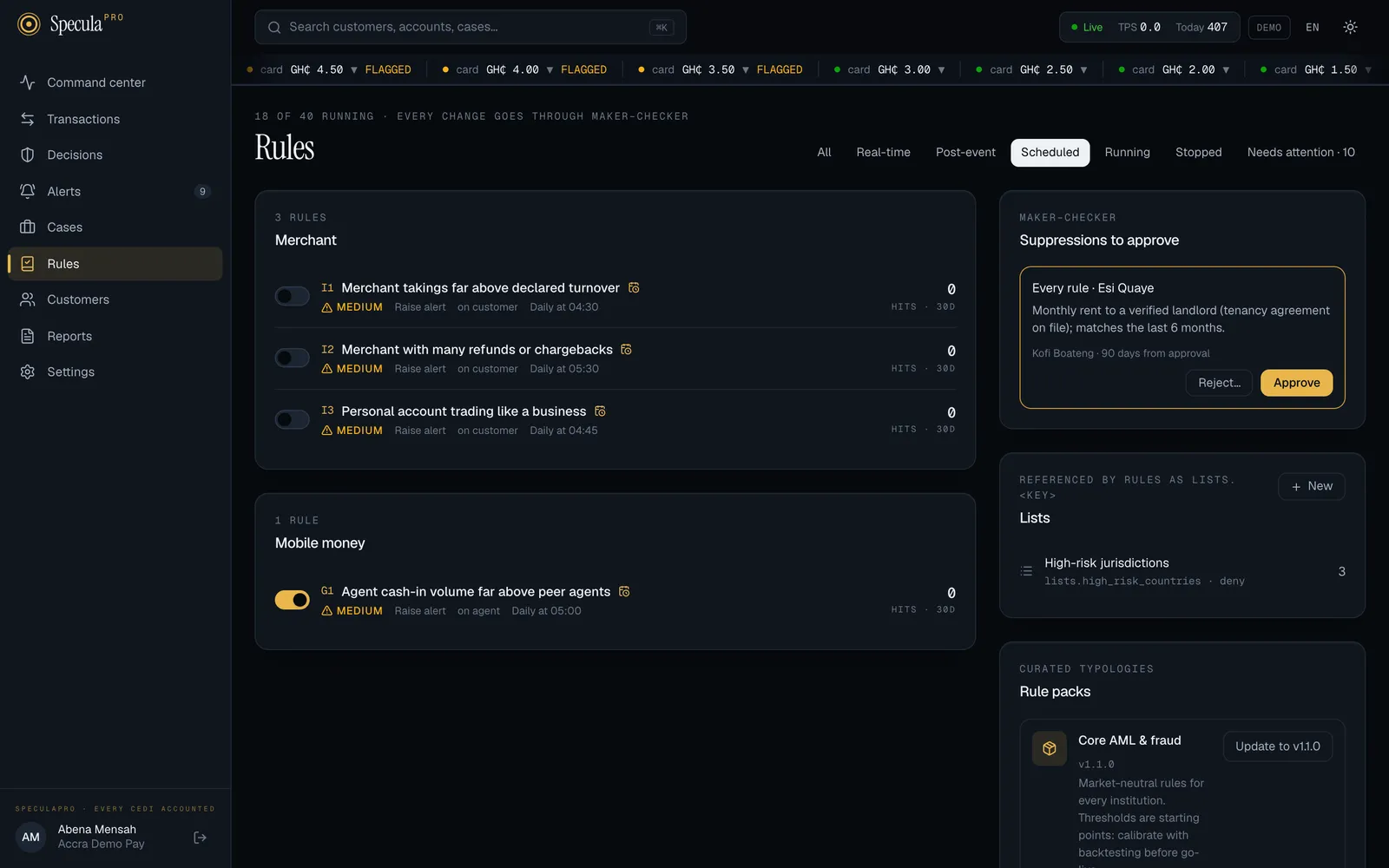
Scheduled rules are marked with a gold calendar on the Rules screen, and the Scheduled tab lists only them.
Which rules are scheduled
Section titled “Which rules are scheduled”| Rule | Pack | Runs | Looks back over (default) |
|---|---|---|---|
| D3 Collect from many, pay out to many | core |
Daily at 02:00 | 72 hours |
| D4 Money going round in a circle | core |
Daily at 03:00 | 168 hours |
| F5 Activity above the declared profile | core |
Daily at 04:00 | 30 days |
| I1 Merchant takings far above declared turnover | gh-psp, gh-bank |
Daily at 04:30 | 30 days |
| I3 Personal account trading like a business | gh-psp, gh-bank |
Daily at 04:45 | 30 days |
| G1 Agent cash-in volume far above peer agents | gh-psp |
Daily at 05:00 | 7 days |
| I4 Trade payments abroad outside the customer’s line of business | gh-bank |
Daily at 05:15 | 7 days |
| I2 Merchant with many refunds or chargebacks | gh-psp, gh-bank |
Daily at 05:30 | 30 days |
| GB1 Cash deposits split across branches | gh-bank |
Every hour at :20 | 48 hours |
The pack staggers the times so the runs don’t all start at once, and puts them at night, when the database is quiet. Times are in your workspace’s time zone.
How a run works
Section titled “How a run works”- At the scheduled time, a
workerprocess notices the rule is due. Workers check every minute, so a run starts within about a minute of its slot. If you run several workers, exactly one of them takes each run. - It reads the history: every completed transaction from one rule window before the slot up to the slot. For D3, a run at 02:00 reads the 72 hours up to 02:00. Pending and failed transactions aren’t counted. Blocked attempts are counted only where the attempt is itself the suspicious act: GB1 (cash split across branches, since a deposit split to stay under the threshold is structuring whether or not it went through) and I4 (a payment abroad outside the customer’s sector). The other scheduled rules measure money that actually moved, which a blocked payment didn’t. Post-event rules see blocked attempts too; see Real-time decisions.
- It finds the subjects that match the pattern with your parameters, for example accounts that collected from at least 10 senders and paid at least 10 recipients.
- It leaves out subjects it flagged recently. A subject this rule already flagged within the last rule window isn’t flagged again, so a pattern that is still visible the next night doesn’t raise a second alert every run.
- It applies suppressions and raises alerts for the rest, exactly as post-event hits do: each hit joins the subject’s open alert, or starts one. The hit’s time is the slot time. Each hit keeps the transactions behind it (the newest 50) and the window it covered, so an analyst can see the evidence.
Only rules that are running are scheduled. Both the live version and a shadow version run, each on its own; a shadow version’s hits are recorded but raise no alerts.
The runs table
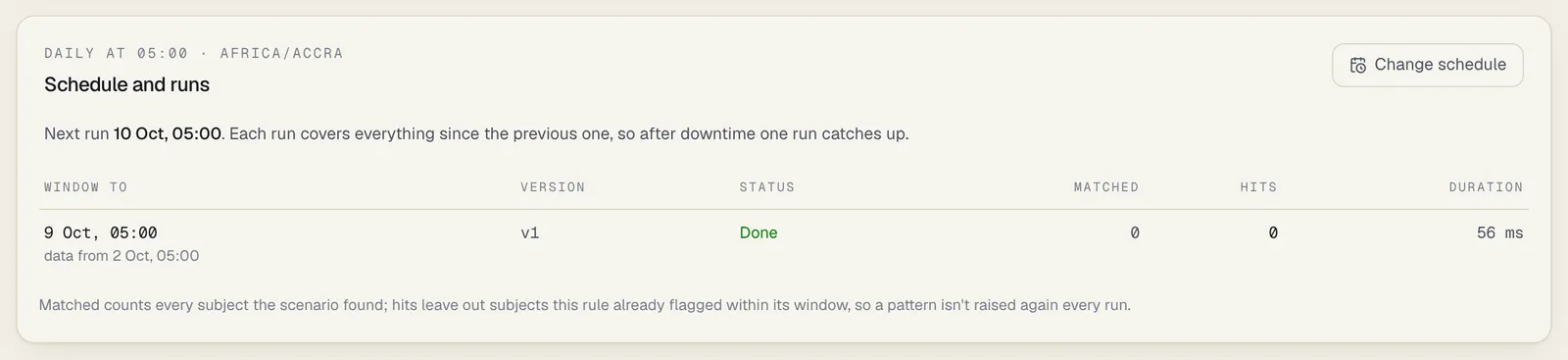
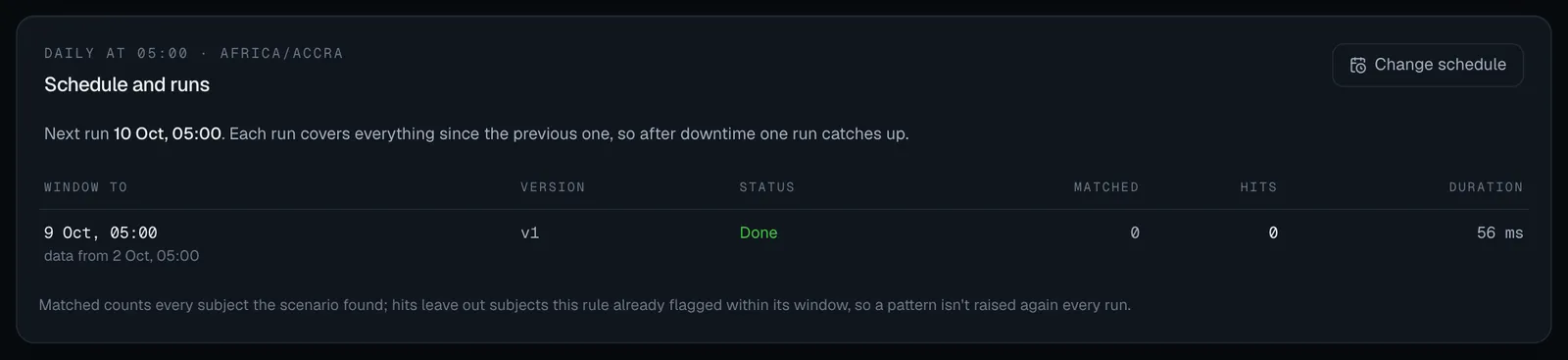
Section titled “The runs table”A scheduled rule’s page has a Schedule and runs panel under its header. Its heading shows the schedule and your time zone, for example Daily at 02:00 · Africa/Accra. Below it:
- Next run and its date and time, while the rule is running. A stopped rule says Stopped: start the rule to run it on schedule.
- The latest runs, newest first:
| Column | Shows |
|---|---|
| Window to | The slot the run was for, and data from the earliest transaction time it read. catch-up marks a run that covered missed slots; (cut at limit) means the gap was longer than 31 days |
| Version | The version that ran, and shadow for a shadow version |
| Status | Done, Running or Failed, with the number of attempts and, when it failed, the reason |
| Matched | Every subject the query found |
| Hits | Hits written, leaving out subjects flagged within the last window. N suppressed counts those a suppression swallowed |
| Duration | How long the run took |
The same information is available through the API: GET /api/v1/rules/{id}/runs. See
Rules API.
Missed runs and catch-up
Section titled “Missed runs and catch-up”If no worker was running at a slot, for example during maintenance, SpeculaPro doesn’t run once per missed slot when it comes back. It runs once, covering everything since the last successful run: from one rule window before the first missed slot up to the latest slot. The run is marked catch-up. Nothing is skipped and nothing is counted twice.
A gap of more than 31 days is cut to the last 31 days, and the run is marked (cut at limit). Patterns entirely in the earlier part aren’t searched.
A run that fails (for example because the database was unavailable, or it hit the 5-minute limit) is tried again, and its attempts count goes up. A run whose worker stopped mid-run is given up after about 11 minutes and tried again. Because each hit has a fixed ID for its rule version, subject and window, a retry never creates a hit twice.
A version that keeps failing backs off. After one failure it is tried again at the next check, in case a worker simply restarted. After the second failure in a row it waits 2 minutes, then 4, 8 and so on, up to 6 hours between tries. A successful run clears the back-off. While a version is backing off, the Schedule and runs panel says so in red: The last 3 runs failed, so this rule waits before trying again: next try …, with the last error. Its windows aren’t checked meanwhile, so it falls behind; the next successful run catches up as above.
How to change when a rule runs
Section titled “How to change when a rule runs”Who can do it: rules.approve (by default the Rule approver and the MLRO).
- Open the rule’s page from the Rules screen.
- In Schedule and runs, select Change schedule.
- Choose Hourly, Daily or Weekly, then the minute past the hour, or the time (and for weekly, the day). The time is in your workspace’s time zone, shown next to the field.
- Select Save schedule.
The new timetable takes effect from the next slot. The next run still covers everything since the
last one, so changing the schedule never skips data. Unlike a change to its parameters, a schedule
change isn’t a new rule version and needs no second approval, but it is recorded in the audit log
as rule.schedule, with the schedule before and after.
Through the API, send PUT /api/v1/rules/{id}/schedule with one of these:
| Schedule | Means |
|---|---|
hourly |
Every hour, on the hour |
hourly :20 |
Every hour, at 20 minutes past |
daily 02:00 |
Every day at 02:00 |
weekly mon 03:30 |
Every Monday at 03:30. Days are mon, tue, wed, thu, fri, sat, sun |
Anything else is refused with schedule “…”: use “hourly”, “hourly :MM”, “daily HH:MM” or “weekly DAY HH:MM” (DAY = mon … sun).
How to tune a scheduled rule
Section titled “How to tune a scheduled rule”Use Tune on the rule’s page, as for any other rule: see Tuning a rule. The new version goes through four-eyes approval, and you can shadow test it. Edit isn’t offered: the visual rule builder can’t open a scheduled rule, because its logic isn’t an expression.
The values you can enter are limited twice: by the rule’s own form, and by hard limits built into the query. A value outside a hard limit is refused when you save, for example params.window_hours must be at most 720. You can’t write your own scheduled rule.
How to test a change before it goes live
Section titled “How to test a change before it goes live”Use the Backtest panel on the rule’s page. It simulates every run of the rule’s schedule over
the period you choose, each run reading only what had happened by its own run time, and sets what
the version would have raised next to what the rule actually raised. You can test any saved
version, with other parameter values if you like, and on another schedule than the rule’s own
(hourly instead of nightly, say) without changing the rule. It needs rules.backtest (by default
the Rule author, Rule approver and MLRO). See
Backtesting a scheduled rule.
Scheduled rules and the database
Section titled “Scheduled rules and the database”Scheduled runs read the same database the rest of SpeculaPro writes to. Each run reads only your workspace’s transactions in its window, and every run stops after 5 minutes. Keep the defaults staggered at night, watch run durations in the runs table, and see Monitoring for the metrics a self-hosted operator can alert on.
On an installation with the optional analytics store, two rules can read their window from it instead: I2 (merchant refunds and chargebacks) and I3 (personal account trading like a business), when the window is 30 days or longer. SpeculaPro uses the store for a run only if it holds your workspace’s history from the start of that run’s window and has received everything ingested up to the moment the run starts. This doesn’t depend on your workspace having recent transactions. Otherwise, and whenever the store can’t be reached, the run reads the main database as usual. The findings, hits and alerts are the same and are always written to the main database. Every other scheduled rule looks at connections between customers, accounts and counterparties, and always reads the main database.