
Screening providers
Ce contenu n’est pas encore disponible dans votre langue.
In short
Section titled “In short”The built-in lists are sanctions lists. Nobody publishes an official list of politically exposed persons (PEPs), their relatives and associates, or of adverse media. That data is compiled by providers, some commercial, some open, and your institution takes out its own licence with one.
SpeculaPro can ask a provider about each new or changed customer and counterparty, in addition to checking its own lists. Whatever the provider returns is scored and explained by SpeculaPro’s own matching engine, so a potential match looks the same wherever it came from.
Which providers work
Section titled “Which providers work”| Provider | Key | State | Credentials | Notes |
|---|---|---|---|---|
| OpenSanctions (yente) | opensanctions |
Works | API key for the hosted service; none for your own yente server | Your own yente instance (give its address) or the hosted API at api.opensanctions.org. You can choose the dataset (default if you give none). Commercial use needs an OpenSanctions licence |
| ComplyAdvantage | complyadvantage |
Works | API key | Uses the documented searches API. Give a regional address such as https://api.us.complyadvantage.com if your account is not on the default host |
| LSEG World-Check One | worldcheck |
Works, verify before relying on it | API key and API secret | Needs your group id. The connection follows publicly available material; field ids and result fields have not been checked against LSEG’s customer documentation, and your group’s case template may differ. Test it with your account before go-live |
| Dow Jones Risk & Compliance | dowjones |
Not available | The vendor’s API documentation is for customers only. The connection has not been written | |
| LexisNexis Bridger Insight XG | bridger |
Not available | As above | |
| Moody’s Grid | moodys_grid |
Not available | As above |
The three working connections were written from each provider’s public documentation and tested against simulated answers, not against live accounts. Test yours with a name you know is in the provider’s data before relying on it.
When a provider is called
Section titled “When a provider is called”| Situation | Lists | Providers |
|---|---|---|
| A customer is created or its screened details change | Yes | Yes |
| A counterparty’s record is first written, or its name, country or type changes | Yes | Yes |
Someone with screening.manage screens one customer or counterparty on demand (API) |
Yes | Yes |
| Someone screens a name on demand (API) | Yes | Only when the request asks for it, and only for someone with screening.manage |
| A provider could not be reached earlier and the retry is due | Yes | Yes |
| A list changes | Yes | No |
| Re-screen everyone | Yes | No |
So a full re-screen never runs up a provider bill, but it also does not refresh provider results. A person is asked about again at the provider when their own details change, when someone screens them on demand, or when an earlier call failed and is retried.
What is sent to a provider
Section titled “What is sent to a provider”For each person or organisation: the name, the kind (person or organisation), the date of birth and the country or nationality, where SpeculaPro holds them and the provider’s search takes them (ComplyAdvantage gets the year of birth only). ComplyAdvantage and World-Check One also receive SpeculaPro’s internal id for the subject, as a reference, and World-Check One saves a case on your account for each search.
ID numbers are not sent.
A provider is a recipient of personal data, usually in another country. Add it to your record of processing and cross-border transfers. This is not legal advice; confirm with counsel.
What comes back
Section titled “What comes back”Each candidate the provider returns is compared with your subject by SpeculaPro’s matching engine. Candidates scoring at or above your threshold become potential matches, with:
- the source
provider:<key>, for exampleprovider:opensanctions; - categories from the provider:
sanction,pep,pep_rca(relative or close associate),adverse_media,watchlistorother; - the provider’s own answer, kept in full with the potential match.
The provider’s own score is not used for the decision.
When a provider can’t be reached
Section titled “When a provider can’t be reached”A provider that can’t be reached, or that refuses the credentials, is not silently skipped. For each person it could not be asked about:
-
The person is still screened against your lists, and matches from providers that did answer are recorded as usual.
-
The person is recorded as not fully screened, with the provider’s error.
-
The provider’s earlier potential matches on that person stay open. Nothing is known about them, so nothing is closed.
-
The worker asks again, with a growing wait between attempts:
Attempt Wait before it First retry 1 minute Second 2 minutes Third 4 minutes Each one after Double the wait before, up to 6 hours From then on Every 6 hours, for as long as the provider stays set up -
When the provider answers, the person is fully screened and the retry is over.
Other things to know:
- One bad provider doesn’t stall a pass. After three failures in a row in one worker pass, the provider is left alone for the rest of that pass (not asked: the provider failed repeatedly in this pass). The people it was not asked about are retried later like the others.
- A lists-only re-screen doesn’t cancel a retry. A list change or Re-screen everyone screens the person against the lists and leaves the pending provider retry due.
- Removing or switching off the provider ends the retries. With no provider left to ask, the person is no longer waiting. So do turning off screening for customers or counterparties, for that group.
- On-demand screening tells you at once. Screening a customer or counterparty through the API
answers
"incomplete": truewith the provider’s error inerrors. See Screen a subject now.
Where you see a failure: the provider’s last error in the Screening providers panel, and the
errors of an on-demand screening. Operators see the number of people waiting for a retry in the
metric speculapro_screening_provider_retries_pending and the alert
SpeculaProScreeningProviderErrors. See
Screening lists for operators.
How to connect a provider
Section titled “How to connect a provider”You need screening.manage. Without it, the Connect a provider, Edit and remove buttons
aren’t shown. Connecting, changing or removing a provider can need a second person’s
approval: you are then asked for a reason, and the change waits
under Approvals.
-
Sign your licence with the provider and get your API credentials.
-
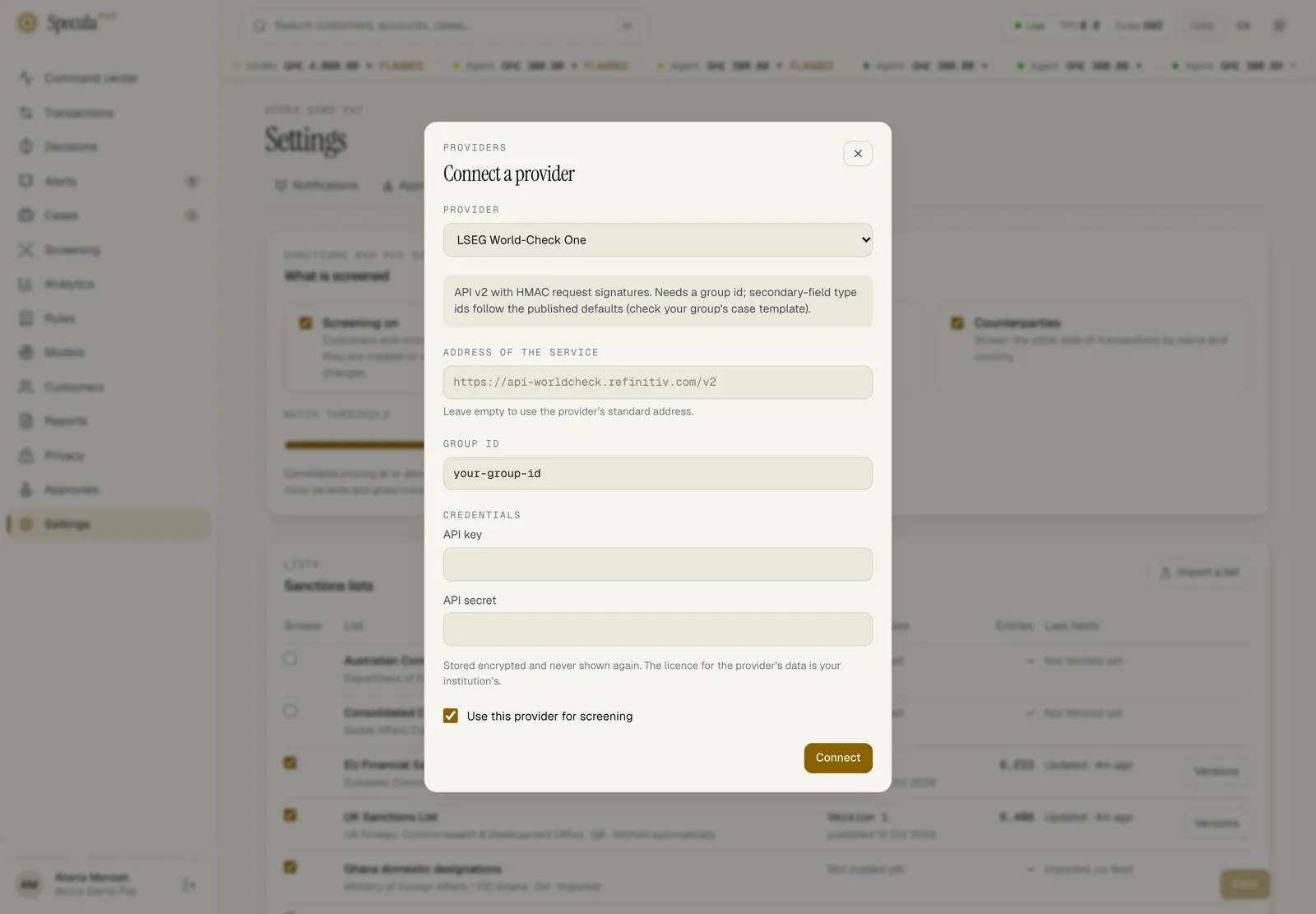
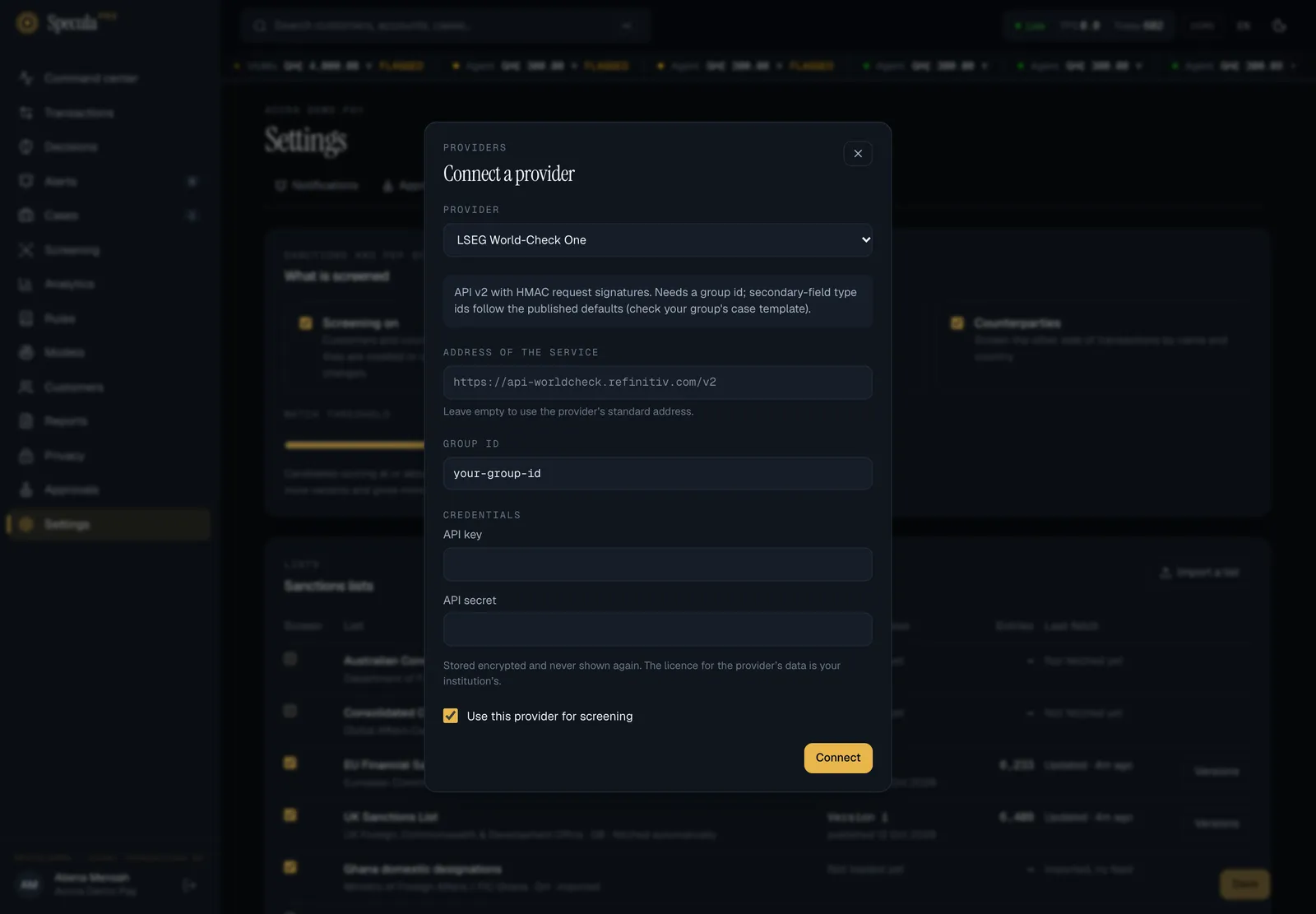
Open Settings → Screening. In the Screening providers panel, select Connect a provider.
-
Choose the Provider. Providers marked Not available yet can’t be chosen, and one your workspace has already connected is marked already connected. A note under the list describes the connection.
-
Fill in the rest:
Field What to enter Address of the service Leave empty to use the provider’s standard address, shown greyed in the field. Enter an address for your own yente server, or a regional host your provider gave you. It must be https; see Network rulesData to search (OpenSanctions only) Everything (sanctions, PEPs and more), Sanctions only or PEPs only Group id (World-Check One only) Your group’s id from LSEG. Required Credentials API key for OpenSanctions and ComplyAdvantage; API key and API secret for World-Check One. Your own yente server needs none: leave the key empty Use this provider for screening Ticked: the provider is asked about new and changed customers and counterparties. Clear it to keep the configuration and switch the provider off -
Select Connect. If approval applies, give the reason when asked.
-
In the Screening providers panel, check that the provider shows On and credentials stored.
-
Test it by screening a name you know the provider holds, through the API with
"providers": true. See Screen a name. Provider failures come back inerrors.
The standard addresses are https://api.opensanctions.org, https://api.complyadvantage.com and
https://api-worldcheck.refinitiv.com/v2.
A workspace has at most one configuration per provider.
How to change a provider
Section titled “How to change a provider”- In the Screening providers panel, select Edit on the provider’s row.
- Change the address, the data to search or the group id, or clear Use this provider for screening to switch it off.
- Leave the credential fields empty to keep the stored ones: they read Stored. Leave empty to keep it. Type a new value only to replace one.
- Select Save.
You can’t change which provider a configuration is for. Remove it and connect the other one.
How to remove a provider
Section titled “How to remove a provider”- In the Screening providers panel, select the remove button (the bin) on the provider’s row.
- Confirm Remove …? Its stored credentials are deleted and it stops being used for screening.
Potential matches already recorded from the provider stay, and pending retries for it end.
A provider for the whole installation has no Edit or remove button: only the operator changes it.
Through the API
Section titled “Through the API”The same three actions through the API:
curl -X PUT "https://speculapro.example/api/v1/screening/providers" \ -H "Content-Type: application/json" \ -H "X-Change-Reason: Hosted%20OpenSanctions%20for%20PEPs" \ -H "Origin: https://speculapro.example" \ -b cookies.txt \ -d '{ "provider": "opensanctions", "enabled": true, "config": {"base_url": "https://api.opensanctions.org", "dataset": "default"}, "credentials": {"api_key": "<your key>"} }'200returns the provider’s id.202means the change is waiting for approval.- Saving again replaces the configuration. Leave
credentialsout to keep the stored ones. - Off: send the same
PUTwith"enabled": false. Remove:DELETE /api/v1/screening/providers/{id}. - A workspace’s configuration has no data URL: that field is for the installation-wide data
feed, which the operator sets. Sending one is refused with
422, a data URL is for the installation-wide provider feed, which the operator sets.
The fields are described in the Screening API.
Troubleshooting
Section titled “Troubleshooting”| What you see | Why | What to do |
|---|---|---|
| No Connect a provider button | You don’t hold screening.manage |
Ask an administrator |
| The provider you want is greyed out, Not available yet | The connection to that provider has not been written | See Which providers work |
| The address is refused | It isn’t https, or it points at a private network |
See Network rules |
| The provider shows On with an error under it | The last call failed: often a wrong key, address or group id | Select Edit, correct it and save. People not fully screened are retried |
| The provider shows no credentials | None were stored | Select Edit and enter them. Only your own yente server works without |
| A banner says a change is waiting | Approval applies | Someone else with screening.approve decides it under Approvals |
A provider for the whole installation
Section titled “A provider for the whole installation”On a self-hosted installation, the operator can set a provider up once for every workspace, from the command line. One licence then covers the installation.
- Every workspace without its own configuration of that provider uses the installation’s. A workspace that saves its own configuration for the same provider uses its own instead.
- It appears in each workspace’s panel as for the whole installation, read-only. A workspace
cannot change or remove it (
404). - For OpenSanctions, the operator can also switch on the data feed: the worker loads the
provider’s bulk data into a list named
provider:opensanctionsand applies its changes every six hours. Workspaces tick that list under Settings → Screening like any other list. - It is not available on the hosted service, where a provider licence belongs to one institution: each workspace sets up its own.
How to set one up: Screening lists for operators.
How credentials are kept
Section titled “How credentials are kept”- Credentials are encrypted with the installation’s encryption keys before they are stored.
- They are never returned by the API or shown in the app. You see only whether some are stored.
- While a change waits for approval, the credentials in it are sealed too.
- The audit log records that credentials changed, never their value.
Network rules
Section titled “Network rules”- The provider’s address must be
https. - An address on a private network,
localhost, or a name ending.internalor.localis refused, to stop the server being pointed at internal systems. - A self-hosted operator who runs yente on their own network sets
SP_SCREENING_ALLOW_PRIVATE=true, which allows private addresses and plainhttp. Cloud metadata and link-local addresses stay refused. See Screening lists for operators.
What is not available yet
Section titled “What is not available yet”- Dow Jones, Bridger and Moody’s Grid, as above.
- Setting up an installation-wide provider in the app. The operator uses the command line.
- An installation-wide provider on the hosted service, and a data feed for any provider other than OpenSanctions.
- A list of the people waiting for a provider retry. The count is an operator metric; a person’s own state shows when you screen them on demand.
- A connection test button. Test with an on-demand name search, as above.